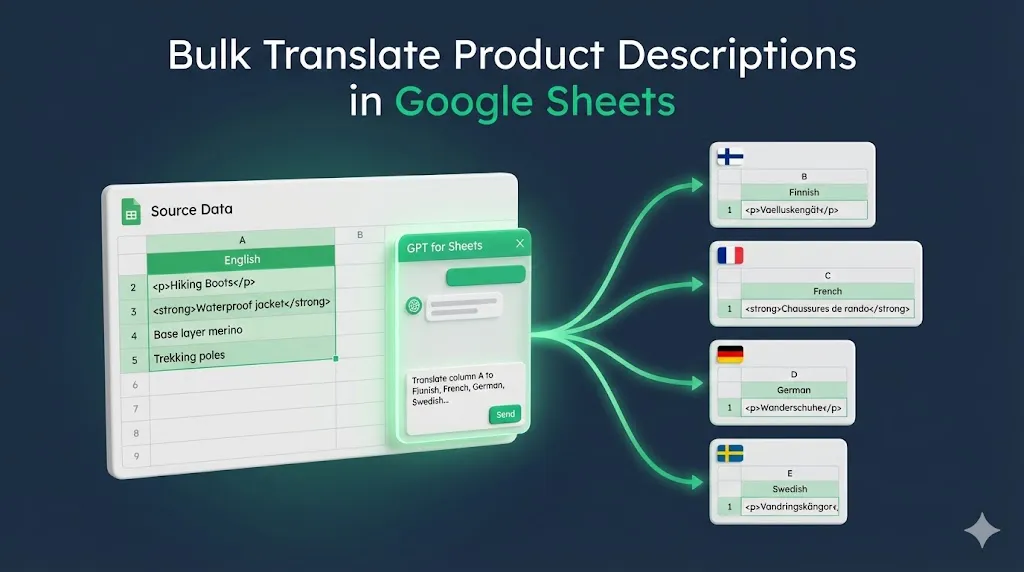
Expanding your e-commerce store into new markets means translating hundreds — sometimes thousands — of product descriptions. Doing this manually is slow and expensive. Hiring translators doesn't scale. And generic machine translation often misses the nuances that make your product copy compelling.
The GPT for Sheets Agent, an AI assistant for Google Sheets, offers a better approach. Describe what you need in plain language, and the Agent translates your content in bulk and across multiple languages in a single run. It can preserve your HTML formatting and adapt the tone for your target audience.
In this guide, you'll learn how to translate 50 product descriptions from English into Finnish, French, German, and Swedish using the Agent. You'll write an effective prompt and run the entire batch in minutes.
No formulas. No scripts. No copy-pasting.
Tip: The Agent is also available in GPT for Excel. You can do the same bulk translation in an Excel workbook.
Who this is for
This workflow is especially useful for:
- E-commerce and marketplace teams
- International marketing teams
- SEO and content operations teams
- Anyone managing multilingual product catalogs in Sheets
If you already work in Google Sheets, this fits directly into your existing workflow.
What you'll need
Before you start, make sure you have:
- GPT for Sheets installed. If you haven't installed it yet, get GPT for Sheets here and follow the quickstart guide to set it up.
- A Google Sheet with your source content. This tutorial uses product descriptions in column A.
Want to jump straight in? Grab the template with sample data and follow along, or keep reading for the full walkthrough.
The use case: Translating e-commerce product descriptions
You manage an outdoor gear e-commerce store and need to expand into four new markets: Finland, France, Germany, and Sweden. Your product catalog includes 50 items — hiking boots, jackets, base layers, and accessories — each with a detailed HTML-formatted description.
Your goals:
- Translate all 50 descriptions into Finnish, French, German, and Swedish.
- Preserve the HTML tags in each description so the content is ready to upload to your CMS.
- Maintain a confident, marketing-oriented tone suitable for outdoor enthusiasts.
- Optionally, ensure technical terms (like "Gore-Tex", "EVA midsole", and "waterproof membrane") are translated consistently using your approved terminology.
The Agent can handle this bulk translation in a single run. For glossary enforcement, you can add an optional post-processing step using a bulk tool.
Step 1: Prepare your source content in Google Sheets
Start by setting up your source data in a Google Sheet.
- Create a new Google Sheet.
- Rename the first sheet to
Content. - In cell
A1, enterEnglishas the column header. - In cells
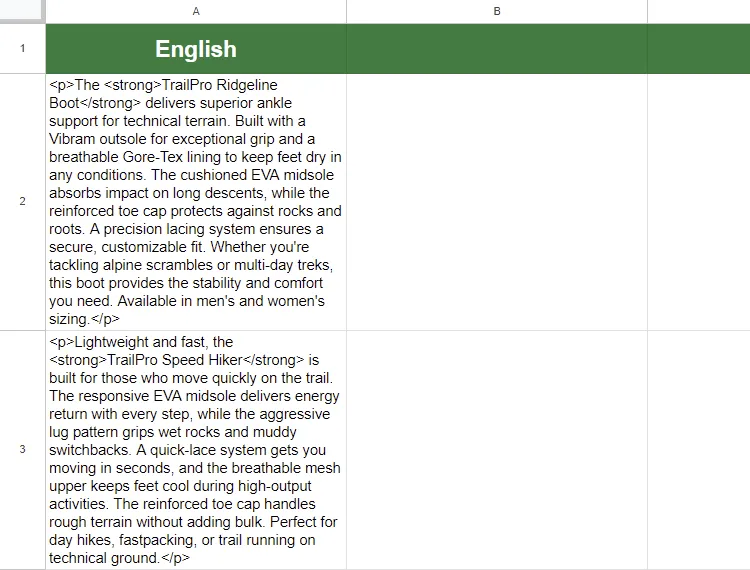
A2throughA51, enter your 50 product descriptions. Each description should include HTML tags (such as<p>and<strong>) if you want the Agent to preserve them in the output.
Your sheet should look like this:
Step 2: Open the GPT for Sheets Agent
With your data prepared, it's time to open the Agent.
- Make sure you're on the
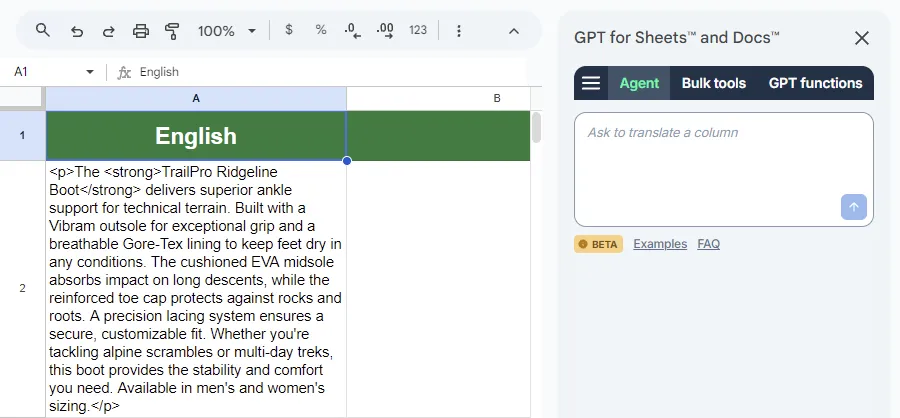
Contentsheet (the one with your product descriptions). - In the menu bar, select Extensions > GPT for Sheets and Docs > Open.
The GPT for Sheets sidebar opens on the right side of your screen, with the Agent selected by default.
Step 3: Write your prompt
The prompt tells the Agent exactly what to do. A well-written translation prompt includes the task, the target languages, and any rules for handling formatting or tone.
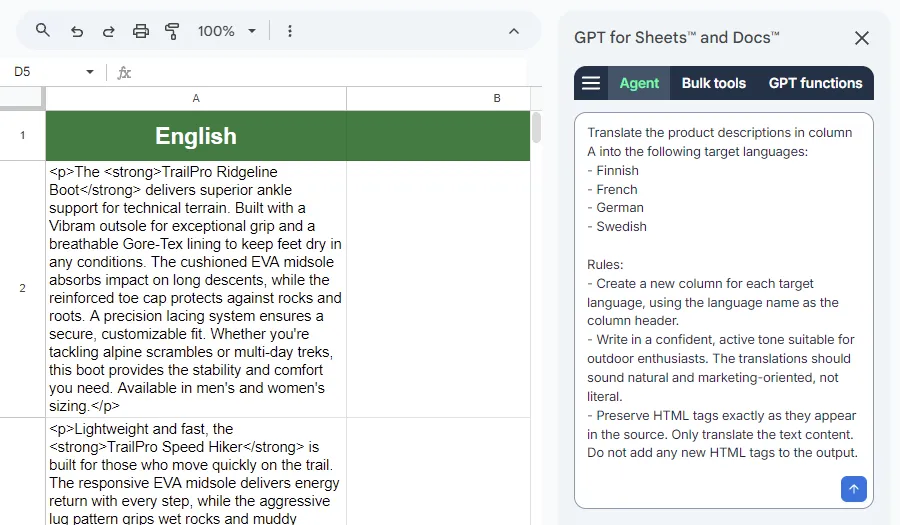
Enter the following prompt in the Agent chat:
Translate the product descriptions in column A into the following target languages:
- Finnish
- French
- German
- Swedish

Rules:
- Create a new column for each target language, using the language name as the column header.
- Write in a confident, active tone suitable for outdoor enthusiasts. The translations should sound natural and marketing-oriented, not literal.
- Preserve HTML tags exactly as they appear in the source. Only translate the text content. Do not add any new HTML tags to the output.
What the rules do:
Rule | Purpose |
|---|---|
Target languages | Specifies exactly which languages to translate into |
New column per language | Tells the Agent to structure the output in columns B, C, D, E |
Tone guidance | Ensures translations sound natural for your audience, not robotic |
HTML preservation | Prevents the Agent from stripping or modifying your markup |
Step 4: Run the GPT for Sheets Agent
Click the send button to submit your prompt.
The Agent will:
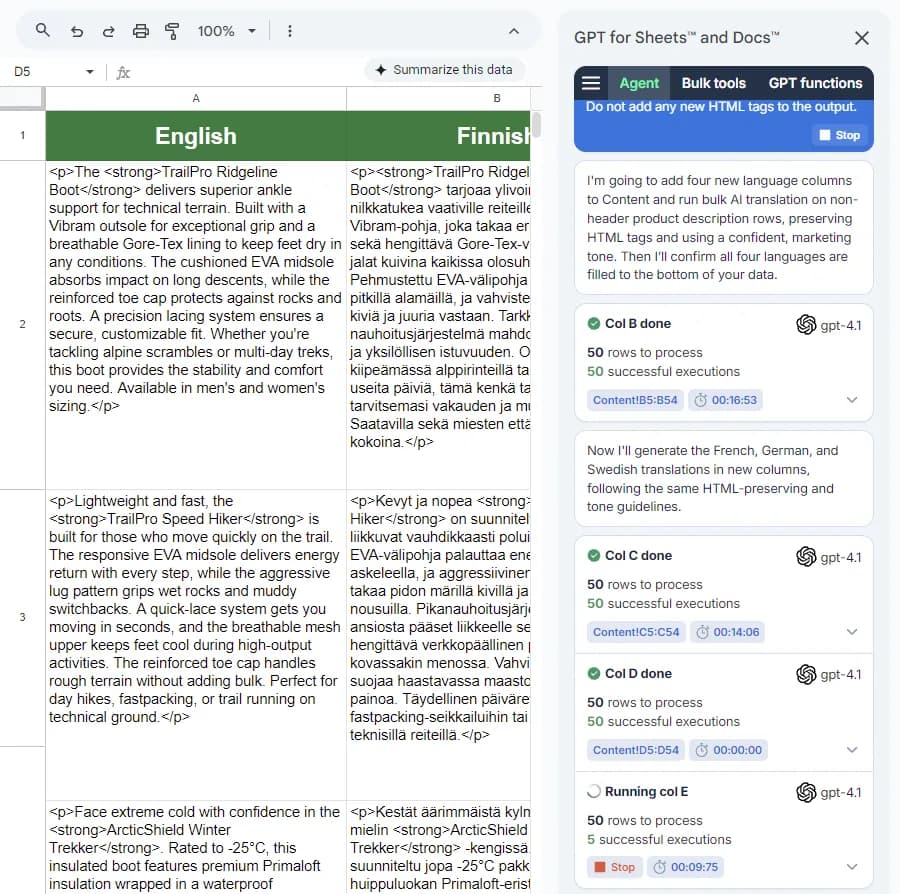
- Analyze your request and draft a plan for executing it based on your prompt and spreadsheet data.
- Process the data row by row, translating each product description into all four target languages.
You'll see the Agent's progress in the sidebar as it works through your content.
Note: Processing 50 rows across four languages may take a couple of minutes depending on the complexity of your descriptions.
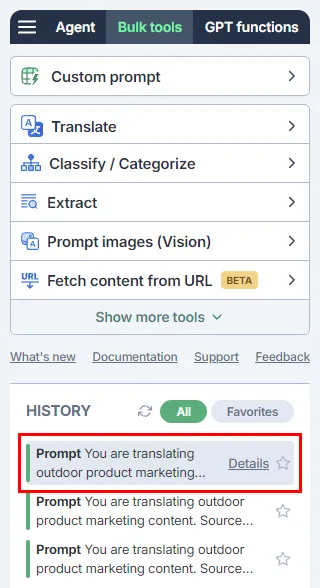
Tip: Behind the scenes, the Agent uses the Custom prompt bulk tool to perform the translations — one tool run per target language. These runs are saved to your bulk tool history, so you can reuse them later.
Step 5: Review the results
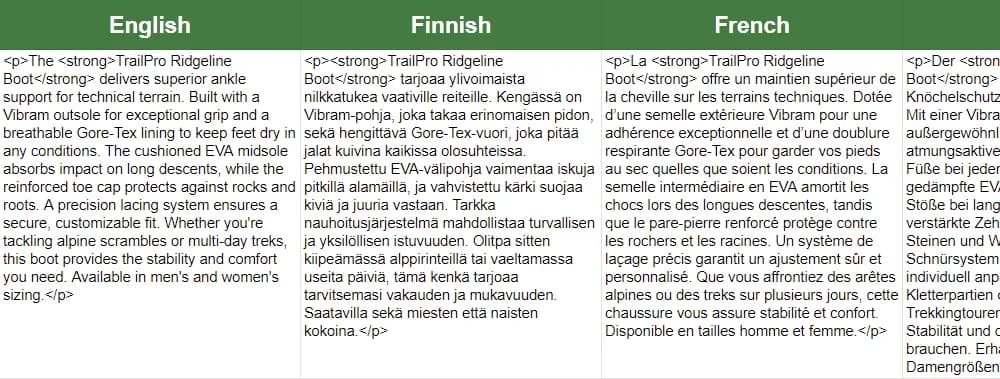
Once the Agent finishes, your sheet will have four new columns, one for each target language:
Things to check:
- HTML tags preserved: Any HTML tags, such as
<p>or<strong>, should appear exactly as in the source. - Tone and fluency: Read a few translations to ensure they sound natural and marketing-appropriate.
At this point, your translations are complete. If you need consistent terminology for technical terms, continue to the optional glossary enforcement step below.
Optional: Enforce a translation glossary
For product feeds where terminology consistency matters — especially with technical terms like "EVA midsole" or "waterproof membrane" — you can enforce a glossary on your translations using the Custom prompt or Translate bulk tool. Here, you'll reuse the Agent's Custom prompt runs.
This step is more hands-on than the main workflow, but it gives you full control over terminology.
Part 1: Create your translation glossary
- Add a new sheet to your spreadsheet and rename it to
Glossary. - Set up a column for each language:
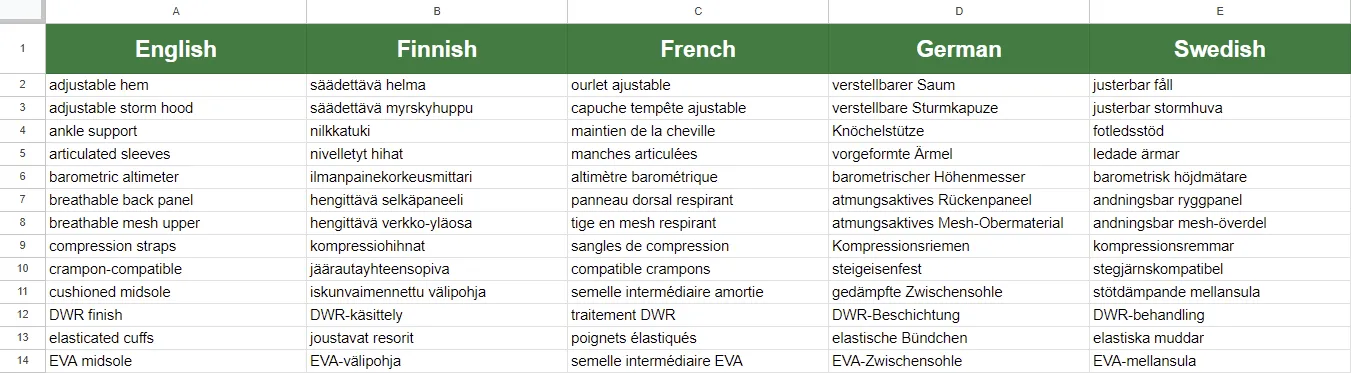
A1:EnglishB1:FinnishC1:FrenchD1:GermanE1:Swedish
- Add your glossary terms starting in row 2. Include technical fabric names, product components, and any brand-specific terminology.
Your sheet should look like this:
Tip: You don't need to include every word. Focus on technical terms, product categories, and any terminology where consistency matters for your brand.
Part 2: Enforce the glossary with the Custom prompt bulk tool
Now you'll rerun the translations with glossary enforcement. You'll modify the Agent's original Custom prompt bulk tool runs to include glossary instructions and output the results to new columns.
Enforce the glossary for Finnish
-
In the
Contentsheet, insert a new column next toFinnish(column B). Give it the headerFinnish (glossed). -
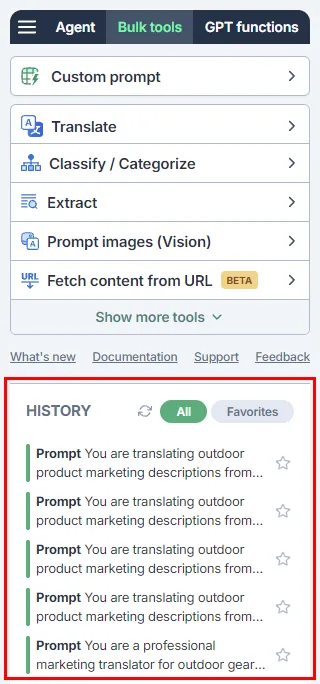
In the GPT for Sheets sidebar, select the Bulk tools tab. You'll see a History section at the bottom showing your recent bulk tool runs.
-
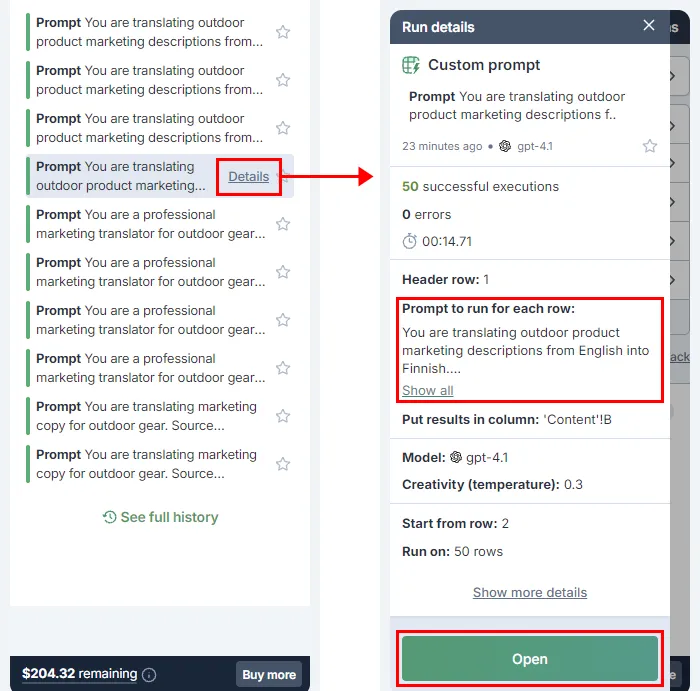
Find the Agent's bulk tool run for the Finnish translation in the history. You can click Details on a highlighted run to see which run corresponds to which language. Then open the run.
-
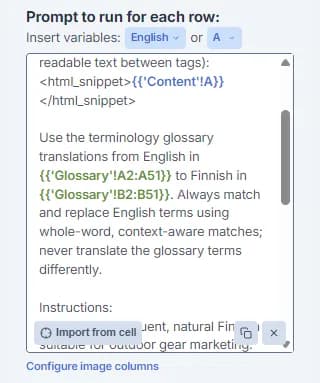
In the prompt field, add the following glossary instructions above the existing translation instructions:
Use the terminology glossary translations from English in {{'Glossary'!A2:A51}} to Finnish in {{'Glossary'!B2:B51}}. Always match and replace English terms using whole-word, context-aware matches; never translate the glossary terms differently.Note: Remember to adjust the cell ranges for your glossary.
Your prompt should now look something like this:
-
Set the results column to your new
Finnish (glossed)column.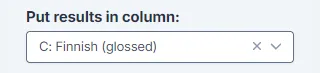
-
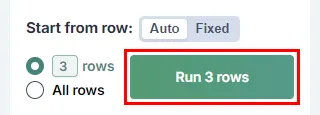
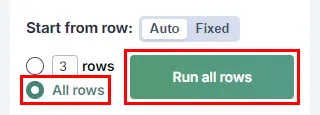
Test first: Run the tool on just 3 rows to verify the glossary terms are being applied correctly. If the results aren't right, adjust the prompt, delete the generated results, and rerun.
-
Once you're satisfied, run the tool on all 50 rows.
Repeat for remaining languages
Repeat steps 1–7 for French, German, and Swedish:
Language | Glossary instruction to add |
|---|---|
French | Use the terminology glossary translations from English in {{'Glossary'!A2:A51}} to French in {{'Glossary'!C2:C51}}. Always match and replace English terms using whole-word, context-aware matches; never translate the glossary terms differently. |
German | Use the terminology glossary translations from English in {{'Glossary'!A2:A51}} to German in {{'Glossary'!D2:D51}}. Always match and replace English terms using whole-word, context-aware matches; never translate the glossary terms differently. |
Swedish | Use the terminology glossary translations from English in {{'Glossary'!A2:A51}} to Swedish in {{'Glossary'!E2:E51}}. Always match and replace English terms using whole-word, context-aware matches; never translate the glossary terms differently. |
The only differences between the prompts are the language name and the glossary column letter (C, D, or E).
Once complete, you'll have eight translation columns: four original translations and four glossary-enforced versions. You can compare them to verify the glossary terms were applied, then delete the original columns if no longer needed.
Tips for better results
Start with a small test batch. Before running all 50 rows, test with 1–3 descriptions to verify the output meets your expectations. Adjust your prompt if needed.
Be explicit about what not to translate. If you have brand names, model names, or certifications that should remain in English, mention them in your prompt (e.g., "Do not translate brand names like TrailPro or ArcticShield").
Review edge cases. Product names inside <strong> tags, temperature ratings, and measurement units may need spot-checking.
Adapt tone for different markets. If your French audience expects a different tone than your German audience, consider running separate prompts with market-specific tone instructions.
Template
Get started immediately with our pre-built template:
Make a copy of the bulk translation template
The template includes:
- 50 sample product descriptions with HTML formatting
- A glossary with 57 technical terms across all four target languages
- The prompt ready to paste into the Agent
Just make a copy, open the Agent, paste the prompt, and run it.
Related resources
- Agent guide for Google Sheets — Full reference for Agent capabilities and settings
- Select the AI models used by the Agent — Configure which AI models power your translations
- Custom prompt bulk tool — Run custom prompts across multiple rows
- Agent use cases — More examples of what the Agent can do
FAQ
Can I translate into more than four languages at once?
Yes. Simply add more languages to the list in your prompt. The Agent will create a new column for each language. Keep in mind that more languages means longer processing time.
Does the Agent work with Excel?
Yes. GPT for Excel includes the same Agent functionality. The workflow is nearly identical — see the GPT for Excel documentation for platform-specific details.
How do I handle brand names that shouldn't be translated?
Add a rule to your prompt, for example: "Do not translate the following brand names: TrailPro, ArcticShield, SummitLine." The Agent will keep these terms in the source language across all translations.
What if I don't need a glossary?
The glossary enforcement step is optional. Without it, the Agent will use its best judgment for technical terms. For casual content, this may be fine. For product feeds where terminology consistency matters, the glossary step is recommended.
Can the Agent translate from languages other than English?
Yes. The Agent can translate from any source language.