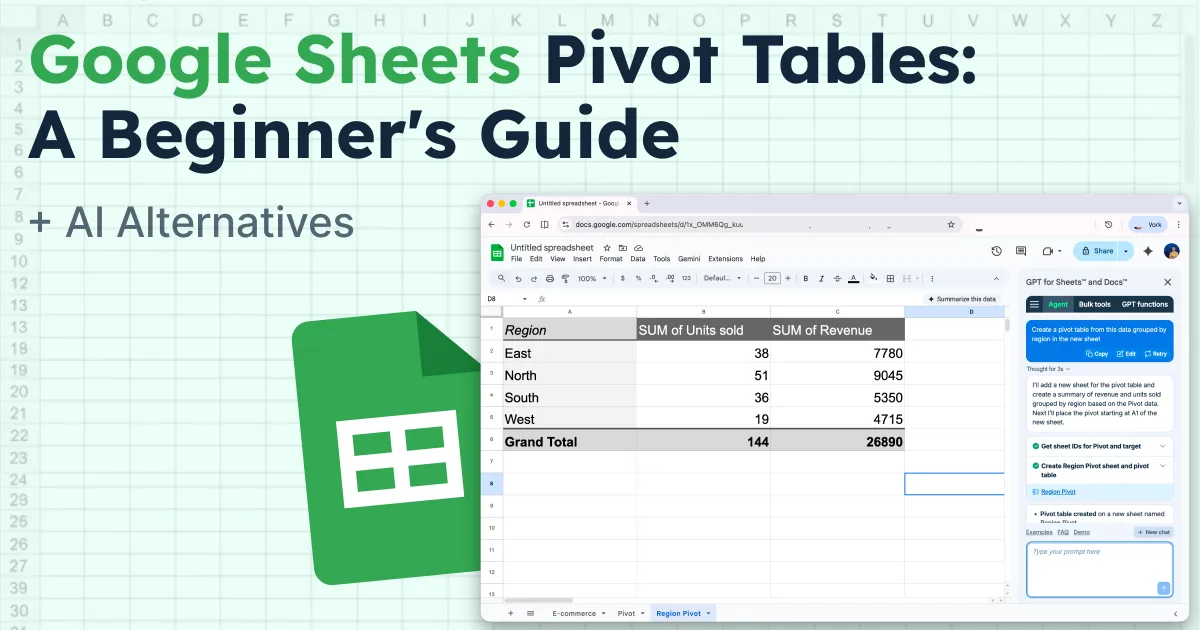
Staring at hundreds of rows of data with no idea what to do next? A Google Sheets pivot table fixes that.
A pivot table in Google Sheets lets you summarize, group, and analyze your data in seconds. No formulas. No manual sorting. Just a clear summary that actually makes sense.
Think of it like this. You have 500 rows of sales data across different regions, products, and salespeople. Instead of scrolling through all of it, a pivot table groups everything and shows you totals, averages, and counts at a glance.
This beginner's guide covers everything from creating a pivot table in Google Sheets to editing, refreshing, and charting it. Plus a smarter AI shortcut at the end that makes the whole process even faster.
Let's start simple.
What Is a Pivot Table in Google Sheets?
A pivot table is a built-in Google Sheets feature that reads your data and creates a summary table from it. You pick what to group by, what to calculate, and Google Sheets does the rest.
No formulas. No copying and pasting. No manual work.
Say you have a spreadsheet tracking sales across four regions with 500 rows. You want to know which region made the most money this month. Without a pivot table, you are manually filtering and adding numbers. With one, you get the answer in about 30 seconds.
With a Google Sheets pivot table you can:
- Sum total revenue by region
- Count how many orders each salesperson closed
- Average sales by product category
- Filter to show only specific timeframes or teams
Your original data stays completely untouched. A pivot table only reads it, never edits it. So there is zero risk of accidentally breaking your spreadsheet.
Most beginners waste time learning complex formulas first. Pivot tables in Google Sheets are the better starting point because they are visual, fast, and need no formula knowledge at all.
How to Create a Pivot Table in Google Sheets
This is the main part. Follow these steps and you will have a working pivot table in Google Sheets in under five minutes.
Step 1: Set Up Your Data
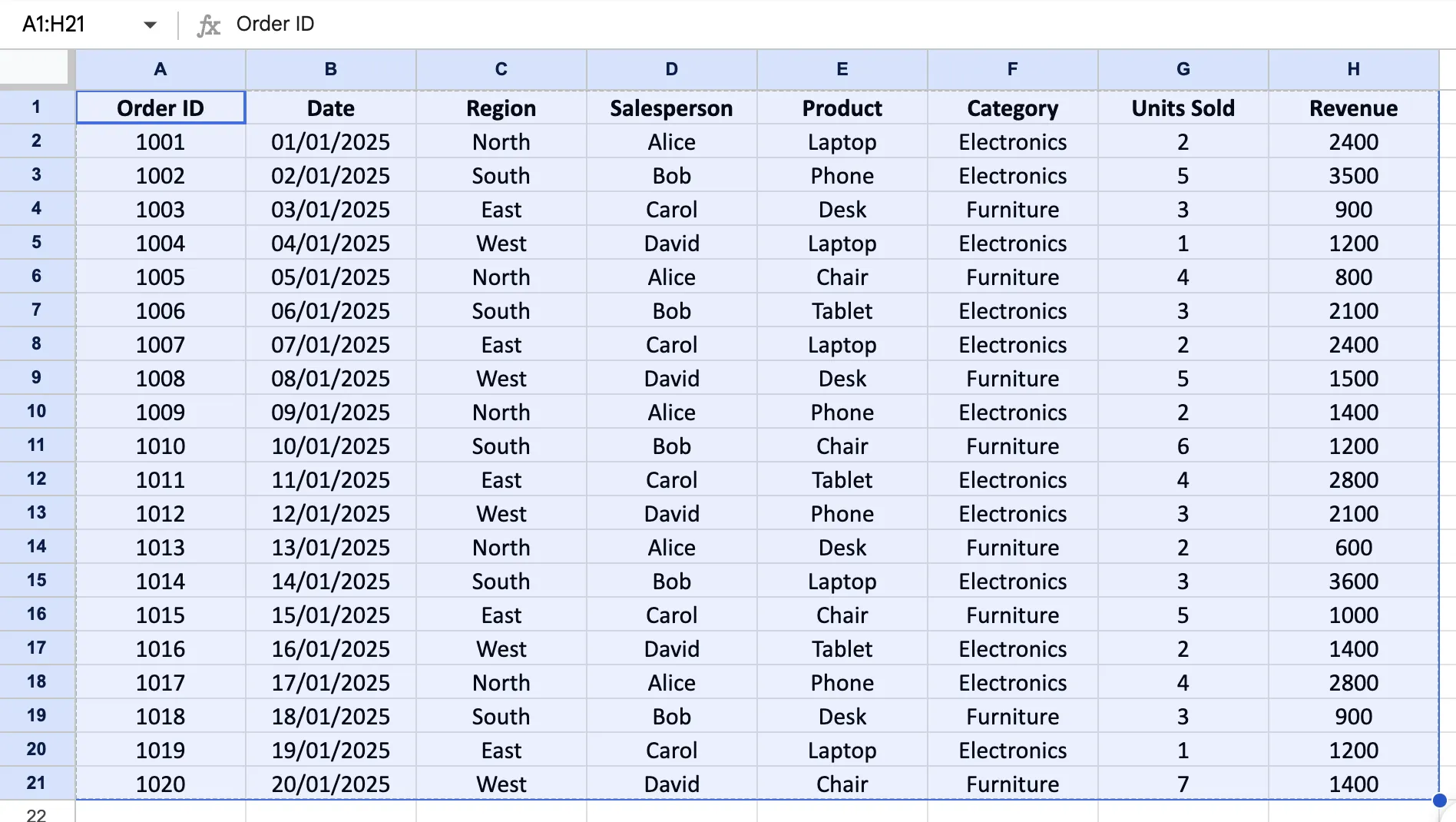
Before you create a pivot table in Google Sheets, your data needs to be clean. Here is what that means:
- Row 1 must have column headers like Date, Product, or Revenue
- No blank rows or columns in the middle of your data
- No merged cells
If your data already looks like a proper table, you are good to go.
Step 2: Insert a Pivot Table
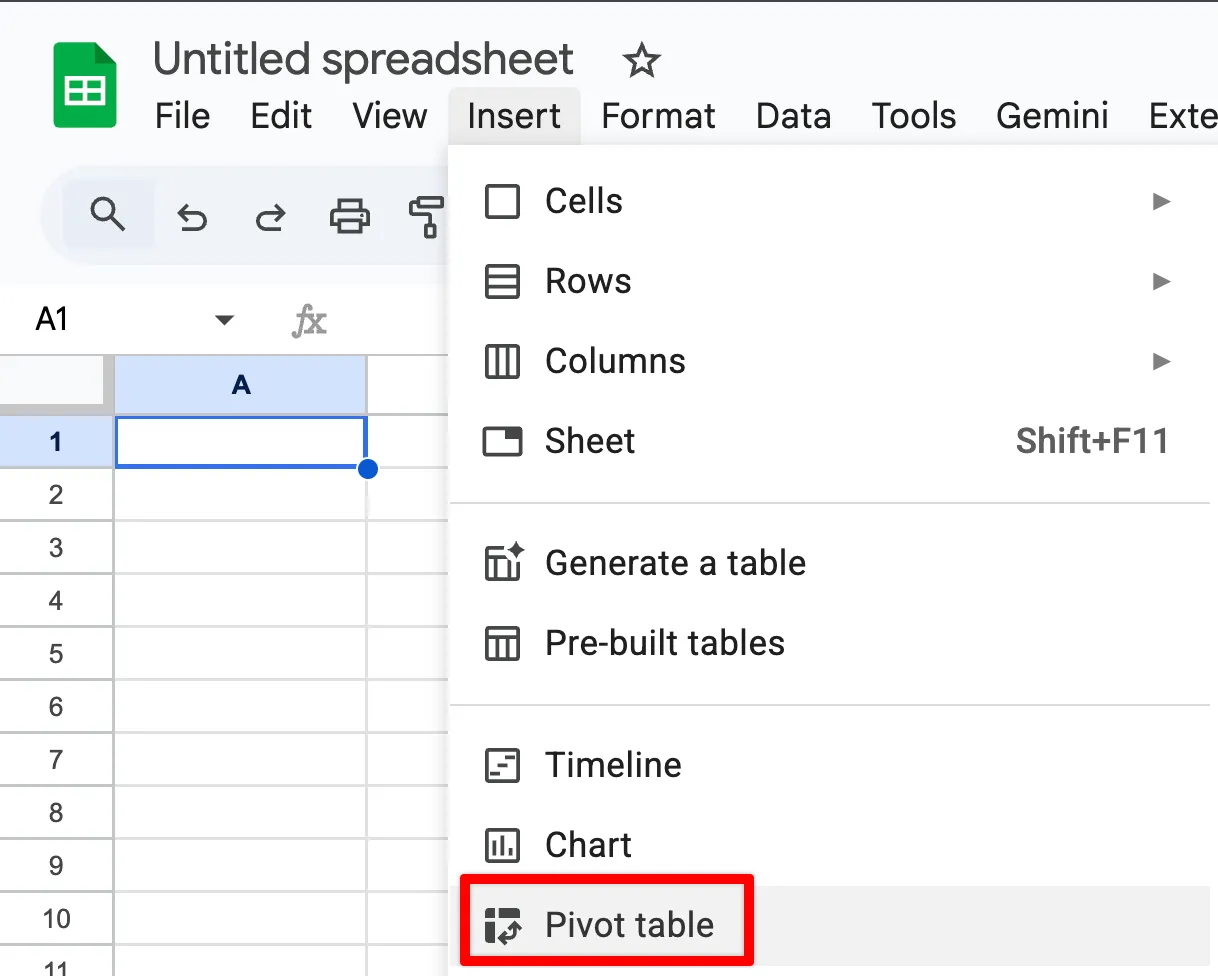
Click any cell inside your data. Then go to the top menu and click Insert then Pivot table.
A small dialog box will appear. It will show your data range and ask where you want to put the pivot table. Select New sheet so your pivot table gets its own space and does not crowd your original data. Then click Create.
Google Sheets will open a new tab. That is where your pivot table will live.
Step 3: Understand the Pivot Table Editor
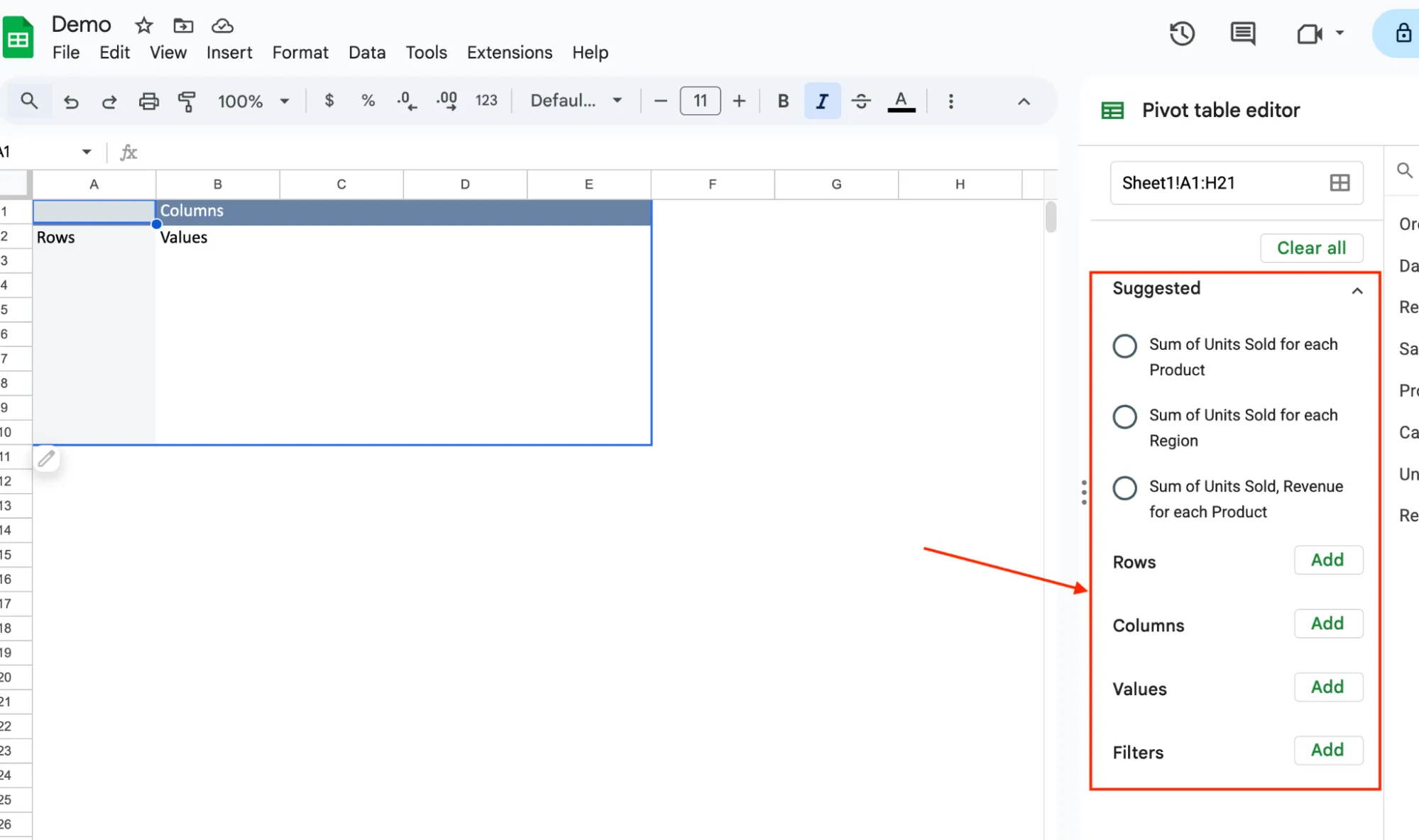
Once you land on the new sheet you will see two things. An empty table on the left and a panel on the right called the Pivot table editor. This panel is where all the magic happens.
It has four sections:
Rows - This is what you want to group your data by. For example, Region.
Columns - A second way to group your data across the top. For example, Category.
Values - The number you want to calculate. For example, total Revenue.
Filters - Narrow down your data. For example, show only one salesperson.
Step 4: Add Your First Fields
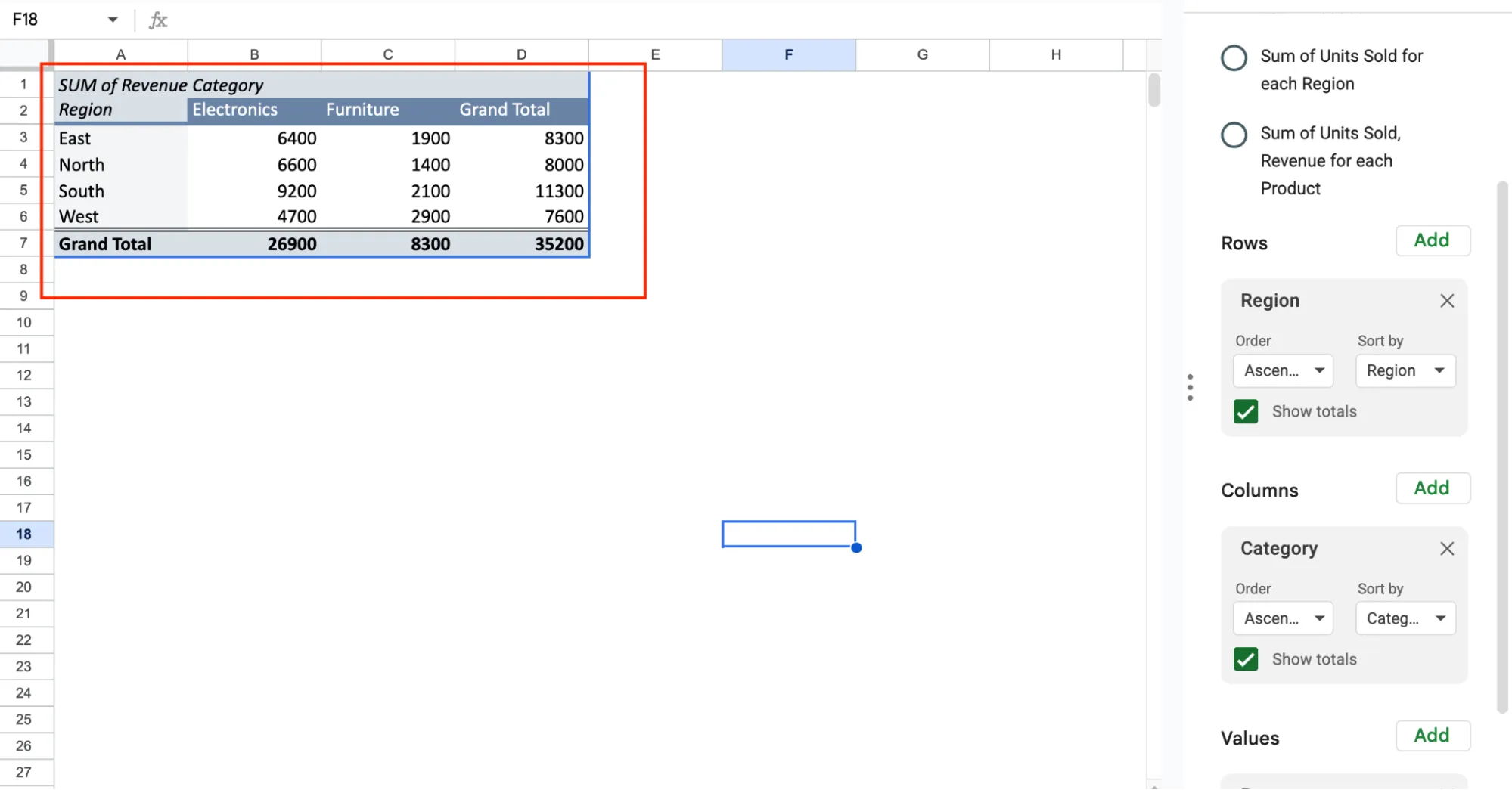
Click Add next to Rows and select Region. Then click Add next to Values and select Revenue. Google Sheets automatically sets it to SUM.
Your pivot table now shows a summary with just two clicks.
Want to go deeper? Add Category to Columns and now you can see revenue broken down by both region and product category at the same time.
You can also change how Values are calculated. Click the dropdown next to SUM of Revenue and switch it to COUNT or AVERAGE depending on what you need.
Step 5: Sort and Clean Up
Your pivot table is working but you can make it even more useful. Click the sort dropdown inside the Rows section to sort regions alphabetically or by revenue from highest to lowest.
You can also right click the Values column and format the numbers as currency so they are easier to read. And rename the sheet tab from Pivot Table 1 to something like Revenue by Region so you can find it easily later.
You can also hide the Grand Total row if you do not need it. In the editor, scroll down to the Rows section and uncheck Show totals. Clean and simple.
How to Edit a Pivot Table in Google Sheets
Once your pivot table is live, you will probably want to tweak it. Maybe you want to add another field, change how values are calculated, or remove something that is not useful.
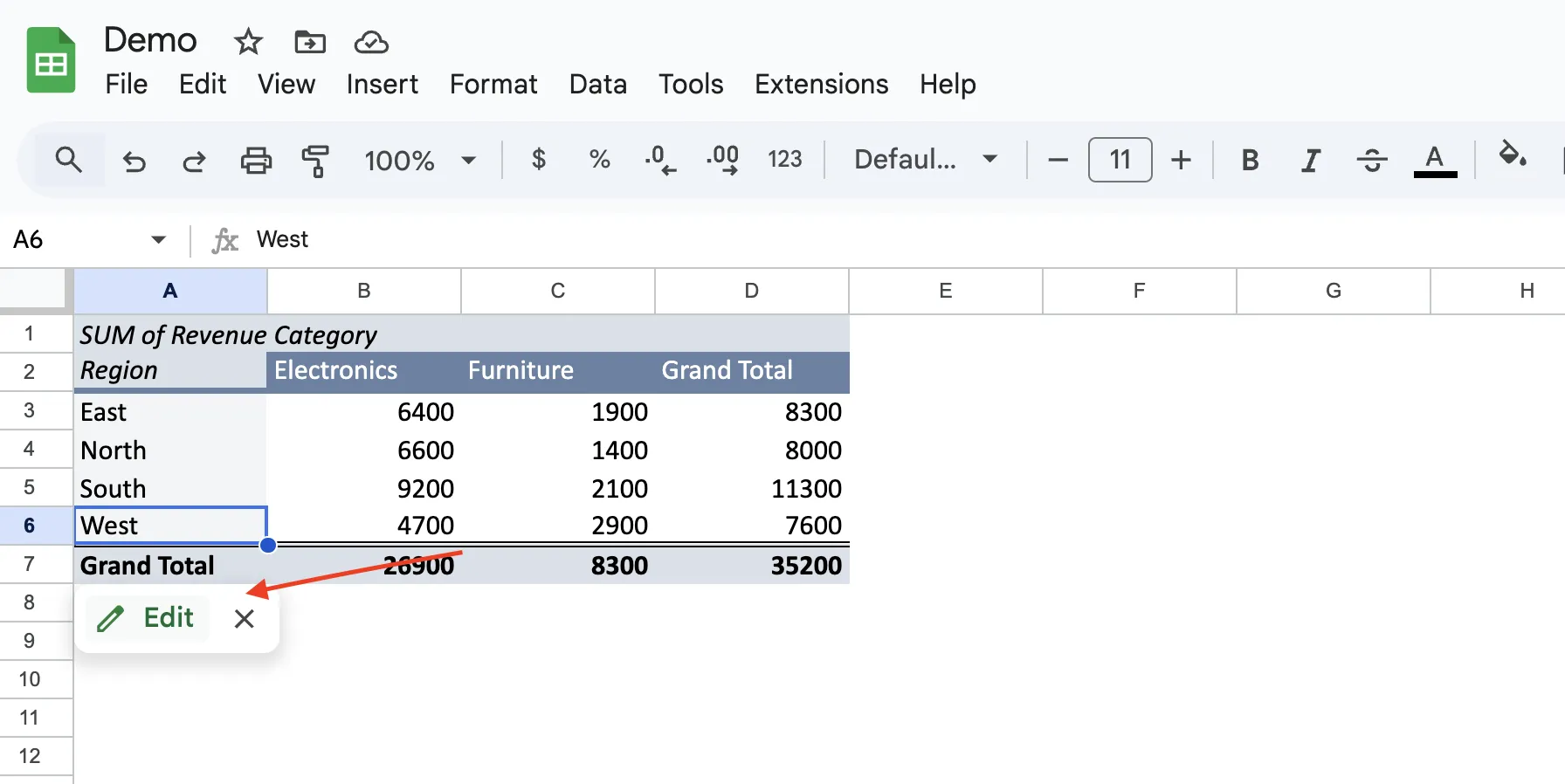
To open the pivot table editor, click any cell inside your pivot table. A small popup will appear with an Edit button and an X. Click Edit and the editor panel will slide open on the right side of your screen. From there you can add or remove fields, reorder rows, switch between SUM, COUNT, and AVERAGE, and adjust filters whenever you need to.
One mistake almost every beginner makes is trying to type directly into a pivot table cell. Do not do this. Pivot table cells are generated automatically and typing in them either does nothing or breaks the table. All edits happen through the editor panel, not by clicking into the cells themselves.
A quick tip: under Values in the editor, you can rename your field. Replace SUM of Revenue with something like Total Revenue. Much cleaner when you are sharing the table with someone else.
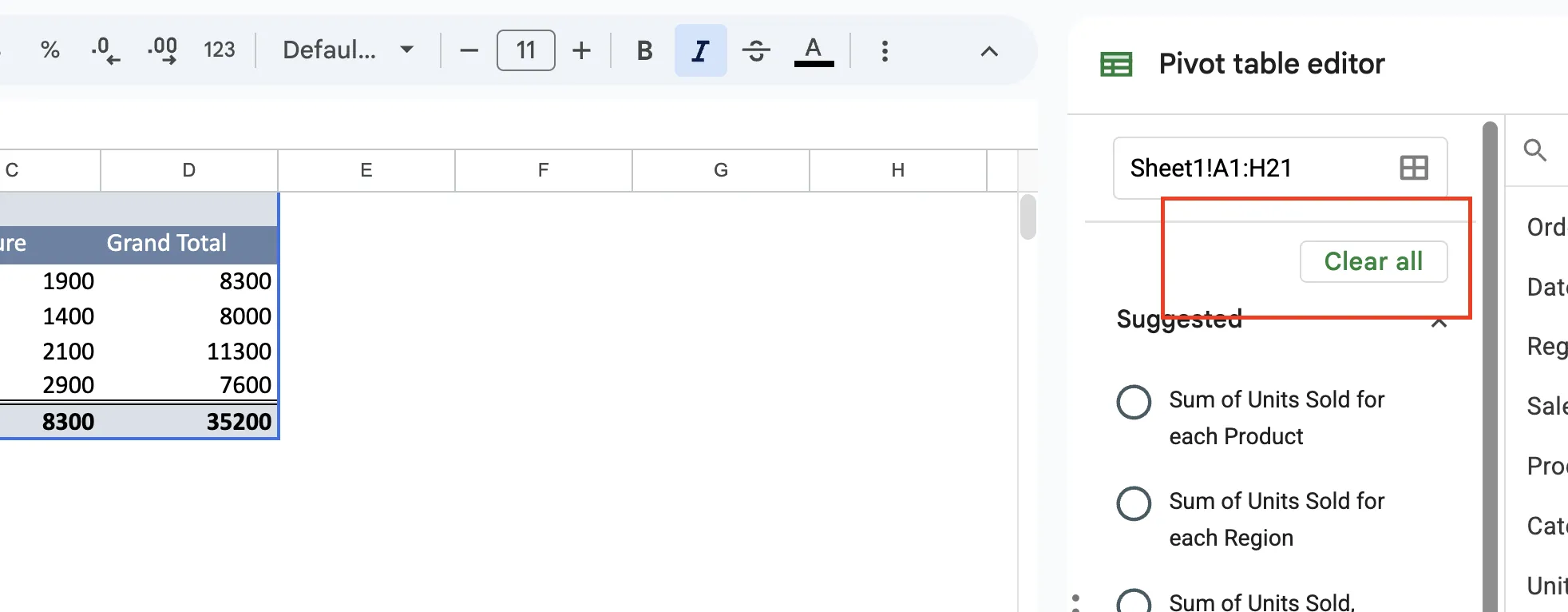
You can also remove a field completely by clicking the X next to it in the editor. And if you want to start fresh, there is a Clear all button at the top of the editor that removes everything in one click.
How to Refresh a Pivot Table in Google Sheets
One thing beginners always ask is whether they need to manually refresh a pivot table in Google Sheets every time data changes. The answer is no.
When you edit, update, or delete anything in your original data sheet, the pivot table picks it up automatically. Try it yourself. Go back to your data sheet, change any revenue number, then switch back to your pivot table sheet. The totals will have already updated.
In Excel you have to manually refresh pivot tables every single time data changes. Google Sheets skips that step entirely and just handles it in the background.
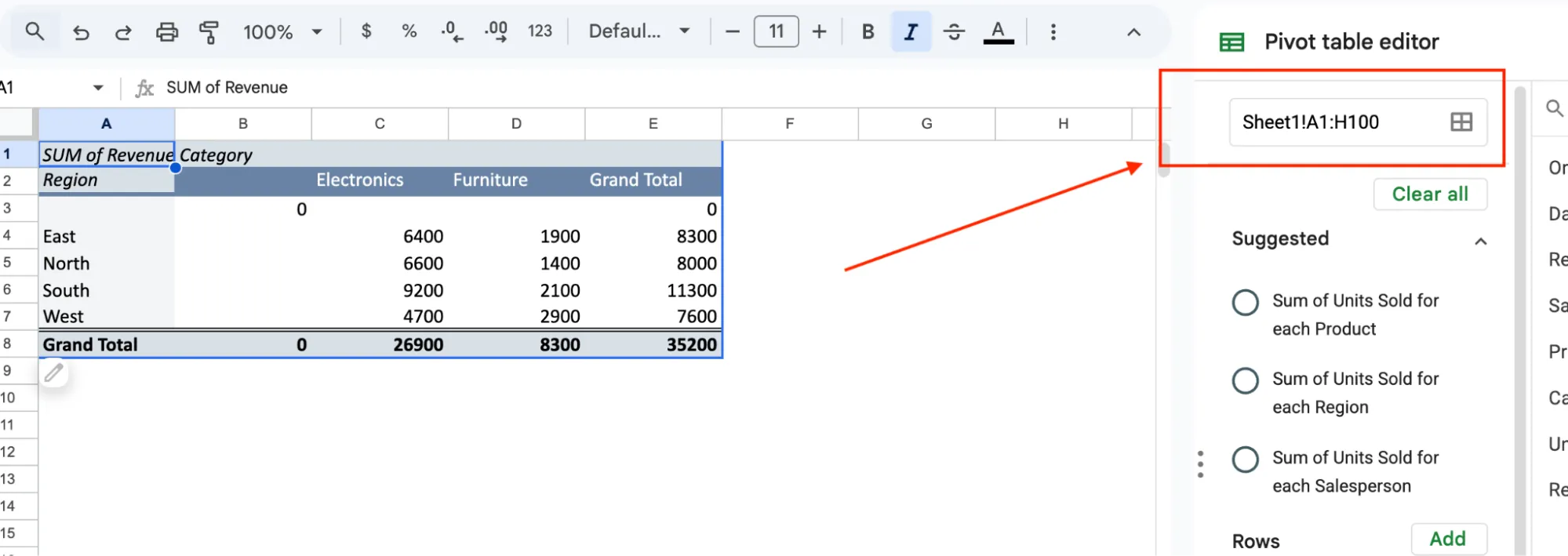
The only time your pivot table will not update automatically is when you add new rows beyond the original data range. For example if your data originally went from row 1 to row 21 and you add rows 22, 23, and 24, the pivot table does not know those rows exist yet.
To fix this, click any cell inside your pivot table, hit Edit, and in the editor panel look for the data range at the top. Click the pencil icon next to it and expand the range to include your new rows. For example, change A1:H21 to A1:H100 to give yourself room to grow.
After that your pivot table will automatically pick up any new rows added within that range.
How to Create a Pivot Chart in Google Sheets
A pivot chart in Google Sheets is just a visual version of your pivot table. Instead of reading numbers in rows, you see them as a bar chart, column chart, or pie chart. Much easier to understand at a glance, especially when sharing data with someone who does not want to read a table.
To create one, click any cell inside your pivot table, then go to Insert and click Chart. Google Sheets will automatically generate a chart based on your pivot table data and open the Chart Editor panel on the right side.
By default it usually picks a column or bar chart which works well for most pivot table data. But you can change it inside the Chart Editor under Chart type. Here are the most useful ones:
- Column chart - compare totals across regions or categories
- Bar chart - same as column but horizontal, easier to read with longer labels
- Pie chart - shows how each region or category contributes to the overall total
One thing worth knowing is that your Google Sheets pivot chart stays linked to your pivot table. So when your data updates, the chart updates too. You do not need to recreate it every time.
Give your chart a title by clicking on it and editing the Chart title field in the Chart Editor. It takes five seconds and makes the chart look much more professional.
GPT for Sheets – The AI Alternative That Creates Pivot Tables for You
Why do it manually when you can just tell your spreadsheet what you need?
GPT for Sheets by GPT for Work is a full AI agent built right inside Google Sheets. You type a prompt and it does the rest.
Everything you just learned about pivot tables, the setup, the editor, the fields, the charts, you can do all of it with a simple prompt.
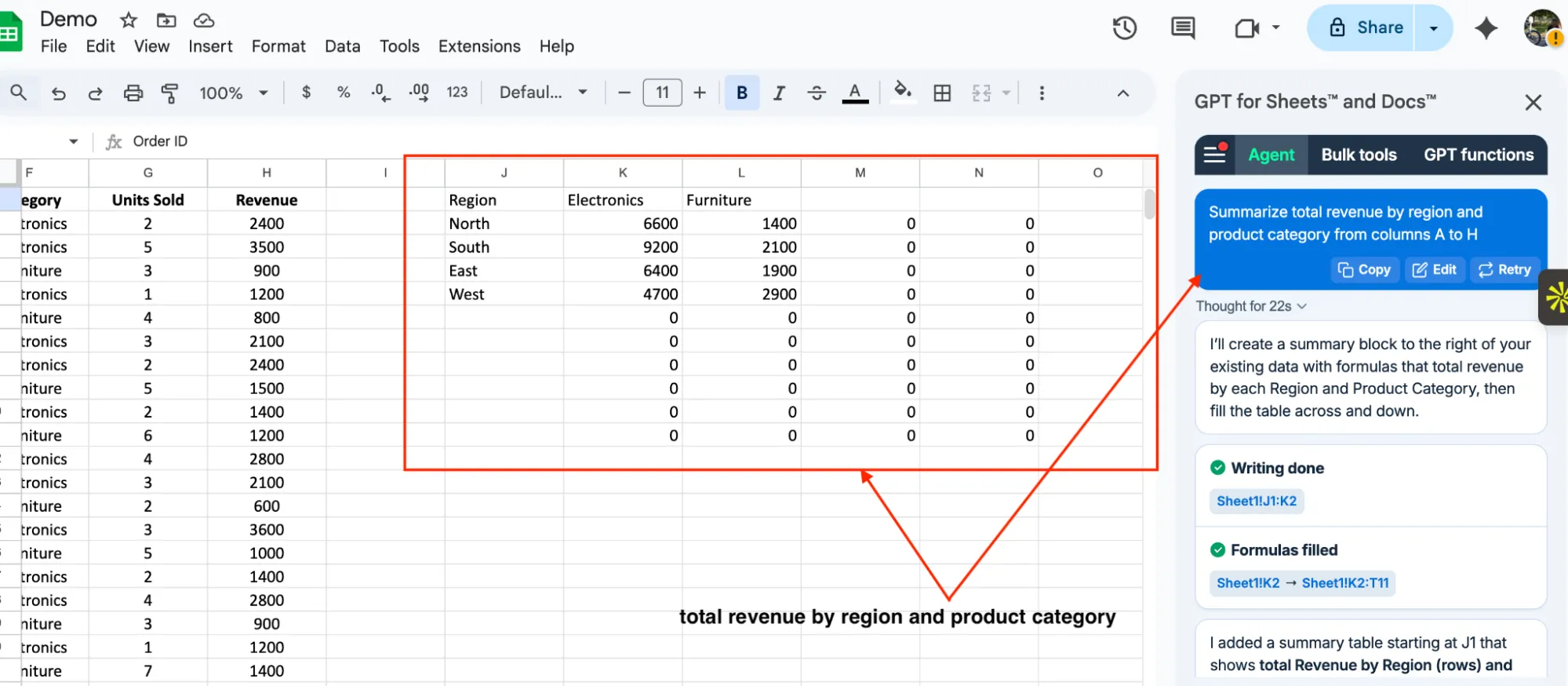
"Summarize total revenue by region and product category from columns A to H"
"Create a pivot table from this data grouped by region in the new sheet"
"Create a bar chart for existing pivot table"
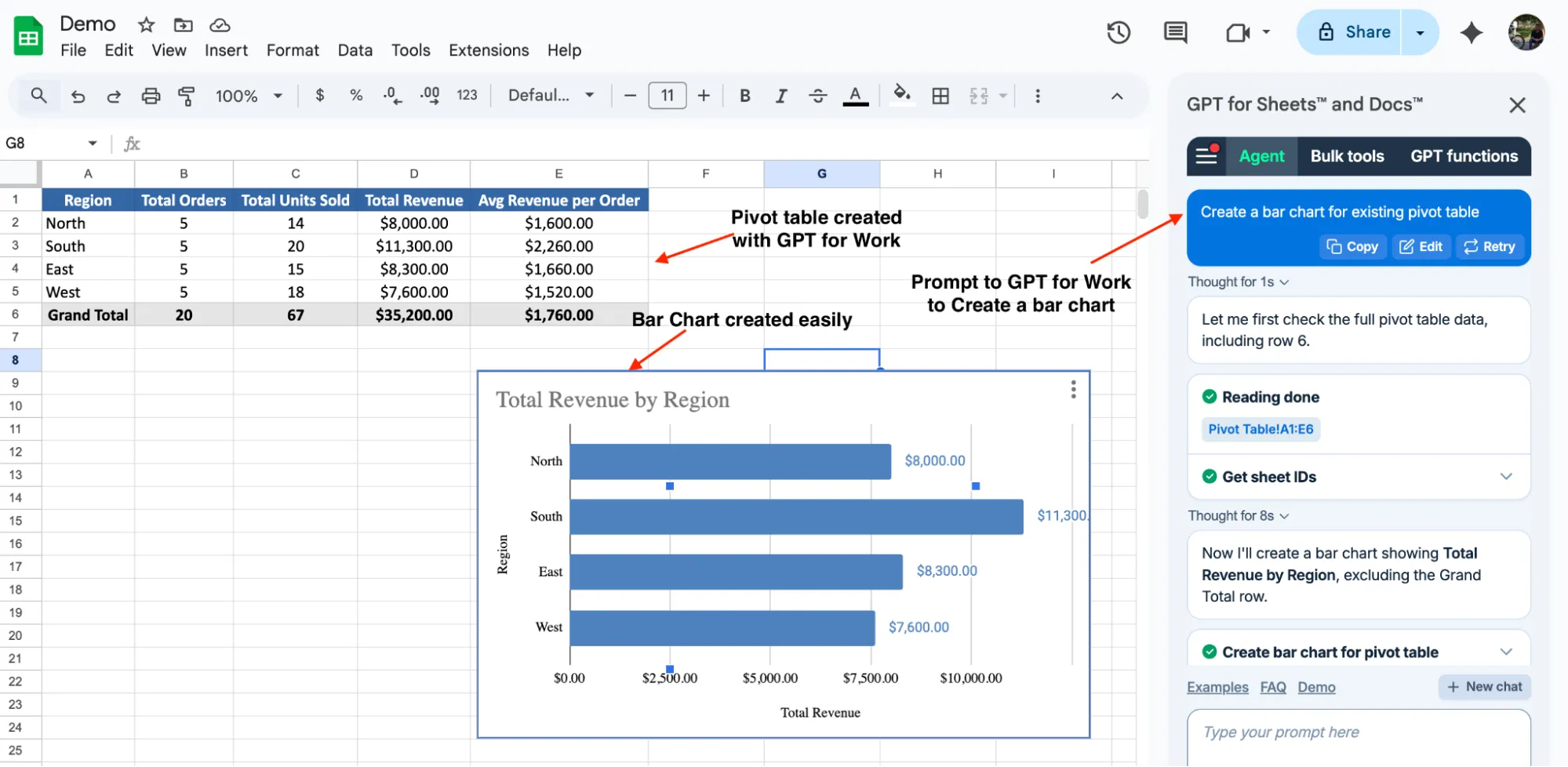
Pivot tables, summaries, charts, formulas, data questions. You just ask and it delivers.
And it goes way beyond pivot tables. Whatever you are doing in a spreadsheet, whether it is generating content, translating, categorizing, researching, cleaning data, or analyzing images, GPT for Work handles it. You choose the AI model you want behind it, from ChatGPT to Claude and more.
Conclusion
You now know exactly how to use pivot tables in Google Sheets from start to finish.
You can build one from scratch, edit it, refresh it when your data changes, and turn it into a chart. That puts you ahead of most people who have been using spreadsheets for years.
Start with the basics:
- New to pivot tables? Build one using the steps in this guide. Add any field you want to group by, whether that is a product, a date, a person, or a category. You will have a clean summary in under five minutes.
- Got messy data? Clean it up first. Headers in row 1, no blank rows, no merged cells. Your pivot table will work perfectly after that.
- Want to skip all the manual work? GPT for Work is an AI extension for Google Sheets that does it all from a prompt. Pivot tables, charts, summaries, formulas, translations, content generation, data cleanup, and more. Just type what you need and it gets done.
Pivot tables are one of those skills that seem intimidating until you actually try them. Once you build your first one, you will wonder how you ever analyzed data without it.