You work in Google Sheets every day. And sooner or later, you need to turn a wall of numbers into something people can understand at a glance.
Say you are building a marketing dashboard. Column A lists your traffic sources: Organic, Paid, Social, Direct, Referral. Column B contains session counts. Looking at the raw data alone, it is difficult to instantly see which channel drives the most traffic.
A pie chart fixes that in seconds.
One glance tells you which source dominates, which channels underperform, and how traffic is distributed overall.
And that is exactly what you will learn in this guide: how to make a pie chart in Google Sheets without the guesswork.
Once your data is ready, creating a pie chart takes less than a minute.
In This Guide, You Will Learn How To:
- Structure your data correctly so the chart works the first time
- Create a pie chart in Google Sheets in five clicks
- Choose between a standard pie chart, doughnut chart, and 3D pie chart
- Customize colors, labels, and formatting for a clean, presentation-ready look
- Avoid the most common mistakes beginners make
- Skip the manual work entirely with an AI agent that builds the chart from a single prompt
Setting Up Your Data the Right Way
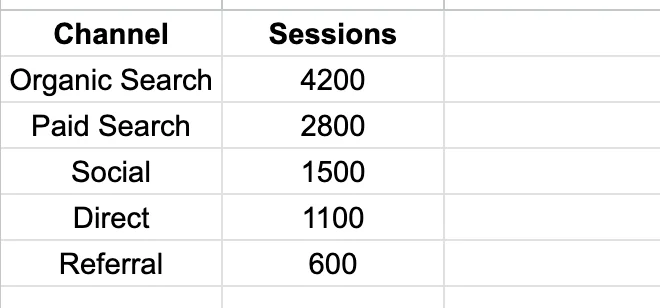
Before creating a pie chart in Google Sheets, your data needs to follow a simple structure. A pie chart only needs two columns:
- Column A: category labels (text)
- Column B: values (positive numbers)
Your first row should contain headers, since Google Sheets uses them for the chart title and legend automatically. A clean setup looks like this:
A clean setup looks like this:
Simple enough, but messy data is the main reason pie charts fail on the first attempt. Before inserting your chart, check for these common issues:
-
Numbers stored as text. If a cell shows "$1,200" or "~2500 units" instead of a plain number, the chart cannot read it. Highlight the column, go to Format > Number, and pick the right format.
-
Negative numbers and zeros. Google Sheets ignores them in pie charts. Pie charts only work with positive values. If your data has negatives, switch to a column or bar chart.
-
Blank rows inside the range. They create empty slices or cut your chart off halfway through the data.
-
Duplicate labels with different spellings. "US" and "United States" will show up as two separate slices. Clean them up into one label before charting.
-
Too many categories. More than six or seven slices and the chart turns into a blur. Group the smallest ones into an "Other" bucket.
-
What if your data is only text?
Sometimes you do not start with numbers at all. Imagine you ran a survey and collected responses like: Yes, No, Maybe. To turn that into a pie chart, you first need to count how often each answer appears.
The easiest way is with the COUNTIF formula:
=COUNTIF(A2:A100,"Yes")
Run the formula for each response type, and you instantly create the two-column structure needed for a pie chart.
Building Your Pie Chart in Five Clicks
Once your data is clean, creating the actual chart takes less than a minute. Here is the fastest way to create a pie chart in Google Sheets:
Step 1: Select your Data
Click the first cell in your dataset and drag to the last one, including the headers. For example, if your data runs from A1 to B7, select that entire range.
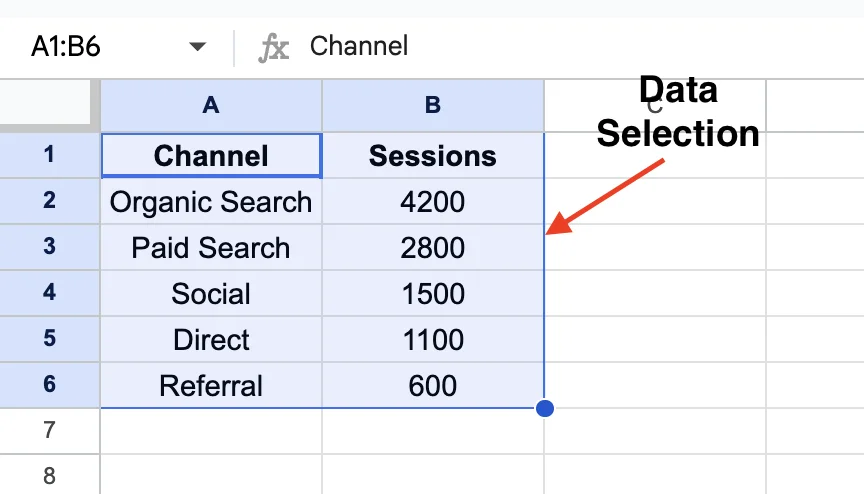
Including the header row matters more than most people realize.
If you skip it, Google Sheets replaces your category names with generic labels like "Series 1", which makes the chart harder to read. Always include the headers.
Step 2: Insert the chart
Go to the top menu and click:
Insert → Chart
Google Sheets immediately places a chart onto your sheet and opens the Chart Editor panel on the right side.
Most of the time, the default chart will not be a pie chart. Google Sheets automatically guesses which chart type fits your data, and it often defaults to a column chart instead.
That is completely normal, the next step fixes it.
Step 3: Change the chart type to pie
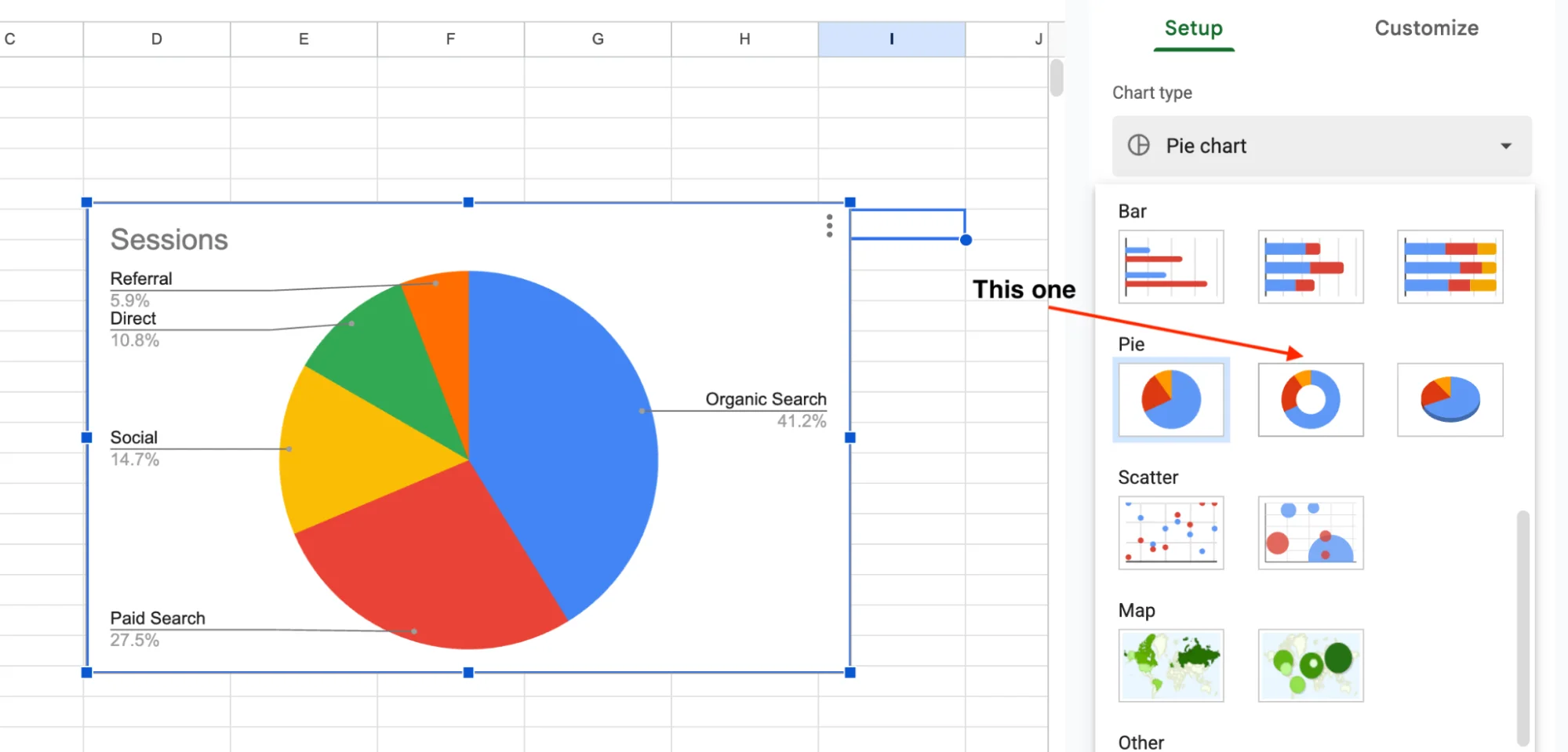
Inside the Chart Editor, stay on the Setup tab and open the Chart type dropdown menu. Scroll down to the Pie section. Google Sheets gives you three options:
- Pie chart (the standard flat one)
- Doughnut chart (pie with a hole in the middle)
- 3D pie chart (tilted perspective)
Click Pie chart. The chart updates instantly on your sheet.
A standard pie chart is usually the best choice because it is the easiest to read and compare. Doughnut charts work well for cleaner dashboard designs, while 3D pie charts are mostly visual flair and can make slice sizes harder to judge accurately.
Step 4: Move, resize, and position
Once the chart appears, click it once to select it. You can now:
- Drag the chart anywhere on the sheet
- Resize it using the blue corner handles
- Adjust the layout so it fits cleanly beside your data or dashboard
A properly sized chart is much easier to read, especially if you plan to share the sheet with teammates or include it in a presentation. If you want a cleaner, full-screen version of the chart, click the three-dot menu in the top-right corner of the chart and select:
Move to own sheet
Google Sheets creates a dedicated chart tab with a larger view that works especially well for presentations, reports, and dashboards.
Step 5: Rename the chart title
Double-click the default chart title and replace it with something clear and specific, like: Traffic Sources - Q4 2026
Good chart titles are short, direct, and easy to scan.
For example:
- Q4 Traffic Split → good
- Website Traffic by Source → good
- A Pie Chart Showing Our Traffic Sources by Channel in Q4 of 2026 → far too long
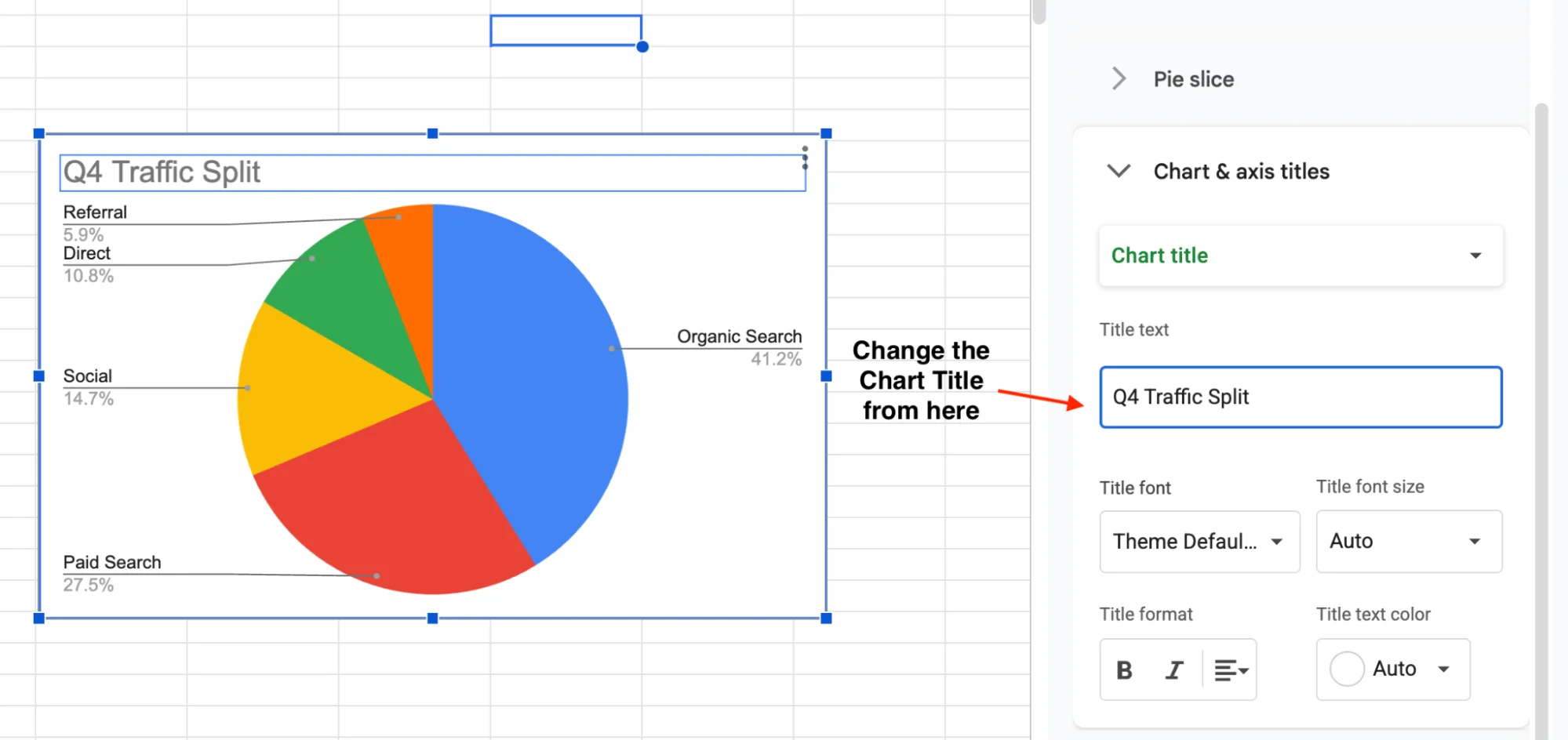
The goal is clarity, not a full sentence. And that is it, our pie chart is ready.
One of the best parts about Google Sheets charts is that they update automatically. If your underlying data changes later, the chart refreshes on its own. No rebuilding, reformatting, or manual updates required.
Pie Chart Variations in Google Sheets
Google Sheets gives you three versions of a pie chart:
- Standard pie chart
- Doughnut chart
- 3D pie chart
They all use the same data. The difference is how the information is presented, and some versions are much easier to read than others.
Standard Pie Chart
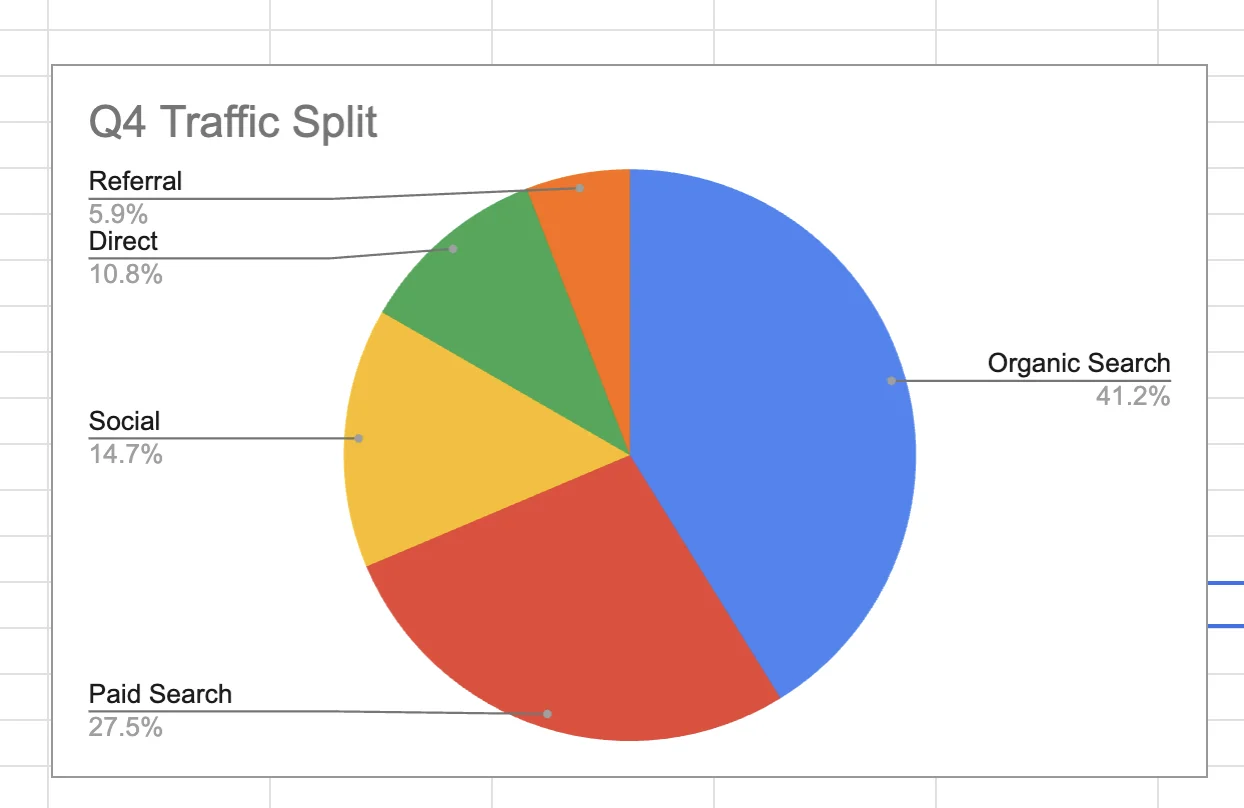
The standard pie chart is the classic flat circle and the best option in most cases. Clean, readable, and works almost anywhere.
It works best for simple part-to-whole comparisons with roughly three to six categories. The design is clean, easy to scan, and readable even in presentations or dashboards.
Use it when you want quick clarity without visual distractions.
Common use cases include:
- Traffic source breakdowns
- Marketing channel performance
- Budget allocation
- Market share comparisons
- Survey response distributions
In short: if readability matters most, stick with the standard pie chart.
Doughnut Chart
A doughnut chart is a pie chart with the center cut out.
It looks like a donut: same slices, same percentages, just easier on the eyes.
The empty middle gives you space to place a total or KPI inside the ring, which is why dashboards love it.
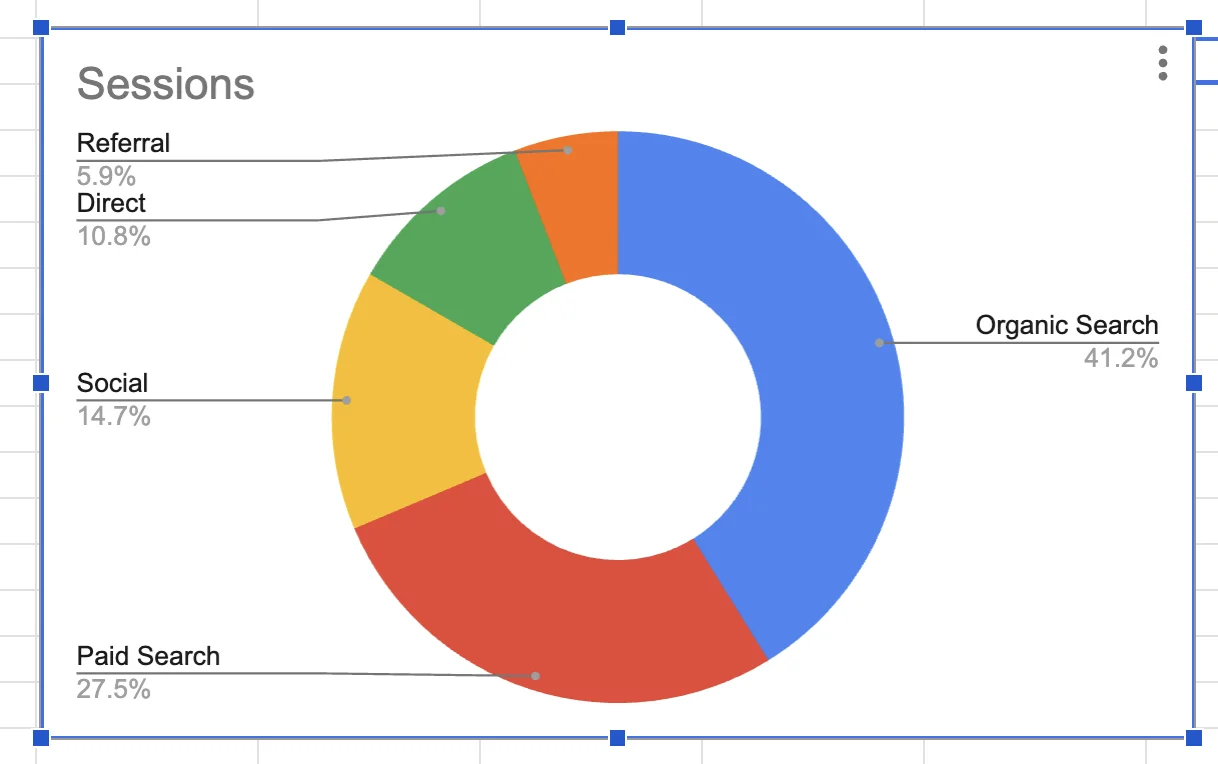
To create one:
- Open the Chart Editor
- Go to the Chart type dropdown
- Scroll to the Pie section
- Select Doughnut chart
Google Sheets converts the chart instantly.
3D Pie Chart
A 3D pie chart is the same chart with a tilted, three-dimensional look.
It feels more dynamic, but there is one downside: the perspective distorts the slices. Front sections appear larger than the ones in the back, even when the values are identical.
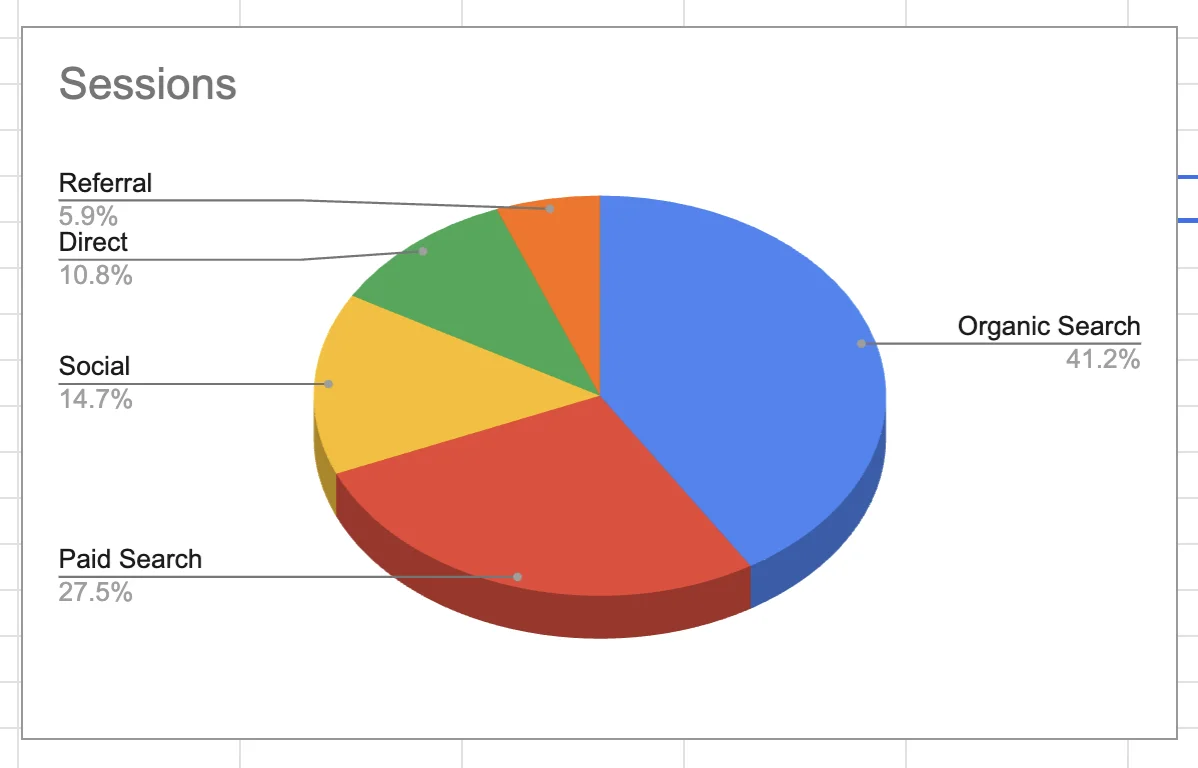
To create one, follow the same path as the doughnut chart: Chart type dropdown → Pie section → 3D pie chart
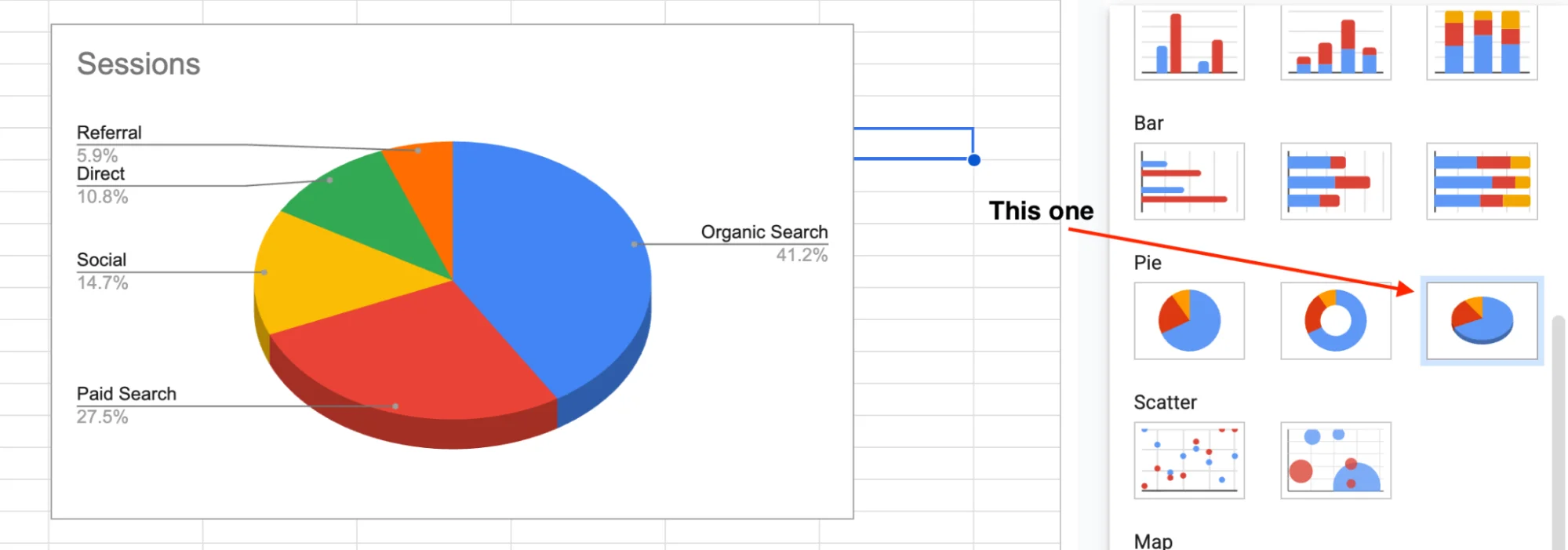
Use it for casual presentations where visual impact matters more than precision. Avoid it in reports, investor decks, or anywhere accurate data comparison actually matters.
How to Customize Your Pie Chart
The default pie chart works, but it looks generic. A minute in the Customize tab turns it into something presentation-ready.
Double-click the chart to open the Chart Editor, then click the Customize tab at the top. All the visual controls live here.
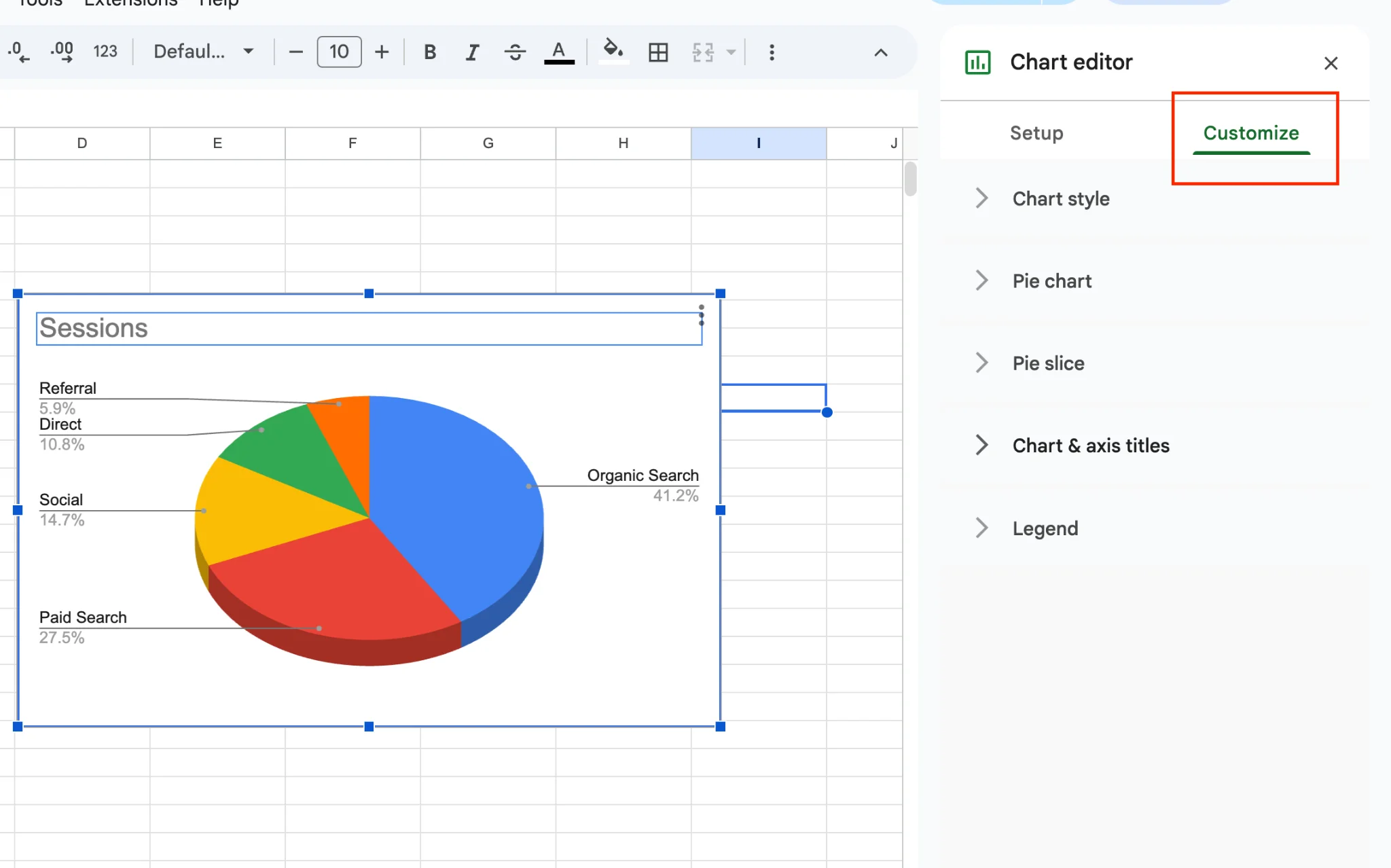
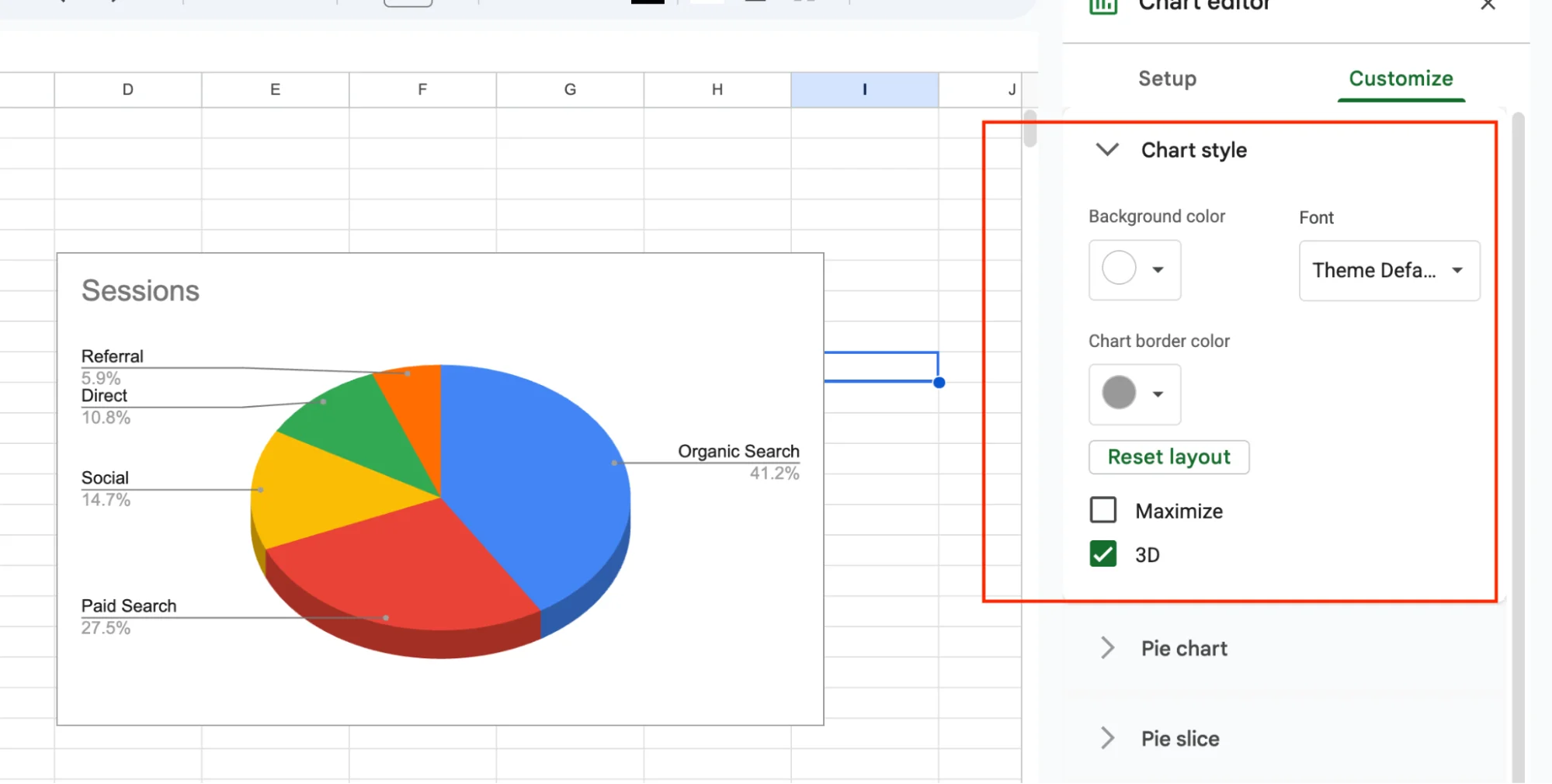
Chart Style
This section controls the overall look of the chart: background color, border color, and fonts.
Two options are especially worth knowing:
- Maximize reduces the empty white space around the chart so it fills the frame more cleanly.
- Smooth only affects certain chart types, but it is still worth toggling to see how the chart changes.
Pie Chart — Slice Labels
The most useful setting in the whole Customize tab. Open Pie chart > Slice label and you get five options:
- None — no labels at all
- Value — the raw numbers
- Percentage — share of the total
- Value and percentage — both
- Label — the category name on each slice
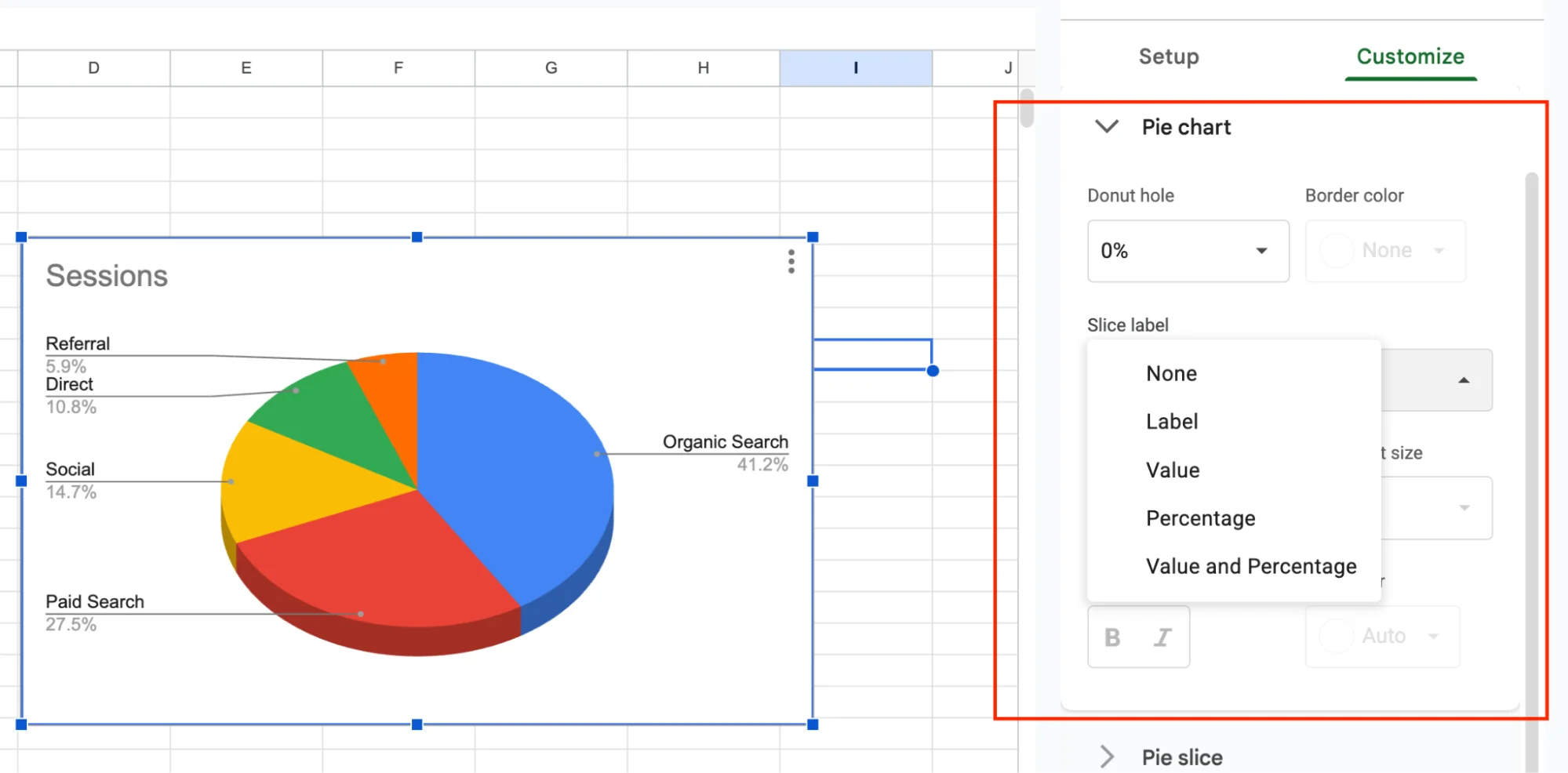
For most cases, Percentage is the best choice.
Pie charts are designed to show proportions, so percentages make the chart easier to understand at a glance.
Pie Slice — Colors and Exploded Slices
Click Pie slice to change the color of a specific category. Want to highlight one slice? Pull it out of the pie using Distance from center and set it to 20% or 25%. This is the exploded slice trick, and it is the fastest way to draw attention to one category without touching the rest of the chart.
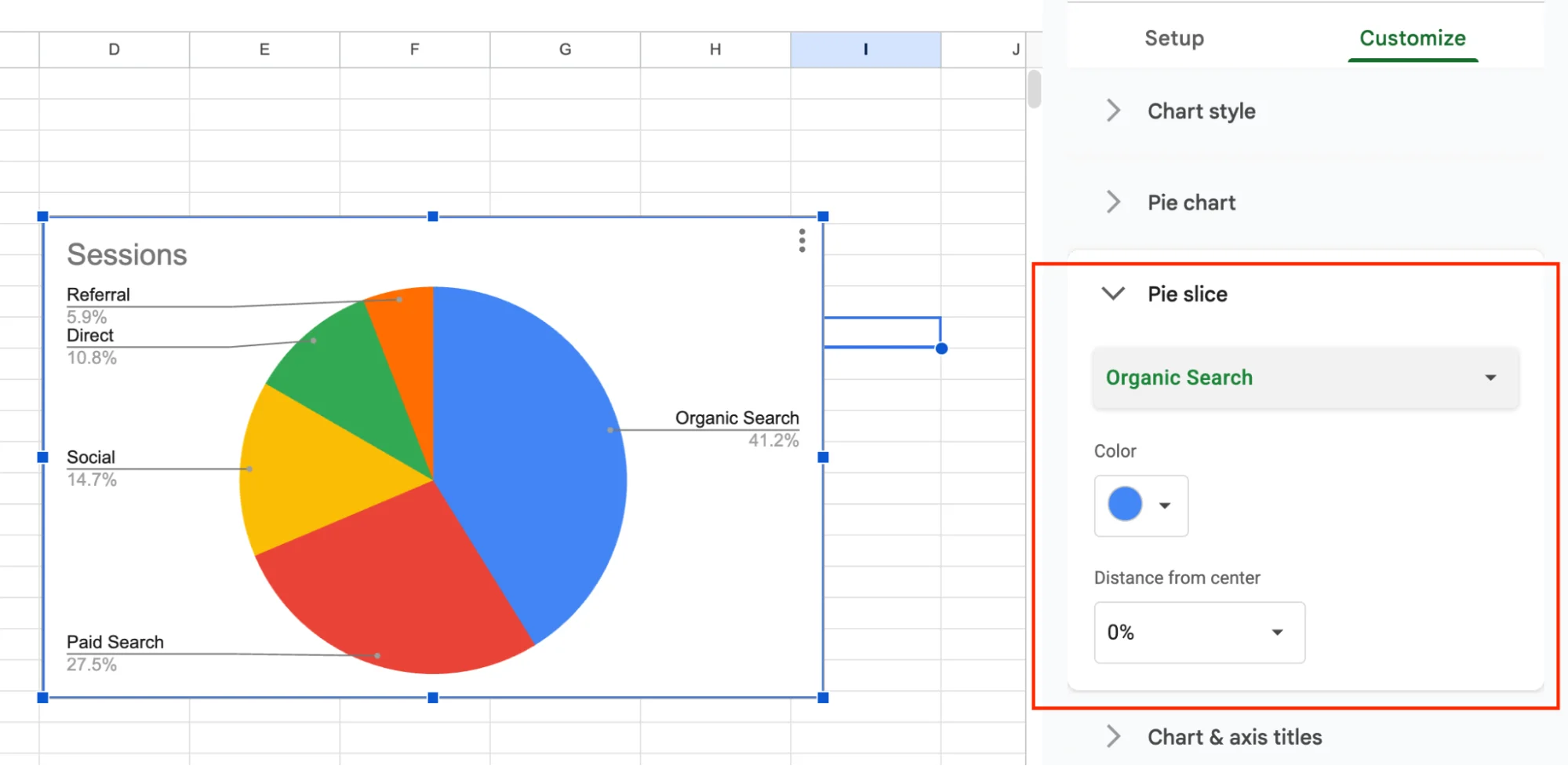
Chart and Axis Titles
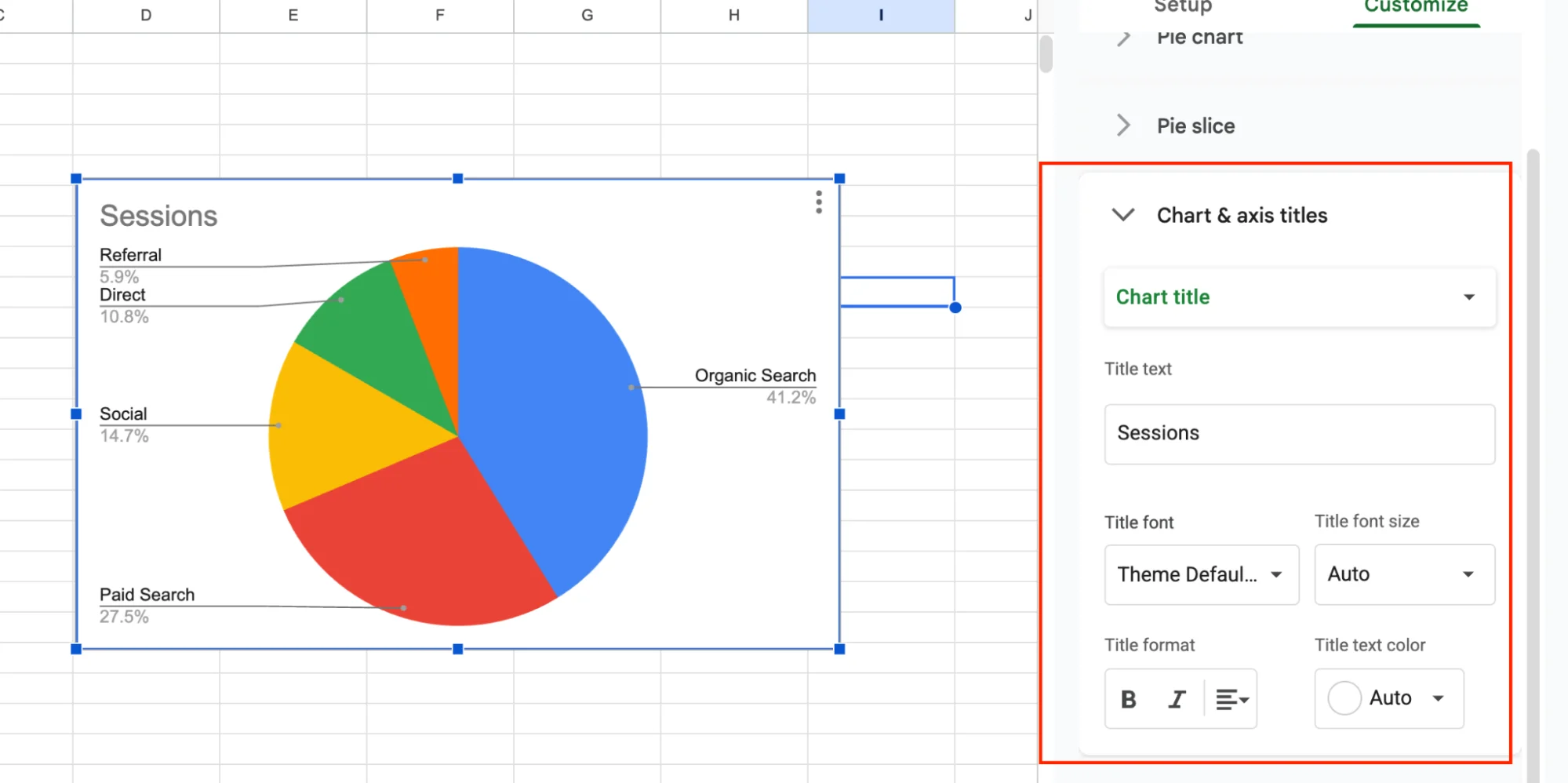
Click Chart & axis titles to set the chart title, subtitle, and formatting.
Keep titles short and direct. Match the font size to where the chart will be used: 14–18 works well for slides, while 12 is usually enough for inline reports.
Legend
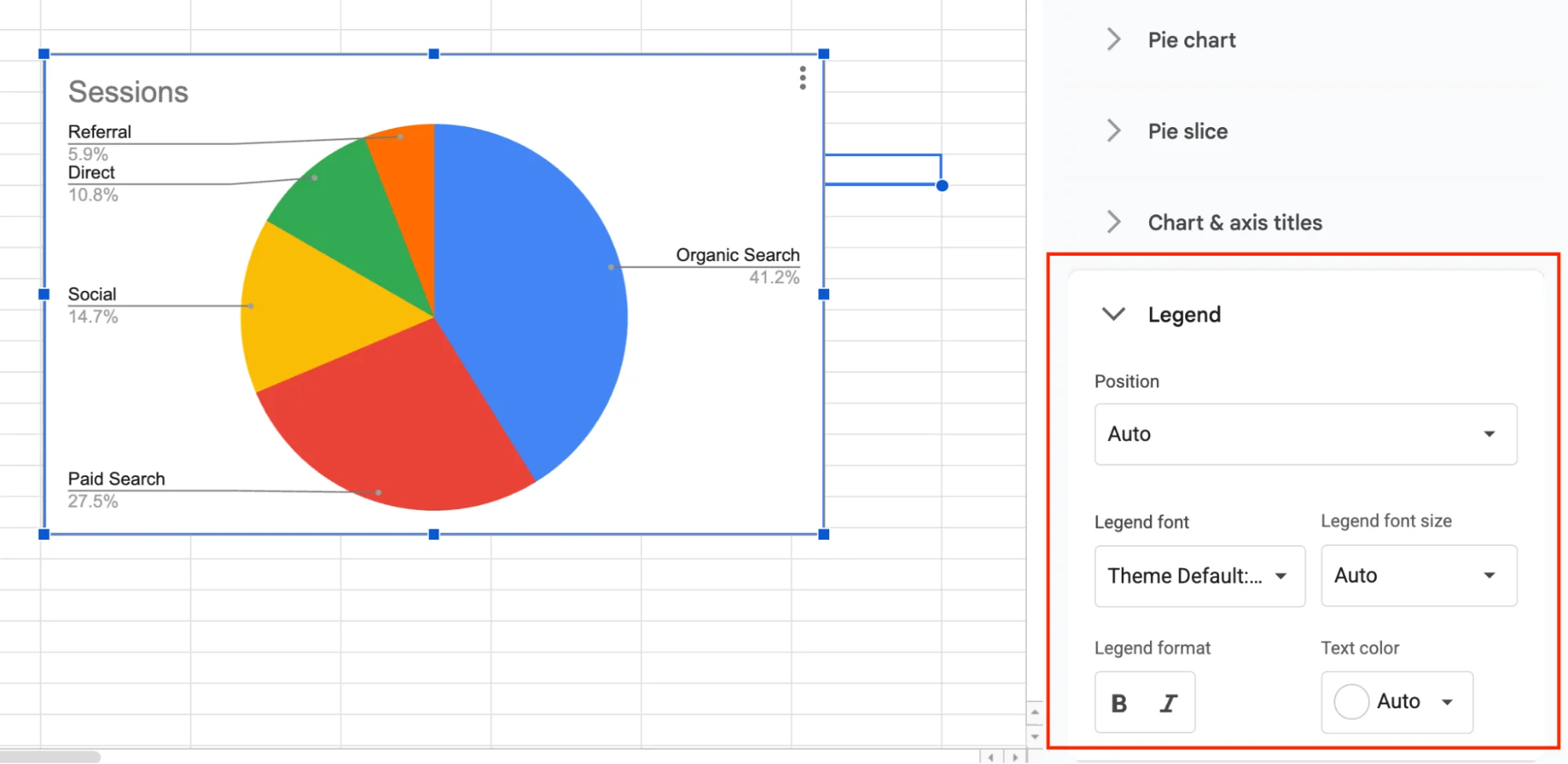
Control where the legend sits: top, bottom, left, right, inside, or labeled.
Labeled puts the category name right next to each slice, which is usually the cleanest option. If your chart has only one data series, you can hide the legend entirely and save the space.
Quick checklist before you call the chart done:
- Clear title
- Six or fewer slices
- Percentage labels on
- Colors that are easy to tell apart
- Legend placed where it does not cover the chart
When NOT to Use a Pie Chart
Pie charts are not always the right call. Pick the wrong use case and the chart tells the reader nothing. Here are the five times to skip it.
Too many categories. More than six or seven slices and the chart turns into a rainbow blur. Switch to a bar chart, or group the small values into an "Other" bucket.
Trends over time. Pie charts show a single moment. For month-over-month revenue, weekly traffic, or anything tracked across dates, use a line chart or column chart.
Similar values. If three categories are all around 30 to 33%, the slices look identical and the reader learns nothing. A bar chart makes small differences easy to see.
Negative numbers. Pie charts only handle positive values. For profit and loss or anything with negatives, use a column chart.
Comparing two datasets. A pie chart only shows one series. To compare Q3 vs Q4 or Product A vs Product B side by side, use a stacked bar or column chart.
GPT for Sheets – The AI Agent That Builds Your Pie Chart For You
Building a pie chart only takes five clicks. Getting your data ready for it is the part that eats your afternoon.
Think about what usually slows you down. Numbers that came in with extra symbols or words mixed in, so the chart will not read them. The same category typed three different ways, showing up as three different slices. Data scattered across a few tabs when you need it all in one place. Every one of those has to be sorted out before you even open the Chart Editor.
GPT for Sheets by GPT for Work handles all of it in one shot. It is an AI agent that lives in a side panel inside Google Sheets. You type what you want, it reads your sheet, works out what needs fixing, and builds the pie chart for you.
Type this:
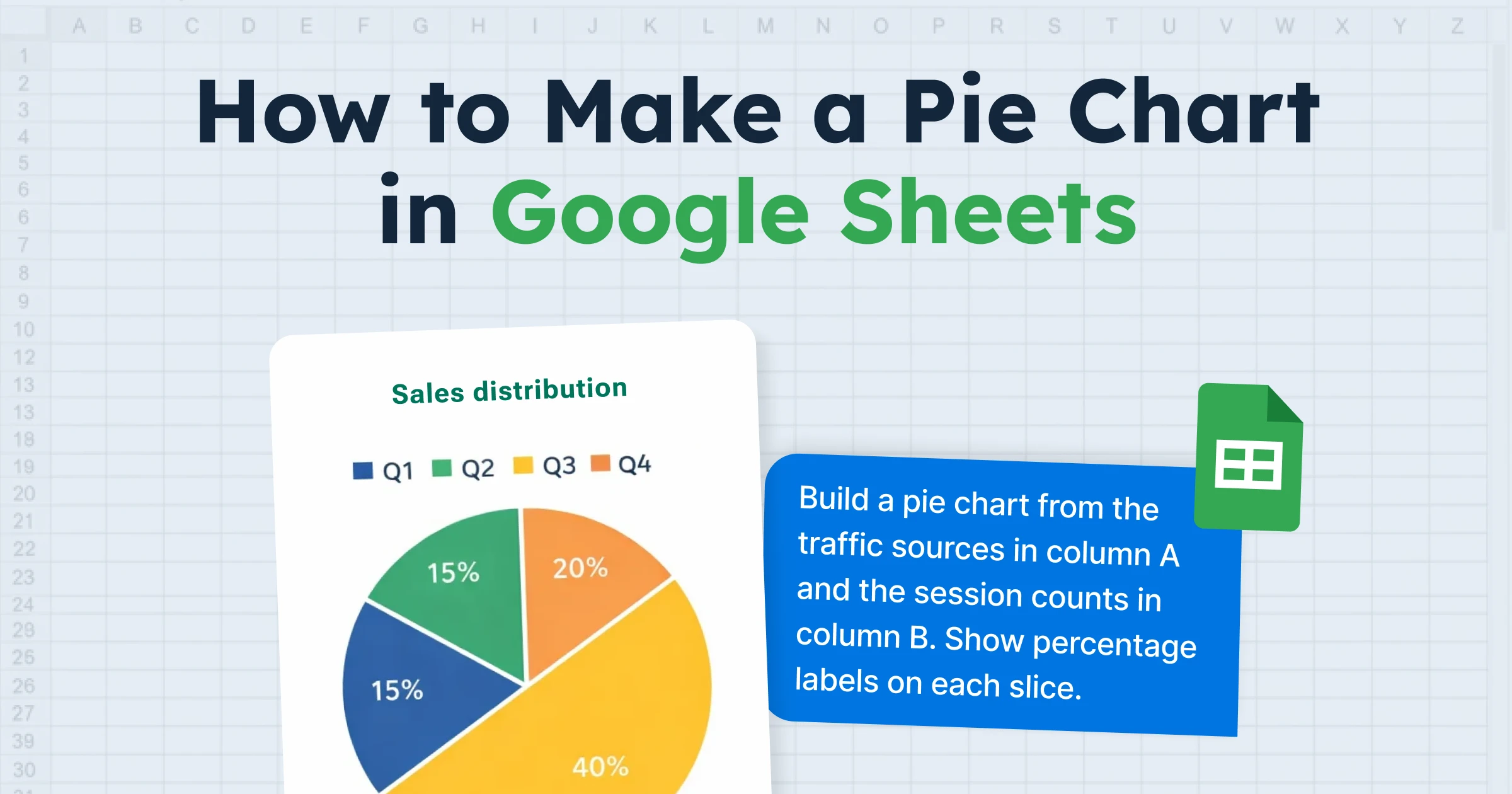
"Build a pie chart from the traffic sources in column A and the session counts in column B. Show percentage labels on each slice."
Hit enter. The agent cleans the data, inserts the chart, and adds the labels. You do not have to touch the Chart Editor once.
Pie charts are just one of many things it can do. The same agent can write formulas you do not want to look up, translate thousands of rows at once, clean up messy customer lists, summarize long text into a single column, or pull data from the web straight into your sheet. Anything you would normally open a spreadsheet to do, you can ask GPT for Sheets to do for you.
Final Takeaways
Pie charts in Google Sheets come down to three things: clean data, five clicks, and a minute of customization. Get the data right, build the chart from the Insert menu, and spend a minute in the Customize tab to make it presentation-ready.
A few rules worth keeping in mind:
- Stick to six slices or fewer, otherwise the chart turns into a blur.
- Turn on percentage labels every time, since that is the whole point of a pie chart.
- Skip the 3D version for any real report, because the tilt makes the slices look wrong.
Also keep in mind that pie charts only work for one job: showing parts of a whole. If you are tracking something over time, a line chart fits better. If you are comparing two things side by side, go with a bar chart. The right chart type matters as much as clean data.
And if you want to skip the manual work entirely, GPT for Sheets handles the cleanup, the chart, and everything in between from one prompt.
FAQs
How do I make a pie chart in Google Sheets on mobile?
Open the Google Sheets app, tap the + icon, and pick Chart. You can pick the pie chart type and tweak the basics, but advanced options like exploded slices and label positions are desktop-only.
How do I show percentages on a pie chart in Google Sheets?
Double-click the chart, go to Customize > Pie chart > Slice label, and pick Percentage. Labels show up on every slice automatically.
Can I make a pie chart from data in multiple sheets?
Not directly. Stack the data into one range first using ={Sheet1!A1:B5; Sheet2!A1:B5}, or pull data from another file with IMPORTRANGE before charting.
What is the difference between a pie chart and a doughnut chart?
A doughnut chart is a pie chart with a hole in the middle. The data and slices are identical. The hole gives you room to drop a total or KPI inside, which is why dashboards use them.
Can a pie chart show negative numbers?
No. Google Sheets ignores negatives and zeros in pie charts. For data with negative values, use a column or bar chart instead.