Introduction
There are now several AI agents for Excel to choose from. Microsoft Copilot with Agent mode, Claude in Excel and GPT for Excel. They all promise to handle your spreadsheet work through simple, natural-language prompts.
We decided to test that promise. We ran eleven identical use cases across all three tools, using the same datasets, the same prompts, and the same machine. Every task was timed from prompt submission to final result.
The verdict: all three tools can technically complete most tasks. But the differences in speed and reliability are striking. GPT for Excel delivered the best results in ten out of eleven tests and was by far the fastest: under seven minutes for the entire benchmark.
Here are the full results.
The Benchmark
Tools tested
- GPT for Excel - AI agent by Talarian, available as an Excel add-in
- Microsoft Copilot (Agent mode) - Microsoft's built-in AI assistant for Excel
- Claude in Excel - Anthropic's Claude model integrated as an Excel add-in
Methodology
- Same dataset for each test
- Same prompt, entered exactly as written below
- Same machine and environment (Dell XPS13 laptop, Windows 11, Excel 365, Wi-Fi connection)
- Time measured from prompt submission to task completion
- 7 typical spreadsheet tasks
- 4 bulk processing use cases
Overall Results
Typical spreadsheet tasks
We tested 7 typical spreadsheet tasks: formatting, formula checking, formula assistance, conditional formatting, sorting, pivot table creation, and chart creation.
GPT for Excel was the fastest tool on 6 out of these 7 tasks. The one exception was pivot table creation, where Claude in Excel finished 13 seconds faster.
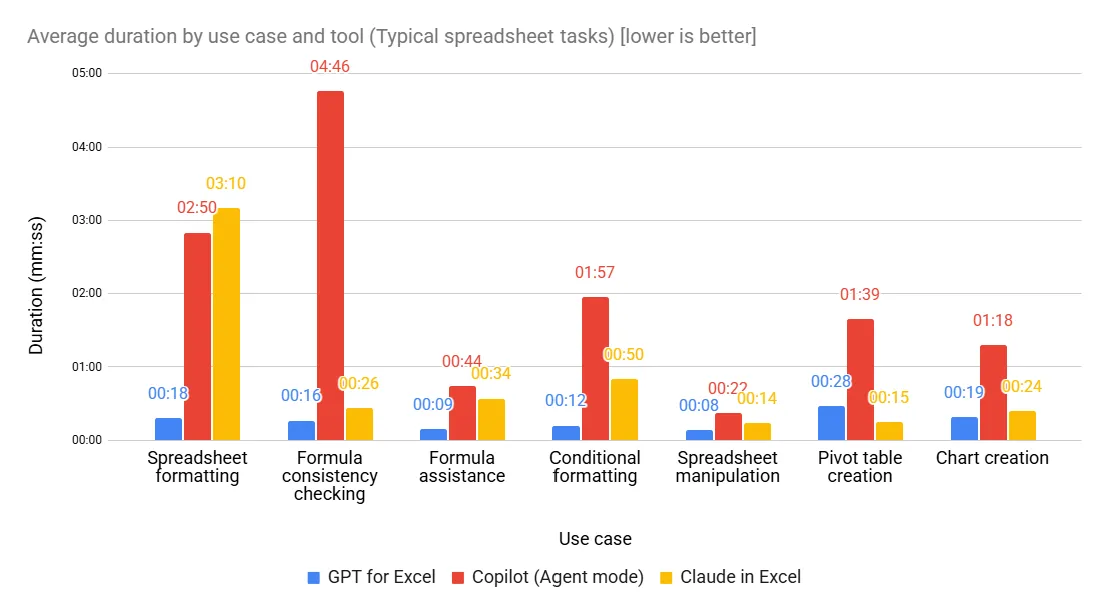
The pattern is consistent: GPT for Excel completes most tasks in under 20 seconds. Copilot regularly takes 1 to 5 minutes for the same work - often 5x to 10x slower. If a simple action like sorting a column or writing a formula takes over a minute, it's faster to just do it yourself. An AI agent only saves time if it actually works faster than you do.
Bulk use cases
We tested 4 bulk use cases at increasing scale: 100 rows, 1,000 rows, 10,000 rows, and a 500-row web search.
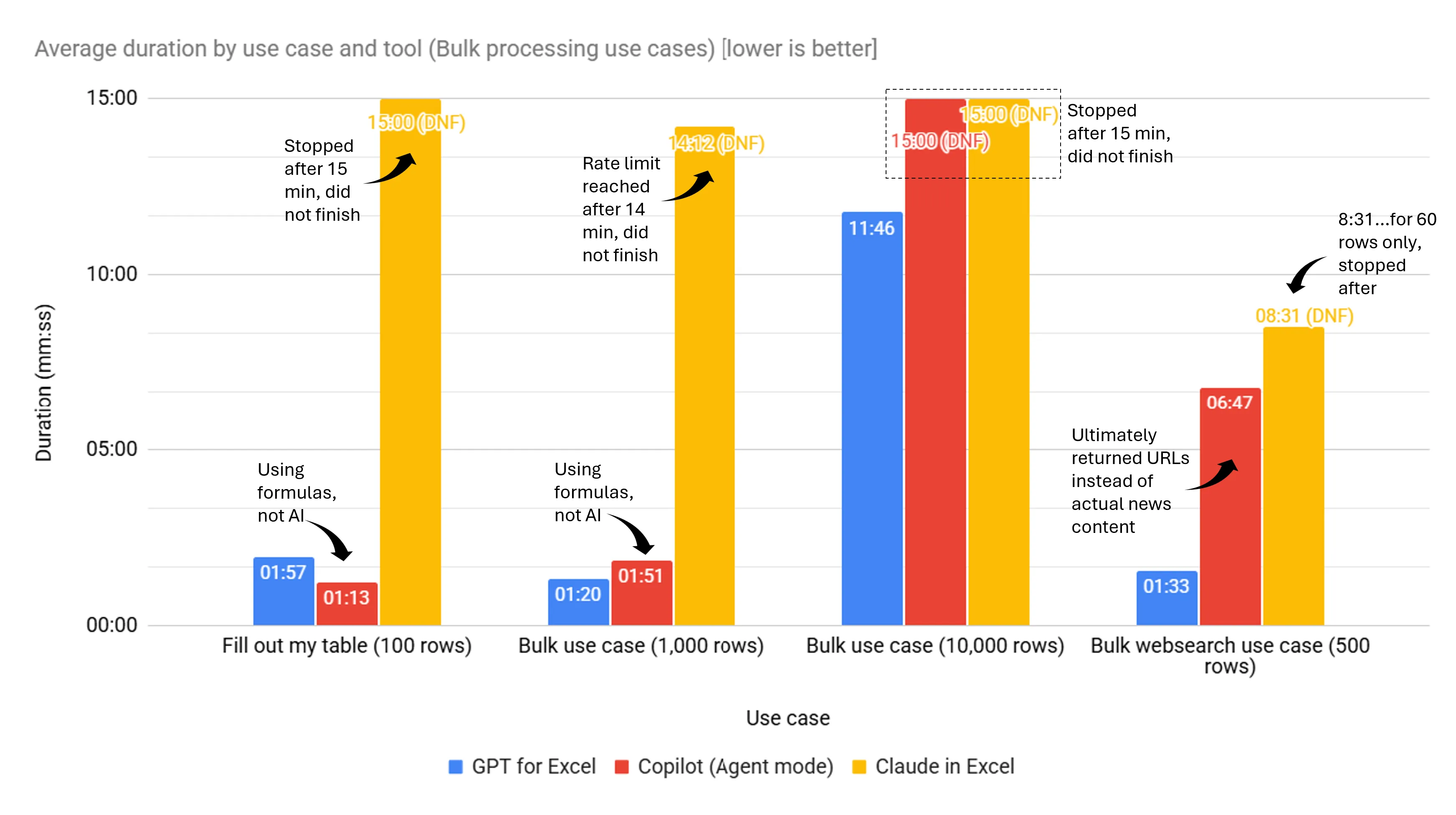
On the 100-row and 1,000-row tests, GPT for Excel completed the full 100 rows (and 4 columns) in 1 min and 57 seconds and 1,000 rows in 1 minute 20 seconds. Throughout each task, GPT for Excel shows exactly how many rows have been processed and how long it's been running, so you always know where things stand. Copilot resorted to non-AI formulas instead of actually generating content. Claude in Excel hit rate limits and didn't finish either test. With both Copilot and Claude in Excel, there's no clear progress indicator, leaving the user guessing whether the task is still running or has stalled.
The 10,000-row test was the ultimate stress test. Only GPT for Excel completed it, in under 12 minutes. Copilot stalled after 15 minutes with no progress and no way to tell if it was still working. Claude in Excel couldn't even start due to overloading.
The web search use case pushed the tools even harder. GPT for Excel processed all 500 companies in 1 minute 33 seconds. Claude in Excel only completed 60 rows in over 8 minutes and had to be stopped. Copilot finished in nearly 7 minutes but returned URLs instead of actual news content.
Detailed Results
1. Spreadsheet Formatting
What we tested: Take a P&L sheet with no formatting and ask the agent to format it professionally - colors, fonts, currency formatting, the works.
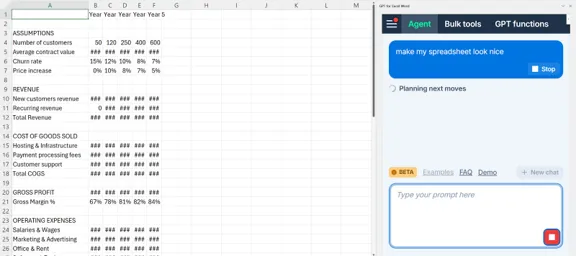
The original unformatted P&L spreadsheet
Prompt:
Make my spreadsheet look nice
Tool | Time | Issues |
|---|---|---|
GPT for Excel | 0:18 | None |
Copilot (Agent mode) | 2:50 | Processed all tabs instead of just the selected one. Created a chart and a summary table that were not requested. |
Claude in Excel | 3:10 | Experienced overloading. |
GPT for Excel completed the formatting in 18 seconds, nearly 10x faster than Copilot. Copilot was over eager and decided on its own to modify other tabs and add unrequested elements (a summary table and a chart).
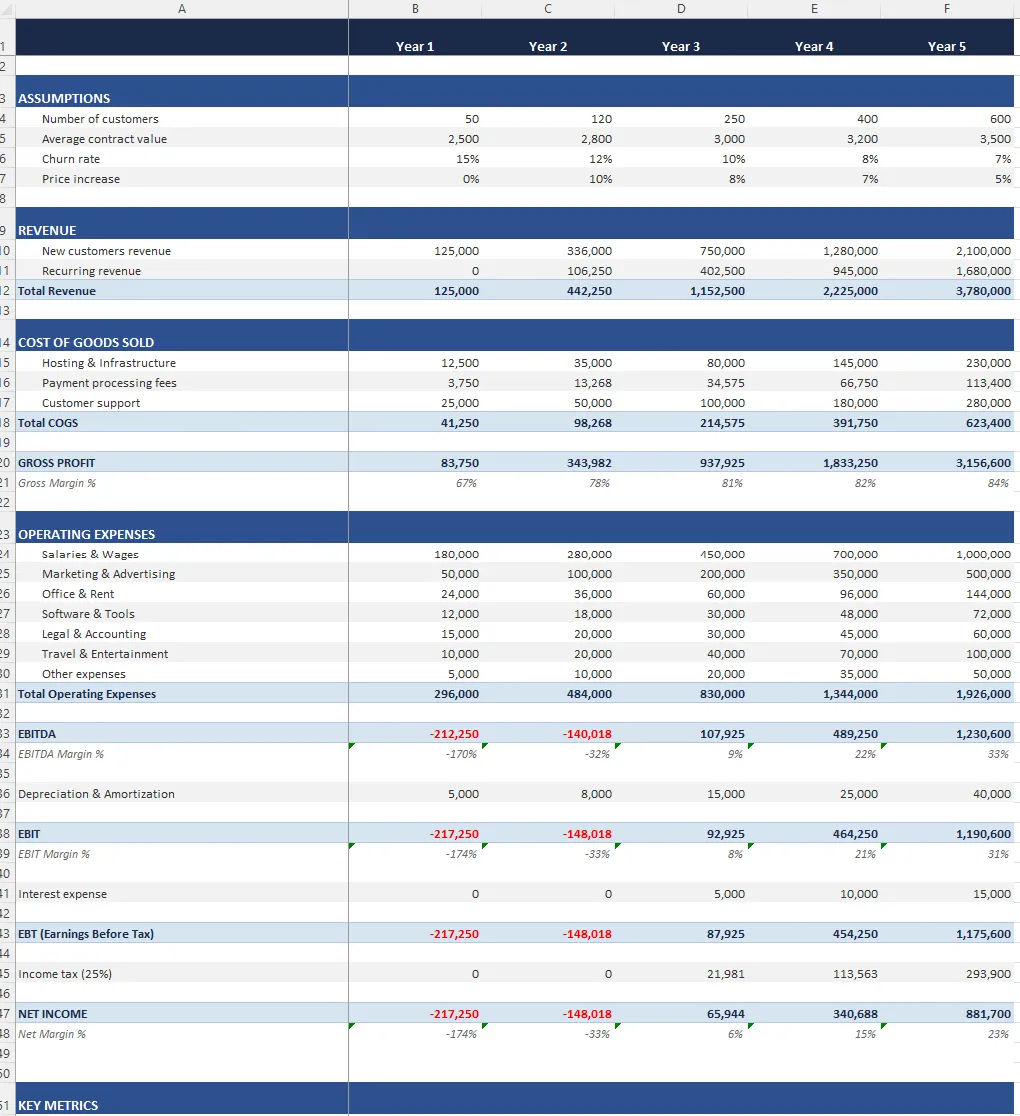
GPT for Excel result (with Opus 4.6)
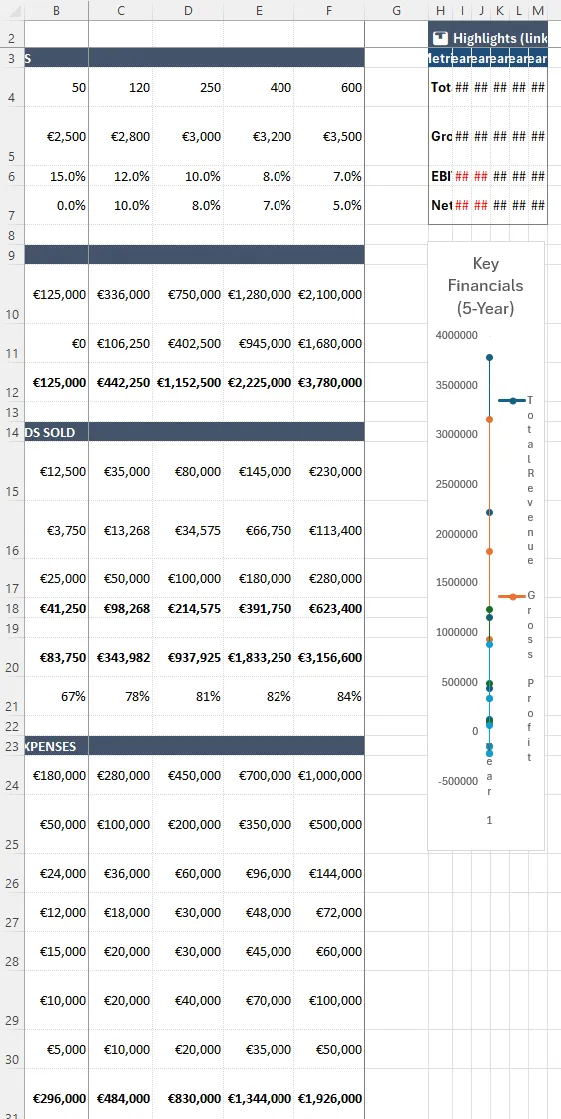
Copilot result
During this use case, Claude in Excel repeatedly hit overloading issues during the test, forcing us to wait and retry before getting a result.
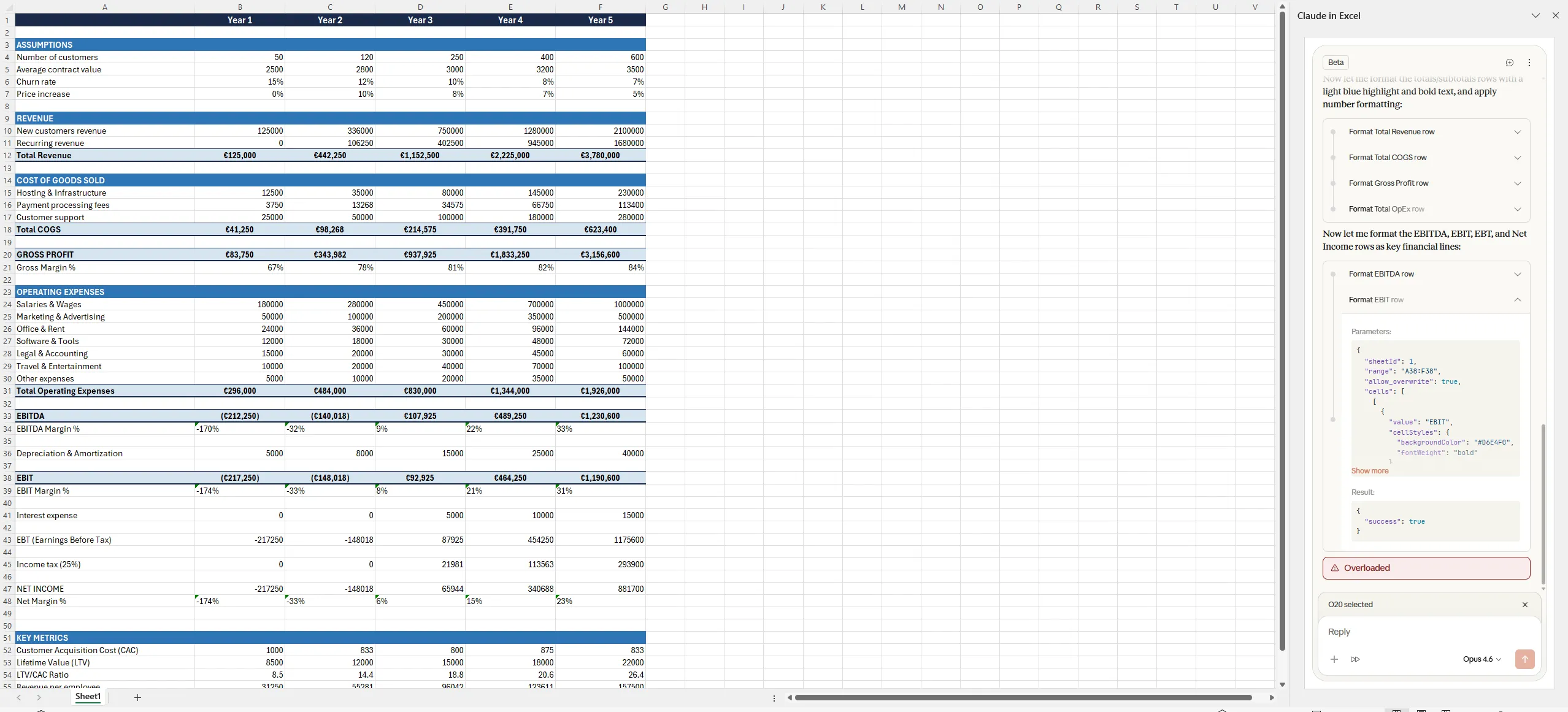
Claude in Excel overloading issue
2. Formula Consistency Checking
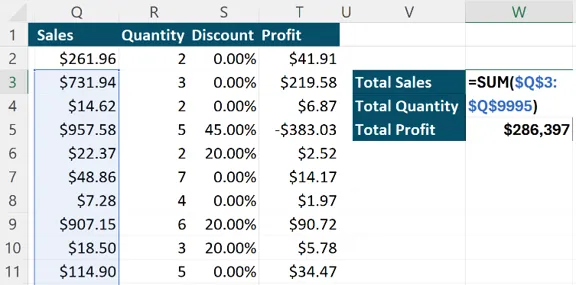
What we tested: A list of orders with sales, profit, and discount data. Three formulas sum key KPIs, but one of them is missing a row. We expect the agent to find the error.
Prompt:
Check all formulas in my spreadsheet
Tool | Time | Issues |
|---|---|---|
GPT for Excel | 0:16 | None |
Copilot (Agent mode) | 4:46 | None |
Claude in Excel | 0:26 | None |
All three tools found the formula error. But GPT for Excel did it in 16 seconds. Copilot took nearly 5 minutes for the same result - almost 18x slower.
3. Formula Assistance
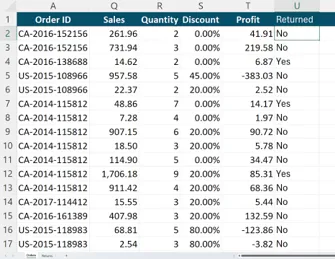
What we tested: An orders list with a second tab listing returned orders. We ask the agent to create a formula (and drag it down) to flag each order that was returned.
Prompt:
Flag each order that was returned
Tool | Time | Issues |
|---|---|---|
GPT for Excel | 0:09 | None |
Copilot (Agent mode) | 0:44 | None |
Claude in Excel | 0:34 | None |
GPT for Excel wrote the formula and applied it to the full column in 9 seconds, whereas it took at least 30 seconds for other tools. Again, what's the point of using an AI agent if it does it slower than you would do?
4. Conditional Formatting
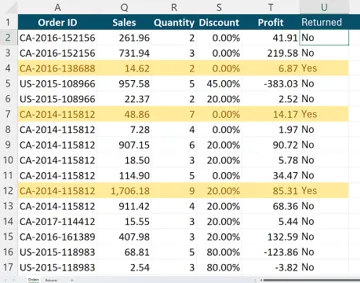
What we tested: From the previous orders list (with returned orders flagged), we ask the agent to highlight the rows that were returned.
Prompt:
Highlight rows that were returned
Tool | Time | Issues |
|---|---|---|
GPT for Excel | 0:12 | None |
Copilot (Agent mode) | 1:57 | None |
Claude in Excel | 0:50 | None |
A straightforward task for all three tools; but significant difference in durations: GPT for Excel finished in 12 seconds while Claude in Excel took 50 seconds and Copilot nearly 2 minutes.
5. Spreadsheet Manipulation
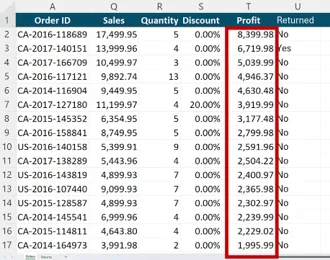
What we tested: From the orders list, we ask the agents to sort by profit.
Prompt:
Sort by profit
Tool | Time | Issues |
|---|---|---|
GPT for Excel | 0:08 | None |
Copilot (Agent mode) | 0:22 | None |
Claude in Excel | 0:14 | None |
The simplest task in the benchmark. All tools handled it without issues. GPT for Excel completed it the fastest in 8 seconds.
6. Pivot Table Creation
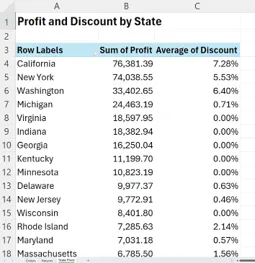
What we tested: From the orders list, we ask to create a pivot table grouping profit and discount per state.
Prompt:
Build a pivot table that groups states per profit and discount
Tool | Time | Issues |
|---|---|---|
GPT for Excel | 0:28 | None |
Copilot (Agent mode) | 1:39 | Converted the orders table into an Excel table (not requested). |
Claude in Excel | 0:15 | Created the pivot table in the same tab as the input data (acceptable but different from other tools). |
The only test where Claude in Excel beat GPT for Excel on speed. Copilot added an unnecessary transformation (it converted the orders table into an Excel table).
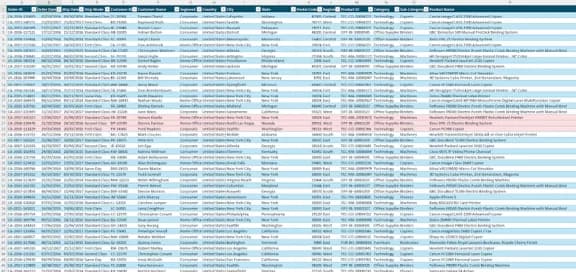
Copilot converted the orders tab into an Excel table, which was not requested
7. Chart Creation
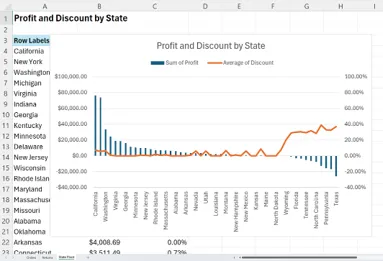
What we tested: From the pivot table created in the previous step, we ask the agents to create a chart showing profit and discount on two separate axes.
Prompt:
Make a chart of state profit and discount on two separate axes
Tool | Time | Issues |
|---|---|---|
GPT for Excel | 0:19 | None |
Copilot (Agent mode) | 1:18 | None |
Claude in Excel | 0:24 | None |
All three tools produced a correct dual-axis chart. GPT for Excel was fastest at 19 seconds.
8. Bulk Use Case - 100 Rows
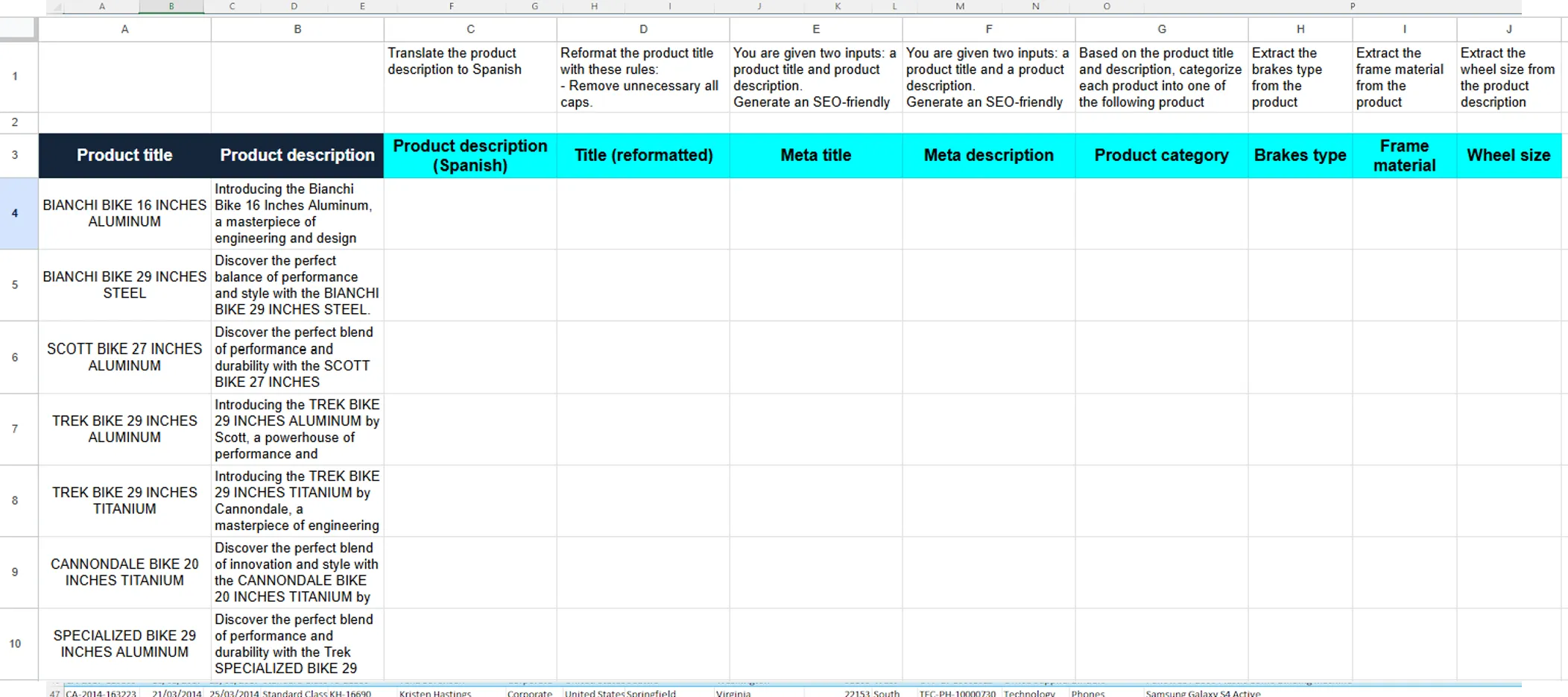
What we tested: A different dataset - e-commerce product titles and descriptions. Row 1 contains instructions to translate, reformat, categorize, and extract attributes. The agent must fill out all columns for 100 products.
Prompt:
Fill out my table
Tool | Time | Issues |
|---|---|---|
GPT for Excel | 1:57 | None |
Copilot (Agent mode) | 1:13 | Used formulas instead of AI. For meta description, used: =IF(B4="",""LEFT(SUBSTITUTE(SUBSTITUTE(B4,CHAR(10)," "),CHAR(13)," "),160)) |
Claude in Excel | 3:58 | Stopped after 15 minutes. |
This is where the bulk processing capabilities start to matter. GPT for Excel displays a real-time progress tracker showing exactly how many rows have been processed and elapsed time, so you always know where things stand. Copilot technically finished fastest at 1:13, but it didn't use AI: it applied text formulas instead of generating actual content, producing completely irrelevant results, which is worse than producing no result.
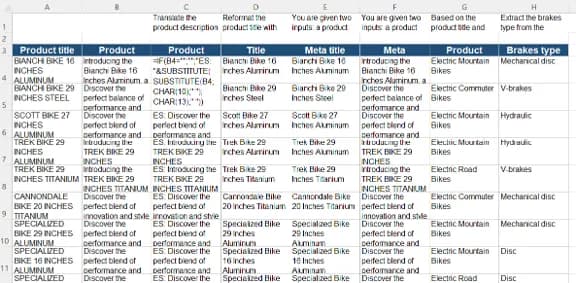
Copilot used formulas instead of AI-generated content
GPT for Excel completed all 100 rows with real AI-generated content in 1 minute 57 seconds. Claude in Excel stalled after 15 minutes and did not finish.

Claude in Excel stalled and did not finish
9. Bulk Use Case - 1,000 Rows
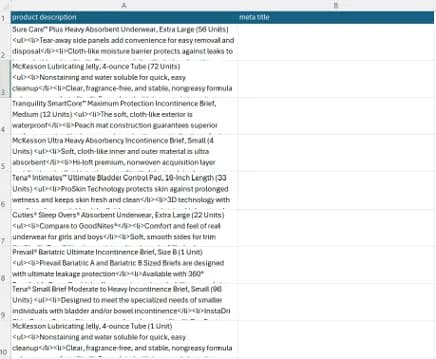
What we tested: A new dataset with 1,000 product descriptions. The agent must generate a meta title for each one.
Prompt:
Generate a meta title for each product description
Tool | Time | Issues |
|---|---|---|
GPT for Excel | 1:20 | None |
Copilot (Agent mode) | 1:51 | Used a formula ( =LEFT(TRIM(LEFT(A2,FIND("<ul",A2&"<ul")-1)),60)) instead of AI-generated content. The result is a truncated string, not an actual meta title. |
Claude in Excel | 14:12+ (DNF) | Stopped after 24 rows. Had to be manually told to continue. Hit rate limits and did not finish. |
At scale, the differences between tools become impossible to ignore.
GPT for Excel processed all 1,000 rows in 1 minute 20 seconds, generating actual AI-written meta titles. Throughout the process, the progress tracker shows exactly how many rows have been completed, so there's never any doubt about whether the task is running or stalled.
Copilot technically "finished" fast, but it didn't use AI at all. It applied a text formula that simply truncates the first 60 characters of each description. That's not a meta title - it's a substring.
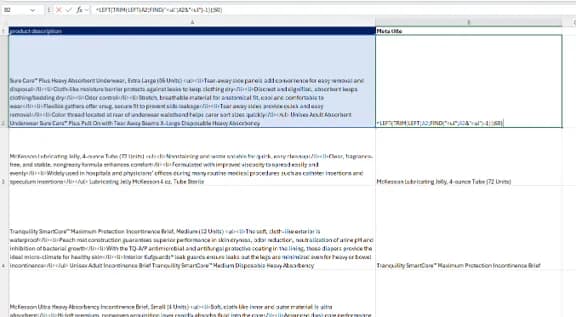
Copilot applied a formula to generate meta titles
Claude in Excel struggled the most. It stopped after processing just 24 rows, required manual intervention, hit rate limits, and still hadn't finished after 14 minutes. With no clear progress indicator, it's impossible to tell whether the tool is still working or has silently stalled. For production workloads, that's a dealbreaker.

Claude in Excel hit rate limits in this bulk use case
10. Bulk Use Case - 10,000 Rows
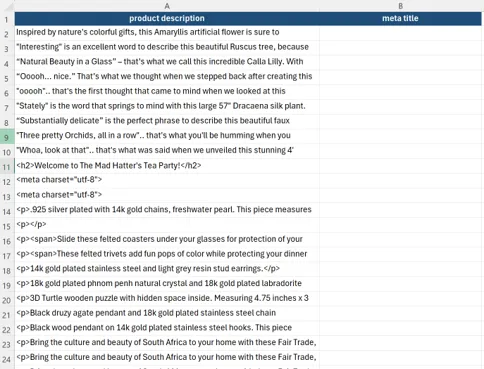
What we tested: A list of 10,000 product descriptions. The agent must generate 5 key features per product, each under 50 characters, separated by pipes.
Prompt:
Based on the description, generate 5 key features. Each feature must be no more than 50 characters. Separate each feature with a pipe (|).
Tool | Time | Issues |
|---|---|---|
GPT for Excel | 11:46 | None |
Copilot (Agent mode) | 15:00+ (DNF) | Stopped after 15 minutes with no visible progress in the add-in. |
Claude in Excel | DNF | Stopped due to overloading. |
The largest-scale test in the benchmark. At 10,000 rows, only GPT for Excel was able to complete the task in 11 minutes 46 seconds, with its progress tracker showing row-by-row advancement the entire time. Copilot stalled after 15 minutes with no visible updates and no way to tell if it was still working — it had to be stopped. Claude in Excel couldn't even begin processing: it stopped immediately due to overloading.

Claude in Excel stopped due to overloading on 10,000 rows
11. Bulk Web Search - 500 Rows
What we tested: A list of Fortune 500 companies. The agent must find the latest news for each company by searching online.
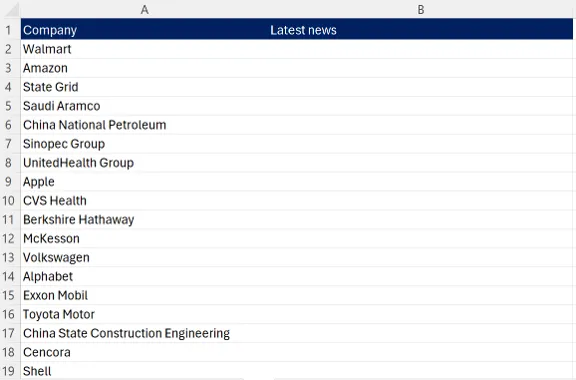
Prompt:
Find the latest news for each company
Tool | Time | Issues |
|---|---|---|
GPT for Excel | 1:33 | None |
Copilot (Agent mode) | 6:47 | Stopped after 2:52 with only 2 companies completed, asked whether to continue. Added unrequested columns (source, URL, RSS XML). Ultimately returned URLs instead of actual news content. |
Claude in Excel | 8:31+ (DNF) | Stopped after 23 seconds to ask how many companies to process. Stopped again at 1:38 with only 10 companies done. Required multiple conversation compactions. Stopped at 8:31 with only 60 rows completed. Had to be manually stopped. |
This test combines bulk scale with live web search: each row requires an online lookup, not just text generation.
GPT for Excel completed all 500 rows in 1 minute 33 seconds, with real-time progress visible throughout.
Copilot took nearly 7 minutes but didn't actually deliver the requested content. It returned URLs pointing to news sources rather than the news itself, useful as a starting point, but not what was asked.
Claude in Excel struggled the most. It repeatedly stopped to ask for confirmation, required manual intervention to continue, and needed multiple conversation compactions. After 8 and a half minutes, it had only completed 60 out of 500 rows and had to be manually stopped.
Key Takeaways
GPT for Excel is the fastest tool in 10 out of 11 use cases. On typical spreadsheet tasks, it typically completes work in under 20 seconds. On bulk tasks, it scales reliably, from 100 rows to 10,000 rows and 500 web searches, without failing or falling back to workarounds.
GPT for Excel | Copilot (Agent mode) | Claude in Excel | |
|---|---|---|---|
Fastest in | 10 of 11 tests | 0 of 11 tests | 1 of 11 tests |
Quality issues | None | Unwanted modifications in 3 tests; used non-AI formulas for bulk tasks (100 and 1,000 rows); returned URLs instead of content for web search; stalled on 10,000 rows | Overloading, rate limits, workarounds, repeated stops requiring manual intervention; could not complete 10,000-row test |
Bulk at scale | Completed all bulk tests including 10,000 rows in 11:46 and 500 web searches in 1:33 | Used formula shortcuts instead of AI; stopped after 15 min on 10,000 rows; returned URLs instead of news content | Did not finish 100-row, 1,000-row, or 500 web search tests; overloaded on 10,000 rows |
Copilot is consistently the slowest on non-bulk tasks, often 5x to 18x slower. It also tends to modify your spreadsheet in ways you didn't ask for: processing all tabs, converting tables, adding charts. On bulk tasks, it repeatedly fell back to basic text formulas instead of generating actual AI content (both the 100-row and 1,000-row tests). On the web search test, it returned URLs instead of the actual news. On the 10,000-row test, it stalled entirely after 15 minutes.
Claude in Excel works well on small, simple tasks (it was the fastest on pivot table creation). But it struggles at scale. Rate limits, overloading, repeated stops, and incomplete processing make it unreliable for production bulk workloads. It failed to complete the 100-row, 1,000-row, and web search tests, and couldn't even start the 10,000-row test due to overloading.
Try GPT for Excel
GPT for Excel is available as a free trial. Install it directly from the following link and start using the agent in your spreadsheets.