Most data analysis still happens the hard way. You open a spreadsheet with thousands of rows, write formulas manually, build pivot tables from scratch, and spend hours cleaning messy data before you can even start looking for patterns.
AI tools for data analysis can now handle much of that work for you — this is what AI in Excel and Google Sheets actually looks like in 2026 — often directly inside your spreadsheet.
The challenge is choosing the right one. Some tools work natively inside your spreadsheet as add-ins. Others are built into BI platforms like Power BI, Looker Studio, or Tableau. A few are standalone apps where you upload a file and ask questions in plain language.
This guide compares 10 tools across all three categories. You’ll see what each one does well, where it falls short, and which type of user it fits best.
If you want the mechanics before the shortlist, start with how to use AI in Excel or how to use AI in Google Sheets, then come back here to pick a tool. And if the cleanup step is your real bottleneck, we compare the best AI data cleaning tools separately.
What Makes a Good AI Tool for Data Analysis
Not every AI data analysis tool works the same way. Before comparing the tools, here are the key things to look for.
1. It works where your data lives.
If you have to upload files to a separate app, copy results back, and reformat everything, you may lose more time than you save. Tools that run directly inside Excel or Google Sheets keep you in your existing workflow.
2. It handles bulk data.
Analyzing one cell or one chart at a time is fine for small tasks. But if you need to clean, classify, or summarize thousands of rows, you need a tool that can process entire columns without slowing down or timing out.
3. It goes beyond formulas.
A good AI data analysis tool should help create pivot tables, build charts, spot outliers, run statistical summaries, and answer questions about your data in plain language. If all it does is write a SUM formula, it is not really doing data analysis.
4. It gives you model choices.
Different AI models are better at different tasks. A tool that lets you switch between GPT, Claude, and other models can give you better results depending on whether you are classifying text, summarizing trends, or analyzing numbers. Most built-in assistants now ship a model picker, so check which models are actually selectable on your plan rather than which ones the marketing page names.
Quick Comparison Table: Best AI Tools for Data Analysis in Excel & Google Sheets
Tool | Excel | Sheets | Bulk Processing | Best For |
|---|---|---|---|---|
GPT for Work | Yes | Yes | Yes (200K–1M rows) | All-round spreadsheet analysis |
Microsoft Copilot | Yes | No | No | M365 Excel users |
Claude for Excel | Yes | No | No | Multi-tab financial analysis |
ChatGPT for Excel & Sheets | Yes | Yes | No | ChatGPT users on any plan |
Gemini in Sheets | No | Yes | No | Google Workspace users |
Shortcut | Yes | Yes | No | Financial modeling |
Ajelix | Standalone | Yes | Limited | Spreadsheet automation and dashboards |
Numerous.ai | Yes | Yes | Limited | Simple cell-level AI tasks |
Power BI | Standalone | No | Yes | Microsoft BI dashboards |
Julius AI | Standalone | Sync | Yes | No-code standalone analysis |
10 Best AI Tools for Data Analysis
Here are the 10 best AI tools for data analysis in 2026, starting with the ones that work directly inside your spreadsheet.
1. GPT for Work (Excel & Google Sheets)
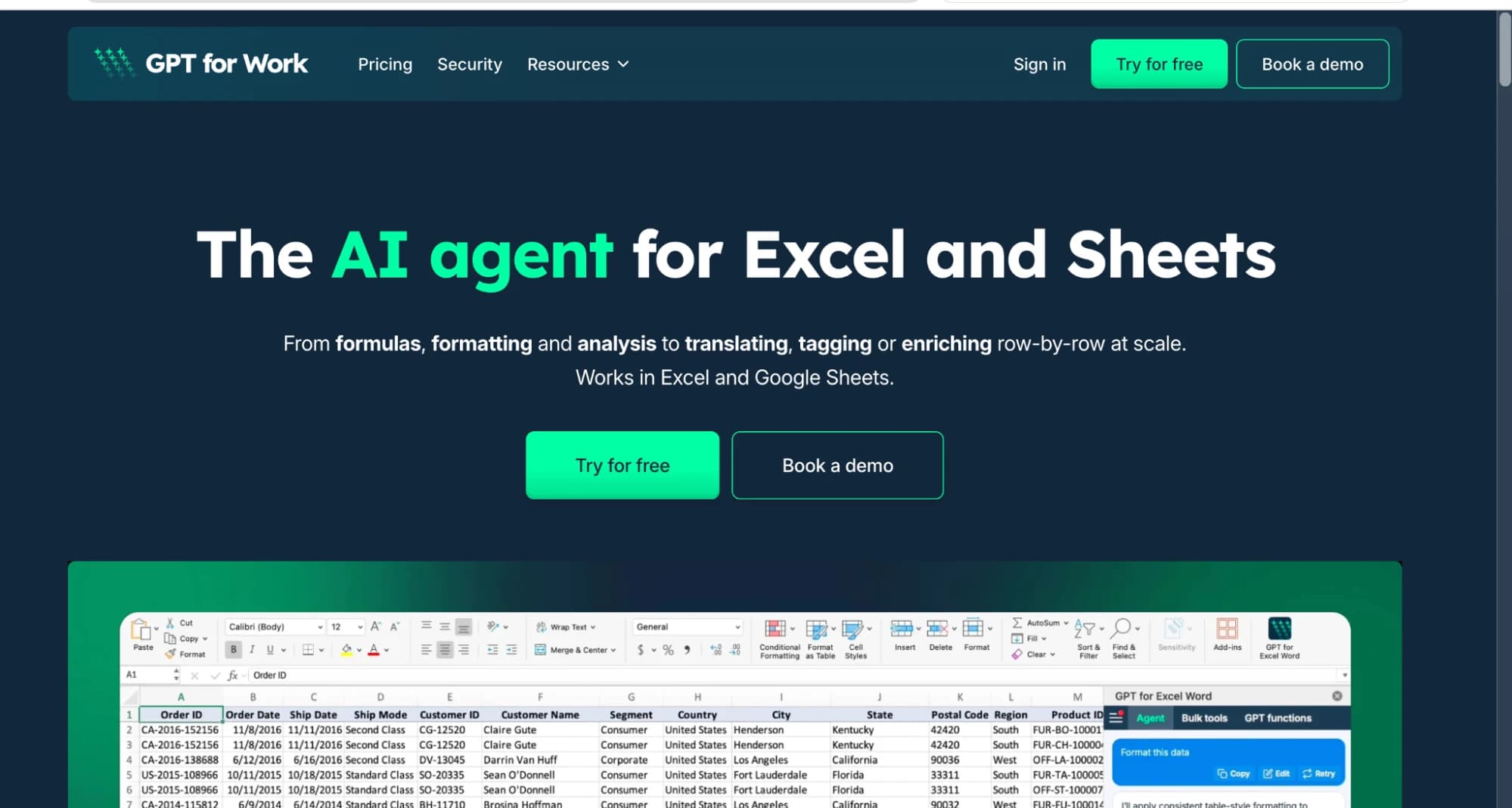
GPT for Work, built by Talarian, is a native add-in for both Google Sheets (GPT for Sheets) and Microsoft Excel (GPT for Excel). Once installed, it adds a chat panel directly inside your spreadsheet. You describe what you want to do, and the AI agent reads your data, runs the analysis, and writes results back into your cells.
Most AI tools stop at answering questions about your data. GPT for Work goes further. It can clean messy columns, fill missing values, classify rows by category or sentiment, build pivot tables, generate charts, and surface patterns across your dataset.
Its bulk processing engine runs at up to 1,000 rows per minute, and a single run covers up to 200,000 rows in Google Sheets or 1 million in Excel. That is roughly 100 times what a person can do by hand, and it is what separates this list's spreadsheet-native agents from the ones that only edit a workbook step by step.
You are not locked into a single AI model. The agent runs on OpenAI and Anthropic models, currently GPT-5.6 and Claude Opus 5 among others, picked from a model switcher inside the agent panel. The bulk tools and GPT functions add Google and Perplexity models on top of those.
Example
Dataset: Customer feedback stored in a spreadsheet
Broad prompt:
“Analyze this feedback data”
The agent categorizes each comment by topic (shipping, bugs, pricing, support, UX), runs a sentiment breakdown by product tier and source channel, identifies that the Starter plan has the highest share of negative feedback linked to mobile crashes, and generates a summary chart, all from a single prompt.
Specific prompt:
“Find the top 3 complaint categories and show how they trend by month”
The agent groups feedback into categories, counts frequency by month, builds a line chart to visualize trends, and flags that shipping complaints spiked by 40% in January. All outputs are placed in a new tab, leaving the raw data unchanged.
Same dataset, different prompts: the agent adapts based on your request.
Best for: Analysts, marketers, finance teams, operations, and e-commerce teams who live in spreadsheets.
Pros
- Works inside both Google Sheets and Excel
- Full AI agent (not just a chatbot or formula generator)
- Model switcher across OpenAI and Anthropic frontier models
- Scales to large datasets (200K rows in Sheets, 1M in Excel)
- ISO 27001 certified, GDPR compliant
Cons
- Not a BI or dashboard platform
Pricing: Free to install, with free credits to start and no card required. After that, a subscription from $25/month with included usage; extra-usage credits are pooled across your team and valid 12 months.
2. Microsoft Copilot (Agent Mode) in Excel
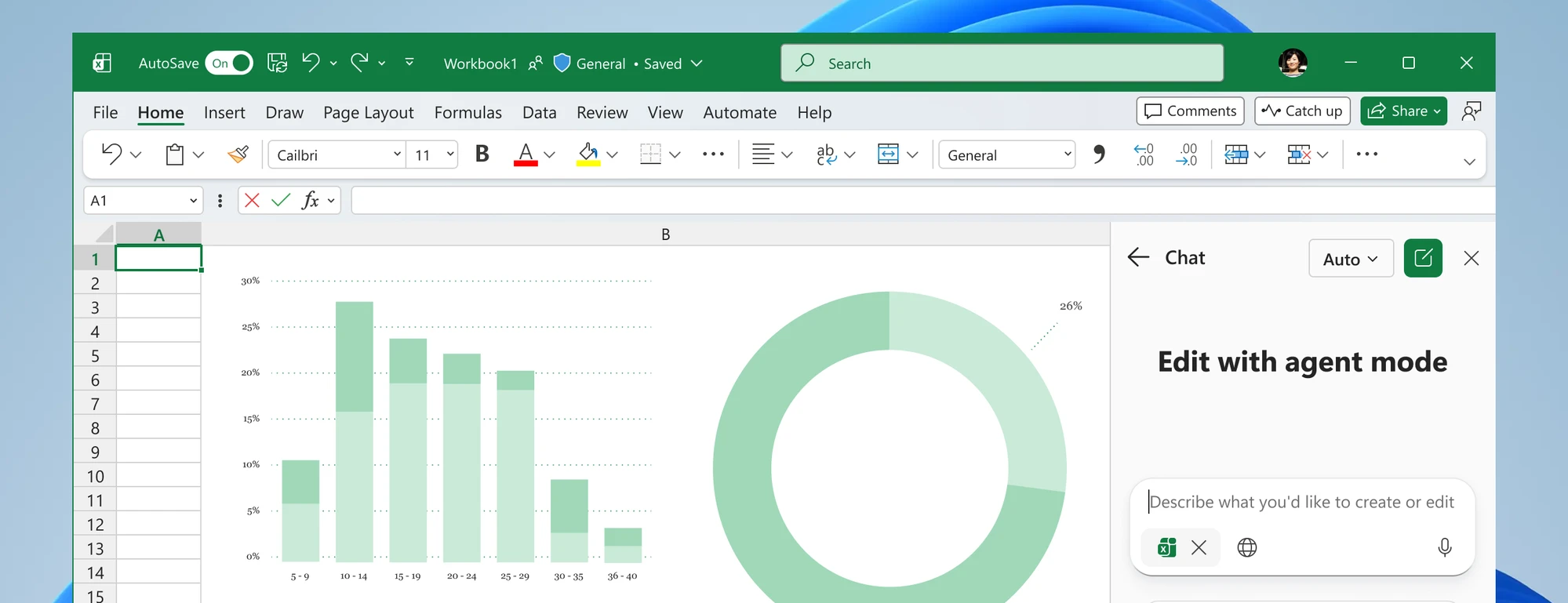
Microsoft Copilot’s Agent Mode (now labeled “Edit with Copilot”) is the most advanced AI experience currently built into Excel. Unlike basic Copilot Chat, which only answers questions, Agent Mode can directly edit your workbook. It creates formulas, builds pivot tables, generates charts, formats data, and handles multi-step tasks through natural language instructions.
It reached general availability on Windows in January 2026, with web and Mac following. Inside the Copilot pane, a model picker lets you switch between OpenAI and Anthropic models, and an Auto option picks one for you. Microsoft rotates that roster often. As of August 2026 it spans the GPT-5.5 and GPT-5.6 line alongside Claude Sonnet 5, Opus 4.8, and Opus 5, but what you actually see depends on your tenant and rollout ring. Copilot also supports web search, so it can pull in external data with cited sources.
For data analysis, its biggest limitation is bulk processing. Copilot cannot reliably apply prompts across thousands of rows (for example, classifying or tagging entire columns). It is better suited for structured, step-by-step tasks than large-scale dataset transformations. Performance can also slow down significantly on more complex requests.
Best for: M365 users who want AI-assisted data analysis without installing a third-party add-in.
Pros
- Built directly into Excel (no installation required)
- Model picker across OpenAI and Anthropic models, plus an Auto mode
- Web search with source citations
- Can show step-by-step reasoning for actions
Cons
- No true bulk row-by-row processing
- Works only in Excel (no Google Sheets support)
- Model availability varies by tenant and rollout ring
- Can be slow on complex or multi-step tasks
- Priority access and model choice require the paid add-on license
Pricing: Copilot Chat-eligible Microsoft 365 business and enterprise plans include standard access, subject to service capacity; the Microsoft 365 Copilot add-on at $30/user/month (or Microsoft 365 Premium for individuals) unlocks the full experience, including priority access and model choice.
3. Claude for Excel

Claude for Excel is Anthropic’s official add-in that runs as a sidebar inside your workbook. It can read across multiple tabs, understand how cells and formulas connect, and make edits directly while tracking every change. It left beta earlier in 2026 and is now available on the Pro, Max, Team, and Enterprise plans.
Running on Claude Opus 4.6, it edits pivot tables, applies conditional formatting, generates charts, detects outliers, and explains patterns in your data. A key strength is transparency, every response includes cell-level citations, so you can trace exactly where each number or insight comes from.
Anthropic has also introduced MCP connectors, which allow Claude to pull in live data from sources like S&P Global, LSEG, Moody’s, and FactSet. This is especially useful for financial analysis that depends on up-to-date external data.
The main limitation is usage. Each interaction processes the full workbook and often involves multiple tool calls, which can quickly consume your monthly allowance. Like Copilot, it also lacks bulk row-by-row processing and only works in Excel.
Best for: Excel users working with complex, multi-tab workbooks who need traceable, explainable analysis.
Pros
- Understands and analyzes multi-tab workbooks
- Cell-level citations for full transparency
- MCP connectors for live external data
Cons
- Usage limits can be consumed quickly
- No bulk processing for large datasets
- Excel only (no Google Sheets support)
Pricing: Requires a paid Claude plan: Pro ($20/month), Max (from $100/month), Team, or Enterprise.
Add-in is free to install. The free Claude plan does not include it.
4. ChatGPT for Excel and Google Sheets
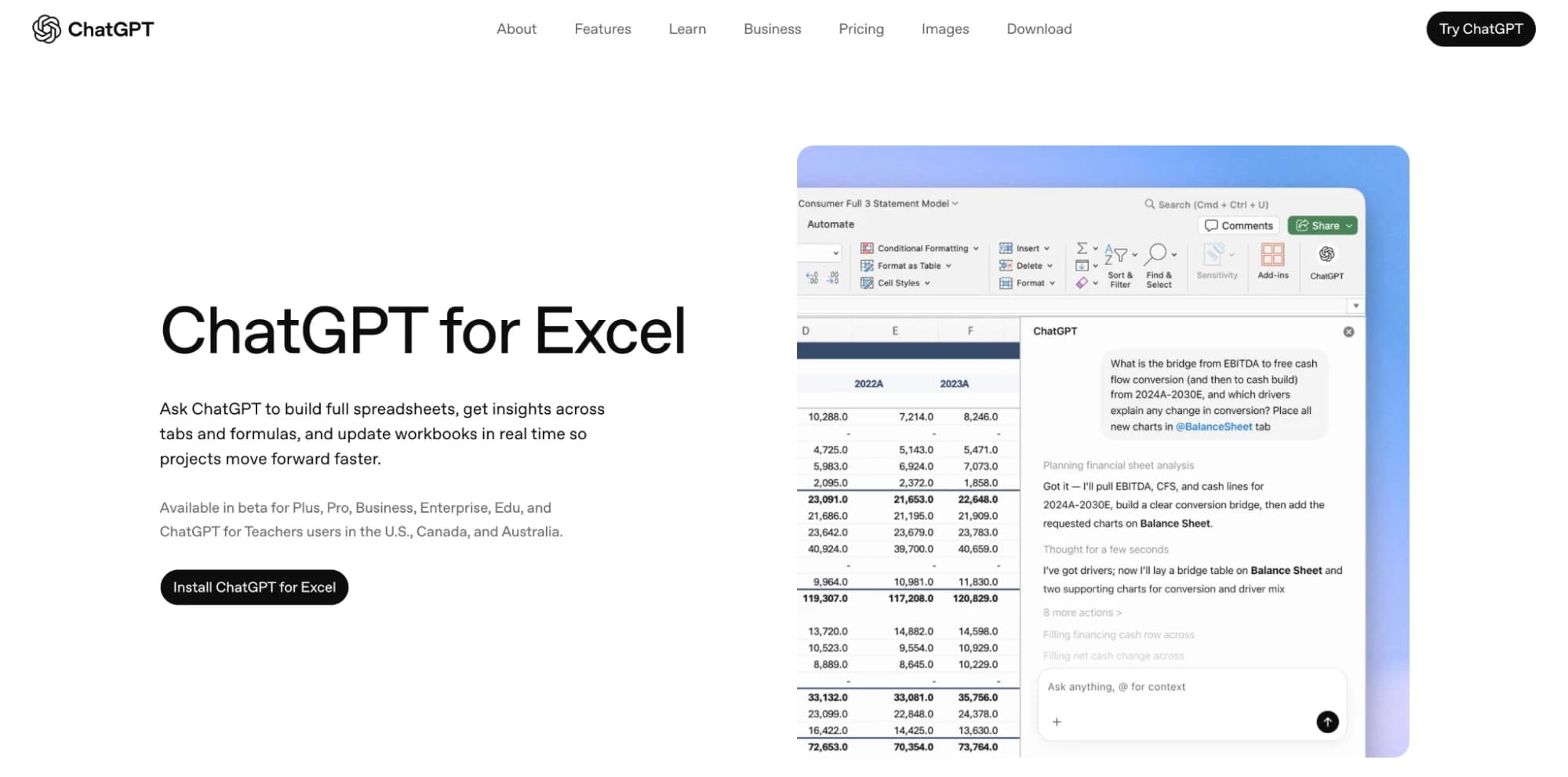
This is the entry that changed most since our last update. OpenAI's add-in launched as an Excel-only beta in March 2026, added Google Sheets in April, and went generally available on May 5, 2026, powered by GPT-5.5. It is now global and works on every ChatGPT plan, including Free and Go.
You describe what you want in plain language, and the assistant builds, edits, and analyzes your spreadsheet in place. It can create new sheets from scratch, clean messy data, write and fix formulas, trace errors across large multi-tab files, and generate charts. Before making changes, it explains what it plans to do and asks for confirmation. OpenAI also shipped financial data integrations alongside it, so the sidebar can pull market and company data into a model.
The remaining limitation is scale. There is still no bulk row-by-row processing, so classifying or tagging ten thousand rows is not what this is for, and very large workbooks can hit context limits and come back with partial answers. Usage counts against your plan's agentic limits, which run out quickly on Free and Go.
Best for: ChatGPT users who want spreadsheet-native AI analysis and work in both Excel and Google Sheets.
Pros
- Powered by GPT-5.5 with long context support
- Works in both Excel and Google Sheets
- Edits workbooks directly with change tracking
- Built-in financial data integrations
- Explains actions before applying changes
Cons
- No bulk processing for large datasets
- Large workbooks can hit context limits
- Usage draws on your plan's agentic limits, which are tight on Free and Go
Pricing: Included on every ChatGPT plan. Free and Go get limited usage; Plus ($20/month), Pro ($200/month), Business, and Enterprise get more headroom under each plan's usage terms.
5. Gemini in Google Sheets
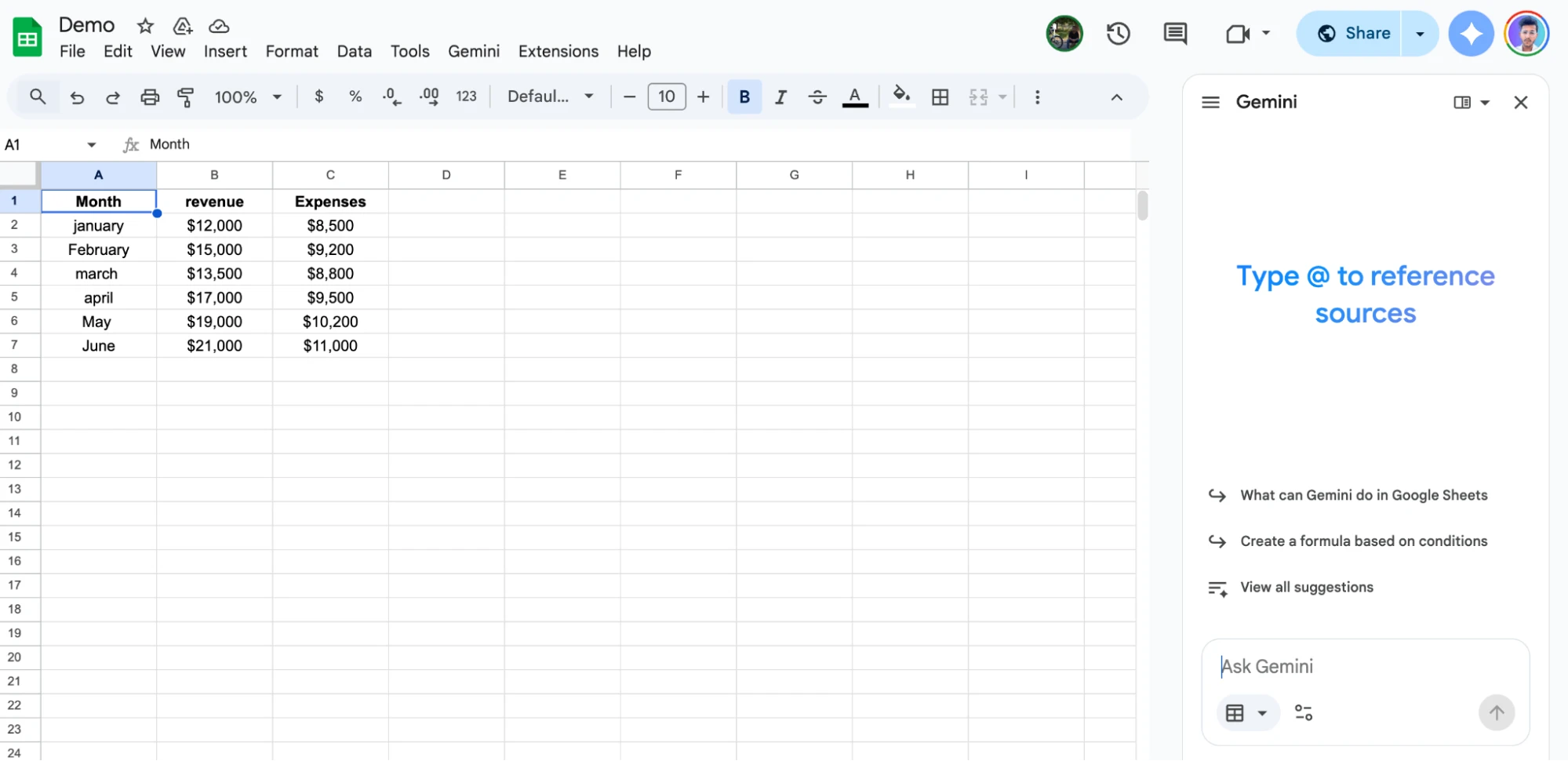
Gemini is Google’s built-in AI for Google Sheets. It runs directly in the side panel, where you can ask it to analyze your data using plain language. It can identify trends, detect outliers, run basic correlations, and generate charts like heatmaps and scatter plots.
For in-cell analysis, the =AI() function lets you run tasks like sentiment classification, categorization, and pattern extraction directly inside your sheet. “Fill with Gemini” populates entire columns from a couple of examples and can pull real-time information from Google Search to enrich your dataset. Google has been shipping steadily here. An April 2026 update let Gemini build and edit more complex spreadsheets from the side panel, and Fill with Gemini reached 11 more languages in July 2026.
Gemini works well for quick, surface-level analysis. However, it struggles with depth. More complex, multi-step requests can return incomplete or inconsistent results. Tasks like analyzing thousands of rows, running segmented statistical breakdowns, or building layered pivot tables are still hit or miss. It also lacks true bulk processing for large-scale transformations and does not support Excel. The bigger practical constraint is quota. The promotional high limits on =AI() and Fill with Gemini ended on July 15, 2026, and higher usage now needs an AI add-on license.
Best for: Google Workspace users who need quick data analysis inside Sheets without installing anything.
Pros
- Built into Google Sheets (no installation required)
=AI()function for in-cell analysis- Can generate charts, heatmaps, and basic pivots
- Pulls live data from Google Search
Cons
- Less reliable for complex or multi-step analysis
- No bulk processing at scale
- Google Sheets only (no Excel support)
- Usage limits now need a paid AI add-on
Pricing: Included with Business Standard and above at no extra cost. Higher =AI() and Fill with Gemini limits require the AI Expanded Access or AI Ultra Access add-on.
6. Shortcut
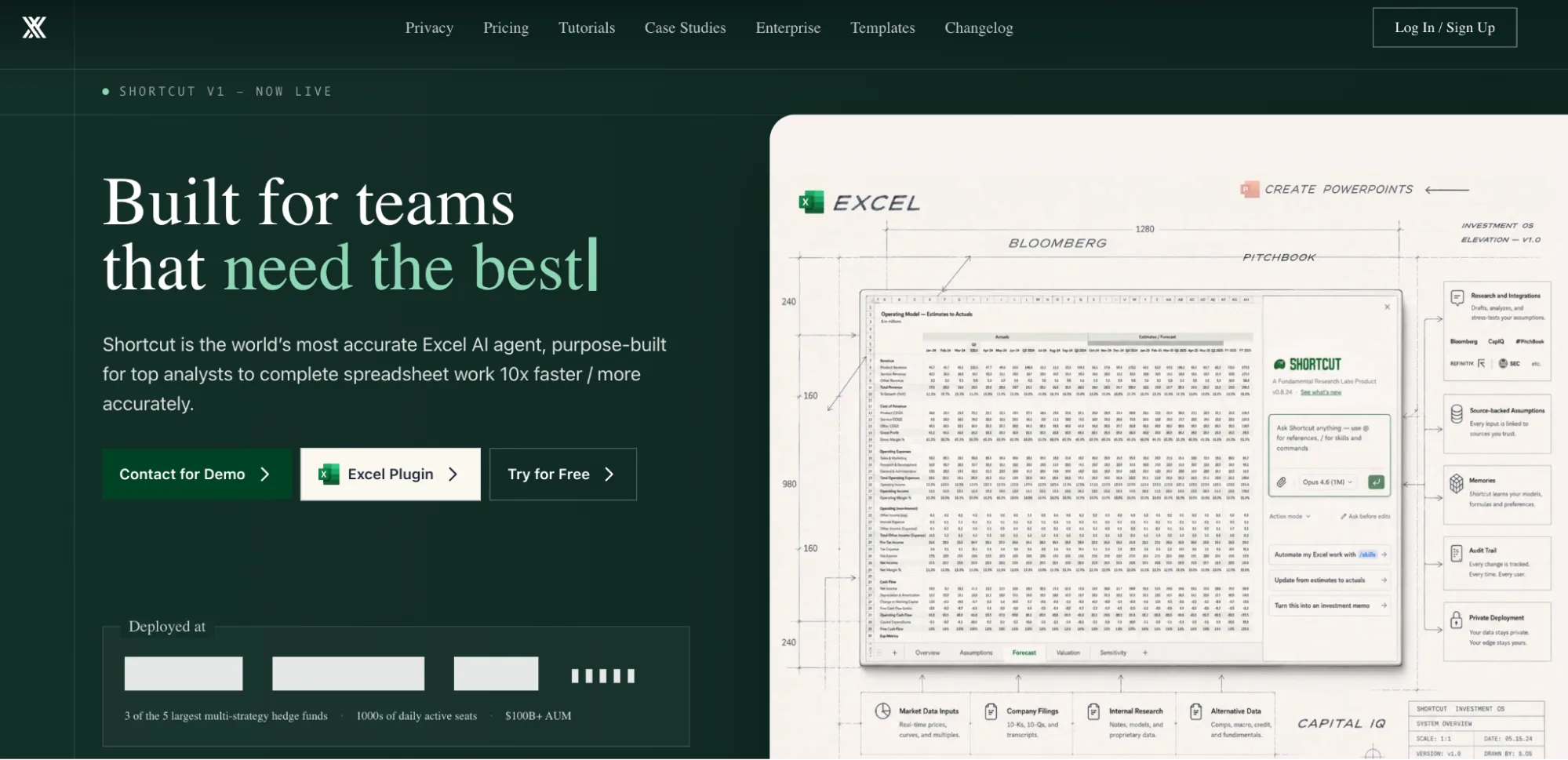
Shortcut is the newcomer on this list, and the only one built around a single job: financial modeling. LBOs, DCFs, and three-statement models. It installs as an Excel plugin from Microsoft Marketplace, and also runs on the web, on desktop, and as a Google Sheets plugin.
Accuracy and auditability are the pitch. Shortcut writes formula-driven output rather than hard-coded numbers, so the model still recalculates when you change an assumption, and it logs every changed cell so you can revert any step. Three of the five largest multi-strategy hedge funds use it, according to the company. Its own July 2026 benchmark across 20 finance tasks scored it at 77.3% accuracy against 66.3% for Claude for Excel. Read that as a vendor claim, not a neutral test.
The narrowness cuts both ways. If you are cleaning survey responses or tagging product feedback, Shortcut is the wrong tool, and there is no bulk row-by-row processing. Everything is metered in credits, and a long agent session can burn through a monthly allowance faster than you expect.
Best for: Finance teams, analysts, and investors who build models in Excel and need every cell change traceable.
Pros
- Purpose-built for financial modeling
- Cell-level change log you can revert step by step
- Works in Excel, Google Sheets, web, and desktop
- Free plan to test the agent before paying
Cons
- Narrow focus, weak fit outside finance
- No bulk row-by-row processing
- Credit metering makes heavy use expensive
Pricing: Free plan with 20 weekly credits. Pro at $125/month, or $100/month billed annually. Teams from $320/month plus $100 per seat. Enterprise is custom.
7. Ajelix
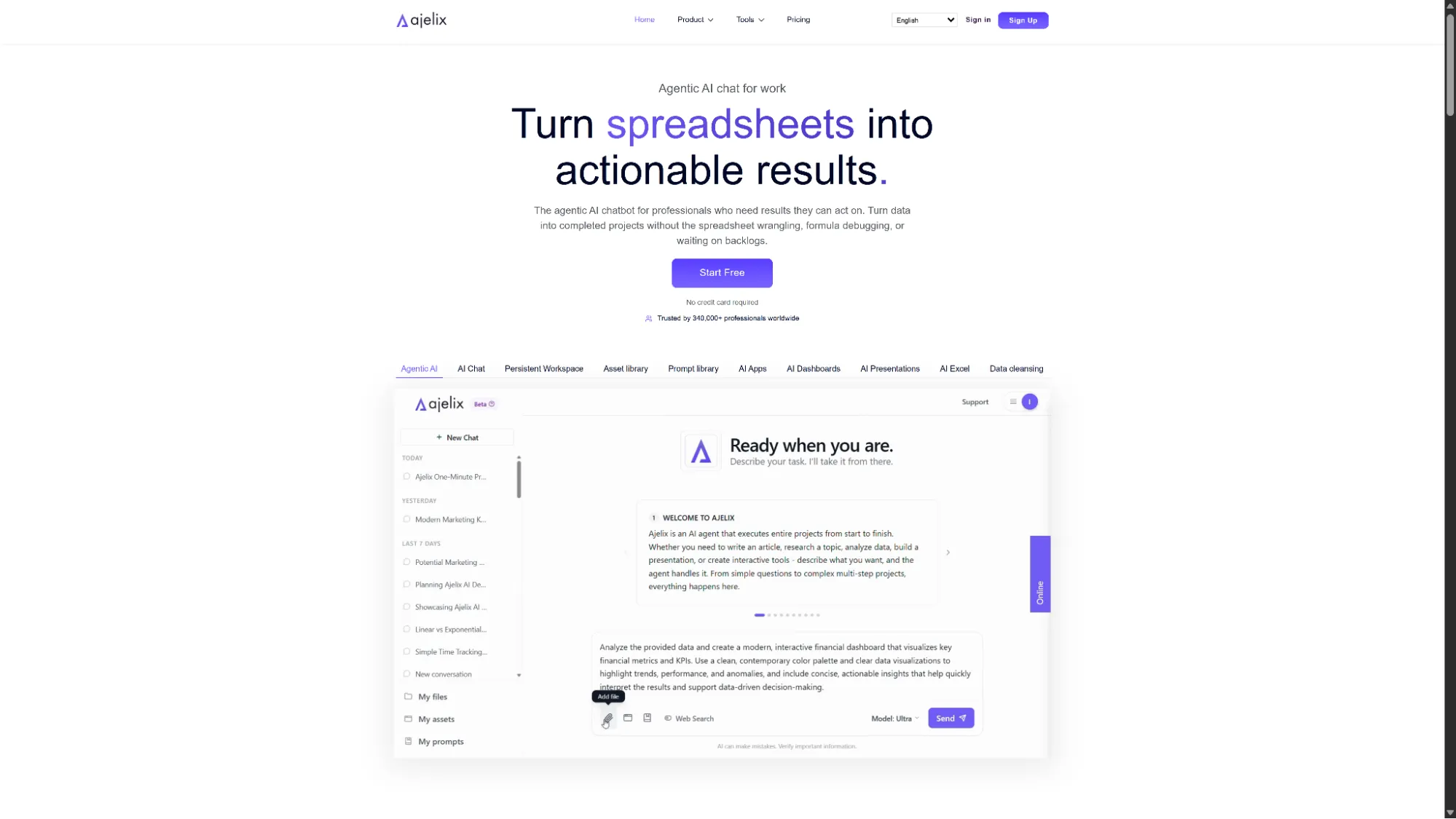
Ajelix is an AI workspace built to automate complex Excel tasks, data analysis, and business reporting without requiring coding skills. Rather than focusing solely on spreadsheet editing, it combines AI chat, spreadsheet automation, interactive dashboards, and business intelligence into a single platform. Users can generate Excel formulas and SQL queries, clean messy datasets, analyze data, build dashboards, and automate repetitive workflows using natural language.
There is a Google Sheets add-on, and Ajelix advertises an Excel add-in we could not find in Microsoft Marketplace. Both are narrower than the web app: the add-ons generate and explain formulas, save them to a library, and translate spreadsheets. The cleaning, SQL, dashboards, and analytics still happen in the Ajelix workspace, so Excel users move between the two. Ajelix supports multiple data sources, including Excel, Google Sheets, PostgreSQL, MySQL, CSV files, and custom APIs, making it adaptable to a wide range of business workflows. Users can interact with their data through a conversational AI interface, generate reports, uncover insights, and collaborate on live dashboards with real-time data updates. The platform also offers multiple AI models and specialized tools for spreadsheet automation, reporting, and analytics, allowing businesses to streamline data-driven tasks from a single workspace.
Best for: Business professionals, managers, analysts, and teams looking to automate Excel tasks, analyze data, build interactive dashboards, and streamline reporting across multiple data sources.
Pros
- Generates Excel formulas, SQL queries, and interactive dashboards
- Supports multiple data sources, including Excel, Google Sheets, PostgreSQL, MySQL, CSV files, and custom APIs
- AI-powered data cleaning, reporting, and analytics through a chat interface
- Multiple AI models and specialized AI tools for a wide range of business tasks
- Collaborative reporting with real-time data updates
- Transparent pricing with a free plan available
Cons
- Wide range of features may require some onboarding for new users
- Some advanced AI models and capabilities are only available on higher-tier plans
- The Excel add-in only covers formulas and translation, not the analysis features
- The free plan is capped at 10 requests a month, too little to evaluate properly
Pricing: Free plan with 10 requests a month. Lite at $39/user/month ($32 billed annually), Pro at $99, Max at $199, and custom Enterprise pricing, with each tier raising file limits and AI usage.
8. Numerous.ai
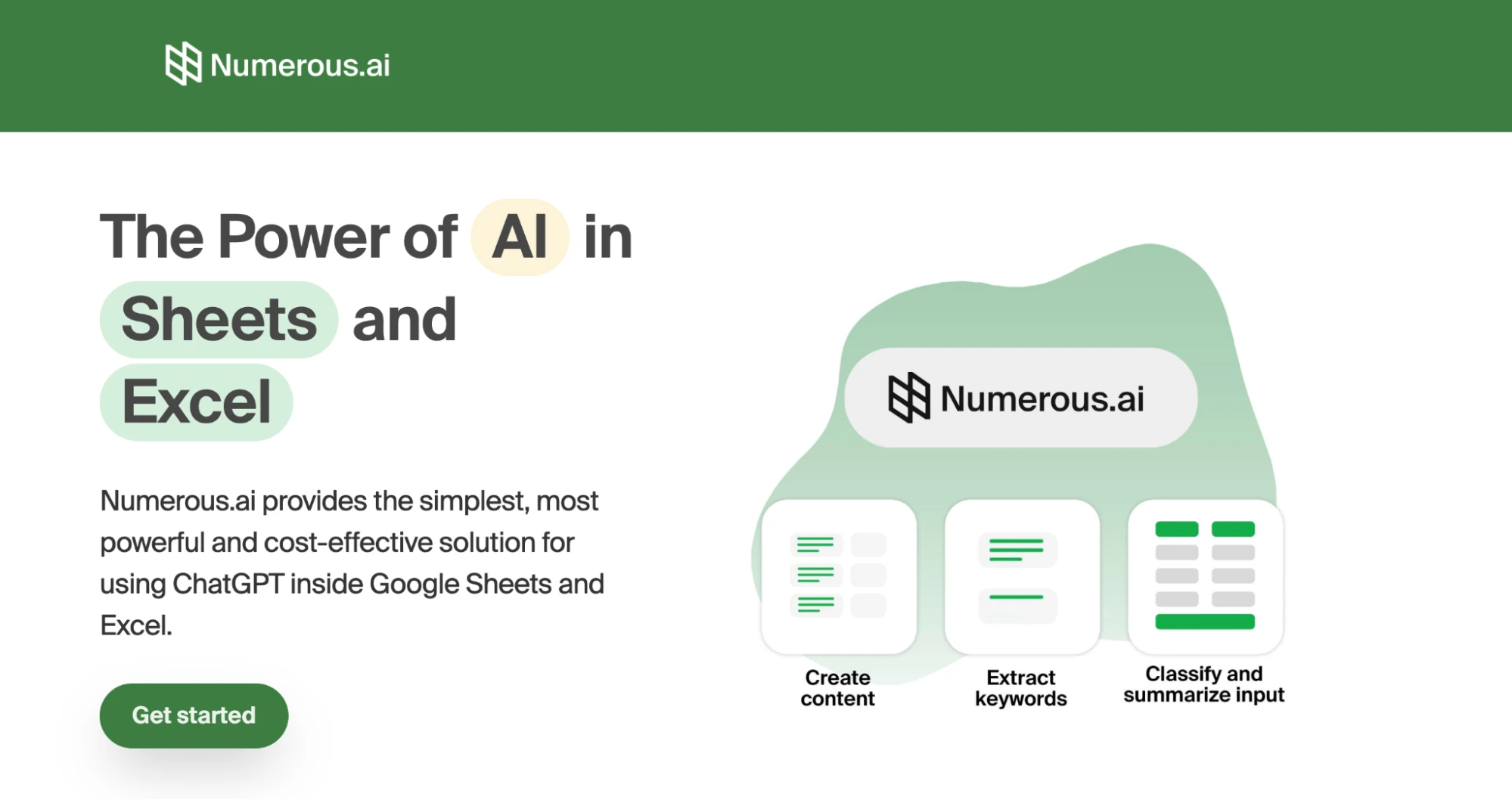
Numerous.ai is a spreadsheet add-in for both Google Sheets and Excel that brings AI directly into your cells through a simple =AI() function. You write a prompt in a cell, drag it down, and apply tasks like classification, sentiment analysis, keyword extraction, summarization, or data cleanup across your dataset.
One useful feature is built-in caching. If the same prompt is repeated, Numerous.ai avoids duplicate queries, which helps reduce costs on large or repetitive tasks. You also do not need an API key to get started, which lowers the barrier to entry.
The limitation is scope. Numerous.ai is a formula-based tool, not an agent. It works one cell at a time and cannot read your full sheet, build pivot tables, generate charts, or perform multi-step analysis. There is no model selection and no conversational interface for more complex workflows.
Best for: Content marketers, researchers, and e-commerce teams who need fast, cell-level AI tasks like classification or text cleanup.
Pros
- Works in both Google Sheets and Excel
- No API key required
- Built-in caching reduces duplicate costs
- Simple
=AI()function workflow
Cons
- Not agent-based (no multi-step analysis)
- No charts, pivot tables, or visualizations
- No model choice
- Can time out on larger datasets
Pricing: Personal from $10/month billed yearly, with Pro and Enterprise above it. The trial is $1 for the first 7 days, not free.
9. Power BI (with Copilot)
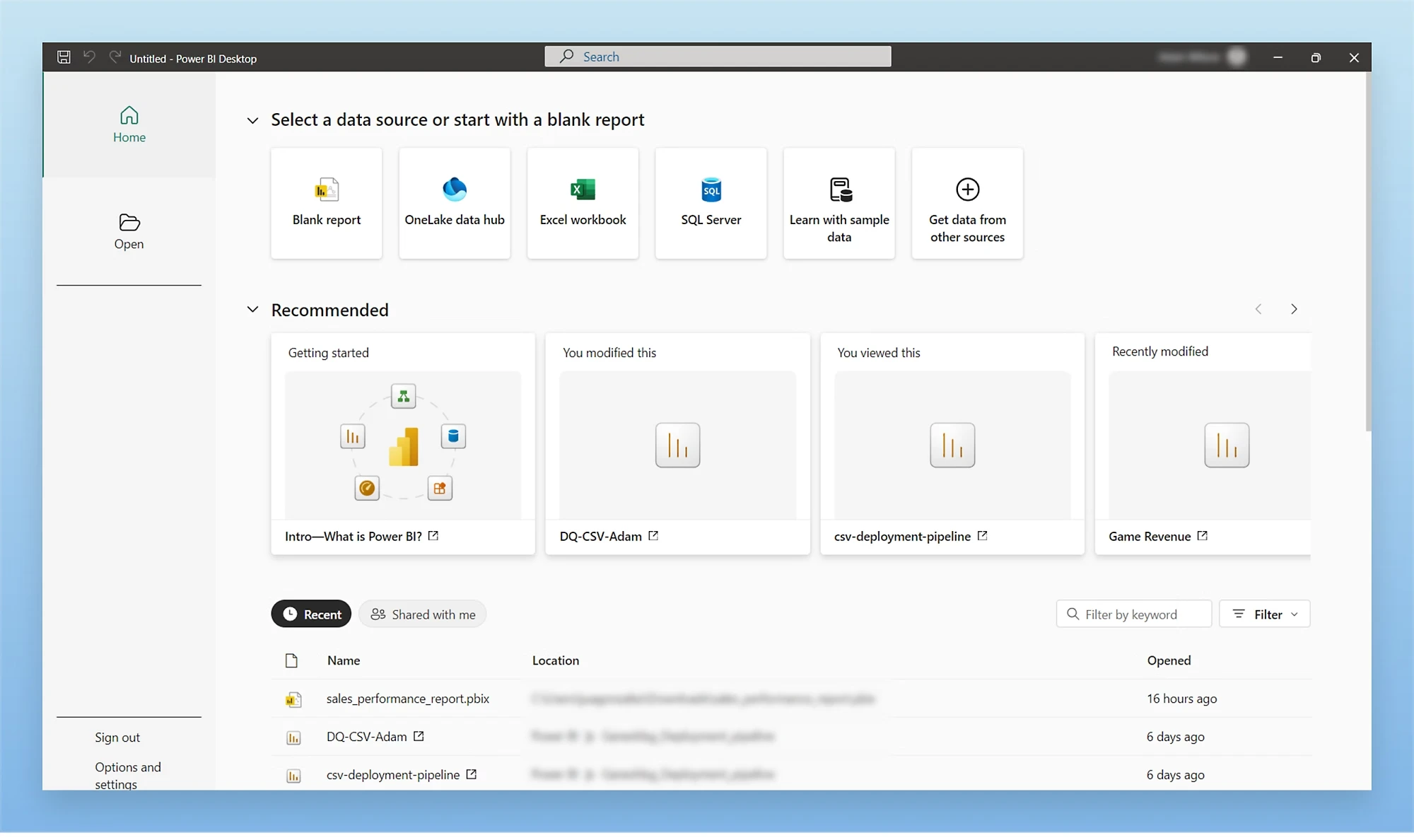
Power BI is Microsoft’s business intelligence platform for building interactive dashboards and reports. Copilot adds an AI layer on top, allowing you to ask questions in plain English, generate DAX formulas, create visuals, and produce written summaries of trends and outliers.
It connects to over 500 data sources, including Excel, SQL databases, Salesforce, and Snowflake. With Copilot, you can generate full report pages from a single prompt and create narrative summaries that automatically update as your data refreshes.
The trade-off is complexity. Power BI has a steep learning curve, especially when it comes to data modeling and DAX, which can take weeks to learn. Copilot’s usefulness also depends heavily on how well your data model is structured. Unlike the earlier tools on this list, Power BI is not a spreadsheet editor, it is designed for dashboards and reporting.
Best for: Data analysts and teams in the Microsoft ecosystem who need interactive dashboards with AI-assisted insights.
Pros
- Connects to 500+ data sources
- Generates full reports and narrative summaries with AI
- Supports conversational follow-up queries
- Easy sharing through Microsoft Teams
Cons
- Not a spreadsheet tool
- Steep learning curve (especially DAX)
- Copilot requires Premium licensing
- Output quality depends on data model structure
Pricing: Power BI Pro ($14/user/month). Copilot requires Premium Per User ($24/user/month, up from $20) or Microsoft Fabric capacity, which starts around $263/month for an F2 SKU.
10. Julius AI
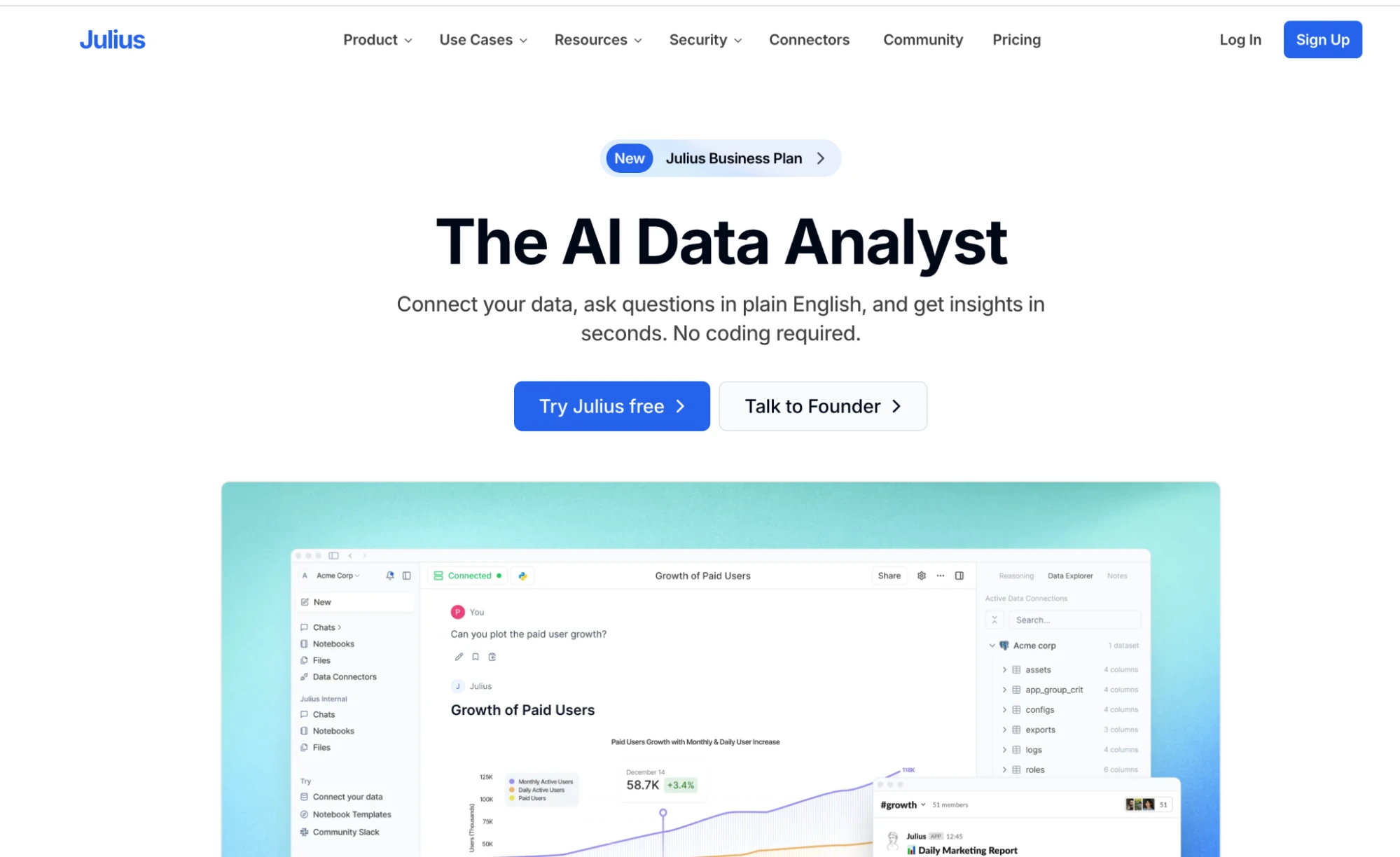
Julius AI is a standalone data analysis platform where you upload files (CSV, Excel, JSON, PDF) or connect databases like Snowflake, BigQuery, or Postgres. You ask questions in plain English and get charts, summaries, and statistical breakdowns. Behind the scenes, it writes Python or R code and automatically debugs errors, no coding required.
It handles messy data well, automatically normalizing inconsistent formats and column structures. Visualizations are polished, with over 40 chart types available. You can save analyses as reusable notebooks and schedule reports to Slack or email. A two-way Google Sheets sync lets you keep your data in Sheets while using Julius as the analysis layer.
A notable differentiator is mobile support, Julius offers iOS and Android apps, making it one of the few tools in this category that supports analysis on the go.
On the downside, the free tier is 15 messages a month, which is enough to see the interface and not much else, and file retention depends on your plan. The entry paid tier keeps uploads for 7 days, while permanent team storage starts on Business. Like most AI tools, it can also misinterpret poorly labeled or unclear data.
Best for: Non-technical users who want a dedicated AI “data analyst” without writing code or learning a BI platform.
Pros
- Plain-language analysis (no coding required)
- 40+ chart types with fast visualization
- Google Sheets sync and mobile apps
- SOC 2 Type II and GDPR compliant
Cons
- Files auto-delete after 7 days on the entry paid tier
- Free tier is capped at 15 messages a month
- Can misinterpret unclear or messy metadata
Pricing: Free tier with 15 messages a month. Plus at $35/month, Pro at $45/month ($37 billed annually), Max at $200/month, and Business at $375/month for teams. Julius has renamed and remetered its tiers more than once, so check the live pricing page before you commit.
How to Analyze Data in Excel with AI (Step by Step)
To analyze Excel data with AI, you install an AI add-in or use a built-in assistant, put your data in a proper table, and prompt the AI to classify, summarize, or score each row. The process is the same whichever tool you pick from the comparison above.
- Prepare your data. Organize it as a clean table: one header row, one record per row, no merged cells or stray notes. AI tools misread messy layouts far more often than messy values.
- Choose a tool. Pick one from the comparison table based on where your data lives and how much of it you have. A built-in assistant is fine for one-off questions; thousands of rows call for an add-in with bulk processing.
- Write a clear prompt. State the analysis goal, the columns to use, and the output you expect, for example: “Classify each support ticket in column B as billing, bug, or feature request.”
- Test on a few rows first. Run the prompt on five to ten rows and adjust it until the output is right, before committing to the whole dataset.
- Apply it to the full range. In GPT for Work, for example, you select the input column and the tool fills in a result for every row.
- Sanity-check the results. Spot-check a sample against the source data before acting on it, and treat unexpected values as a cue to refine the prompt.
Conclusion
There is no single tool that does everything. Each of the 10 tools on this list solves a different part of the data analysis workflow.
If you work primarily in spreadsheets, the first decision is whether you want AI inside your file or outside it. Eight of the tools above run directly in Excel or Google Sheets. Among them, GPT for Work stands out for combining an AI agent with real bulk processing across both platforms, on subscription plans with included monthly usage per seat and pooled extra-usage credits for teams.
If you have outgrown spreadsheets and need dashboards, Power BI is the option here, though it expects you to invest in learning its data model.
If you prefer a simpler “upload and ask” workflow, Julius AI gives you a dedicated analysis environment without requiring code or BI expertise.
The best starting point is the tool that fits where your data already lives. For most spreadsheet users, that means starting inside Excel or Google Sheets often with a tool like GPT for Work that integrates directly into your workflow.
FAQs
What are AI tools for data analysis?
AI tools for data analysis are software applications that help you clean, sort, classify, summarize, and extract insights from data using natural language. Instead of writing formulas or code, you describe what you want, and the tool performs the analysis. Some run inside spreadsheets, while others are standalone platforms or BI tools.
Can AI analyze data in Excel or Google Sheets?
Yes. Tools like GPT for Work, Microsoft Copilot, Claude for Excel, and ChatGPT work directly inside Excel. In Google Sheets, GPT for Work, Gemini, ChatGPT, and Shortcut provide similar capabilities. You enter a prompt, and the AI reads your data and performs the analysis in place.
Can ChatGPT analyze Excel data?
Yes. The ChatGPT for Excel add-in works inside your workbook on every ChatGPT plan: you describe the analysis in plain language, and it cleans data, writes formulas, and builds charts in place. It has no bulk row-by-row processing, though, so for classifying or scoring thousands of rows, a tool with bulk support like GPT for Work is a better fit.
What is the best AI tool for Excel?
For work that spans thousands of rows, GPT for Work is the strongest option, because Copilot, Claude for Excel, and ChatGPT all stop at step-by-step edits to a single workbook. If you only ever run one task at a time, Copilot is the easier choice since it is already installed, and GPT for Excel vs. Copilot in Excel benchmarks the two head to head.
What is the best AI for Google Sheets?
Gemini is the fastest way to start because it is already in the side panel, but it stalls on multi-step analysis and large datasets. GPT for Work handles the bulk columns and agent workflows Gemini cannot, and GPT for Sheets vs. Gemini in Sheets puts numbers on the gap.
What is the best free AI tool for data analysis?
It depends on your use case. GPT for Work is free to install and starts with free credits, no API key or card required. ChatGPT for Excel and Google Sheets is included on the free ChatGPT plan with limited usage. Shortcut and Ajelix both have free plans, Julius AI allows 15 messages a month, and Gemini is included in most Google Workspace plans.
What is the difference between AI spreadsheet tools and BI platforms?
AI spreadsheet tools operate directly inside Excel or Google Sheets and work at the row or cell level. They help with tasks like cleaning, classifying, and transforming data. BI platforms like Power BI sit outside your spreadsheet and focus on dashboards, reporting, and visualizing data from multiple sources.