You've got a spreadsheet with thousands of rows.
You need to run a t-test, spot correlations, and figure out whether that Q3 sales spike was real or just noise. Doing this manually takes hours and leaves far too much room for mistakes.
I’ve been there. Staring at a dataset, trying to remember the difference between a paired and unpaired t-test. Googling formulas I definitely learned back in my statistics classes.
That was before AI got good enough to handle this stuff.
Today, you can describe what you need in plain English and get regressions, p-values, confidence intervals, and trend lines back in seconds. That’s what the best AI for statistics tools will do in 2026. They pick the right test, clean your data, and explain the results without you writing a single formula.
I tested dozens of options to put this list together. These are five tools that handle real statistical work: descriptive stats, hypothesis testing, regression, and data cleaning. If you work with numbers regularly, one of these will fit.
Quick Overview of 5 Best AI Tools for Statistics
Here's a quick look at all five tools before we break them down.
Tool | Best For | Works With | Standout Feature | Pricing |
|---|---|---|---|---|
GPT for Work | Bulk stats work in spreadsheets | Google Sheets, Excel, Docs, Word | Full AI agent, 1M rows in one run | Subscription from $25/month |
Julius AI | Visual data analysis | Web app (upload CSV, Excel, PDF) | Chat with your data, auto-charts | Free plan, paid from $40/month |
Claude for Excel | Complex reasoning in Excel | Microsoft Excel (add-in) | 200K-1M token context, reusable Skills | Free plan, Pro at $20/month |
ChatGPT | Quick one-off analysis | Web app (upload or connect Drive) | Runs Python behind the scenes | Free (limited), Plus at $20/month |
XLSTAT | Advanced statistical testing in Excel | Microsoft Excel (Windows, Mac) | 300+ statistical features, no code | From $295/year |
1. GPT for Work
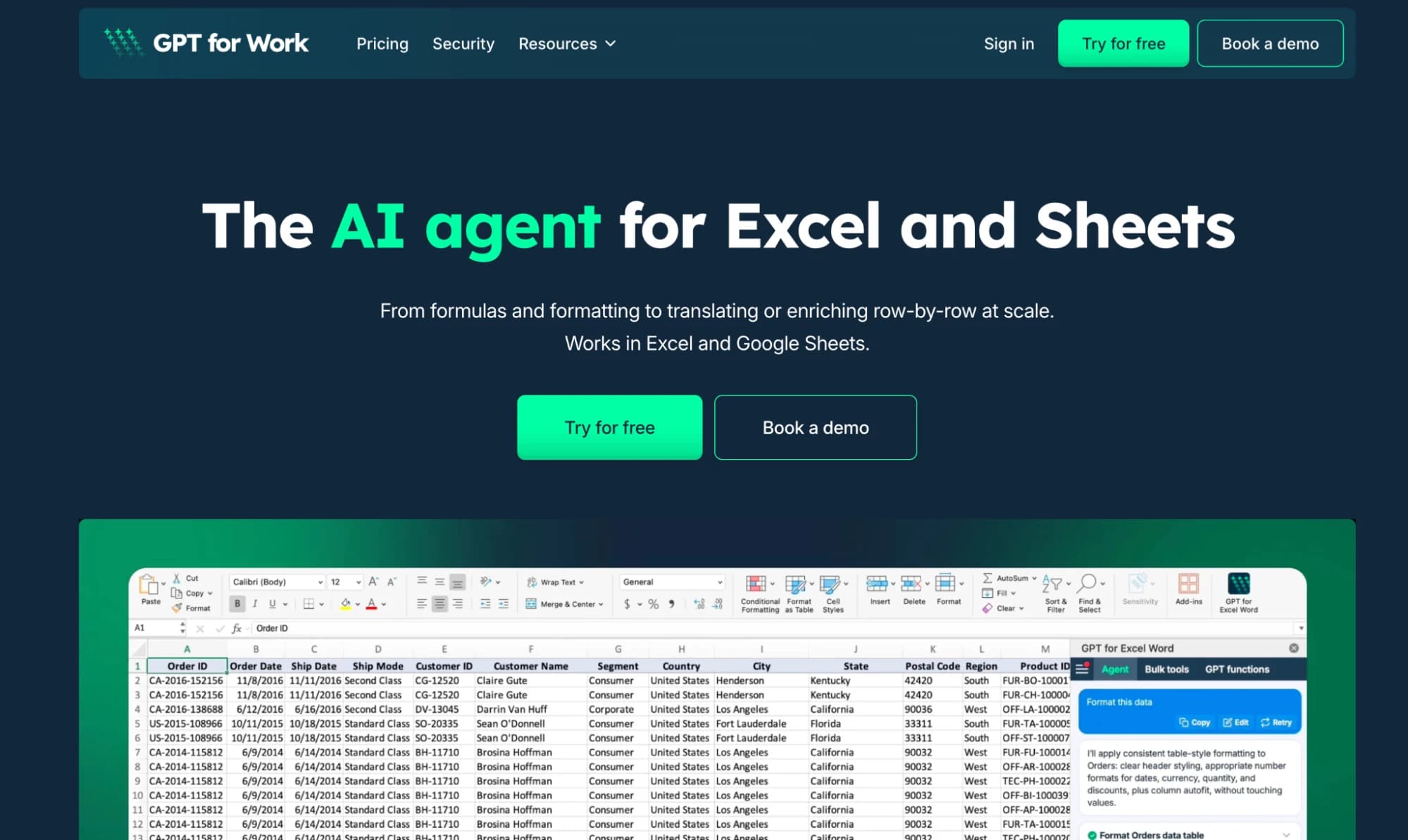
GPT for Work is the AI agent for all your spreadsheet work in Excel and Google Sheets. It works as an add-on: GPT for Sheets for Google Sheets, and GPT for Excel for Microsoft Excel. No uploading files to a chatbot. You open a chat panel in your spreadsheet, describe what you need, and the Agent executes directly in your file.
What sets it apart from a regular AI chatbot is the bulk processing. GPT for Work can handle up to 1,000 rows per minute and up to 1 million rows in a single run.
It doesn’t just answer questions, it writes into your spreadsheet, fills columns, cleans rows, and runs operations at scale.
It supports multiple AI providers including OpenAI, Claude, Perplexity. The agent automatically picks the right model for your task, or you choose one yourself.
Example Say you have a dataset in your sheet. You can keep it simple or go deep.
Prompts:
Broad prompt: "Analyze my data"
The Agent read the sales data, built an overall summary (total revenue, units sold, return rate, averages), broke it down by product and by region, identified Widget D as the top performer, and created bar charts and a pie chart. All from two words.
Specific prompt: "Create a standard curve from my experiment data"
The Agent read the data, caught a mislabeled column header and fixed it, ran linear regression, and built a scatter chart with a trendline. It even explained that R² = 0.9999 means near-perfect linearity and told you how to use the equation for unknown samples.
Two different prompts, same dataset. The Agent adjusts its depth based on what you ask for.
Best for
Anyone who lives in spreadsheets: analysts, marketers, finance teams, operations, e-commerce.
Pros
- Works directly inside Google Sheets and Excel.No app switching.
- Full AI agent (not just a chatbot)
- Supports multiple AI providers
- Handles large-scale datasets
- ISO 27001 certified, GDPR compliant
Cons
- Not a full BI/dashboard tool
Pricing
Subscription. Plans start at $25/month with included usage; extra-usage credits are shared across teams and valid for one year.
2. Julius AI
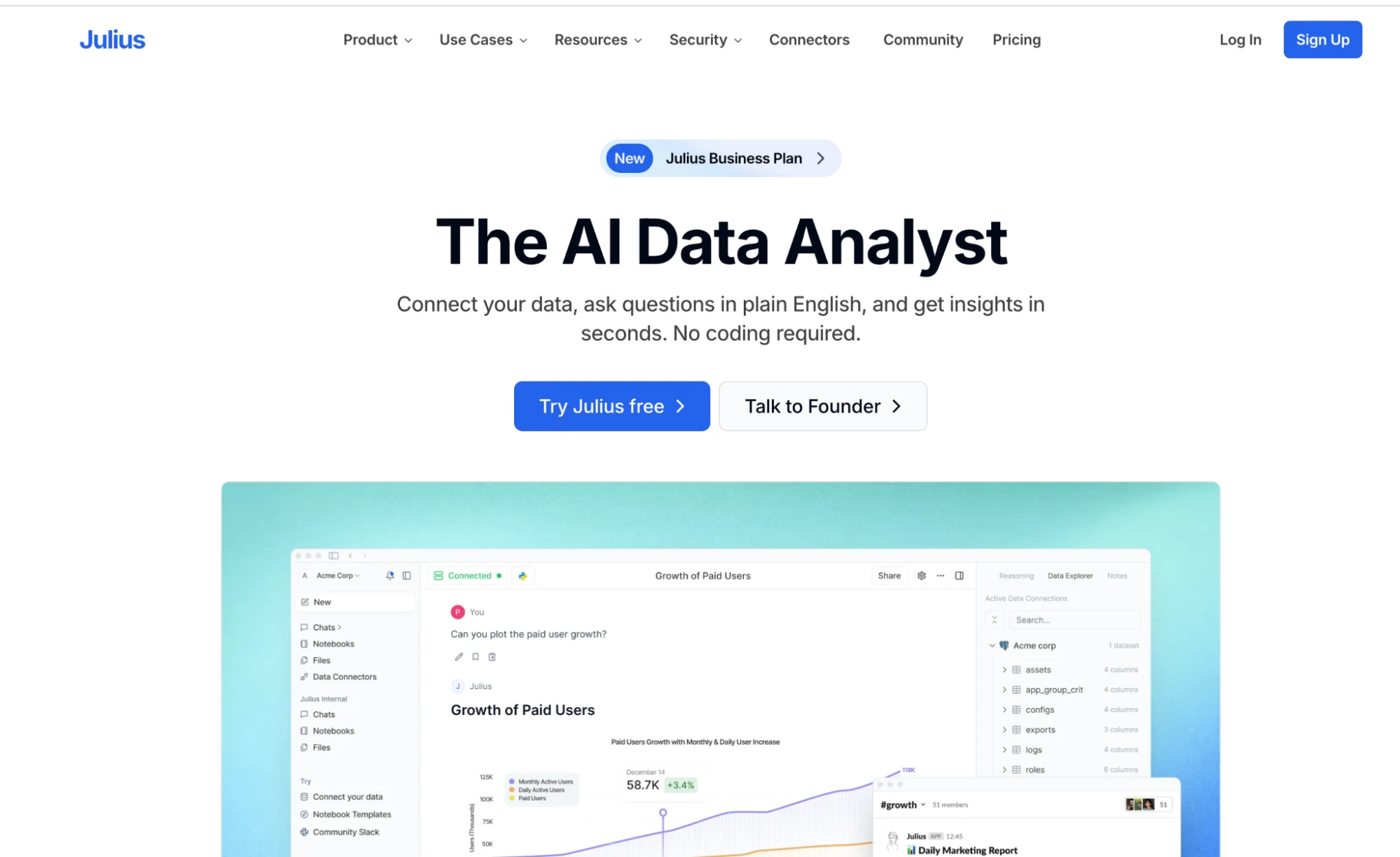
Julius AI is a standalone data analysis platform. You upload a file (CSV, Excel, Google Sheets, or even a PDF), ask questions in plain English, and get answers, charts, and statistical insights.
Behind the scenes, it writes Python or R code. You can ignore the code or inspect and edit it. If you don't code, it just feels like chatting with a data analyst.
It produces both interactive and static charts. Interactive charts let you explore data points and outliers, while static ones are clean enough for presentations.
It also handles t-tests, correlations, regressions, ANOVA, and more no formulas required.
Best for
Students, researchers, freelance analysts, and marketers who want fast, visual insights without setup. It works well for one-off projects or regular reporting where you want fast answers without setting up a BI tool.
Pros
- Very beginner-friendly. No coding or setup needed.
- Strong visualization quality. Charts look presentation-ready.
- Transparent (shows underlying code)
- Supports advanced statistical methods: regressions, hypothesis testing, forecasting.
- Slack integration for automated reports
Cons
- Free plan is limited (15 messages/month)
- Pricing jumps significantly between tiers
- Can struggle with messy datasets
Pricing
Free plan available. Paid plans start at $40/month (Pro) and go up to $750/month (Growth). 20% off on yearly billing.
3. Claude For Excel

Claude for Excel is an add-in by Anthropic that brings Claude's AI directly inside Microsoft Excel. You open a sidebar, type what you need, and Claude reads your workbook, runs analysis, and makes changes right in your cells.
It reads complex multi-tab workbooks, explains calculations with cell-level citations, and updates assumptions while keeping your formula dependencies intact. You can ask it to build pivot tables, create charts, trace errors, run variance analysis, or clean up messy data. Everything happens inside your file.
What makes it strong for statistics is Claude's reasoning. It has a 200,000-token context window (up to 1 million on Opus 4.6), so it can process large datasets and long financial models in one go. If you ask it to run a regression or an ANOVA, it doesn't just return a number. It walks you through why it picked that approach and what the result means.
Claude for Excel also supports reusable Skills. When your team figures out the right workflow for something like a variance analysis or a deal summary, you save it as a one-click skill that anyone on the team can run.
Best for
Finance analysts, consultants, researchers, and anyone who works with complex Excel models and wants an AI assistant that reasons through problems directly inside their workbook.
Pros
- Works directly inside Excel. Reads your workbook, edits cells, builds pivot tables and charts.
- Strong reasoning for multi-step statistical problems.
- Massive context window (200K to 1M tokens). Handles large models and datasets.
- Reusable Skills for repeatable workflows like variance analysis or deal summaries.
- Explains its thinking with cell-level citations. You can verify every step.
- SOC 2 Type II certified. Doesn't train on your data.
Cons
- Still in beta. Some advanced Excel features not fully supported yet.
- Only works in Excel. No Google Sheets support.
- Free plan has tight usage limits. Best experience on paid plans.
Pricing
Available on Claude Pro ($20/month), Max ($100-$200/month), Team ($30/user/month), and Enterprise plans. Free plan has limited access.
4. ChatGPT
ChatGPT can handle statistical work directly in a conversation. You upload a CSV, Excel, or PDF file, describe what you need, and it writes and runs Python code behind the scenes to get you the answer.
It handles descriptive statistics, regressions, correlations, data cleaning, merging datasets, and chart building. You can ask for a specific chart type or let it pick the best one for your data. It generates both static and interactive visualizations. You can also pull files straight from Google Drive or OneDrive without downloading them first.
Since it runs Python under the hood, it can do most things a data analyst would do manually. It also walks you through every step, so you understand what happened and why. You can view the code, copy it, and run it locally if needed.
Best for
Anyone who wants a conversational approach to statistics. Good for quick one-off analysis, exploring a new dataset, or learning how a statistical test works by watching the AI walk through it.
Pros
- Runs regressions, hypothesis tests, and builds visualizations from your data.
- Explains its methodology step by step. Great for learning.
- Supports large files (up to 512 MB).
- Connects directly to Google Drive and OneDrive.
- Available on every ChatGPT paid plan.
Cons
- Results stay inside the chat. No dashboards or saved reports.
- Code environment resets after inactivity.
- Can produce incorrect results with messy data. Always verify.
Pricing
Included in ChatGPT Plus ($20/month) and higher tiers: Pro ($200/month), and Business ($25/user/month). The free plan has limited access.
5. XLSTAT
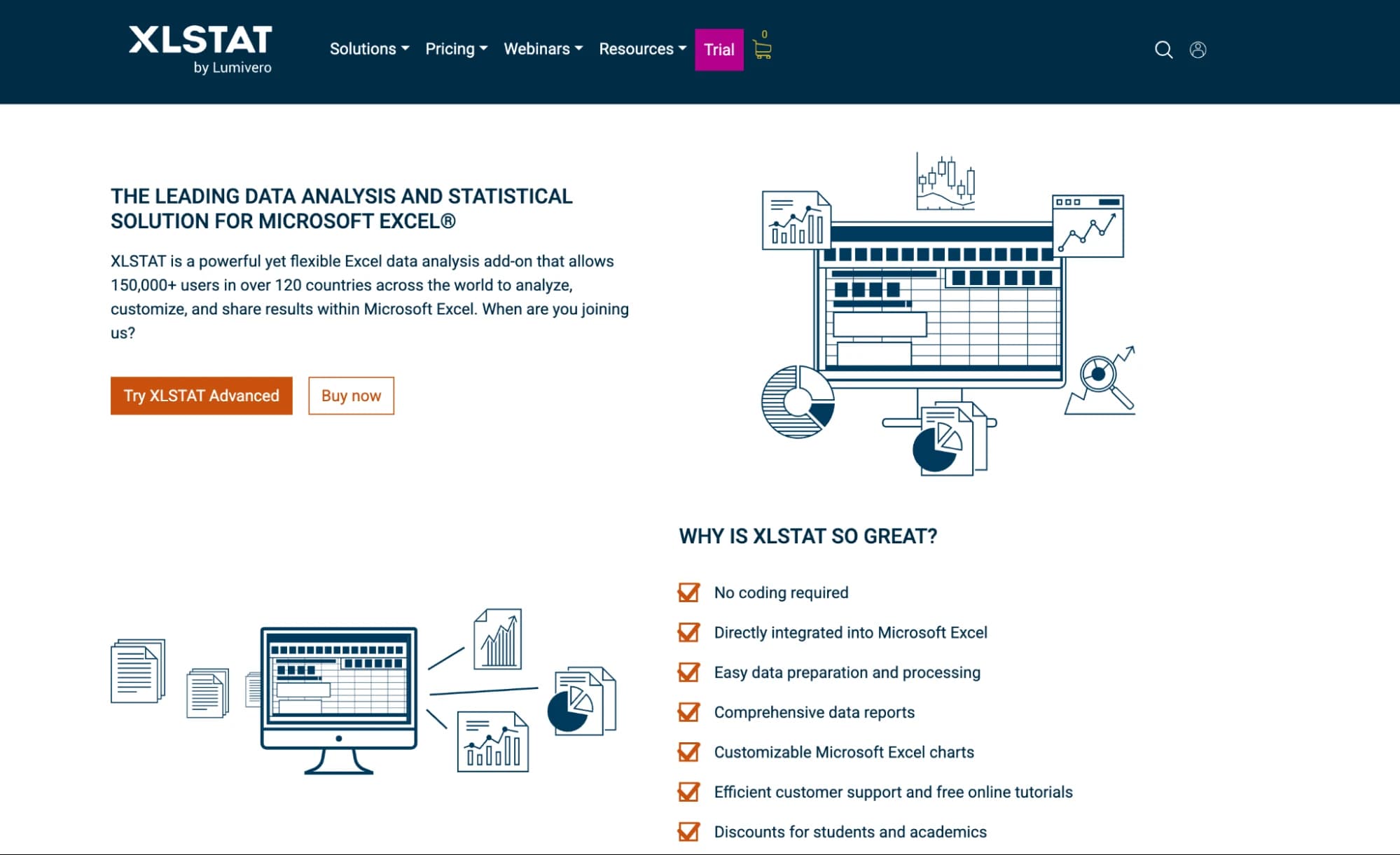
XLSTAT is a statistical add-in for Microsoft Excel with over 300 built-in statistical features. It's built for people who want serious statistical analysis without leaving Excel and without writing code.
You access everything through a drop-down menu inside Excel. Pick your test, select your variables, set your parameters, and the results appear right in your spreadsheet. It covers the full range: descriptive stats, regression (linear, logistic, PLS), ANOVA, t-tests, z-tests, chi-square, factor analysis, PCA, time series forecasting, survival analysis, machine learning models, and more.
What makes XLSTAT different from AI-based tools is precision and control. You decide exactly which test to run and how to configure it. There's no guessing, no AI picking the method for you. For researchers who need to justify their methodology in a paper or regulatory filing, that matters.
Best for
Power users, academic researchers, clinical trial analysts, quality engineers, and anyone who needs full control over their statistical methods inside Excel.
Pros
- 300+ statistical features. Covers everything from basic tests to advanced modeling.
- Works directly inside Excel. Results stay in your spreadsheet.
- Full control over methodology. You pick the test, not the AI.
- New AI assistant for test selection and result interpretation.
- 14-day free trial with full access.
- Works on both Windows and Mac.
Cons
- No natural language chat. You need to know which test you want.
- Pricing can be high for individuals and small teams.
- Learning curve for advanced features.
- License tied to one device.
Pricing
Annual licenses from $295 to $1,495 depending on the edition. 14-day free trial available. Academic discounts offered.
Key Takeaways
If you don’t want to read the full breakdown, here’s the short answer:
- Use GPT for Work if your data lives in spreadsheets and you need to run analysis at scale without leaving Excel or Google Sheets. It handles bulk statistical operations at scale without making you leave your spreadsheet.
- Use Julius AI if you want fast insights, clean charts, and a simple “upload + ask” workflow and don't want to set anything up.
- Use Claude if you work with complex datasets or long documents and need an AI that reasons through multi-step statistical problems.
- Use ChatGPT if you want a flexible, conversational way to analyze data or learn how statistical methods work.
- Use XLSTAT if you need full control over your statistical methods inside Excel with 300+ tests and no AI guessing for you.
How to choose:
- Working in spreadsheets daily → GPT for Work
- Need quick visuals for a dataset → Julius AI
- Complex reasoning or long documents → Claude
- Exploring data or learning stats → ChatGPT
- Advanced statistical testing in Excel → XLSTAT
Bottom line: Pick based on your workflow, not features. The best tool is the one that fits where your data already lives and how you actually work with it.
FAQs
Can AI replace manual statistical analysis?
For most everyday tasks, yes. AI can handle descriptive stats, regressions, data cleaning, and visualization much faster than manual work. For advanced research, you should still verify results.
What is the best free AI tool for statistics?
Claude and ChatGPT both offer free plans for basic statistical analysis. Julius AI and GPT for Work also have free tiers to get started.
Can I use AI directly in Google Sheets or Excel?
Yes. GPT for Work is designed specifically for this and runs directly inside spreadsheets.
Is it safe to upload data to AI tools?
It depends on the tool. Always check data policies. For example, GPT for Work is ISO 27001 certified and GDPR compliant, and Julius AI is SOC 2 Type II compliant.