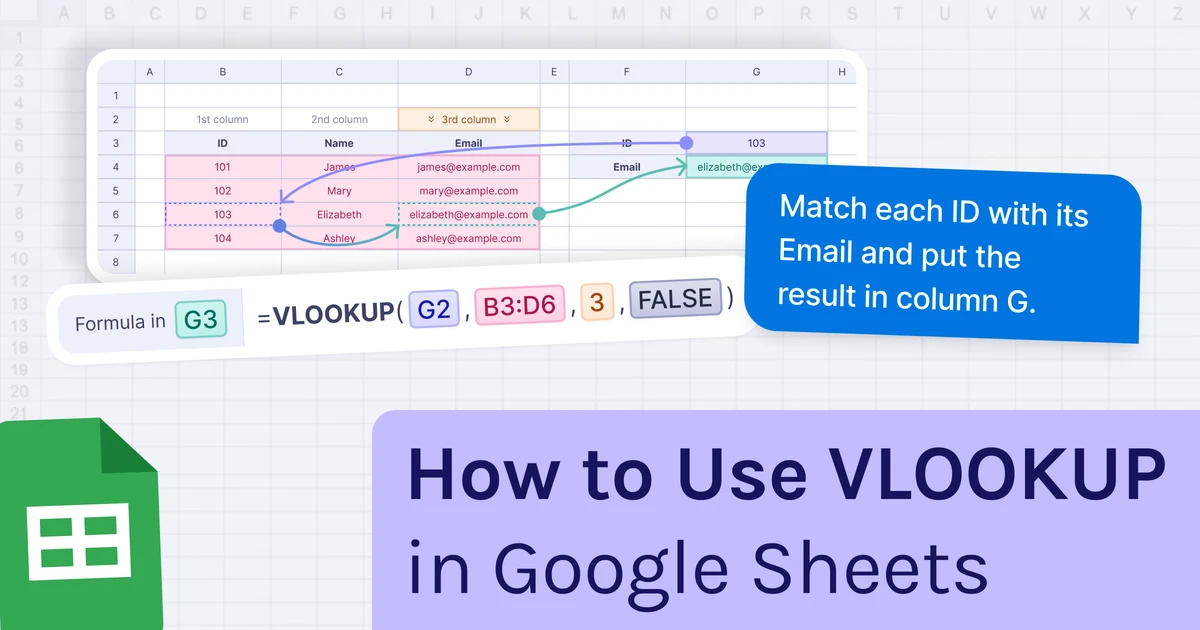
You have data in two places and need to match it up. That's exactly what VLOOKUP is for.
If you want to learn how to use VLOOKUP in Google Sheets, the process is straightforward. You give the formula a value to look for, point it to a table, and tell it which column to return a result from. That's it. No coding. No add-ons. Just one formula.
Many people think VLOOKUP is complicated, but it really isn't. The only part that regularly trips people up is the last argument in the formula. Leave it at the wrong setting, and you can get incorrect results without realizing it. We'll explain exactly what it does so you can avoid that mistake.
By the end of this guide, you'll know how to:
- understand the VLOOKUP syntax in plain English,
- use it with a real example you can follow,
- pull data from another sheet,
- match values using two columns, and
- use AI to do the same job without writing the formula yourself.
What Is VLOOKUP in Google Sheets?
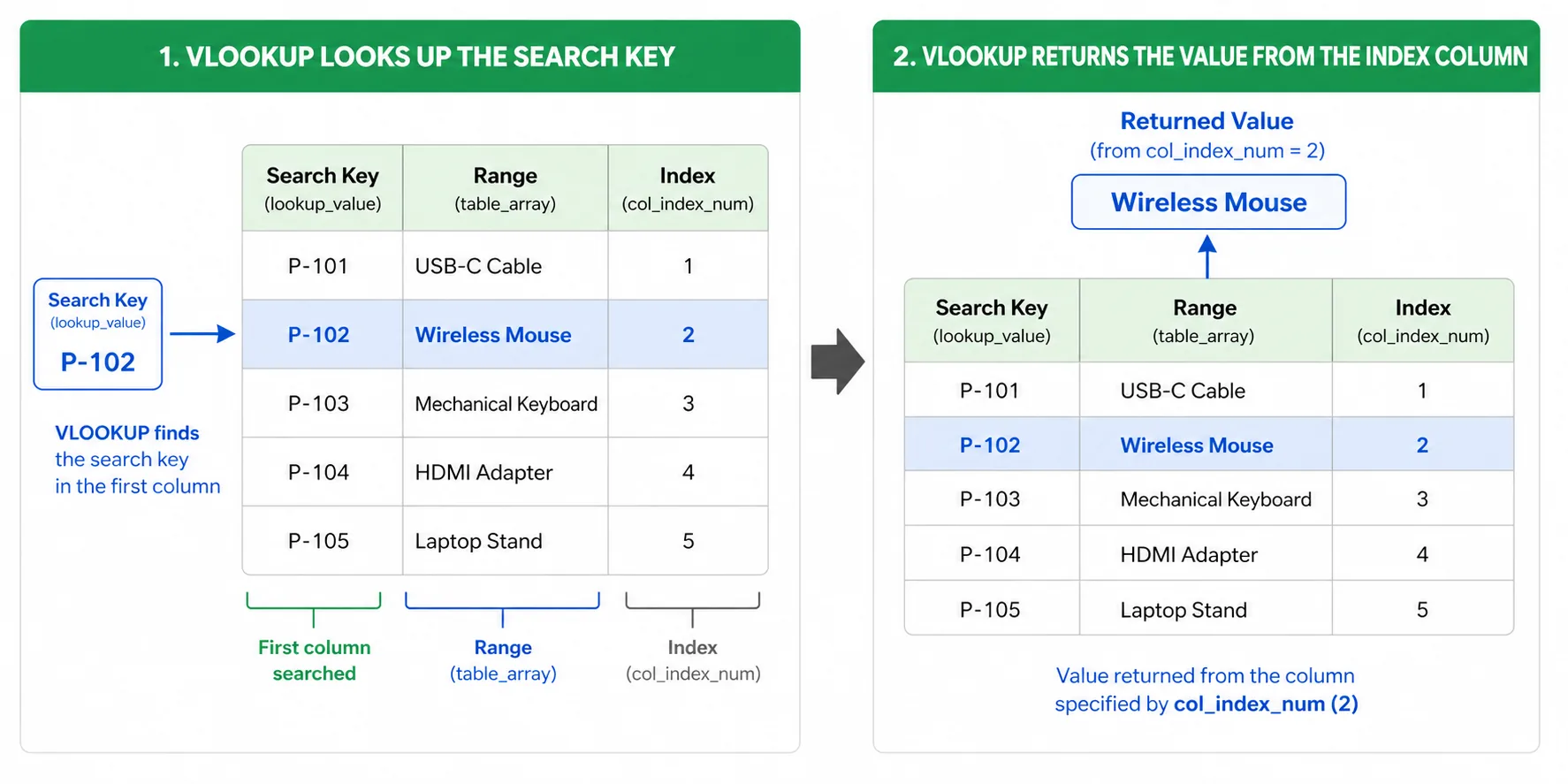
VLOOKUP stands for Vertical Lookup. The "V" means vertical because the function searches down the first column of a table to find what you need.
Here's how it works in plain English. You have a table of data. You tell VLOOKUP what to look for, where to search, and which column to return a value from. It scans the first column from top to bottom, finds your match, and returns the corresponding value from the same row.
Once you start using it, you'll find yourself reaching for it all the time. Here are a few common examples:
- Match a product ID to its name and price
- Find an employee's department using their ID
- Pull a customer's email address from their order number
- Look up a city's tax rate from a list of locations
The good news is that VLOOKUP is built into Google Sheets. There's nothing to install or set up. It also works almost the same way in Excel, so learning it once gives you a skill you can use in both.
VLOOKUP Syntax in Google Sheets
The VLOOKUP formula in Google Sheets looks like this:
=VLOOKUP(search_key, range, index, [is_sorted])
Four parts. Let's break each one down in plain words.
- search_key: the value you want to find. It can be a number, some text, or a cell like
A2. - range: the table you want to search in. The first column of this range must hold the value you're searching for.
- index: the column number to pull the answer from. Count from the left of your range. Column 1 is the first one.
- is_sorted: set this to
FALSEfor an exact match (what you want most of the time).TRUElooks for the closest match, but only works if your data is sorted.
A simple rule to remember: always set the last argument to FALSE unless you specifically need an approximate match. If you leave it out or set it to TRUE, VLOOKUP can return the wrong result without showing an error.
How VLOOKUP Works in Google Sheets (With Example)
Let's walk through a real example you can copy into your own sheet.
Imagine you run a small online store. You have a list of products, and you want to type a Product ID into a cell and automatically return the matching product name. That's exactly what VLOOKUP is built for.
Start by creating a small product table in your sheet beginning in cell A1. Include five products with their ID, Name, Category, and Price. Then leave a couple of empty columns to the right (for example, F and G) for the lookup.
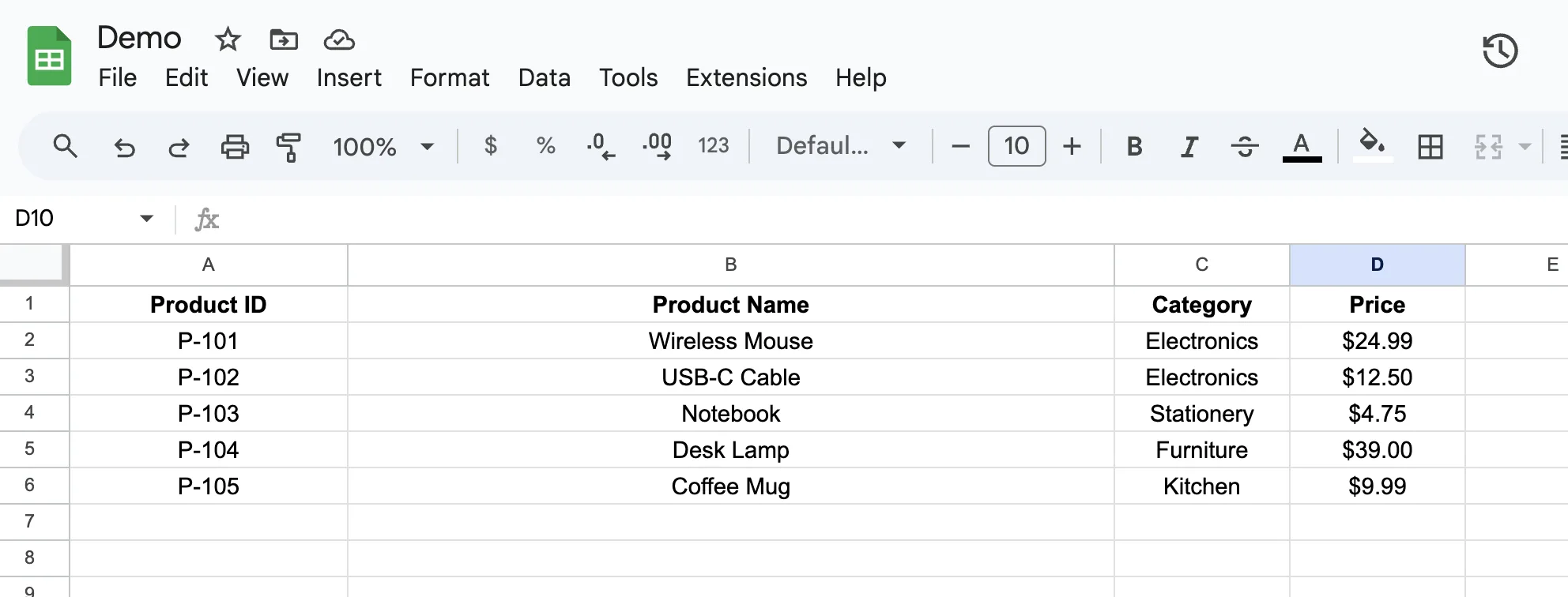
In cell F2, you'll type the Product ID you want to look up. In cell G2, you'll add the VLOOKUP formula to return the matching product name.
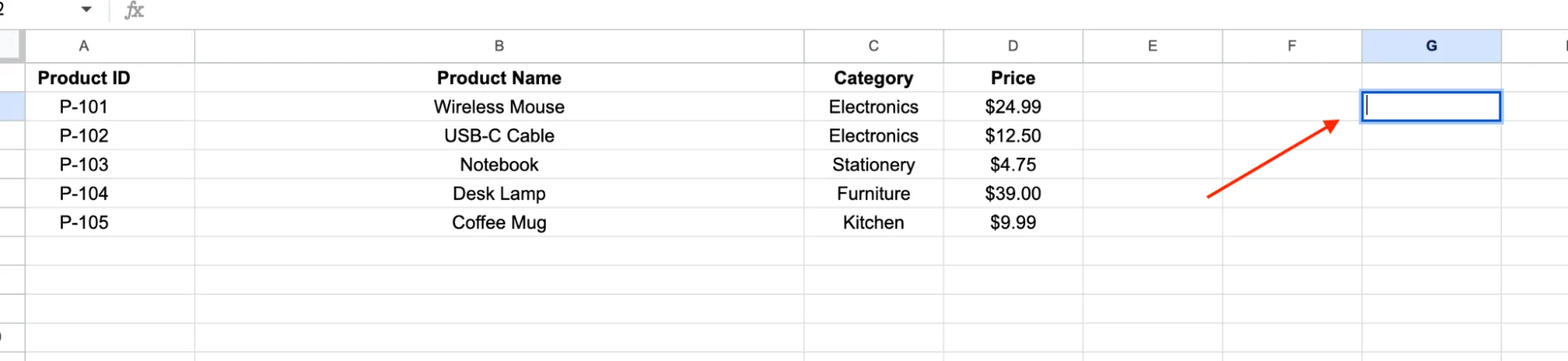
Step 1: Click the result cell
Click on cell G2. This is where your answer will show up.
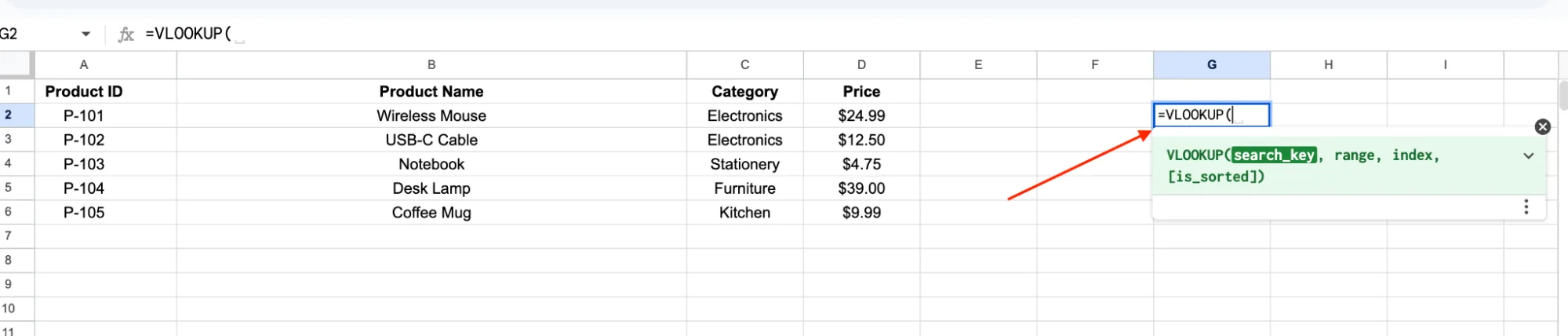
Step 2: Start the formula
Type =VLOOKUP(. A small tooltip will pop up to guide you through the parts.
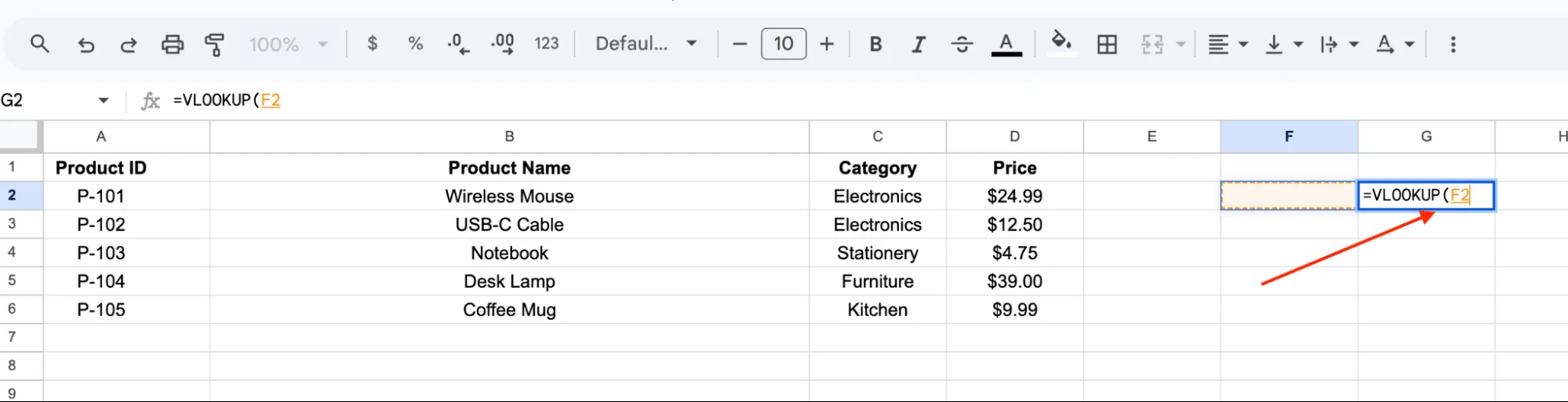
Step 3: Add the search_key
Click on cell F2 (where you'll type the Product ID). This tells VLOOKUP what to look for.
Step 4: Add the range
Type a comma, then drag-select cells A2 to D6 (the full product list, without the header row).
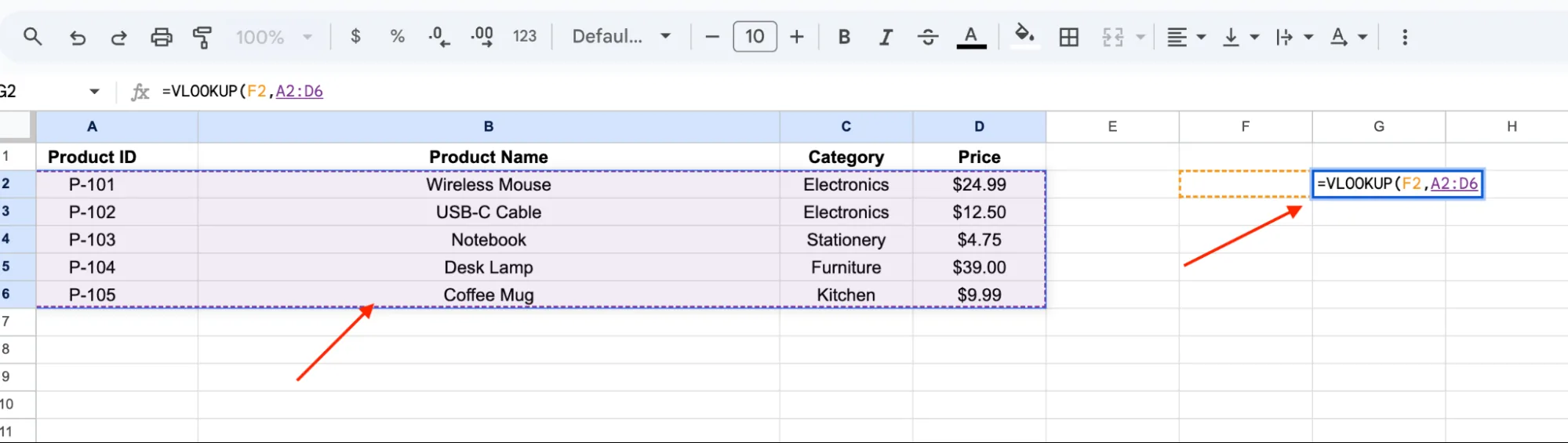
Step 5: Add the index
Type a comma, then type 2. The Product Name is in the second column of your range, so the index is 2.
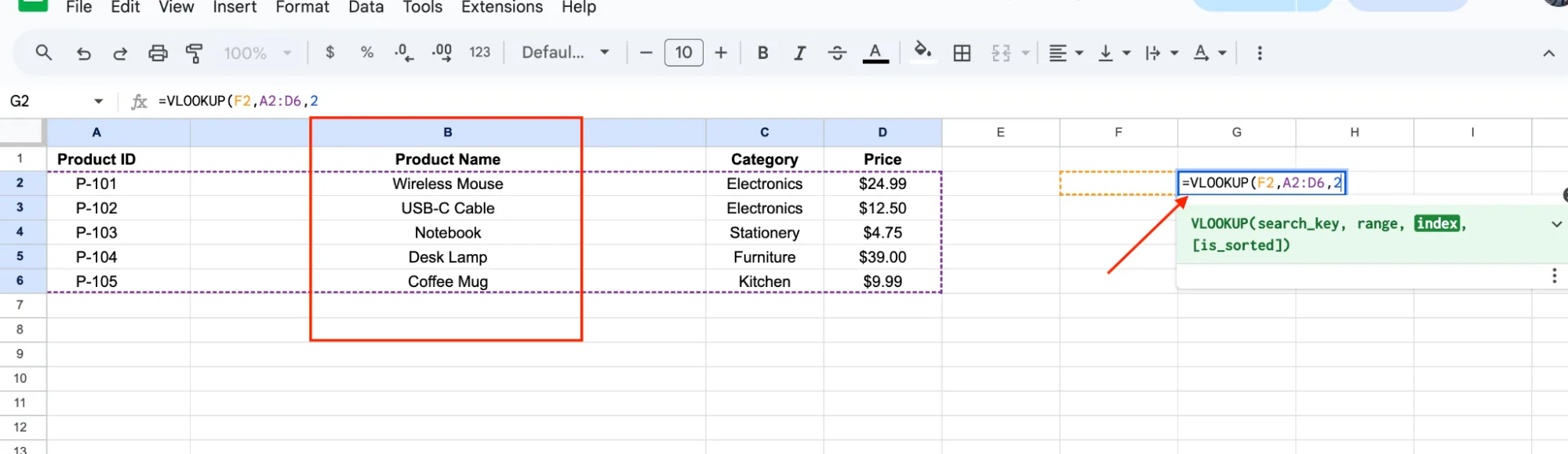
Step 6: Add is_sorted
Type a comma, then type FALSE. This forces an exact match.
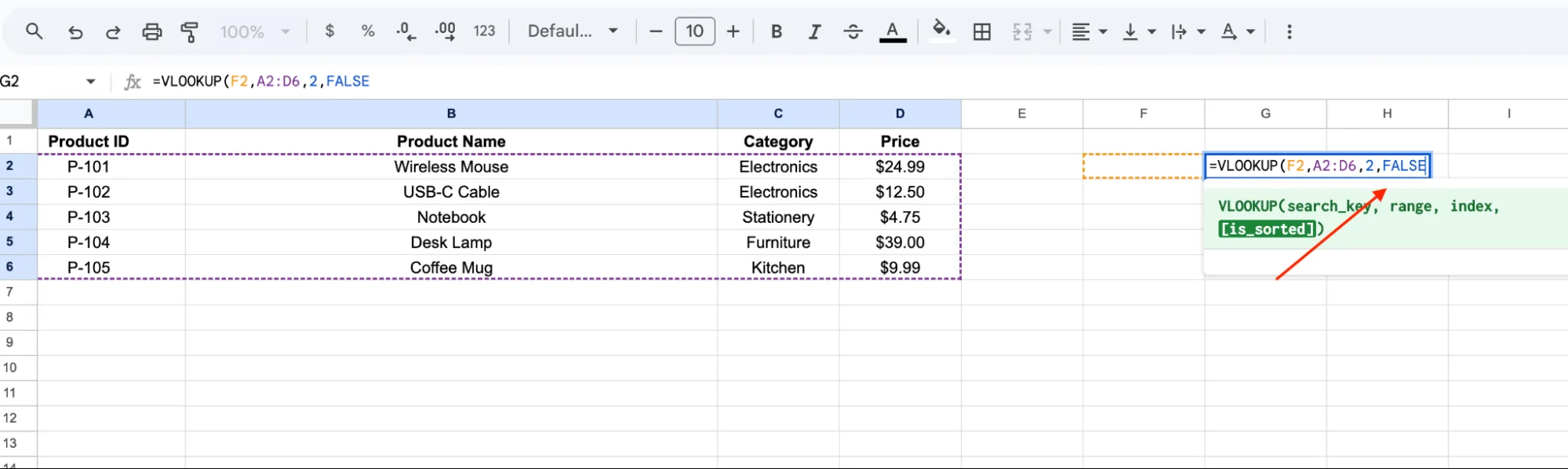
Step 7: Close and run
Type ) to close the formula. Hit Enter.
Your final formula:
=VLOOKUP(F2, A2:D6, 2, FALSE)
Now type P-103 in cell F2. The answer Notebook shows up in G2.
Try changing F2 to P-105. The answer updates to Coffee Mug on its own. That's the power of VLOOKUP. Type a new ID, get a new answer, no extra work.
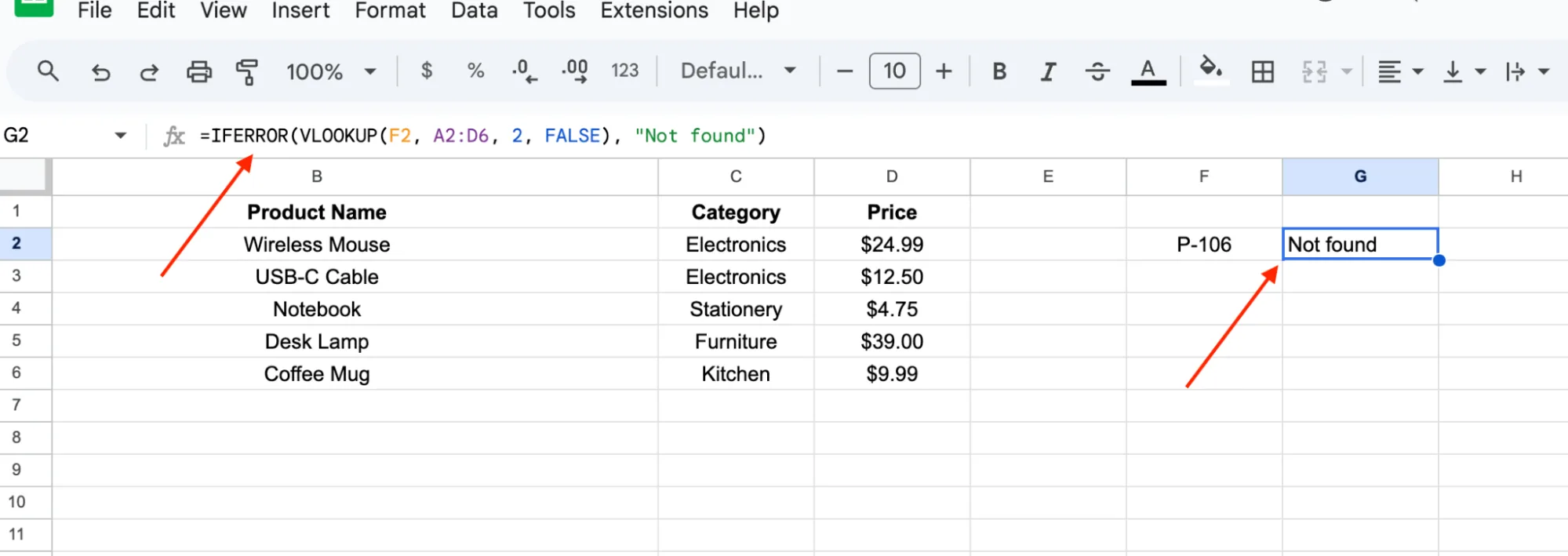
Pro tip on cleaning up the #N/A error: If you type a Product ID that doesn't exist, VLOOKUP returns #N/A. To show your own message instead, wrap the formula in IFERROR():
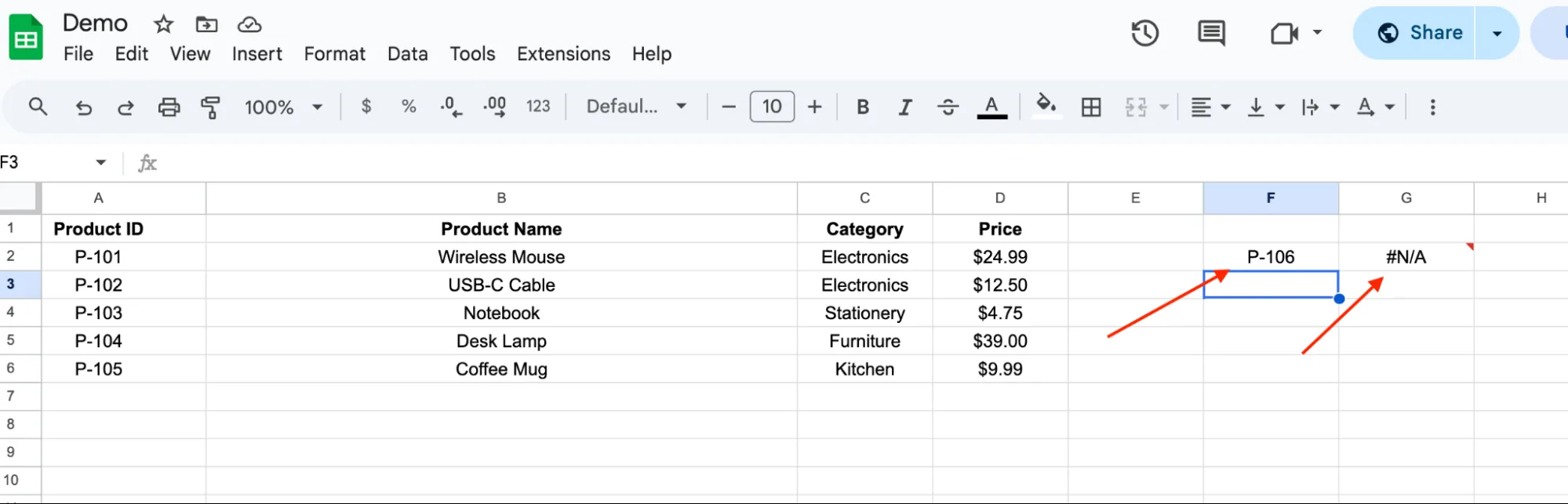
=IFERROR(VLOOKUP(F2, A2:D6, 2, FALSE), "Not found")
Now you'll see "Not found" instead of #N/A.
How to Do a VLOOKUP from Another Sheet in Google Sheets
Real spreadsheets rarely fit on a single tab. Most of the time, you'll have a master list on one sheet and your day-to-day data on another. Fortunately, doing a VLOOKUP from another sheet works almost exactly the same as a regular VLOOKUP. You just need to reference the other tab.
Let's say your spreadsheet has two tabs:
- Products: a master list with Product ID, Name, Category, and Price (cells A1:D6)
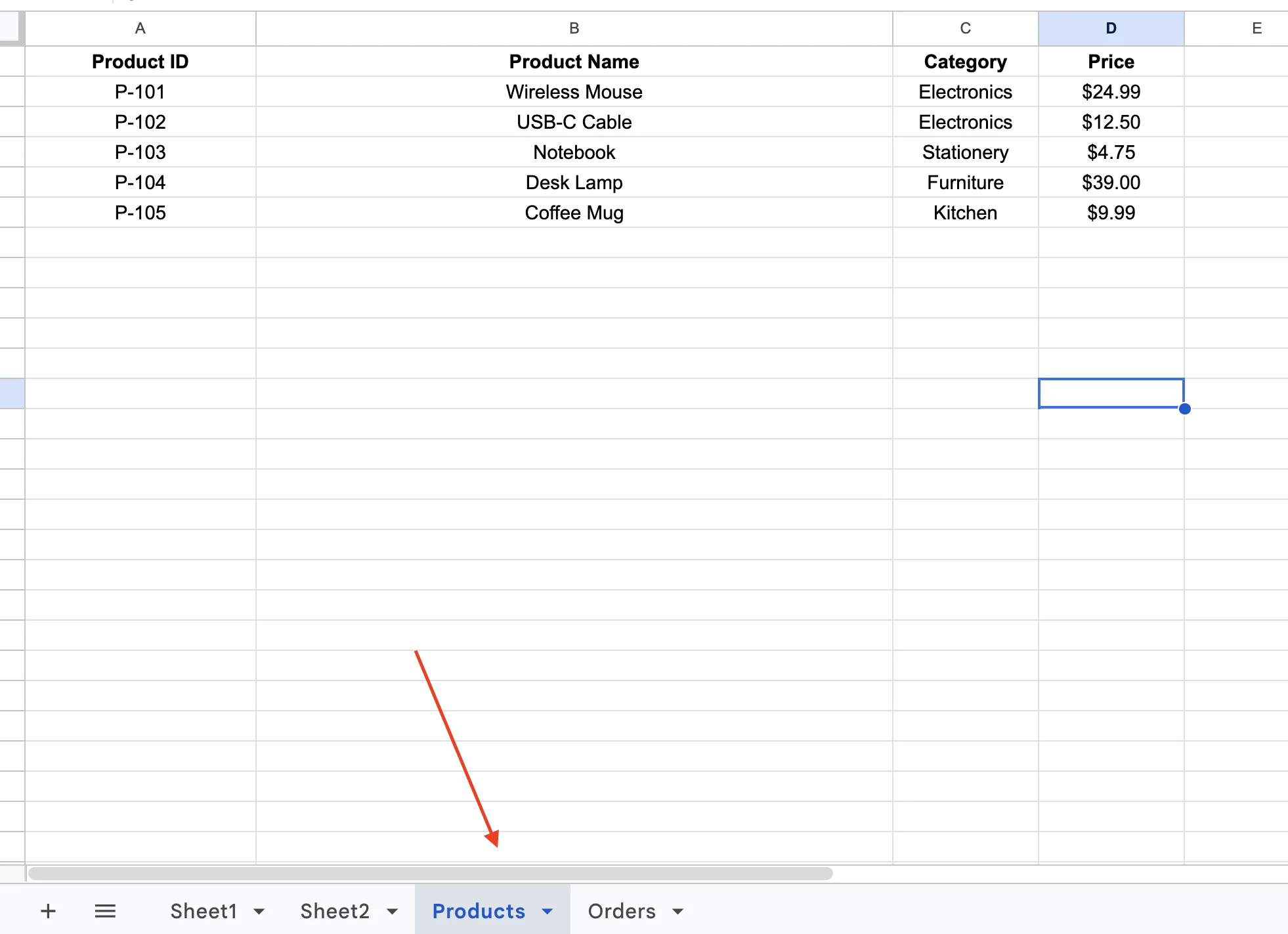
- Orders: an order log with Order ID, Product ID, and a blank Product Name column
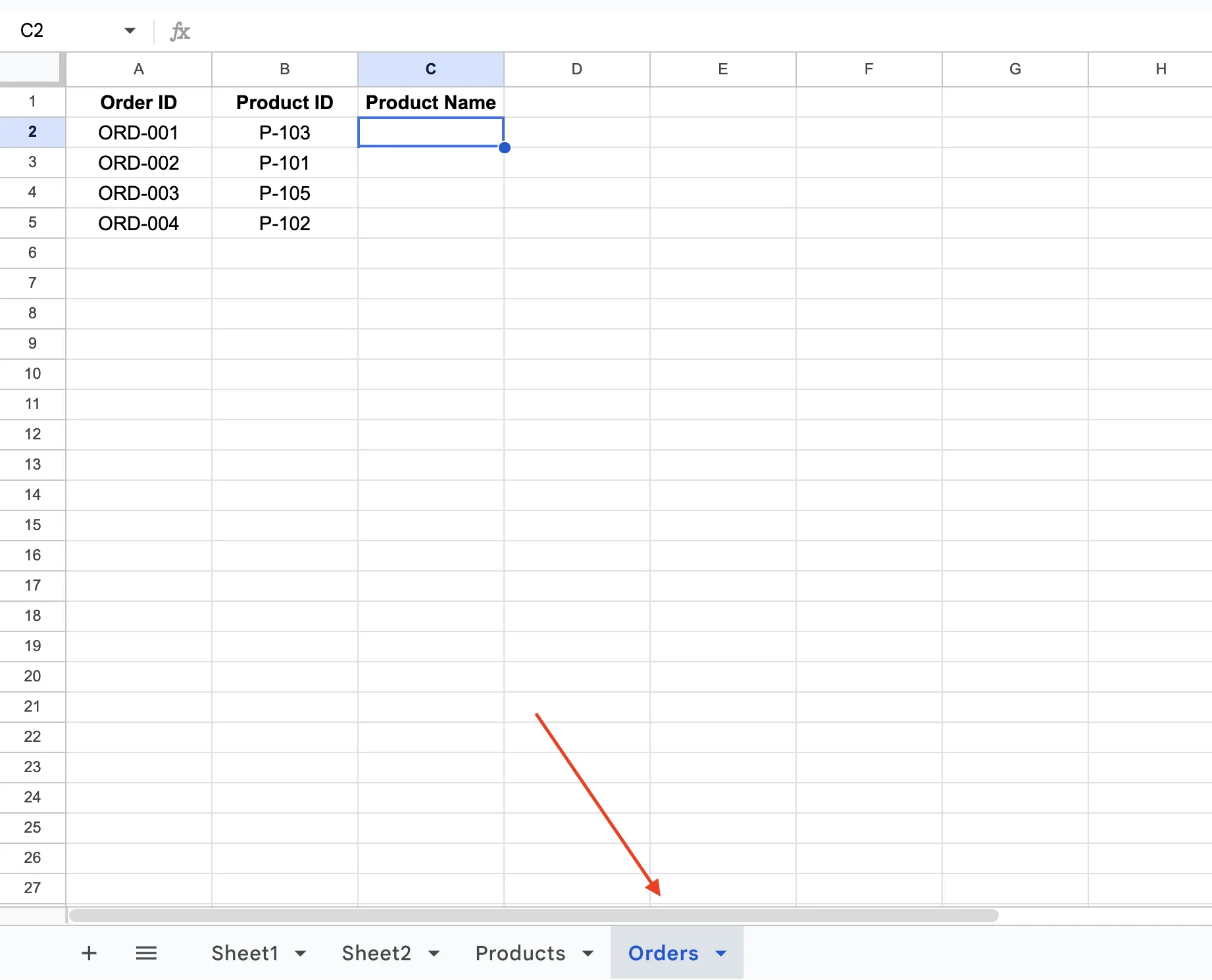
You want to fill in the Product Name in the Orders tab by pulling it from the Products tab.
Click cell C2 in the Orders tab and type:
=VLOOKUP(B2, Products!$A$2:$D$6, 2, FALSE)
Hit Enter, and the matching product name shows up. Drag the formula down through the rest of the column, and every order gets filled in.
The only new part of the formula is Products! before the range. This tells Google Sheets to search the Products tab instead of the current one.
Here are a few things to keep in mind when using VLOOKUP across tabs:
-
Sheet name with spaces? If your tab is named something like
Product List, wrap it in single quotes:'Product List'!$A$2:$D$6 -
Copying the formula down? Use the dollar signs (
$A$2:$D$6). Without them, the range shifts as you drag, and you'll get wrong answers or errors. -
Pulling from a totally different file? That's a different setup. You'll need the
IMPORTRANGEfunction wrapped around your VLOOKUP. We won't cover that here, but it's good to know it exists.That's all there is to it. It's the same VLOOKUP formula you're already using, just with a reference to another sheet.
VLOOKUP Exact Match in Google Sheets: When to Use TRUE vs FALSE
The last part of the VLOOKUP formula is the is_sorted setting. It looks small, but it changes how the whole function behaves.
You have two choices:
- FALSE for an exact match
- TRUE for an approximate match
What FALSE does
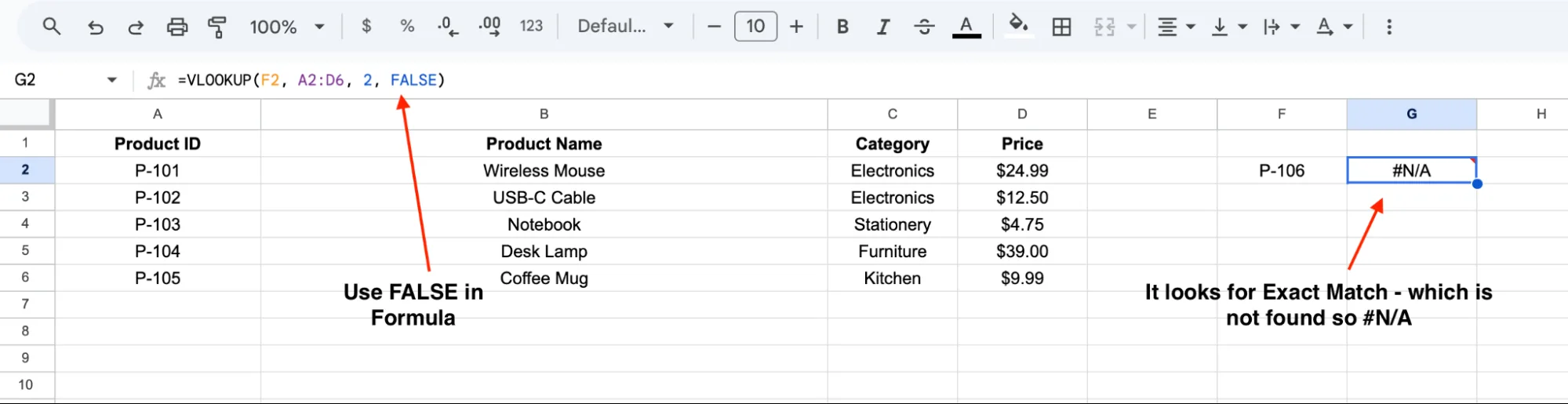
Set it to FALSE, and VLOOKUP looks for an exact match. If your search value is in the list, you get the right answer. If it's not, you get #N/A.
This is what you want most of the time. Looking up a Product ID, an employee number, or an email address. You want an exact match or nothing at all.
What TRUE does
Set it to TRUE (or leave it blank), and VLOOKUP looks for the closest match below your value. It only works if the first column of your range is sorted in order from small to large. If the data isn't sorted, you get wrong answers with no error to warn you. The cell shows a value, but it's the wrong one.
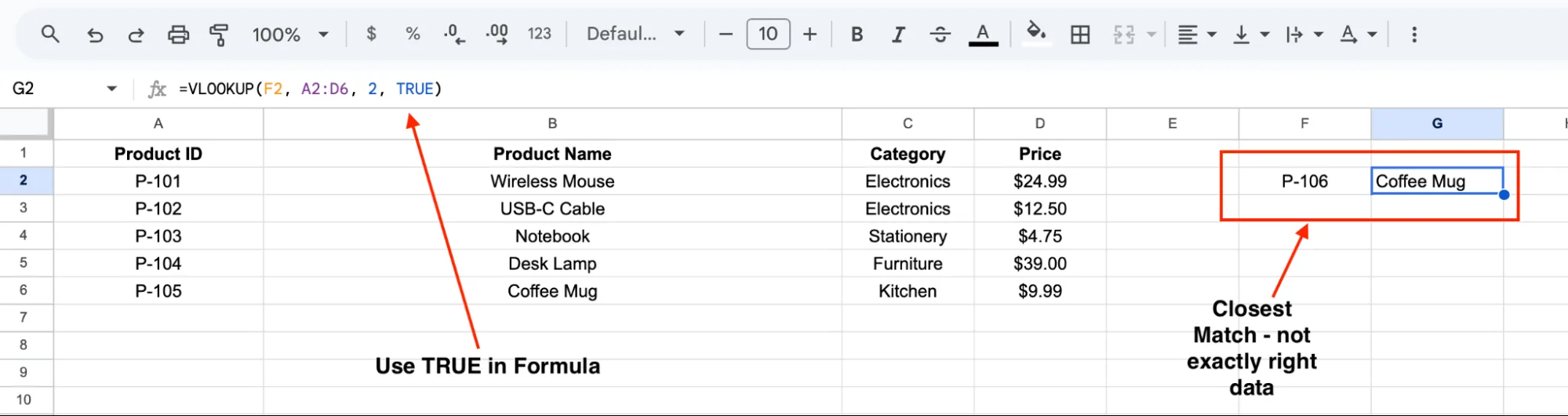
When TRUE actually makes sense
TRUE is useful when you're slotting a number into a range. A few real cases:
- Tax brackets: find the right tax rate based on income
- Grade boundaries: turn a test score into a letter grade
- Shipping tiers: find the right rate based on order weight
For everything else, stick with FALSE. It's the safer choice and saves you from silent mistakes.
VLOOKUP with Multiple Criteria in Google Sheets
VLOOKUP has one limit. It can only match on a single column at a time. So what do you do when you need to match on two things, like First Name AND Last Name, or Product ID AND Region?
There's a simple workaround called the helper column trick.
Step 1: Set up your data
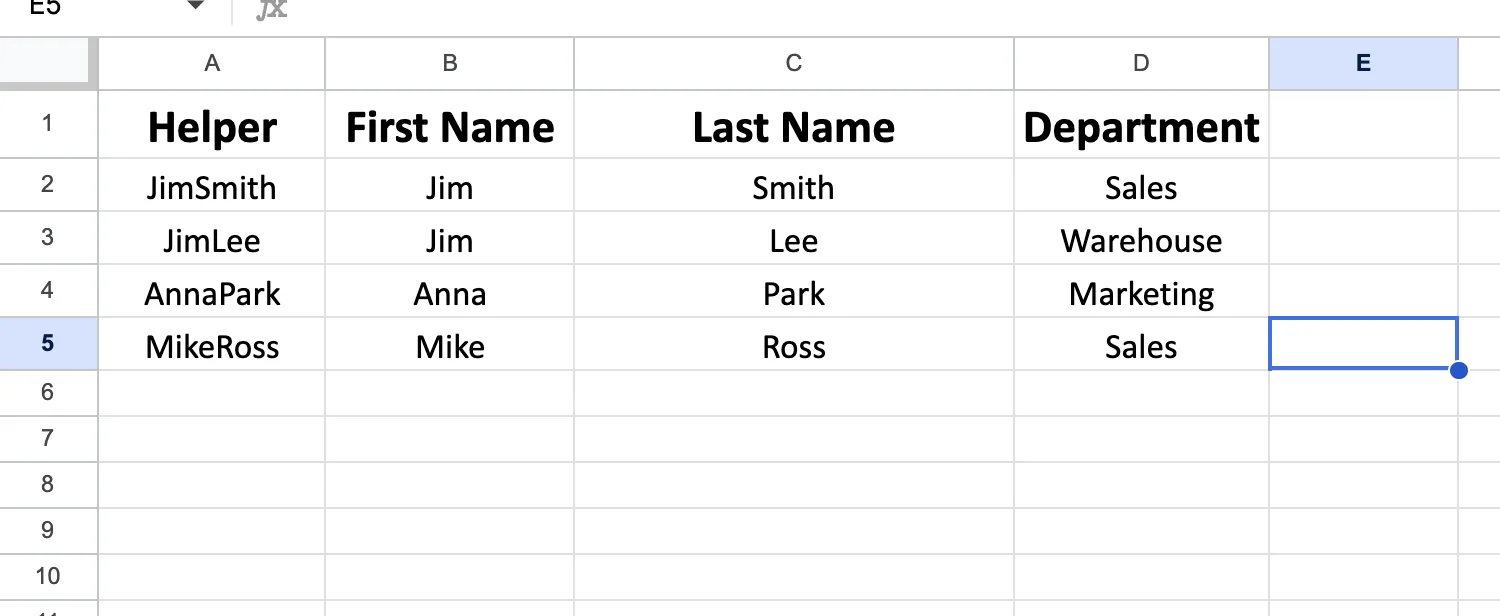
Let's say you have an employee table starting from cell A1. The columns are: Helper (column A), First Name (column B), Last Name (column C), Department (column D).
The Helper column does the heavy lifting. It joins the First Name and Last Name into one value. In cell A2, type =B2&C2. This combines Jim and Smith into JimSmith. Drag the formula down for the rest of the rows.
Now your data has a single column that holds both values at once.
Step 2: Set up your lookup cells
Off to the side, leave a few empty cells where you'll type your search inputs and see the result. Use cells F2 and G2 for the inputs, and H2 for the result:
- Cell F1: label it
First Name - Cell F2: type the first name you want to look up (say
Jim) - Cell G1: label it
Last Name - Cell G2: type the last name (say
Lee) - Cell H1: label it
Department - Cell H2: this is where the VLOOKUP answer will show up
Step 3: Write the formula
In cell H2, type:
=VLOOKUP(F2&G2, A2:D5, 4, FALSE)
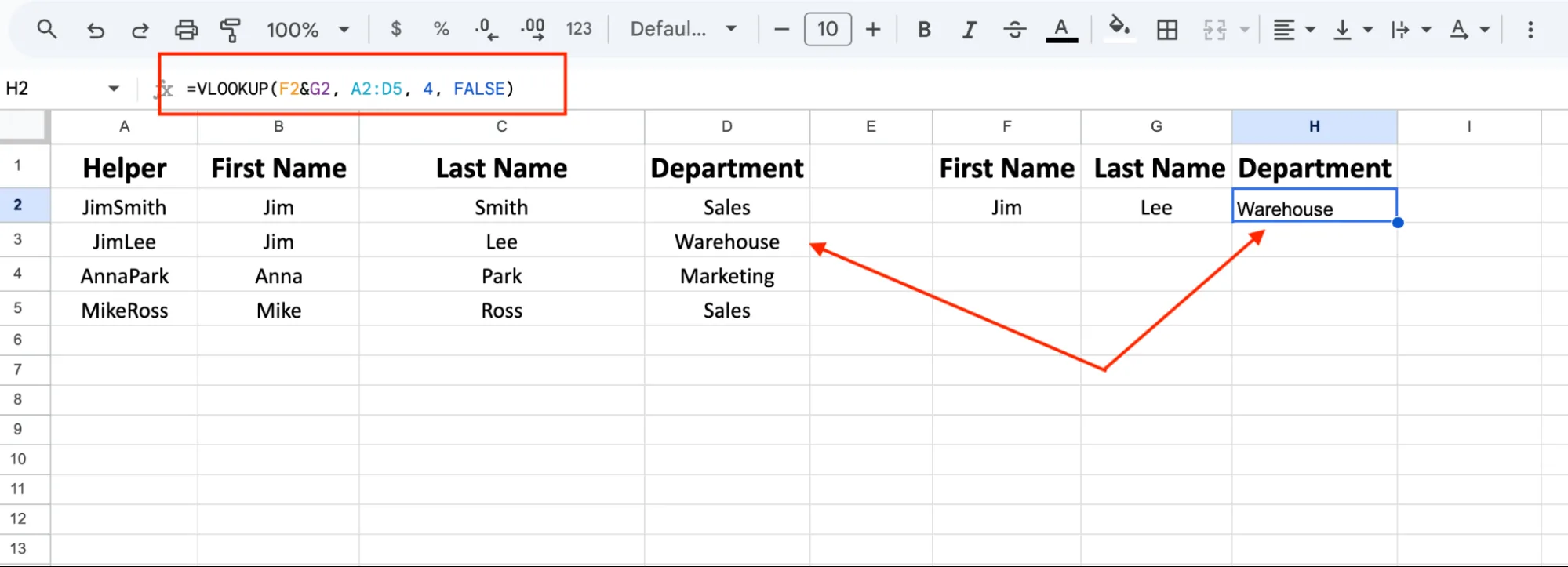
The F2&G2 part joins your two inputs into JimLee. VLOOKUP then searches for JimLee in the Helper column, finds the match, and returns the department Warehouse.
That's it. One extra column, and VLOOKUP can match on two values at once.
GPT for Sheets: The AI Agent That Handles VLOOKUPs for You
VLOOKUP works fine once you know it. But here's the thing. Most people don't sit down thinking, "I want to write a VLOOKUP today." They think, "I have two sheets and I need them matched up." The formula is just the boring step in the middle.
GPT for Sheets by GPT for Work skips that step. It's an AI agent that sits inside your Google Sheets. You tell it what you want in plain words. It reads your tabs, finds the match, and fills in the answers.
Remember the example earlier where we pulled product names from the Products tab into the Orders tab? Instead of writing that formula and dragging it down, you'd just type:
Example prompt: "Match each Product ID in the Orders tab with the Product Name from the Products tab and put the result in column C."
The agent does the rest. Every order filled in. No formula. No #N/A. No worrying about dollar signs or sheet names.
And it doesn't stop at lookups. The same agent can clean up messy data, write other formulas, translate text, sort rows, or pull info from the web. Just describe the task and it gets done.
Less typing. Less fixing errors. More time for the real work.
Final Thoughts
VLOOKUP is one of those formulas that seems intimidating at first but quickly becomes second nature. Once you understand the four arguments, you can use it to match data across tables, pull information from other sheets, and automate repetitive lookups in seconds.
The formula format is =VLOOKUP(search_key, range, index, [is_sorted]), and the rule of thumb is to always set the last part to FALSE for an exact match. To pull data from another tab, add the sheet name with an exclamation mark like Products!A2:D6. And when one search value isn't enough, the helper column trick lets you match on two at once.
If you'd rather skip the formula altogether, GPT for Sheets offers a faster approach. Just open the sidebar, describe what you want in plain English, and the AI handles the lookup for you. Same result, less work.
FAQs
Can you do VLOOKUP in Google Sheets?
Yes. VLOOKUP is built into Google Sheets, no add-on needed. The syntax is =VLOOKUP(search_key, range, index, [is_sorted]), the same as in Excel.
How does VLOOKUP work in Google Sheets?
VLOOKUP searches the leftmost column of a range for your value, then returns a matching value from another column in the same row. It scans top to bottom, which is why it's called Vertical Lookup. For lookups across rows, use HLOOKUP or XLOOKUP instead.
Is VLOOKUP in Google Sheets the same as in Excel?
Yes, mostly. The syntax and arguments are identical. The one difference is cross-file lookups. In Excel you can reference another file directly. In Google Sheets, you need to wrap the formula in IMPORTRANGE first.
Why is my VLOOKUP returning #N/A?
Your search value isn't in the leftmost column of your range. Most often it's a typo or a trailing space, so try =VLOOKUP(TRIM(F2), A2:D6, 2, FALSE). To hide the error and show your own message, wrap the formula in IFERROR().
Can I do a VLOOKUP in Google Sheets using AI?
Yes. GPT for Sheets by GPT for Work handles lookups from a plain text prompt. It also catches the small things that break formulas, like extra spaces or mismatched data types, so you don't end up with #N/A errors.