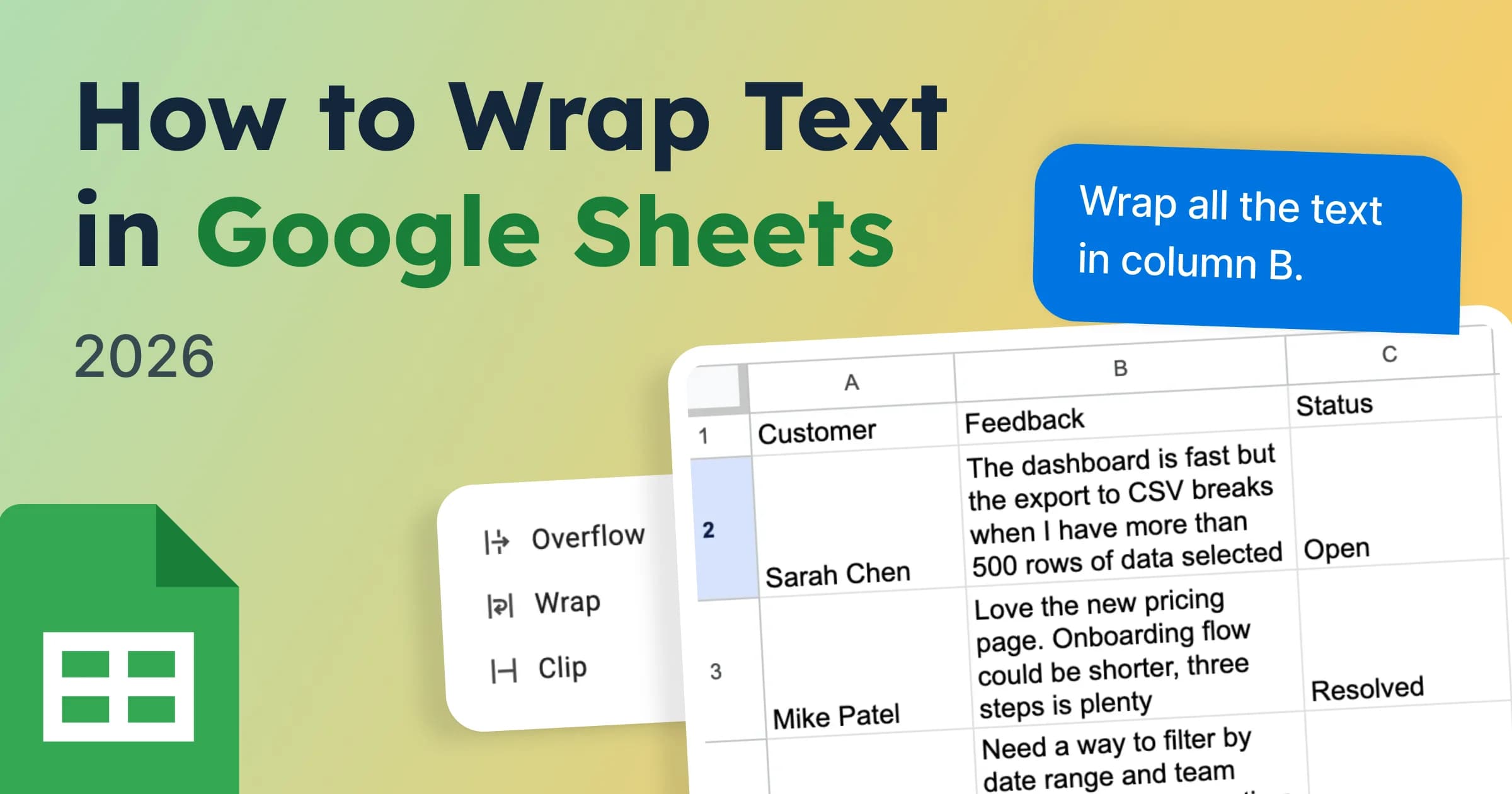
You type a long piece of text into a Google Sheets cell, and it either spills into the next column or gets cut off at the cell border. Suddenly, the sheet looks cluttered and difficult to read. So you search for how to wrap text in Google Sheets.
Text wrapping keeps content inside its own cell. Instead of overflowing into adjacent columns, the text moves onto a new line within the cell. The row automatically becomes taller, while the column width stays the same.
Google Sheets offers three ways to wrap text:
- The toolbar icon
- The Format menu
- A keyboard shortcut
All three methods produce the same result, so you can use whichever feels fastest.
Below, you'll find step-by-step instructions for each method, including how to wrap text in a single cell, an entire column, or the whole sheet at once. We'll also cover common reasons text wrapping may not appear to work and how to fix them.
And if you're dealing with large amounts of messy, unstructured text, there's a smarter option at the end. An AI agent can clean, organize, and format the content before it reaches your spreadsheet, making text wrapping a finishing touch rather than a workaround.
Method 1: Wrap Text Using the Toolbar
This is the fastest way to wrap text in Google Sheets. A few clicks and you're done.
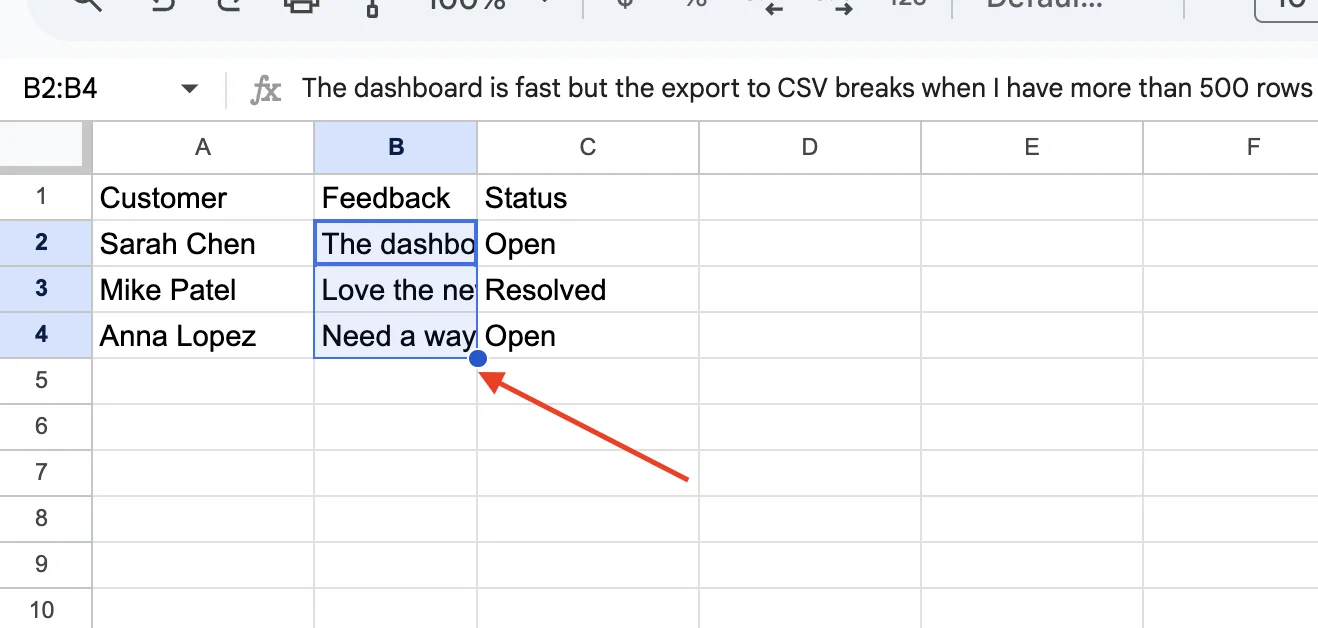
Step 1: Select the Cell or Range
Select the cell, cells, or column where the text is overflowing into the next column or getting cut off at the cell edge.
- Click a single cell to wrap text in just that cell.
- Click and drag to select multiple cells.
- Click a column letter to wrap an entire column in Google Sheets at once.
Step 2: Find the Text Wrapping Icon
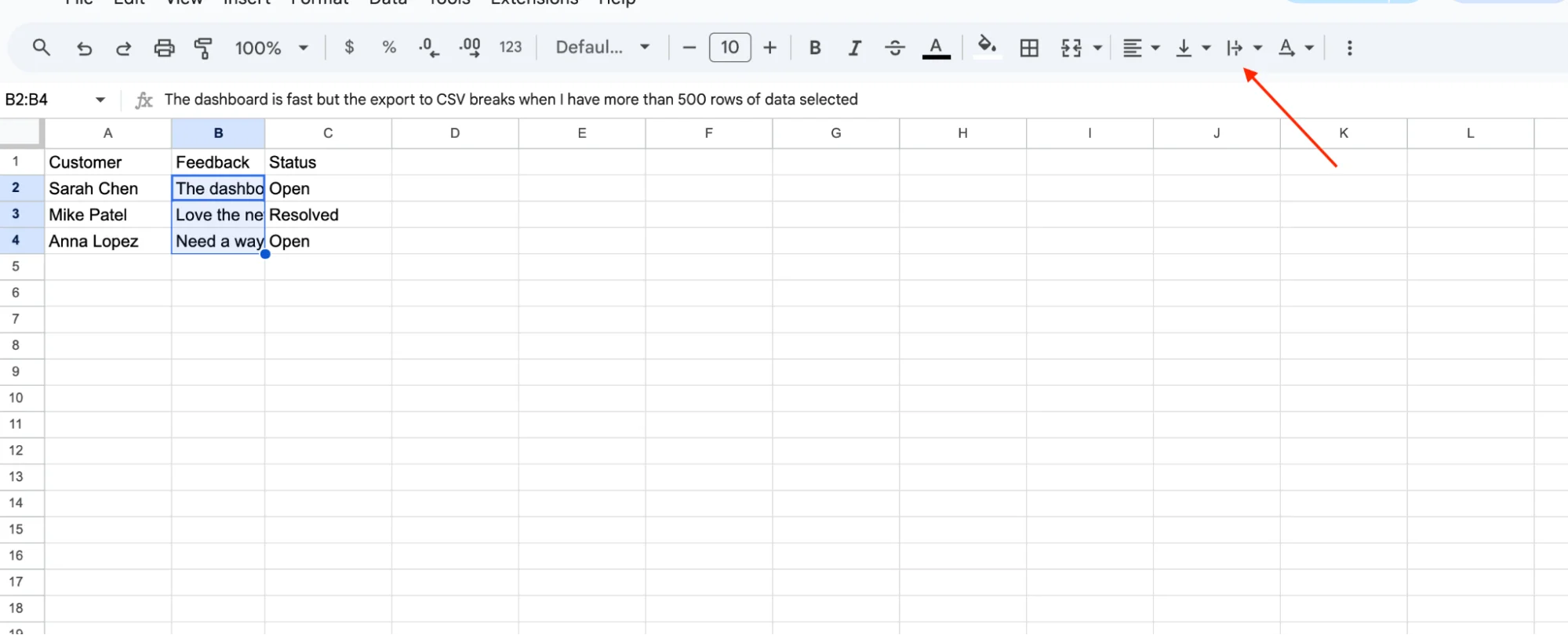
In the toolbar at the top of the screen, locate the Text Wrapping icon. It looks like a horizontal line with a curved arrow pointing downward toward a vertical bar.
Step 3: Open the Wrapping Options
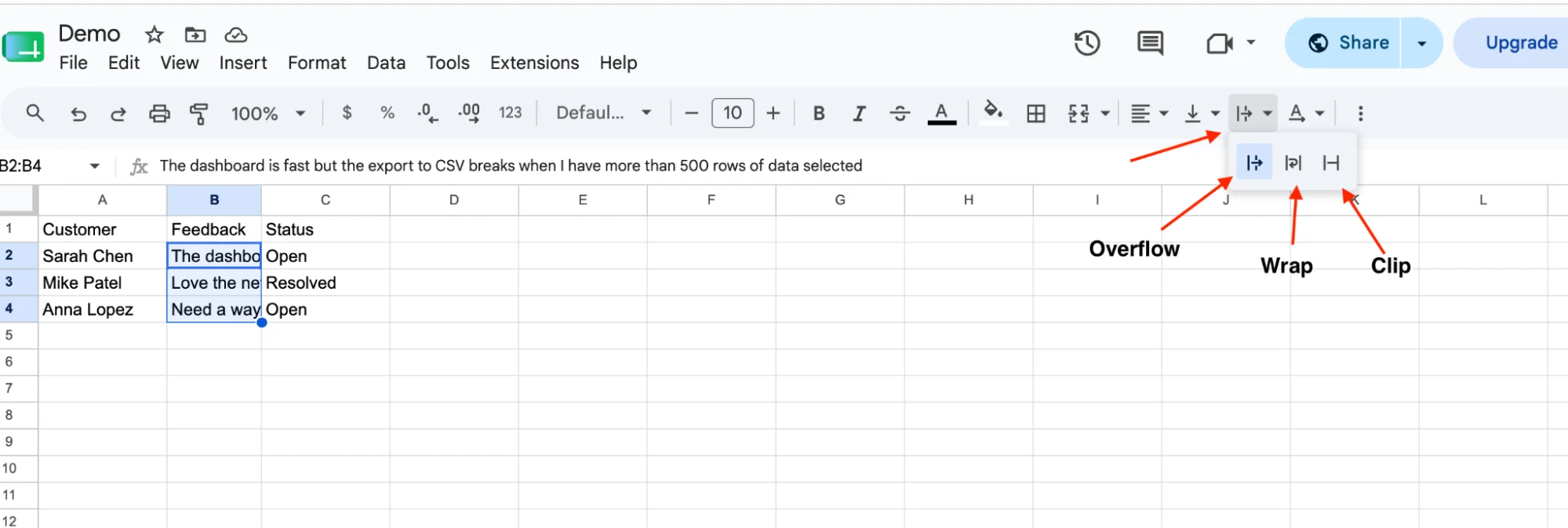
Click the icon to open a dropdown menu. You'll see three options:
- Overflow
- Wrap
- Clip
Step 4: Select Wrap
Click Wrap (the middle option).
That's it. The column width stays the same, and the row automatically expands to display all the text.
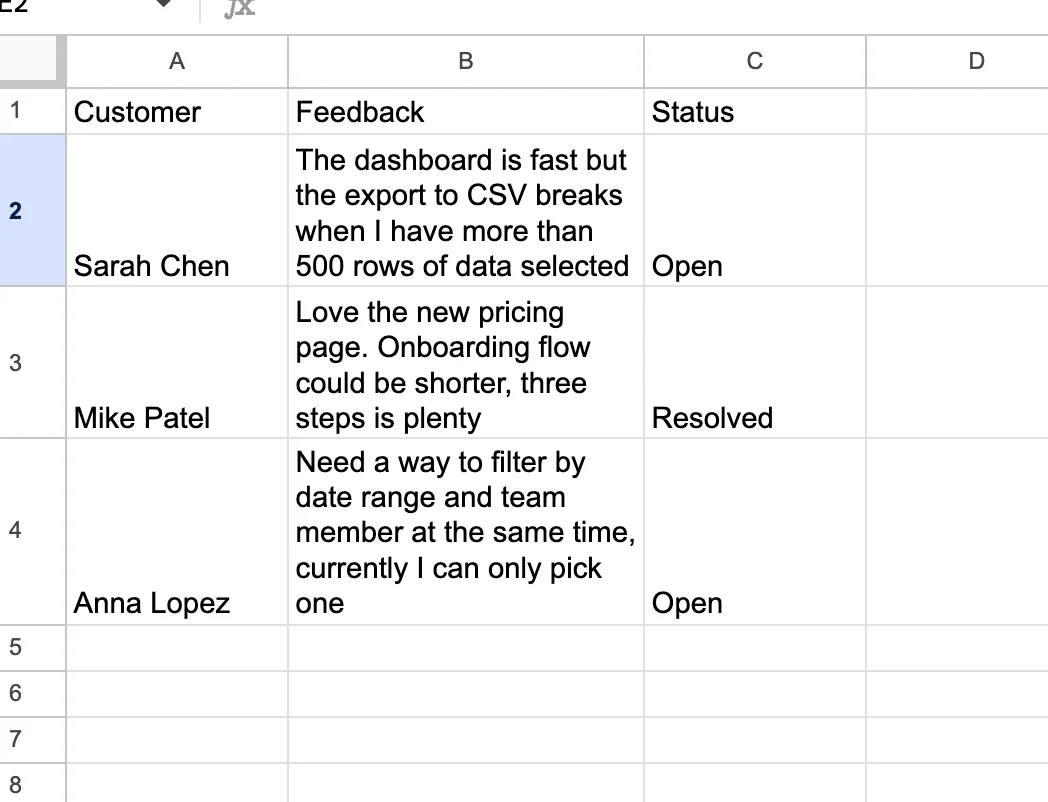
This is also how you wrap a cell in Google Sheets when you only need to fix one cell. Click that single cell first, then follow the same steps.
Can't Find the Text Wrapping Icon?
If the icon isn't visible, click the three-dot More button at the right end of the toolbar. On smaller screens or when your browser is zoomed in, Google Sheets may hide the Text Wrapping option inside this menu.
Method 2: Wrap Text Using the Format Menu
The Format menu gives you another way to wrap text in Google Sheets. It's useful when the toolbar icon isn't visible or when you prefer navigating through menus instead of using toolbar shortcuts.
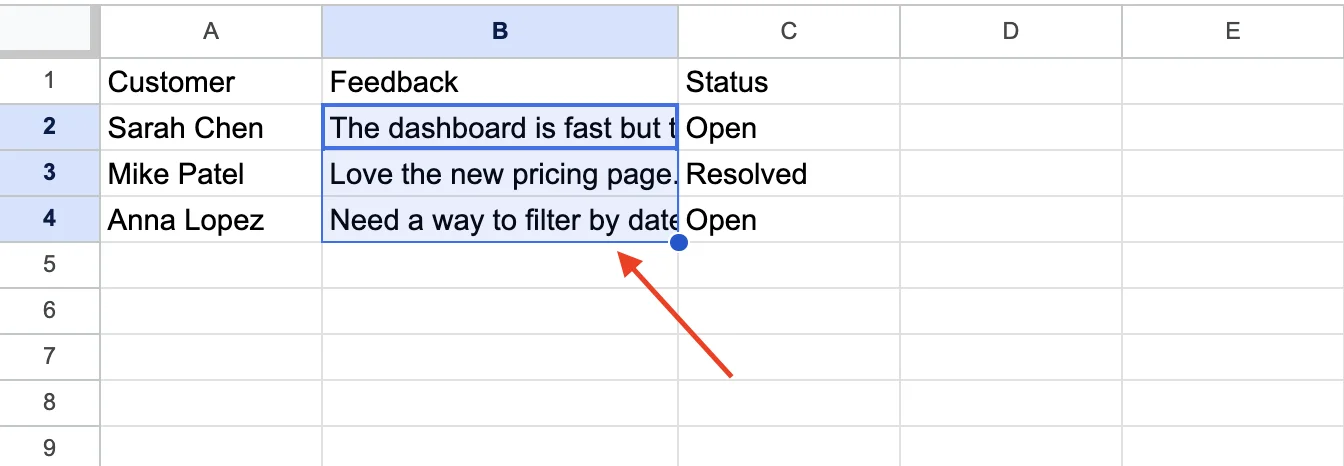
Step 1: Select the Cell or Range
Select the cell, cells, column, or row where you want the text to wrap.
Step 2: Open the Format Menu
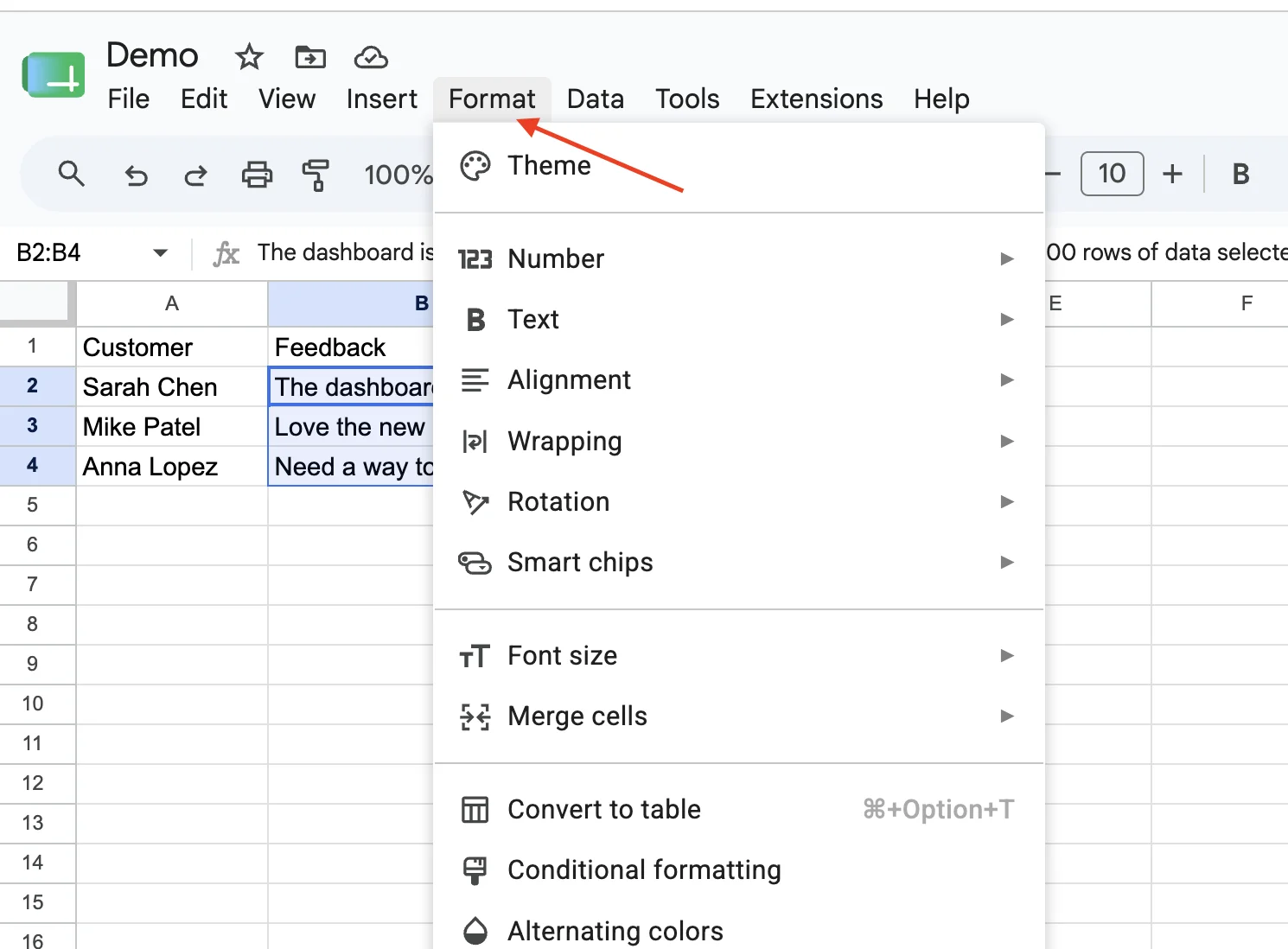
Click Format in the top menu bar.
Step 3: Open the Wrapping Options
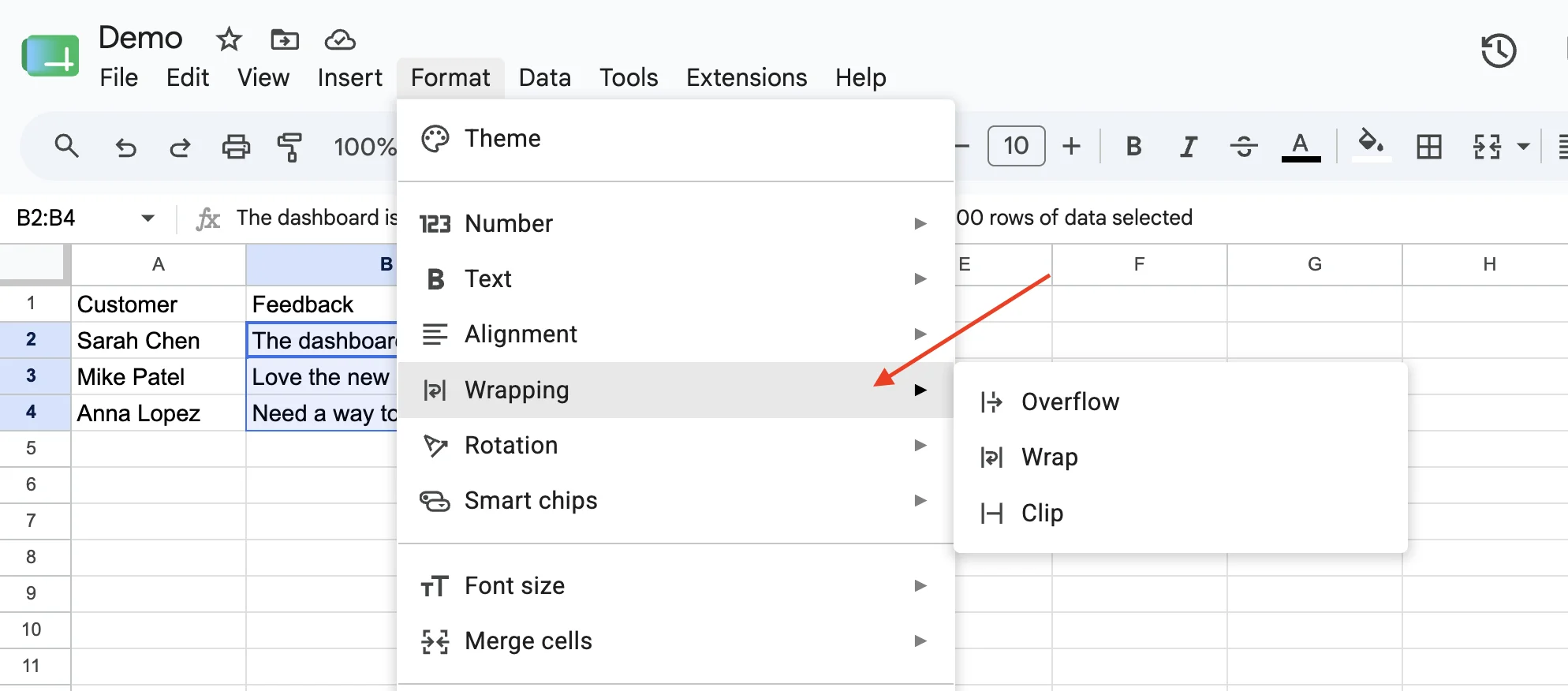
Hover over Wrapping. A submenu will appear with three options:
- Overflow
- Wrap
- Clip
Step 4: Select Wrap
Click Wrap.
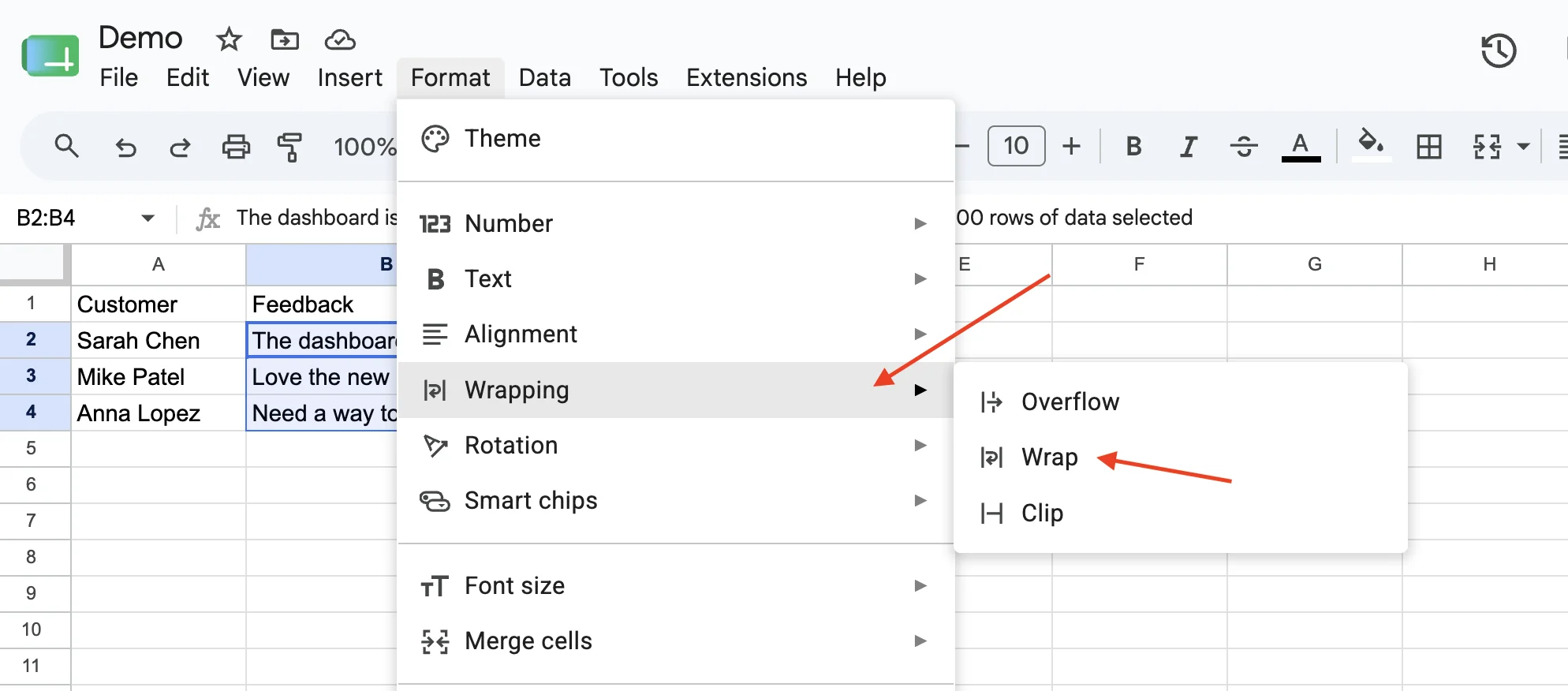
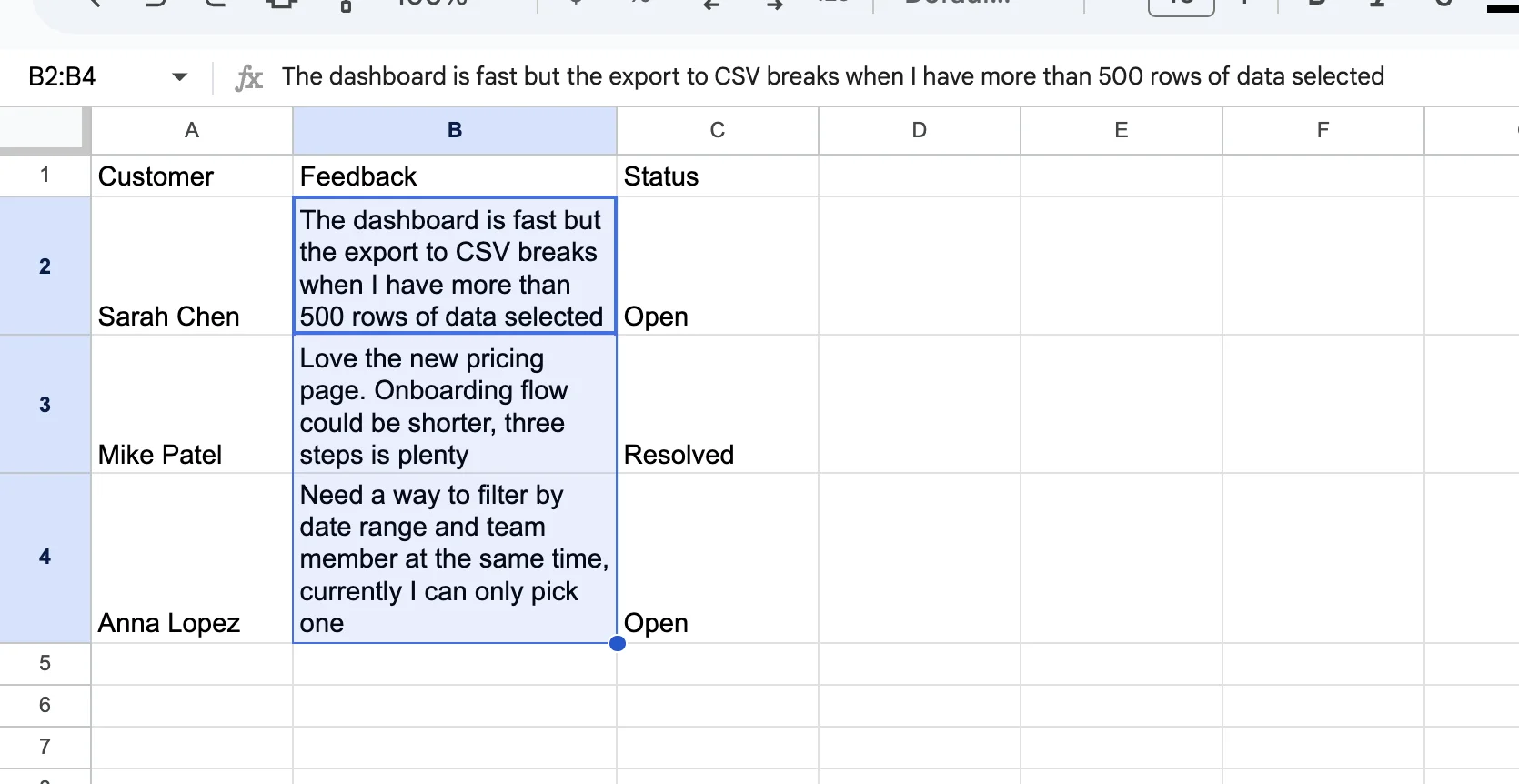
The text will now stay within its cell, and the row height will automatically expand to display the full content. The result is identical to using the toolbar method.
When Should You Use the Format Menu?
The Format menu is especially useful in two situations:
1. You're guiding someone through the process.
If you're helping a colleague over a screenshare or phone call, the menu path (Format → Wrapping → Wrap) is easy to describe and follow.
2. The toolbar icon isn't available.
On smaller screens, zoomed-in browser windows, or when certain browser extensions affect the interface, the Text Wrapping icon may be hidden. The Format menu remains accessible regardless of toolbar layout.
Method 3: Wrap Text Using Keyboard Shortcuts
If you use Google Sheets regularly, keyboard shortcuts can be faster than clicking through menus. However, text wrapping shortcuts work differently on Windows, ChromeOS, and Mac.
Windows and ChromeOS
There are two ways to trigger text wrapping from the keyboard.
Option 1: Universal Shortcut
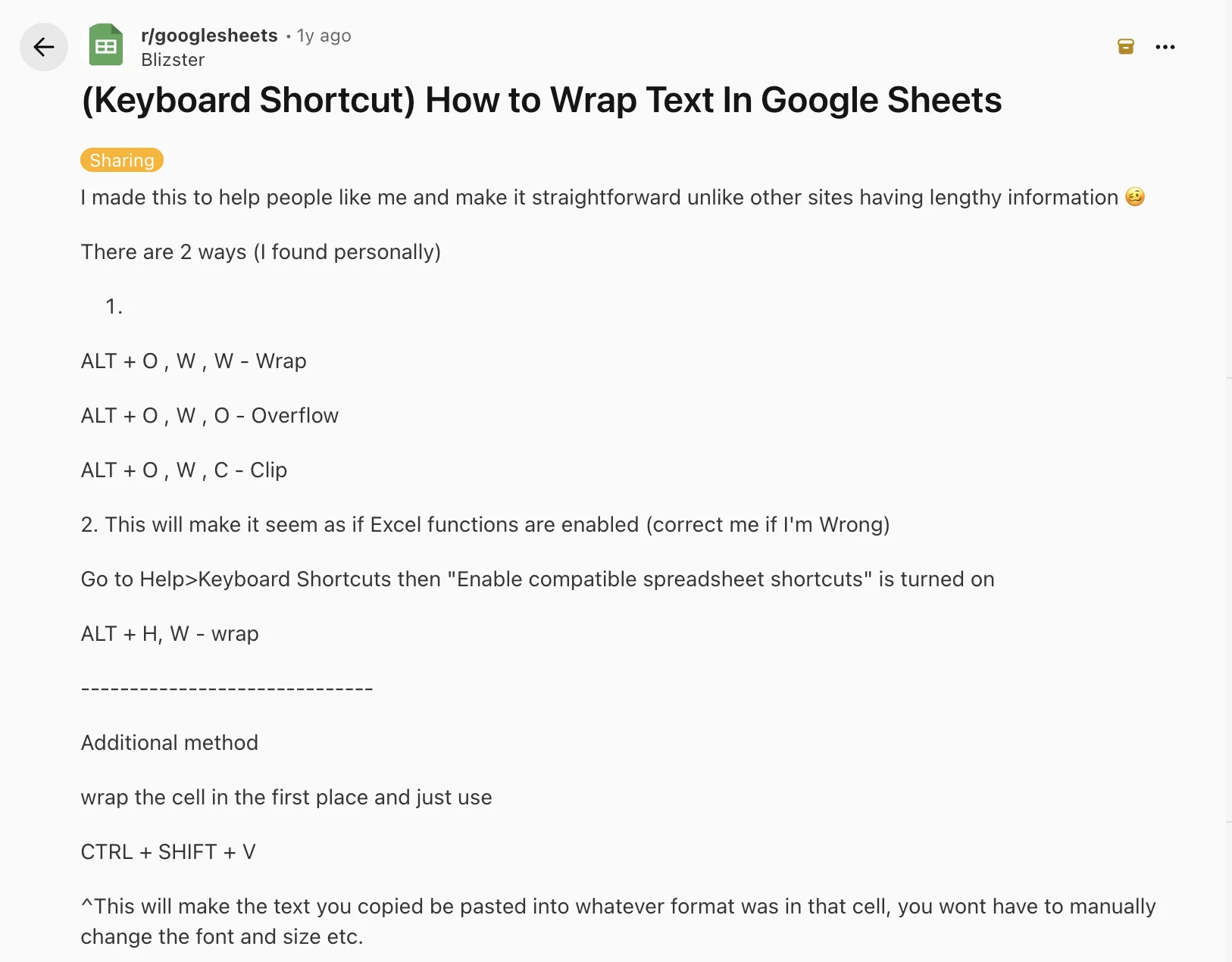
Press: Alt + O, then W, then W
Hold Alt and press O, release both keys, then press W twice.
This shortcut works on most Windows PCs and Chromebooks without changing any settings.
Option 2: Shorter Shortcut
Press: Alt + H, then W
This version is faster, but it only works when compatible spreadsheet shortcuts are enabled.
To enable them:
- Click Help in the top menu.
- Select Keyboard shortcuts.
- Turn on Enable compatible spreadsheet shortcuts.
Once enabled, you can use the shorter shortcut whenever you need to wrap text.
Source: r/googlesheets community thread
Mac
Here's something many tutorials leave out: Mac has no native single-key shortcut for word wrap in Google Sheets. You have to use the toolbar, the Format menu, or build your own shortcut using a macro.
To set up a macro:
- Click Extensions, then Macros, then Record macro.
- Click Use relative references at the bottom of the recorder.
- Apply wrap using Format > Wrapping > Wrap.
- Click Save. Name it something like "Wrap text".
- Assign a shortcut number from 0 to 9.
Now press Ctrl + Option + Shift + [your number] to trigger wrap from anywhere in the sheet.
Wrap a Single Cell, a Range, or the Entire Sheet
The wrapping process is always the same. The only difference is what you select before applying Wrap.
Wrap a Single Cell
Click the cell you want to format, then apply Wrap using the toolbar, Format menu, or a keyboard shortcut.
Only that cell will be affected. The rest of the sheet remains unchanged.
This is useful when one cell contains a long note, description, or comment while the rest of the column contains shorter entries.
Wrap a Range of Cells
Select multiple cells by clicking and dragging across the range. You can also hold Shift while clicking to extend your selection.
Once the cells are selected, apply Wrap using any of the methods covered above.
Every cell in the selected range will wrap. Row heights adjust automatically based on the tallest wrapped cell in each row.
This option works well when you're formatting a table section without changing the rest of the worksheet.
Wrap an Entire Column or Row
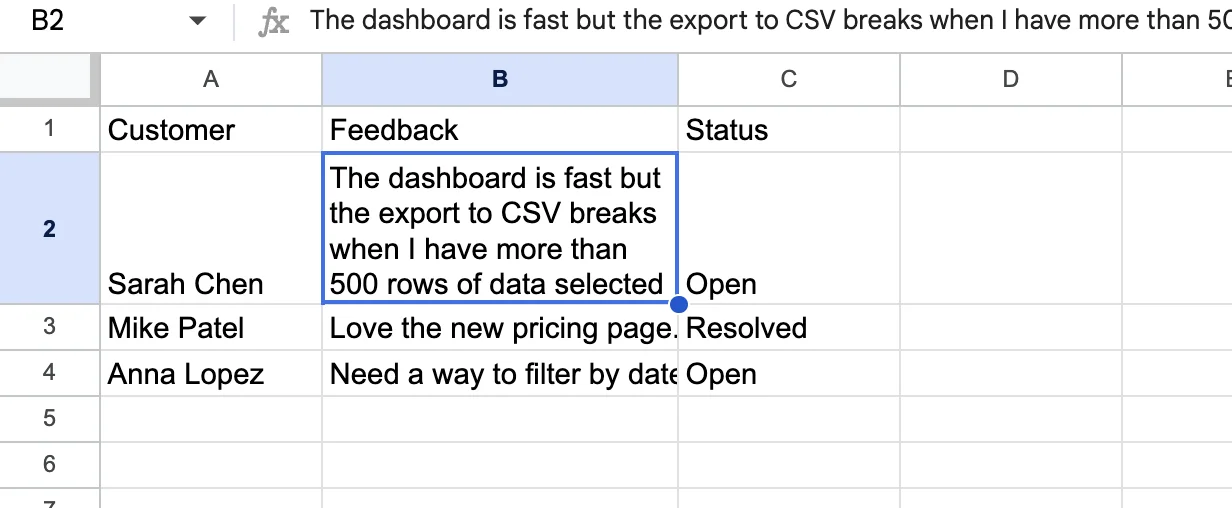
Click a column letter (A, B, C) or a row number to select the entire column or row with a single click. Then apply Wrap.
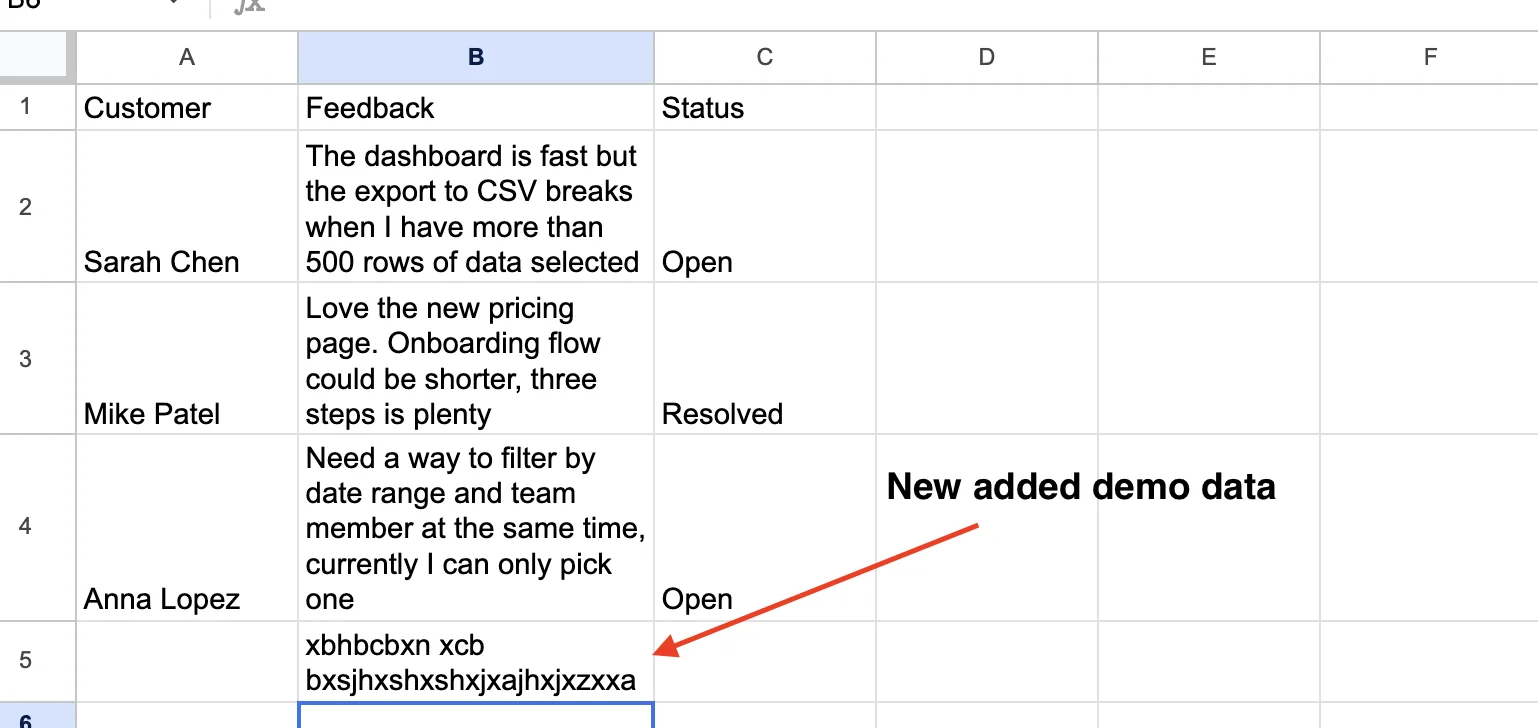
Every cell in that column or row will now use text wrapping by default. This includes empty cells, so any data you add later will wrap automatically.
This is the best option when you know a particular column will contain longer text from the start, such as:
- Customer feedback
- Addresses
- Product descriptions
- Notes
Wrap the Entire Sheet
Click the small gray square in the top-left corner of the sheet, where the column headers and row numbers meet. This selects every cell in the spreadsheet at once.
Next, click Wrap from the toolbar or choose Format → Wrapping → Wrap.
Every cell in the sheet will now use text wrapping by default.
This is often the fastest way to clean up a messy import. If someone shares a spreadsheet where text is overflowing across multiple columns, you can select the entire sheet, click Wrap, and instantly make the data easier to read.
Manual Line Breaks Inside a Wrapped Cell
Sometimes you want a line break in a specific place rather than letting Google Sheets decide where the text should wrap.
A common example is an address:
- Street address on line 1
- City and state on line 2
- Country on line 3
Automatic text wrapping won't create that layout for you. Instead, you need to insert a manual line break.
Windows and ChromeOS
- Double-click the cell or press F2 to enter edit mode.
- Place your cursor where you want the line break.
- Press Alt + Enter.
Mac
- Double-click the cell or press Enter to edit the cell.
- Place your cursor where you want the line break.
- Press Control + Option + Enter or Command + Enter.
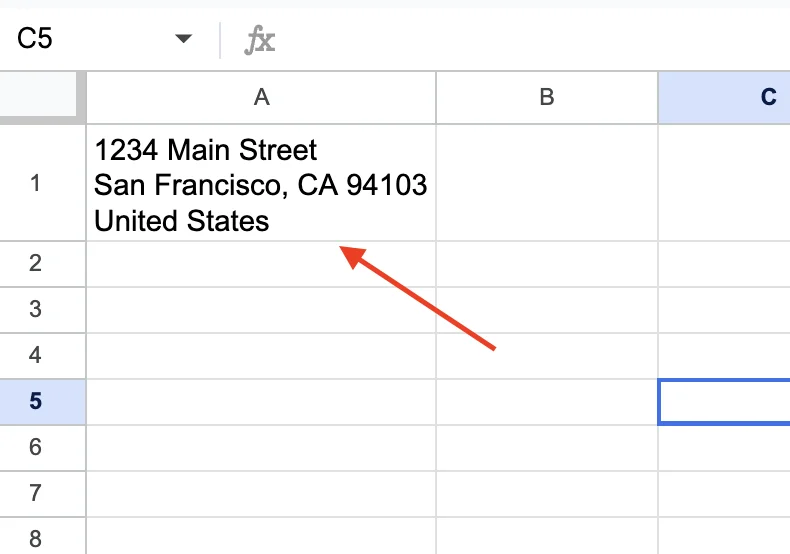
Google Sheets will insert a line break exactly where you placed it. You can repeat the process as many times as needed within the same cell.
Unlike automatic wrapping, a manual line break becomes part of the cell's content. Even if you resize columns or change wrapping settings later, the breaks remain exactly where you inserted them.
Wrap Text on the Google Sheets Mobile App
The mobile app handles wrapping a little differently from the desktop version. There is no three-way choice between Overflow, Wrap, and Clip. Just a single on or off toggle.
On iPhone or iPad
- Open the sheet in the Google Sheets app.
- Tap the cell or range you want to wrap.
- Tap the formatting icon at the top of the screen. It looks like the letter A with a horizontal line below it.
- Switch to the Cell tab in the panel that opens.
- Toggle Wrap text to on.
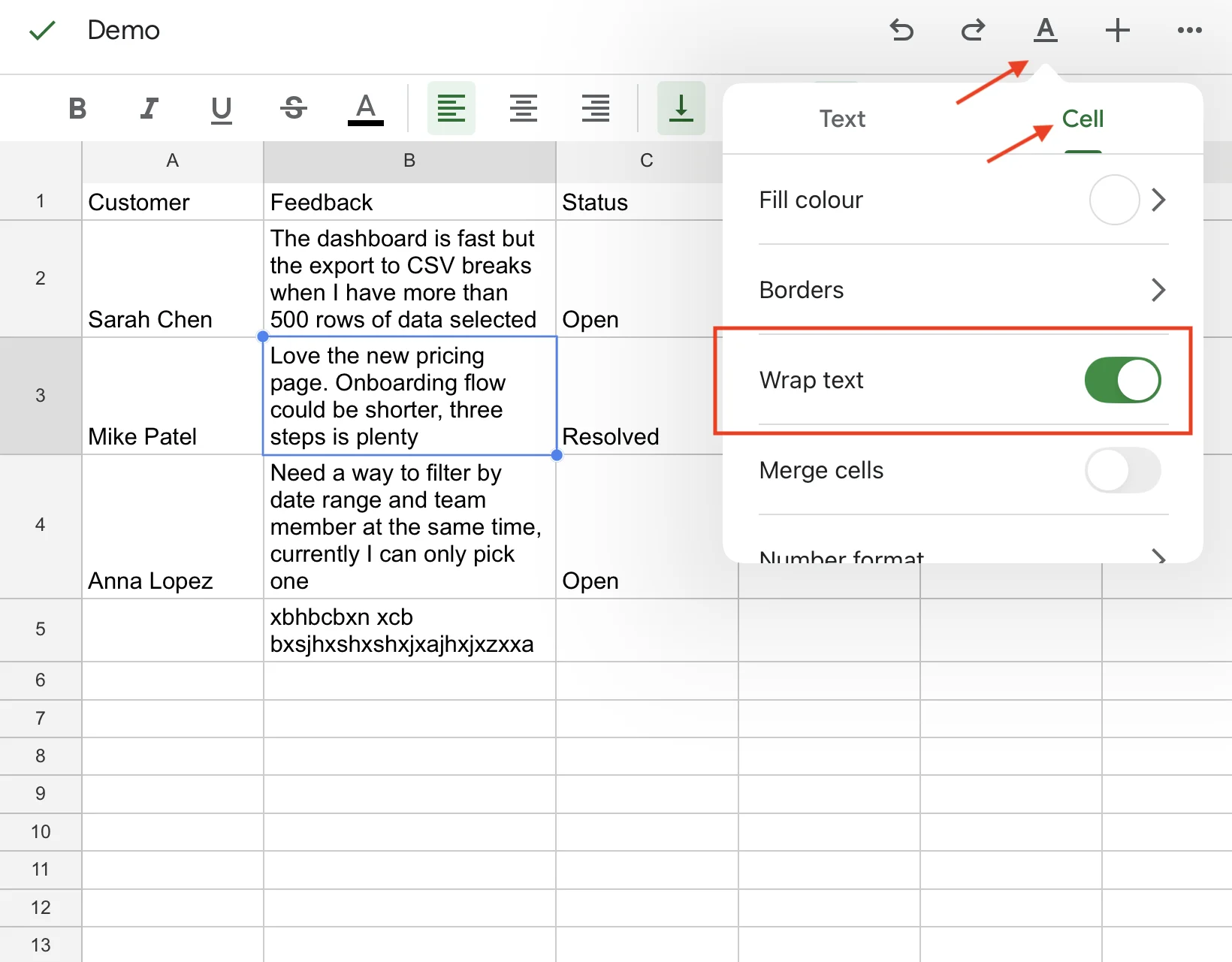
On Android
The steps are identical. The formatting icon, the Cell tab, and the Wrap text toggle all look the same on Android.
Anything not wrapped uses Overflow by default. So to "unwrap" a cell on mobile, just toggle Wrap text off.
Troubleshooting: Why Your Text Is Not Wrapping
You clicked Wrap and nothing happened visually. Here is why, and how to fix each cause.
The column is already wide enough
Wrap only kicks in when text is longer than the column width. If your column is 600 pixels wide and the text fits inside that, wrap is applied but invisible. Shrink the column to test. The wrap setting is still saved.
The row height is locked
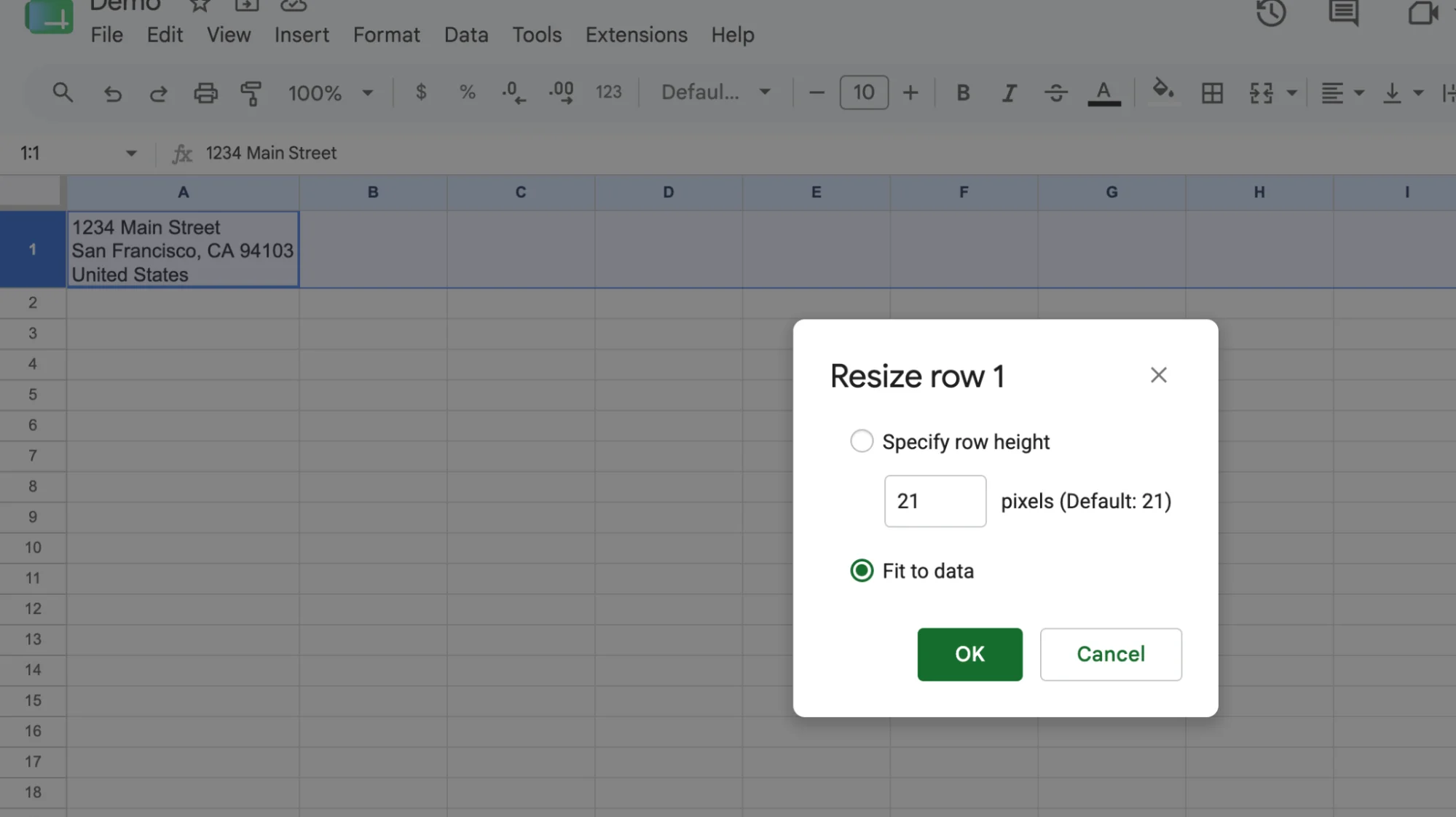
If someone manually resized the row height earlier, it stays fixed. Wrap applies but the row will not grow to fit.
Right-click the row number. Click Resize row. Select Fit to data. The row now expands to show the wrapped text. This is the most common reason behind shared sheets that look broken when you open them.
The cells are merged
Wrap behaves inconsistently inside merged cells. If wrapping looks broken in one specific area, check if those cells are merged. Unmerge them, apply wrap, and re-merge if needed.
Overflow looks like Clip
Overflow text only spills into adjacent cells if those cells are empty. The moment you add data to the next cell, the overflow gets hidden behind it. This looks identical to Clip but it is actually Overflow behaving normally. Switch to Wrap to see the full text. A lot of people get tripped up by this without realizing the neighbor cell is the problem.
You picked Clip instead of Wrap
Re-check the toolbar dropdown. The middle icon is Wrap. The right icon is Clip. Easy mix-up on smaller screens.
Wrap Text and Clean It Up With GPT for Sheets
You just learned three manual ways to wrap text, plus the keyboard shortcut, the corner trick for the entire sheet, and the troubleshooting fixes for when wrap does not work.
What if you could skip all of it and just tell an AI agent what you want?
That is what GPT for Sheets does. It is a full AI agent that lives inside your Google Sheets sidebar. You type a prompt in plain English. It reads your data, handles the action you described, and writes the result back into your sheet.
To wrap text using GPT for Sheets, the prompt is this simple:
Wrap all the text in column B.
That is it. No toolbar clicks. No Format menu. No shortcut to memorize. The agent handles it across however many rows or columns you point at.
And wrapping is the basic use case. Once the agent is in your sidebar, it can do far heavier work:
- Summarize long feedback rows into one clean sentence each
- Extract product names, dates, or key phrases into a new column
- Classify entries by sentiment, urgency, or topic
- Clean out typos, filler words, and inconsistent formatting
- Translate long entries into a target language inline
- Run heavy calculations across thousands of rows from a single prompt
- Build financial reports, sales summaries, and pivot-style breakdowns by describing what you want
Wrap is a display fix. The agent is a full content and analysis layer on top of your sheet. Manual wrapping becomes a finishing touch instead of the whole job.
Install GPT for Sheets from the Google Workspace Marketplace and run your first prompt for free.
Conclusion
Wrapping text in Google Sheets is a small fix that makes a sheet readable.
You have three manual ways to do it. The toolbar icon for one-click wrap. The Format menu when the toolbar is hidden. The Alt + O, W, W shortcut on Windows and ChromeOS, or a macro on Mac.
For bigger jobs, select an entire column or hit the corner select-all box to wrap the whole sheet at once. Use Alt + Enter or Cmd + Enter when you need a line break at an exact spot. And when wrap does not work, check the column width, the row height, and whether the cells are merged.
But wrap only fixes how your data looks. It does not fix what your data says.
That is where GPT for Sheets earns its place. The AI agent handles wrap with a single prompt, then goes further. Summarize, classify, clean, translate, run calculations, build reports. Long messy columns become short, clean, useful data without the manual click work.
Install GPT for Sheets and run your first prompt free.
FAQ
How do I wrap text in Google Sheets?
Select the cells. Click the text wrapping icon in the toolbar. Choose Wrap. Or open Format, then Wrapping, then click Wrap.
What is the keyboard shortcut to wrap text in Google Sheets?
On Windows and ChromeOS, press Alt + O, then W, then W. Mac has no native shortcut for wrap, but you can build one using a macro under Extensions > Macros > Record macro.
Why is my text not wrapping in Google Sheets?
The most common reasons are: the column is already wide enough to fit the text, the row height was manually locked, or the cells are merged. Right-click the row, choose Resize row, and select Fit to data to fix the locked-height issue.
How do I unwrap text in Google Sheets?
Select the cells. Open the text wrapping options from the toolbar or Format menu. Choose Overflow to return to the default behavior. The text will spill into empty cells to the right.
Can you wrap text in the Google Sheets mobile app?
Yes. Tap the cell, tap the formatting icon (an A with horizontal lines), open the Cell tab, and toggle Wrap text on. The mobile app only has on or off, not the three options the desktop version has.
How do I add a line break inside a cell in Google Sheets?
Press Alt + Enter on Windows or Cmd + Enter on Mac while the cell is in edit mode. The break stays exactly where you placed it, regardless of column width changes.