You probably work with Google Sheets every day. And at some point, you will need to know how to merge cells in Google Sheets.
Maybe you want to create a clean header row. Maybe you need to pull first and last names into one column. Whatever the reason, this is something you will use more than you think.
But before you start clicking buttons, you should know one important thing. Merging cells and combining cells are two different things.
This guide covers everything you need to know about merging and combining cells in Google Sheets:
Merge Cells vs. Combine Cells: What is the Difference?
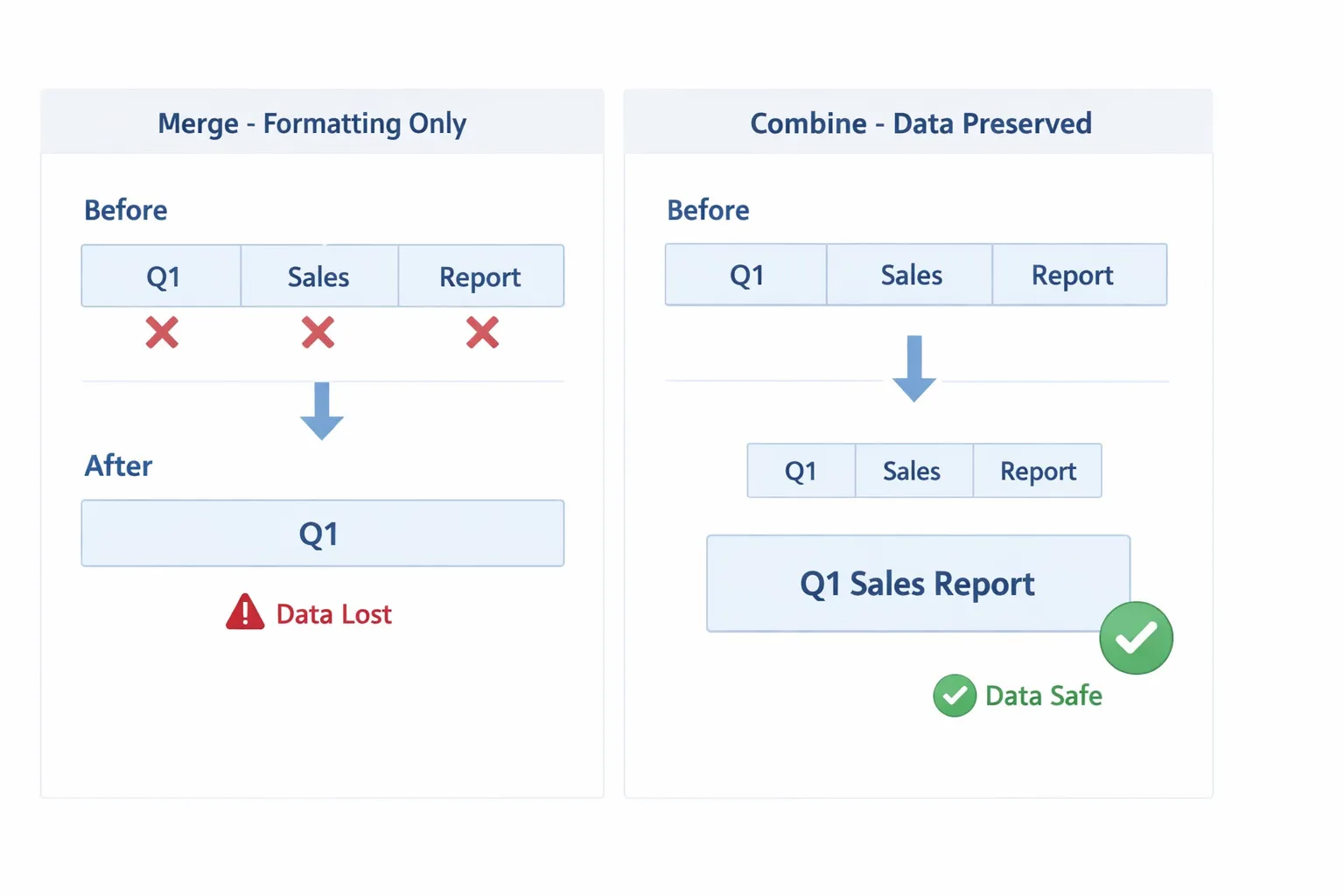
Most people think "merge" and "combine" mean the same thing.
They do not. Once you know the difference, you will never accidentally lose data again.
Merging cells changes how your sheet looks. Google Sheets takes your selected cells and turns them into one big cell, but it only keeps the value in the top-left cell. Everything else gets deleted.
Combining cells keeps your data safe. Instead of changing cell structure, you use a formula to join the text from several cells into one string. Your original data stays where it is.
Here is an easy way to think about it:
Merge (Formatting) | Combine (Formula) | |
|---|---|---|
What it does | Joins cells into one bigger cell | Joins cell text into one string |
Do you lose data? | Yes. Only the top-left value stays | No. All values stay safe |
Good for | Headers, labels, making things look neat | Names, addresses, product details |
Can you sort or filter after? | No. Merged cells break sorting | Yes. Works like a normal cell |
Simple rule: If you care about the data inside those cells, use a formula. If you just want things to look clean, go ahead and merge.
How to Merge Cells in Google Sheets (Built-in Tool)
The fastest way to merge cells in Google Sheets is with the built-in tool in your toolbar.
Built-in menu steps
- Select the cells you want to merge.
- Go to Format in the menu bar.
- Click Merge cells.
- Pick one of the three merge options.
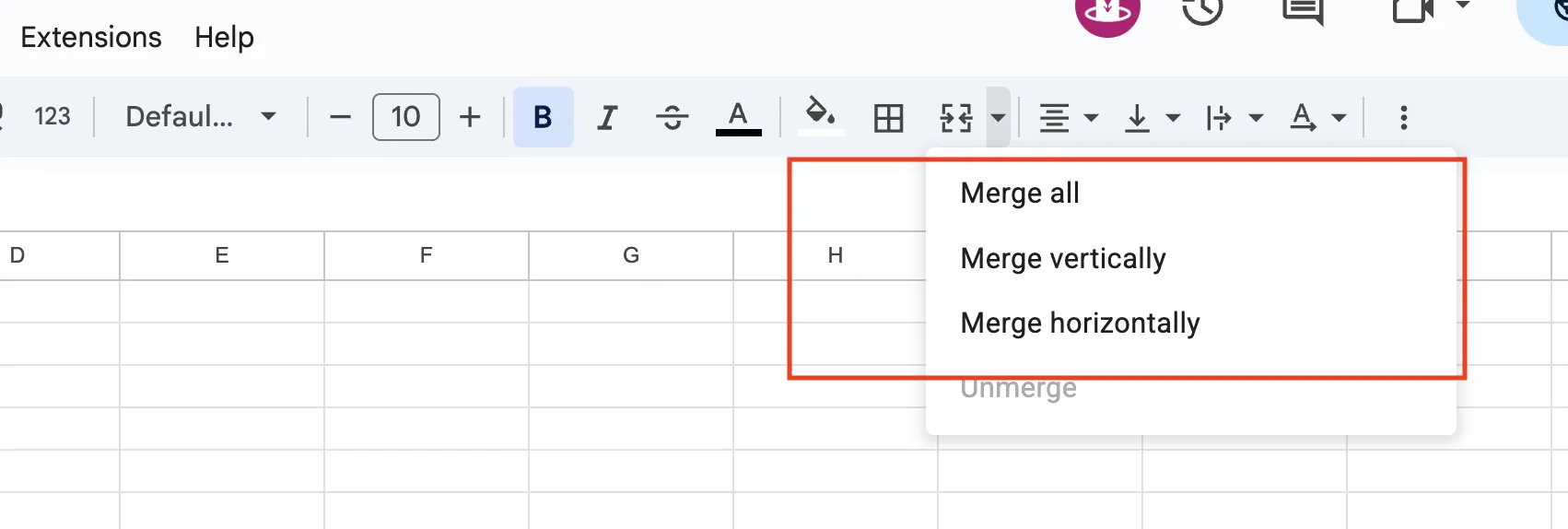
You can also skip the menu and click the Merge cells icon in the toolbar. It looks like a small square with arrows pointing inward. Click the dropdown arrow next to it to see all your options.
You can also skip the menu and click the Merge cells icon in the toolbar. It is the small square icon with arrows pointing inward. Click the dropdown arrow next to it to see all your options.
The Three Merge Types
Google Sheets gives you three ways to merge:

- Merge all joins every selected cell into one single cell. Use this when you want one big cell out of a block of rows and columns.
- Merge horizontally joins cells across each row but keeps the rows separate. So if you select a 3x3 block, you get three rows with one wide cell in each.
- Merge vertically joins cells down each column but keeps the columns separate. Your 3x3 block becomes three columns with one tall cell in each.
How to Merge and Center in Google Sheets
Unlike Excel, Google Sheets does not have a single "Merge and Center" button. But you can do it in a few quick steps:
Center horizontally (left to right):
- Merge your cells using any of the methods above.
- With the merged cell selected, click the Horizontal align button in the toolbar and pick Center.
Center vertically (top to bottom):
- With the merged cell still selected, click the Vertical align button in the toolbar. It is right next to the horizontal align button.
- Pick Middle.
This helps a lot when you merge cells vertically or merge a big block of rows and columns. Without vertical alignment, your text sits at the bottom of the cell and looks off.
How to Merge Cells Using Keyboard Shortcuts
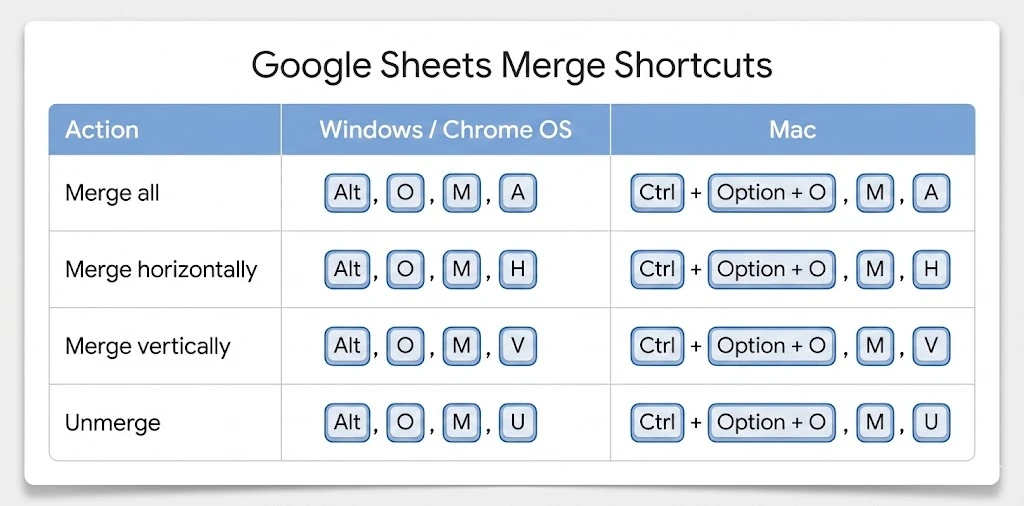
There is no single shortcut to merge cells in Google Sheets. But you can press a quick sequence of keys to reach the merge menu:
What you want to do | Windows / Chrome OS | Mac |
|---|---|---|
Merge all | Alt, O, M, A | Ctrl + Option + O, then M, then A |
Merge horizontally | Alt, O, M, H | Ctrl + Option + O, then M, then H |
Merge vertically | Alt, O, M, V | Ctrl + Option + O, then M, then V |
Unmerge | Alt, O, M, U | Ctrl + Option + O, then M, then U |
Press each key one after the other. You do not need to hold them all down at once.
Tip: If you merge cells many times a day, you can set up a custom shortcut using tools like AutoHotkey on Windows or Keyboard Maestro on Mac.
How to Merge Cells on Mobile and iPad
Most guides skip this, but plenty of people use Google Sheets on their phone or tablet.
On iPad / iPhone
- Open the Google Sheets app.
- Tap and drag to select the cells you want to merge.
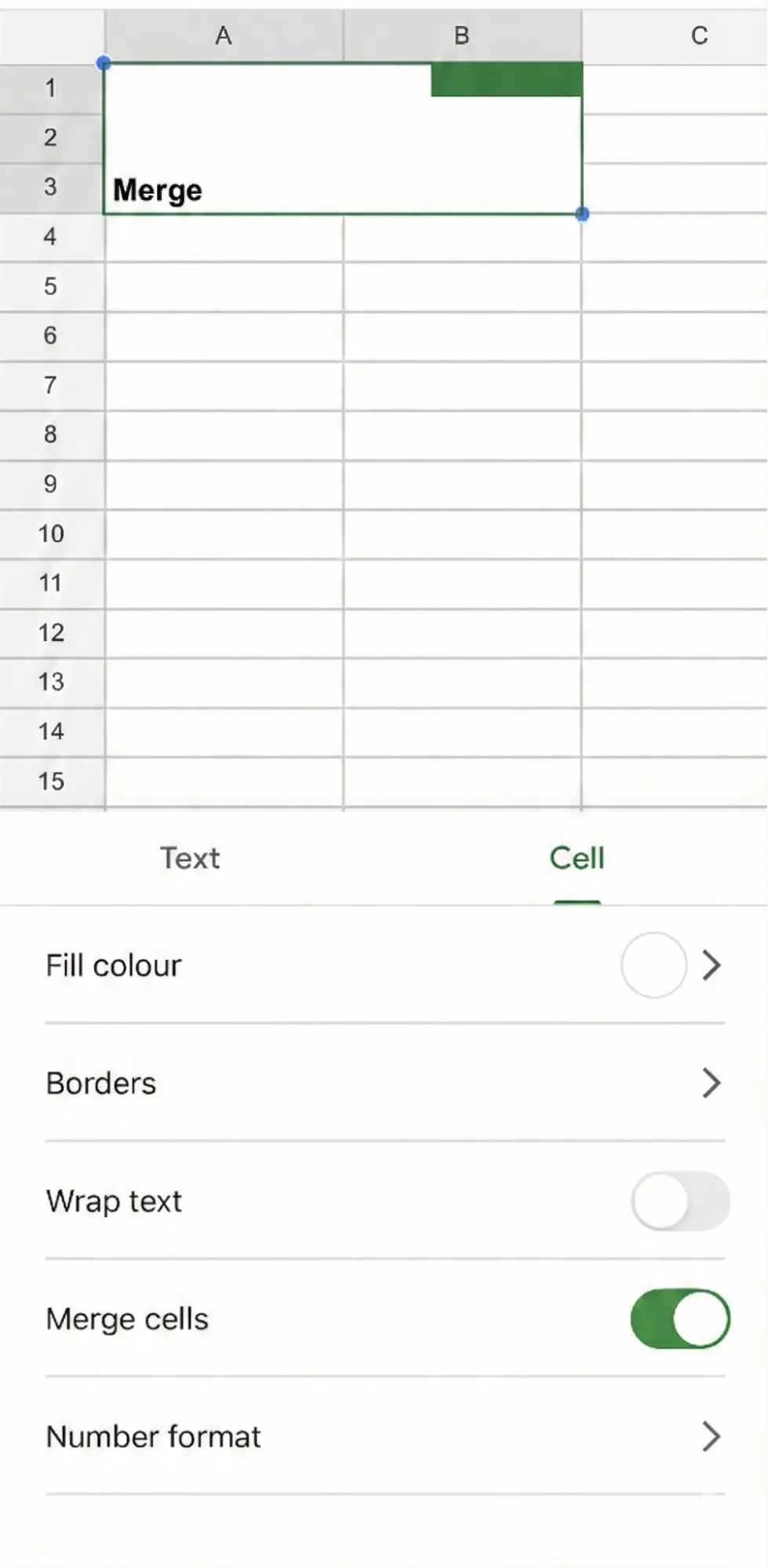
- Tap the A with an underline button at the top of the screen.
- You will see two tabs: Text and Cell. Tap Cell.
- Scroll down to find Merge cells and turn the toggle on.
On Android
The steps are the same. Select your cells, tap the A button, go to the Cell tab, and switch on the Merge cells toggle.
One thing to keep in mind. On mobile, you can only do a basic merge. The horizontal and vertical options you get on desktop are not available on phones and tablets.
To unmerge, just go back to the same spot and turn the toggle off.
How to Combine Cells Without Losing Data
The built-in merge tool looks nice, but it deletes your data. If you want to keep everything, use a formula to combine cells in Google Sheets instead.
Here are four practical options:
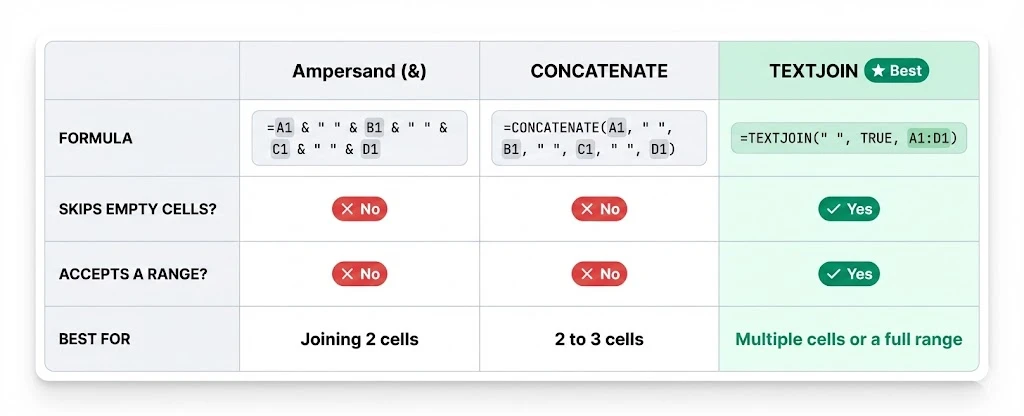
The Ampersand (&) Operator
This is the simplest way to join two or more cells. Just use the & sign to connect them.
=A1 & " " & B1
Say you have "John" in A1 and "Smith" in B1. This formula gives you "John Smith" in one cell. The " " in the middle adds a space between the two values. You can use any separator you want, like a comma or a dash.’
CONCATENATE Function
CONCATENATE does the same thing as the ampersand but as a named function. Some people find it easier to read.
=CONCATENATE(A1, " ", B1)
It works fine for two or three cells. But it gets long and messy when you have many cells to join. You have to list every single cell and separator one by one.
TEXTJOIN Function (Best Option)
If you want to combine more than two or three cells, TEXTJOIN is the way to go.
=TEXTJOIN(" ", TRUE, A2:D2)
You set the separator once at the start. The TRUE in the middle tells it to skip any empty cells. And you can pass a whole range like A1:D1 instead of typing each cell.
This makes TEXTJOIN the cleanest and easiest option for most people.
Combine Entire Columns with ARRAYFORMULA
The methods above work one row at a time. If you want to combine an entire column at once without dragging formulas down, wrap it in ARRAYFORMULA.
=ARRAYFORMULA(A2:A & " " & B2:B)
Type this once in the first cell and it fills the whole column for you. This works great when you have hundreds or thousands of rows, like names, addresses, or product details.
How to Unmerge Cells in Google Sheets
Unmerging is just as simple as merging. Here is how:
- Click on the merged cell.
- Go to Format > Merge cells > Unmerge.
- Or just click the Merge cells icon in the toolbar. It works like a toggle. If the cell is already merged, clicking it will unmerge it.
One important thing. When you unmerge cells, Google Sheets does not bring back the data it deleted during the merge. Only the top-left value stays. The other cells come back empty.
How to Find Merged Cells in Google Sheets
Merged cells can cause problems. They break sorting, mess up filtering, and stop copy-paste from working right. So sometimes you need to find all the merged cells in your sheet.
The problem is Google Sheets has no built-in way to search for merged cells. But you can use a simple Apps Script to find them.
- Go to Extensions > Apps Script.
- Delete any code already there and paste this:
function findMergedCells() {
  var sheet = SpreadsheetApp.getActiveSheet();
  var mergedRanges = sheet
    .getRange(1, 1, sheet.getMaxRows(), sheet.getMaxColumns())
    .getMergedRanges();

  for (var i = 0; i < mergedRanges.length; i++) {
    mergedRanges[i].setBackground("#FFFF00");
  }
}
- Click the Save button (the floppy disk icon) or press
Ctrl + S. - Click the Run button.
- The first time you run it, Google will ask for permission. You will see a warning that says "Google hasn't verified this app." This is normal for any custom script. Click Advanced, then click Go to (your project name) (unsafe), and then click Allow.
- Once you give permission, the script runs and every merged cell in your sheet turns yellow.
This makes it easy to spot them and decide if you want to unmerge.
Common Problems When Merging Cells (and How to Fix Them)
Here are the issues people run into most often:
Problem | Why it happens | How to fix it |
|---|---|---|
Merge option is grayed out | The sheet or cells are protected | Go to Data > Protect sheets and ranges and remove the protection |
Data disappears after merging | Google Sheets only keeps the top-left value | Use TEXTJOIN or CONCATENATE to combine data instead |
Cannot merge non-adjacent cells | Google Sheets can only merge cells that are next to each other | Select a connected block of cells |
Sorting does not work | Merged cells block the sort function | Unmerge all cells in the range first |
Cannot insert rows or columns | Merged cells sit across the area where you want to insert | Unmerge the cells, insert your row or column, then merge again |
Copy-paste breaks | Merged cells do not paste cleanly into normal cells | Use Paste special > Paste values only |
A Faster Way to Combine Cells in Google Sheets
Formulas like TEXTJOIN and CONCATENATE work great when your data is clean. But what about messy or unstructured data?
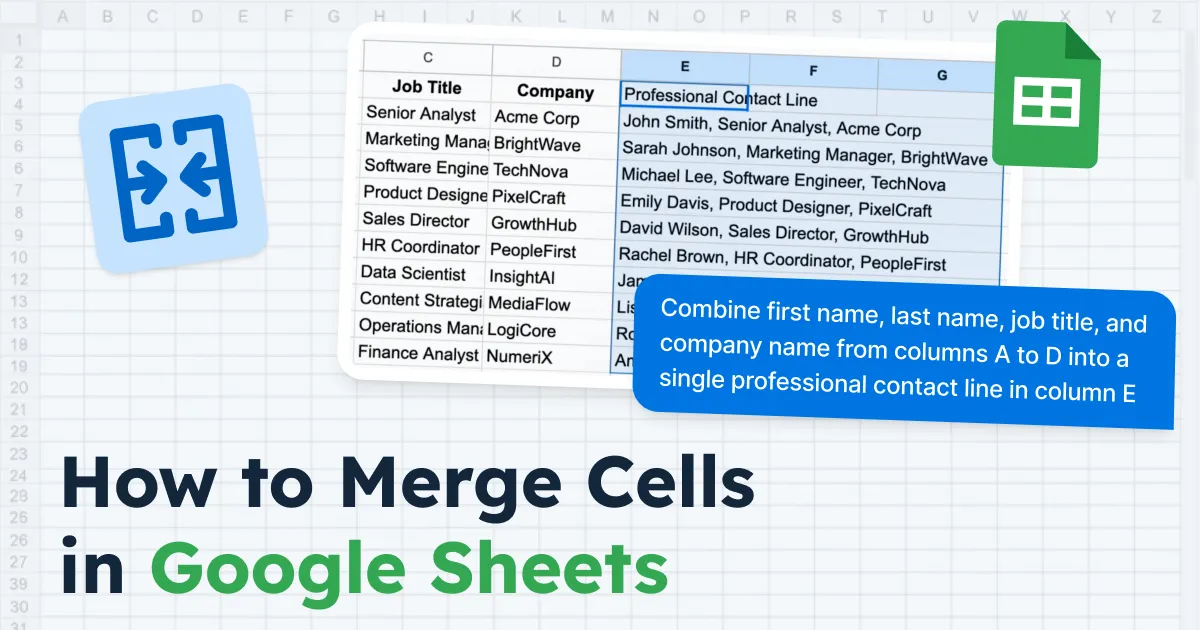
Say you have a first name, last name, job title, and company name spread across four columns. And you want to turn that into a nice, readable line like:
John Smith, Senior Analyst at Acme Corp.
Writing a formula with all the right separators, commas, and words like "at" gets complicated fast.
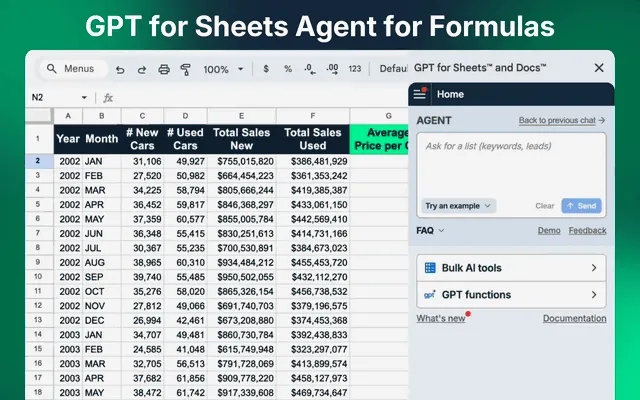
GPT for Sheets by GPT for Work makes this simple. It is a Google Sheets add-on that lets you use AI to combine, clean, and rewrite cell content in bulk.
Instead of building a complex formula, just open the GPT for Work agent and type a simple prompt:
"Combine first name, last name, job title, and company name from columns A to D into a single professional contact line in column E"
And you get back results like: "John Smith, Senior Analyst at Acme Corp" for every row automatically.
Here are a few more prompts you can try:
- "Merge city, state, and zip code from columns A to C into a full address in column D"
- "Combine product name and description from columns A and B into a single marketing line in column C"
- "Join first name and last name from columns A and B into a full name in column C"
It works across thousands of rows at once. So if you deal with large datasets where simple formulas fall short, GPT for Sheets can save you hours.
Wrapping Up
You now know how to merge cells in Google Sheets using the toolbar, keyboard shortcuts, and your phone. You also know how to combine cell content with formulas like TEXTJOIN and ARRAYFORMULA so you never lose data.
Quick reminder: use merge when you want things to look clean, and use combine formulas when you care about keeping your data.
And if you work with big, messy datasets where formulas get tricky, give GPT for Sheets a try. It handles bulk combining with simple plain-language instructions.