There are five ways to use AI in Google Sheets: the built-in Gemini side panel, the native =AI() function, an AI add-on such as GPT for Sheets, an MCP connector such as Autosheet that works from ChatGPT or Claude, and a custom Apps Script calling an AI API. The right one depends on scale, models, and where you work.
This guide covers all five, with setup steps, scale limits, and costs for each.
The five ways to use AI in Google Sheets, compared
Method | What it is | Best for | Scale limits | Cost model | Where it breaks |
|---|---|---|---|---|---|
Gemini side panel | Google's built-in AI chat panel | Analyzing data, one-off formulas, charts, summaries | Conversational — answers one request at a time, no row-by-row bulk runs | Included in most paid Workspace plans (limited on Business Starter) | Bulk row-by-row generation; availability depends on plan and admin settings |
=AI() function | Google's native AI formula: =AI("prompt", A2) | Quick per-cell text tasks — summarize, categorize, generate | Generates up to 350 selected cells at a time, with daily usage caps | Included in eligible Workspace and Google AI plans | Large datasets; results are static until manually refreshed; Gemini only |
AI add-on (e.g. GPT for Sheets) | Marketplace add-on with an AI agent, bulk tools, and AI functions | Bulk row-by-row processing, everyday tasks by chat, ChatGPT and Claude models | Up to 200,000 rows in one run, at up to 1,000 answers per minute depending on model and task | Free trial, then a subscription from $25/seat with included usage | Requires installing a Google Sheets add-on |
MCP connector (Autosheet) | Spreadsheet agent you use from ChatGPT, Claude, or any MCP client | Spreadsheet work without leaving your AI chat | Hundreds of thousands of rows, at up to 1,000 rows per minute | Free to try, then billed to a GPT for Work subscription | Requires an MCP-capable chat app |
Apps Script + AI API | Custom code calling an AI provider's API | Bespoke automations and pipelines | Whatever you engineer, within Apps Script quotas | Free platform; you pay the AI provider per token | Requires coding, API key management, and ongoing maintenance |
The rest of this guide walks through each method: what it does well, what it costs, and where it stops being the right tool.
How to use Gemini in Google Sheets (the built-in side panel)
Gemini is Google's own AI, built into the Sheets interface. Click the Ask Gemini star icon in the top-right corner to open the side panel, then ask questions in plain language: summarize a sheet, generate a formula, create a chart, or analyze trends in your data.
Since January 2025, Gemini features are included in Google Workspace Business Standard and higher plans at no extra cost (Business Starter gets a limited version). Consumer accounts need a Google AI plan. Your admin must have smart features enabled — see Google's documentation for the current availability rules.
Where it shines: zero setup, whole-spreadsheet questions, quick insights and charts.
Where it breaks: the side panel is conversational. It answers one request at a time and won't fill a column with a unique AI result for each of 10,000 rows. For that kind of work you need the =AI() function (small scale) or an add-on (large scale). See our hands-on comparison: GPT for Sheets vs. Gemini in Sheets.
How to use the =AI() function in Google Sheets
Google Sheets has a native AI formula. Type =AI("your prompt", A2) in a cell, referencing the data you want the AI to work on:
=AI("Categorize this feedback as positive, negative, or neutral", A2)
Select the cells and click Generate to run them. The function can generate text, summarize, and categorize, and it requires an eligible Google Workspace or Google AI plan.
Know its limits before you commit to it for real work (all from Google's documentation):
- 350 cells at a time. If you select more, only the first 350 generate; you re-select and generate again, batch by batch.
- Daily usage caps. The function has short-term and long-term generation limits; hit the long-term cap and you wait 24 hours.
- Static results. Outputs don't recalculate when inputs change — you refresh them manually.
- Text only, Gemini only. No model choice, and it can't be combined with other functions.
For a few dozen cells, =AI() is the fastest path. For thousands of rows, the batch limit and daily caps make it impractical — that's the gap add-ons fill.
How to use ChatGPT and Claude in Google Sheets (add-ons)
Marketplace add-ons connect Google Sheets to AI models beyond Gemini — the latest ChatGPT and Claude models — and are built for work at a scale the native features don't handle.
For step-by-step setup, see how to connect ChatGPT to Google Sheets and how to connect Claude to Google Sheets.
GPT for Sheets has 7M+ installs on the Google Workspace Marketplace. Its headline feature is an AI agent: you describe what you need in plain language, and it reads your data, drafts a plan, and executes it directly in your spreadsheet — from writing formulas to processing hundreds of thousands of rows.
How to install GPT for Sheets
- Go to the GPT for Sheets and Docs installation page on the Google Workspace Marketplace.
- Click Install and confirm any permissions.
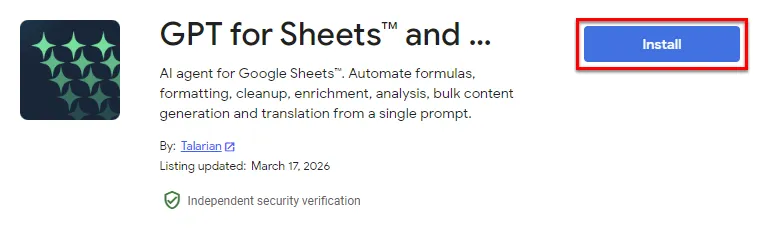
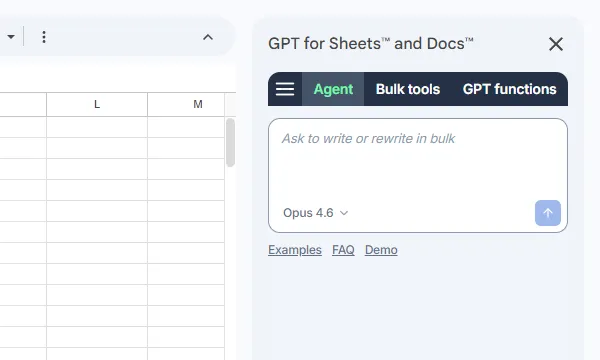
Once installed, open it from any spreadsheet via Extensions > GPT for Sheets and Docs > Open. The sidebar appears on the right. No API key is required, and the add-on comes with free starting credits.
How to use the AI agent
The Agent is the chat interface for spreadsheet work. Describe what you need — Fill out this table, Translate column B to French, Fix the formula in H2 — and the Agent analyzes your request, drafts a plan, and executes it. You can follow its progress live in the sidebar.
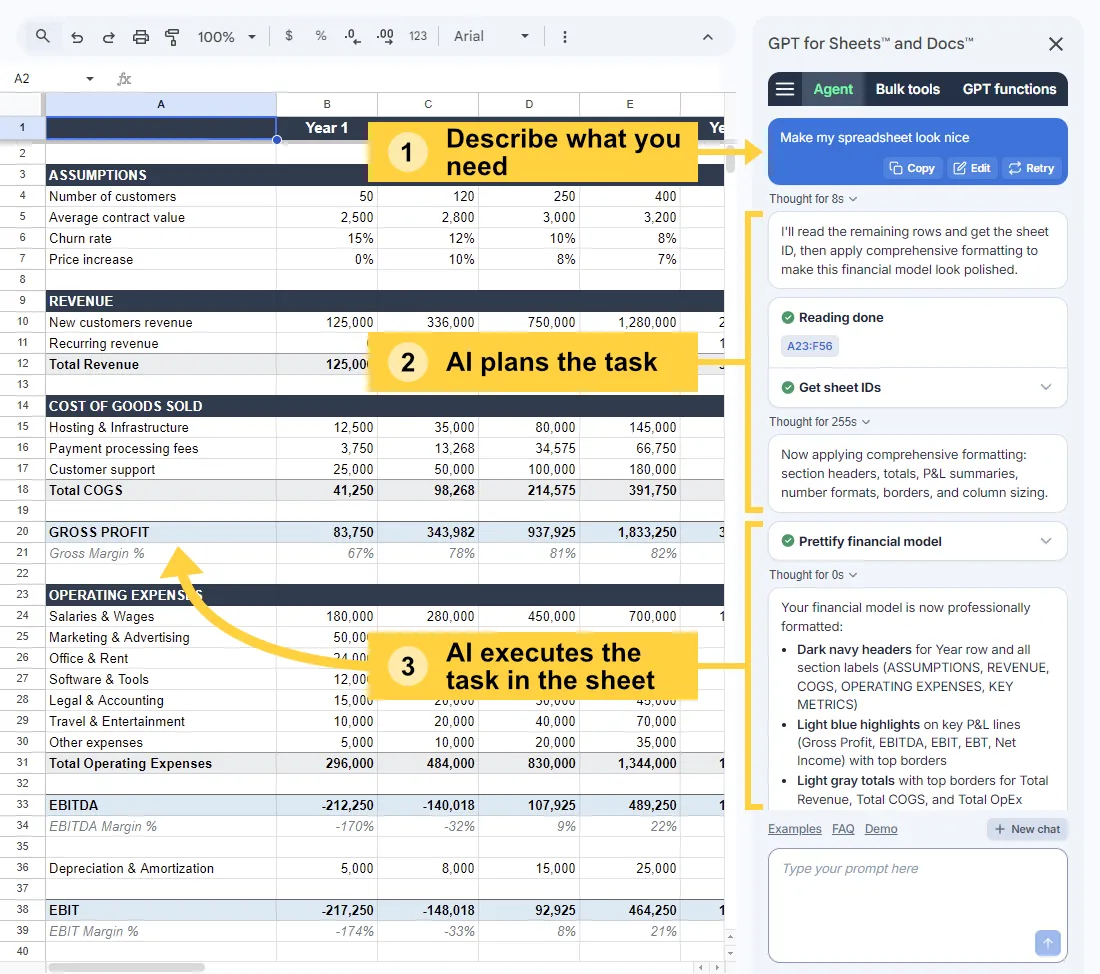
The fastest way to see it in action is a built-in example:
- In the Agent tab, click Examples and select Market research.
- GPT for Sheets creates a sheet with sample data — company names and empty columns.
- Click send on the prefilled prompt:
Fill out this table. The Agent searches the web for each company and fills in the missing information, column by column.
What you can do with an AI add-on
Everyday spreadsheet tasks — the Agent writes and fixes formulas, formats and standardizes messy data, and builds charts and pivot tables from a plain-language description.
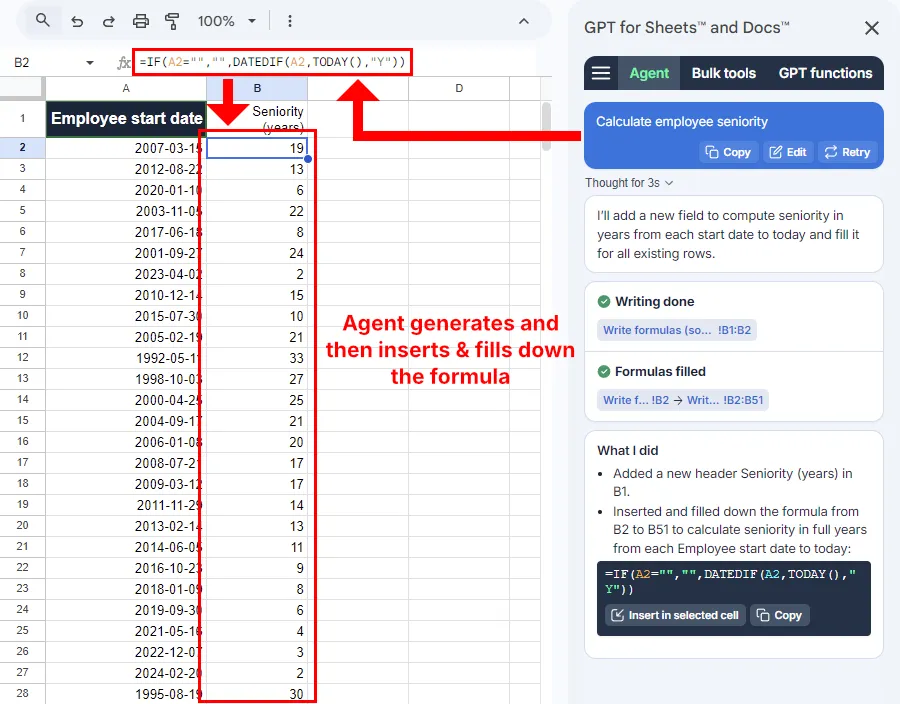
Bulk row-by-row processing — the work the native features can't do at scale:
- Translate at scale. Product descriptions, customer tickets, any column, into one or more languages, with glossary support.
- Generate content. SEO product descriptions, ad copy, or summaries — a unique result for every row from a single prompt.
- Enrich data. The Agent searches the web to fill in missing company details, contact data, or market intelligence.
- Categorize and score. Classify support tickets, tag survey responses, or qualify leads against your criteria.
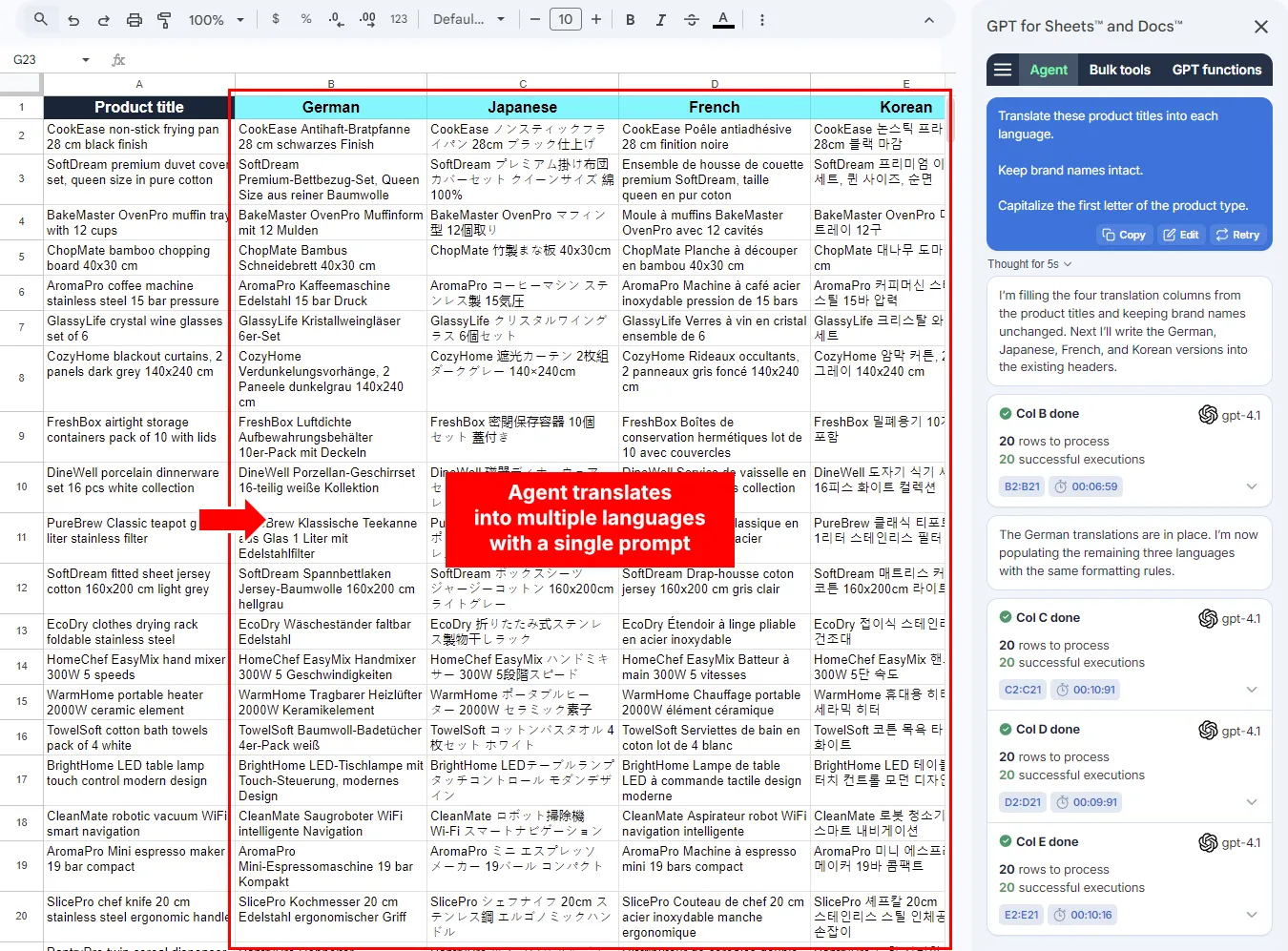
GPT for Sheets processes up to 200,000 rows in one run. For worked examples of large jobs end to end, see how to use AI in bulk in Google Sheets below.
Beyond the Agent, GPT for Sheets also includes bulk tools (row-by-row processing with manual control over prompt, model, and settings) and GPT functions (custom formulas like =GPT() for reactive, formula-driven workflows). Start with the Agent; reach for the others when you need finer control.
What an AI add-on costs
GPT for Sheets comes with a free trial — free starting credits, no card required. After the trial, it's a monthly subscription with included usage (from $25 per seat); when a seat's quota runs out, you can buy shared extra-usage credits. On Business and Enterprise plans you can also bring your own API key and pay your provider directly, plus a platform fee of $1 per 1,000 requests. See pricing.
How to use AI in Google Sheets from ChatGPT or Claude (Autosheet)
The methods above all live inside the Sheets interface. Autosheet inverts that: it's a spreadsheet agent — the same one that powers GPT for Sheets — exposed as an MCP server, so ChatGPT, Claude, Cursor, or any MCP-compatible client can work on your Google Sheets directly from the chat.
Add Autosheet from the ChatGPT plugin directory or the Claude connector directory, sign in with Google when prompted, then start a new chat, paste a spreadsheet URL, and describe the work. Other MCP clients can connect to https://mcp.autosheet.com/mcp. Your chat keeps the conversation's context — the research, the client brief, the analysis — and Autosheet carries out the spreadsheet work: writing and fixing formulas, building pivot tables, formatting, restructuring, plus bulk jobs like row-by-row enrichment, translation, categorization, and deduplication across hundreds of thousands of rows at up to 1,000 rows per minute.
Autosheet is free to try; usage is billed to a GPT for Work subscription. Choose this method when the conversation already lives in your AI chat and the spreadsheet is where the results land.
How to use Apps Script and an AI API in Google Sheets
If you can code, Google Apps Script (Extensions > Apps Script) can call any AI provider's API directly with UrlFetchApp, using your own API key. You write a custom function or a menu-driven script, and you control everything: model, prompts, batching, error handling.
This is the right method when you're building a bespoke pipeline — scheduled enrichment jobs, custom integrations, logic no off-the-shelf tool covers. The platform is free; you pay your AI provider per token.
The trade-off is that you own an engineering project: API key storage, rate-limit handling, retries, Apps Script execution quotas, and maintenance every time the API or your requirements change. For standard bulk work, an add-on gets you the same result without the code.
Which method should you use?
- You want quick insights and have a paid Workspace plan → the Gemini side panel. It's already there.
- You need AI text in a handful of cells → the =AI() function, within its 350-cell batches and daily caps.
- You process data at scale, or need models beyond Gemini → an add-on. GPT for Sheets handles up to 200,000 rows in one run with the latest ChatGPT and Claude models.
- You work in ChatGPT or Claude and want the spreadsheet handled from there → Autosheet, connected over MCP.
- You're building a custom pipeline and can code → Apps Script plus an AI API.
These methods aren't exclusive: plenty of teams use Gemini for ad-hoc questions and an add-on for production bulk work.
How to use AI in bulk in Google Sheets
Bulk row-by-row work is where an add-on earns its place, and Google Sheets itself helps: the grid holds up to 10 million cells across more than 18,000 columns, so one run can cover a whole product catalog or a year of survey responses. Because the results land in cells, you can then treat them like any other data — formulas, conditional formatting, filters, charts, and pivot tables all work on AI output.
Three worked examples, all built with GPT for Sheets.
Turn keywords into blog outlines
Start with a GPT formula to draft blog topics around your keywords. Then use GPT_HLIST to generate related questions for each topic — the raw material for FAQ sections that add reader value:
=GPT_HLIST("Generate popular questions we can address about this topic",B2)
A human still shapes the final piece and brings the experience and expertise readers reward. The spreadsheet handles the volume.
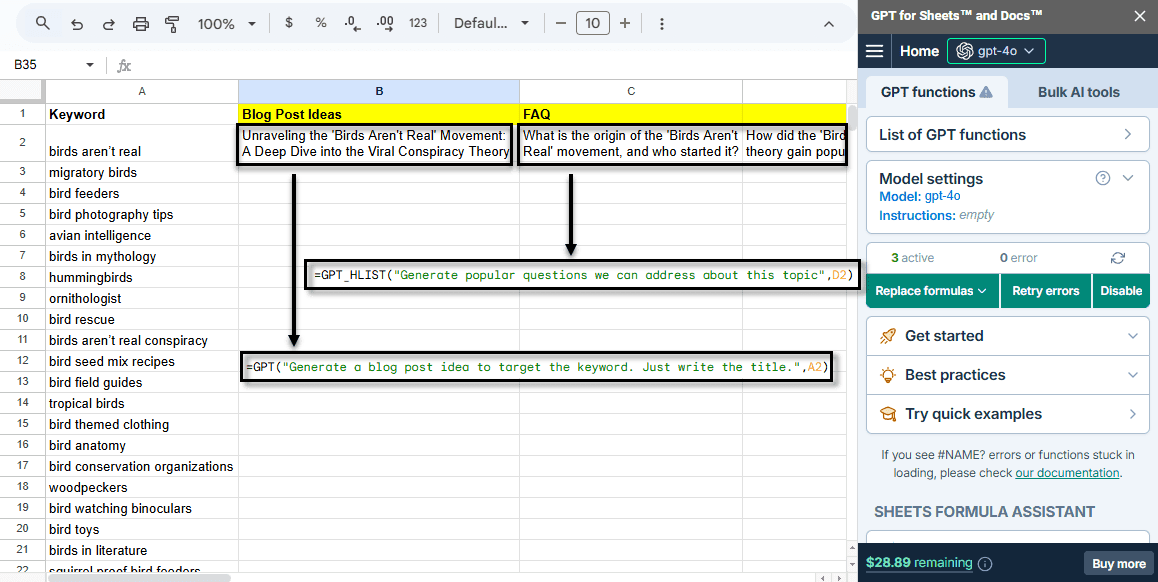
Watch the content idea generator in action.
Generate and shorten Google Search Ads headlines
Use a bulk tool with a custom prompt to turn a keyword list into Search Ads headlines. Then shorten anything over Google's 30-character limit with a GPT formula inside a conditional:
=IF(C4<=30,B4,GPT("You are given a Google Search Ads headline. If it is longer than 30 characters, rewrite it to make it less than 30-character.",B2))
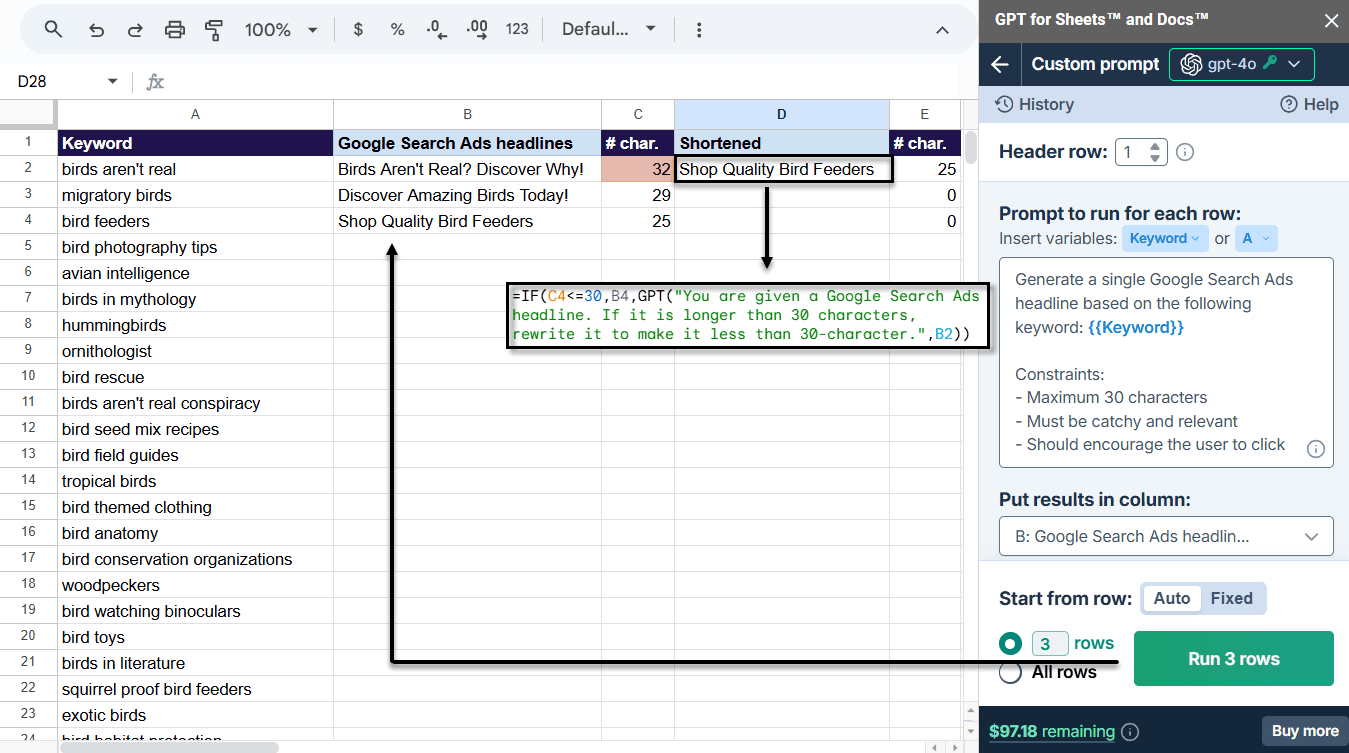
Watch the Search Ads headline generator in action.
Analyze user feedback at scale
Before launching a product, collect feedback on similar ones. Pull Reddit posts and comments that mention your product category into a sheet, then use a GPT formula to extract what each reviewer praises or complains about:
=GPT("What specific product element is the review talking positively about. Only output the specific words nothing else",A2)
A second formula drafts a personal reply to each user based on their feedback. The result is a structured read on user needs and market gaps.
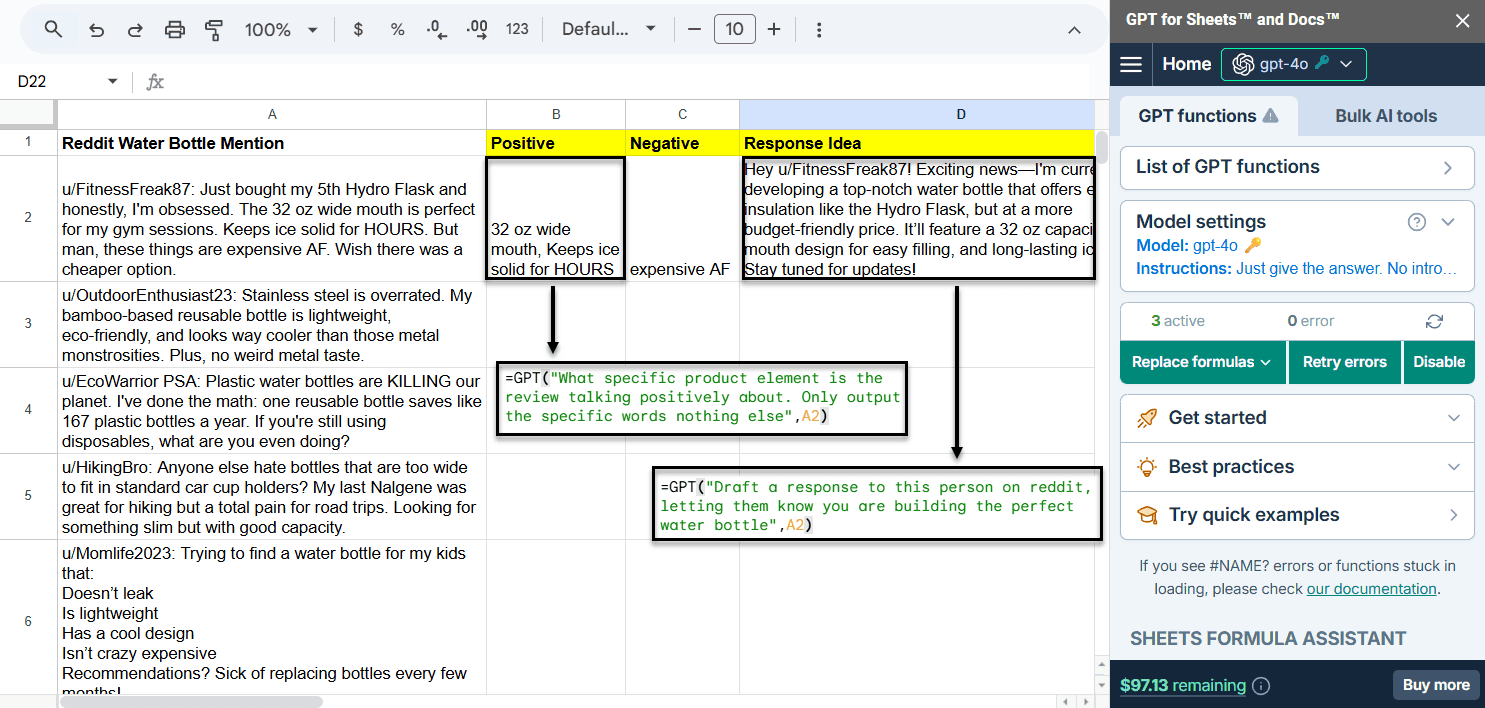
Watch the user feedback analyzer in action, or copy the example spreadsheet and try it yourself. These three examples come from a webinar hosted by Britney Muller, an AI educator and consultant, formerly of Hugging Face and Moz; the feedback-analyzer spreadsheet is hers.
More bulk walkthroughs
- Categorize e-commerce products in bulk
- Conduct market research
- Grade, score, and qualify leads in bulk
- Write alt text in bulk
Frequently asked questions
Does Google Sheets have built-in AI?
Yes. Google Sheets has two built-in AI features: the Gemini side panel for conversational analysis, and the =AI() function for generating text in cells. Both require an eligible paid Google Workspace or Google AI plan, and availability can depend on admin settings.
How do I use ChatGPT in Google Sheets?
Two ways. Inside the Sheets interface, install an add-on: GPT for Sheets gives you the latest ChatGPT and Claude models through an AI agent you instruct in plain language, plus bulk tools and custom functions like =GPT(). Or stay in the ChatGPT app itself: add Autosheet MCP from the ChatGPT plugin directory and ChatGPT works on your sheet directly from the conversation. See how to connect ChatGPT to Google Sheets for the steps.
Is there a free way to use AI in Google Sheets?
Partially. Google's built-in Gemini features require an eligible paid plan. GPT for Sheets is free to install and includes free starting credits, after which it's a monthly subscription with included usage. Apps Script is free, but you pay the AI provider for API usage.
What are the limits of the =AI() function?
The =AI() function generates at most 350 selected cells at a time and has daily usage caps — hit the long-term limit and you wait 24 hours. Results are text-only, produced by Gemini only, static until you manually refresh them, and the function can't be combined with other formulas.
Can AI fill thousands of rows in Google Sheets?
Yes, with an add-on. The built-in =AI() function stops at 350 cells per batch, but GPT for Sheets processes up to 200,000 rows in one run — translating, categorizing, enriching, or generating a unique result per row — at up to 1,000 answers per minute depending on model and task. The same engine is reachable from ChatGPT or Claude through the Autosheet MCP.
Is GPT for Sheets free?
GPT for Sheets comes with a free trial: it's free to install, with free starting credits and no card required. After the trial, usage is covered by a monthly subscription with included usage (from $25 per seat), plus shared extra-usage credits when you need more.
Get started
- Install GPT for Sheets from the Google Workspace Marketplace. No API key required.
- Open the Agent from Extensions > GPT for Sheets and Docs > Open.
- Describe what you need and let the AI do the work.