The rise of LLMs is rapidly transforming how people automate work inside Google Sheets. Two tools currently lead this shift: GPT for Sheets, which brings large-scale LLM processing directly into the spreadsheet, and Google's Gemini in Sheets, which focuses more on guided assistance and visual outputs.
Although the interfaces look similar, they are designed for very different types of workflows. GPT for Sheets handles high-volume automation such as translating thousands of rows, enriching datasets, or running bulk web research directly inside the sheet. Gemini, by contrast, is optimized for interactive help, summaries, and visualizations rather than sustained, high-volume operations.
This difference in purpose strongly influences their real-world performance, especially when tasks extend beyond small or single-step operations.
TL;DR
- GPT for Sheets is designed for bulk operations, completing thousands of in-sheet tasks reliably. In testing, Gemini frequently stalled, refused large requests, or returned incomplete outputs.
- Gemini is optimized for guided assistance, visual summaries, and small data transformations. It is less suited to multi-step workflows or large inputs.
- GPT for Sheets scales past a fixed quota: every seat includes monthly usage and you can add extra-usage credits anytime. It supports multiple AI providers and models, and runs directly inside Sheets, making it far more scalable than Gemini which is bundled with Google Workspace Business plans and thus very limited in volume and speed.
Quick comparison: GPT for Sheets vs. Gemini in Sheets
Feature | GPT for Sheets | Gemini in Sheets |
|---|---|---|
Primary use case | Bulk automation, large-scale LLM operations | Guided assistance, summaries, charts, formatting |
Where it runs | Directly in Google Sheets (no uploads) | Inside the Gemini sidebar with limited insertion |
Bulk processing | Handles hundreds of thousands of rows in one run | Fails or refuses large tasks; capped around ~200 cells |
Writes results to sheet | Yes, full tables inserted directly | Often returns previews or downloadable CSVs |
Progress tracking | Built-in progress tracker showing real-time status | No progress visibility |
Web search | Yes, live web lookups via Perplexity & Gemini with search grounding | No, relies only on pretrained knowledge |
Image analysis | Yes, bulk extraction from images in-sheet | No image processing support |
Model choice | Multiple providers (GPT, Claude, Gemini, etc.) | No model selection; model hidden |
Speed | Up to ~5,700 rows/minute in tests | ~42 rows/minute in tests |
Reliability | High, consistent results at scale | Low, frequent refusals, None values, or incomplete tables |
Pricing | Subscription from $25/month with included usage; extra usage available | Included in Google Workspace (min $168/user/year) |
Best for | High-volume workflows, automation, enrichment, research | Beginners needing quick summaries or visualizations |
Note: these numbers are obtained with our new backend which is not yet released to all users.
Bulk processing works only with GPT for Sheets, not Gemini
When it comes to executing bulk LLM requests –– sending multiple requests to an LLM provider at once –– GPT for Sheets stands out. The following video compares each tool’s agent UI, which follow a ChatGPT-like workflow: Users enter a request and the agent returns the corresponding response within the sheet.
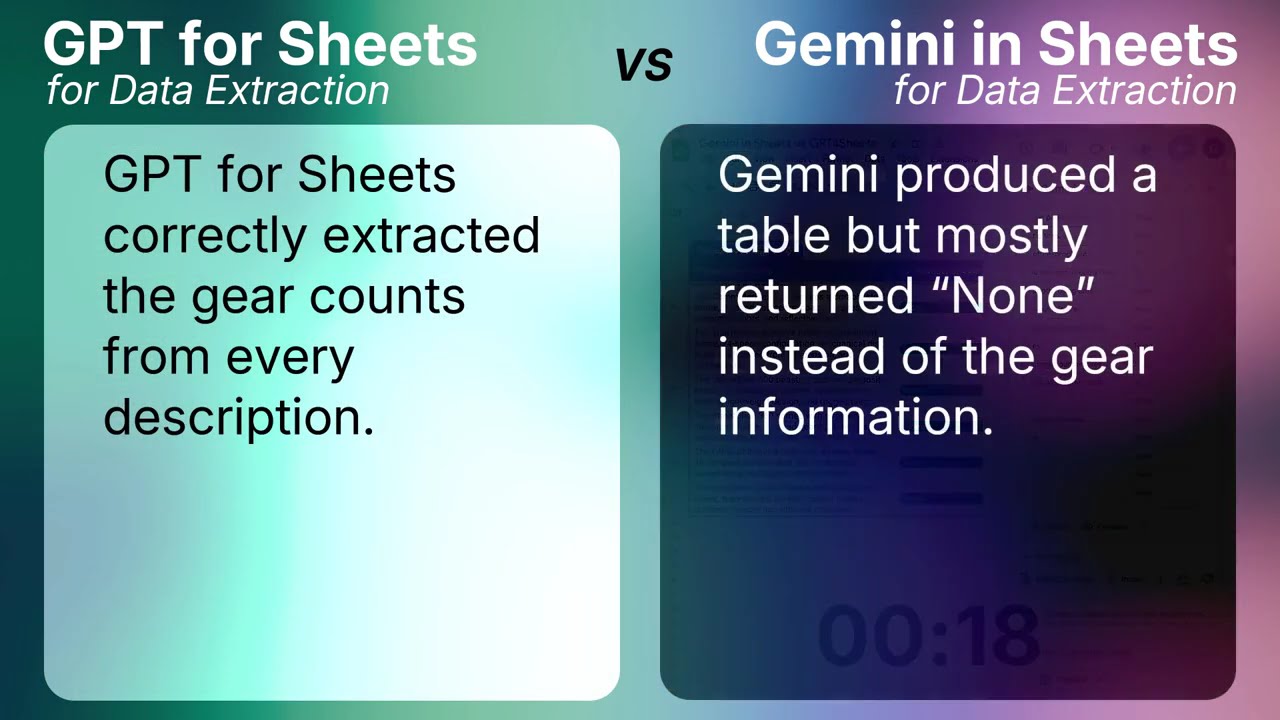
In testing across nine real spreadsheet use cases — from formula assistance to lead generation — GPT for Sheets completed every task without interruption. It understood the sheet context, planned the required steps, and executed the workflow end-to-end.
Gemini in Sheets produced mixed results. It fully completed three tasks, partially completed several others, and declined or failed to return outputs on the remaining cases. When outputs did appear, tables sometimes contained missing values or incorrect entries, and some workflows were only available as previews or downloadable files rather than being inserted directly into the sheet.
These differences reflect the tools’ design goals. GPT for Sheets emphasizes bulk automation and multi-step execution, while Gemini is oriented toward interactive, guided assistance. As a result, GPT for Sheets consistently succeeded at large tasks, whereas Gemini encountered limitations on higher-volume operations.
AI functions comparison: GPT() vs AI()
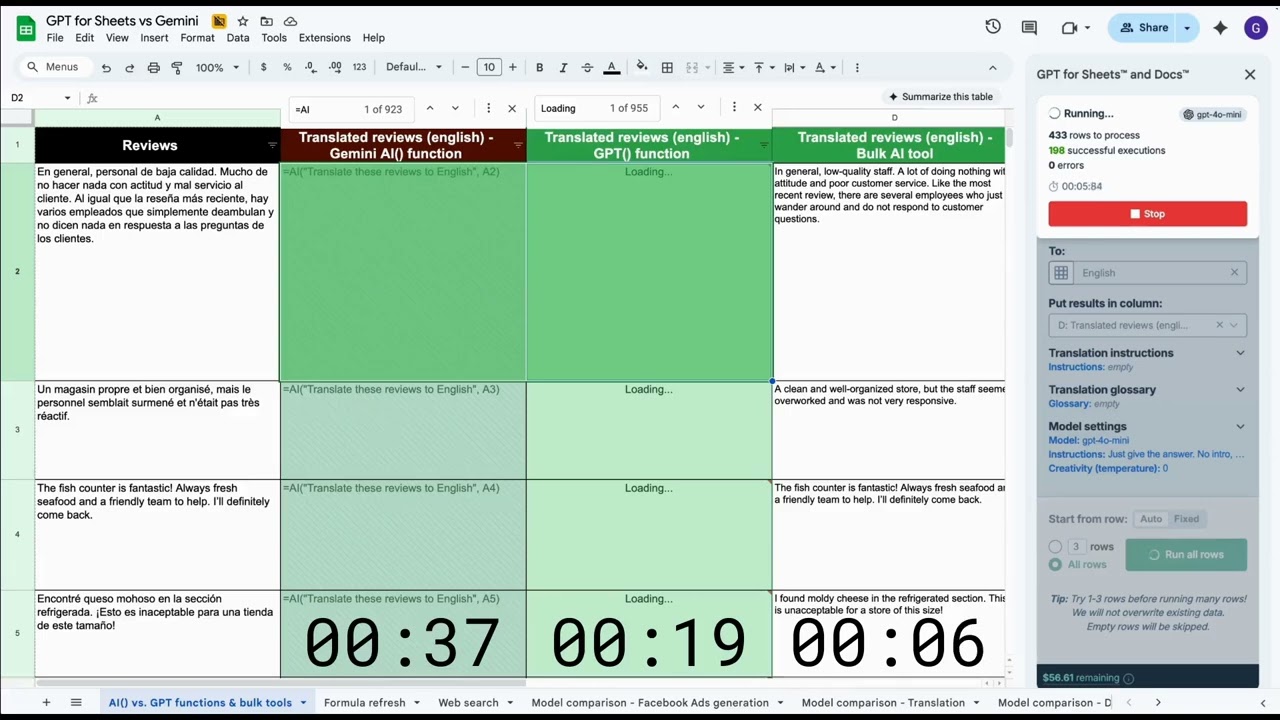
Feature | Model | Speed (rows/minute) |
|---|---|---|
🟪 =AI() | Undisclosed | ~42 |
🟩 =GPT() | gpt-4o-mini | ~260 |
🟩 GPT for Sheets bulk tool (new backend) | gpt-4o | ~5,700 |
Gemini’s AI functions also face constraints when used for bulk work. In the translation test of 1,000 multilingual reviews, Gemini reached its execution ceiling of roughly 200 requests before the task was complete. These limits make formula-driven workflows more suitable for smaller datasets.
By comparison, GPT for Sheets handled the task effortlessly. It completed 1,000 translations in 11 seconds and could even scale up to 200,000 rows. Therefore, in the time it takes Gemini to manually restart small batches of 350 cells, GPT for Sheets can process tens of thousands of rows at once without slowing down. Ultimately, Gemini's functions can only nibble at bulk processing; GPT for Sheets is built for it.
GPT for Sheets is extremely fast and reliable at scale
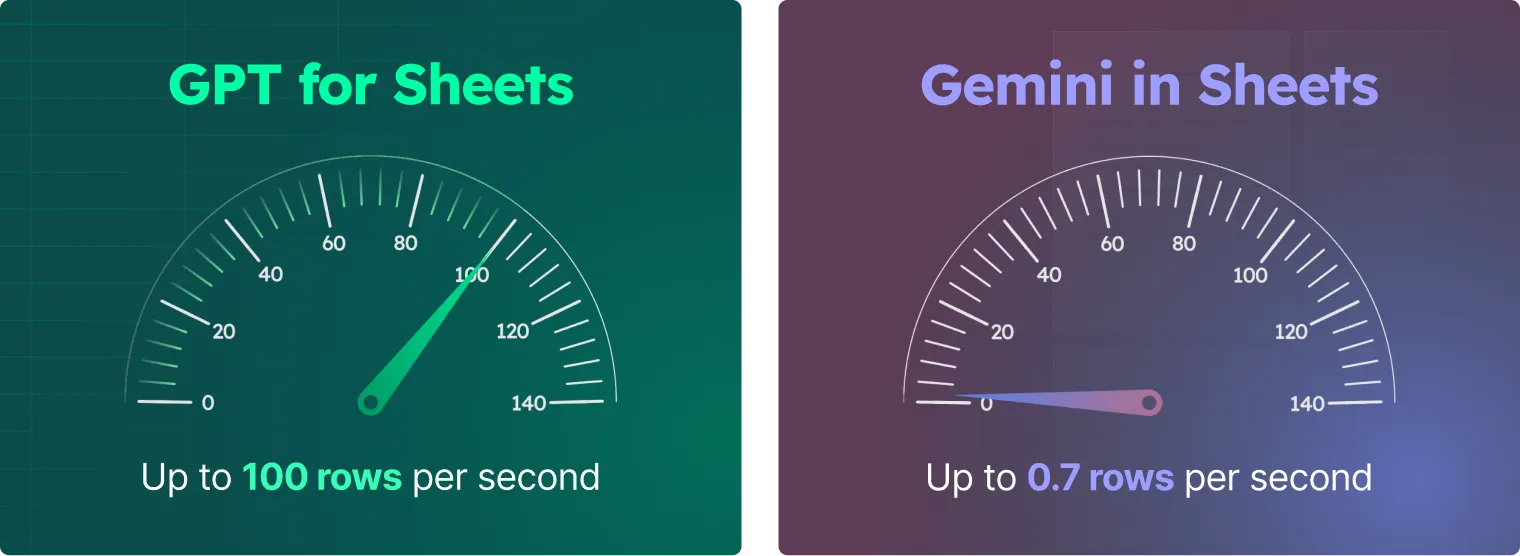
The performance tests highlight a consistent speed difference between the tools. In our evaluations, Gemini’s agent and formula interfaces encountered limitations on larger workloads, sometimes declining requests or returning incomplete tables once its internal limits were reached.
GPT for Sheets, on the other hand, processed up to one million rows in a single run during testing, achieving speeds of around 95 rows per second. Because Gemini’s current function limit is roughly 350 cells per run, the two tools cannot be compared on perfectly equal terms; however, within the available constraints, GPT for Sheets was able to run 135 times faster and complete 198,800 more rows.
Learn more about AI() function limitations on Google Sheets' documentation](https://support.google.com/docs/answer/15877199?hl=en_SE)
Only GPT for Sheets can do web search in bulk
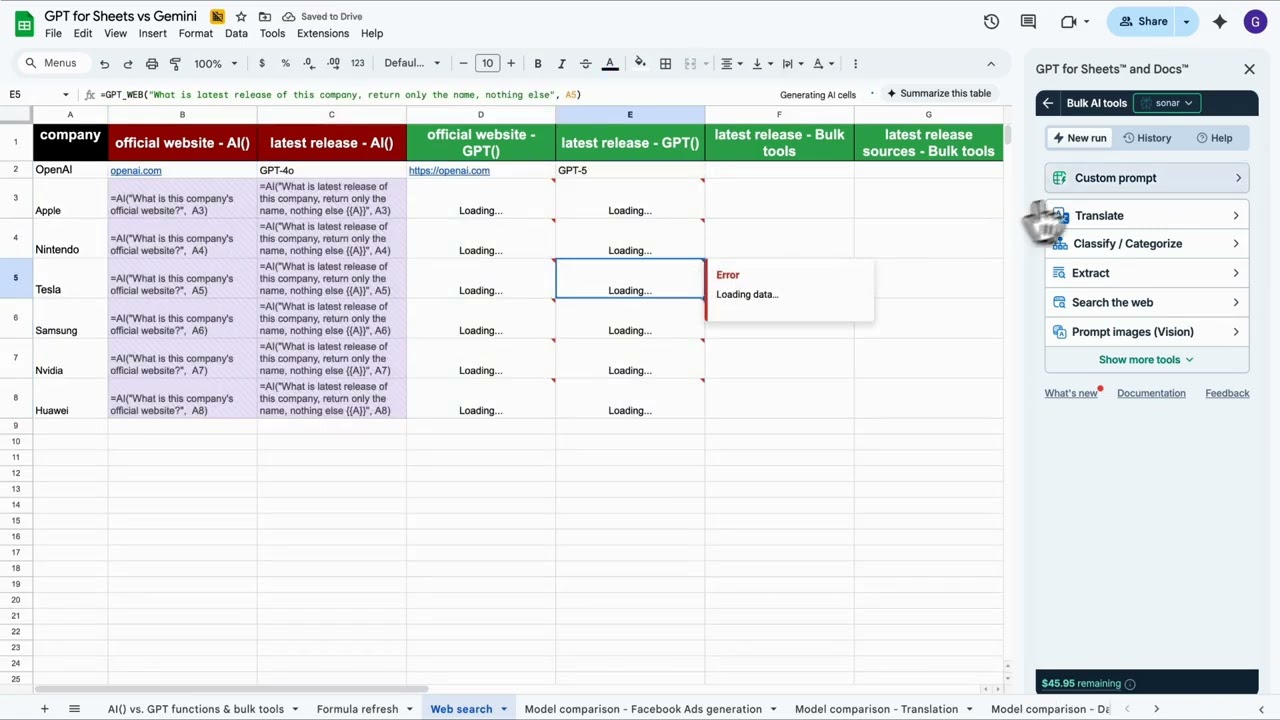
Bulk internet searches are a major opportunity for automation, as they are very laborious to perform manually. However, Gemini does not have live access to the web; it relies entirely on its pretrained model knowledge. In the test in the video, this allows it to answer static factual questions — such as identifying Amazon’s website link — but prevents it from retrieving current information like its latest news. Therefore, even if Gemini’s bulk-processing limits were ignored, it still cannot perform real web lookups, which further restricts its usefulness in automating spreadsheet workflows.
On the other hand, GPT for Sheets can automate bulk web research as observed in the test demonstration. Through its integrations with Perplexity’s Sonar models and Google’s Gemini with search grounding, it can retrieve both up-to-date and highly niche information from Apple’s 2024 revenue, to specific SKU codes and write the results directly into the spreadsheet. This enables GPT for Gemini to replace hours of manual searching with a single prompt, delivering significant time savings for anyone needing to research the web at scale.
Bulk image analysis is exclusive to GPT for Sheets
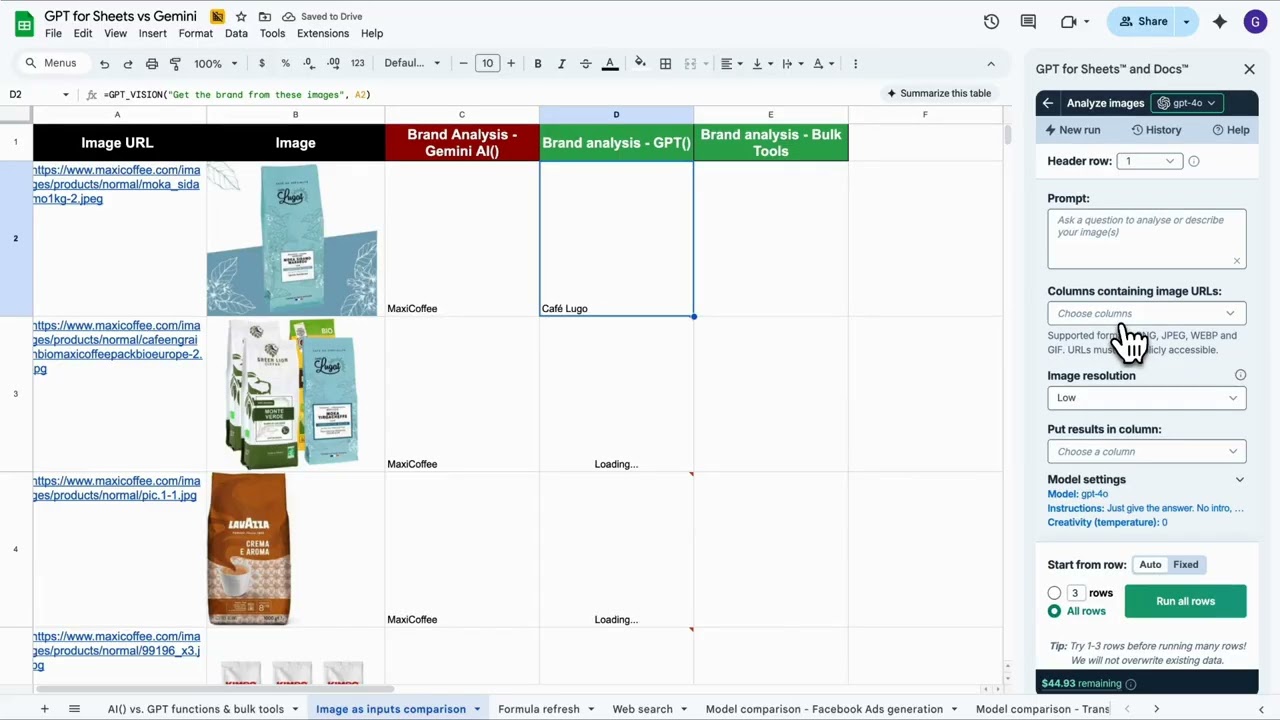
Extracting information from images is another tedious task that can benefit from LLMs’ multimodal analysis. However, Gemini in Sheets cannot process images at all. In the video demonstration, it was unable to analyze the product images or identify their brand.
GPT for Sheets, on the other hand, handled the task with ease. It quickly extracted the brand name from each image and wrote the results directly into the sheet. High-level tasks like this can now be automated end-to-end with GPT for Sheets, saving users significant time when working with image-based data.
Model flexibility in Gemini vs GPT for Sheets
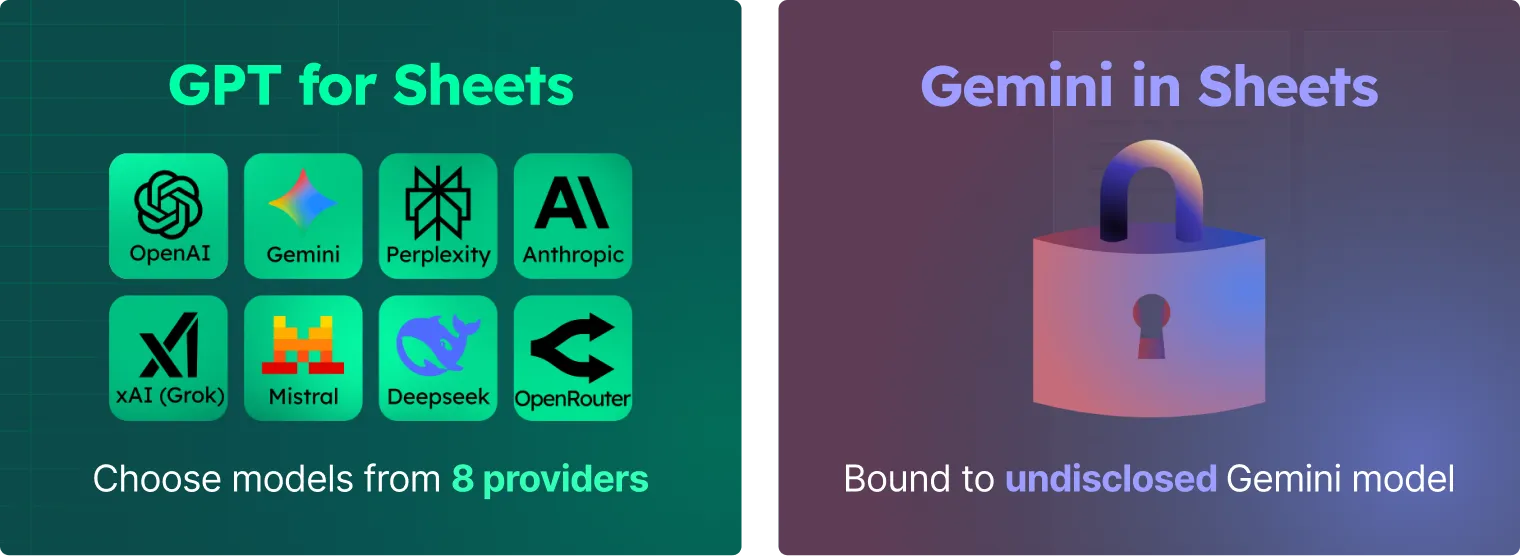
With Gemini in Sheets, users don’t have visibility into which model variant is running, and there is no option to choose or switch between models. Everything runs through a single, fixed model inside the Gemini sidebar. This keeps the experience simple, but it limits control over performance, cost, and behavior.
GPT for Sheets, by contrast, gives users full control over the underlying model. You can select from leading AI providers and choose between specific model versions such as gpt-5.1, claude-4.5-sonnet, or gemini-2.5-flash depending on what your workflow requires. This flexibility allows users to tailor both performance and cost to the task at hand.
Choose your AI provider and models in GPT for Sheets
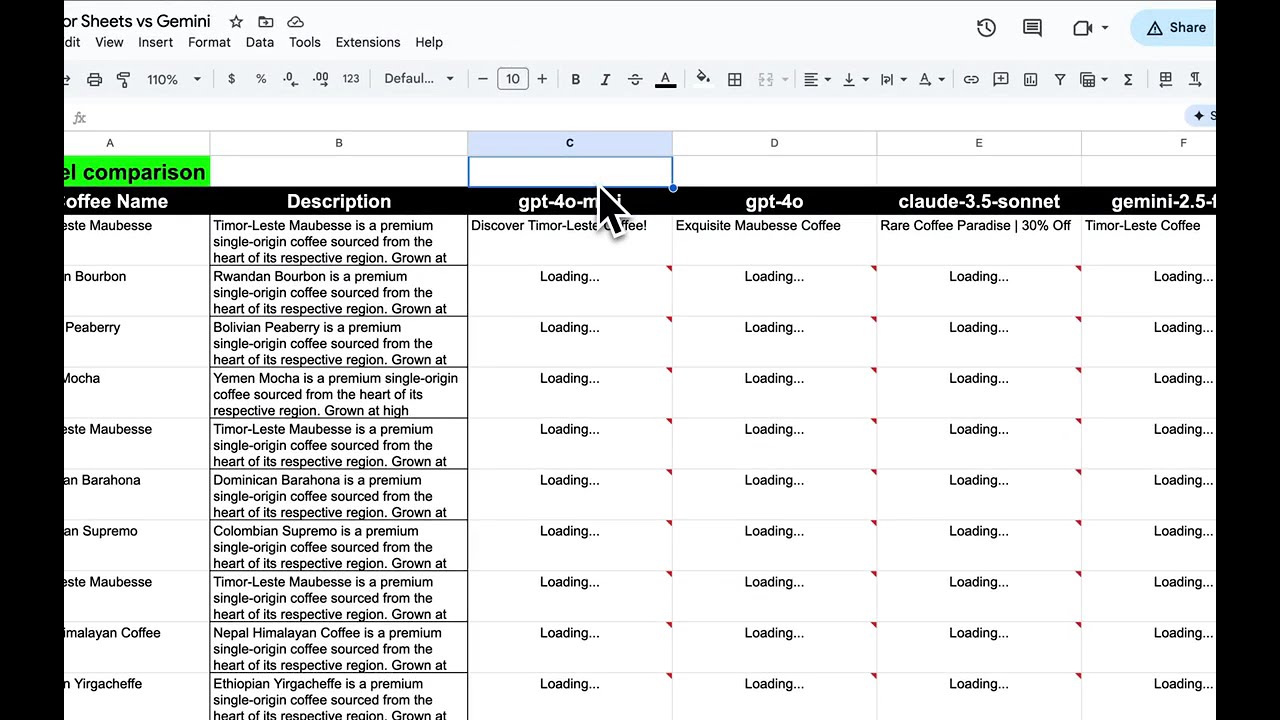
GPT for Sheets, by contrast, gives users full control over the underlying model. You can select from multiple AI providers and switch between versions such as gpt-5.1, claude-4.5-sonnet, or gemini-2.5-flash, depending on the task at hand. This flexibility makes it easy to balance speed, accuracy, and pricing across different spreadsheet operations.
Gemini's strengths
While GPT for Sheets clearly dominates large-scale automation, Gemini does have its strengths. It offers several spreadsheet-native capabilities that GPT for Sheets does not handle directly. For instance, Gemini can take a dataset and produce bar charts, scatter plots, or line graphs with labelled axes and suggested titles. It can also reorganize data into pivot-style summaries, create grouped views, or apply conditional formatting to highlight trends and outliers. Beyond its visual features, both Gemini and GPT for Sheets can analyze data through their chat interfaces, providing summaries, trend explanations, anomaly detection, and descriptive insights without requiring users to write formulas.
Taken together, these features make Gemini particularly appealing to users who are less familiar with spreadsheet tools. A novice user who may not know how to build a pivot table or configure chart settings can ask Gemini to “summarize sales by region” or “visualize monthly trends” and receive a polished, presentation-ready output without navigating multiple menus. However, the time saved is minimal for experienced users who can perform these tasks much faster manually. Hence, while these features make Gemini a helpful companion for beginners, they fall far short of the time savings and efficiency gains that GPT for Sheets delivers for bulk or complex workflows.
Pricing Comparison
Another important distinction is the pricing model. Gemini in Sheets is bundled with Google Workspace Business plans, with the Business Standard tier priced at $168 per user per year. This gives you access to Gemini across Gmail, Docs, Sheets, and the rest of Workspace. However, because the cost of Gemini is fixed, you heavily limited in volume and speed. For teams that primarily need summaries, suggestions, and lightweight assistance, the bundled price may feel straightforward, but it does not adapt to heavier spreadsheet workloads.
GPT for Sheets is a monthly subscription with included usage, and the quota isn't the end of the road: when your monthly quota runs out, you can buy extra-usage credits and keep going. This makes it possible to run thousands of rows in a single operation, select the model best suited for each task, and scale as needed. For users who work with large datasets or occasional, high-volume jobs, this flexibility avoids the constraints of a fixed per-seat allowance.
Frequently Asked Questions
What is Gemini in Google Sheets used for?
Gemini in Sheets is designed for guided assistance, visual explanations, and quick summaries. It can create charts, highlight trends, and help beginners understand their data, but it is not built for large-scale automation or bulk LLM processing.
Why does Gemini in Sheets fail or refuse large requests?
Gemini has strict internal limits on how many operations it can run in a single session. When tasks exceed a few dozen or a few hundred cells, Gemini often stalls, refuses the request, or returns incomplete outputs. It isn’t designed for multi-step workflows or high-volume tasks.
Can Gemini in Sheets write full tables directly into my spreadsheet?
Not reliably. Gemini frequently inserts incomplete tables, fills cells with “None,” or returns downloadable CSV files instead of writing the full result into the sheet. This forces users into manual copy-and-paste workflows.
Does Gemini support bulk processing in Sheets?
No. In tests, Gemini’s formula interface hit limits around ~200 requests, and the agent interface declined or timed out on large tasks. It cannot translate thousands of rows, enrich large datasets, or run repeated operations at scale. Multi-thousand-row spreadsheets are better handled by GPT for Sheets, which is designed to run full-range operations directly inside the sheet.
Does Gemini in Sheets support web browsing or live data?
No. Gemini does not have live internet access inside Google Sheets. It can answer static knowledge questions, but it cannot retrieve real-time information, run web searches, or fetch up-to-date data for bulk research. Web-dependent workflows are instead fully supported by GPT for Sheets, which can pull live information and write results straight into the spreadsheet.
Can Gemini analyze images in Google Sheets?
No. Gemini currently cannot process images placed inside Sheets. It cannot read labels, identify brands, or extract structured information from images in bulk. Image-heavy spreadsheets are better managed by GPT for Sheets, which can read and extract data from images placed directly in the sheet.
How are Gemini in Sheets and GPT for Sheets priced?
Gemini in Sheets is included with Google Workspace Business plans, such as Business Standard at 168 per user per year. This fixed seat price makes usage very limited in volume and speed. GPT for Sheets starts at $25 per month with included usage, and extra-usage credits let you scale past the monthly quota. This makes larger or occasional high-volume tasks easier to manage.
Can I choose which AI model is used?
Gemini in Sheets runs on a single built-in Gemini model, and the specific version isn’t visible or configurable. If you need model choice, GPT for Sheets lets you pick from multiple providers and versions (including GPT, Claude, and Gemini models) so you can match the model to the workload and budget.
What’s the difference between Gemini in Sheets and GPT for Sheets?
Gemini excels at guided visual tasks like creating charts, summaries, and formatting. GPT for Sheets is built for automation. It can translate thousands of rows, extract structured data, perform bulk web research, and process images directly inside Sheets.
Which tool is best for large spreadsheet datasets?
Gemini works well for light, interactive tasks. For operations involving thousands of rows or repeated bulk steps, a tool built specifically for spreadsheet automation such as GPT for Sheets, will offer more consistency at scale.
Conclusion
Gemini and GPT for Sheets may share a similar interface, but the value they provide inside Google Sheets is fundamentally different. Gemini improves accessibility for beginners: it can generate charts, create pivot-style summaries, apply formatting, and explain data in natural language. However, once tasks extend beyond simple summaries or small datasets, Gemini’s limitations become clear. It struggles with multi-step workflows, cannot reliably insert full tables into the sheet, often returns incomplete or incorrect outputs, and frequently refuses more complex requests. As a result, Gemini may make Sheets easier to approach, but it does not make large or repetitive workloads faster.
GPT for Sheets, by contrast, excels at bulk workloads. By executing large volumes of LLM operations directly inside the spreadsheet, GPT for Sheets turns time-consuming, repetitive work into a single automated step. Whether it’s filling out entire tables, translating thousands of entries, performing wide-scale internet research, or extracting structured information from images in bulk, GPT for Sheets consistently completes in seconds tasks that would otherwise take hours. For anyone who relies on Sheets to process substantial workloads, GPT for Sheets is the tool that fundamentally levels up how quickly and reliably real work gets done.