You just merged two client lists into one Google Sheet. Marketing sent 1,200 rows. Sales sent 900. Now you have 2,100 entries and no idea how many contacts appear in both. Scrolling manually is not an option.
The fastest way to highlight duplicates in Google Sheets is with conditional formatting and a single COUNTIF formula. The setup takes about 30 seconds.
But not every situation is that simple. Maybe you need to match across multiple columns. Maybe your data lives in two separate sheets. Or you just want a column that flags each row as "Duplicate" or "Unique" without any colors.
Below, you will find every method to find duplicates in Google Sheets, from basic formulas to cross-sheet checks to an AI-powered option for messy data that formulas cannot handle.
Highlight Duplicates in a Single Column (Conditional Formatting)
This is the most common use case. Say you have a column of client names from a CRM export and you want to spot the ones that appear more than once.
Steps:
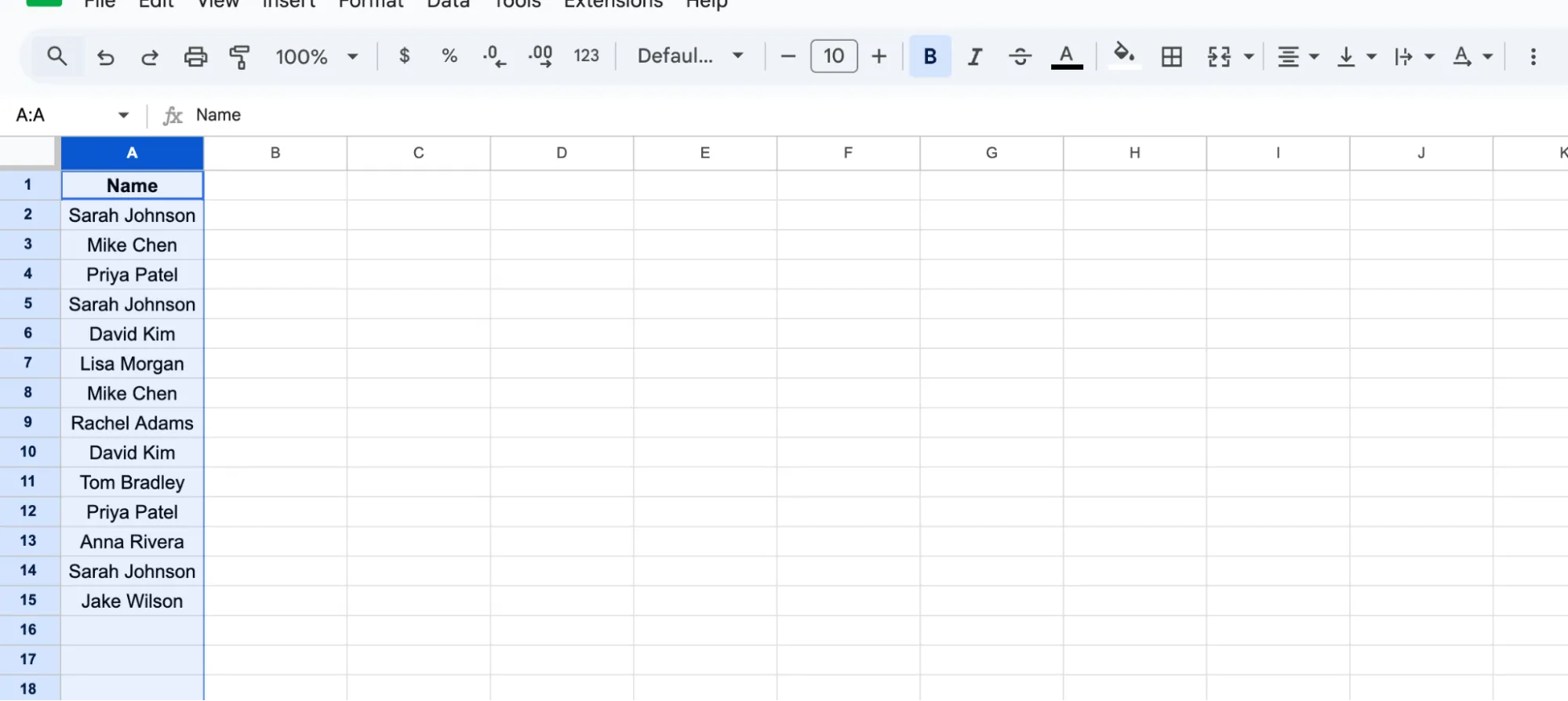
- Select the column or range you want to check. For example, click the column A header to select the entire column.
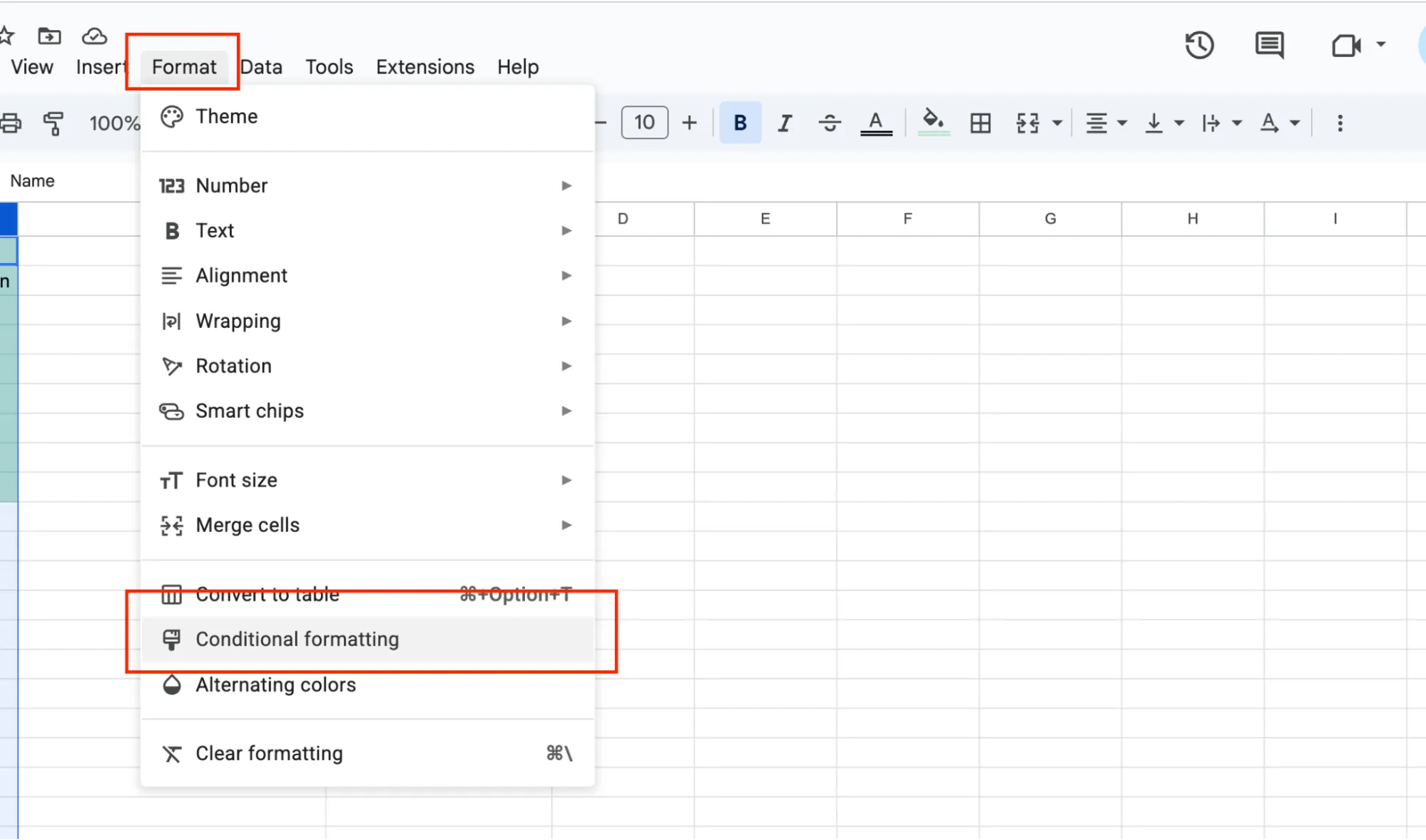
- Go to Format in the top menu.
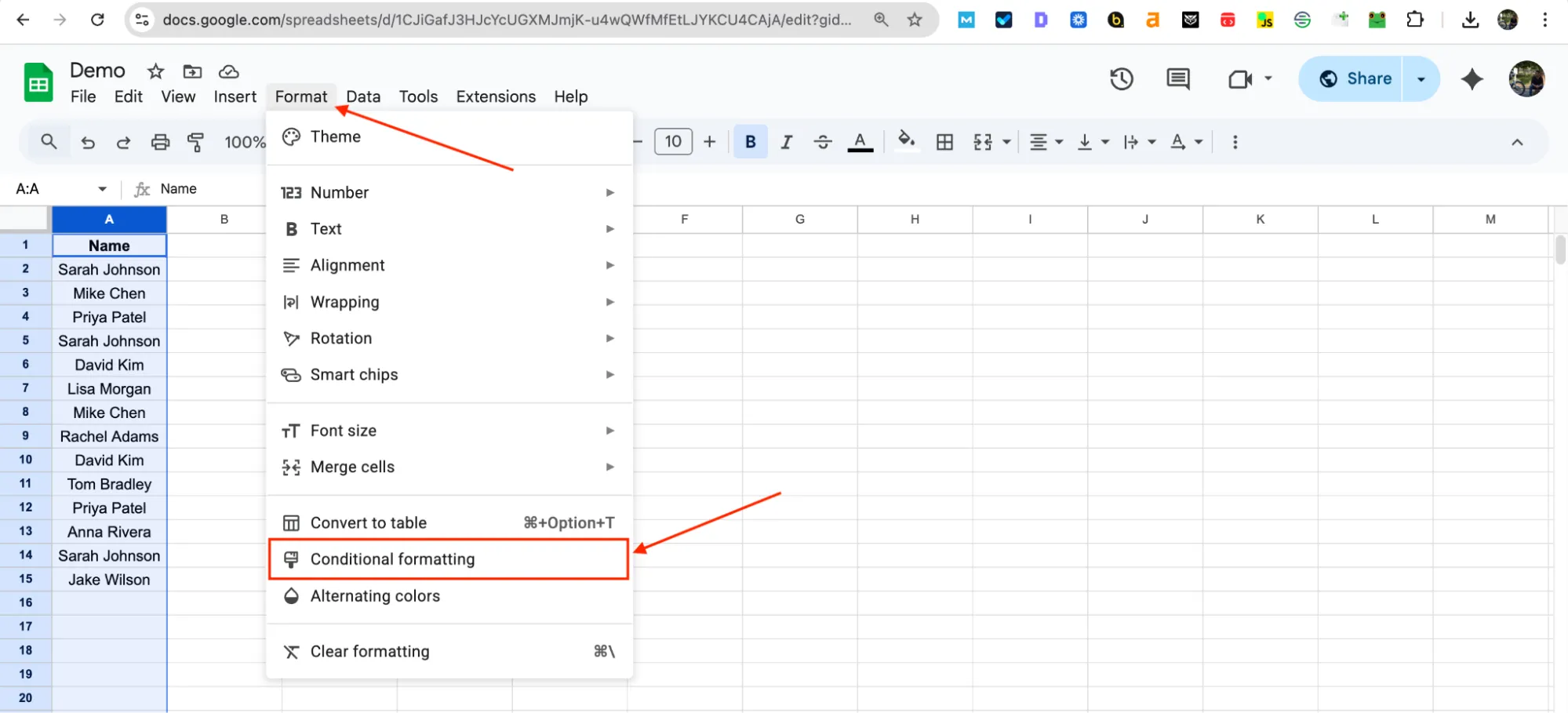
- Click Conditional formatting. A sidebar will open on the right side of your screen.
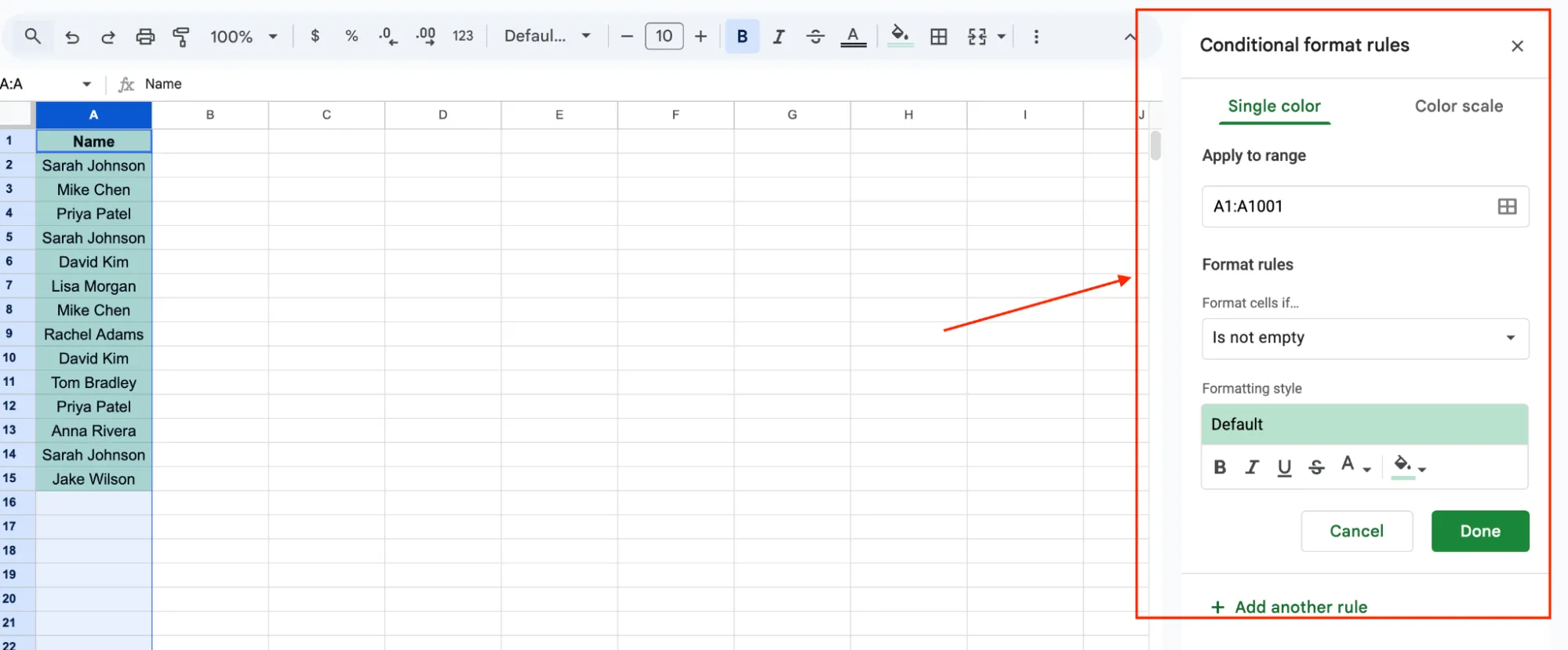
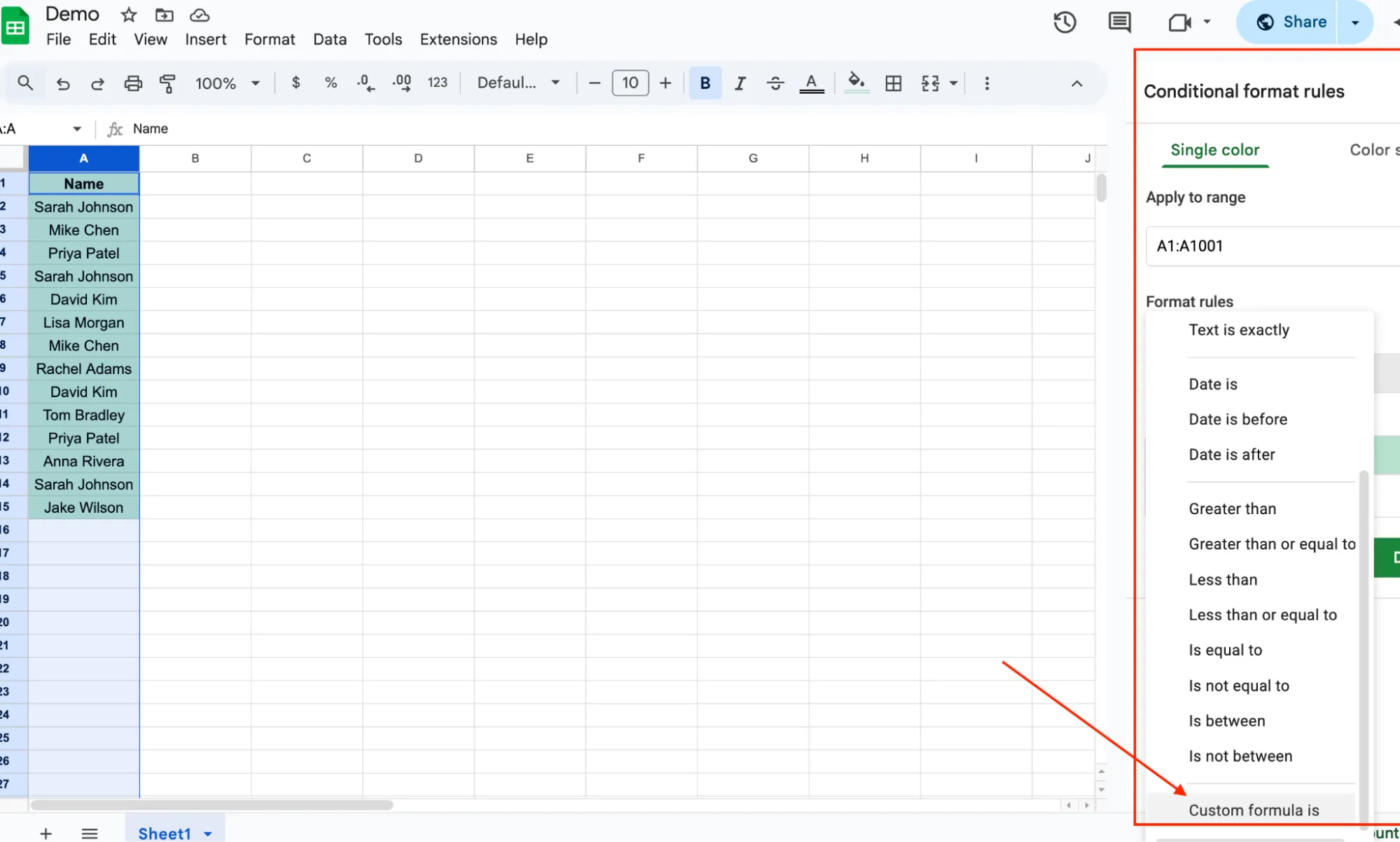
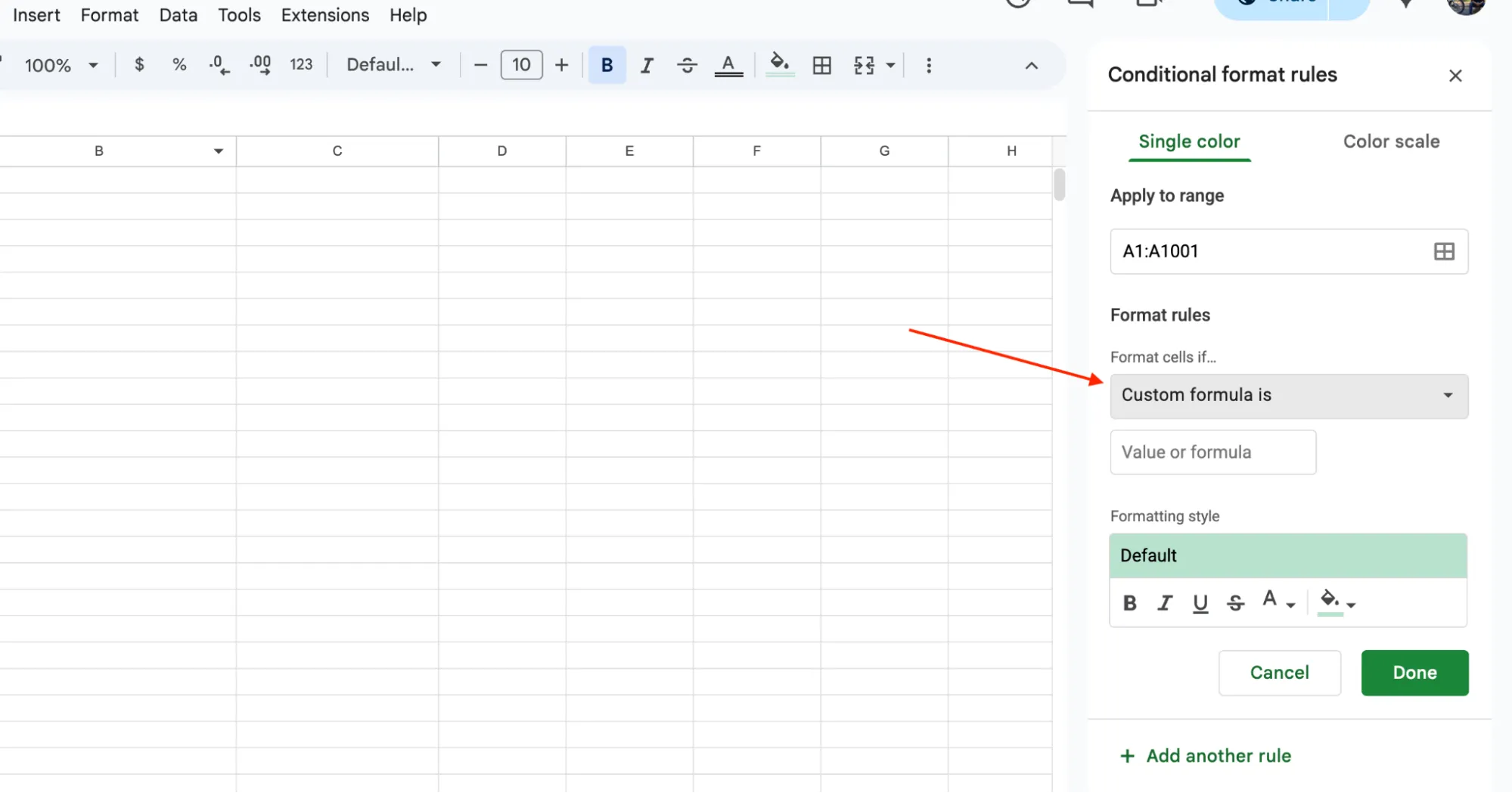
- Under "Format rules," click the dropdown and choose Custom formula is.
- Enter this formula:
=COUNTIF(A:A, A1)>1
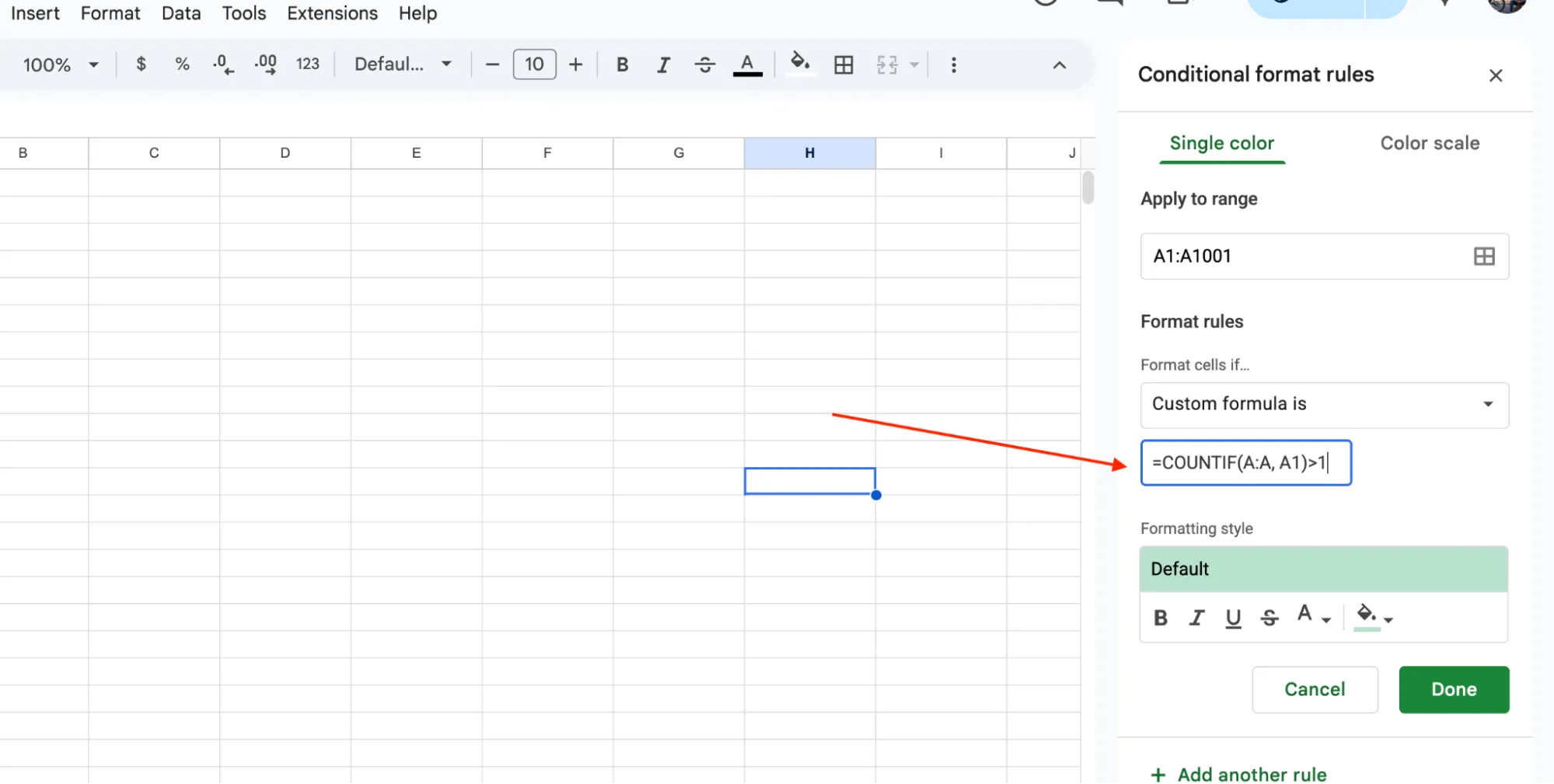
- Pick a highlight color under "Formatting style."
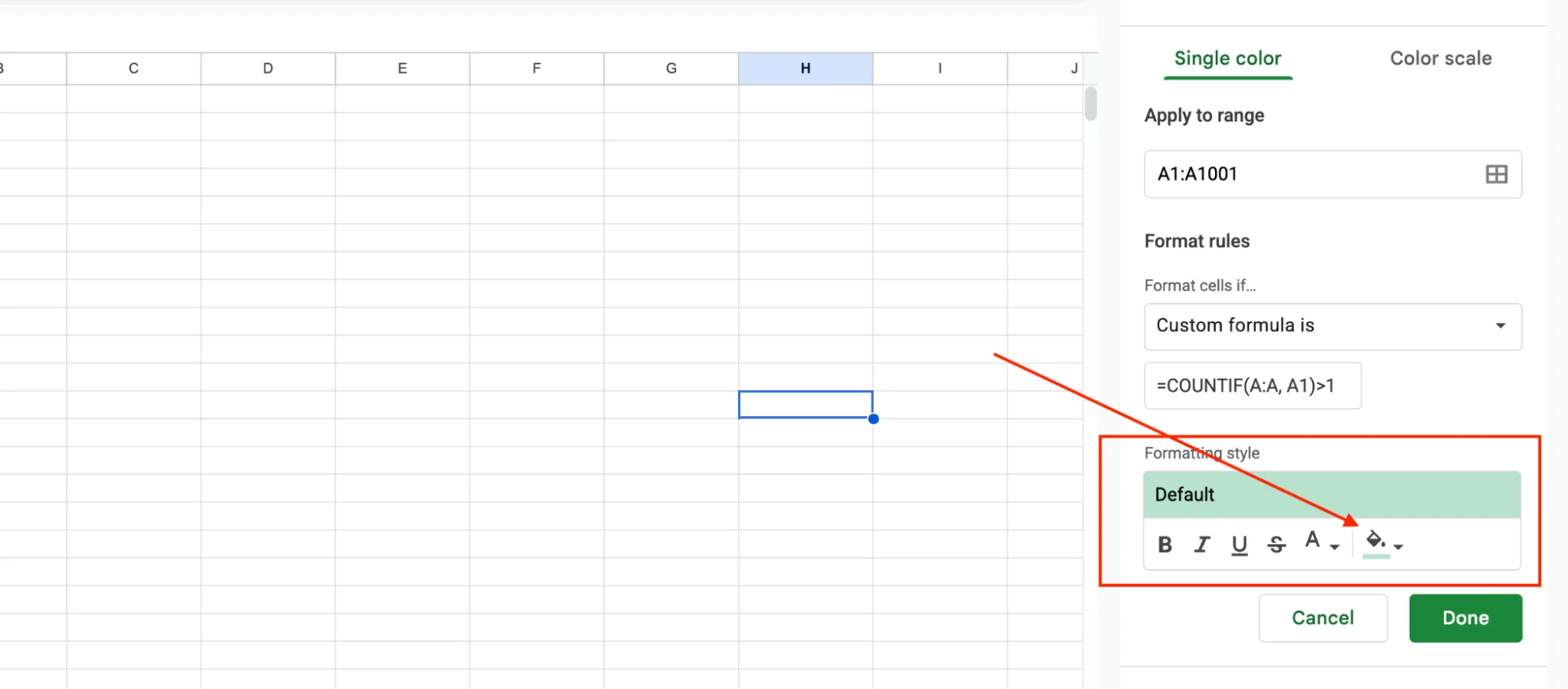
- Click Done.
Every duplicate cell in that column will light up instantly.
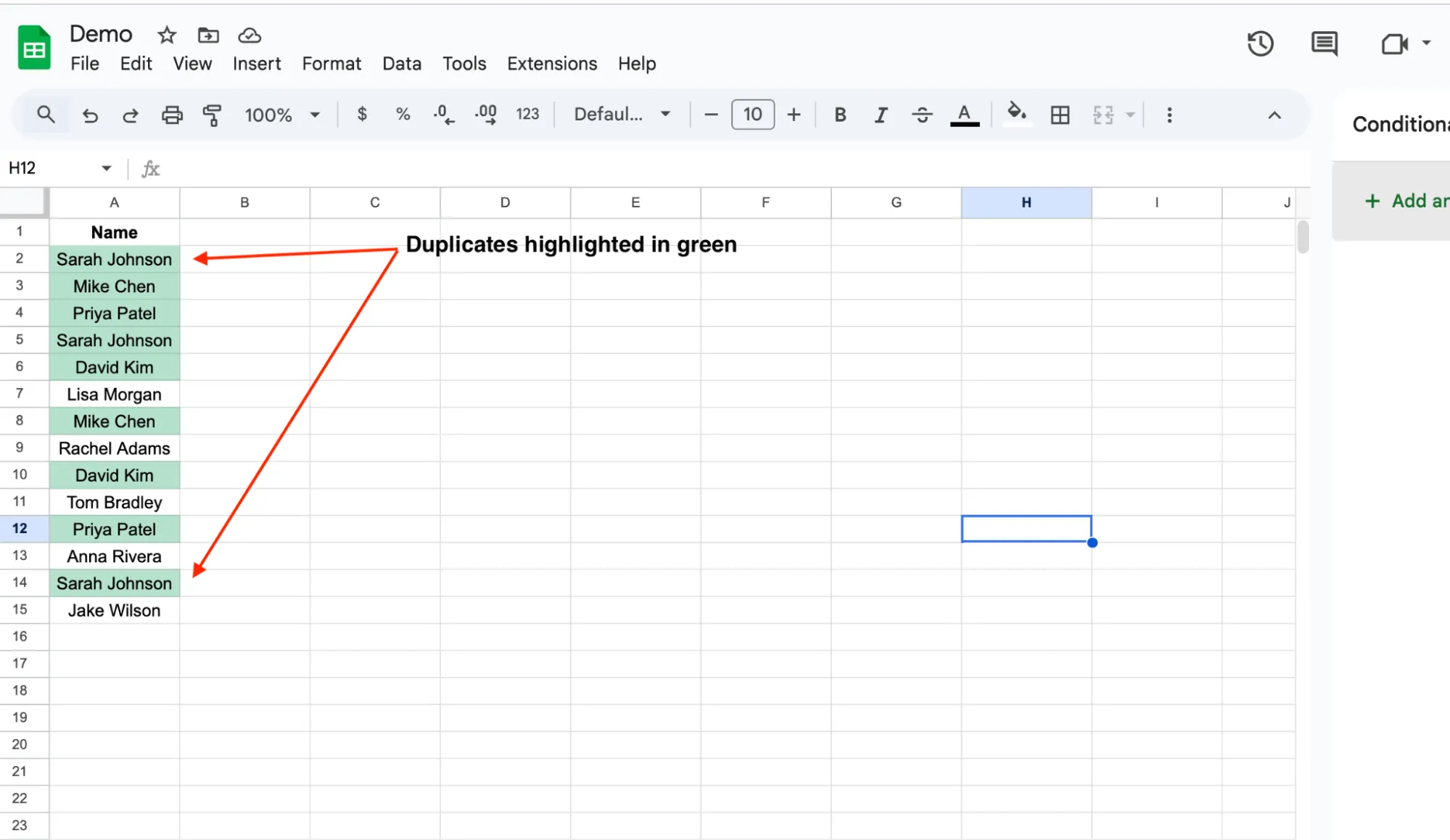
What the formula actually does: COUNTIF counts how many times each cell's value shows up in the full column. If the count is more than 1, it gets highlighted. It highlights the first copy too, not just the repeats.
Quick adjustments:
Different column: If your data is in column D instead of column A, change the formula to =COUNTIF(D:D, D1)>1. The column letter in the formula must match the column your data sits in.
Only highlight values appearing more than 3 times: Change the end of the formula from >1 to >3. That way, entries that show up just twice stay uncolored.
Skip headers: If your first row is a header, the formula might highlight it too if the header text matches a value below. You can avoid this by setting your range to start from row 2 instead of the full column. So instead of A:A, use A2:A.
Highlight Duplicates Across Multiple Columns
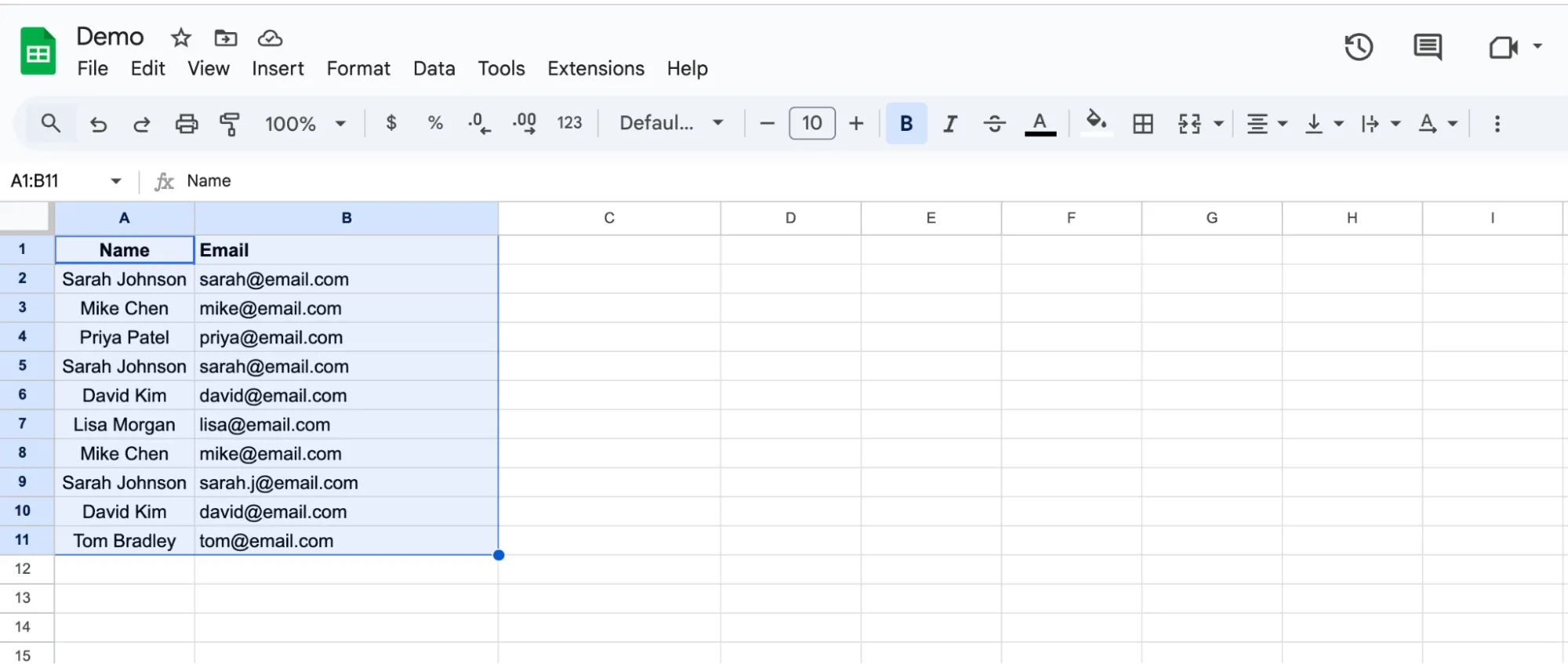
Sometimes one column is not enough. For example, the same name with different emails is not a true duplicate. You need to flag rows where both the name and the email match.
COUNTIFS solves this. It checks multiple columns at the same time and only highlights rows where all the values match.
Steps:
- Select the range you want to check. For example, select
A1:B10if your names are in column A and emails are in column B.
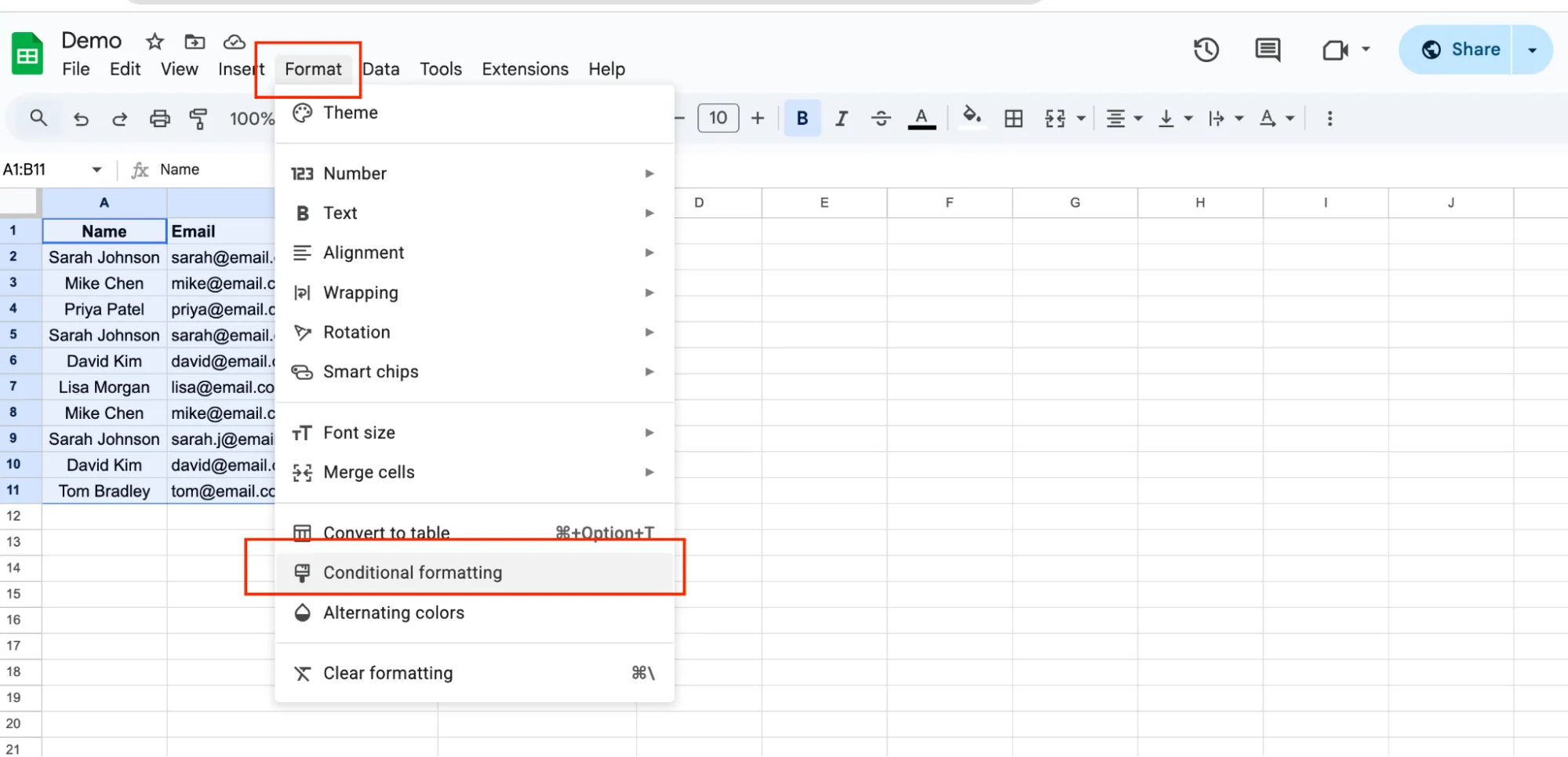
- Go to Format > Conditional formatting.
- Choose Custom formula is from the dropdown.
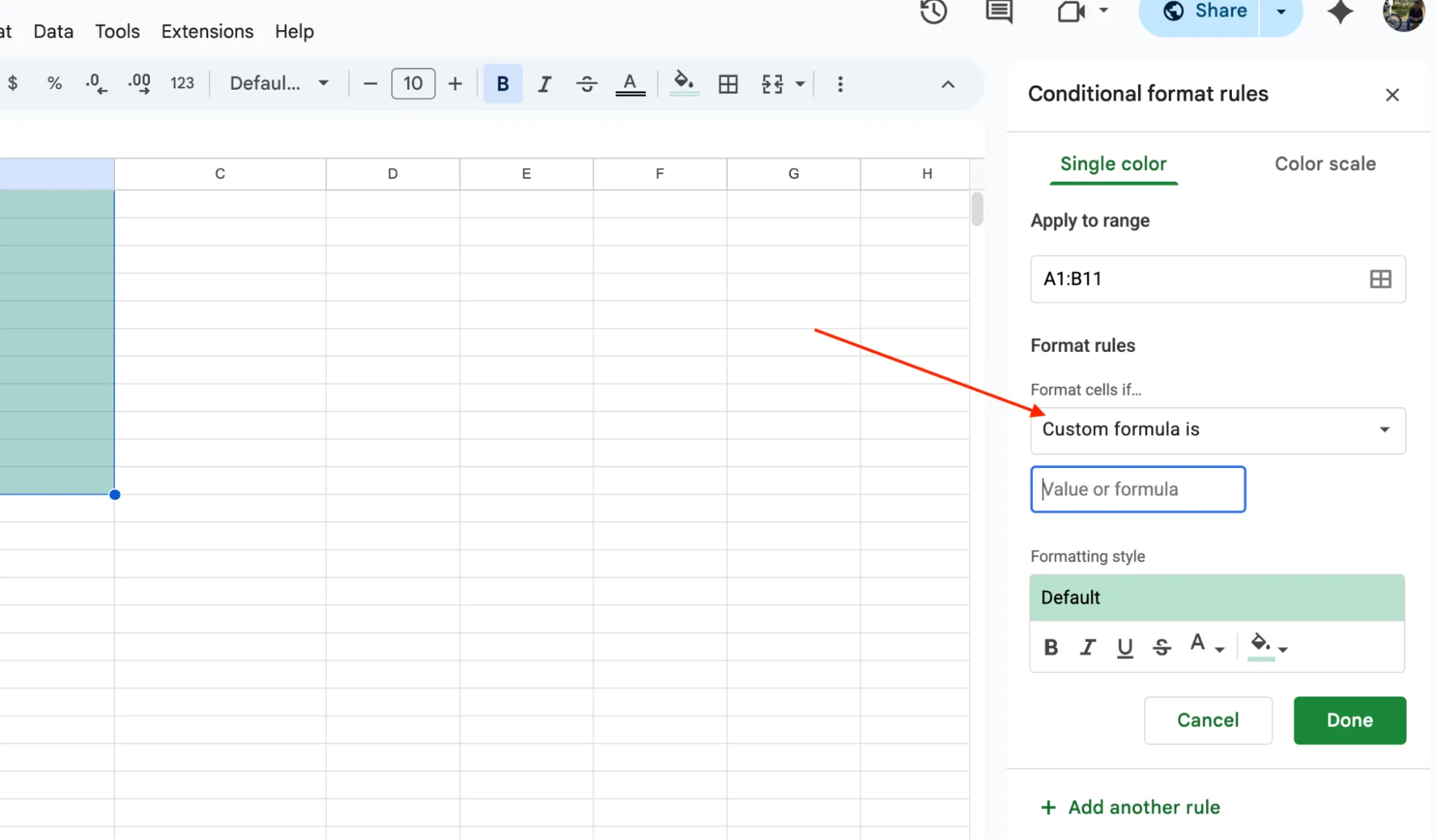
- Enter this formula:
=COUNTIFS($A$1:$A,$A1,$B$1:$B,$B1)>1
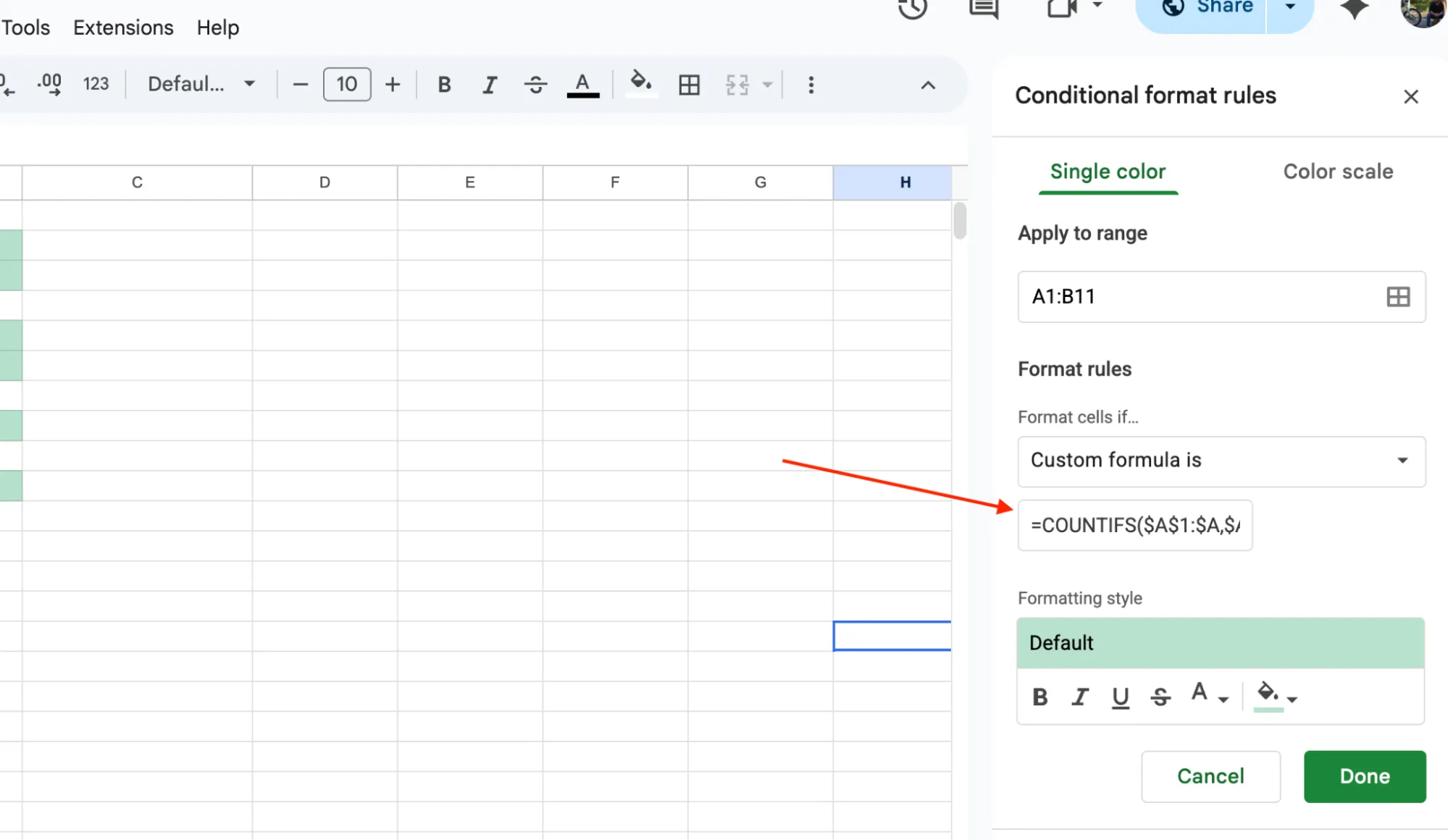
- Pick a highlight color and click Done.
Now only the rows where both columns have matching values will light up. A name that appears twice with two different emails will stay uncolored.
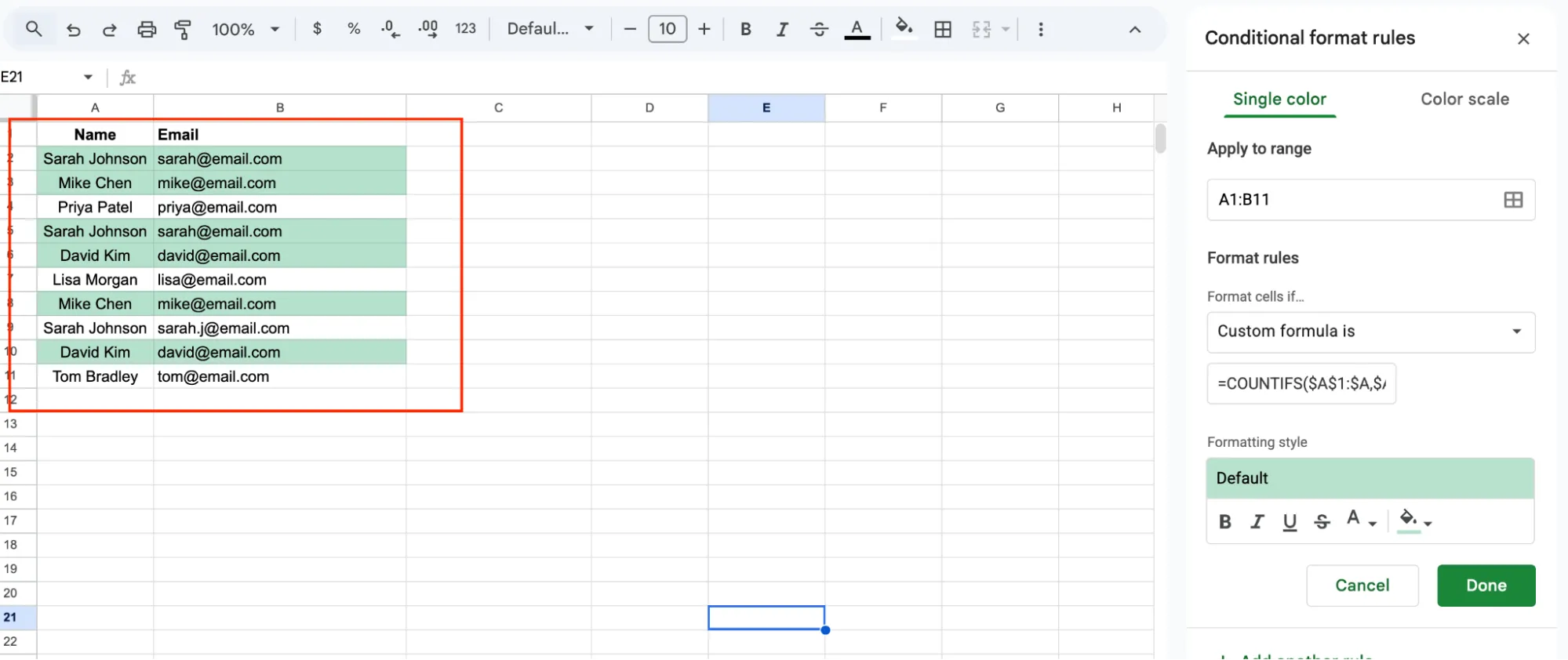
Why the dollar signs matter ($): The dollar signs create absolute references. They lock the ranges so the formula does not shift as Google Sheets applies it down each row. Without them, the formula breaks after the first few rows.
Adding more columns: You can extend this to three or more columns. Just add another pair of arguments inside COUNTIFS. For example, to match Name + Email + Phone:
=COUNTIFS($A$1:$A,$A1,$B$1:$B,$B1,$C$1:$C,$C1)>1
Each new pair tells Google Sheets to check one more column before calling it a match.
A quick comparison: COUNTIF checks one column. COUNTIFS checks multiple columns together. If you only care about one field, stick with COUNTIF. If you need an exact row-level match, use COUNTIFS.
Highlight Duplicates Across Two Sheets
Everything so far works when your data is on one sheet. But what if it is spread across two tabs?
This happens a lot. You have a list of names in Sheet1 and another list in Sheet2. You want to see which names appear in both. Checking them side by side manually takes forever, especially with hundreds of rows.
You can solve this with conditional formatting and a cross-sheet COUNTIF.
Steps:
- Go to Sheet1 — the sheet where you want to see the highlights.
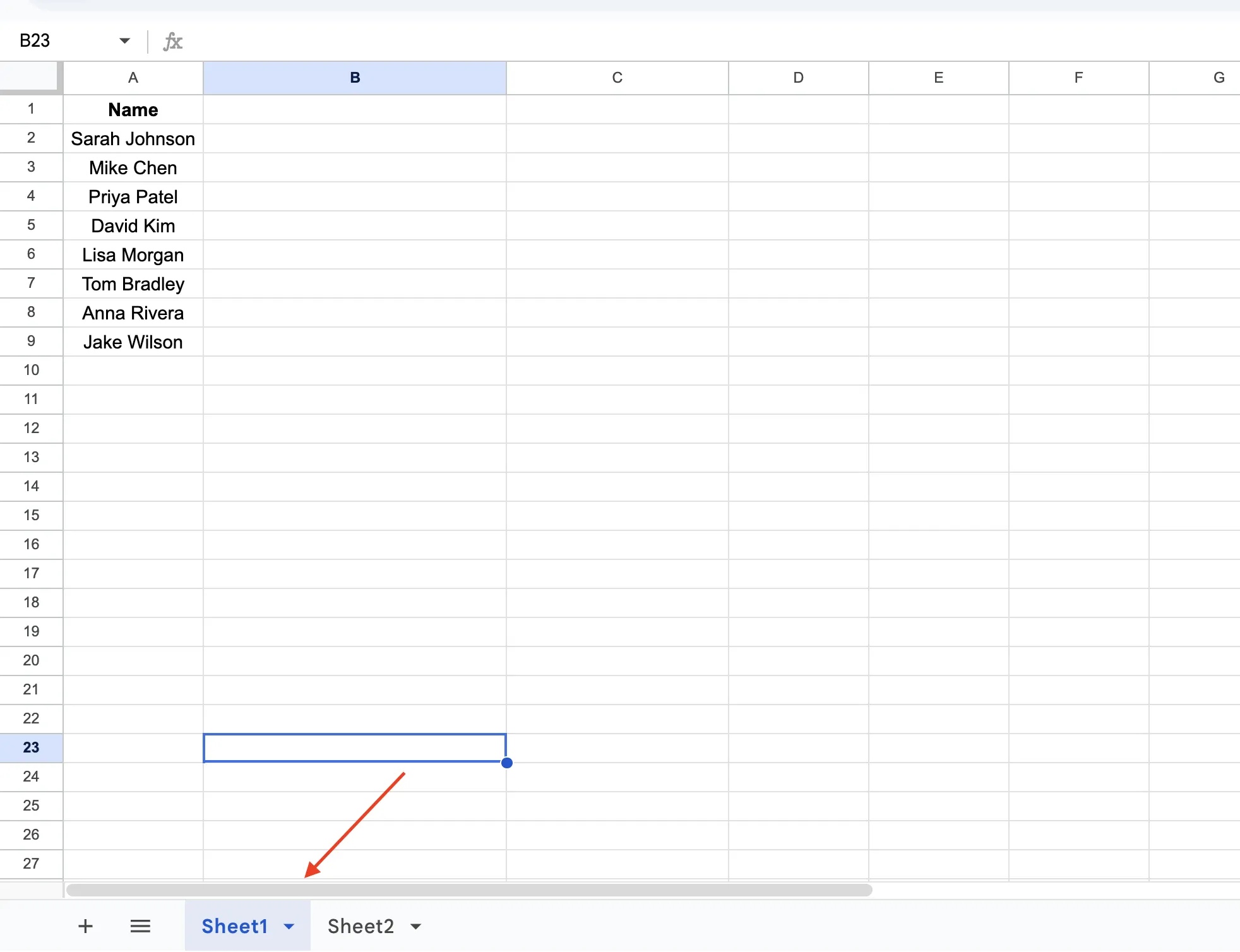
- Select the column you want to check, for example column A.
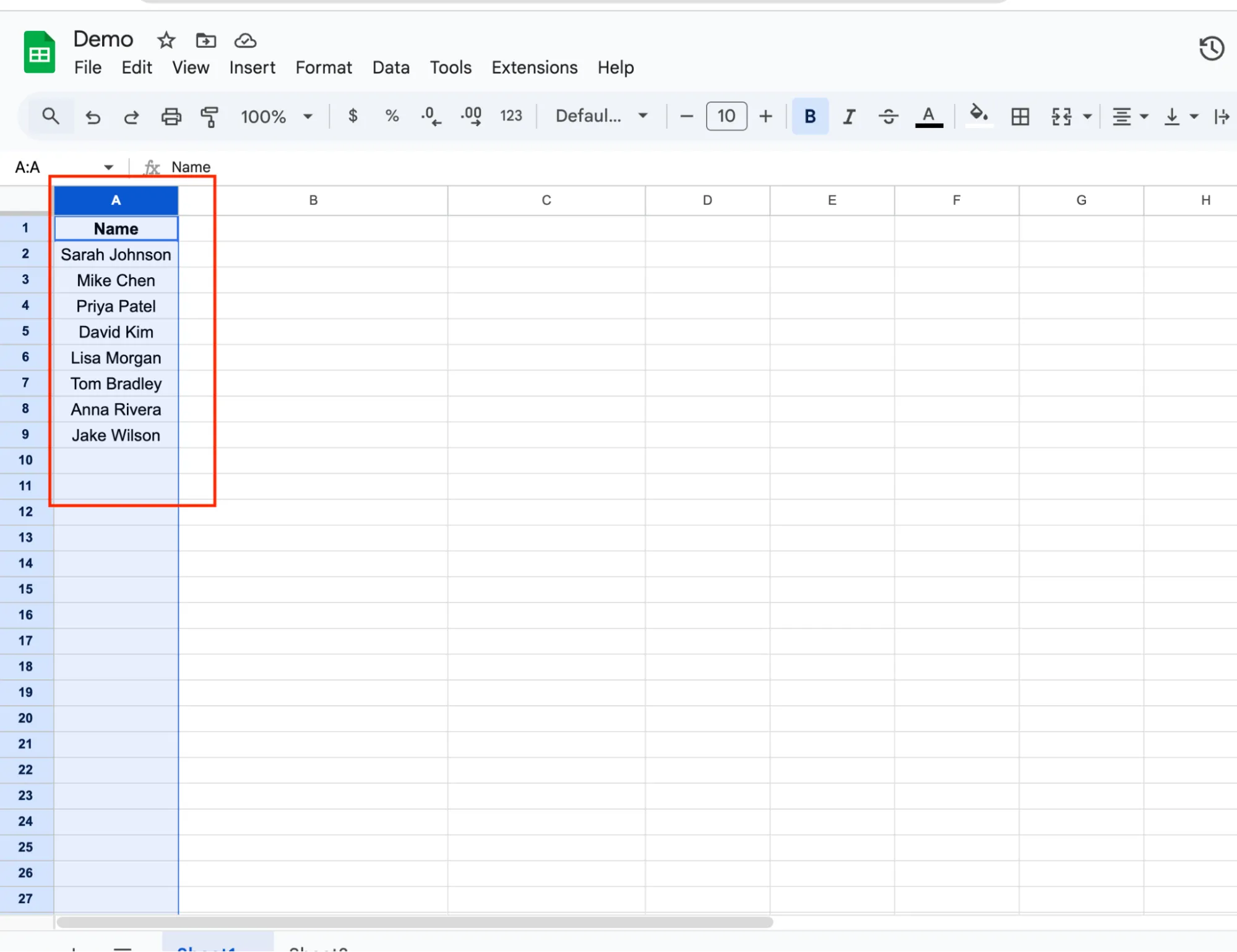
- Go to Format > Conditional formatting.
- Choose Custom formula is from the dropdown.
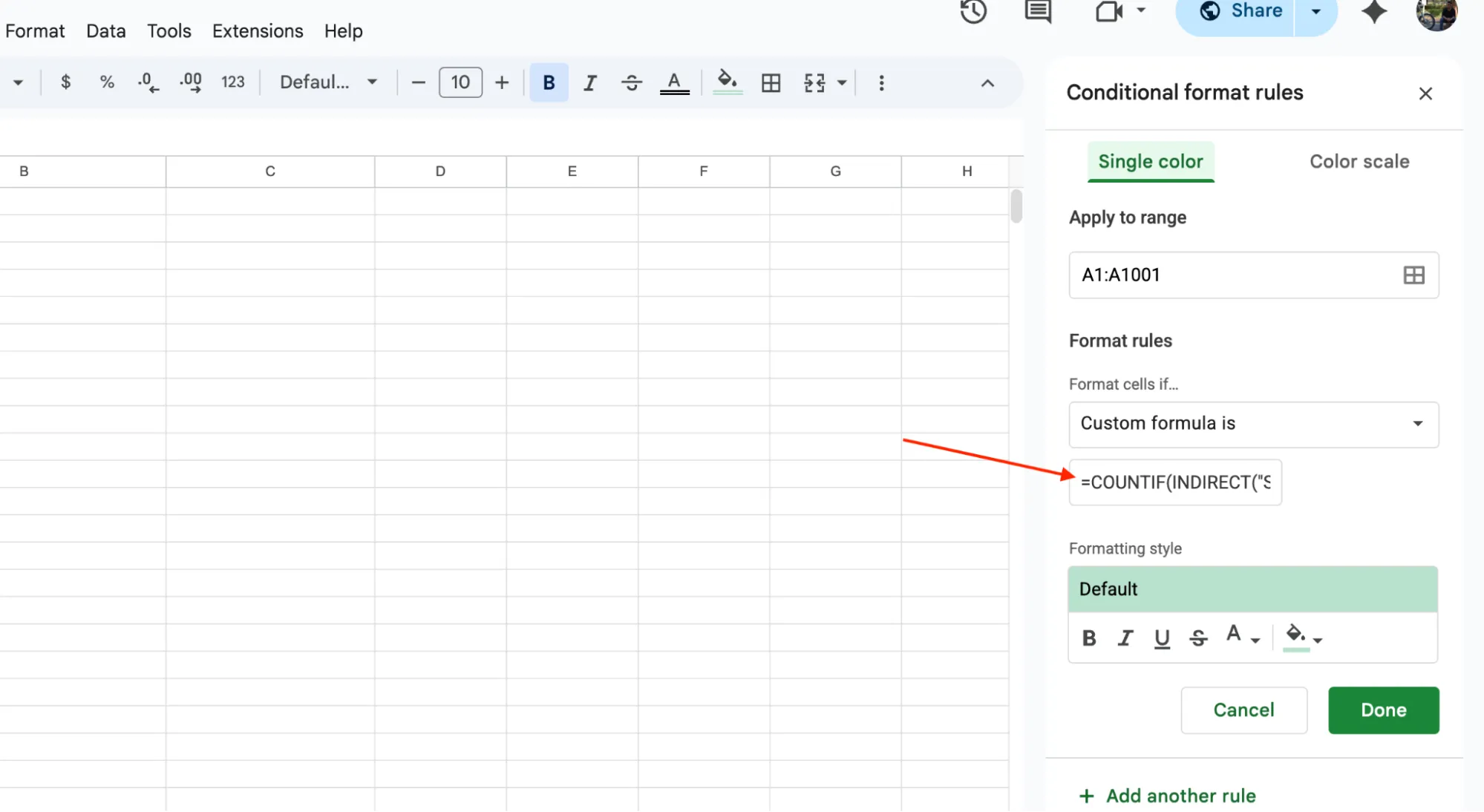
- Enter this formula:
=COUNTIF(INDIRECT("Sheet2!A:A"),A1)>0
- Pick a highlight color and click Done.
This highlights values in Sheet1 that also exist in Sheet2. Names that only appear in Sheet1 stay uncolored.
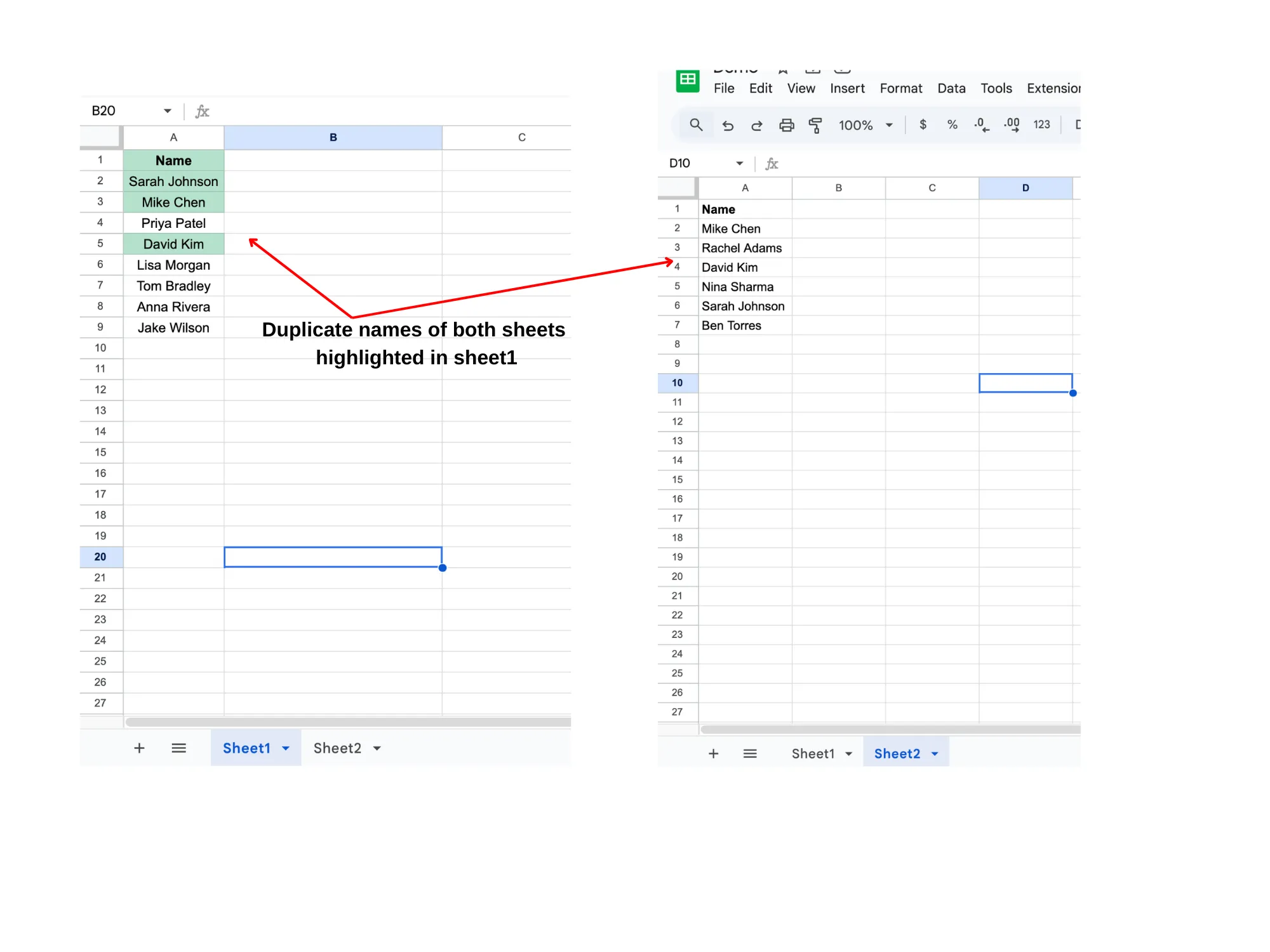
How the formula works: It takes each name in column A of Sheet1 and checks if that name exists anywhere in column A of Sheet2. The >0 means "if it appears at least once, highlight it." Notice this uses >0 instead of >1 because you are comparing across sheets, not looking for repeats within the same column.
A few things to keep in mind:
If your sheet name has a space in it, like "Contact List", wrap it in single quotes: =COUNTIF('Contact List'!A:A,A1)>0. For simple names like Sheet2, quotes are optional.
This works both ways. You can apply the same formula on Sheet2 pointing to Sheet1 to spot overlaps from the other direction.
Remove Duplicates in Google Sheets
Highlighting tells you where the duplicates are. But sometimes you just want to get rid of them.
Google Sheets has a built-in tool for this. No formulas needed.
Steps:
- Select your data range. Click any cell inside your dataset and Google Sheets will auto-detect the full range. Or select it manually if you want to limit the check to specific columns.
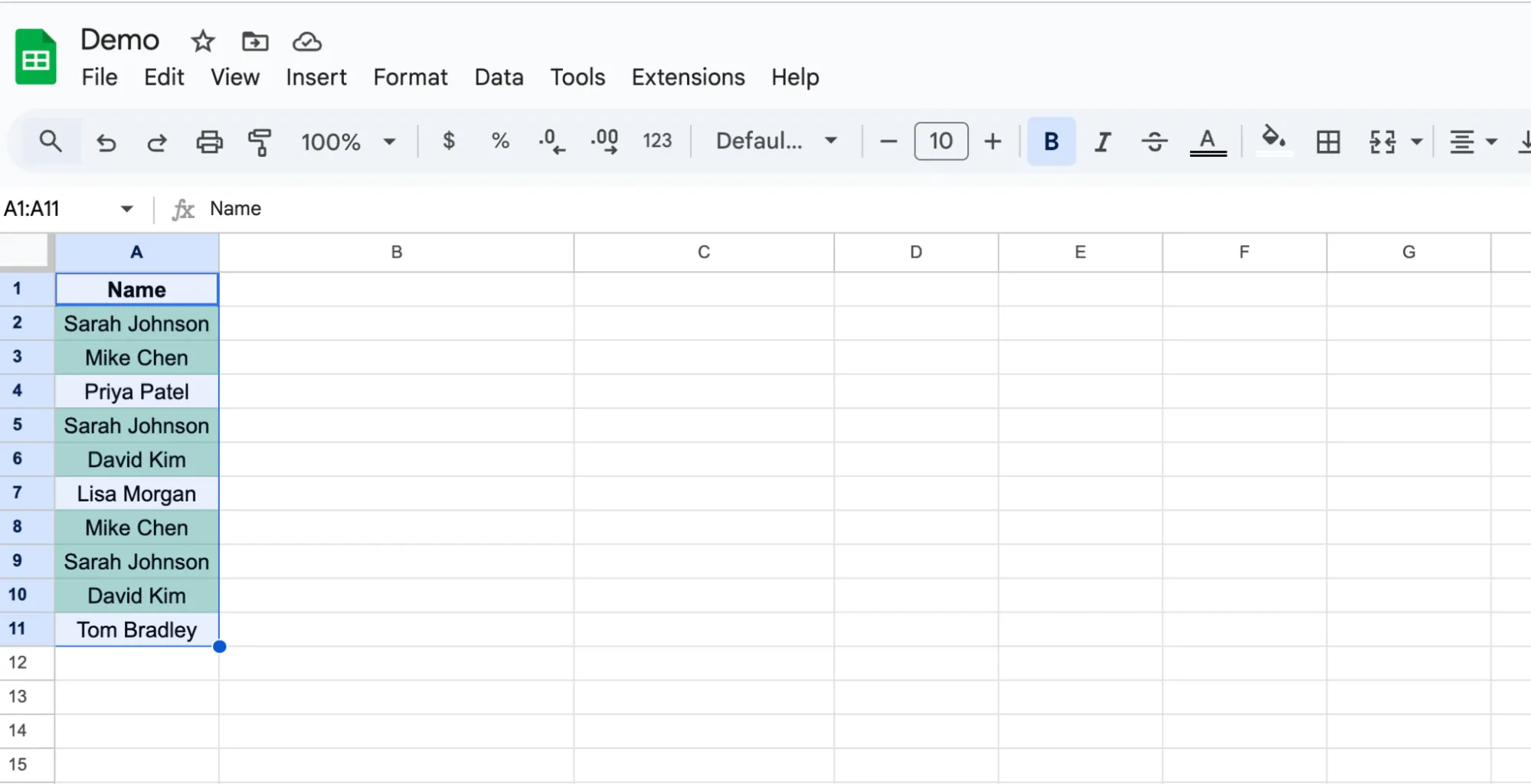
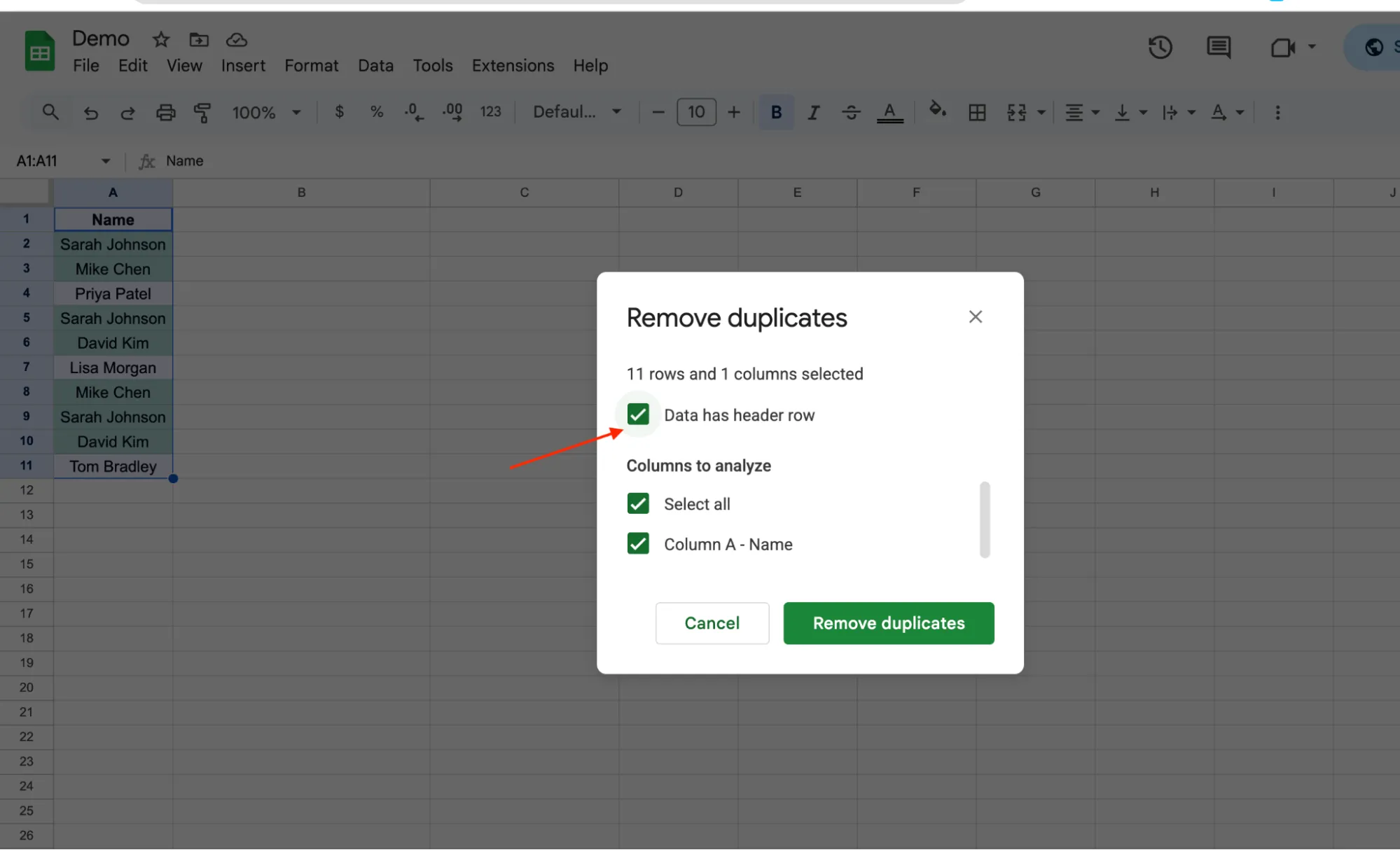
- Go to Data > Data cleanup > Remove duplicates.

- Check Data has header row if your first row contains column labels like Name or Email.
-
Select the columns you want to check. You can pick one column or multiple. If you select two columns, Google Sheets will only remove rows where both values match.
-
Click Remove duplicates.
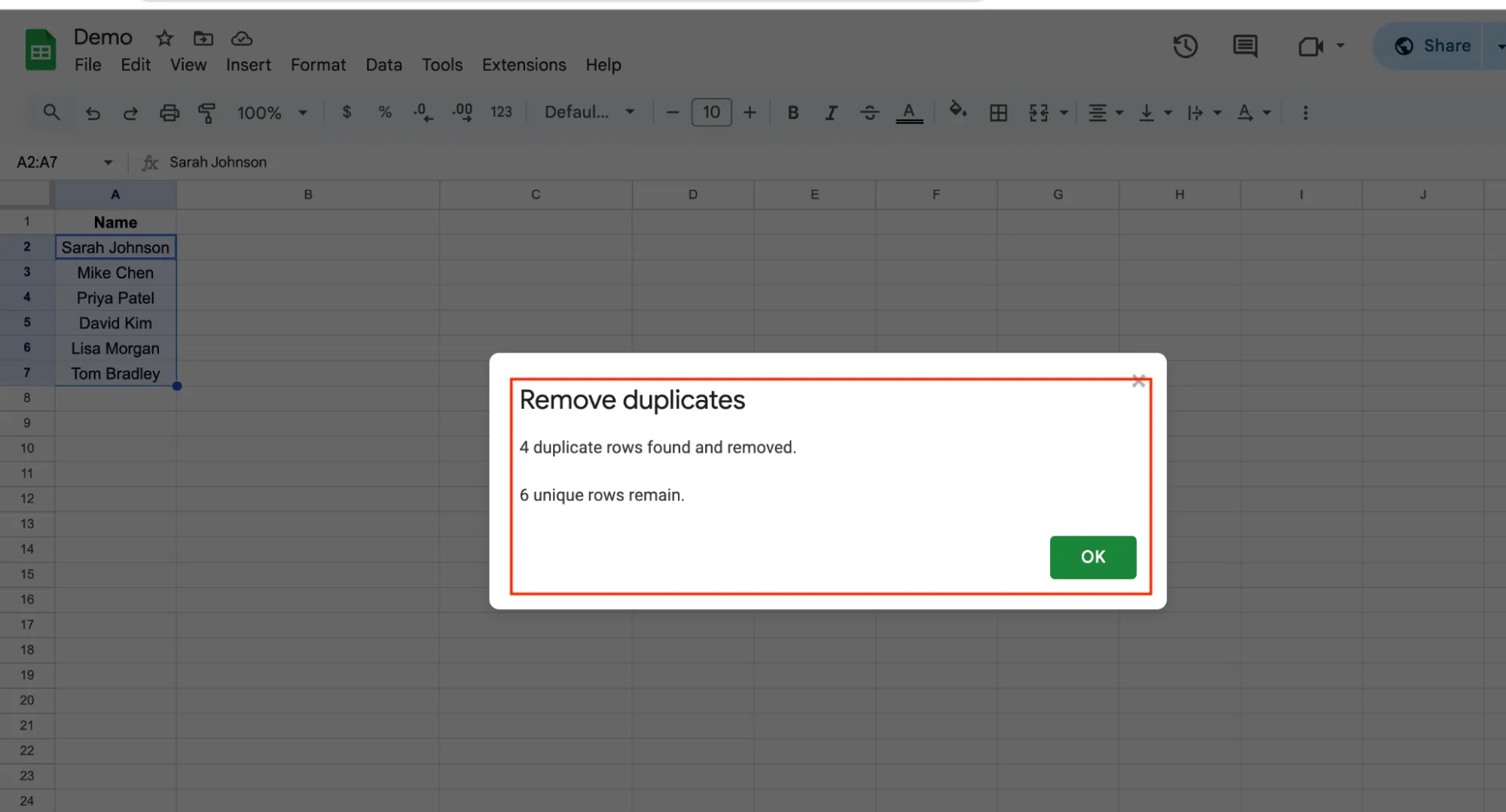
A popup will tell you how many duplicate rows were found and removed, and how many unique rows remain.
Before you run this, make a copy of your sheet. Right-click the sheet tab at the bottom and click "Duplicate." The tool deletes entire rows permanently. You can hit Ctrl+Z to undo right after, but once you close the file, those rows are gone for good.
How it decides what to keep: The tool always keeps the first occurrence and removes every repeat after it. So if Sarah Johnson appears in rows 2, 5, and 14, rows 5 and 14 get deleted. Row 2 stays. The order of your data matters here. If you want to keep a specific version of a duplicate, for example the most recent one, sort your sheet before running the tool.
One limitation to know: This tool removes full rows, not individual cell values. If Sarah Johnson appears twice in column A but the rest of the row has different data, the entire second row still gets deleted. If that is a problem, use conditional formatting to review your duplicates first and decide manually which rows to remove.
GPT for Sheets. The AI Agent for Your Spreadsheet
What if you could skip the formulas, the conditional formatting setup, and the manual review entirely?
GPT for Sheets by GPT for Work is a full AI agent that runs directly inside Google Sheets. You tell it what you need in plain English. It does the rest.
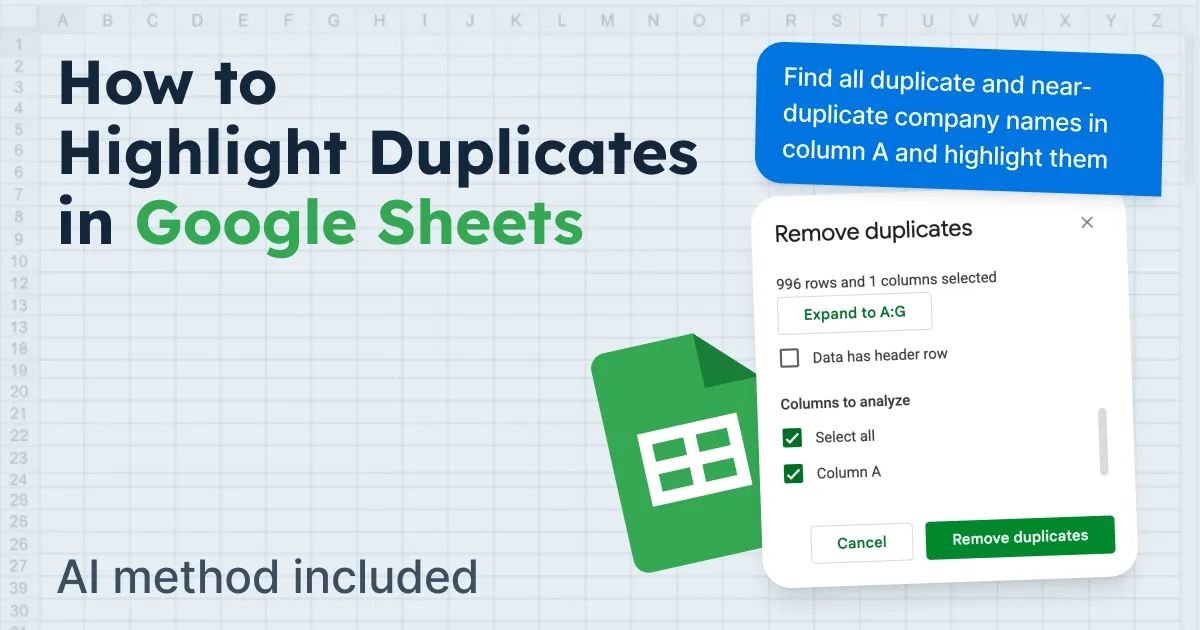
Example prompt: "Find all duplicate and near-duplicate company names in column A and highlight them"
That is it. No COUNTIF. No custom formula. No fiddling with dollar signs and ranges. Just one prompt and the duplicates are flagged.
It also catches fuzzy matches:
Say your column has "Acme Corp" in row 2, "ACME Corporation" in row 3, and "acme corp." in row 4.
Or "Johnson & Johnson" in one row and "Johnson and Johnson" in another.
These are the same companies written differently. COUNTIF sees them as completely separate values. GPT for Sheets understands they are the same and groups them together.
But finding duplicates is just one thing you can do with it. Duplicates are usually only part of messy data — see AI data cleaning tools for Excel & Google Sheets for how the same agent also standardizes names, phones, and formats, and fixes messy text in bulk.
GPT for Sheets is a full AI agent built for bulk spreadsheet tasks. Prompt it and you can get everything done.
Generate product descriptions for 5,000 rows. Translate customer reviews into three languages. Categorize thousands of support tickets, pull data from the web, build formulas you cannot figure out, analyze images, summarize long text. All from a single prompt.
Everything happens inside your spreadsheet. No switching to another tool. No code. No extensions to learn.
One prompt. The whole task gets done.
Which Method Should You Use?
It depends on what your data looks like and what you want to do with the duplicates.
Your Situation | Best Method | Formula / Tool |
|---|---|---|
Find duplicates in one column | Conditional formatting + COUNTIF | =COUNTIF(A:A,A1)>1 |
Match duplicates across two or more columns | Conditional formatting + COUNTIFS | =COUNTIFS($A$1:$A,$A1,$B$1:$B,$B1)>1 |
Compare data across two sheets | Conditional formatting + INDIRECT | =COUNTIF(INDIRECT("Sheet2!A:A"),A1)>0 |
Fuzzy matches, messy data, or 10,000+ rows | GPT for Sheets | Just write a prompt |
If your data is clean and the matches are exact, conditional formatting with COUNTIF will handle it in seconds. If your data has spelling differences, mixed formatting, or abbreviations, GPT for Sheets is the faster option because formulas will miss those matches entirely.
Final Takeaways
Most duplicate problems in Google Sheets take less than a minute to solve. COUNTIF handles the majority of cases, and once you have set it up, you can reuse it anytime.
One key tip: Always duplicate your sheet before deleting anything. Highlighting is reversible. Deleting is not.
And if you ever find yourself spending more time writing formulas than doing actual work, that is a sign to try GPT for Sheets. It is free to start.
FAQs
Can I highlight duplicates in Google Sheets without a formula?
Not with conditional formatting. You need COUNTIF.
But you can use the built-in tool at Data > Data cleanup > Remove duplicates to find and delete them without writing anything. The downside is it removes rows directly instead of just highlighting them.
How do I highlight duplicates but keep the first occurrence uncolored?
The standard COUNTIF formula highlights all copies, including the first one. To skip the first and only color the repeats, use this formula instead:
=COUNTIF(A$1:A1,A1)>1
The range A$1:A1 grows as it moves down, so it only counts values that already appeared above the current row.
Does removing duplicates in Google Sheets delete my data permanently?
You can undo immediately with Ctrl+Z, but once the file is closed, the changes are permanent. Always make a backup copy before running the removal tool.
Can I highlight duplicates with different colors for each group?
Google Sheets does not support this with conditional formatting alone. You would need to create separate rules for each value and assign a different color to each one.
For large datasets, this is not practical. GPT for Sheets can handle this in one prompt by grouping and color-coding duplicate clusters automatically.
Why is my COUNTIF formula highlighting the header row?
Your range probably starts from row 1 and your header text matches a value somewhere in the column. Change your Apply to range to start from row 2, like A2:A, and update the formula to:
=COUNTIF(A:A,A2)>1