February 2026 brings a major upgrade to the GPT for Sheets Agent — it can now handle almost anything you'd want to do in Google Sheets, including formatting, formulas, pivot tables, and charts. We've also added Claude Opus 4.6 as an Agent model to GPT for Sheets and GPT for Excel, with a convenient in-sidebar model switcher. Finally, February introduces monthly spending limits and simplified credit tracking for spaces.
We also published new how-to guides and a customer story this month — read on to learn how teams use the Agent for bulk translation, data cleaning, SEO automation, and more.
Explore the key improvements and announcements below, and check out the release notes for the full details.
✨ The Agent can now handle almost anything in Sheets
The GPT for Sheets Agent now supports a wider range of spreadsheet operations. New capabilities include:
- Format and style tables.
- Sort and filter data.
- Apply conditional formatting.
- Create new sheets and reorganize data.
- Create pivot tables.
- Build charts and visualizations.
Just describe what you want in plain language, and the Agent analyzes your spreadsheet and makes the requested changes — no configuration needed.
🤖 More Agent models 

Anthropic Claude Opus 4.6
Anthropic's most capable model is now available as an Agent model in GPT for Sheets and GPT for Excel, with or without an API key. Claude Opus 4.6 delivers stronger reasoning, better coding and debugging, and more reliable planning for complex, long-running tasks — making it an excellent fit for demanding spreadsheet workflows.
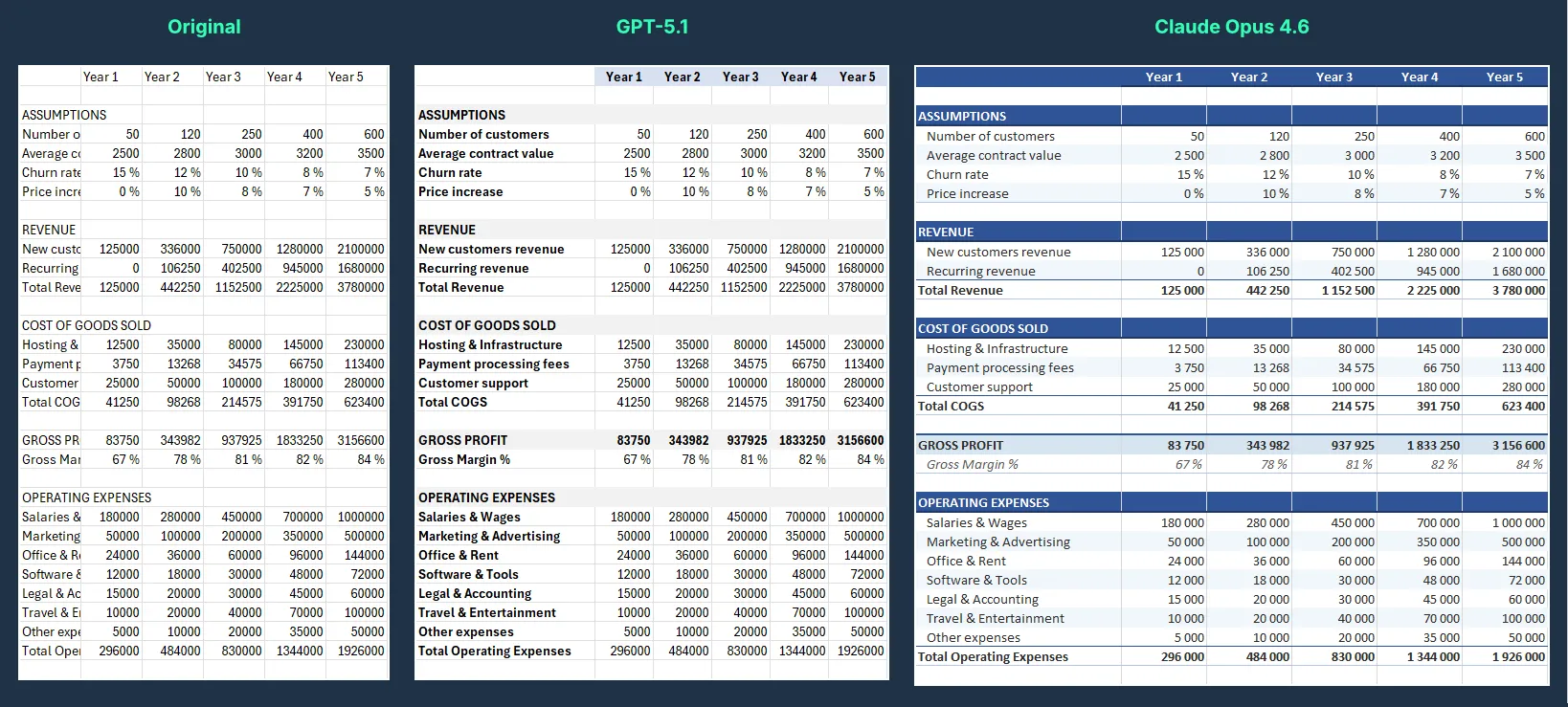
Compared to the other currently supported Agent model, OpenAI's GPT-5.1, Claude Opus 4.6 is slightly more expensive, but it generally outperforms GPT-5.1 across tasks. Even for a simple formatting request, model choice matters. With the same raw spreadsheet and the same prompt, Claude Opus 4.6 typically goes further than GPT-5.1 — adding clearer sectioning, more consistent typography and spacing, and a more finished look that's easier to scan. The image below shows the same data formatted by the two models from the same prompt: 'Make my sheet look nice.'
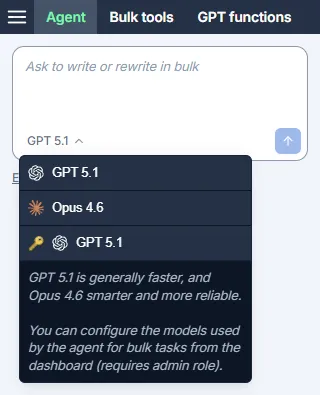
Agent model switcher
You can now switch between supported Agent models directly from the add-on sidebar in GPT for Sheets and GPT for Excel.
🎛️ Monthly spending limits 

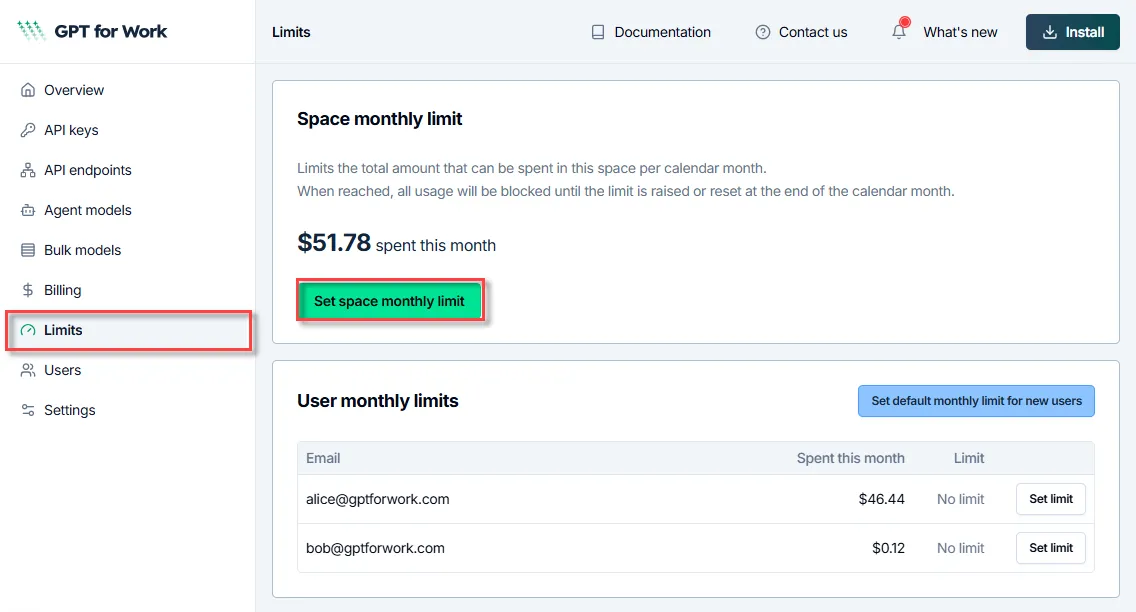
Space owners and admins can now set monthly spending limits from the GPT for Work dashboard to control how much is spent each month. Set a limit for the entire space, or set individual limits per user. When a limit is reached, usage is blocked until the limit is raised or the limit resets at the end of the calendar month.
🔄 Simplified credit tracking
Credits are now tracked as a single balance with a single expiration date per space (Google or Microsoft account), instead of individual packs with separate expiration dates. Buying a credit pack adds to your space's balance and resets the expiration date to one year from the purchase date.
Example: You have $100 worth of credits on GPT for Sheets and Docs. Your last purchase was 7 months ago, so these credits will expire in 5 months. You buy $29 worth of credits. You now have $129 worth of credits, which will expire in 12 months.
📝 New how-to guides and customer story
How-to guides for the Agent
We published the first three articles in a new series of step-by-step guides showing how to use GPT for Work for real-world tasks:
- How to Automate Product Page SEO Metadata in Google Sheets — Bulk-generate SEO-compliant meta titles, descriptions, H1s, and JSON-LD product names.
- How to Bulk Translate Product Descriptions in Google Sheets — Translate hundreds of product descriptions into multiple languages in a single run, with HTML formatting preserved.
- How to Clean Data in Excel for Outreach — Fix company names, job titles, and typos, and remove duplicates from your lead list.
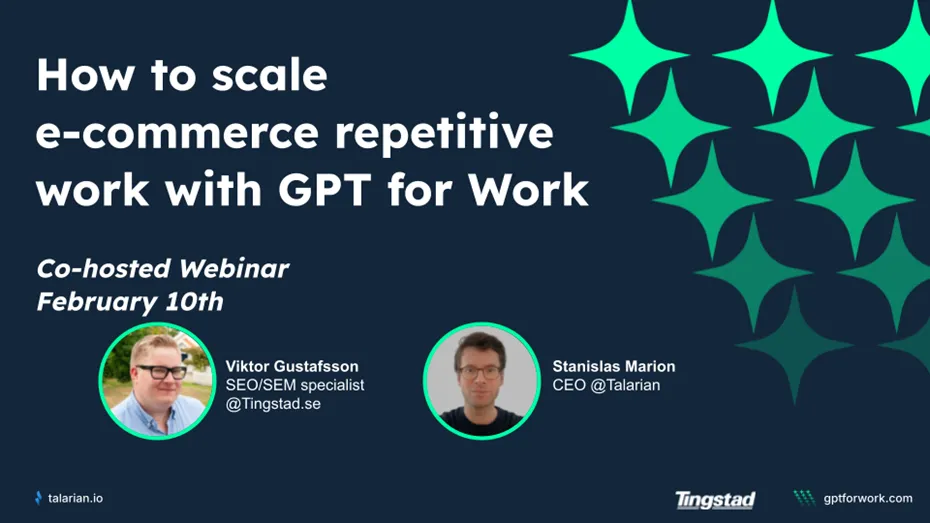
Customer story: Tingstad
Learn how Tingstad, a Nordic distributor, uses GPT for Work to scale repetitive e-commerce work — from bulk translation to automated SEO alt text generation and B2B company categorization.
"It's a huge cost saving in time and salary, and lets me focus on higher-value work."
📖 To go further
Check out our resources to get the most out of GPT for Work:
- 📚 Step-by-step guides for Sheets, Excel, Word, and Docs
- 📖 Complete documentation — Find everything you need to know about GPT for Work!
- 📝 Our blog articles for e-commerce, SEO, and market research
- 📺 Our YouTube channel with video tutorials
- 📄 Release notes — Or read them directly in the add-ons!
- 🔧 Contact support — Need help? Reach out to our friendly team.