Every sales team knows the problem: your lead list in Excel is a mess — inconsistent formatting, duplicate entries, typos scattered throughout. The data quality issues pile up fast, especially when multiple people have been adding records over time.
Cleaning this data by hand is tedious and error-prone — especially when you're dealing with hundreds or thousands of rows. But if you skip the Excel data cleaning step, your outreach emails look sloppy and your deliverability suffers. You end up with a lot of bounced emails and a lot of wasted time.
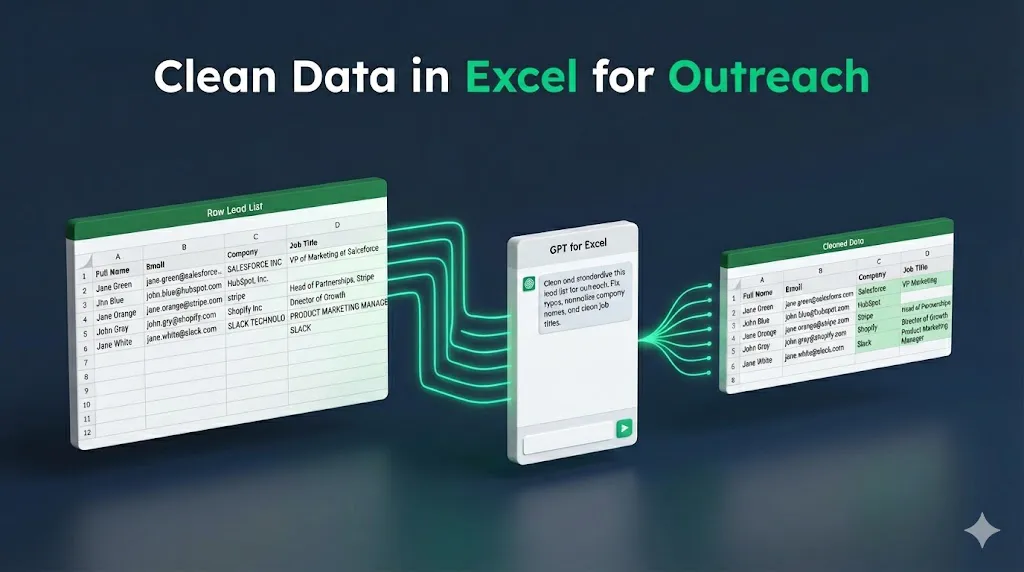
The GPT for Excel Agent, an AI assistant for Excel, offers a better approach. It lets you automate data cleaning in Excel: describe what you need in plain language, and the Agent handles the bulk data cleaning for you. It can fix casing, strip legal suffixes, normalize job titles, correct typos, and remove duplicates — all without formulas, scripts, or manual editing. For an overview of the approach beyond outreach lists, see AI data cleaning tools for Excel & Google Sheets.
In this guide, you'll learn how to clean messy data in Excel step by step: take a list of 1,000 leads, clean every column, and deduplicate the list so it's ready for cold email outreach.
No formulas. No VBA.
Tip: The Agent is also available in GPT for Sheets. You can follow the same cleaning workflow in a Google Sheets spreadsheet.
Who this is for
This workflow is especially useful for:
- Sales and SDR teams preparing outreach lists
- RevOps and Sales Ops teams cleaning CRM data
- Marketing teams building targeted email campaigns
- Anyone who needs to clean data in Excel before sending it downstream
If you already work in Excel, this Excel data preparation workflow fits directly into your existing process.
What you'll need
Before you start, make sure you have:
- GPT for Excel installed. If you haven't installed it yet, get GPT for Excel here and follow the quickstart guide to set it up.
- An Excel workbook with your lead list. This tutorial uses a lead list with columns for Full Name, Email, Company, and Job Title. You can copy and paste the table below into your own Excel workbook to follow along.
The use case: Clean data in Excel from a lead list
You're a sales rep preparing a cold email campaign. You have a list of 1,000 leads, but the data is messy — as lead lists usually are. Multiple reps entered leads over time, using different naming conventions and occasionally introducing typos. Some leads appear more than once.
Here's what the lead list looks like.
Full Name | Email | Company | Job Title |
|---|---|---|---|
Jane Green | jane.green@salesforce.com | SALESFORCE INC | VP of Marketing at Salesforce |
Jhn Blue | john.blue@hubspot.com | HubSpot, Inc. | |
Jane Orange | jane.orange@stripe.com | stripe | Head of Partnerships, Stripe |
John Gray | john.gry@shopify.com | Shopify Inc | Driector of Growth |
Jane White | jane.white@slack.com | SLACK TECHNOLOGIES LLC | PRODUCT MARKETING MANAGER, SLACK |
John Brown | john.brown@salesforce.com | Salesforce, Inc. | Regional Sales Director at Salesforce |
Jane Green | jane.green@salesforce.com | Salesforce | VP Marketing |
John Black | john.black@adobe.com | ADOBE SYSTEMS INCORPORATED | senior content strategist |
Jane Silver | jane.silvr@atlassian.com | Atlassian, Inc. | unknown |
... | ... | ... | ... |
The problems are typical of any leads export:
- Inconsistent company names: "SALESFORCE INC", "Salesforce, Inc.", "Salesforce" — all referring to the same company, entered by different reps.
- Legal suffixes cluttering company names: "Inc" and "LLC" make the names look unnatural in outreach emails.
- Job titles include the company name: "VP of Marketing at Salesforce" or "Head of Partnerships, Stripe" — awkward in personalized emails that already mention the company.
- Typos in names and emails: "Jhn Blue" is missing a letter, and
jane.silvr@atlassian.comwill bounce. - Duplicate rows: Jane Green appears twice with the same email.
Your goals:
- Standardize data in Excel. Normalize company names, fix casing, remove legal suffixes.
- Clean job titles. Remove embedded company names, keep them short and natural.
- Fix typos in Excel. Correct misspelled names and email addresses.
- Remove duplicates in Excel. Deduplicate leads by email or name + company.
- Get the list ready for outreach in minutes, not hours.
The Agent can handle all of this in a couple of prompts.
Step 1: Prepare your lead list in Excel
Start by setting up your lead list in an Excel workbook.
- Open Excel and open your existing lead list (or paste the table above into your own workbook).
- Make sure your data has column headers in row 1.
- Your lead data should start in row 2. Each row represents one lead.
Step 2: Open the GPT for Excel Agent
With your data ready, it's time to open the Agent.
- Make sure you're on the worksheet with your lead list.
- In the ribbon, click GPT for Excel Word to open the add-in.
The GPT for Excel sidebar opens on the right side of your screen, with the Agent selected by default.
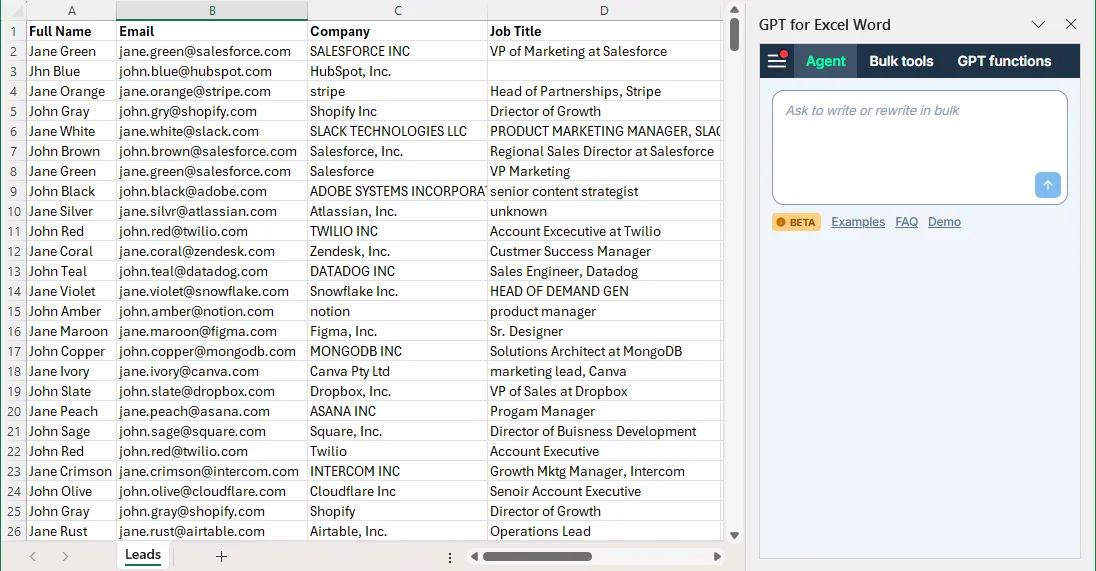
Step 3: Write your Excel data cleaning prompt
The first prompt tells the Agent to clean your data — fix company names, normalize job titles, and correct typos. A good Excel data cleaning prompt is specific about what to fix and what to preserve.
Enter the following prompt in the Agent chat:
You are cleaning a lead list for cold email outreach.

1) Fix obvious typos in Full Name and Email

2) Clean company names
- Remove legal suffixes (Inc, LLC, Ltd, Incorporated, Corp, Pty Ltd, etc.).
- Fix casing (no ALL CAPS).
- Keep the name short and natural, as used in everyday speech.

3) Clean job titles
- Remove the company name from the job title if it appears.
- Keep the title short, clear, and natural for personalized emails.
- If the title is blank or says "unknown", return "unknown".

Keep the original columns unchanged. Highlight the cells that were fixed.
What the instructions do:
Instruction | Purpose |
|---|---|
Fix typos | Corrects "Jhn Blue" → "John Blue", "john.gry" → "john.gray", "jane.silvr" → "jane.silver" |
Remove legal suffixes | Strips "Inc", "LLC", etc. so company names look natural in emails |
Fix casing | Converts "SALESFORCE INC" to "Salesforce" |
Short and natural names | Ensures "Adobe Systems Incorporated" becomes just "Adobe" |
Remove company from title | Turns "VP of Marketing at Salesforce" into "VP of Marketing" |
Handle blank/unknown titles | Prevents the Agent from inventing a title when there isn't one |
Keep original columns | Preserves your raw data so you can compare before and after |
Highlight the cells that were fixed | Makes it easy to spot the changes |
Step 4: Run the cleanup
Click the send button to submit your prompt.
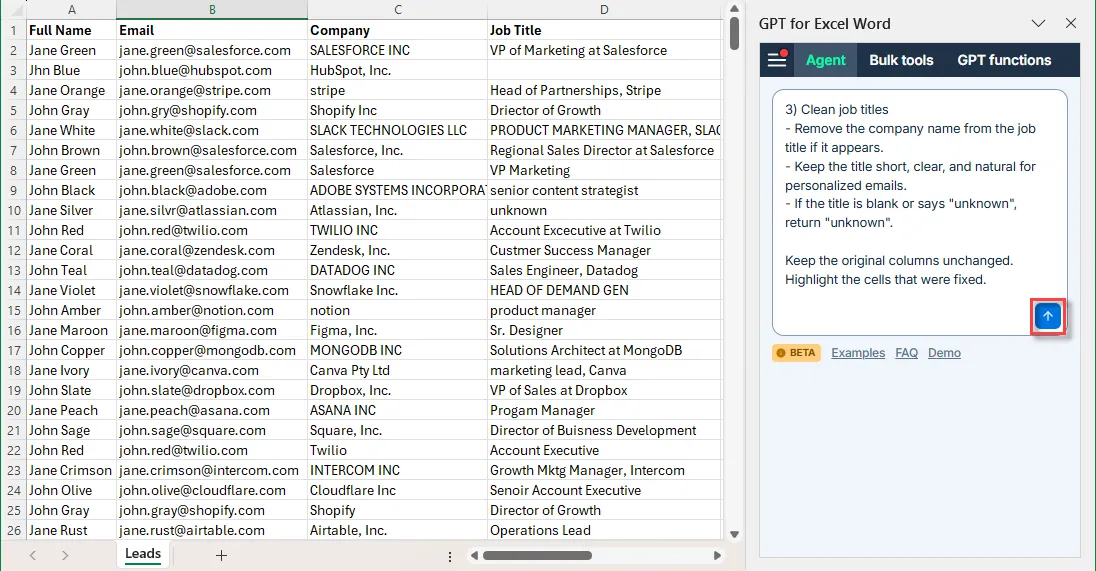
The Agent will:
- Analyze your request and draft a plan for cleaning the data based on your prompt and worksheet content.
- Process the data row by row, cleaning full names, company names, job titles, and emails.
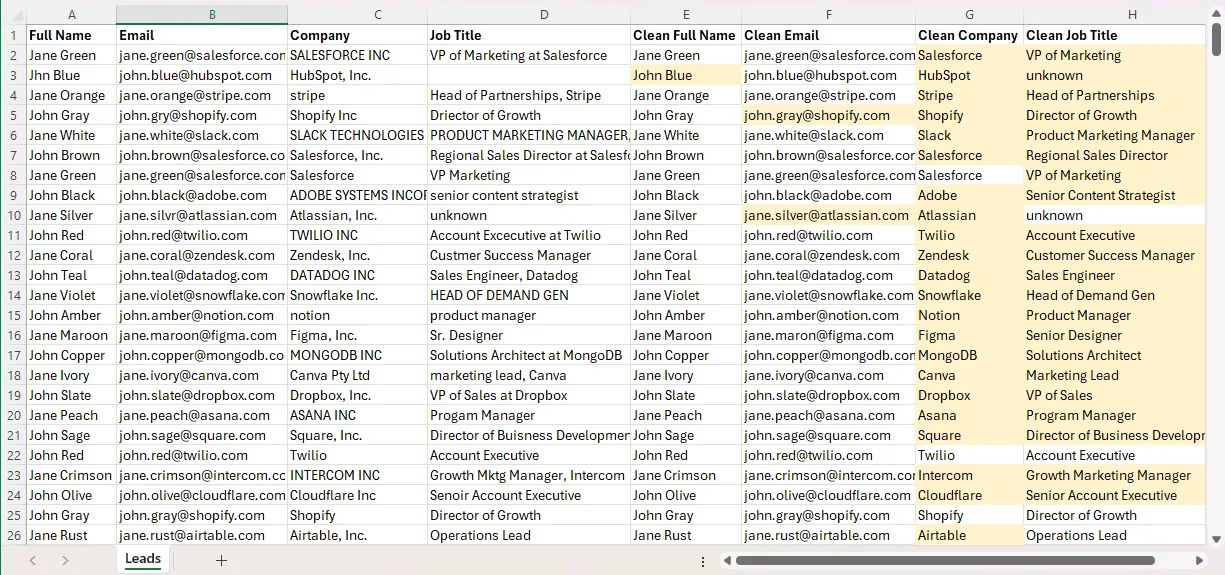
- Write the cleaned data into new columns next to your original data, so you can compare the results.
- Highlight the cells that were fixed so you can easily spot the changes.
You'll see the Agent's progress in the sidebar as it works through your leads.
Note: Processing 1,000 rows typically takes around a minute for each column.
Step 5: Review the cleaned Excel data
Once the Agent finishes, your workbook will have new columns with the cleaned data.
Check the highlighted cells to see the changes.
Step 6: Remove duplicates
Now that your data is clean, it's time to remove duplicates in Excel. Enter the second prompt in the Agent chat:
Remove duplicates when:
- the email matches another row, OR
- the full name + company match another row.
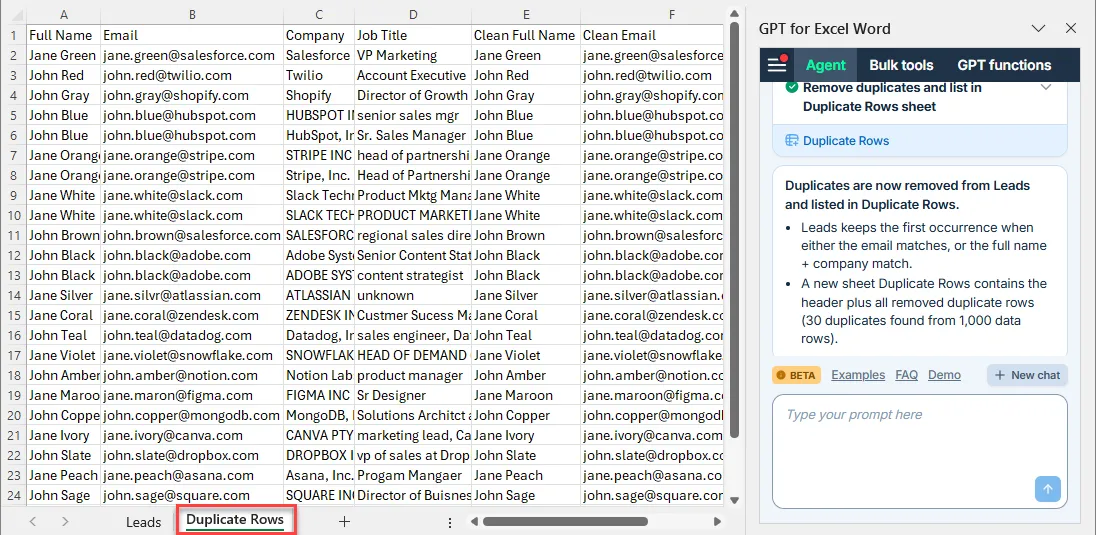
List the removed duplicates in a new worksheet called "Duplicate Rows".
Click the send button again.
The Agent will:
- Scan for duplicates by comparing emails and full name + company combinations across all rows.
- Remove duplicate rows, keeping the first occurrence and deleting subsequent matches.
- List the duplicate rows in a new worksheet called "Duplicate Rows".
For example:
- Jane Green (
jane.green@salesforce.com) appears twice — the duplicate is removed because the email matches. - John Gray at Shopify appears twice — the duplicate is removed because the full name + company match.
After deduplication, your list is trimmed from 1,000 rows to 970 clean, unique leads — ready for outreach. The removed duplicates are listed in a new worksheet called "Duplicate Rows".
Tips for better Excel data cleaning results
Start with a small test batch. Before running on your full export, test with 1-3 leads to verify the output meets your expectations. Adjust your prompt if needed.
Handle edge cases in your prompt. If some leads have no job title or say "N/A", tell the Agent what to do with them (e.g., "If the title is blank or says N/A, return unknown").
Split data cleansing and deduplication into two steps. Running the cleaning step first ensures that company names are standardized before deduplication. If you try to do everything in one prompt, the Agent might miss duplicates because "SALESFORCE INC" and "Salesforce, Inc." look different before cleaning.
Review email corrections carefully. Typo correction for emails is based on patterns (e.g., fixing "gry" to "gray" based on the full name). Always spot-check corrected emails before sending outreach.
Keep the original data. The prompt instructs the Agent to preserve your original columns. This lets you compare before and after, and roll back if anything looks off.
FAQ
Can I clean more than 1,000 rows at once?
Yes. The Agent can process thousands of rows. The data cleaning in Excel workflow is the same — the only difference is processing time. For very large exports (5,000+ rows), consider breaking the data into batches.
Does the Agent work with Google Sheets?
Yes. GPT for Sheets includes the same Agent functionality. The Excel data cleaning workflow described here works identically in Google Sheets — see the GPT for Sheets documentation for platform-specific details.
What if the Agent removes a row I want to keep?
The deduplication step keeps the first occurrence and removes subsequent matches. If you need more control, you can manually review the duplicate rows in the "Duplicate Rows" worksheet and keep the ones you want.
What if some company names should keep their suffix?
If certain companies are commonly known by their full legal name (e.g., "JPMorgan Chase & Co."), add an exception to your prompt: "Do not remove the suffix from JPMorgan Chase & Co."
Can I clean data in Excel without installing anything?
Basic Excel data cleaning — like removing extra spaces or fixing casing — can be done with built-in Excel functions (TRIM, PROPER, UPPER). But for intelligent cleaning like normalizing company names, fixing context-dependent typos, and stripping company names from job titles, you need AI. The GPT for Excel Agent handles all of this in plain language, without writing formulas.
For a side-by-side look at the Agent's alternatives — built-in features, formula add-ins, and dedicated platforms — see our comparison of AI data cleaning tools.
Related resources
- Agent guide for Excel — Full reference for Agent capabilities and settings
- Select the AI models used by the Agent — Configure which AI models power your data cleaning
- Agent use cases — More examples of what the Agent can do
- Best AI data cleaning tools — How GPT for Work compares with other AI data cleaning tools