You have an Excel file. You need it in Google Sheets. Sounds simple.
You upload it to Google Drive, open it, and… something looks off.
Header colors changed. Conditional formatting disappeared. A few formulas now show #NAME? instead of numbers. This happens when you convert Excel to Google Sheets without knowing what transfers and what doesn't.
The good news: Google Sheets handles .xlsx files very well. Most data, formatting, and formulas convert smoothly.
The bad news: VBA macros, linked workbooks, and certain advanced features won't survive the switch.
Let's walk through three ways to convert Excel to Google Sheets. We also cover what formatting and formulas survive the switch, what breaks, and how to fix common errors after conversion.
Method 1: Upload an Excel File to Google Drive and Open in Sheets
This is the most common way to upload an Excel file to Google Sheets. It keeps your original .xlsx file in Drive and creates a separate Google Sheets copy. So you always have both versions.
Here is how to do it:
Step 1
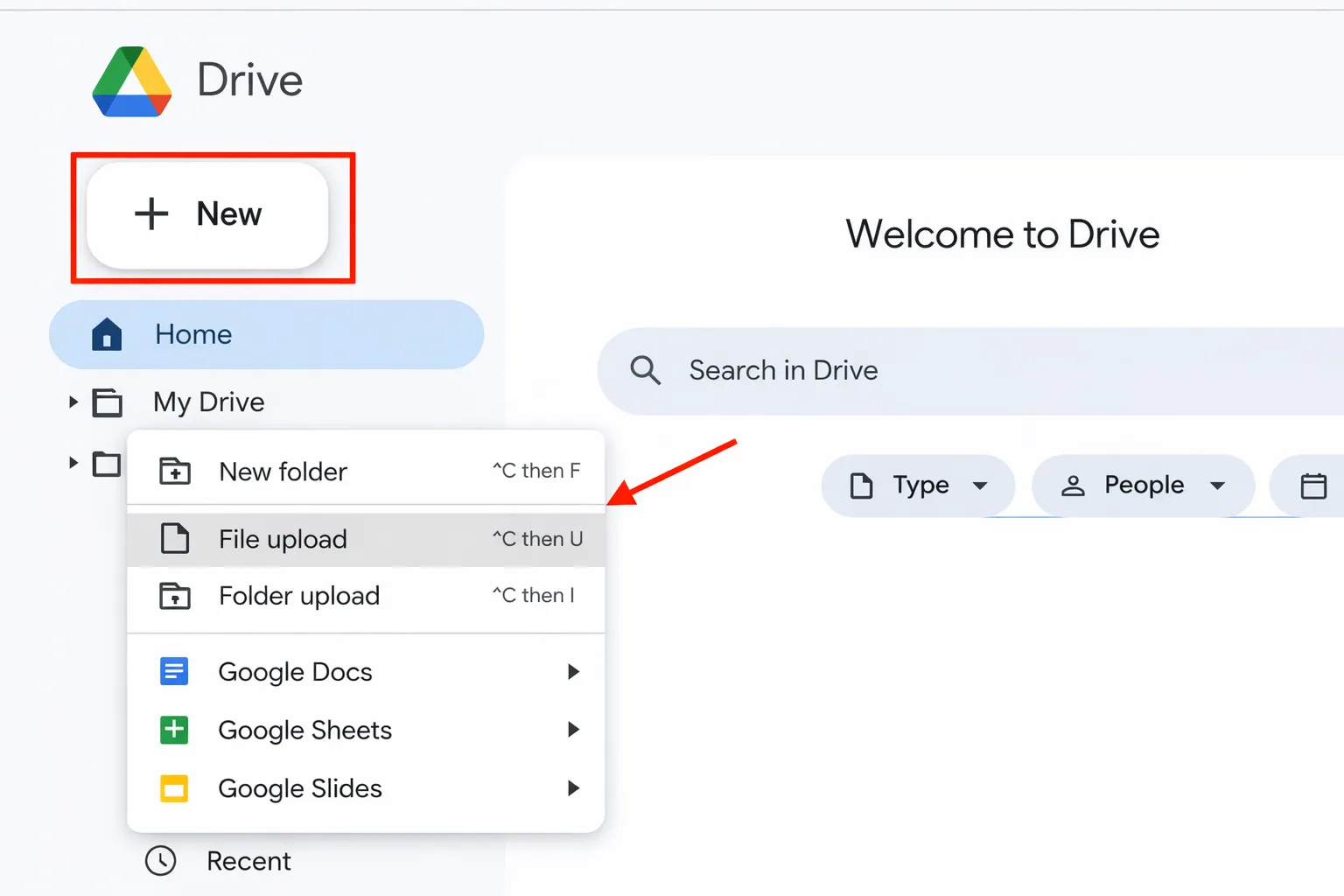
Go to drive.google.com. Click + New > File upload and pick your .xlsx file. You can also drag and drop it into Drive.
Step 2
Once the file uploads, double-click the uploaded file. It opens in Google Sheets.
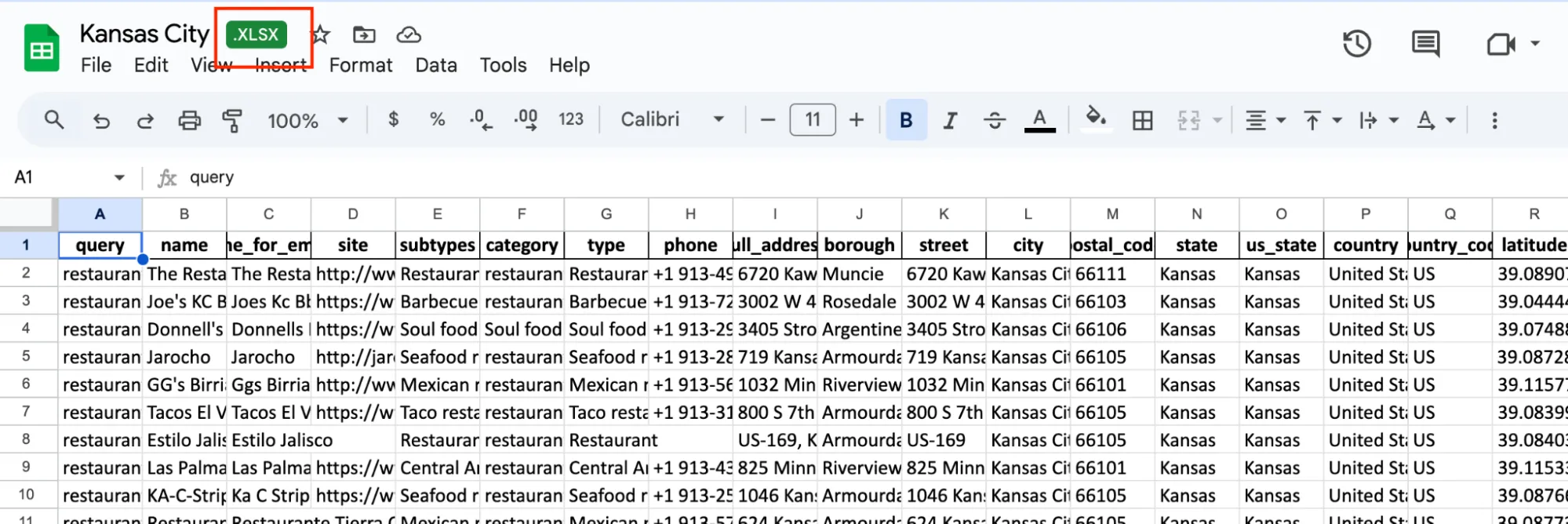
You'll notice a small green .XLSX tag next to the filename. That means you're still editing the Excel file inside Sheets, it's not fully converted yet.
Step 3
To fully convert it, click File > Save as Google Sheets.
A new tab opens with the converted version. The .XLSX label disappears.
You now have:
- The original Excel file
- A separate Google Sheets version
Pro tip: If you regularly move Excel files to Google Sheets, you can skip Step 3 entirely.
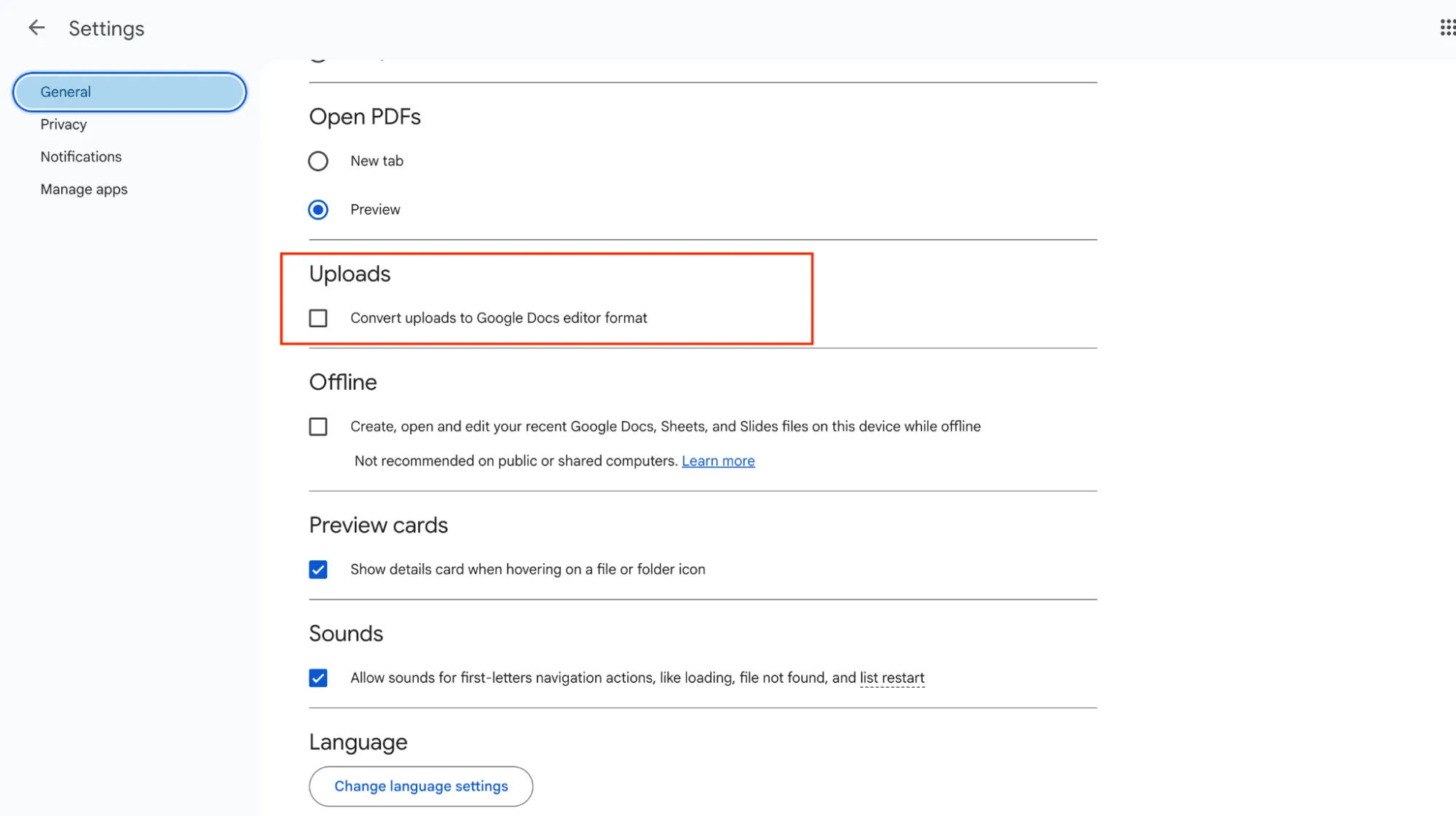
Go to Google Drive > Settings (gear icon) and check "Convert uploads to Google Docs editor format." After this, every Excel file you upload will automatically convert to Google Sheets. No extra clicks needed. Just remember that this only applies to new uploads.
Files already in your Drive will stay in their original format.
Method 2: Import an Excel File Directly into Google Sheets
Use this when you want to merge Excel data into a sheet you're already working on.
Instead of creating a brand new file, you pull the data right into your current spreadsheet.
This is helpful when you are building a report and need to bring in data from multiple Excel files into one place.
Step 1
Open any Google Sheet → click File > Import → go to the Upload tab → upload your Excel file. You can also click Select a file from your device to browse your computer.
Step 2
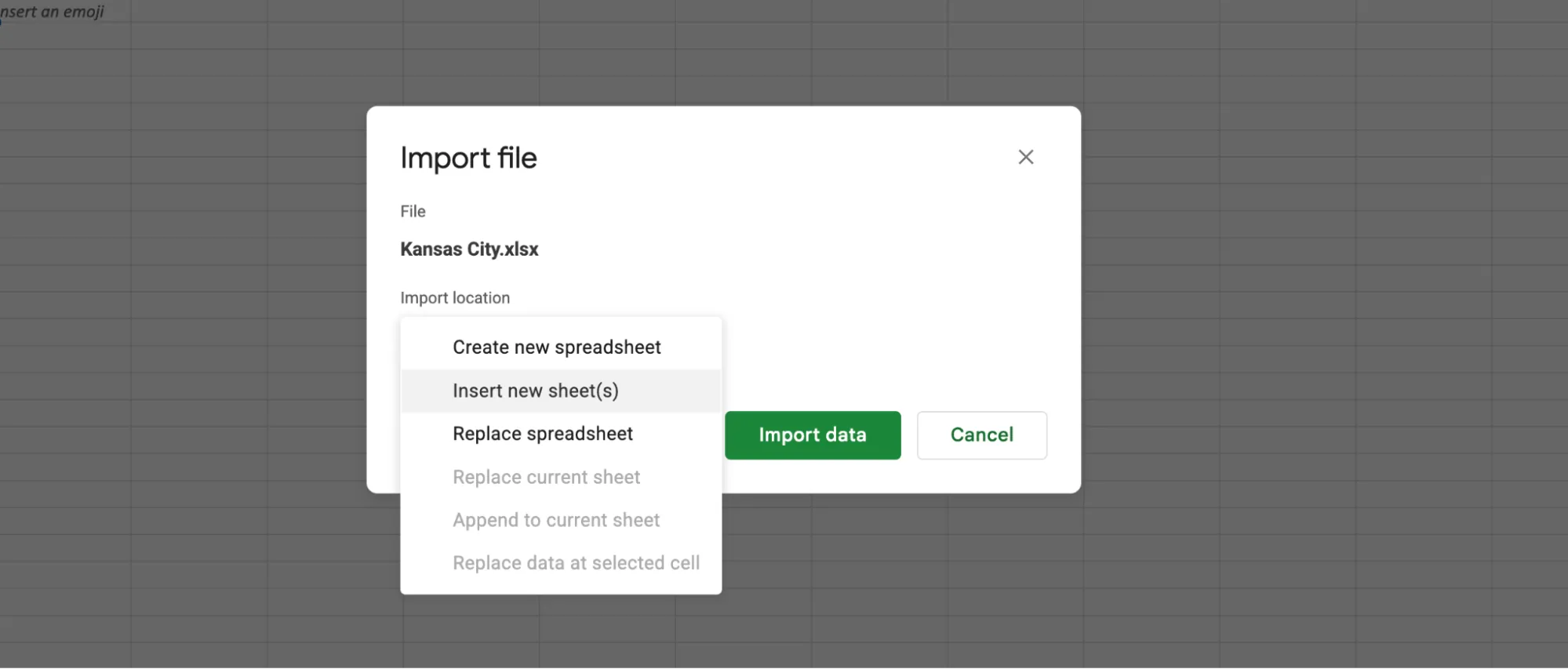
Choose how to import:
- Create new spreadsheet – makes a brand-new file with your Excel data
- Insert new sheet(s) – adds data as a new tab
- Replace spreadsheet – overwrites everything in your current file
- Replace current sheet – overwrites the active tab
If you are not sure which one to pick, go with Insert new sheet(s).
It is the safest choice because nothing gets deleted or overwritten.
Your existing data stays exactly where it is, and the imported Excel data shows up as a separate tab at the bottom.
Step 3
Click Import data. Your Excel data loads into the sheet.
Give it a quick look to make sure everything came through correctly.
Review:
- Conditional formatting
- External references
- Complex formulas
These are the most likely to need adjustments.
Method 3: Copy and Paste from Excel to Google Sheets
Sometimes you do not need to convert an entire workbook.
Maybe you just need one table, a few rows, or a specific range of data from a larger file. In that case, copy and paste is the quickest option.
Step 1: Open your Excel file. Select the cells you want and copy them (Ctrl+C on Windows, Cmd+C on Mac).
Step 2: Open a Google Sheet. Click on the cell where you want the data to start and paste it (Ctrl+V or Cmd+V).
Basic formatting like bold text, cell colors, and borders usually carries over. Formulas behave differently, though. Simple ones like SUM or AVERAGE often paste correctly, but more complex formulas may paste as static values instead of live calculations. Charts, pivot tables, named ranges, and macros do not carry over.
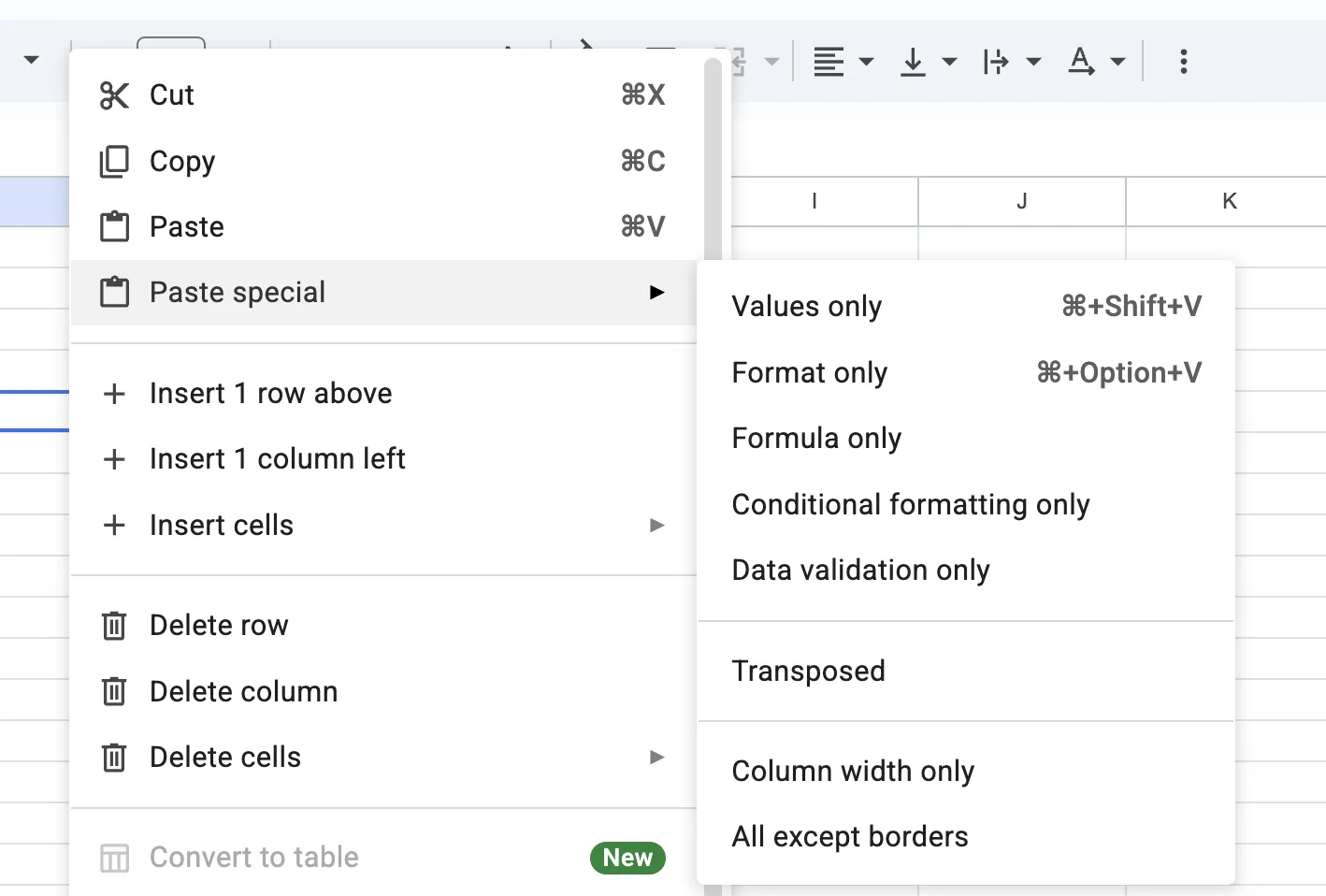
One thing to keep in mind: if the pasted data looks off, try right-clicking and choosing Paste special > Paste values only. Then reapply the formatting manually in Google Sheets. This gives you a cleaner starting point than dealing with broken formatting.
Use this method for quick one-off transfers, pulling a single table into an existing sheet, or grabbing specific data from a large workbook.
Formatting and Formula Compatibility: What Transfers and What Does Not
Not everything in your Excel file will look the same after you convert Excel to Google Sheets without losing formatting in mind. Some things transfer perfectly, and some do not. Knowing the difference upfront saves you from spending time fixing problems you could have avoided.
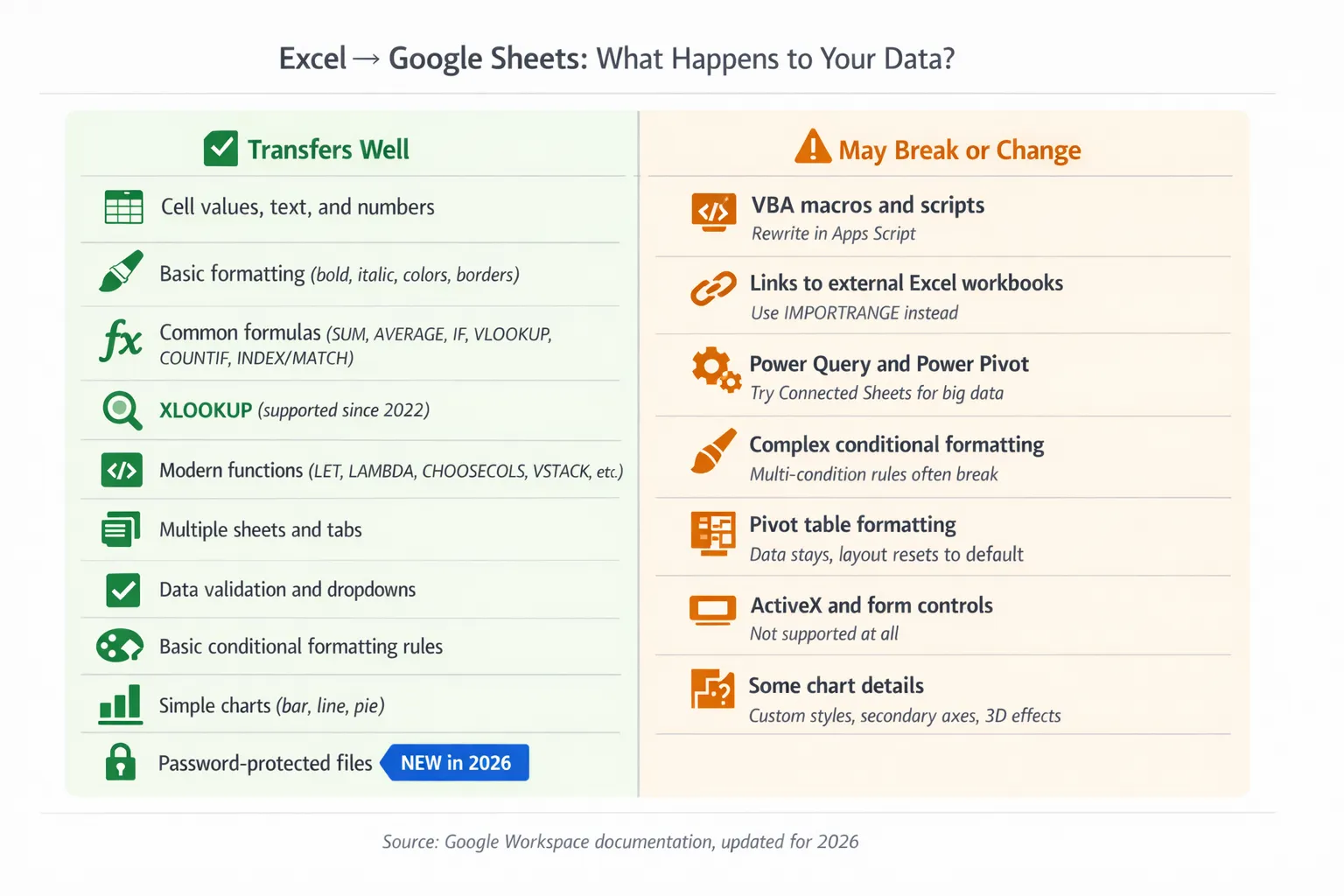
✅ What Transfers Well
Most Excel files convert smoothly to Google Sheets. In most cases, the following elements carry over without issues:
- Cell values (text and numbers)
- Basic formatting – bold, italic, font colors, cell backgrounds, and borders
- Common formulas –
SUM,AVERAGE,IF,VLOOKUP,COUNTIF,INDEX/MATCH - XLOOKUP (fully supported in Google Sheets)
- Modern functions –
IFS,SWITCH,TEXTJOIN,UNIQUE,SORT,FILTER,LET,LAMBDA,CHOOSECOLS,VSTACK - Multiple sheets and tabs
- Data validation and dropdown lists (visual styling may look slightly different)
- Basic conditional formatting rules
- Simple charts (bar, line, pie)
- Password-protected files – Google Sheets can open these by prompting for the password before allowing preview or editing
⚠️ What May Break or Change
Some Excel features don't translate cleanly to Google Sheets. These are typically advanced or Excel-specific tools that Sheets either handles differently or doesn't support at all.
Here's what to watch for:
VBA Macros and Scripts
Google Sheets does not support VBA. After conversion, all macros stop working.
To restore functionality, you'll need to rewrite them using Apps Script (JavaScript-based). Google also provides a Macro Converter add-on (available for certain Enterprise plans) that can translate some VBA scripts automatically though complex logic may still require manual adjustments.
Links to External Excel Workbooks
Formulas that reference other Excel files, such as
=[Budget.xlsx]Sheet1!$A$1
will break after conversion. If both files are converted to Google Sheets, you can recreate the connection using the IMPORTRANGE function.
Power Query and Power Pivot
There is no native equivalent in Google Sheets.
For large-scale data analysis, Google offers Connected Sheets (integrations with BigQuery and Looker), but it is not a direct replacement for Excel's data modeling tools.
Complex Conditional Formatting
Basic rules transfer correctly. However, multi-condition rules or advanced formula-based formatting may need to be recreated.
Pivot Table Formatting
Pivot tables themselves convert, but custom layout settings and styling often reset to Google Sheets' default appearance.
ActiveX Controls and Form Controls
These are not supported in Google Sheets and will not carry over.
Advanced Chart Customization
Charts generally convert, but detailed styling, such as custom themes, secondary axes, or 3D effects, may change or disappear.
How to Fix Formulas That Break After Conversion
After conversion, you might see:
#NAME?#ERROR!#REF!
This usually means:
- The function doesn't exist in Sheets
- The syntax is slightly different
- The reference broke
Here is a quick reference table to help you figure out what needs fixing:
Excel Feature | Works in Google Sheets? | What to Do |
|---|---|---|
SUM, AVERAGE, IF, COUNTIF | Yes | No changes needed |
VLOOKUP, HLOOKUP | Yes | No changes needed |
XLOOKUP | Yes | No changes needed |
INDEX/MATCH | Yes | No changes needed |
IFS, SWITCH, TEXTJOIN | Yes | No changes needed |
LET, LAMBDA | Yes | No changes needed |
UNIQUE, SORT, FILTER | Yes | No changes needed |
VBA Macros | No | Rewrite in Apps Script or use GPT for Sheets to help translate |
GETPIVOTDATA | May break | Rebuild your pivot table in Sheets |
CUBE functions | No | No direct equivalent in Sheets |
Power Query / Power Pivot | No | Use Connected Sheets or Apps Script |
Named ranges | May not transfer | Recreate them via Data > Named ranges |
Structured table references (Table1[Column]) | No | Replace with standard cell references like A2:A100 |
Quick way to find broken formulas: Press Ctrl + ` (backtick key, left of the 1 key) on Windows or Mac. This toggles formula view and shows the actual formulas in every cell instead of values. You can also do this from the menu: View > Show > Formulas. Scan through your sheet and look for cells showing #NAME? or #ERROR!. Fix them one by one, or use GPT for Sheets to handle them in bulk.
How GPT for Work Makes Post-Conversion Cleanup Easier
Conversion takes seconds. Cleanup takes time.
Doing it manually for a few cells is fine, but when you have dozens of errors spread across multiple tabs, it gets old fast.
This is where GPT for Work helps.
Its GPT for Sheets add-on brings AI directly into your spreadsheet so you can fix conversion issues without switching tools.
Fix formulas in plain English. Instead of searching for the Google Sheets version of every broken Excel formula, just describe what it should do.
Example prompt: "Write a formula that sums column B only where column A says Revenue." GPT for Sheets gives you the working formula right away.
Clean up messy data after import. Dates that turned into serial numbers, blank rows left behind from unmerged cells, inconsistent text formatting.
Write a simple prompt and fix hundreds of cells at once.
Turn VBA logic into Apps Script. Paste your old Excel macro code into the sidebar and ask it to rewrite the logic for Google Sheets. It generates the Apps Script version so you do not have to learn a new language from scratch.
Final Takeaways
Google Sheets handles Excel files extremely well, but not perfectly. Most conversions in 2026 are smooth, and the gap between the two tools keeps getting smaller.
Here is a quick recap of the methods we covered:
- Upload via Google Drive when you want a full file conversion with both versions saved
- File > Import when you need to pull Excel data into an existing Google Sheet
- Copy and paste when you only need a specific table or range
- GPT for Work when you want AI to handle the post-conversion cleanup for you
Before you convert, keep these things in mind:
- Most formulas (SUM, IF, VLOOKUP, XLOOKUP) transfer without any changes
- Macros need to be rewritten in Apps Script
- Always check for formula errors after conversion
- Turn on auto-conversion in Drive Settings if you switch files regularly
The conversion itself takes seconds. The cleanup is what eats your time.
Pick the right method for your situation, and you will be working in Google Sheets before your coffee gets cold.
Try GPT for Work free and skip the manual cleanup entirely.
FAQ
Can you convert Excel to Google Sheets?
Yes. Upload the .xlsx file to Google Drive and open it in Google Sheets. Or use File > Import from inside any Google Sheet. Both methods keep most of your formatting and formulas intact.
How do I convert Excel to Google Sheets on Mac?
The same way you do on Windows. Everything happens in the browser, so the process is identical on Mac, Windows, and Chromebook. No software installation needed.
Will I lose my formulas when converting?
Most standard formulas like SUM, IF, VLOOKUP, and XLOOKUP convert without problems. Check the compatibility table above for the full list of what works and what does not.
How do I convert multiple Excel files at once?
Enable auto-conversion in: Drive > Settings > Convert uploads to Google Docs editor format. Every new file you upload after that converts automatically.
Can you export from Excel directly to Google Sheets?
There is no "Export to Google Sheets" button inside Excel. Upload the .xlsx file to Google Drive and open it from there. Takes a few seconds.