How do you automate meta titles and descriptions with AI?
You give an AI agent that lives in your spreadsheet — the GPT for Sheets Agent — a single plain-language prompt describing your rules (character limits, tone, which columns to read and write), and it writes a meta title and meta description for every product row in one run. A second prompt has the Agent audit its own output against those same rules and fix the rows that miss them, so the whole catalog is done without formulas, scripts, or copy-paste.
Every product page on your e-commerce store needs a meta title, meta description, H1 heading, and structured data. Writing these by hand for hundreds of products is slow, repetitive, and inconsistent. Most SEO teams either fall behind or skip elements entirely — leaving organic traffic on the table.
The GPT for Sheets Agent, an AI assistant for Google Sheets, offers a better approach. Describe what you need in plain language, and the Agent generates, reviews, and extends your SEO data in bulk — directly in your spreadsheet. You give it the rules (character limits, tone, formatting), and it applies them across every row.
In this guide, you'll work through a three-step workflow on a 30-product home & kitchen catalog: First generate meta titles and descriptions, then review and fix them against SEO rules, and finally extend the set with H1 headings and JSON-LD product names. Three prompts, one spreadsheet, all done in minutes.
No formulas. No scripts.
Tip: The Agent is also available in GPT for Excel. You can follow the same workflow in an Excel workbook.
Who this is for
This workflow is especially useful for:
- E-commerce SEO managers and specialists
- Product catalog and content operations teams
- Marketing teams managing product feeds
- Anyone responsible for on-page SEO across many product pages
If you already work in Google Sheets, this fits directly into your existing workflow.
What you'll need
Before you start, make sure you have:
- GPT for Sheets installed. If you haven't installed it yet, get GPT for Sheets here and follow the quickstart guide to set it up.
- A Google Sheet with your product data. This tutorial uses three columns: product name, category, and key features.
- Basic familiarity with SEO metadata (helpful, not required). Use the quick glossary below if you're newer to on-page SEO.
Want to jump straight in? Grab the template with sample data and all three prompts, or keep reading for the full walkthrough.
Quick SEO glossary
- Meta title: The clickable blue headline that usually appears in search results for a page.
- Meta description: The short summary text under the title in search results.
- H1 heading: The primary on-page heading users see on the product page itself.
- JSON-LD product name: The structured data
namevalue that helps search engines identify the product.
The use case: Automating SEO metadata for an e-commerce product catalog
You manage the product catalog for a home & kitchen e-commerce store. Your spreadsheet contains 30 products — coffee makers, cookware, bakeware, kitchen tools, and more — each with a product name, category, and a list of key features.
You need to produce a core set of on-page SEO data for every product page before launch. Your goals:
- Generate SEO-compliant meta titles (≤60 characters) and meta descriptions (120–155 characters) for all 30 products.
- Review the generated metadata against SEO best practices and fix any issues — character limits, missing calls to action, inconsistent formatting.
- Extend the set with H1 page headings and JSON-LD product names that complement the meta titles without duplicating them.
The Agent handles all three steps in the same spreadsheet.
Step 1: Prepare your product data in Google Sheets
Start by setting up your source data in a Google Sheet.
- Create a new Google Sheet.
- Set up three columns:
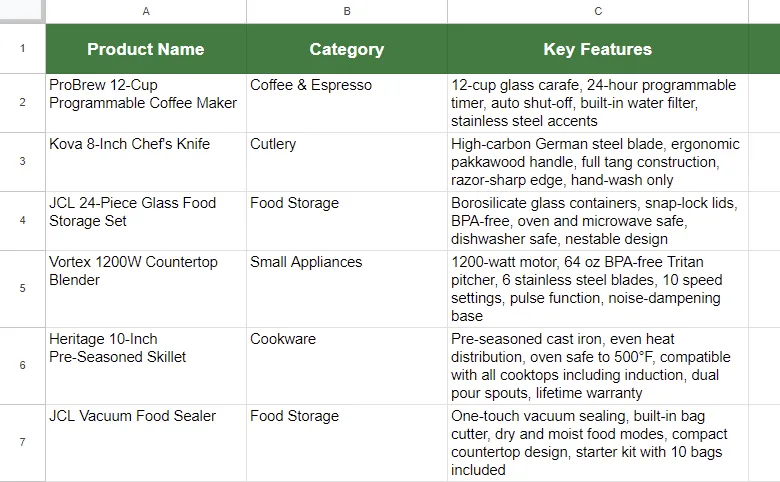
A1:Product NameB1:CategoryC1:Key Features
- In rows 2 through 31, enter your 30 products. Each row should have the product's full name (including brand), its category, and a comma-separated list of key features.
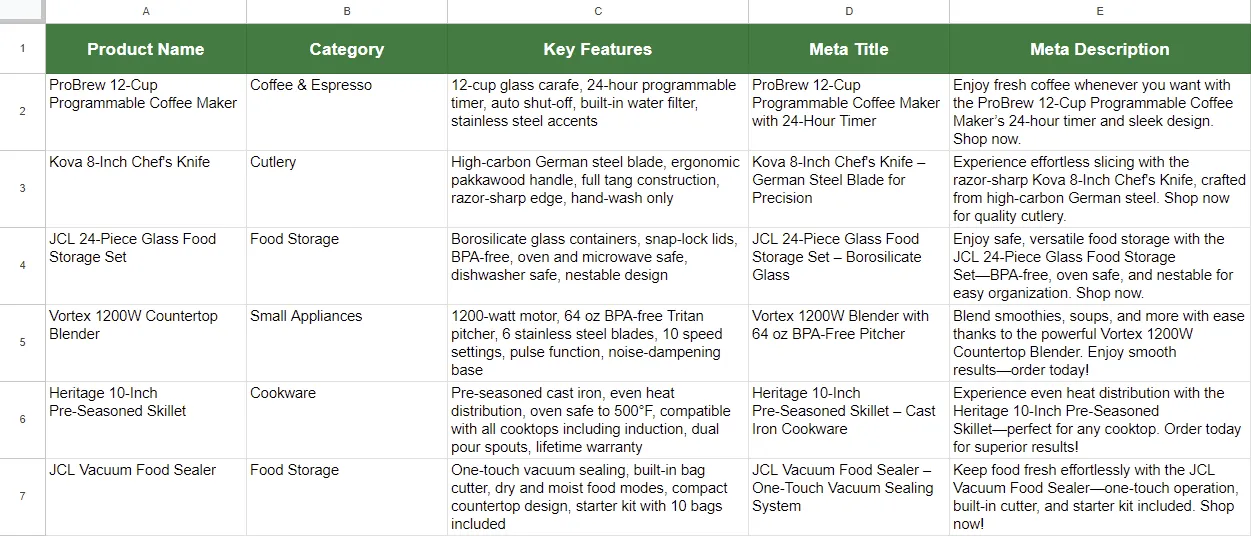
Your sheet should look like this:
Step 2: Open the GPT for Sheets Agent
With your data prepared, it's time to open the Agent.
- Make sure you're on the sheet with your product data.
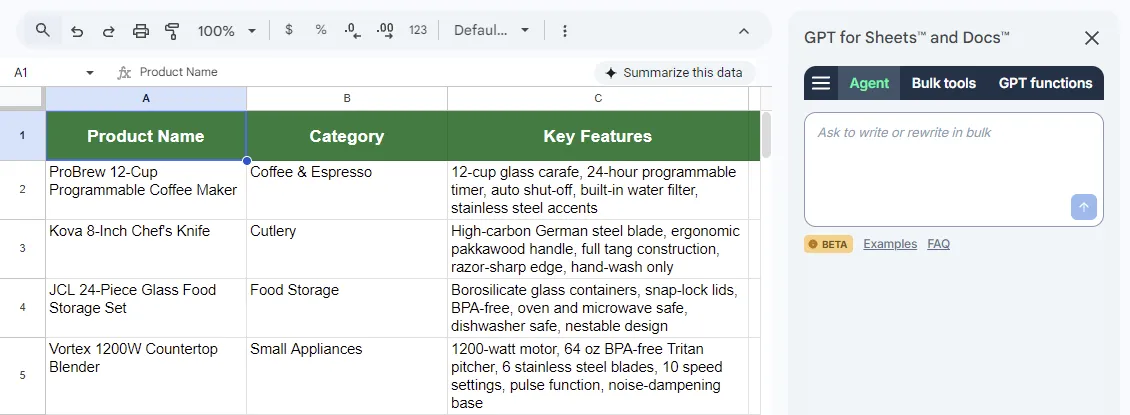
- In the menu bar, select Extensions > GPT for Sheets and Docs > Open.
The GPT for Sheets sidebar opens on the right side of your screen, with the Agent selected by default.
Step 3: Generate SEO meta titles and meta descriptions in bulk
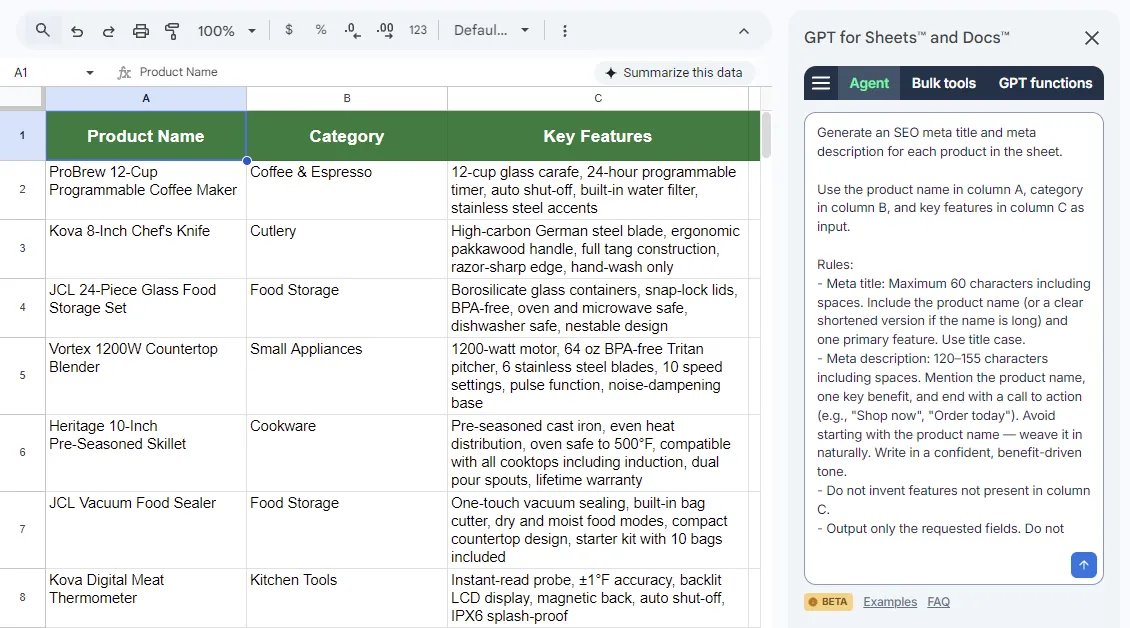
The first prompt tells the Agent to generate a meta title and meta description for each product. Enter the following prompt in the Agent chat:
Generate an SEO meta title and meta description for each product in the sheet.

Use the product name in column A, category in column B, and key features in column C as input.

Rules:
- Meta title: Maximum 60 characters including spaces. Include the product name (or a clear shortened version if the name is long) and one primary feature. Use title case.
- Meta description: 120–155 characters including spaces. Mention the product name, one key benefit, and end with a call to action (e.g., "Shop now", "Order today"). Avoid starting with the product name — weave it in naturally. Write in a confident, benefit-driven tone.
- Do not invent features not present in column C.
- Output only the requested fields. Do not include explanations.
- Output the meta title in column D and the meta description in column E.
What the rules do:
Rule | Purpose |
|---|---|
Character limits | Meta titles ≤60 chars, meta descriptions 120–155 chars — fits standard SERP display widths |
Title case | Ensures consistent capitalization across all meta titles |
Benefit-driven tone with CTA | Meta descriptions that sell, not just describe |
Avoid starting with the product name | Avoids repetitive, formulaic meta descriptions |
Do not invent features | Prevents the Agent from hallucinating features not in your data |
Output columns D and E | Keeps results organized next to the source data |
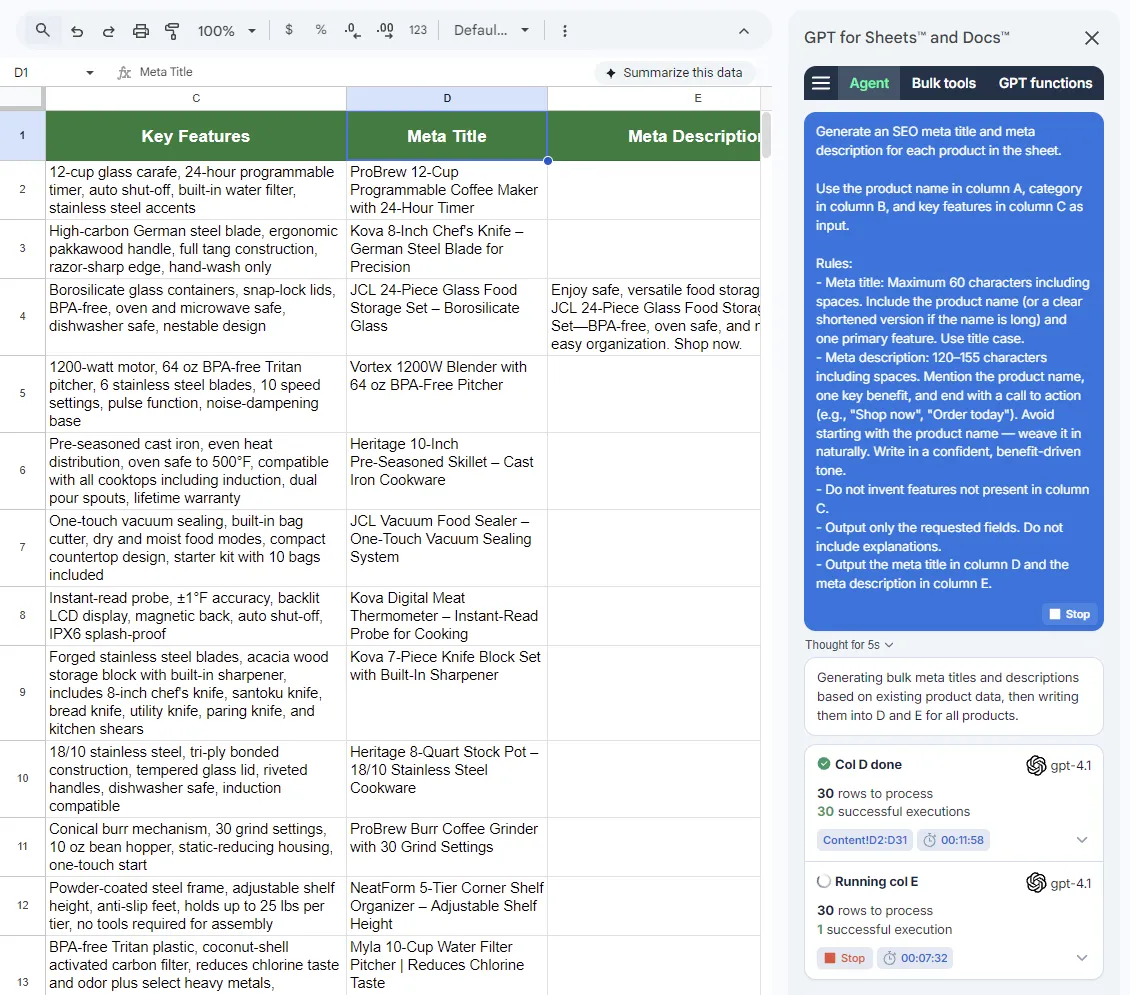
Click the send button to submit your prompt. The Agent will:
- Analyze your request and draft a plan for executing it based on your prompt and spreadsheet data.
- Process the data row by row, generating a meta title and meta description for each product.
You'll see the Agent's progress in the sidebar as it works through your content.
Note: Processing 30 rows may take up to a minute depending on the length of your feature lists.
Tip: Behind the scenes, the Agent uses the Custom prompt bulk tool to process the rows. These runs are saved to your bulk tool history, so you can reuse them later.
Once the Agent finishes, your sheet will have two new columns:
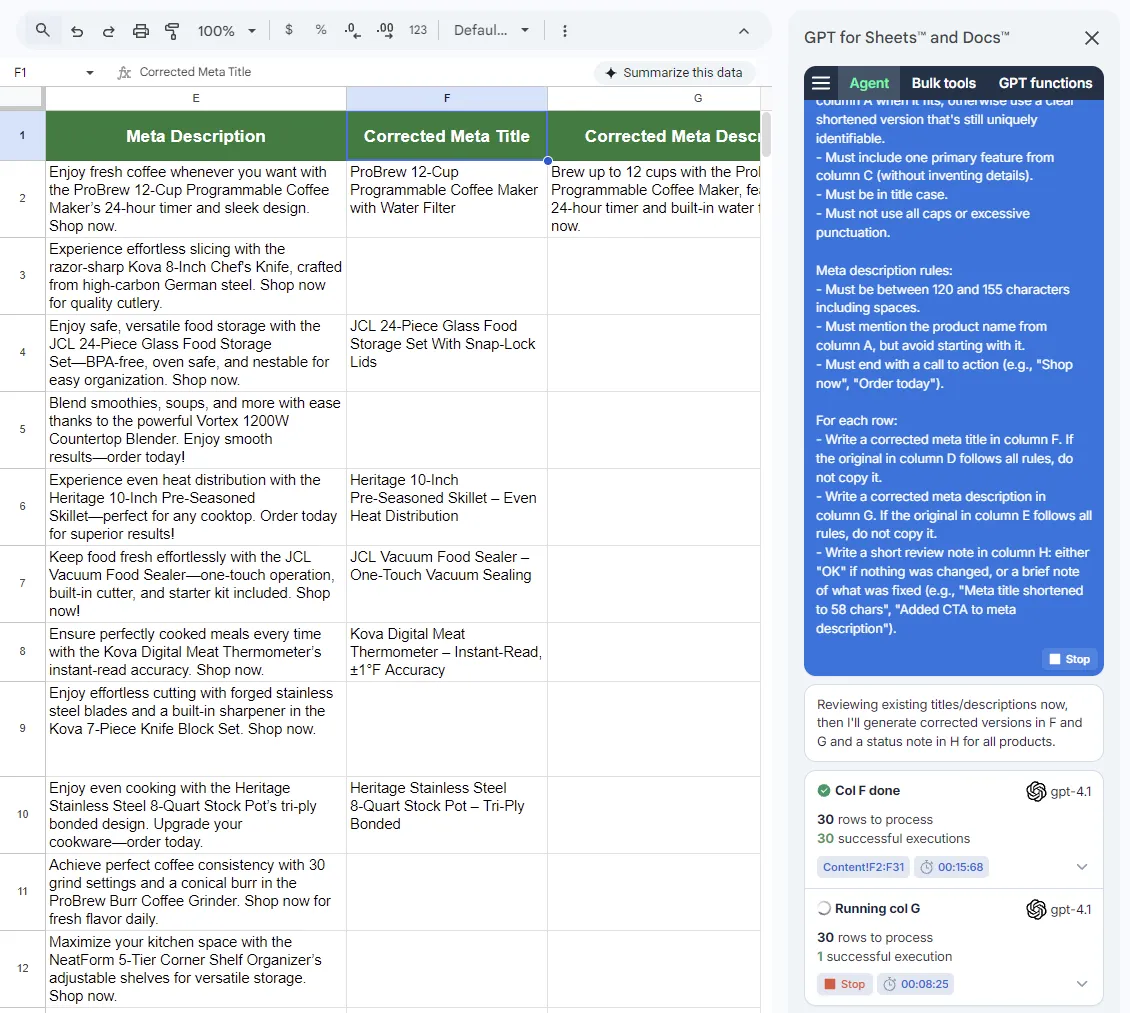
Scan a few rows. Do the meta titles include the product name (or a shortened version of the name)? Do the descriptions end with a call to action? Are the character lengths reasonable? You'll do a thorough review in the next step.
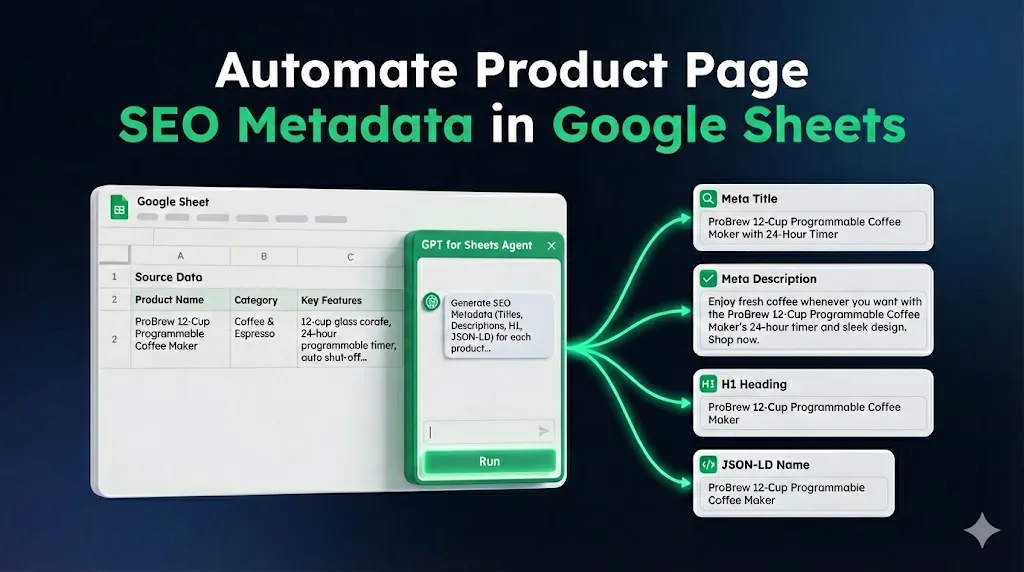
Illustrative output (one row):
- Source data (A-C):
ProBrew 12-Cup Programmable Coffee Maker|Coffee & Espresso|12-cup glass carafe, 24-hour programmable timer, auto shut-off, built-in water filter, stainless steel accents - Meta title (D):
ProBrew 12-Cup Programmable Coffee Maker with 24-Hour Timer - Meta description (E):
Enjoy fresh coffee whenever you want with the ProBrew 12-Cup Programmable Coffee Maker’s 24-hour timer and sleek design. Shop now.
Step 4: Review and adjust the SEO metadata
Now use the Agent to review its own output. Rather than checking 30 rows by hand against character limits and formatting rules, you give the Agent the rules and let it flag and fix any issues.
This is a powerful pattern: the Agent generates content in one step, then quality-checks it in the next.
Enter the following prompt in the Agent chat:
Review every meta title in column D and meta description in column E. Check each one against these rules:

Meta title rules:
- Must be 60 characters or fewer including spaces.
- Must include the full product name from column A when it fits; otherwise use a clear shortened version that's still uniquely identifiable.
- Must include one primary feature from column C (without inventing details).
- Must be in title case.
- Must not use all caps or excessive punctuation.

Meta description rules:
- Must be between 120 and 155 characters including spaces.
- Must mention the product name from column A, but avoid starting with it.
- Must end with a call to action (e.g., "Shop now", "Order today").

For each row:
- Write a corrected meta title in column F. If the original in column D follows all rules, do not copy it.
- Write a corrected meta description in column G. If the original in column E follows all rules, do not copy it.
- Write a short review note in column H: either "OK" if nothing was changed, or a brief note of what was fixed (e.g., "Meta title shortened to 58 chars", "Added CTA to meta description").
Click the send button. The Agent reads columns D and E, checks each row against the rules, writes corrected versions to columns F and G, and logs what it changed in column H.
Once the Agent finishes, your sheet will have three new columns:
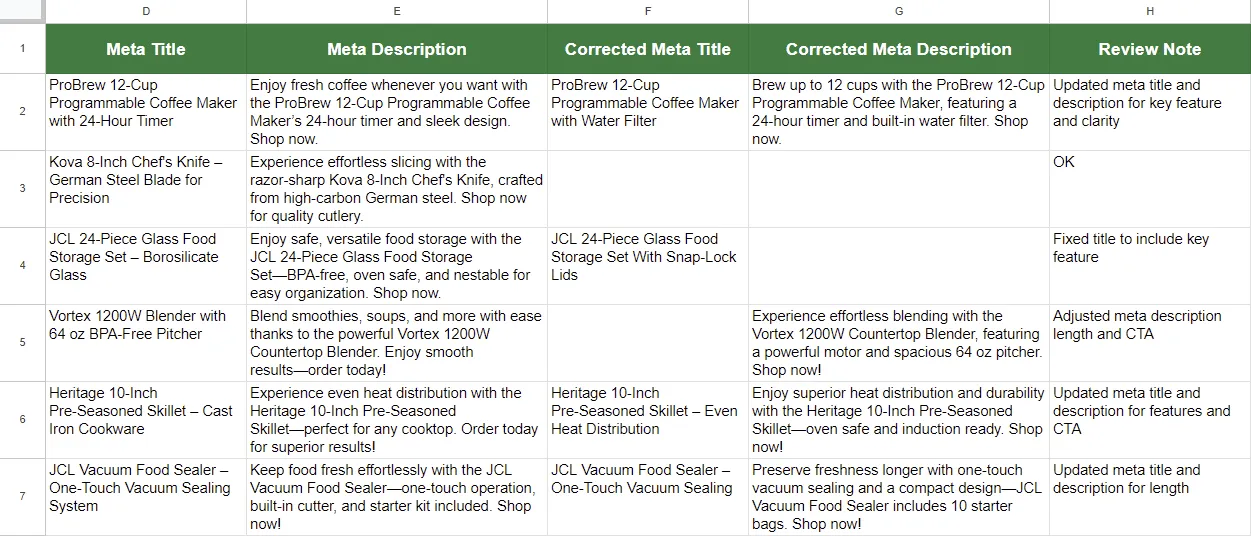
Reading the review notes: Column H tells you exactly what happened for each row. "OK" means the original passed all checks — columns F and G will be empty for that row, meaning the originals in D and E are your final versions. A fix note means the Agent wrote a corrected version in column F or G — scan these to confirm the changes look right.
Step 5: Generate H1 headings and JSON-LD product names
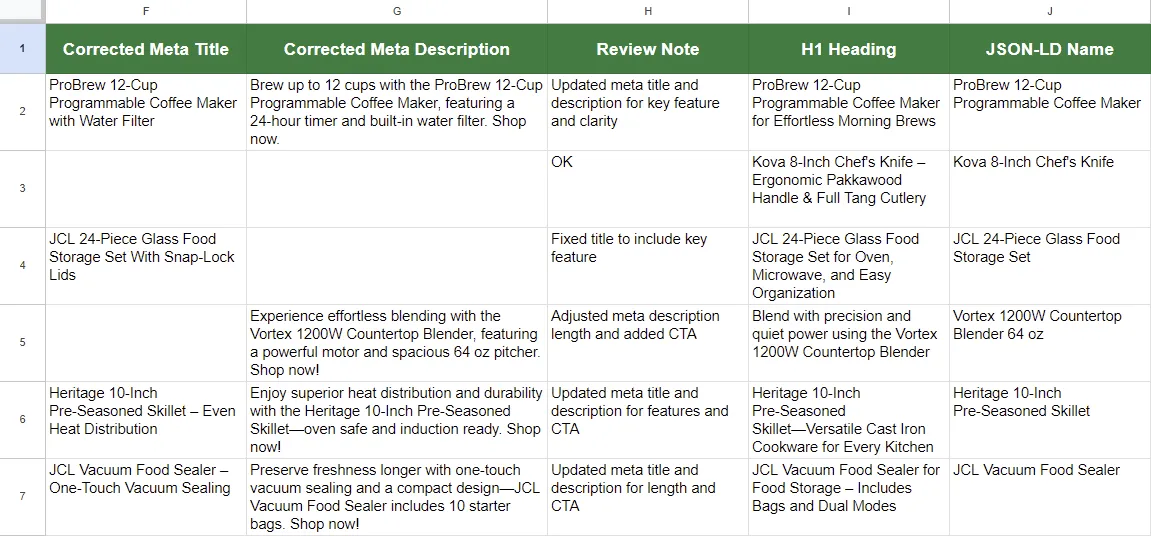
The final prompt extends your SEO data with two more elements: an H1 page heading and a clean product name for JSON-LD structured data. This prompt uses all existing columns as context, preferring the corrected meta titles and descriptions from columns F and G where they exist, and falling back to the originals in columns D and E otherwise.
Enter the following prompt in the Agent chat:
For each product, generate an H1 heading and a JSON-LD product name.

Use columns A through C as the primary input. Also check columns D through G:
- Use the meta title from column F if present, otherwise use column D.
- Use the meta description from column G if present, otherwise use column E.

Write results in columns I and J:
1. H1 heading (column I): Maximum 70 characters including spaces. A clear, descriptive page heading that includes the product name and category. Do not duplicate the product's meta title — use a different angle or emphasize a different feature.
2. JSON-LD name (column J): A clean, unformatted product name suitable for the "name" property in Schema.org/Product structured data. No promotional language — do not use words like "best", "top", or "premium". Include the brand if present in the product name.

Rules:
- Do not invent features not present in the source data.
- Do not use all caps or excessive punctuation.
- Output only the requested fields. Do not include explanations.
What the rules do:
Rule | Purpose |
|---|---|
H1 ≤70 characters | Keeps headings concise and scannable on the product page |
Do not duplicate the meta title | Forces a different angle — better for SEO and user experience |
JSON-LD: no promotional language | Schema.org product names should be factual, not marketing copy |
Use columns A through G | Builds on the source data and the reviewed metadata from Step 4 |
Click the send button. The Agent generates an H1 heading and JSON-LD product name for each row.
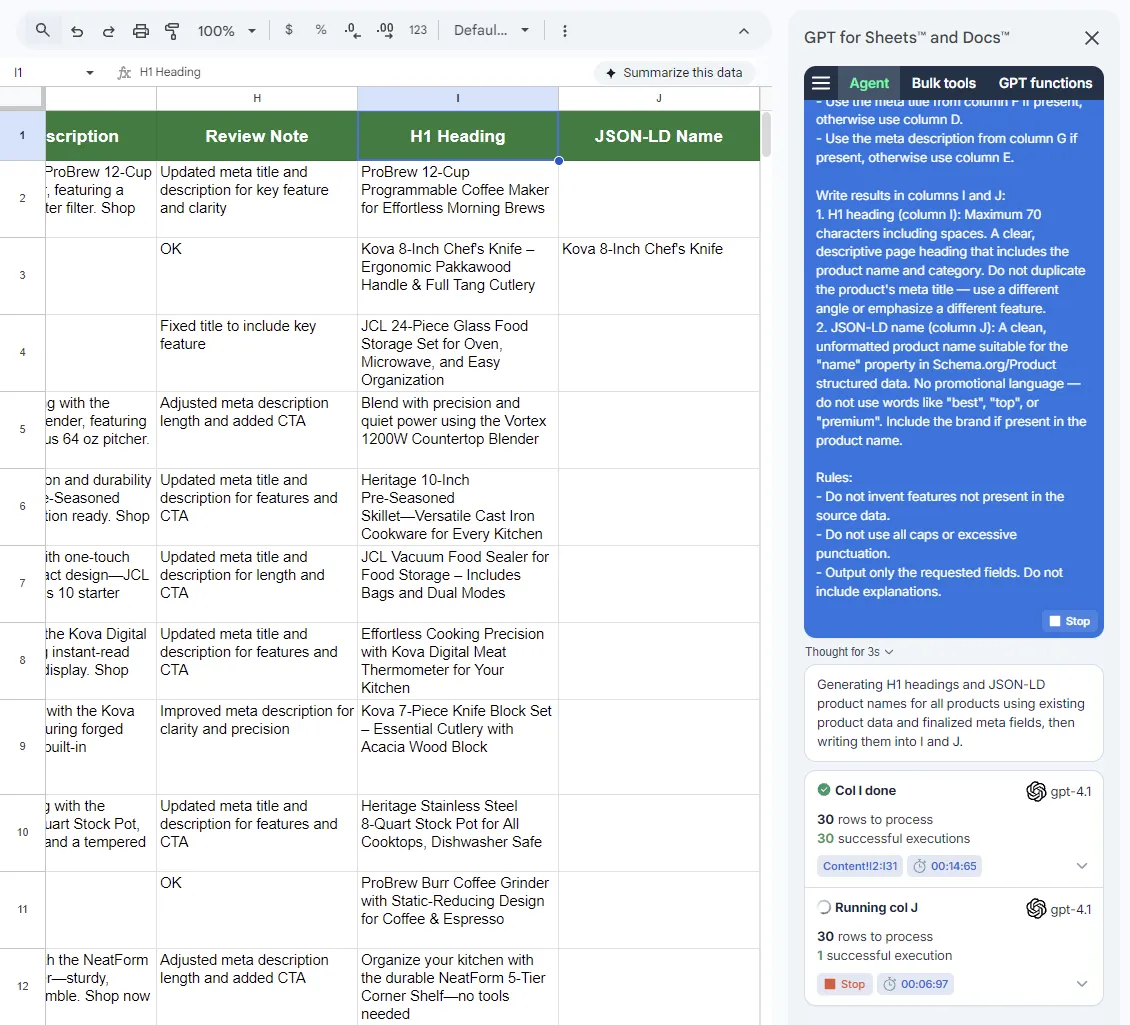
Once the Agent finishes, your sheet has the core set of SEO data:
Step 6: Review the final results
With all columns populated, do a final spot check across your sheet.
Things to check:
- Meta titles are ≤60 characters and include the product name (or a shortened version of the name).
- Meta descriptions are 120–155 characters and end with a call to action.
- H1 headings don't repeat the meta title — they use a different angle or feature.
- JSON-LD names are clean, unformatted, and free of promotional language.
- No invented features in any output column — everything should trace back to your key features in column C.
Tips for better results
Start with a small test batch. Tell the Agent to run each prompt on 3–5 rows first to verify the output. Adjust your rules before processing the full catalog.
Tune character limits to your CMS. 60 characters for meta titles and 155 for meta descriptions are common defaults, but your platform may truncate at different points. Check your live SERP previews and adjust the limits in the prompts accordingly.
Reuse the review prompt as a QA template. The review pattern from Step 4 works for any rule-based check. Adapt the rules for Open Graph tags, image alt text, ad copy character limits, or any other content that needs to meet specific constraints.
Keep JSON-LD names factual. Schema.org product names should match what a customer would search for — not marketing slogans. The "no promotional language" rule in the third prompt handles this automatically.
Build incrementally. This three-step workflow adds columns left to right. To extend it further (e.g., Open Graph titles, image alt text, social descriptions), write another prompt that references the existing columns as context. The Agent can see the full sheet.
Template
Get started immediately with our pre-built template:
Make a copy of the SEO automation template
The template includes:
- 30 product rows with product names, categories, and key features
- All three prompts ready to paste into the Agent
Just make a copy, open the Agent, paste the first prompt, and run it.
Related resources
- Agent guide for Google Sheets — Full reference for Agent capabilities and settings
- Select the AI models used by the Agent — Configure which AI models power the Agent
- Custom prompt bulk tool — Run custom prompts across multiple rows
- Agent use cases — More examples of what the Agent can do
FAQ
What if the Agent generates meta titles that exceed 60 characters?
This is exactly what Step 4 (the review prompt) is designed to catch. The Agent will shorten the title and log the change in the Review Notes column. You can also lower the character limit in the first prompt (e.g., to 55 characters) to build in a buffer.
Can I customize the review rules?
Yes. The rules in the review prompt are fully customizable. You can add rules (e.g., "must include the brand name"), change character limits, or adjust tone requirements to match your brand's SEO guidelines.
Does the Agent work with Excel?
Yes. GPT for Excel includes the same Agent functionality. The workflow is nearly identical — see the GPT for Excel documentation for platform-specific details.
Can I generate SEO metadata in languages other than English?
Yes. Specify the target language in each prompt (e.g., "Write all output in German"). You can also combine this workflow with a translation step — see our bulk translation guide for details.
What's JSON-LD and why include it?
JSON-LD is a structured data format that helps search engines understand your product pages. The name property tells Google the exact product name to display in rich results. Including it in your spreadsheet means you can paste it directly into your Schema.org markup without additional cleanup.