You need a spreadsheet. You open Google Sheets because it's free and you can share it with your team in two clicks. Your coworker opens Excel because that's what they've used for 15 years and it gives them the tools to analyze their 200,000-row dataset.
Both are right. The better choice depends on what you need the spreadsheet to do.
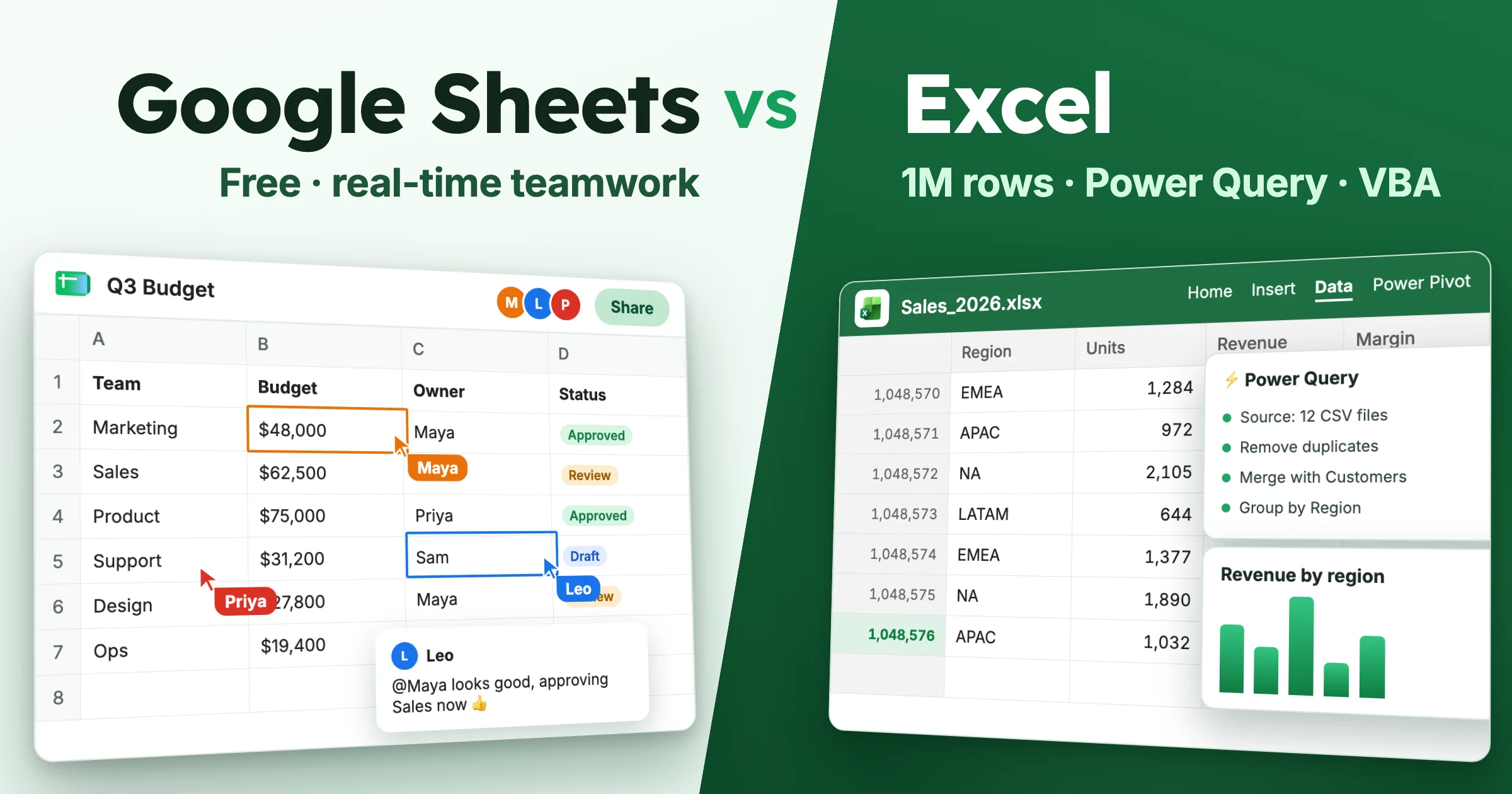
Google Sheets vs Excel comes down to how you work, not which app has more features. Google Sheets is built for teams that collaborate in real time from anywhere. Excel is particularly strong for large datasets and advanced analysis, with tools like Power Query, Power Pivot, and VBA macros.
Below, we compare pricing, collaboration, data handling, formulas, automation, and AI features so you can pick the one that fits your workflow.
Google Sheets vs Excel at a Glance
Google Sheets | Microsoft Excel | |
|---|---|---|
Price | Free with a Google account; Google Workspace from $7 per user per month | Free web version; desktop app with Microsoft 365 (from $99.99 per year) or a $179.99 one-time license |
Where it runs | Browser, iOS, and Android | Windows, Mac, browser, iOS, and Android |
Size limit | 20 million cells per spreadsheet | 1,048,576 rows by 16,384 columns per worksheet |
Collaboration | Real-time editing, comments, chat, and link sharing | Real-time co-authoring for files saved in OneDrive or SharePoint |
Data tools | QUERY, IMPORT functions, Connected Sheets | Power Query, Power Pivot, Python in Excel, Solver |
Automation | Apps Script, recorded macros | VBA, Office Scripts, Power Automate |
Built-in AI | Gemini | Copilot |
Offline work | After setup in Chrome or Edge | Built into the desktop app |
Best for | Shared trackers, budgets, and team files | Large datasets, financial models, and heavy analysis |
What Is Google Sheets?
Google Sheets is a free, browser-based spreadsheet app from Google. It launched in 2006 and is part of Google Workspace (formerly G Suite).
You open it in your browser, start working, and everything saves to Google Drive automatically. There's no File > Save, and once your changes have synced, they stay saved even if your laptop shuts down unexpectedly.
It covers what most people need from a spreadsheet: formulas, charts, conditional formatting, pivot tables, and data validation, with hundreds of built-in functions including XLOOKUP, VLOOKUP, and INDEX/MATCH.
Its biggest selling point is collaboration: several people can edit the same sheet at once, and nobody emails files back and forth. It also connects directly with other Google tools such as Google Forms and Google Docs, and it has mobile apps for iOS and Android.
What Is Microsoft Excel?
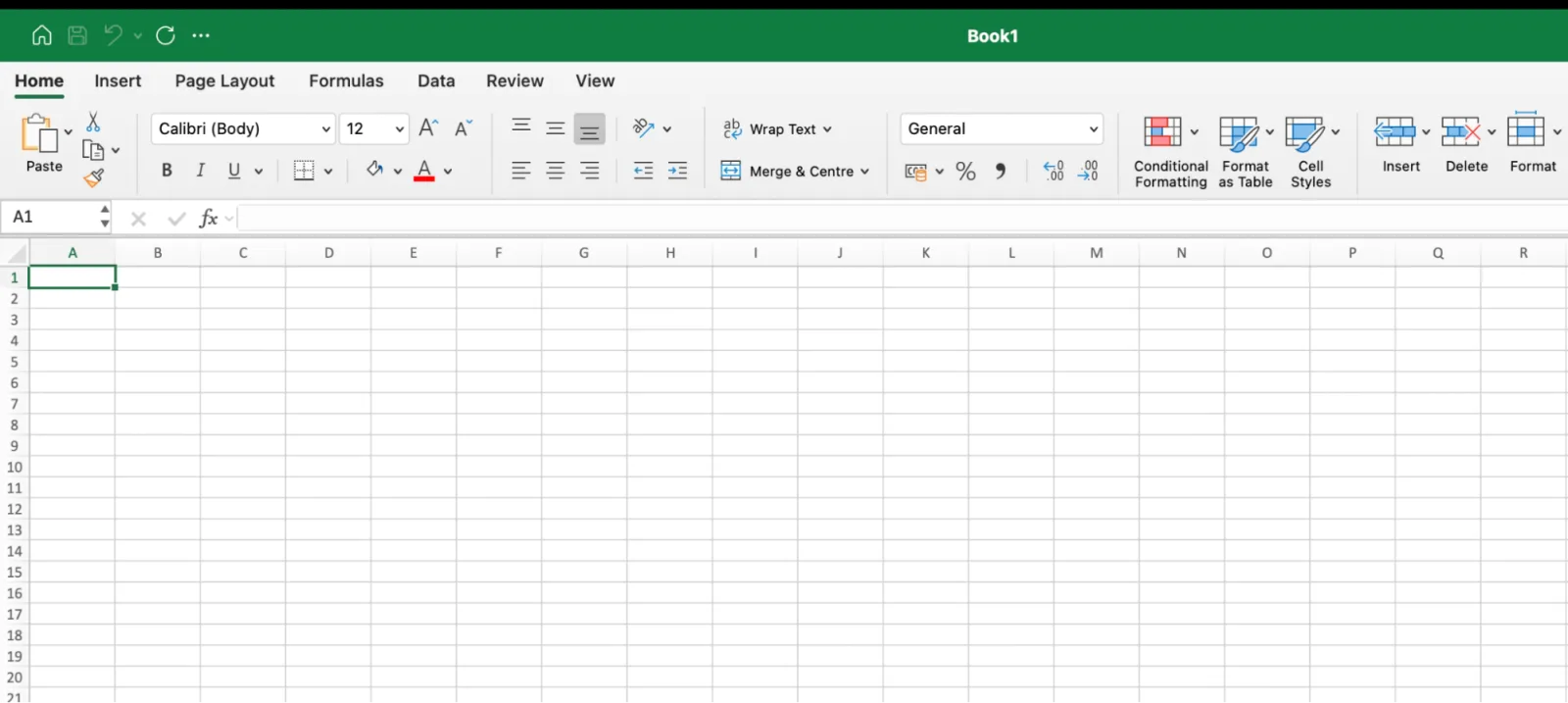
Microsoft Excel is a spreadsheet application available on desktop, web, and mobile. It has been around since 1985 and is part of Microsoft 365 (formerly Office 365).
The desktop version runs on your own computer, which makes it a strong option for demanding calculations and offline work.
Each worksheet holds up to 1,048,576 rows and 16,384 columns. You get hundreds of built-in functions, a wide range of chart types (including sunburst, box and whisker, and funnel charts), and analysis tools like the Analysis ToolPak, What-If Analysis, and Solver. Power users add VBA macros, Power Query, and Power Pivot, the main reasons finance teams and data analysts stick with Excel. We cover each of them below.
Excel for the web is free with a Microsoft account. It handles everyday spreadsheet work and real-time collaboration, but it doesn't run VBA macros or offer the full desktop Power Pivot experience. For the desktop app, you buy a one-time license or subscribe to a Microsoft 365 plan that includes it. Some features differ between Windows, Mac, and the web.
Google Sheets vs Excel: Feature-by-Feature Breakdown
Pricing and Cost
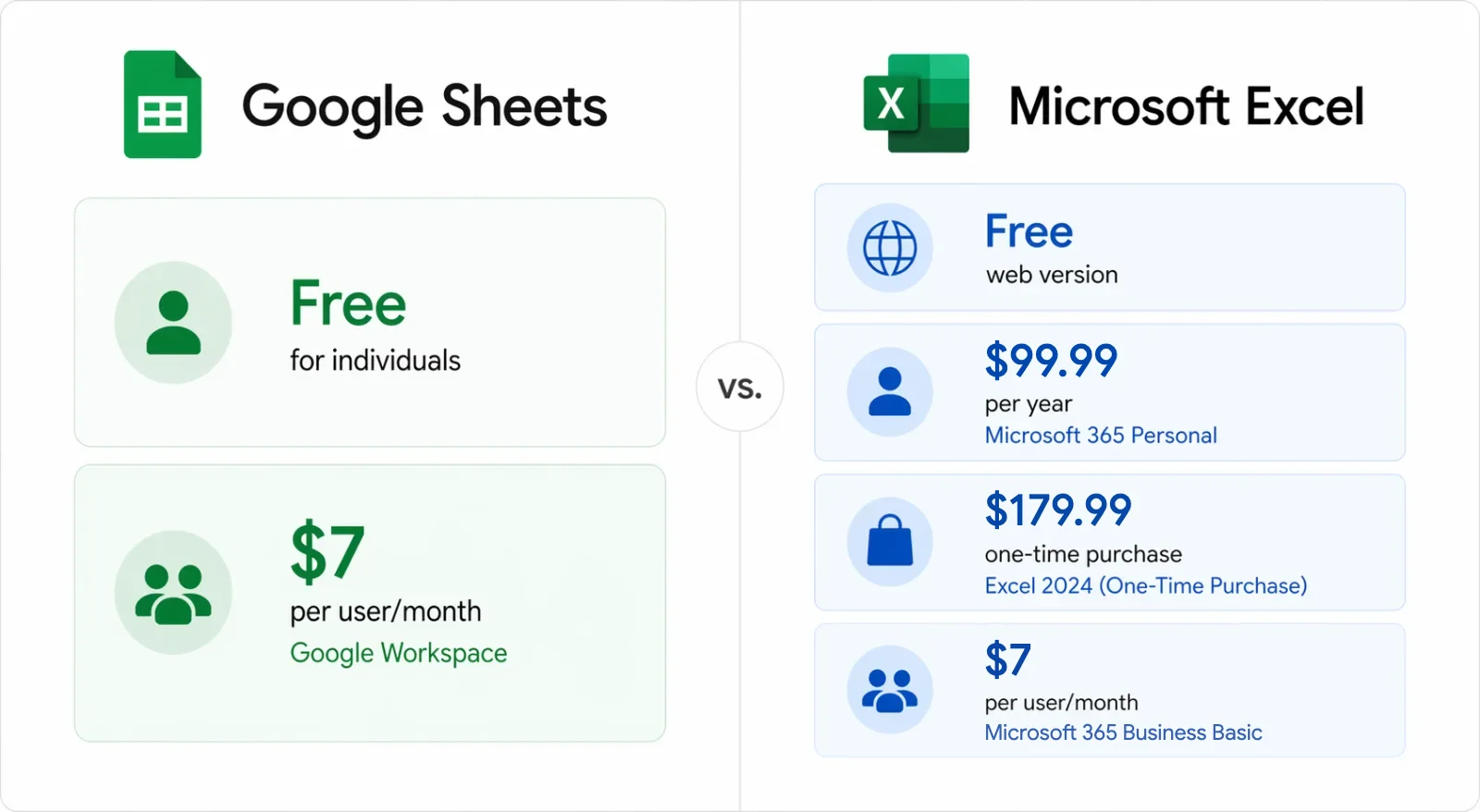
Google Sheets is free for personal use with a Google account, including its formulas, charts, and collaboration features. Teams that need admin controls, shared drives, and more storage can move to a paid Google Workspace plan, starting at $7 per user per month for Business Starter with an annual commitment.
Excel for the web is free too. The desktop app requires either a one-time license ($179.99 for Excel 2024) or a Microsoft 365 plan such as Microsoft 365 Personal at $99.99 per year. On the business side, Microsoft 365 Business Basic ($7 per user per month) covers only the web and mobile apps; plans that include desktop Excel cost more. These are US list prices as of September 2026 and vary by region and billing commitment.
For individuals, Google Sheets gives you a capable spreadsheet for free, while Excel's power-user features need a paid plan or license. For businesses, compare the whole package: the software you already pay for, your storage needs, and the desktop features you rely on matter more than a dollar or two a month.
If your work is mostly shared trackers, budgets, and reports, the free version of Google Sheets may be all you need. Excel is easier to justify when tools like Power Query save your team real time.
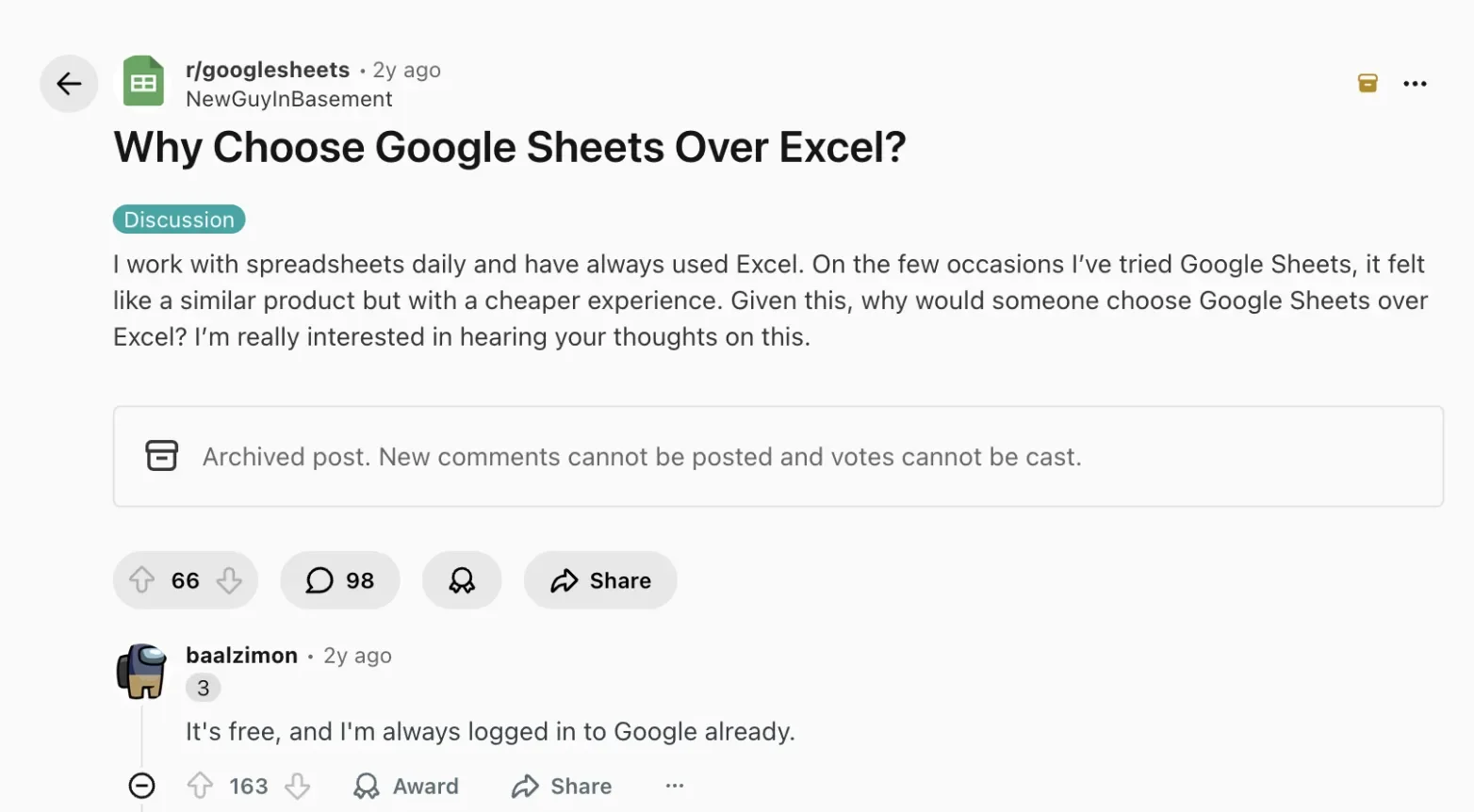
Price and convenience are often what users mention first. In an r/googlesheets thread asking why anyone would choose Sheets over Excel, the top reply was simply that it's free and they're always logged in to Google already.
Collaboration and Sharing
Collaboration is one of Google Sheets' biggest strengths.
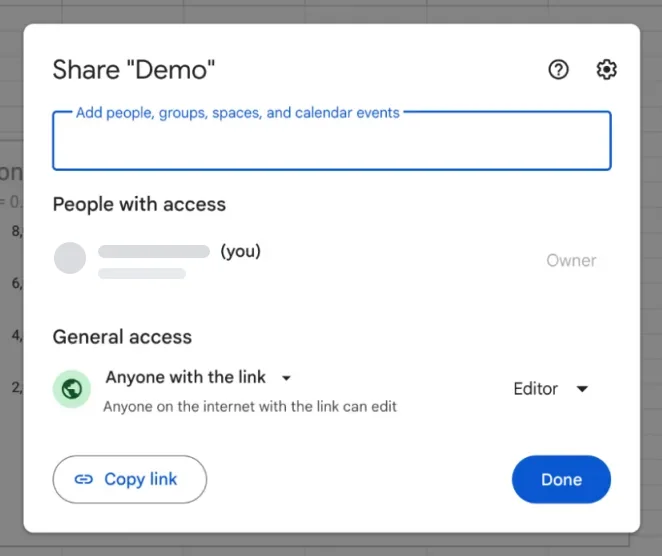
To share a sheet, click Share in the top-right corner, add people by email or copy the link, and choose what they can do: Viewer, Commenter, or Editor. Your teammates open the file and start working. Colored selections show which cell each person is editing, and every change appears live.
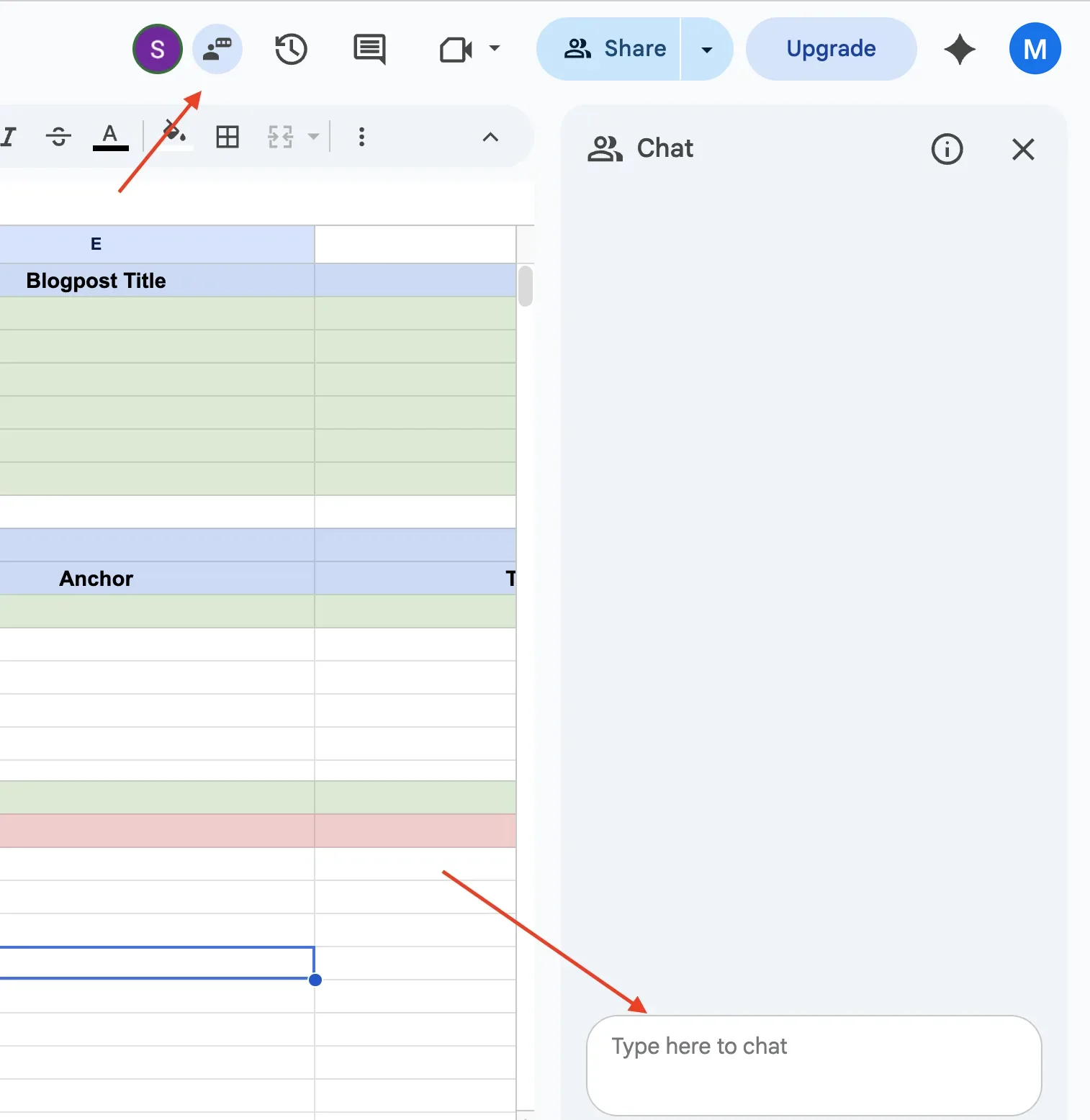
When other people have the file open, a Show chat button lets you talk to them without leaving the spreadsheet. You can also comment on specific cells and tag people with @mentions, and version history lets you restore an earlier version if something goes wrong.
Excel also supports real-time co-authoring in Excel for the web and the Microsoft 365 desktop apps, as long as the workbook is saved in OneDrive or SharePoint. Collaborators can join from the browser without a paid desktop subscription. Older Excel versions and some workbook features can block co-authoring.
For remote teams, small businesses, and anyone sharing files with clients outside their organization, Google Sheets is usually the simpler starting point. Teams already working in Microsoft 365 may find Excel's collaboration tools just as good.
Data Handling and Performance
Google Sheets supports up to 20 million cells per spreadsheet, double the previous 10 million limit, with the change rolling out to all accounts from September 2026.
That's enough for many workflows, but the cell limit doesn't tell you how smoothly a file will run. Large ranges, complex formulas, imports, and heavy formatting can slow recalculation well before you reach it.
Excel is generally better suited to demanding analysis, particularly on desktop, where calculations run on your own computer's processor. Workbooks with hundreds of thousands of rows are practical, although speed still depends on memory, formulas, and workbook design.
Excel also comes with data tools that Google Sheets doesn't have in the same form:
- Power Query pulls data from databases, CSV files, APIs, and websites, then cleans, reshapes, and loads it into your sheet in one repeatable workflow. If your data is messy or comes from several sources, it can save hours of manual preparation.
- Power Pivot builds data models that connect multiple tables, like a small database inside your workbook. It's only available in Excel for Windows.
- Python in Excel runs Python code, with libraries like pandas and Matplotlib, straight from a cell, with the calculation happening in Microsoft's cloud. It's included with business and enterprise Microsoft 365 plans on Windows and Mac, and in preview for Personal and Family plans.
Google Sheets offers Connected Sheets, which lets you analyze BigQuery and Looker data without importing the whole dataset, plus add-ons and connectors for services such as Salesforce and HubSpot. Their setup, pricing, and transformation capabilities vary.
If you work with project trackers, budgets, or small reports, Google Sheets is enough. If your work involves large datasets, heavy calculations, or complex data models, desktop Excel is usually the better choice.
Formulas and Functions
Google Sheets and Excel share most everyday functions. SUM, IF, XLOOKUP, VLOOKUP, COUNTIF, and INDEX/MATCH work much the same in both, although syntax and behavior differ in places. If you know Excel, most of that knowledge transfers to Google Sheets.
Excel has a few specialized options that stand out. STOCKHISTORY pulls historical stock prices. Cube functions (CUBEMEMBER, CUBEVALUE) connect Excel to SQL Server Analysis Services and Power Pivot data models for BI work. Excel also has extensive statistical, financial, and engineering functions, plus the Analysis ToolPak for regressions and ANOVA.
Google Sheets has its own useful options:
- GOOGLEFINANCE pulls stock and currency data, although quotes may be delayed.
- GOOGLETRANSLATE translates text inside a cell.
- IMPORTRANGE, IMPORTHTML, IMPORTXML, and IMPORTDATA pull data from other spreadsheets, web pages, and public URLs. They're convenient for simple imports, but access restrictions and page structure limit what they can retrieve.
- QUERY runs SQL-like statements (SELECT, WHERE, GROUP BY) on a range. Excel has no single equivalent, although its newer GROUPBY and PIVOTBY functions cover the most common grouping and summarizing cases.
For day-to-day work like budgets, reports, and trackers, both platforms cover what you need. The gap matters when your workflow depends on a particular function. For advanced financial modeling, statistics, and BI-style data modeling, Excel usually has the edge.
Comparing Two Sheets
To compare two Excel workbooks, the Inquire add-in and Spreadsheet Compare are available on Windows in Microsoft 365 Apps for enterprise and Office Professional Plus.
In Google Sheets, you can highlight the cells that differ between two tabs with conditional formatting. Select the range on the first tab, starting at A1, open Format > Conditional formatting, choose Custom formula is, and enter =A1<>INDIRECT("Sheet2!"&ADDRESS(ROW(),COLUMN())). Conditional formatting can't reference another tab directly, so the formula builds each cell's address on Sheet2 as text and passes it to INDIRECT.
Automation and Macros
Both platforms let you automate repetitive work, but with different tools.
Excel uses VBA (Visual Basic for Applications) for macros. VBA is powerful and has been around since the 1990s. You can automate data entry, report generation, and formatting, pull data from other Office apps, and, on Windows, even send emails through Outlook. The downside is the learning curve: VBA syntax can feel unfamiliar, and it only runs in desktop Excel, not in Excel for the web or the mobile apps.
Microsoft also offers Office Scripts, written in TypeScript, a language built on JavaScript. Office Scripts run in Excel for the web as well as the desktop apps. They come with business and education Microsoft 365 plans and are in preview for Personal and Family.
Excel also works with Power Automate, which builds flows across Microsoft 365 apps: trigger on new emails, update files in OneDrive, or post messages to Teams. Many flows need no code, although some connectors require extra licensing.
Google Sheets uses Apps Script, which is also based on JavaScript. If you know any JavaScript, the basics will feel familiar. Apps Script connects natively to Gmail, Calendar, Drive, Forms, and the rest of Google Workspace, so you can build cross-app automations with Google's built-in services, within Google's daily usage quotas.
Both platforms also support recorded macros for quick repetitive tasks. You hit Record, do the task once, and the app replays the steps.
The choice comes down to your ecosystem. VBA remains the standard for desktop automation, particularly on Windows. If you live in Microsoft 365, you have both VBA and Office Scripts to consider. If you live in Google Workspace, Apps Script is the clear path.
AI Features: Gemini vs Copilot
Both platforms now have built-in AI: Gemini in Google Sheets and Copilot in Excel. Access and usage limits depend on your plan, so check what your current subscription includes before paying for anything extra.
Gemini in Google Sheets can create tables, generate formulas, analyze data, and build charts. Its AI function can also generate text, summarize feedback, and categorize information cell by cell. For a head-to-head with a dedicated add-on, see GPT for Sheets vs Gemini in Sheets.
Copilot in Excel can generate formulas, create charts and PivotTables, analyze data, and edit your workbook directly. Microsoft's Copilot in Excel FAQ lists which plans include it. For a head-to-head, see GPT for Excel vs Copilot in Excel.
Both are useful for everyday spreadsheet help.
Google Sheets vs Excel: Which One Should You Pick?
There is no single right answer. The best pick depends on what you do day to day.
Pick Google Sheets if:
- You want a free spreadsheet that works in any browser.
- Your team collaborates on shared files often.
- You work mostly inside Google Workspace (Drive, Docs, Gmail).
- Your work centers on trackers, budgets, and reports rather than complex data models.
- You run a small business and don't want to pay for spreadsheet software upfront.
Pick Excel if:
- You work with hundreds of thousands of rows or complex financial models.
- You need Power Query, Power Pivot, Python in Excel, or the Analysis ToolPak.
- Your organization runs on Microsoft 365.
- You regularly work offline.
- You rely on VBA macros or Office Scripts for automation.
Google Sheets also works offline if you set it up in advance, but desktop Excel is the more straightforward option for regular offline work.
Or use both. Many teams do. Google Sheets handles collaborative projects, quick data sharing, and client-facing files. Excel handles heavy analysis, financial modeling, and reporting.
Whichever you pick, the repetitive parts of spreadsheet work, like translation, cleanup, classification, enrichment, and formula writing, eat up hours every week. That's the part an AI agent can take over.
The AI Agent That Works in Google Sheets and Excel
GPT for Work runs in both: it's an add-on for Google Sheets and an add-in for Excel, with over 7M installs and a 4.8 rating on the Google Workspace Marketplace. Customers include BCG, Volvo, Dentsu, ASOS, and HP.
GPT for Work is an AI agent that carries out tasks in your spreadsheet. You describe the task in plain English, and it does the work where your data already is. No uploading files, no copy-pasting results from a chat window.
Here's what the agent does:
- Writes and fixes formulas, applies formatting, builds pivot tables and charts
- Cleans messy data: deduplication, normalization, extraction
- Translates, classifies, tags, and enriches data row by row
- Runs web research in bulk, one search per row
- Analyzes images from URLs at scale
Some tools differ between the Excel and Google Sheets versions. GPT for Work's feature overview covers the main capabilities.
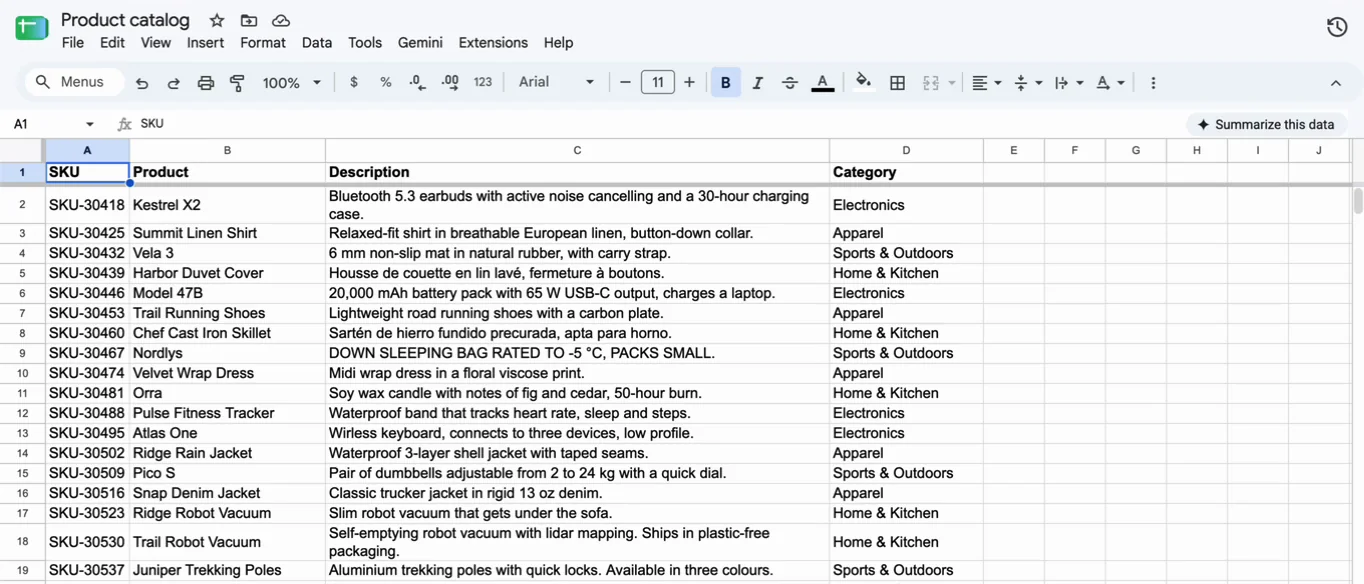
Take an example in Google Sheets. A catalog holds 500 products with names and descriptions but no categories. Some names, like "Kestrel X2", don't say what the product is, and a few descriptions are in French or Spanish. Instead of reading each one and assigning a category by hand, you send the agent one prompt: "Categorize these products into Electronics, Apparel, Home & Kitchen, or Sports & Outdoors". It reads each name and description and fills column D for all 500 products in 39 seconds.
The same works in Excel. Here, a sheet holds 500 customer reviews, some written in German or French and a few left empty. You type "Translate these reviews into Spanish", and the agent translates all 487 reviews in 32 seconds, leaving the empty rows blank. GPT for Work processes up to 1,000 rows per minute in both Excel and Google Sheets and handles hundreds of thousands of rows in a single run. Actual speed depends on the task and model.
GPT for Work is free to install and comes with a free trial, with no card and no API key required. After the trial, plans start at $25 per month with usage included, and you can buy extra usage anytime.
Install GPT for Sheets or GPT for Excel to try it on your own data.
FAQs
Is Google Sheets the same as Excel?
No. Google Sheets is a free, browser-based spreadsheet from Google. Excel is Microsoft's spreadsheet for desktop, web, and mobile. They share many everyday functions, but desktop Excel is better suited to complex analysis, while Google Sheets makes collaboration straightforward.
Can I open Excel files in Google Sheets?
Yes. Upload an .xlsx file to Google Drive and open it in Google Sheets. Many formulas, formatting elements, and data values carry over, but some features change or get lost, and VBA macros don't run. Our guide to converting Excel to Google Sheets without losing formatting covers what to check.
Is Google Sheets free?
Yes, with any Google account. Business features such as organization-wide administration and shared drives require a Google Workspace plan, and some AI features need a paid subscription.
Is Excel better than Google Sheets?
It depends on the work. Excel is usually better for complex financial models, advanced data preparation, and demanding analysis. Google Sheets is usually easier for shared trackers and everyday collaboration. Many teams use both.
Can I use AI in Google Sheets and Excel?
Yes. Google Sheets has Gemini and Excel has Copilot, depending on your plan. For bulk tasks, GPT for Work adds an AI agent to both. See our guides to using AI in Google Sheets and using AI in Excel.