
Numerous AI does one job. You type =AI("your prompt", A2) in a cell (=NUM.AI() in Excel), drag it down, and every row gets an AI answer.
The Personal plan is $8 a month billed yearly, or $19 month to month, for 1 million characters. Both directions count: the text you send and the answer that comes back. A 100-character prompt with a 400-character answer costs 500 characters per row. That is 2,000 rows a month.
Everything else needs a formula too. The sidebar has templates for extraction and classification, but each one only writes a formula into the cell you pick. There is no way to ask for a chart, a pivot table, or a fix for a broken column.
Long columns are slow as well. Each Numerous AI cell waits for its own answer, one at a time, and Google Sheets gives up on any cell that takes over 30 seconds.
Each tool below fixes at least one of those problems. Here are 6 Numerous AI alternatives, with what each one does better than Numerous AI, when to skip it, and what it costs.
6 Numerous AI Alternatives Compared
Short on time? Here is how the six line up.
Tool | Best For | Works In | Chat Panel | Starting Price |
|---|---|---|---|---|
GPT for Work | Formulas plus an agent for whole-sheet jobs | Sheets, Excel | Yes | Free credits, then $25/month |
Sheet AI | Formula-only work on your own API key | Sheets | No | Free plan |
Shortcut AI | Building financial models | Excel, Sheets, web | Yes | Free, 20 credits a week |
Gemini in Google Sheets | Google Workspace users | Sheets | Yes | Included with Google Workspace |
ChatGPT for Excel and Google Sheets | Questions and formula fixes | Sheets, Excel | Yes | Free with a ChatGPT account |
Coefficient | Sheets fed by other business tools | Sheets, Excel | Yes, in Sheets only | Free plan, then $49/month |
Pricing and usage limits on this page are accurate as of September 2026. Spreadsheet-AI plans change often, so check each tool's site before you buy.
What Makes a Good Numerous AI Alternative?
Take a job Numerous AI was built for. You have 2,000 customer reviews in column A and want three things next to each one: a sentiment tag, the product mentioned, and a short reply.
Use that job to test any replacement. Four things to look for:
- A place to describe the job in words: a chat panel where you type "tag each review, name the product, write a reply, then chart the tags" and the tool does all four. In Numerous AI, that is three formulas and a chart you make yourself.
- Bulk runs outside the cell: a tool that takes the whole column as one job and writes the answers into the cells. Numerous AI runs 2,000 reviews as 2,000 separate cells, one at a time, and Google Sheets gives up on any cell that takes over 30 seconds.
- A choice of AI model: a cheap model is enough to tag 2,000 reviews as positive or negative, and a bigger one writes better replies. Numerous AI runs everything on one model, and it does not say which.
- Free to try, no card needed: Numerous AI charges $1 for a 7-day trial, takes your card first, and bills a full year ($96 on Personal) when the trial ends. Reviews on Trustpilot and the Google Workspace Marketplace report no reminder email before the charge and no refund after it.
Numerous AI does have one advantage. It remembers repeat prompts, so the same question in two cells is charged once. GPT for Work does the same with a 30-day cache; most of the others do not.
The 6 Best Numerous AI Alternatives in 2026
1. GPT for Work
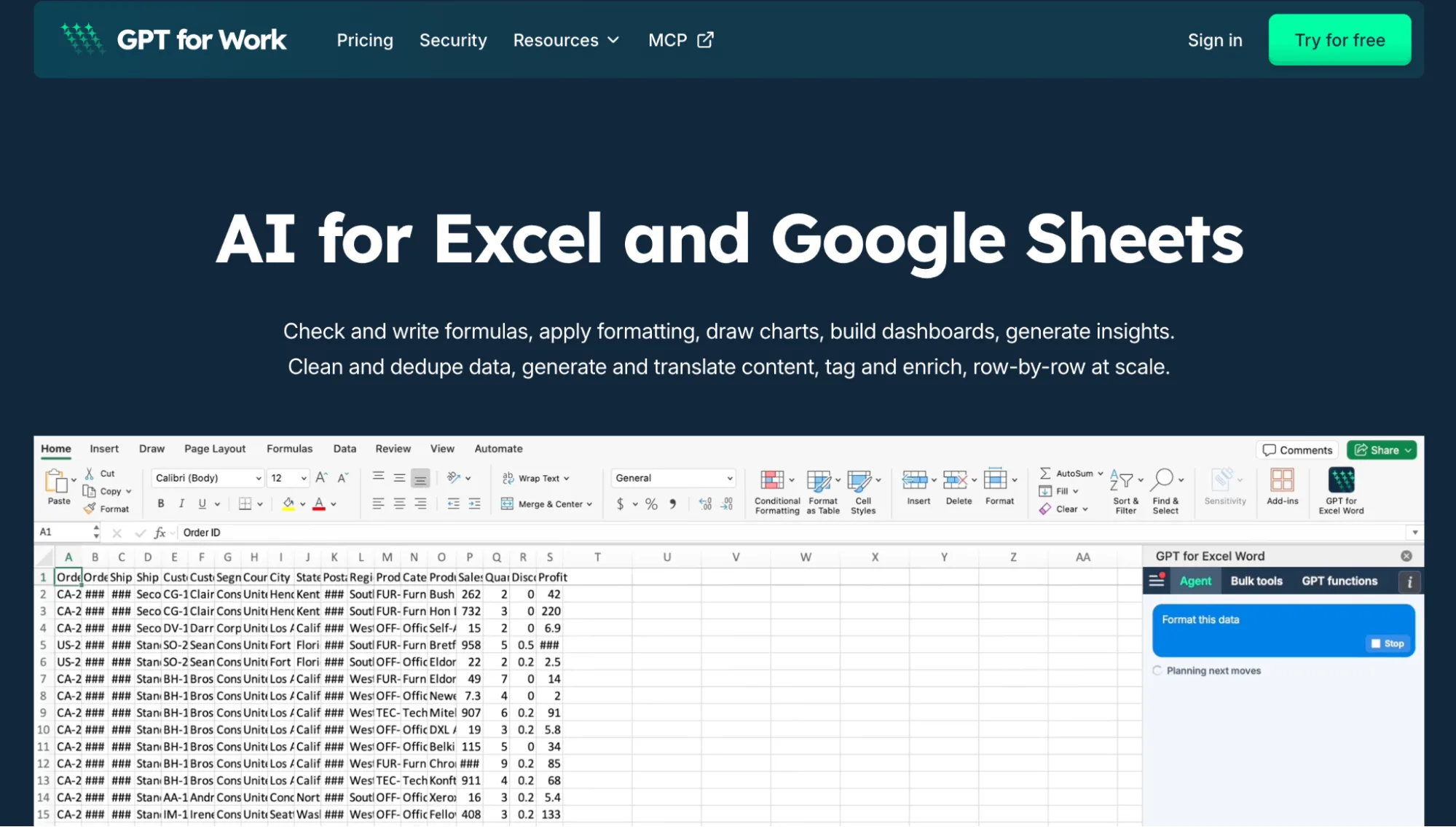
Best for: keeping the formula habit and adding an agent for everything a formula cannot do.
GPT for Work is an add-on for Google Sheets and Excel (GPT for Sheets and GPT for Excel). It has cell formulas like Numerous AI:
Numerous AI:   =AI("Summarize this", A2)

GPT for Work:  =GPT("Summarize this", A2)
There are also ready-made functions for the common jobs: =GPT_CLASSIFY(), =GPT_EXTRACT(), =GPT_TRANSLATE(). Numerous AI's Infer, which fills a column from a few example rows, has no formula twin here: you give the agent the example rows and ask it to complete the column. A 30-day cache reuses past answers when formulas reload, so a refresh does not charge you twice.
The bigger change is the chat panel. You describe a job in plain words and the agent does it in your sheet. Bulk jobs run from the panel, not as formulas, so no cell waits its turn and nothing re-runs when the sheet reloads. Say you have a column of customer reviews and want a sentiment tag, the product name, and a reply next to each one. You type one request:
"For each review in column A, add a sentiment tag in B, the product mentioned in C, and a two-line reply in D. Then make a bar chart of the sentiment counts."
Why it's a better choice than Numerous AI
- One request, whole job: the agent fills all three columns and builds the chart.
- Big sheets: up to 1,000 answers a minute, 200,000 rows in one run. A 100-row job takes about half a minute.
- Choose the model: nine built-in models from OpenAI and Anthropic, each marked $, $$, or $$$. Run the tags on a cheap one and the replies on a strong one.
- Trusted at scale: 7M+ installs, a 4.8 rating from 4,000+ Google Workspace Marketplace reviews, and ISO 27001 certification. Numerous AI publishes no security certification.
When to skip it
- Three ways to do one job: formulas, bulk tools, and the agent each fit a different task, so it takes a few tries to learn which to reach for. Numerous AI has one function.
- Costs more per month: $25 against Numerous AI's $8 on an annual plan. That $8 covers 1 million characters a month; GPT for Work's $25 includes a monthly usage quota, with shared extra-usage credits available on top.
Price: free to install with starting credits, no card. Plans from $25 a month, with extra-usage credits a team can share.
2. Sheet AI
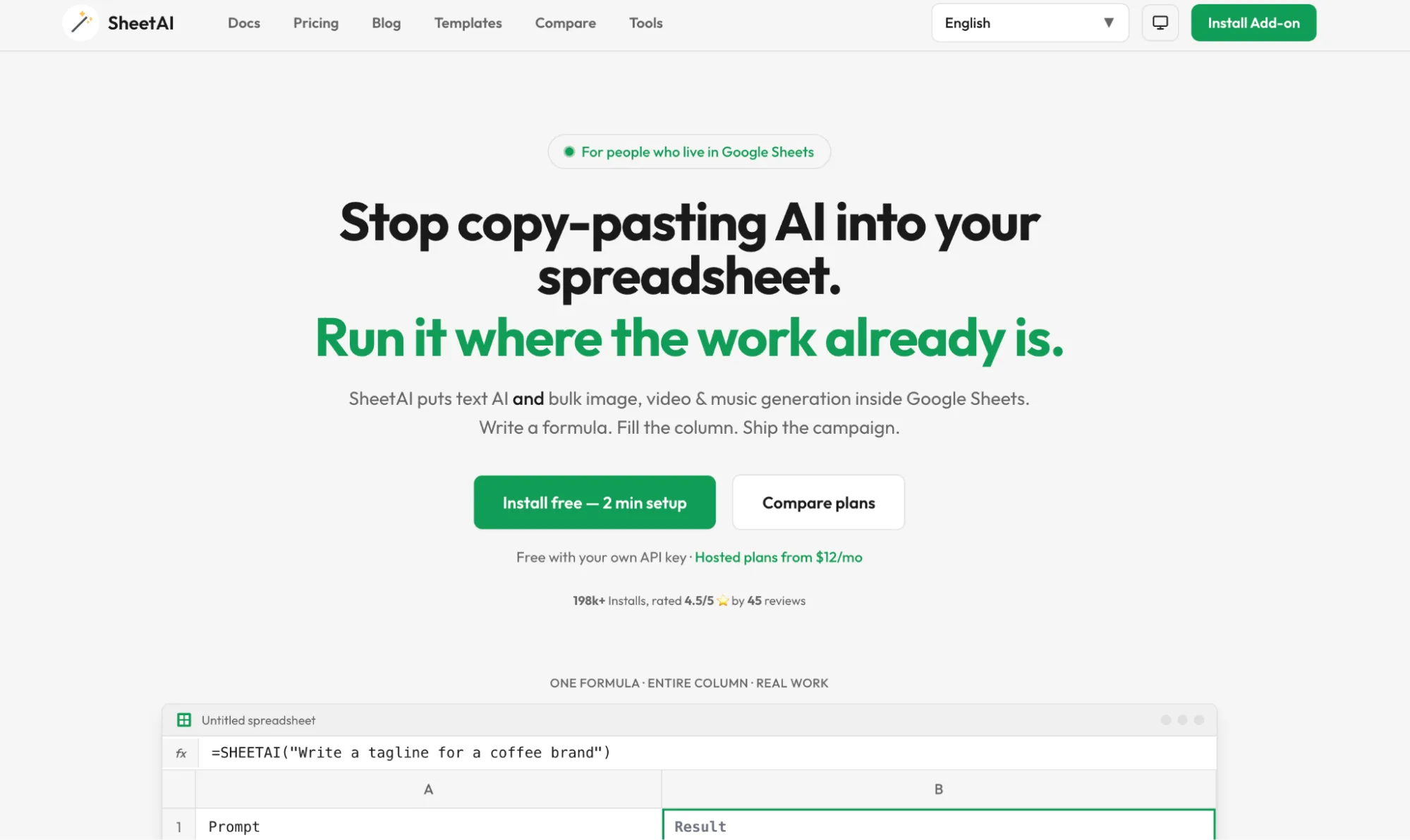
Best for: formula-only AI work in Google Sheets on your own API key.
Sheet AI is a Google Sheets add-on. You use it the same way: type a prompt in a cell, point it at the cell you want it to read, and drag the formula down the column.
The only thing you change is the formula name. A find-and-replace on your old sheet is enough, and if you used Infer to teach it from example rows, =SHEETAI_FILL() does the same job.
Numerous AI:  =AI("Tag the sentiment", A2)

Sheet AI:     =SHEETAI("Tag the sentiment", A2)
The main difference is the cost. Sheet AI charges nothing when you bring your own API key; you pay only your AI provider for what you use. If you do not want to manage a key, hosted plans start at $12 a month.
Why it's a better choice than Numerous AI
- Free with your key: unlimited calls and formula generation, no card on the Sheet AI side.
- Images in cells: bulk images, video, and music through Replicate, from a prompt in a cell.
- Model choice: switch between OpenAI, Claude, Gemini, and Grok in settings.
When to skip it
- No Excel version: Sheet AI is a Google Sheets add-on only. Excel users need a different tool from this list.
- Reloads cost again: each time the sheet refreshes, every formula runs and charges again. Numerous AI's cache avoids this.
- Same cell limits: it runs through Google Sheets formulas, like Numerous AI, so each cell waits its turn and any cell over 30 seconds fails.
Price: free with your own API key. Hosted plans at $12 a month for about 500 runs, or $29 a month for heavier use. Pro yearly is $290. One-time credit packs from $29.
3. Shortcut AI
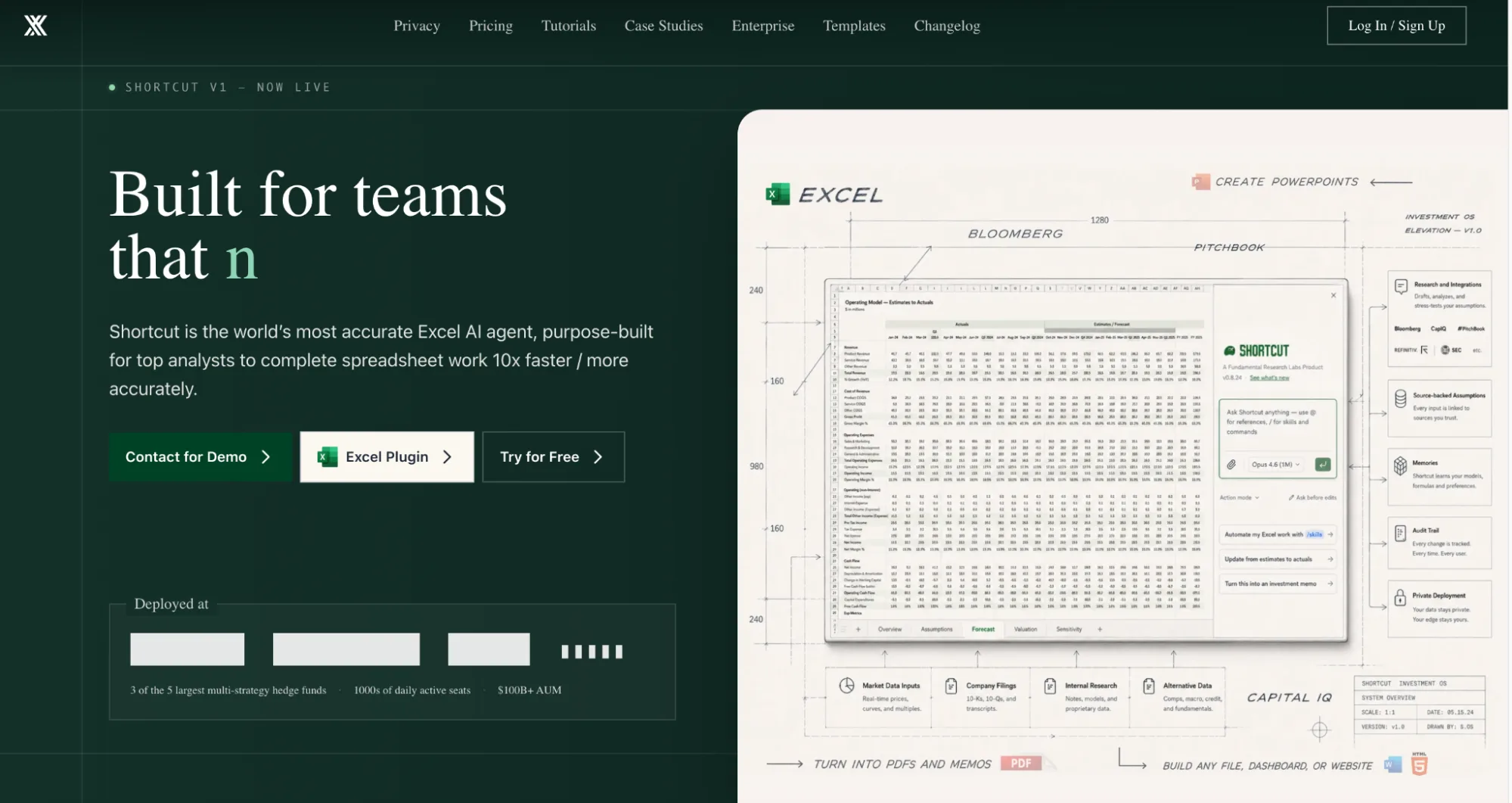
Best for: Excel users who need whole models built, not only cells filled.
Shortcut AI is an AI agent for spreadsheets with a heavy finance focus. It has plugins for both Excel and Google Sheets. You describe what you want, attach a PDF if you have one, and it builds the result with working formulas, not pasted values.
It never writes over your data. Edits land beside your work, and a review panel shows which cells changed and which are hard-coded, so you can restore any earlier step.
Why it's a better choice than Numerous AI
- Builds whole models: ask once and get a forecast or DCF across several tabs, with live formulas.
- Reads your documents: attach a 10-K and it pulls the numbers into the model.
- Approve before it edits: Plan mode shows the approach first, and Ask mode answers questions without touching the workbook.
When to skip it
- Not finance work: it is built for financial models. For tagging reviews or writing product copy, you are paying for features you will not use.
- Free tier goes fast: 20 credits a week, and each message costs 2 to 15 of them.
- Price: Pro is $125 a month, or $100 billed annually, the most expensive tool on this list.
Price: free plan with 20 credits a week. Pro at $125 a month, or $100 a month billed annually.
4. Gemini in Google Sheets
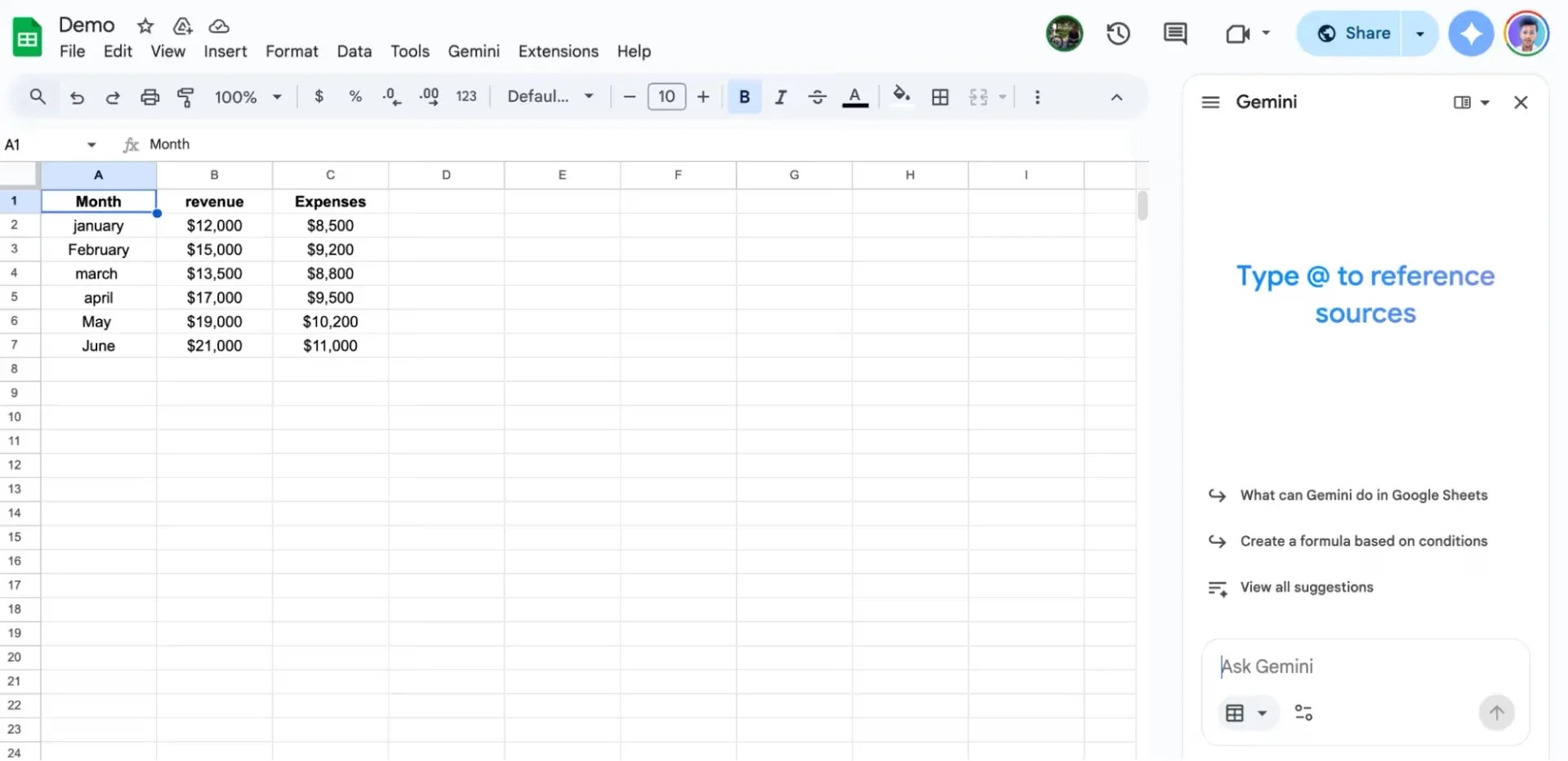
Best for: anyone on a paid Google Workspace plan who wants the same formula at no extra cost.
Gemini is built into Google Sheets on Google Workspace business plans. Its cell function is also called =AI() and takes the same shape, so your old formulas move over with no changes.
Numerous AI:  =AI("Tag the sentiment", A2)

Gemini:       =AI("Tag the sentiment", A2)
The side panel does the jobs a formula cannot. There is also a fill feature: type a short prompt and it completes the column, no formula needed.
Why it's a better choice than Numerous AI
- Nothing to install: it is already in Sheets.
- No separate bill: AI is part of the Google Workspace plan you pay for.
- More than formulas: the side panel fixes formulas, builds tables, pivot tables, and charts.
When to skip it
- Big columns:
=AI()runs 350 cells at a time. The 2,000 reviews take six passes. - No Excel version: Gemini lives inside Google Sheets only. If part of your work is in Excel, you will need a second tool for that side.
- Needs a paid plan: the AI features come with eligible paid Google Workspace plans. On a free Google account you do not get them at all.
Price: included with eligible paid Google Workspace plans.
5. ChatGPT for Excel and Google Sheets
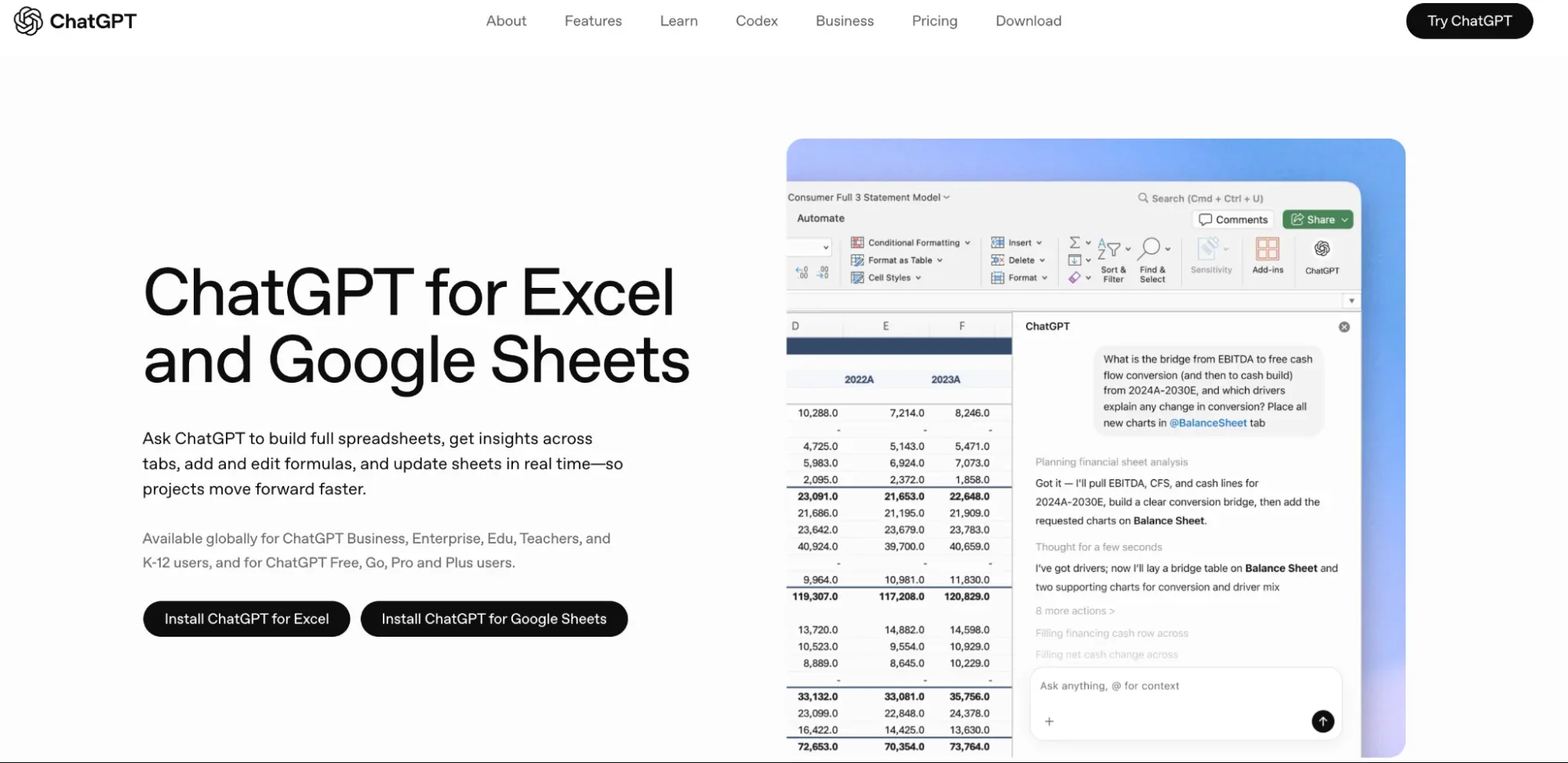
Best for: anyone with a ChatGPT account who wants to ask questions about a sheet and fix formulas.
This is OpenAI's official add-on for Excel and Google Sheets. You sign in with your ChatGPT account, and a sidebar opens next to your data.
You type what you want in the sidebar: "add a column that tags each review as positive or negative." It reads the sheet and makes the change.
It also reads across tabs, so you can ask "which product gets the most complaints" and get an answer from the whole file.
Why it's a better choice than Numerous AI
- No new subscription: it comes with any ChatGPT account, including the free one.
- Shows its sources: every answer lists the cells it used, so you can check the numbers.
- Asks before editing: nothing changes until you confirm, it keeps your formatting, and you can undo it.
When to skip it
- No cell formula: you cannot drag a prompt down a column. Bulk work like 2,000 tags goes through the sidebar instead.
- Very large files: big workbooks may not fit in one pass, so you can get a partial answer.
- Shares your ChatGPT limits: spreadsheet work counts against the same usage cap as your chats, so a heavy day in the sheet eats into both.
Price: free with any ChatGPT account. Paid ChatGPT plans let you use it more.
6. Coefficient
Best for: sheets that pull data from other tools, with AI on top.
Coefficient connects Google Sheets and Excel to more than 150 systems, like Salesforce, HubSpot, QuickBooks, and Snowflake, and can refresh the data on a schedule on paid plans. Numerous AI works only with what is already in your sheet. Coefficient handles the step before that.
It has cell functions too. The chat assistant builds pivot tables and charts you can edit by hand.
Numerous AI:  =AI("Tag the sentiment", A2)

Coefficient:  =GPT("Tag the sentiment", A2)
Why it's a better choice than Numerous AI
- Live data: on paid plans, your sheet refreshes itself daily or hourly from the source. Free is manual refresh only.
- A trial that ends free: 30 days of Pro, then it drops to the free plan. No charge.
- Asks before guessing: if your request is unclear, it asks a question first.
When to skip it
- Excel users: the Excel add-in has all the connectors, but the chat assistant works in Google Sheets only for now.
- Not a bulk prompt tool: it has
=GPT()cell functions, but running one prompt across thousands of rows is not what it is built for. - Plans cap connections: three data sources on Free and the $49 plan, six on Pro at $99 per user. A wider stack means Enterprise.
Price: free plan with no card. Starter at $49 a month, Pro at $99 per user a month.
How to Switch From Numerous AI
Three steps, in this order.
- Cancel the renewal first: go to Manage account in the footer of the Numerous AI site and turn off auto-renew before you test anything else. The default plans are billed yearly ($96 on Personal), so this stops the next yearly charge from going through.
- Pick by the job you did most:
=AI()down a column: Gemini with Google Workspace, or Sheet AI with your own API key.- Tagging or writing text across thousands of rows: GPT for Work.
- Data that lives in another tool: Coefficient.
- Financial models: Shortcut AI.
- Questions and formula fixes only: ChatGPT.
- Test on a copy: duplicate one sheet and run your usual job in the new tool. If the output is correct and the free plan still has room left, the tool works for you. Move your other sheets over.
One more check if the sheet holds customer data: look for a security certification on the tool's site. GPT for Work lists ISO 27001, and Coefficient and Shortcut AI list SOC 2. Numerous AI does not publish one.
Conclusion
Five of the six tools above let you start without a card, and Gemini comes with a Google Workspace plan you already pay for. So test before you decide, on a real sheet, with the job you do most.
- Run your usual job: take one column of 2,000 rows and ask the tool to tag it. Count how many rows came back empty or wrong.
- Check the free balance after: open the usage page. If one run uses more than half the free plan, a normal month will cost more than the price shown.
- Find the cancel button: open the billing page and look for it before you upgrade. It should take under a minute.
A tool that passes all three is safe to pay for.
Install GPT for Work and start with that test.
FAQs
What is Numerous AI?
Numerous AI is an add-on for Google Sheets and Excel that runs ChatGPT through a cell formula. You type =AI("your prompt", A2), drag it down, and each row gets an answer. It also generates and explains formulas.
Is Numerous AI free?
No. There is no free plan. The 7-day trial costs $1, needs a card up front, and renews at the yearly rate when it ends.
How much does Numerous AI cost?
The Personal plan is $8 a month billed yearly ($96), or $19 month to month, for 1 million characters a month, about 2,000 rows. Pro is $24 a month yearly or $39 monthly, for 5 million characters and up to 3 team members.
How do I cancel Numerous AI?
Click Manage account in the footer of numerous.ai and turn off auto-renew in the billing portal. Screenshot the confirmation. You keep any unused tokens after cancelling.
Does Numerous AI work in Excel?
Yes. There is an Excel add-in on Microsoft AppSource, and the functions carry a prefix: =NUM.AI(), =NUM.WRITE(), =NUM.INFER().
What is the best Numerous AI alternative?
It depends on the job. For the same formula at no cost, Gemini in Google Sheets or Sheet AI with your own API key. For thousands of rows, plus charts and cleanup, GPT for Work in both Sheets and Excel. For financial models, Shortcut AI.