You may look at Shortcut AI because you want an agent that can do more than suggest formulas. It is built heavily around finance work, including DCFs, LBOs, and linked financial models.
Four things make people check the alternatives. Shortcut AI is tuned for financial modeling, so everyday jobs like cleaning 10,000 rows, categorizing feedback, or translating a product catalog are not what it is built around. It is priced for analysts: Pro costs $125 per month for 1,000 credits, and a complex message can use 15 of them. It runs on one model of Shortcut's choosing. And while a Google Sheets plugin is included, the product centers on Excel, so Sheets-first teams get less of it.
Every tool below answers at least one of these four. Below are 7 Shortcut AI alternatives, sorted by the type of work they handle best, with the main strengths, limits, and pricing of each.
Quick Overview of Shortcut AI Alternatives
Here's a quick look at where each alternative fits best.
Tool | Best for | Automation style | Main limitation |
|---|---|---|---|
GPT for Excel | High-volume spreadsheet work | Agent + bulk processing | Credit usage |
Claude for Excel | Financial models | Workbook agent | Excel only |
Microsoft Copilot | Microsoft 365 teams | Native Excel agent | No bulk engine |
Coefficient | Live business data | AI + data sync | Cost at scale |
Gemini in Sheets | Google Workspace teams | Native Sheets AI | Usage quotas |
Quadratic | Python and SQL analysis | AI + code | Separate platform |
Numerous AI | Repetitive row tasks | AI formulas | Limited multi-step automation |
Pricing and usage limits on this page are accurate as of September 2026. Spreadsheet-AI plans change often, so check each tool's site before you buy.
What Is Shortcut AI, and Why Look for an Alternative?
Shortcut AI is a spreadsheet agent built around Excel and its web app, with a Google Sheets plugin included on every plan. It can build financial models, research companies, extract data, and complete multi-step work directly in your spreadsheet.
People look for a Shortcut AI alternative for four main reasons:
- It is tuned for finance: DCFs, LBOs, and linked models are the product's center. Everyday jobs like cleaning thousands of records, categorizing feedback, or translating a catalog are not what it is built around.
- Credits run out fast, and cost adds up: Pro's 1,000 monthly credits sound like plenty until you know a complex message uses 15 of them, and the free plan's 20 weekly credits can end inside a single conversation. At $125 per month, Pro is several times what typical spreadsheet AI tools charge, which is hard to justify for routine cleanup, categorizing, and formulas.
- One model, their choice: there is no picking your AI provider, and bringing your own API key is an Enterprise-only feature behind a custom contract. Every other plan uses whatever Shortcut runs.
- Excel first: the Google Sheets plugin is included on every plan, but the demos, templates, and workflows center on Excel, so Sheets-first teams get a smaller share of the product.
The better choice depends on which parts of your spreadsheet automation workflow you want to hand off.
7 Best Shortcut AI Alternatives
1. GPT for Excel
Best for: Running everyday spreadsheet tasks and bulk jobs across Excel and Google Sheets.
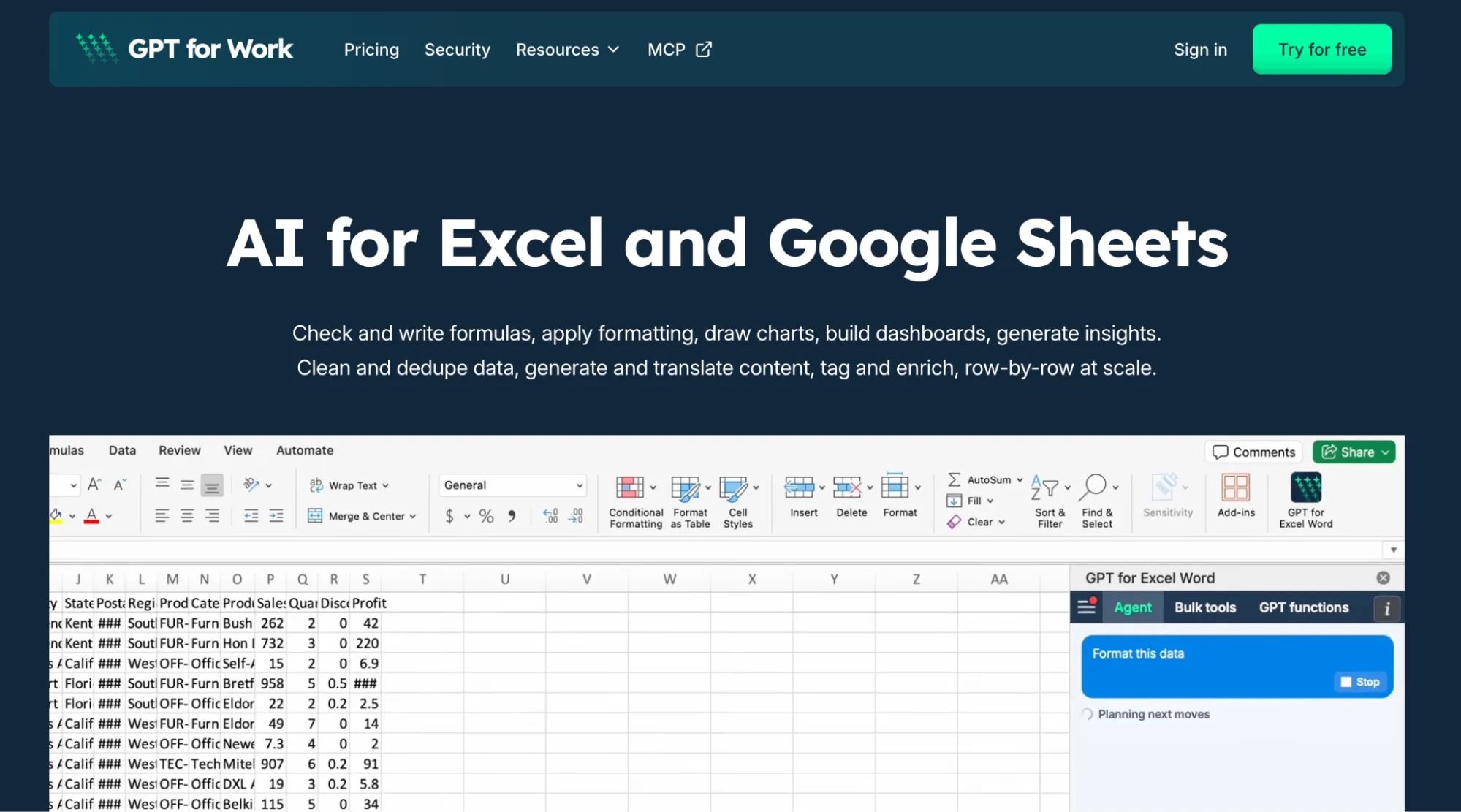
GPT for Excel is a full AI agent inside your spreadsheet. You can ask it to clean data, fix formulas, build pivot tables and charts, research the web, analyze multiple tabs, or build financial models. It makes the changes directly in your spreadsheet. It is part of GPT for Work, which runs the same agent in Google Sheets as GPT for Sheets.
It is a strong Shortcut AI alternative if your spreadsheet work extends beyond financial modeling and research. GPT for Excel handles those jobs too, but also gives you a dedicated bulk engine for classification, enrichment, translation, cleanup, and content generation across thousands of rows.
For example, with a messy expense export, you could ask:
"Standardize the merchant names in column B, add a Spend Category column, and flag likely recurring subscriptions as Yes or No. Apply this to every row."
Bulk runs can reach 1,000 answers per minute, with up to 200,000 rows in Google Sheets and 1 million rows in Excel.
GPT for Excel also lets you choose between multiple AI providers or connect your own API key. Across Excel and Sheets, GPT for Work has 7M+ installations, a 4.8 rating from 4,000+ Google Workspace Marketplace reviews, and ISO 27001 certification. It is GDPR compliant, and your data is not used to train models.
Strengths
- Fastest agent in our test: in our March 2026 benchmark against Copilot and Claude in Excel, GPT for Excel was fastest in 10 of 11 tasks, at about 16 seconds per typical task, and was the only one to finish the 10,000-row job.
- Agent + bulk processing: use one prompt for a workbook task, or run it across thousands of rows in parallel from the sidebar, so nothing times out or recalculates.
- Excel and Google Sheets: the same agent runs in both through GPT for Work, where Shortcut centers on Excel.
- Model choice: switch AI providers or connect your own API key instead of being tied to one model.
Limitations
- Shortcut ships finance templates: for DCF and LBO work, Shortcut has ready-made templates and a review-every-cell workflow. GPT for Excel builds and edits models from a prompt but has no template library.
- Free credits do not renew: GPT for Excel's starting credits are a one-time trial. Shortcut's free plan refills 20 credits a week, which at 15 credits for a complex message is one or two tasks a week.
- Costs need estimating, as with Shortcut: credits burn by task, text length, and model. Bulk jobs range from cents to a few dollars per 1,000 rows, and the cost estimator in the docs gives a figure before you run.
Pricing: Free to install with starter credits and no card required. Monthly plans start at $25/month with included usage; extra-usage credits are shared across your workspace.
2. Claude for Excel
Best for: Auditing, debugging, and building complex financial models in Excel.
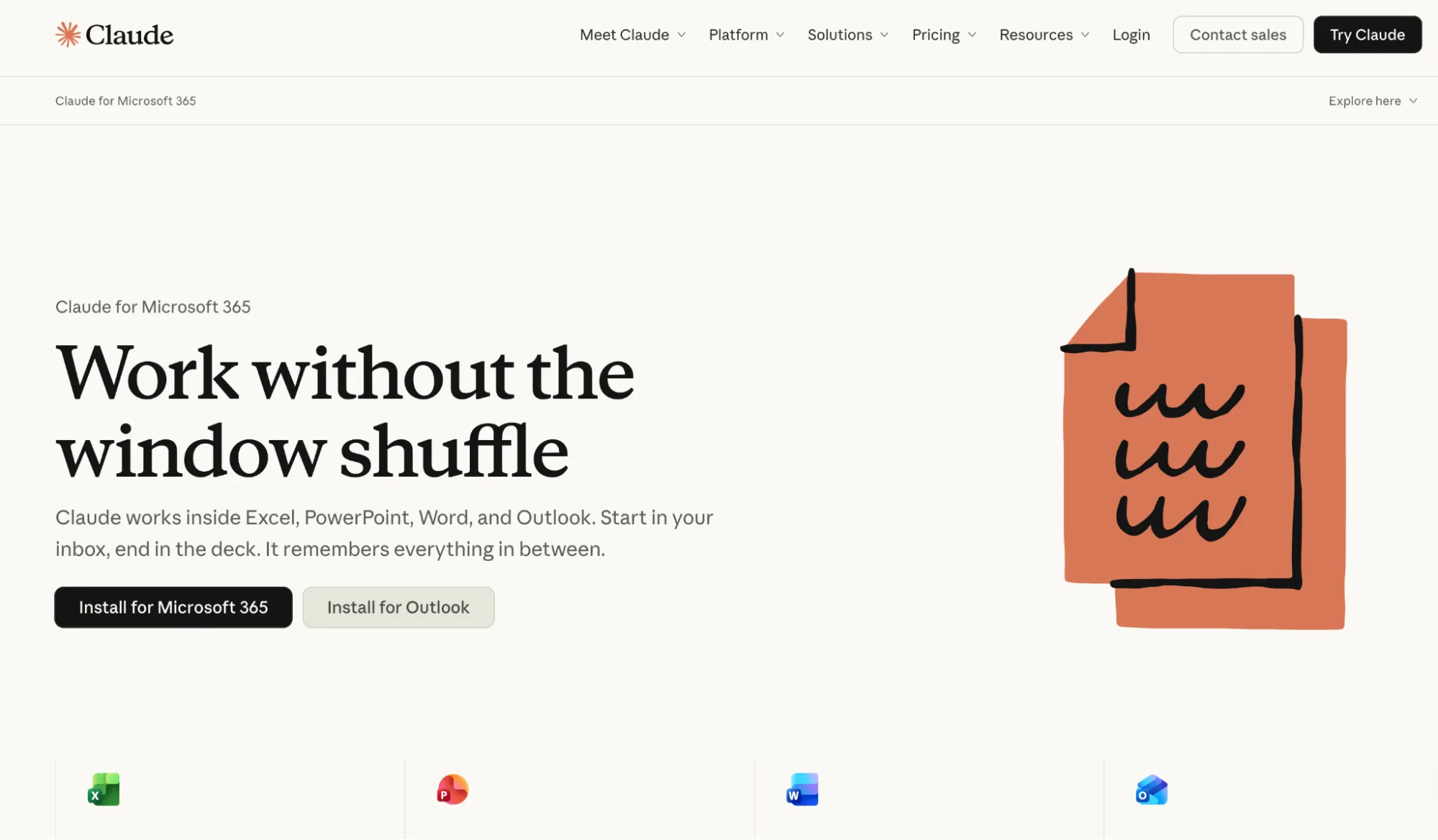
Claude for Excel puts Claude directly inside your workbook. It can read complex files across multiple tabs, trace formulas, explain calculations with clickable cell references, change assumptions while preserving dependencies, and build or populate financial models.
That makes it particularly useful when you inherit a workbook and need to understand how the numbers connect before changing anything.
Anthropic also documents workflows for building three-statement models, populating LBO templates, debugging errors, and running sensitivity analysis, and its connectors can pull live data from providers like S&P Global, Moody's, and FactSet.
The biggest practical advantage over Shortcut is price. Claude for Excel is included with paid Claude plans starting at $20/month, while Shortcut Pro costs $125/month, or $100/month with annual billing.
Strengths
- Reads the whole workbook: it traces formulas across multiple tabs and explains calculations with clickable cell references, so you can audit every number back to its source.
- Financial modeling depth: builds, populates, and modifies complex models, and updates assumptions without breaking the dependencies behind them.
- Included with Claude: the Excel add-in comes with paid Claude plans from $20/month, against Shortcut Pro's $125.
Limitations
- Excel only: there is no Claude add-in for Google Sheets.
- No bulk engine: it works through the workbook conversationally. Running one prompt across thousands of rows in parallel is not what it does.
- Limits drain fast: Excel work shares your regular Claude allowance, and heavy workbook sessions can use it up quickly. In our March 2026 benchmark, Claude in Excel hit rate limits on a 100-row job and could not start the 10,000-row one.
Pricing: Included with Claude Pro from $20/month, or about $17/month with annual billing.
3. Microsoft Copilot
Best for: Excel users who want AI built into the Microsoft 365 tools they already use.
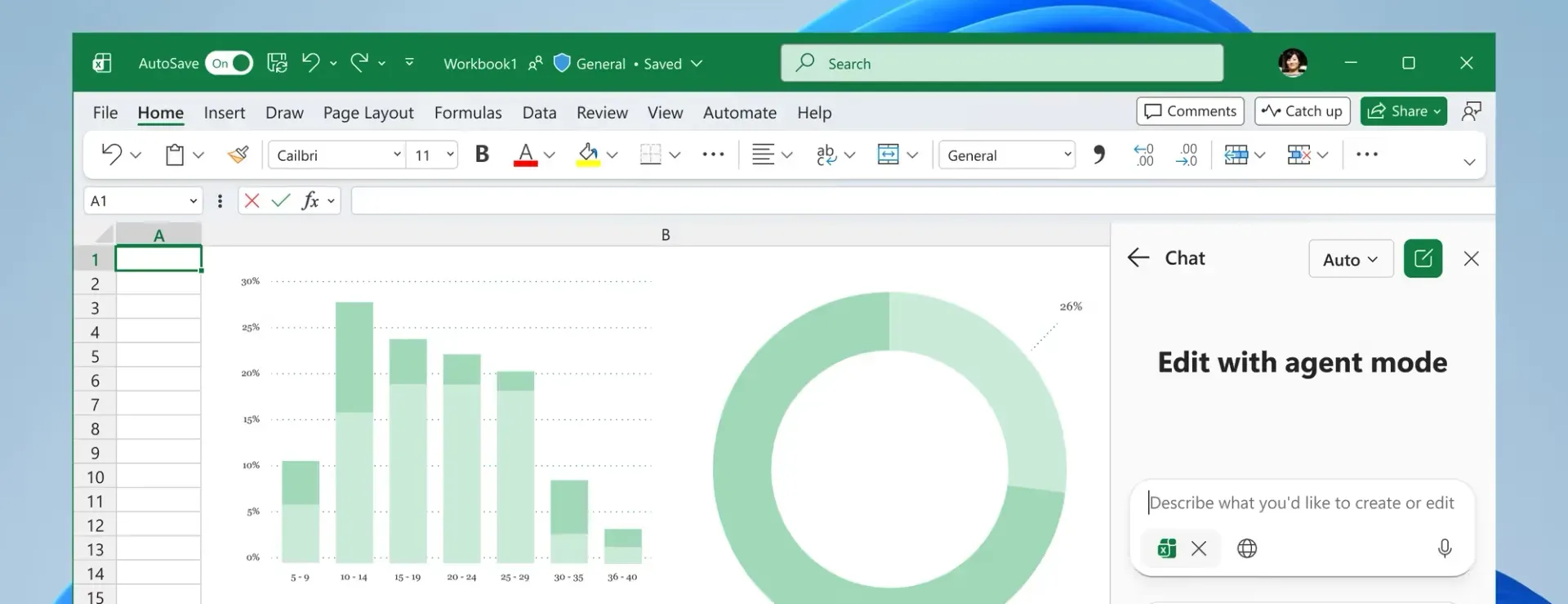
Microsoft Copilot works directly inside Excel. You can use Edit mode when you want it to change the workbook, Plan when you want to review its approach first, or Chat when you only need an answer.
It can fix formulas, reshape data, combine sheets, create PivotTables and charts, format reports, and work through multi-step requests without moving your file into another platform.
If your company already keeps files, permissions, and collaboration inside Microsoft 365, Copilot adds AI without introducing another spreadsheet environment.
Microsoft is also retiring the =COPILOT() worksheet function on September 14, 2026, while the Copilot side panel remains available. If you use formula-driven AI workflows in Excel, see replacement for the COPILOT function.
Strengths
- Native Excel workflow: No separate spreadsheet platform or vendor to add.
- Workbook editing: Handles formulas, pivots, charts, formatting, and multi-step changes.
- Microsoft 365 integration: Fits into your existing Microsoft security, files, and admin setup.
Limitations
- OneDrive and AutoSave required: Copilot in Excel needs the workbook saved to OneDrive with AutoSave enabled.
- No dedicated bulk engine: it can edit ranges, but it is not built around parallel processing across very large row sets. Even the
=COPILOT()cell function, before its retirement, was capped at 100 calls every 10 minutes. - Slower on larger tasks: In our March 2026 benchmark, Copilot averaged close to two minutes across typical spreadsheet tasks, compared with about 16 seconds for GPT for Excel.
Pricing: Copilot Chat-eligible Microsoft 365 business and enterprise plans include standard access, subject to service capacity. The full experience — priority access, advanced reasoning, and model choice — needs the add-on: Microsoft 365 Copilot Business lists at $21/user/month with annual billing for businesses under 300 users, and Enterprise pricing starts at $30/user/month, on top of a qualifying Microsoft 365 plan.
4. Coefficient
Best for: Spreadsheet automation that combines AI analysis with live business data.
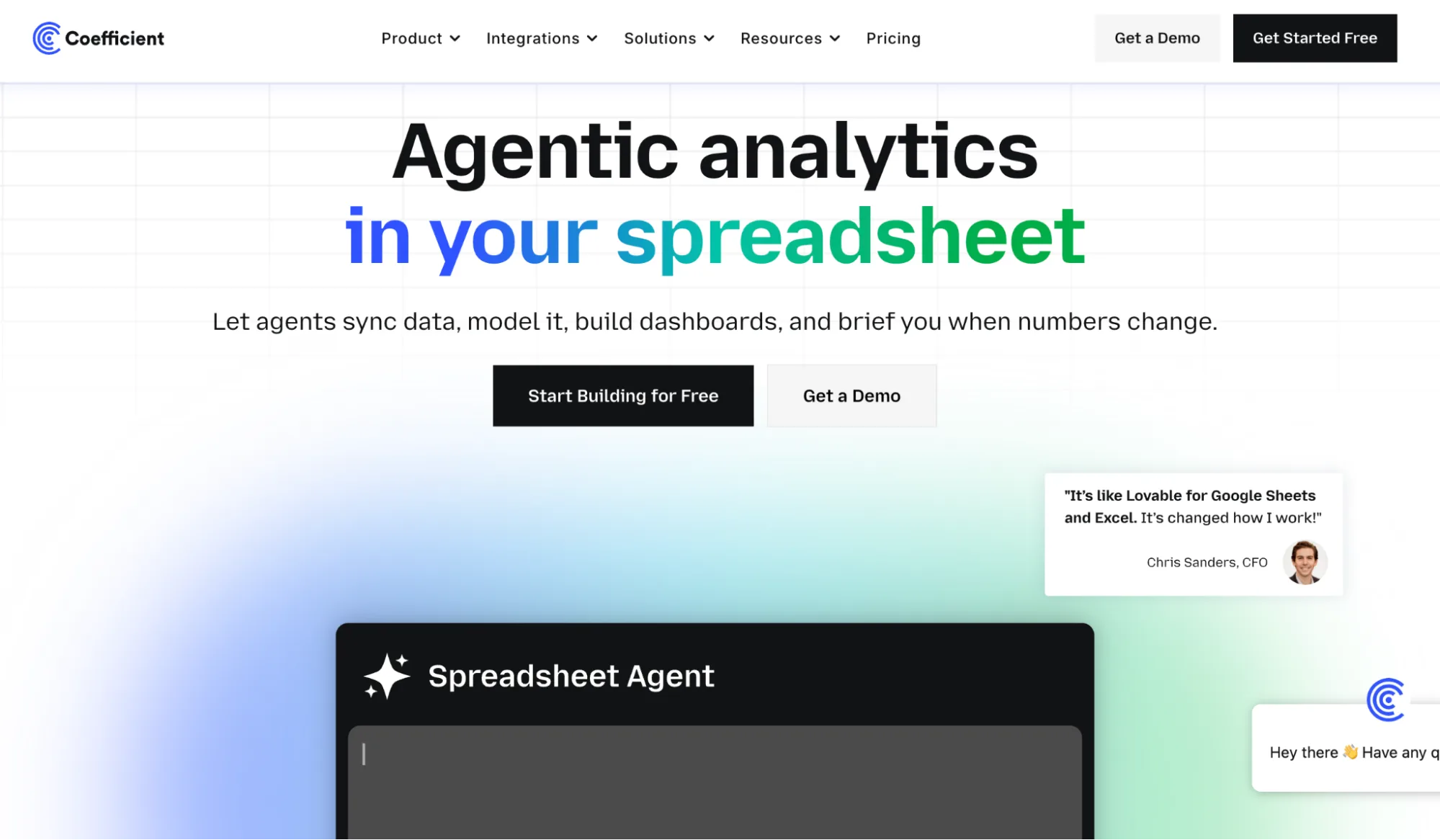
Coefficient combines spreadsheet AI with direct connections to the systems where your data lives. Its Sheets Assistant can clean messy data, build models and forecasts, create pivots, analyze results, and format cells without moving the work out of your spreadsheet.
Beyond the Sheets Assistant, Coefficient connects to 150+ sources, including Salesforce, HubSpot, QuickBooks, Snowflake, BigQuery, Shopify, Stripe, and ad platforms. It can refresh those imports automatically, build custom API connections, scrape websites, publish live dashboards, and alert you when a number hits a condition.
That makes Coefficient a better fit when your spreadsheet needs to stay synced with changing business data, not just analyzed once.
Strengths
- Asks before guessing: when your request is unclear, the assistant asks a clarifying question instead of running the wrong job on your sheet.
- 150+ integrations: Connect directly to business apps, databases, warehouses, and APIs.
- Reporting automation: Schedule refreshes, publish dashboards, and trigger Slack or email alerts.
Limitations
- Plans cap your data sources: the free plan and $49 Starter connect three sources each, and Pro at $99 per user connects six. A bigger stack means an Enterprise conversation.
- Not built for bulk prompts: it has GPT cell functions, but running one prompt across thousands of rows is not what it is designed for, the value sits in the connected data, not volume AI.
- Connections need setup: the payoff depends on wiring up your systems first, so there is admin access to arrange and configuration to do before the AI earns its keep.
Pricing: Free plan available. Starter costs $49/month, while Pro costs $99/user/month. Annual billing saves 17%.
5. Gemini in Google Sheets
Best for: Google Sheets users who want AI built into the workspace they already use.
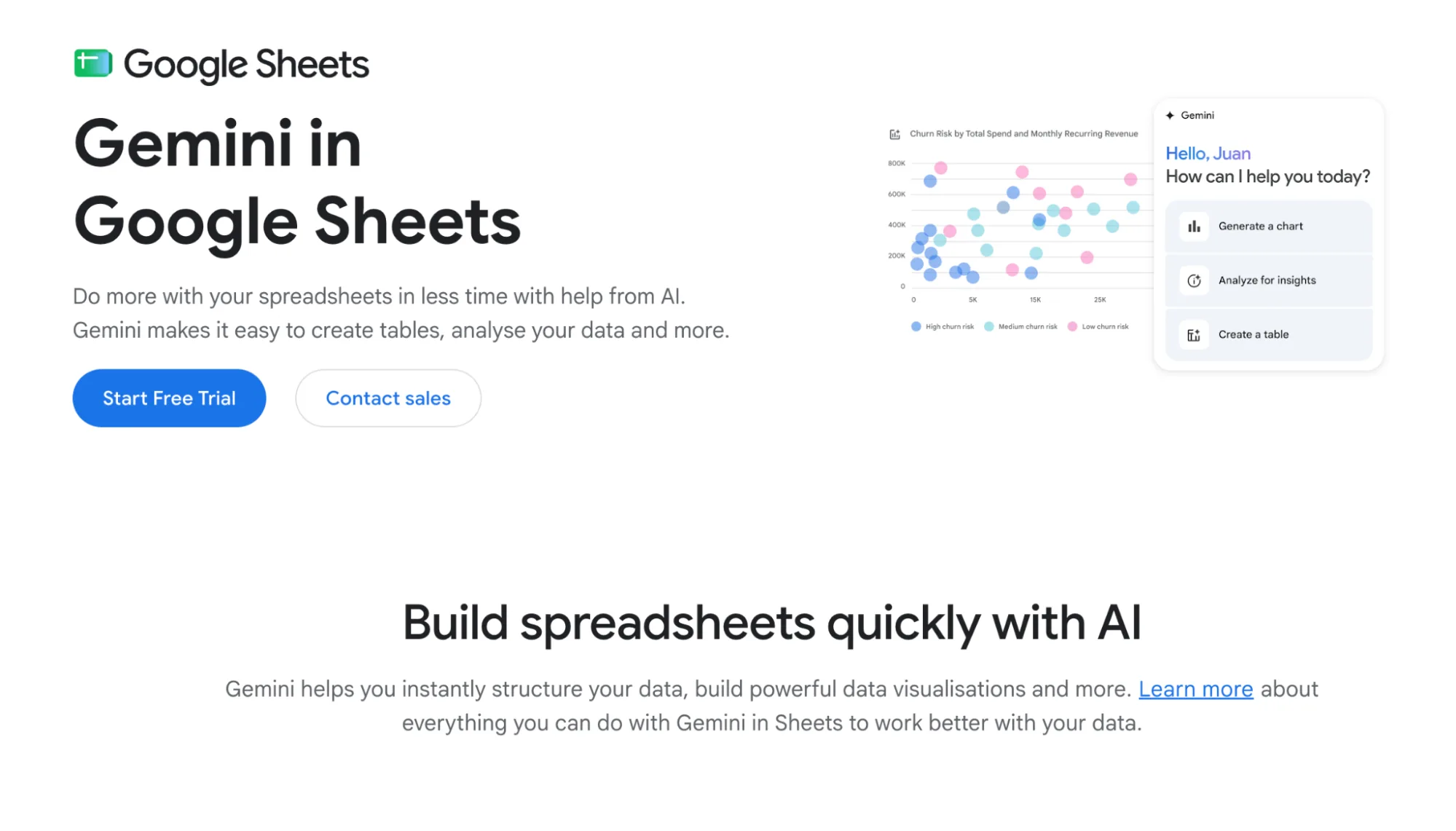
Gemini in Google Sheets works through both the Gemini side panel and the =AI() function. The side panel can create formulas, tables, charts and PivotTables, format ranges, sort and filter data, and now build or edit entire spreadsheets from a prompt.
The =AI() function handles row-level jobs such as categorization, sentiment analysis, summarization, text generation, and pulling current information from Google Search.
If your company already uses Google Workspace, the appeal is simple: Gemini is already part of Sheets, with no separate spreadsheet product or vendor to add.
Strengths
- Native Google Sheets workflow: No separate add-on on eligible Workspace plans.
- Full-sheet editing: Can create or modify formulas, pivots, charts, formatting, filters, and ranges.
- In-cell AI:
=AI()gives you repeatable prompts directly inside spreadsheet cells.
Limitations
- Google Sheets only: Excel files need to be converted to native Sheets for the full Gemini workflow.
- Batch limits: Only the first 350 selected
=AI()cells generate at once. - 24-hour lockout: use the
=AI()function too much and it stops working for a full day. Google does not publish the exact limit, so you find out when it hits.
Pricing: Included with eligible Google Workspace and Google AI plans. Google Workspace Business Standard currently starts at $14/user/month with an annual commitment.
6. Quadratic
Best for: Technical analysts who want to combine spreadsheet work with code and live data.
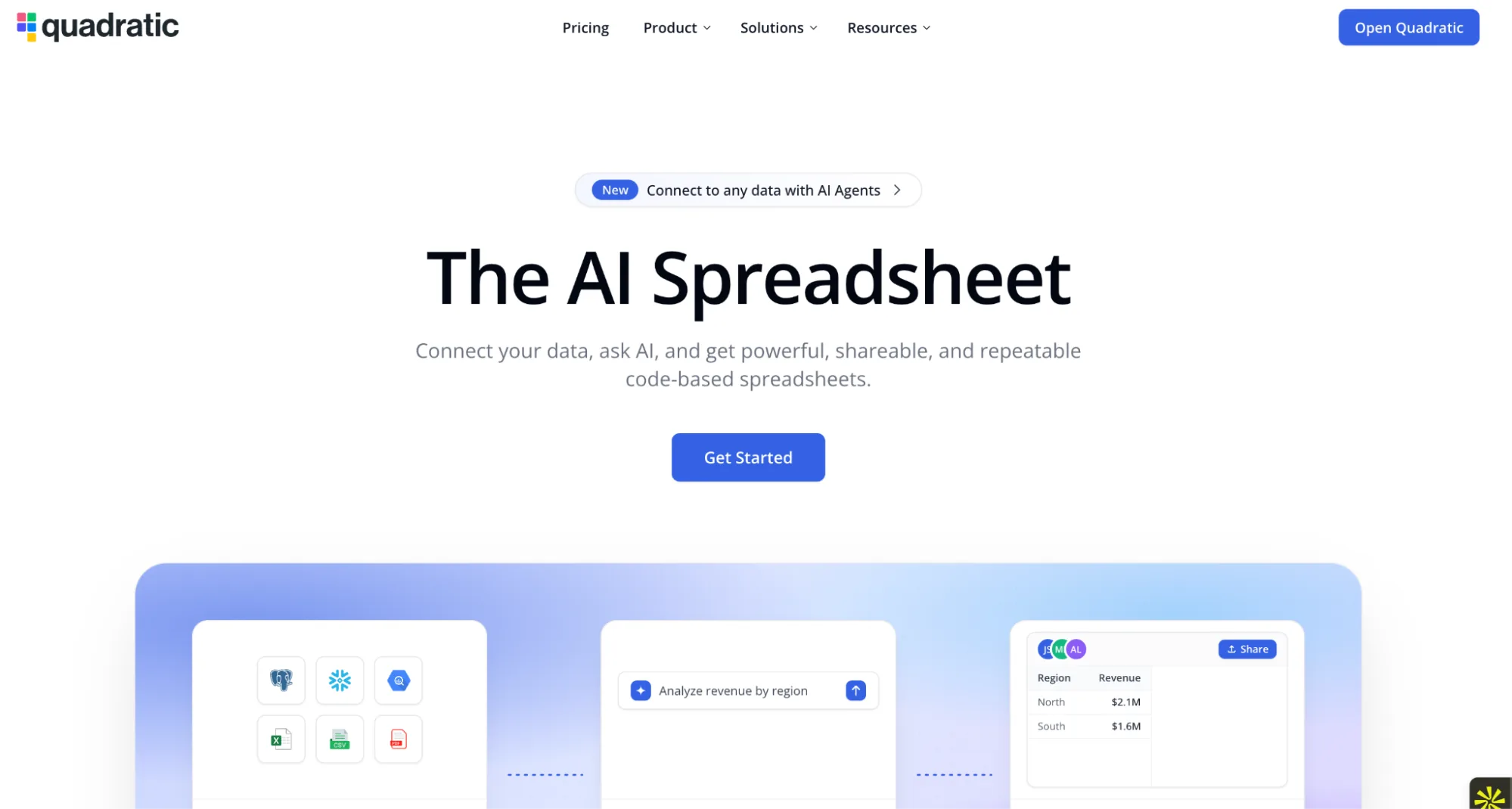
Quadratic combines a spreadsheet interface with AI, Python, SQL, JavaScript, and regular formulas. You can ask for an analysis in plain language, then inspect and edit the formulas or code Quadratic creates instead of relying only on the final answer.
It becomes more useful when your data no longer fits comfortably into a normal workbook. Quadratic can connect directly to databases such as Postgres, Snowflake, and BigQuery, work with APIs, and handle datasets of up to 100 million rows.
Quadratic is the most code-driven option on this list. Python, SQL, connected databases, and custom visualizations are central to the workflow, although you can still build financial models and analyze spreadsheet data.
Strengths
- Visible logic: Review and edit the Python, SQL, or formulas behind the analysis.
- Connected data: Query databases and APIs without repeatedly exporting files.
- Large datasets: Work with data far beyond normal spreadsheet row limits.
Limitations
- Separate platform: You work inside Quadratic rather than directly inside Excel or Google Sheets.
- Built for people who code: the workflow assumes you can read the Python or SQL it writes. If nobody on the team codes, most of its advantage sits unused.
- AI runs on credits: Pro includes $20 of AI credits a month. Teams that lean on AI-written code rather than typing their own burn through it and need Business at $36 for double.
Pricing: Personal is free. Pro costs $18/user/month when billed annually; Business costs $36/user/month annually.
7. Numerous AI
Best for: Applying the same text-based AI task across a spreadsheet without using an agent.
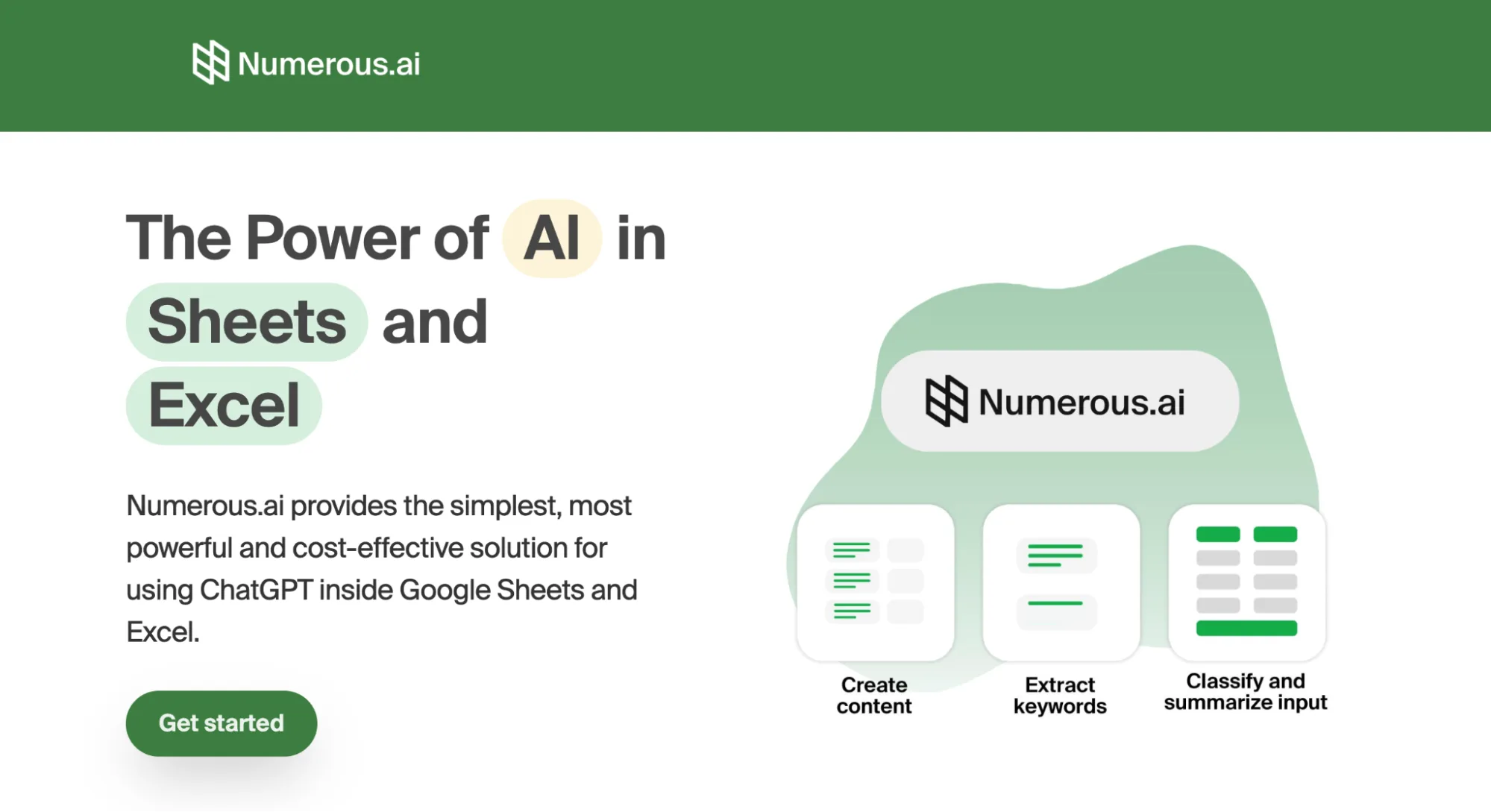
Numerous AI takes a formula-first approach. Once you install the add-on in Excel or Google Sheets, you can use its =AI() function (=NUM.AI() in Excel) to summarize, categorize, rewrite, translate, extract, or clean data directly from a cell. You do not need to connect your own API key first.
This works well when your task has a clear input and output. For example, you can add a column that classifies support tickets, cleans inconsistent company names, or turns product details into short descriptions, then fill the formula down the sheet.
Numerous keeps the AI logic in spreadsheet functions rather than letting an agent act across the workbook. That makes repeatable transformations easier to see and reuse.
Strengths
- Simple formula workflow: Put the instruction in a cell and fill it across your data.
- Excel and Google Sheets: The same tool works on both spreadsheet platforms.
- No API key required: You can start using the built-in AI without setting up a separate model account.
Limitations
- Bulk runs through formulas: every job goes through a Google Sheets custom function, so 30-second timeouts and slowdowns on big batches come with it. There is no sidebar or agent to hand the work to instead.
- No model choice: you use the model Numerous provides. There is no switching providers or bringing your own API key.
- No free plan: the 7-day trial costs $1, needs a card, and renews at the yearly rate when it ends.
Pricing: No free plan. Personal starts at $8/month billed annually ($96), or $19 month to month, for 1 million characters of input and output.
Conclusion
Shortcut AI is still a strong choice if most of your spreadsheet work revolves around financial models and analyst workflows. You only need an alternative when another tool fits the way you work better.
That might mean faster bulk processing, native Microsoft or Google integration, live data connections, or the ability to work with Python and SQL. The seven tools above approach spreadsheet automation differently, so the best choice comes down to the tasks you want to stop doing manually.
If GPT for Excel matches those tasks, you can try it for free with your own spreadsheet.
The practical test is whether the tool removes enough manual steps from the spreadsheet work you repeat regularly.
FAQs
What is the best Shortcut AI alternative?
GPT for Excel is the best all-round alternative if you want spreadsheet automation across both Excel and Google Sheets, especially for bulk tasks. Claude for Excel suits work that is mostly auditing inherited financial models, while Coefficient is better when you need live data connections.
Is there a free alternative to Shortcut AI?
Yes. GPT for Excel, Coefficient, and Quadratic all let you get started without paying, although their free usage limits differ. Gemini may already be included with an eligible Google Workspace plan, and Claude for Excel comes with any paid Claude plan. Numerous AI is the exception: its 7-day trial costs $1 and needs a card.
Does Shortcut AI work with Google Sheets?
Yes, a Google Sheets plugin is included on every plan, alongside the web app, desktop app, and Excel plugin. The product is still built around Excel first: its demos, templates, and workflows center on Excel, so Sheets users get a smaller share of it.
Which Shortcut AI alternative is best for financial modeling?
Claude for Excel is the strongest alternative on this list for auditing, understanding, and modifying complex financial models. It can trace formulas across tabs, explain calculations with cell references, and update assumptions while preserving dependencies. Shortcut itself remains a strong option if building financial models is your main use case.