For more than 40 years, VLOOKUP has been the default way to pull a value from one part of a spreadsheet into another. It works. It also breaks in ways that are easy to miss.
In 2019, Microsoft released XLOOKUP to replace it. Same job, fewer limits.
So which one should you use?
On paper, XLOOKUP wins almost every round. It searches left as well as right. It matches exactly by default. It handles its own errors. It survives a column being inserted. VLOOKUP does none of that.
Nine differences separate these two functions, all in XLOOKUP's favor. The one reason left to write VLOOKUP is compatibility with old versions of Excel, and it sits below the nine in the table. And if you would rather skip formulas altogether, an AI agent can run the lookup for you inside your sheet.
XLOOKUP vs VLOOKUP: The Short Answer
# | Difference | VLOOKUP | XLOOKUP |
|---|---|---|---|
1 | Searches left | No | Yes |
2 | Survives an inserted column | No | Yes |
3 | Default match type | Approximate | Exact |
4 | Built-in error handling | No | Yes |
5 | Searches bottom to top | No | Yes |
6 | Returns multiple columns | No | Yes |
7 | Two criteria without a helper column | No | Yes |
8 | Regex matching | No | Yes (Microsoft 365) |
9 | Lookup value limit | 255 characters | None |
— | Runs in Excel 2019 and older | Yes | No |
XLOOKUP vs VLOOKUP Syntax
The table tells you what changed. The syntax tells you why.
The VLOOKUP formula
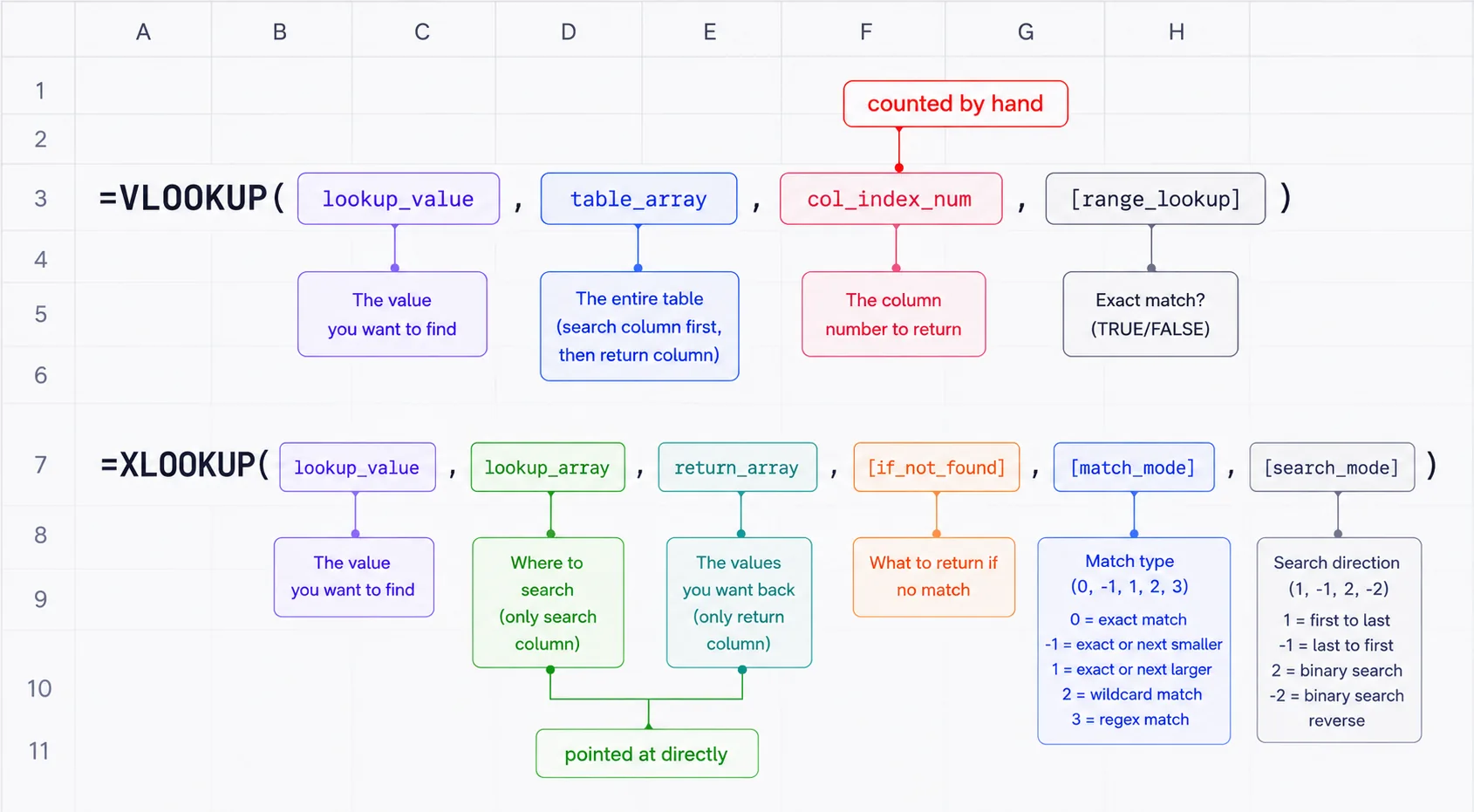
The VLOOKUP formula in Excel takes four arguments:
=VLOOKUP(lookup_value, table_array, col_index_num, [range_lookup])
lookup_value: the value you are searching fortable_array: the entire table, starting with the column you searchcol_index_num: how many columns across the answer sits[range_lookup]:FALSEfor an exact match,TRUEor blank for approximate
VLOOKUP takes one table and a column number. You count the columns yourself. Miscount, or let the table shift, and the formula returns a wrong value without warning.
The XLOOKUP formula
The XLOOKUP syntax has six arguments, but only the first three are required:
=XLOOKUP(lookup_value, lookup_array, return_array, [if_not_found], [match_mode], [search_mode])
lookup_value: the value you are searching forlookup_array: the column you search inreturn_array: the column you want a value back from[if_not_found]: what to show when nothing matches[match_mode]: exact, approximate, wildcard, or regex[search_mode]: first to last, last to first, or a binary search
XLOOKUP takes two separate ranges. You point at the column you search, then point at the column you want back. No counting.
That one change explains almost everything else. Splitting one table into two ranges is what lets XLOOKUP search left, return several columns at once, and keep working when the sheet changes.
The Sample Data Used in Every Example
Every formula below runs against the same employee table: names in column A, departments in column B, salaries in column C, and start dates in column D, across rows 2 to 11.
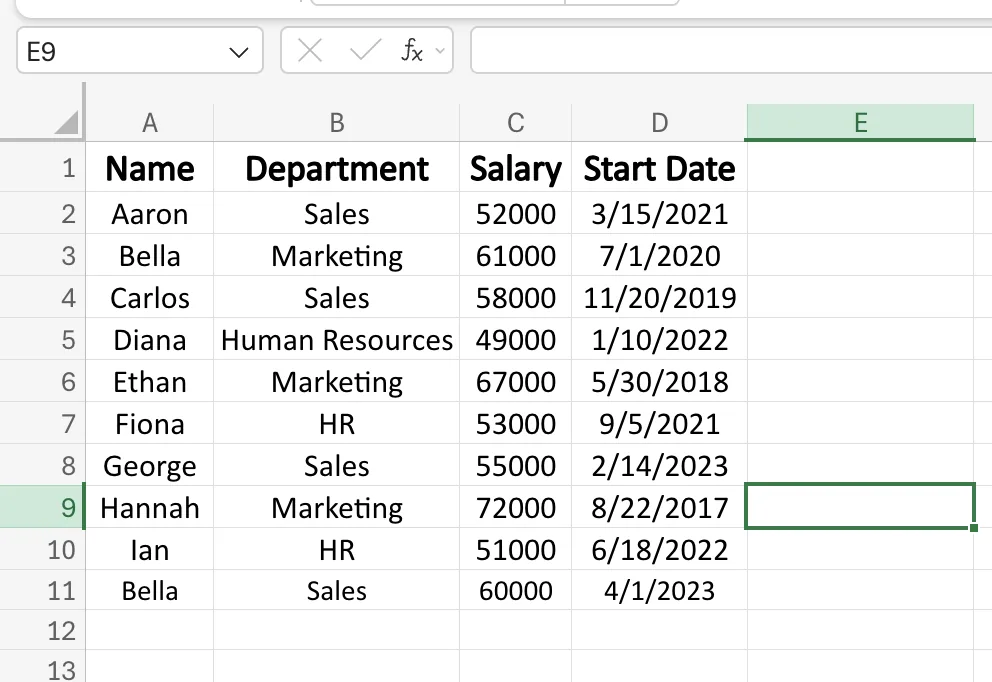
Two details matter. Salary sits to the right of Name, so looking left means you search salaries and return names. And one name appears twice, which is how you will test what each function does with a duplicate.
Paste the table into Excel and follow along.
XLOOKUP vs VLOOKUP: 9 Differences With Examples
Not every difference matters equally. The first three change what your formulas return. The next four change how fast you write them. The last two decide whether your formula runs at all. Every example below runs against the same employee table, VLOOKUP first, then XLOOKUP.
1. XLOOKUP Searches Left, VLOOKUP Cannot
VLOOKUP only looks right. It finds your value in the first column of the table, then moves across. If the answer sits to the left, you are stuck.
Say you know a salary and you want the name. Salary is in column C. Name is in column A.
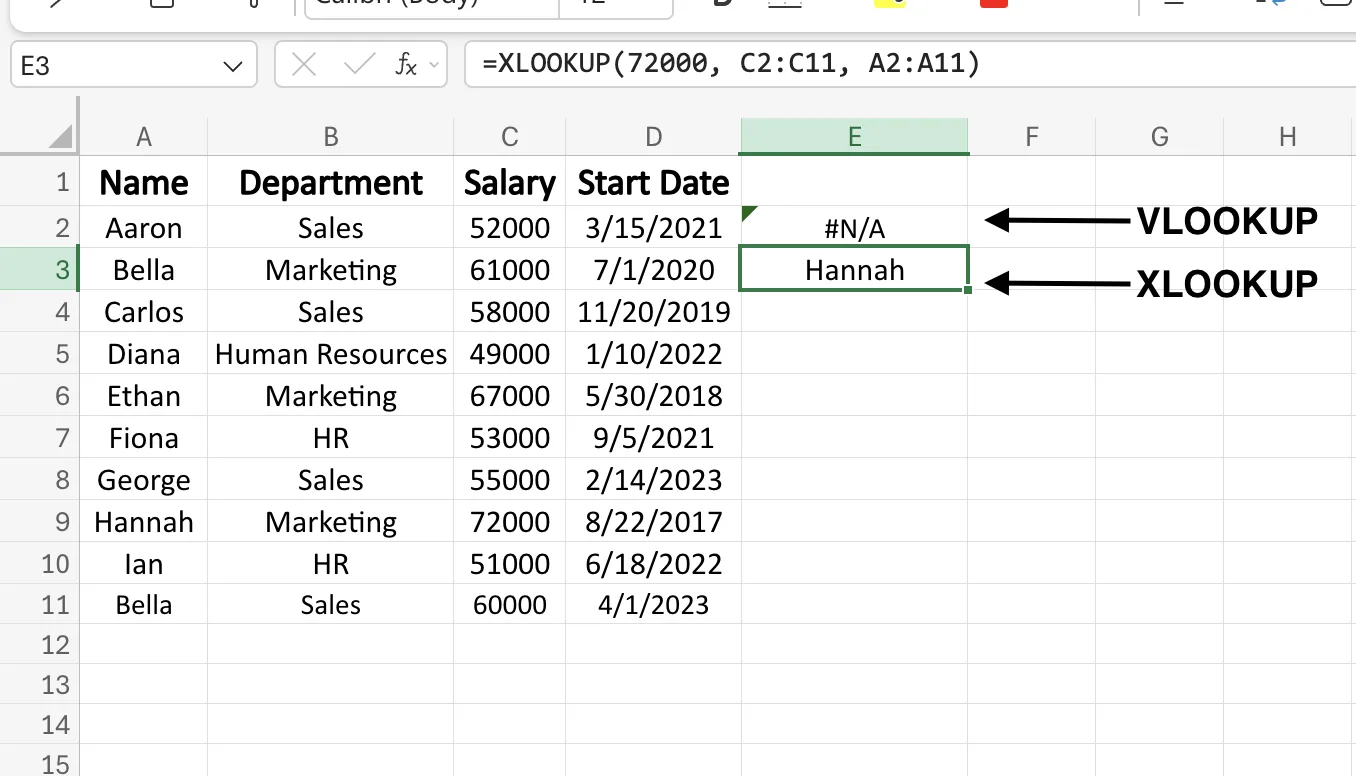
There is no VLOOKUP that can do this. Point it at the table and it searches column A, the names, for a salary that will never appear there:
=VLOOKUP(72000, A2:D11, 1, FALSE) returns #N/A
Start the table at column C instead, so it searches salaries, and there is no col_index_num that reaches back to column A. The return column must sit to the right of the lookup column. Either way, the name is out of reach.
=XLOOKUP(72000, C2:C11, A2:A11) returns Hannah.
XLOOKUP searches any column and returns from any column. It searches across rows too, which means it also replaces HLOOKUP. The VLOOKUP vs HLOOKUP question disappears.
You stop rearranging data you did not create.
2. Inserted Columns Break VLOOKUP, Not XLOOKUP
This is the difference most likely to go unnoticed.
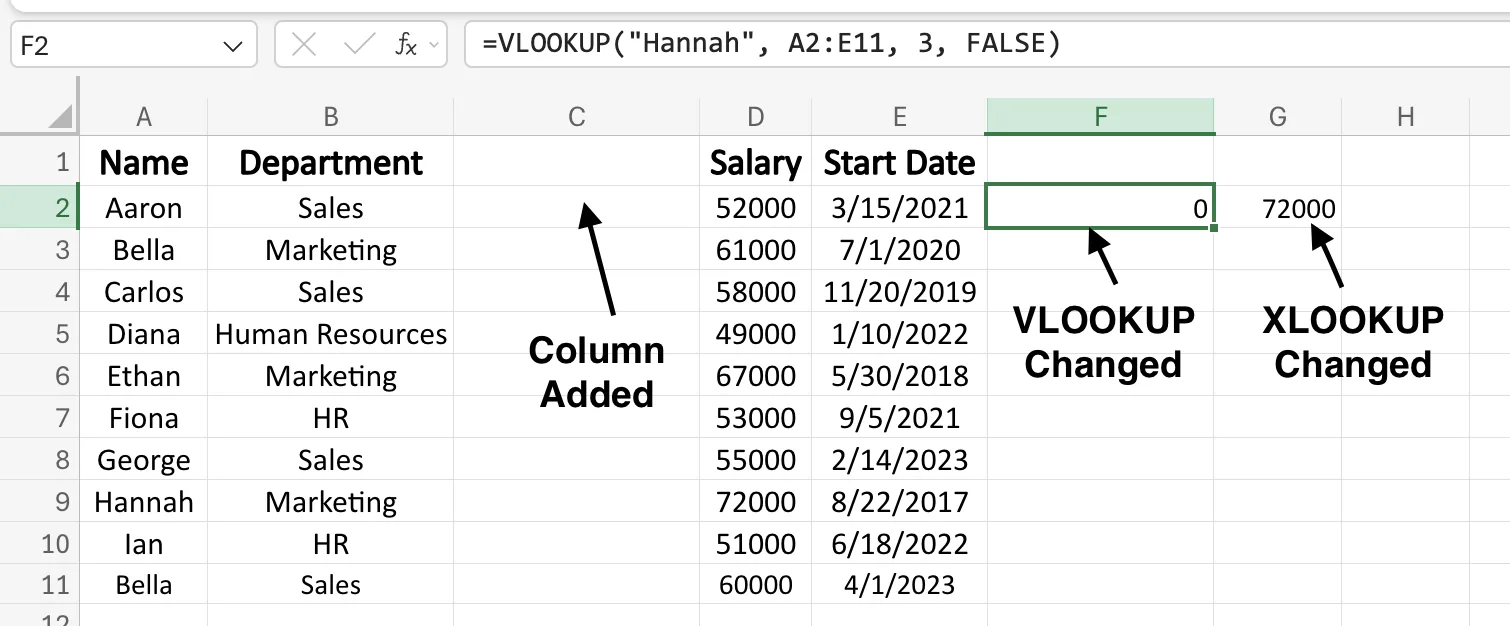
VLOOKUP finds its return column by counting. A col_index_num of 3 means "third column across." You hardcode that number.
Now a colleague inserts a column between B and C. The third column across is no longer Salary, it is the new column. Your salary lookup starts returning departments, or dates, or blanks, and every calculation downstream inherits the error.
No error message. No warning.
XLOOKUP points at the return column directly. Insert a column, move a column, and the formula follows it.
Microsoft built XLOOKUP for three reasons. This one came first.
3. XLOOKUP Matches Exactly by Default, VLOOKUP Approximates
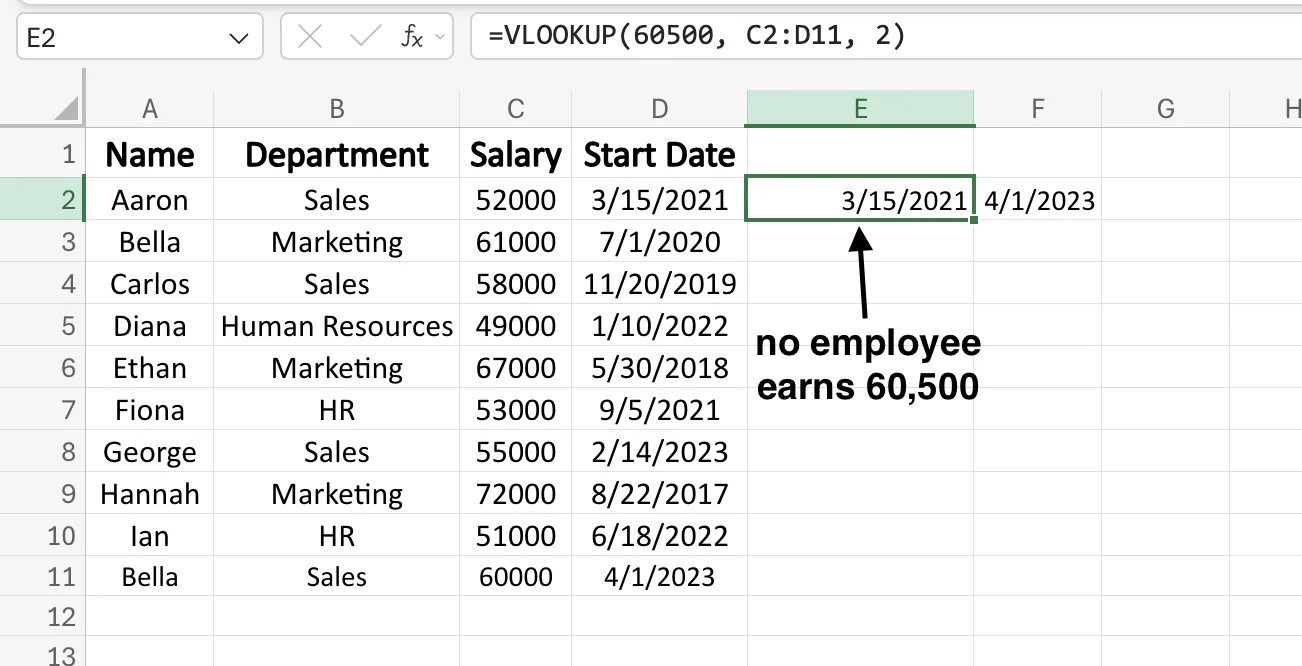
Try looking up 60,500, which nobody in the table earns:
=VLOOKUP(60500, C2:D11, 2) returns 3/15/2021
That is Aaron's date, and Aaron earns 52,000. Leave off the fourth argument and VLOOKUP switches to approximate matching, finds the nearest value below, and reports it as though it were a match.
It gets worse. Approximate matching expects the lookup column to be sorted ascending. Column C here is not, so the value VLOOKUP lands on is not even predictable: shuffle the rows and the same formula returns a different wrong answer. Two ways to be silently wrong in one default.
XLOOKUP returns #N/A and stops.
Now a salary that does exist. Bella earns 60,000:
=XLOOKUP(60000, C2:C11, D2:D11) returns 4/1/2023
=VLOOKUP(60000, C2:D11, 2, FALSE) returns 4/1/2023
Same answer, but XLOOKUP needs three arguments where VLOOKUP needs four, and the one you can forget is the one that matters.
4. XLOOKUP Handles Its Own Errors, VLOOKUP Needs IFERROR
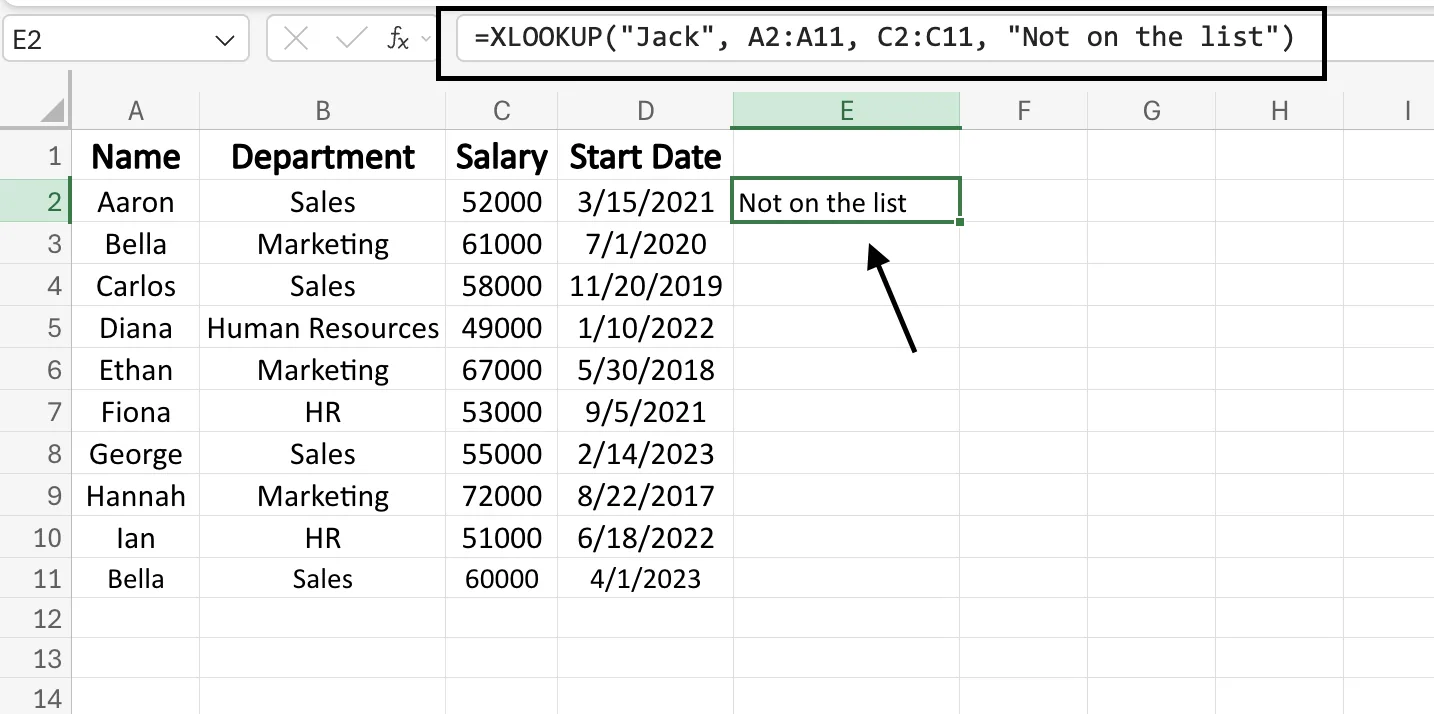
Look up a name that is not in the table and both functions return #N/A. To show something friendlier, VLOOKUP needs a wrapper:
=IFERROR(VLOOKUP("Jack", A2:C11, 3, FALSE), "Not on the list")
XLOOKUP has a fourth argument for exactly this:
=XLOOKUP("Jack", A2:A11, C2:C11, "Not on the list")
That argument does more than tidy up. You can nest a second XLOOKUP inside it, so the formula searches one list, then falls back to another:
=XLOOKUP("Jack", A2:A11, C2:C11, XLOOKUP("Jack", F2:F11, H2:H11, "Not found"))
Search the main table. If Jack is missing, search the archive. VLOOKUP cannot chain like this without stacking IFERROR around itself.
5. XLOOKUP Can Search Bottom to Top, VLOOKUP Only Goes Down
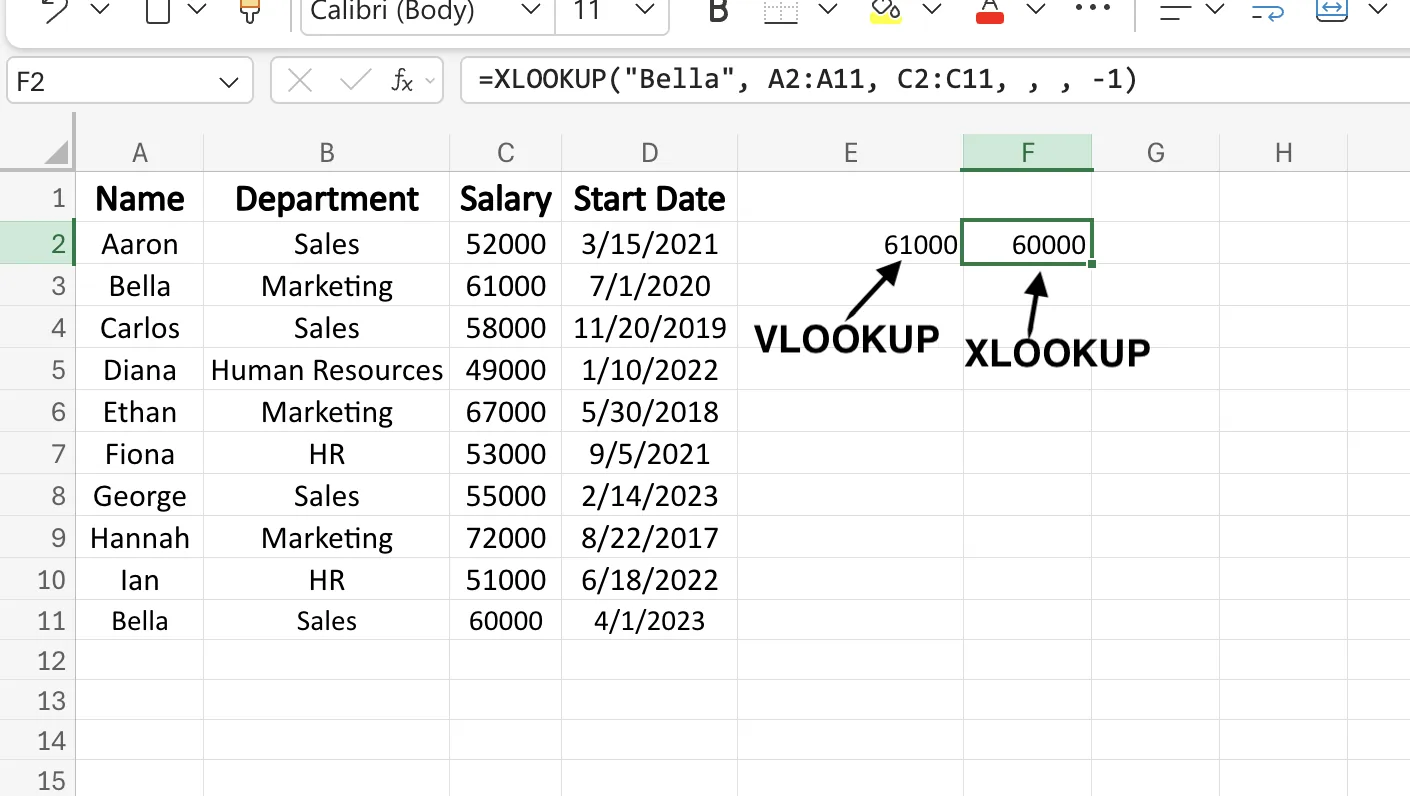
Bella appears twice. Row 3 in Marketing, row 11 in Sales.
VLOOKUP finds the first one and stops:
=VLOOKUP("Bella", A2:C11, 3, FALSE) returns 61000
That is her old salary. XLOOKUP does the same by default. The sixth argument flips it:
=XLOOKUP("Bella", A2:A11, C2:C11, , , -1) returns 60000
Now it starts at the bottom and works up, so you get her current row.
This matters whenever your data is a log. The latest price, the most recent transaction, the current department. All of them sit at the bottom.
6. XLOOKUP Returns Multiple Columns in One Formula
VLOOKUP returns one value. Want three columns, write three formulas, and count the columns three times.
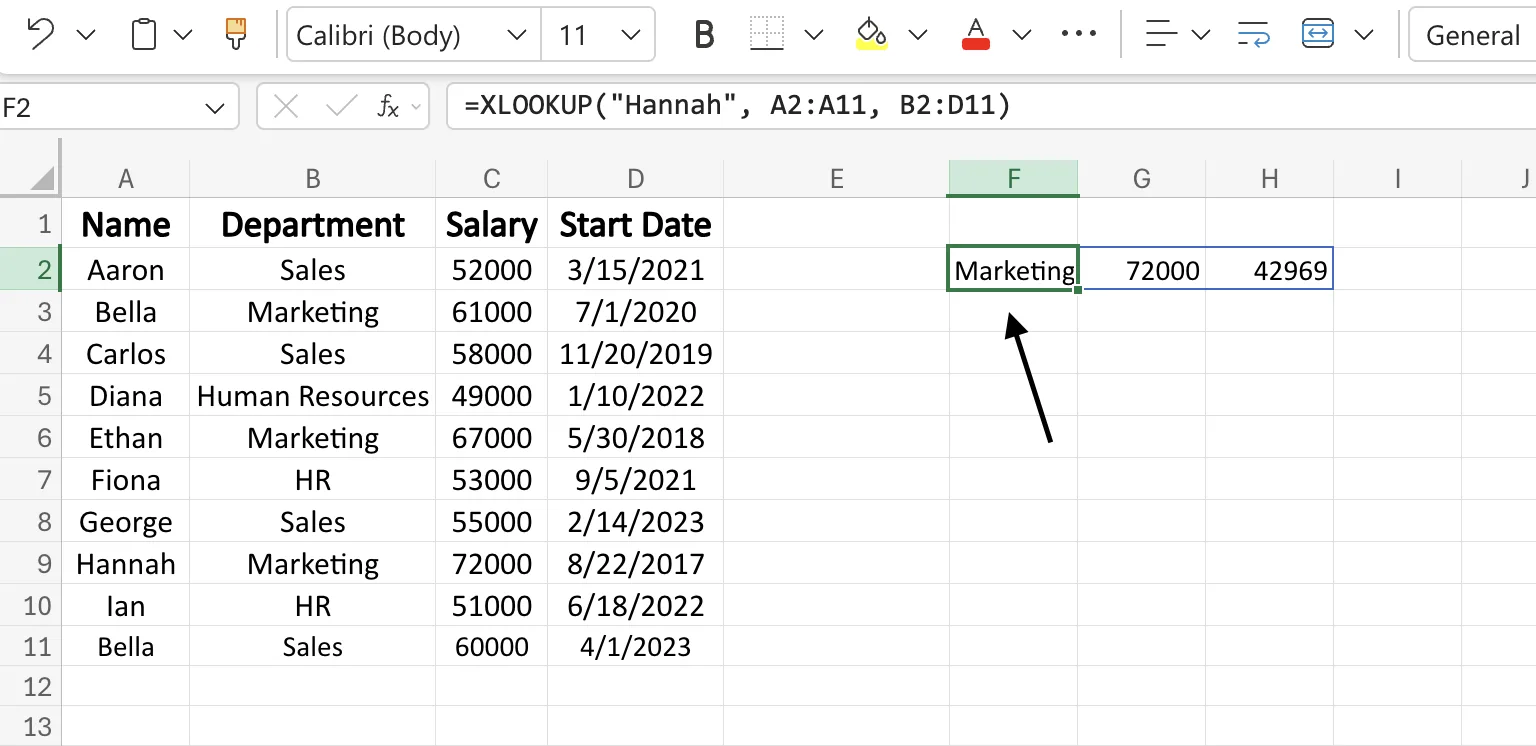
XLOOKUP takes a return range that is more than one column wide:
=XLOOKUP("Hannah", A2:A11, B2:D11) returns Marketing, 72000, and 8/22/2017
One formula. The results spill into the cells to the right on their own.
7. XLOOKUP Handles Two Criteria Without a Helper Column
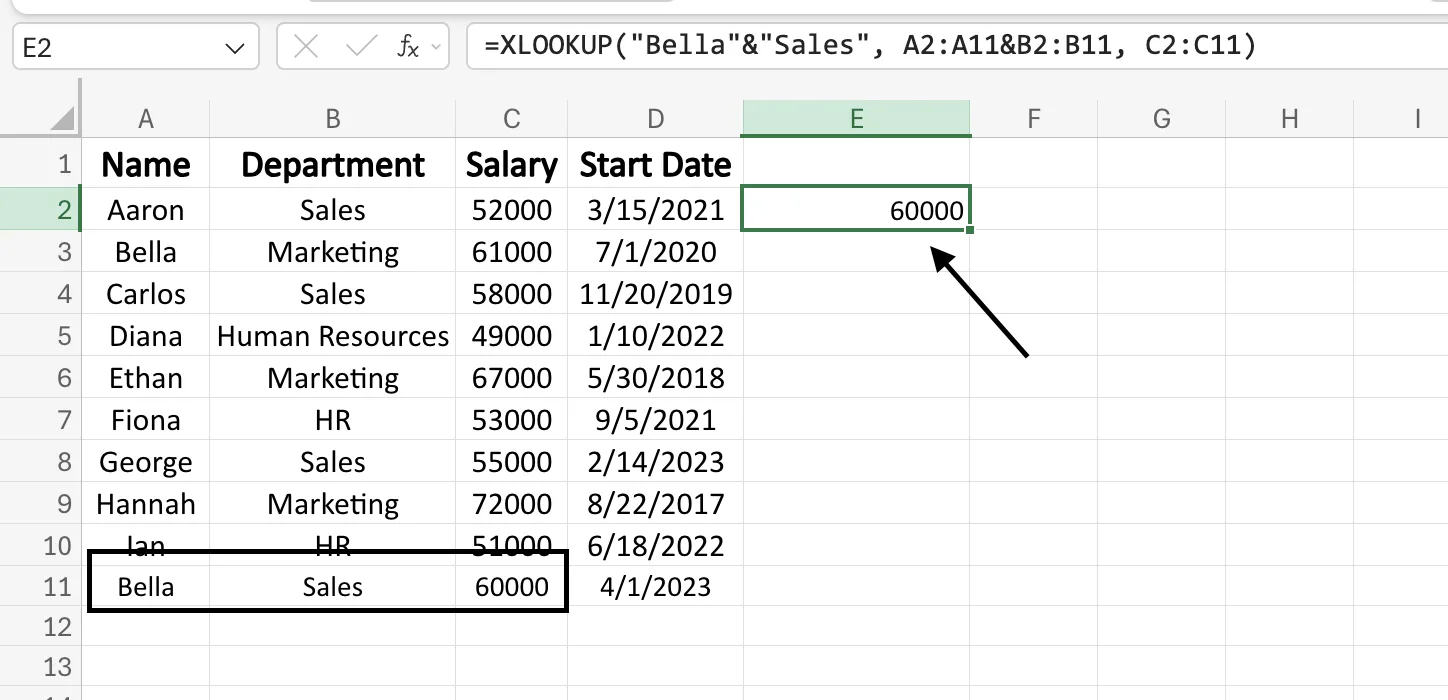
Bella appears twice, so her name alone is not enough. You need name and department together.
With VLOOKUP, you build a helper column that joins the two fields, then look up against that. One extra column, on every sheet, forever.
XLOOKUP joins them inside the formula:
=XLOOKUP("Bella"&"Sales", A2:A11&B2:B11, C2:C11) returns 60000
The & joins the lookup values, and joins the lookup columns to match. Add a third criterion by adding another & on both sides.
8. XLOOKUP Supports Regex Matching, VLOOKUP Has Nothing Close
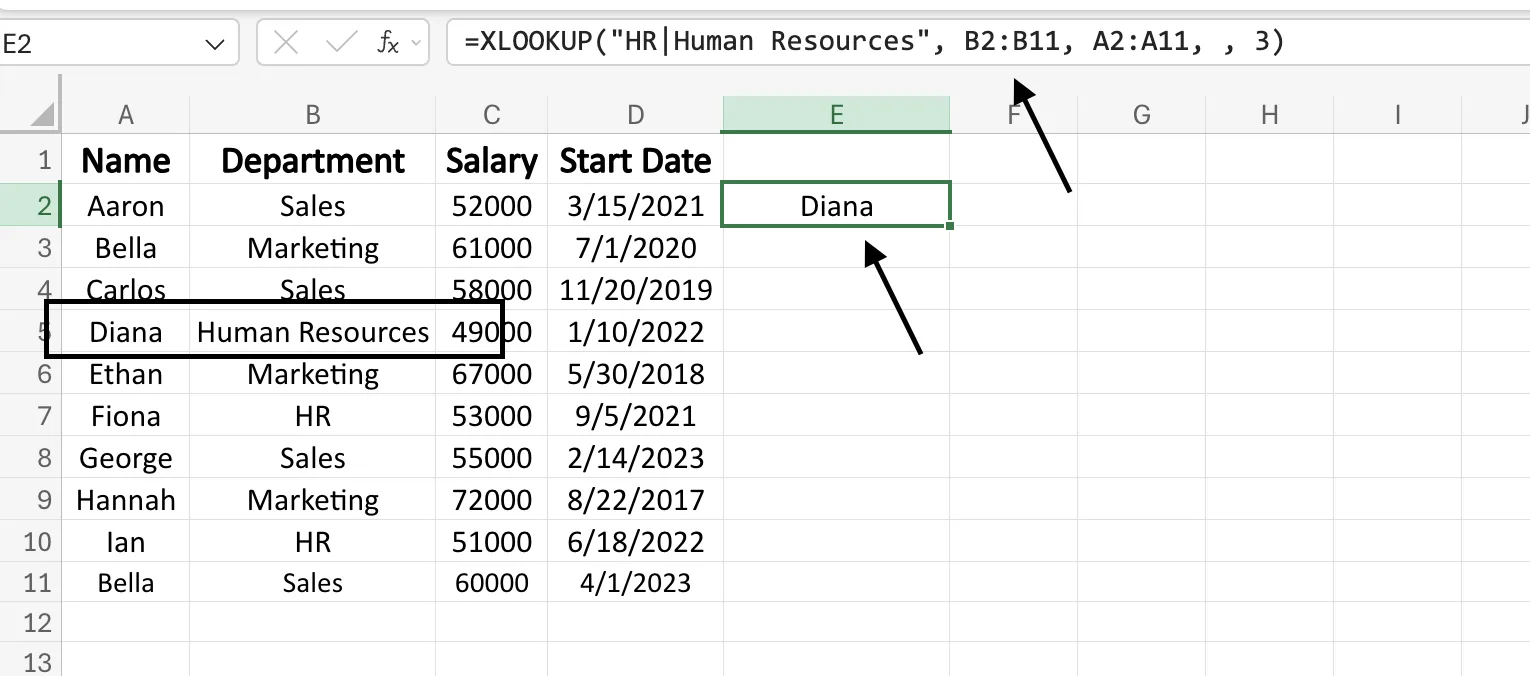
Real data is inconsistent. Diana sits in Human Resources. Fiona and Ian sit in HR. Same department, two spellings.
Set match_mode to 3 and XLOOKUP reads your lookup value as a regular expression:
=XLOOKUP("HR|Human Resources", B2:B11, A2:A11, , 3) returns Diana
The | means "or." One formula catches both spellings. Wildcards get you closer with match_mode set to 2, but * and ? cannot say "either of these two phrases."
Two caveats. Regex matching runs in Microsoft 365 only, so Excel 2021, Excel 2024, and every older version are out. And it is case-sensitive, so add (?i) to the front of your pattern to switch that off.
VLOOKUP has no equivalent. Not in any version.
9. VLOOKUP Caps Lookup Values at 255 Characters, XLOOKUP Does Not
Feed VLOOKUP a lookup value longer than 255 characters and it returns #VALUE!.
XLOOKUP has no limit. That matters when your key is a long text string, a URL, or several fields joined together with &, which is exactly what the two-criteria trick above does.
The XLOOKUP Speed Myth
XLOOKUP scans two columns. VLOOKUP scans a whole table. So XLOOKUP should be quicker.
It is not. But the published benchmarks disagree wildly about how much slower it is, and the reason is that they are not measuring the same thing. They are measuring different range sizes.
Professor Excel ran 100,000 formulas across 20 rounds. XLOOKUP took around 40% longer than VLOOKUP, and it lost to INDEX MATCH as well.
Ablebits ran their own test and clocked XLOOKUP with whole-column references at 24.5 seconds, close to twice as slow as VLOOKUP.
My Online Training Hub ran all three against 107,000 rows and found almost no difference between them. Every one finished in under a second.
Those results look contradictory. They are not. They measure different range sizes.
Bound your ranges, not your function
The slow XLOOKUP tests all point at entire columns. C:C is 1,048,576 cells. C2:C11 is ten.
Change C:C to C2:C100001 and any lookup speeds up more than swapping functions ever will. That single habit outperforms every argument in the XLOOKUP vs VLOOKUP vs INDEX MATCH debate.
XLOOKUP does win in one case. Return several columns at once, as in Difference 6, and it runs about 30% faster than writing a separate formula for each column.
The efficiency claim that is true
XLOOKUP recalculates less often.
=VLOOKUP(A1, B:Z, 24, FALSE) watches all 25 columns. Edit anything in that block and the formula runs again, even though it only ever returns column Z.
=XLOOKUP(A1, B:B, Z:Z) watches two columns. Everything between them can change and the formula sits still.
That is a shorter dependency chain, not a faster search. On a few thousand rows you will notice neither. Past 50,000, bound your ranges and stop worrying about which function you picked.
XLOOKUP vs VLOOKUP in Google Sheets
Both functions work in Google Sheets too. VLOOKUP has been there for years. XLOOKUP arrived in August 2022, three years after Excel.
The syntax is the same six arguments. Google renames a few of them:
=XLOOKUP(search_key, lookup_range, result_range, missing_value, match_mode, search_mode)
What stays the same: exact match by default, searching left, a built-in not-found value, wildcards through match_mode 2, and binary search through search_mode 2.
What changes: Google Sheets has no regex match mode, so the match_mode 3 trick from Difference 8 is Excel only. Sheets makes up for it with QUERY and FILTER, which Excel has no answer to.
Paste an Excel sheet into Google Sheets and your XLOOKUP formulas keep working. Send that same workbook to someone on Excel 2019 and they stop. The platform you build in does not matter. The version the other person opens does.
GPT for Work: the AI agent that runs lookups for you
XLOOKUP and VLOOKUP both need an exact match. Neither one knows that "Bob" and "Robert" are the same person, or that "NYC" and "New York" are the same city. Regex mode helps a little, if you are on Microsoft 365 and can write the pattern. Real spreadsheets are messier than that.
GPT for Work handles the whole thing from a single prompt.
GPT for Work is an AI for Excel and Google Sheets that runs inside a sidebar add-in. Instead of writing a formula, you describe what you want in plain English. The agent reads your sheet, works out the steps, and fills in the answers.
Take the employee table. Say you want two lookups, a rule to pick the right duplicate, and a flag, all at once. You type:
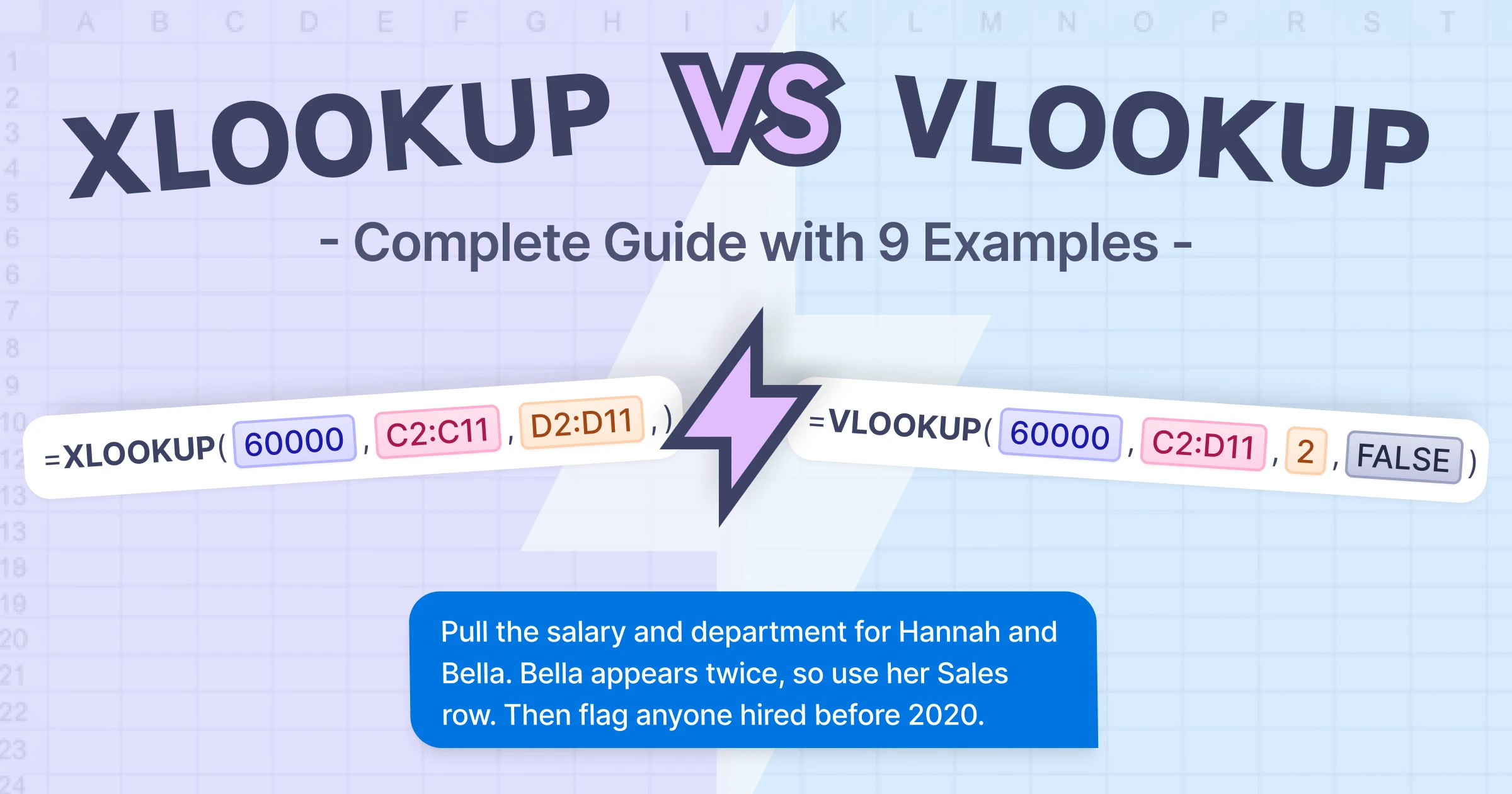
"Pull the salary and department for Hannah and Bella. Bella appears twice, so use her Sales row. Then flag anyone hired before 2020."
Press Enter, and the agent:
- Finds Hannah's salary and department
- Finds Bella's Sales row, not her Marketing one
- Writes both results into new columns
- Flags every person with a start date before 2020
One request. Two lookups, a disambiguation, and a date check, and a single XLOOKUP cannot do all three. Lookups are one example. The same Excel AI writes formulas, cleans data, translates thousands of rows, and pulls information from the web into your sheet.
Try GPT for Work.
Final Takeaways
For any lookup you write today, use XLOOKUP. It searches in both directions, matches exactly by default, handles its own errors, and keeps working when someone reshapes the sheet. That is nine reasons to switch, and one reason to stay.
The only reason to pick VLOOKUP is compatibility. It runs in every version of Excel. XLOOKUP does not work in Excel 2019 or older, so if your file might open on an old version, use VLOOKUP.
When the match is not clean, when names or spellings do not line up, skip the formula. Describe what you need and let GPT for Work run the lookup for you.
FAQs
What is the main difference between XLOOKUP and VLOOKUP?
XLOOKUP can search in any direction, matches exactly by default, and handles its own errors. VLOOKUP only searches right, defaults to an approximate match, and breaks when you insert a column. XLOOKUP replaced VLOOKUP as Excel's default lookup function in 2019.
When should you use VLOOKUP instead of XLOOKUP?
Use VLOOKUP when your file might open in Excel 2019 or an older version. XLOOKUP does not exist in those versions. If you build a file with XLOOKUP and send it to someone on Excel 2019, they see a #NAME? error the moment they edit the formula, and any formula that depends on it breaks too.
Is XLOOKUP faster than VLOOKUP?
No. On large sheets, benchmarks show XLOOKUP runs slower than VLOOKUP, often by around 40%. The size of your range affects speed far more than the function you pick, so a lookup on ten rows is instant either way.
Does XLOOKUP work in Google Sheets?
Yes. Google Sheets added XLOOKUP in August 2022. It uses the same six arguments as Excel, with slightly different names. The one feature it lacks is regex match mode.
Is XLOOKUP better than INDEX MATCH?
For most work, yes. XLOOKUP does the same job in one function instead of two, so it is easier to read and write. INDEX MATCH still wins in two cases: it runs in every version of Excel, and it is faster when you return many columns from the same lookup.