What is a macro in Excel? It's a saved sequence of actions that Excel can replay on command. You perform a task once — formatting headers, cleaning data, building a report — save it as a macro, and Excel repeats the entire process whenever you need it. No manual work, no repetition.
To see why that matters, picture your Monday morning: pull last week's numbers from the database, paste them into your report template, format the headers, adjust column widths, add borders, bold the totals row. That takes about 40 minutes — roughly 17 hours over six months. A macro finishes it in under 5 seconds.
In this guide, we'll break down how Excel macros work, how to record one without writing code, and how to create more advanced automations using VBA. We'll also cover common pitfalls and when macros aren't the best solution.
What Is a Macro in Excel?
A macro in Excel is a saved sequence of actions that can be replayed automatically. Think of it like a recording of your steps, except instead of capturing your voice, Excel records your clicks, keystrokes, and formatting changes. When you run the macro, Excel repeats everything exactly as you did it.
Behind the scenes, Excel macro runs on VBA (Visual Basic for Applications), a programming language built into Excel.
But here's the key point: you don't need to know VBA to start using macros. Excel's built-in Macro Recorder captures your actions and generates the code automatically. You just click, and it records.
One important detail: standard Excel files (.xlsx) cannot store macros. If you try to save a macro in this format, Excel will warn you that it will be removed. To keep your macros, you must save your file as a .xlsm (macro-enabled workbook).
What Can You Do with Excel Macros?
Pretty much anything you can do by hand in Excel, a macro can do for you.
Here are some common use cases:
Formatting. You have 12 sheets of monthly sales data and every single one needs the same header style, column widths, and borders. A macro applies that formatting to all 12 sheets in one click. No more copying and pasting styles from sheet to sheet.
Data cleanup. Your sales data has extra spaces in product names, duplicate rows, or inconsistent capitalization ("wireless mouse" vs "Wireless Mouse"). A macro can trim whitespace, remove duplicates, and fix casing across thousands of rows in seconds.
Reporting. Every Monday you pull the same weekly report. A macro can create the pivot table, sort by region, add the totals row, and set the print area automatically. Same report, every week, without touching it.
Calculations. Need to apply a discount formula to every product in column D? Or calculate tax across 500 rows? A macro runs that formula once and applies it everywhere.
Sending emails. If you use Outlook, a macro can pull data from your spreadsheet and send personalized emails to a list of contacts. Useful for invoice reminders or weekly updates to your team.
If you do the same thing more than twice, a macro can probably handle it.
How to Create a Macro in Excel (Record Method)
This is the easiest way to make a macro in Excel. No coding required.
You just perform the task while Excel watches and records every step. Say you have a sales report and you want to format the header row and highlight every row where revenue is above $1,000 in green. Instead of repeating those steps manually every time new data comes in, you can record the process once as a macro. The next time you run it, Excel will automatically format the headers and highlight the relevant rows in seconds, no need to redo the work.
Step 1: Open the Developer tab
- Windows: Click the Developer tab in your ribbon.
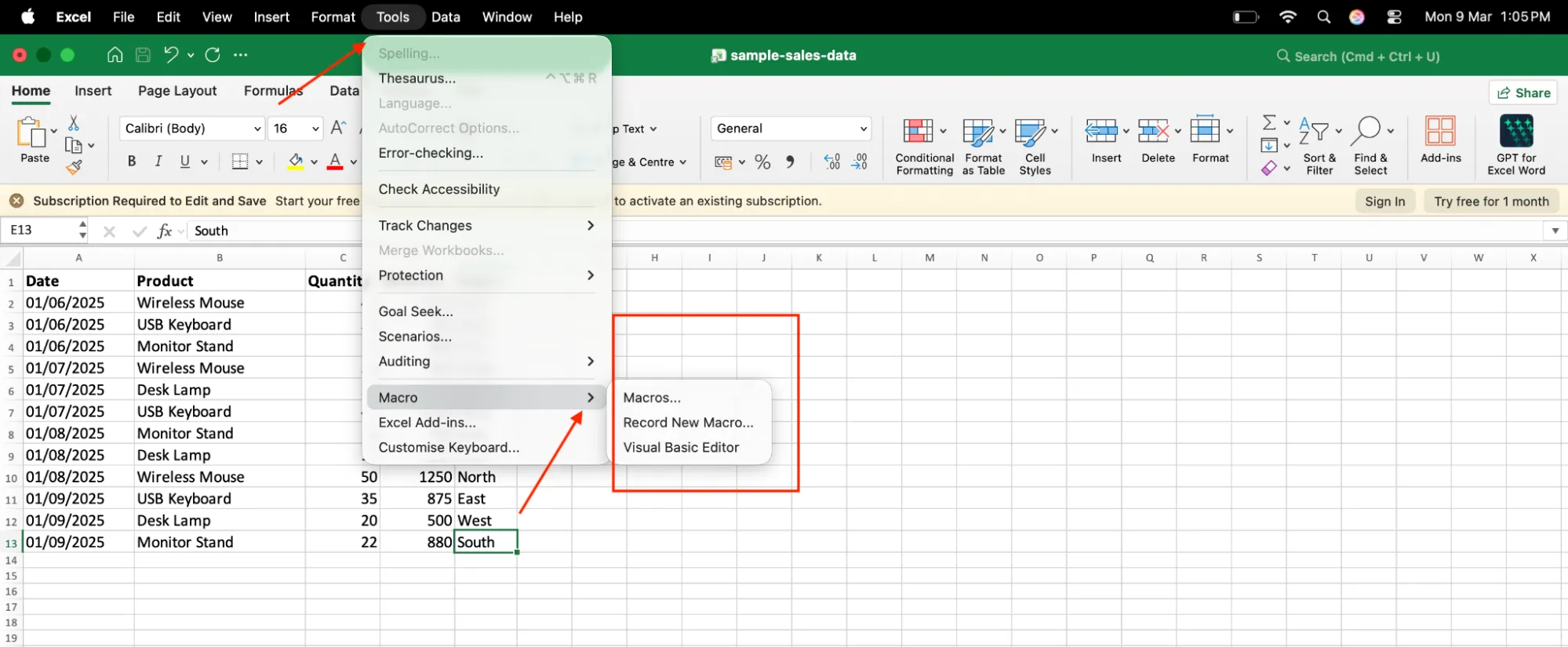
- Mac: Go to Tools > Macro > Record New Macro.
If you don't see the Developer tab on Windows, go to File > Options > Customize Ribbon and check the Developer box.
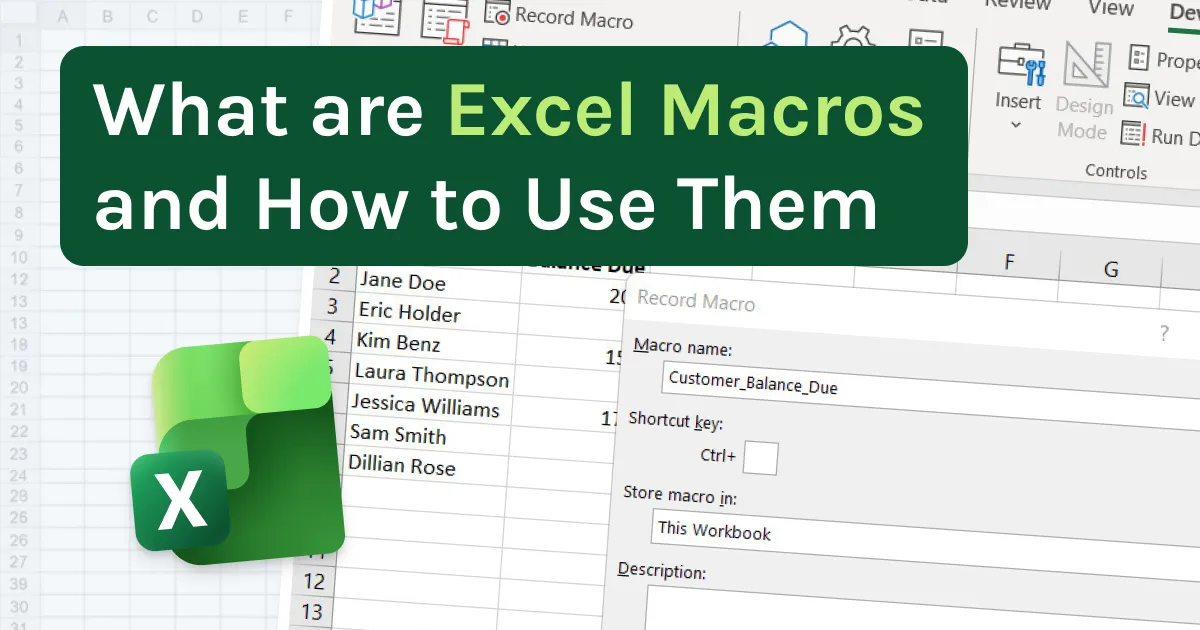
Step 2: Click "Record Macro"
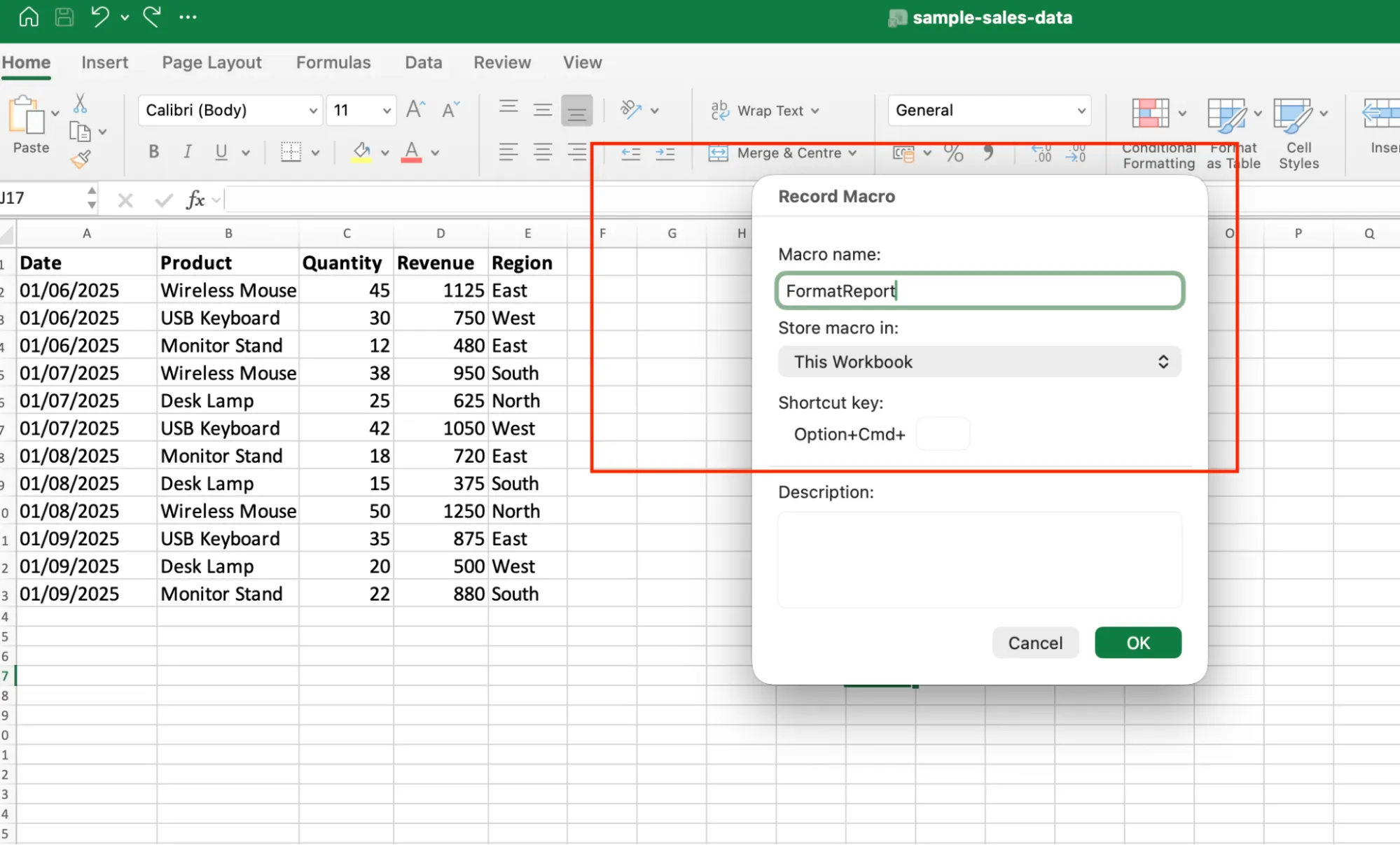
- Give your macro a name (no spaces, e.g.,
FormatReport). - Optionally assign a keyboard shortcut.
- Choose where to store it (select This Workbook).
- Click OK.
Step 3: Perform your actions
Everything you do is now recorded. For example:
- First, select row 1, make it bold, and add a dark background with white text.
- Then go through the Revenue column and highlight every row where the value is above $1,000 with a green fill.
Take your time, Excel records actions, not speed.
Step 4: Stop recording
- Windows: Click Stop Recording in the Developer tab
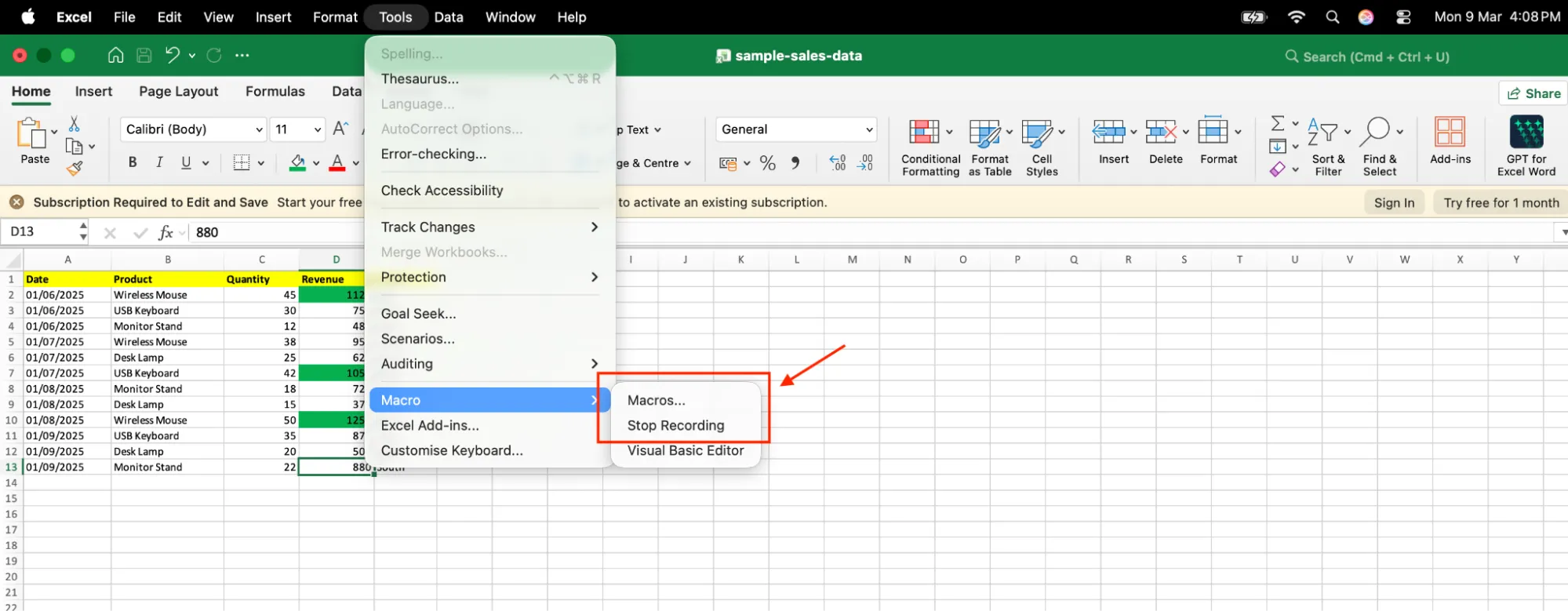
- Mac: Tools > Macro > Stop Recording
That's it. Your macro is saved.
Step 5: Test your macro
Open a new sheet, paste in fresh data, and run the macro.
- Windows: Developer > Macros > Run
- Mac: Tools > Macro > Macros > Run
If the headers are formatted and the high-revenue rows turn green, your macro works.
Tip: To use a macro across all workbooks, store it in the Personal Macro Workbook, option during Step 2.
How to Write a Macro in Excel (VBA Method)
The record method works great for simple tasks. But what if you need something the recorder can't handle? Like looping through every sheet in a workbook and applying the same formatting to each one. Or checking a condition (is revenue above $1,000?) and doing something different based on the answer.
That's where VBA comes in. VBA stands for Visual Basic for Applications. It's the programming language built into Excel. You write the steps in code instead of clicking through them.
Step 1: Open the VBA Editor
- Windows: press Alt + F11
- Mac: press Fn + Option + F11
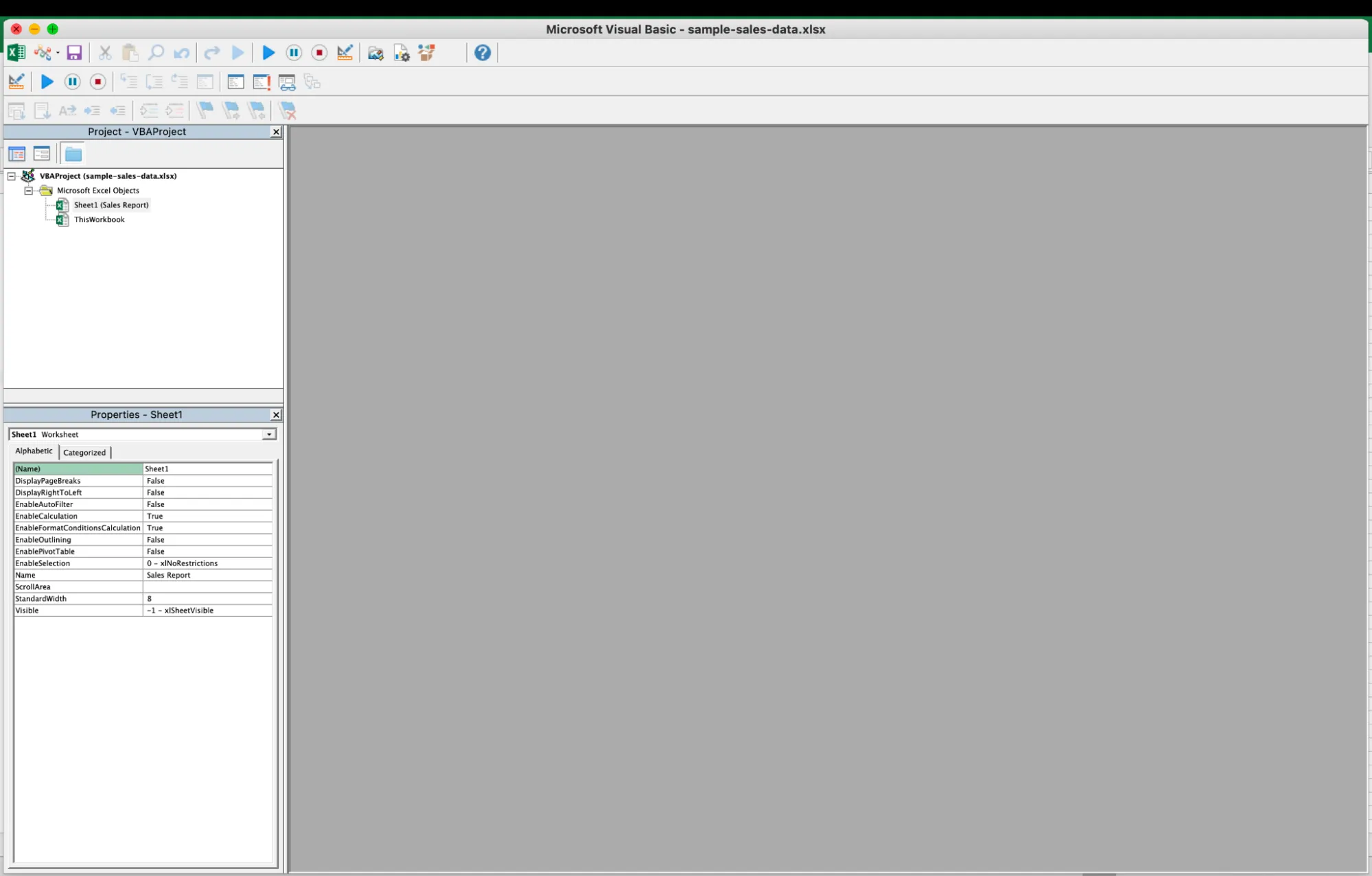
You can also go to Developer > Visual Basic on Windows, or Tools > Macro > Visual Basic Editor on Mac.
Step 2: Insert a Module
In the editor, go to Insert > Select Module.
This creates a blank space where you write your code.
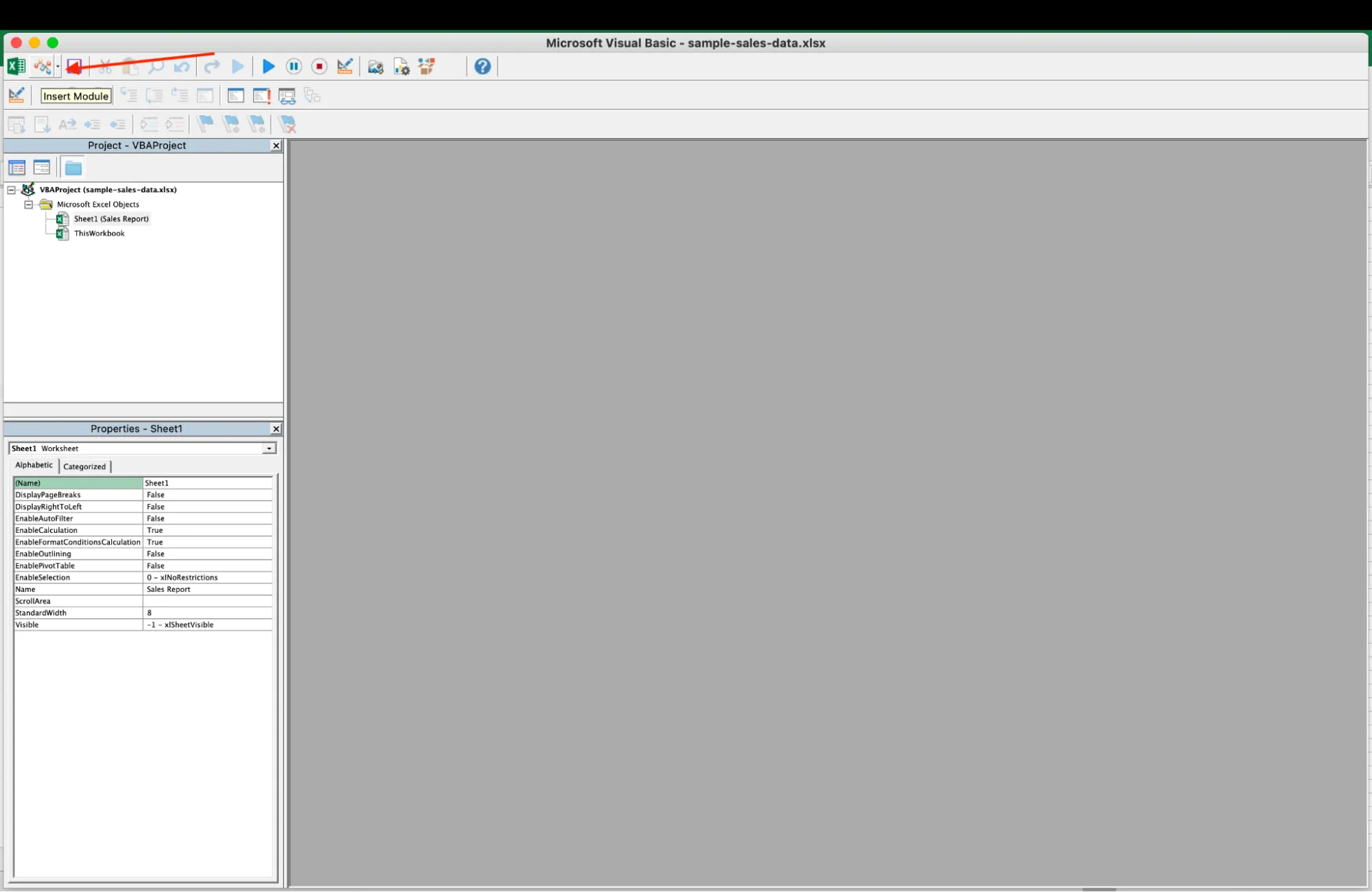
Step 3: Paste this code
Sub FormatAndHighlight()
    Dim ws As Worksheet
    Dim lastRow As Long
    Dim i As Long

    For Each ws In ThisWorkbook.Worksheets
        'Format header row
        With ws.Rows(1)
            .Font.Bold = True
            .Font.Color = RGB(255, 255, 255)
            .Interior.Color = RGB(0, 51, 102)
        End With

        'Highlight rows where Revenue (column D) > 1000
        lastRow = ws.Cells(ws.Rows.Count, "D").End(xlUp).Row
        For i = 2 To lastRow
            If ws.Cells(i, 4).Value > 1000 Then
                ws.Rows(i).Interior.Color = RGB(198, 239, 206)
            End If
        Next i
    Next ws

    MsgBox "Done! All sheets formatted."
End Sub
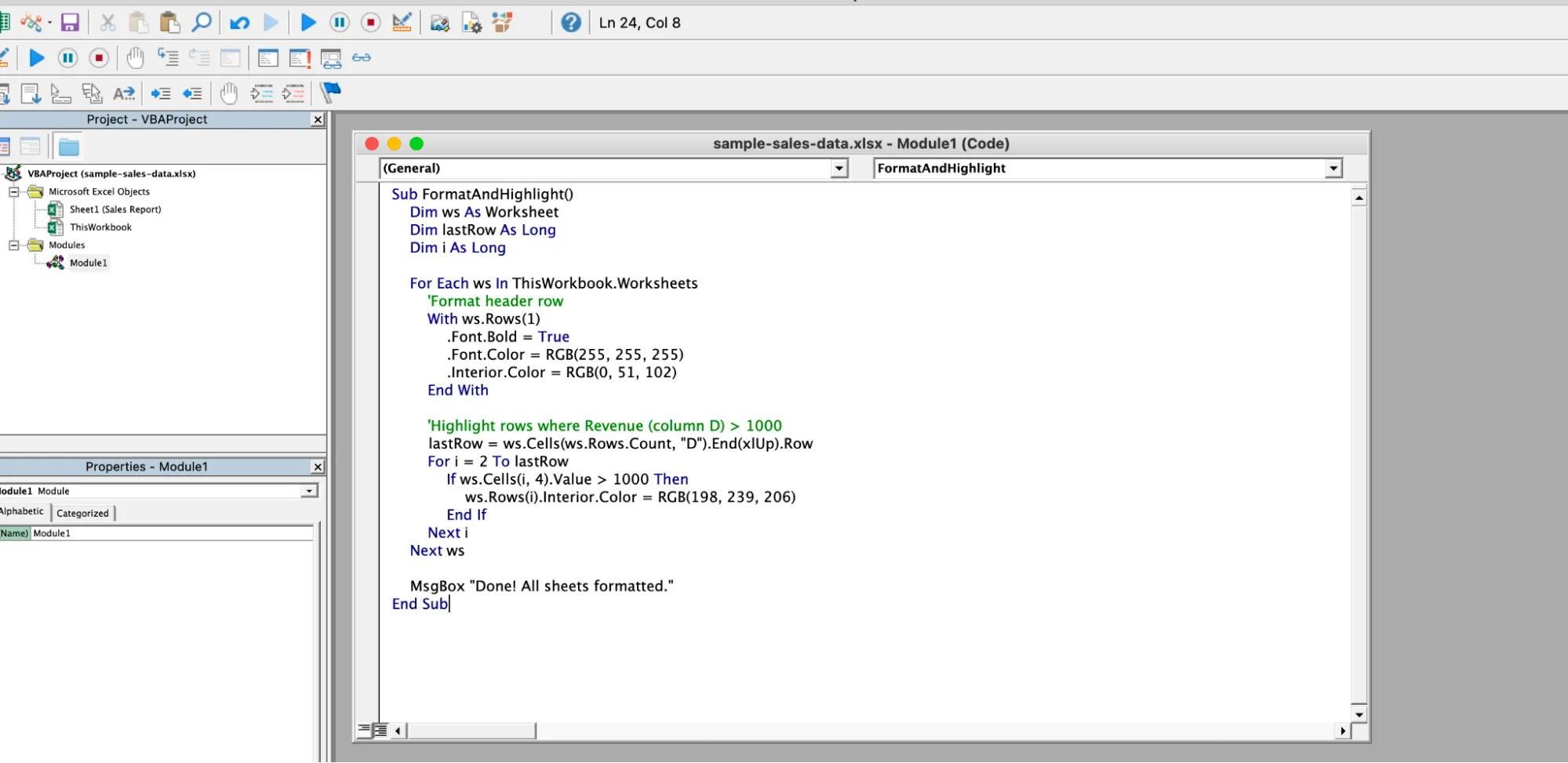
What it does:
- For Each ws loops through every sheet in the workbook.
- With ws.Rows(1) formats the first row: bold, white text, dark blue background.
- lastRow finds the last row with data so the macro doesn't run on empty rows.
- If ws.Cells(i, 4).Value > 1000 checks column D (Revenue) in each row. If it's above 1,000, the row turns green.
- MsgBox shows a popup when the macro finishes so you know it's done.
Step 4: Run the macro
- Press F5 while your cursor is inside the code, or close the VBA Editor and go to Developer > Macros (Windows) or Tools > Macro > Macros (Mac)
- Select "FormatAndHighlight," and click Run.
Even if you never write VBA from scratch, being able to read and edit a few lines opens up a lot more than the recorder can do on its own.
Common Macro Issues and How to Fix Them
Macros don't always work on the first try. Here are the problems you'll run into most often and how to fix them.
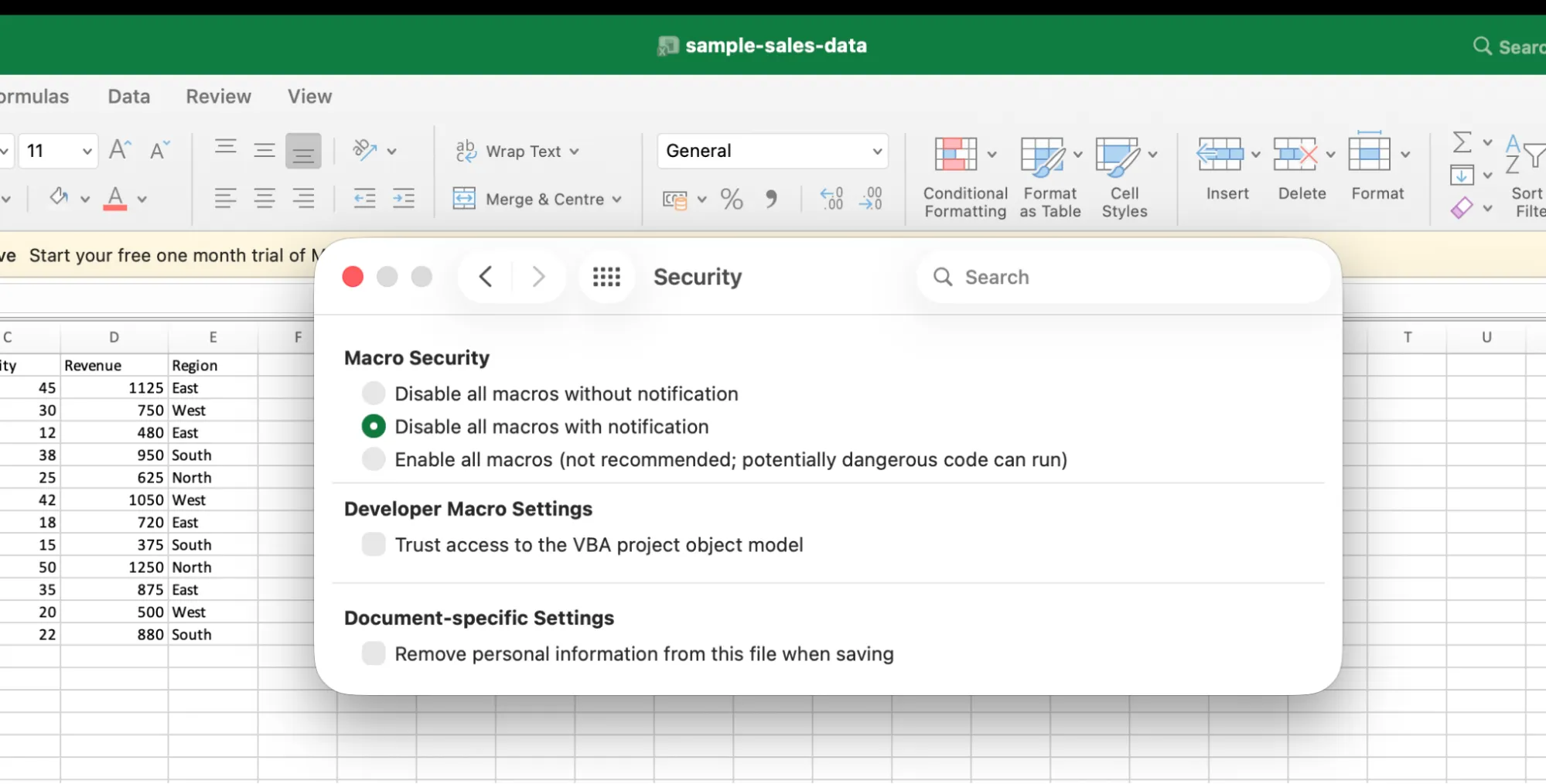
"Macros have been disabled." This is the most common one. Excel disables macros by default as a security measure. When you open a file with macros, you'll see a yellow warning bar at the top that says "Security Warning: Macros have been disabled." Click Enable Content to turn them on for that file.
If you want to change this for all files, the setting is in different places depending on your system.
Windows: go to File > Options > Trust Center > Trust Center Settings > Macro Settings.
Mac: go to Excel > Preferences > Security & Privacy (or Tools > Macro > Security).
But be careful. Only enable macros for files you trust. Macros from unknown sources can contain harmful code.
Macro not showing up in the list. This usually means you saved the file as .xlsx instead of .xlsm. Open the file, go to File > Save As, and change the format to "Excel Macro-Enabled Workbook (.xlsm)."
"Subscript out of range" error. This happens when your macro refers to a sheet name that doesn't exist. For example, if the code says Sheets("Sales") but your sheet is actually called "Sheet1," you'll get this error. Check the sheet names in your code and make sure they match exactly.
Macro runs but nothing changes. The macro might be running on the wrong sheet or the wrong range. Open the VBA Editor (Alt + F11 on Windows, Fn + Option + F11 on Mac) and check which sheet and cells the code is pointing to.
One rule to follow: never enable macros in files you downloaded from the internet or received from someone you don't know. Macros can run any code on your computer, and bad ones can cause real damage.
Skip the Macro: Use an AI Agent like GPT for Work Instead
Macros are great at repeating steps. Format this row. Highlight that column. Run the same steps every time. But they don't "understand" your data. They can't read a row and tell you whether that product is selling well or needs attention. For that, you'd need dozens of IF statements in VBA. And every time your data changes, you'd have to update the code.
GPT for Work is a full AI agent that works directly inside Excel and Google Sheets. You tell it what you want in plain language and it handles the rest.
Even if you want to stick with macros, GPT for Excel can write the macro code for you. Open the agent, type a prompt like
"Write a macro that formats the header row and highlights rows where Revenue is above 1000 in green"
And it generates the full VBA code. Copy it, paste it into the VBA Editor, and run it. You get the macro without writing a single line yourself.
Or skip macros entirely. Tell the agent what you need and it does the work directly in your sheet. No VBA, no recording, no formulas. GPT for Work handles bulk translations, content generation, categorization, formula building, web research, and more. Anything you'd normally do row by row, it does in one go.
Final Takeaways
Macros eliminate repetitive work. Record simple tasks, use VBA for advanced logic, and you can save hours every week.
You don't need to be a programmer to get started, the recorder handles most use cases. As your needs grow, even basic VBA skills go a long way.
For tasks that go beyond replaying clicks, like analyzing data or working with text across thousands of rows, an AI agent like GPT for Work can pick up where macros stop.
Start small: pick one recurring task and automate it. That's the fastest way to see the impact.
Frequently Asked Questions
What is a macro in Excel in simple terms?
A macro is a saved set of actions in Excel. You record or write the steps once, and Excel repeats them whenever you want. Think of it as a shortcut for tasks you do over and over.
Are Excel macros safe?
Macros you create yourself are safe. The risk comes from macros in files you download from the internet or receive from people you don't know. Excel disables macros by default for this reason. Only enable macros in files you trust.
Do I need to know VBA to use macros?
No. Excel's built-in Macro Recorder lets you create macros by clicking through your normal workflow. You only need VBA when you want more control, like adding conditions or looping through multiple sheets.
What is the difference between .xlsx and .xlsm?
.xlsx files cannot store macros. If you save a macro-enabled workbook as .xlsx, you will lose your macros. Always save as .xlsm when your file contains macros.
Can I use macros in Google Sheets?
Google Sheets uses Apps Script (based on JavaScript) instead of VBA. The idea is similar but the code is different. You can record macros in Google Sheets too, but the options are more limited than Excel. If you want to skip coding in either platform, tools like GPT for Work let you automate tasks with plain language prompts inside both Google Sheets and Excel.