Imagine you have a spreadsheet where one column tracks order status. You want users to choose from "Pending," "Shipped," or "Delivered" and nothing else. Or maybe a column that only allows "Yes" or "No." That's where a drop-down list in Excel comes in. It restricts a cell to a predefined set of options, so users can simply select a value instead of typing, reducing errors and keeping your data consistent.
So, how to add a drop down list in Excel?
Select your cells -> go to the Data tab -> click Data Validation -> choose List -> enter your options -> click OK.
It takes about 20 seconds. Depending on your situation, though, you might need something more flexible, like a list that updates automatically or one that changes based on another selection.
This guide walks you through everything, from the simplest setup to more advanced methods, along with common fixes when things don't work as expected.
Method 1: Create a Drop-Down List by Typing Items Directly
This is the fastest method to set up a drop-down list in Excel. It works best when you have a short, fixed set of options that won't change often. Think "Yes / No," a handful of department names, or a status column with three or four choices.
How it works:
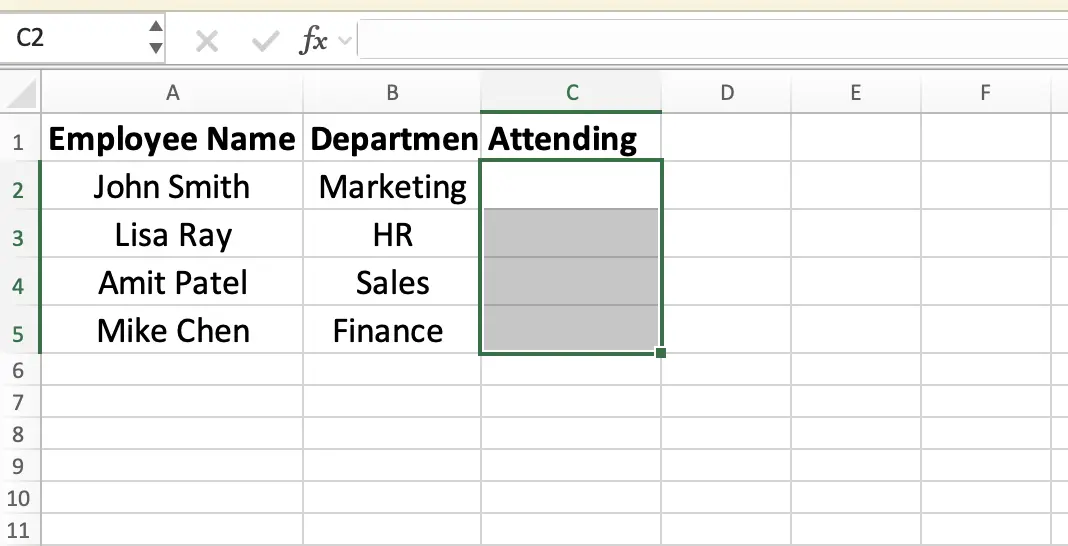
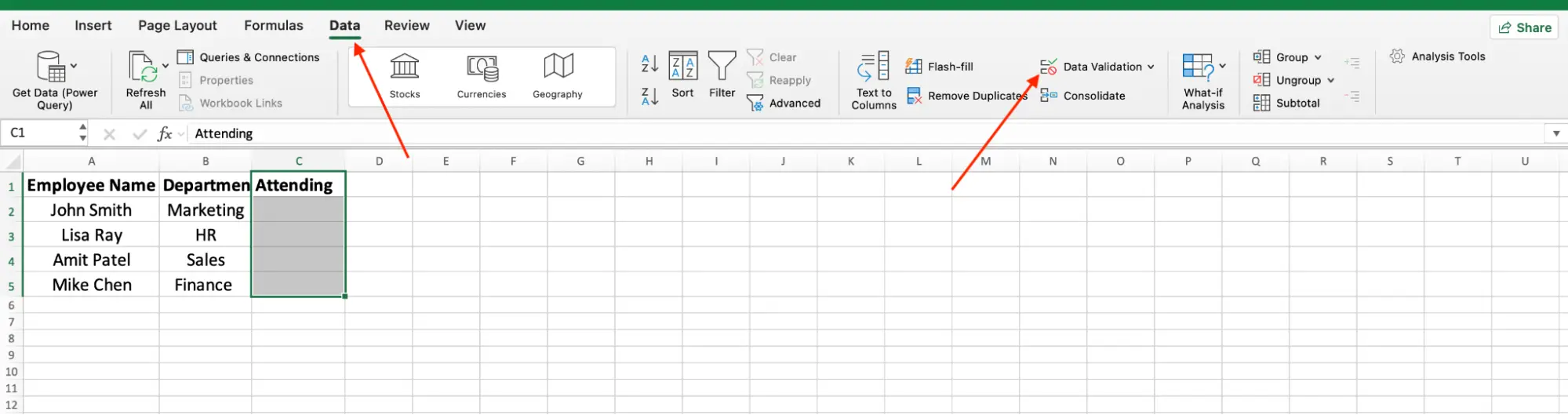
- Select the cell (or range of cells) where you want the drop-down.
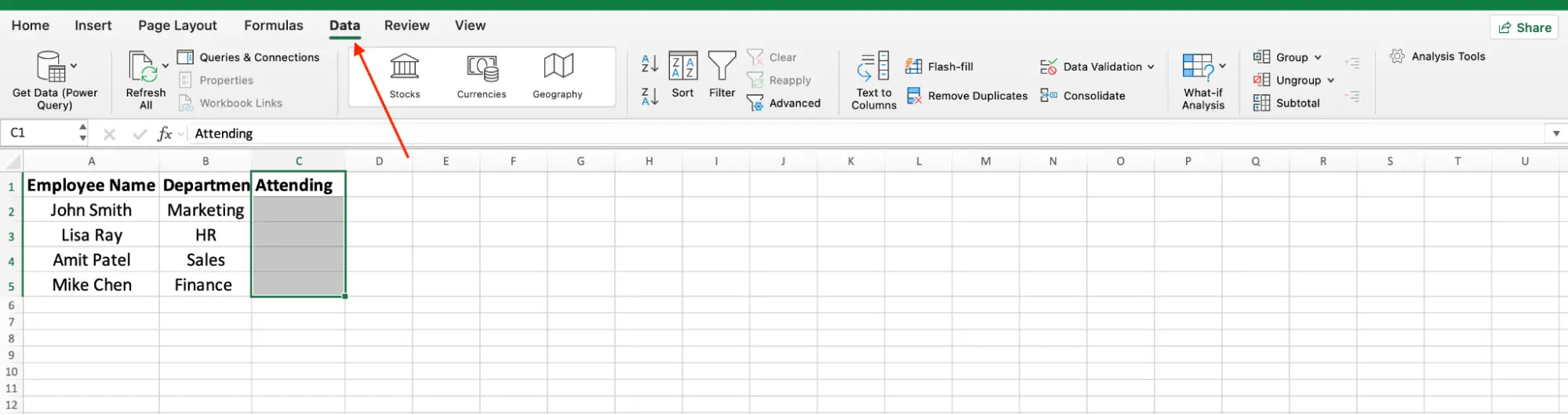
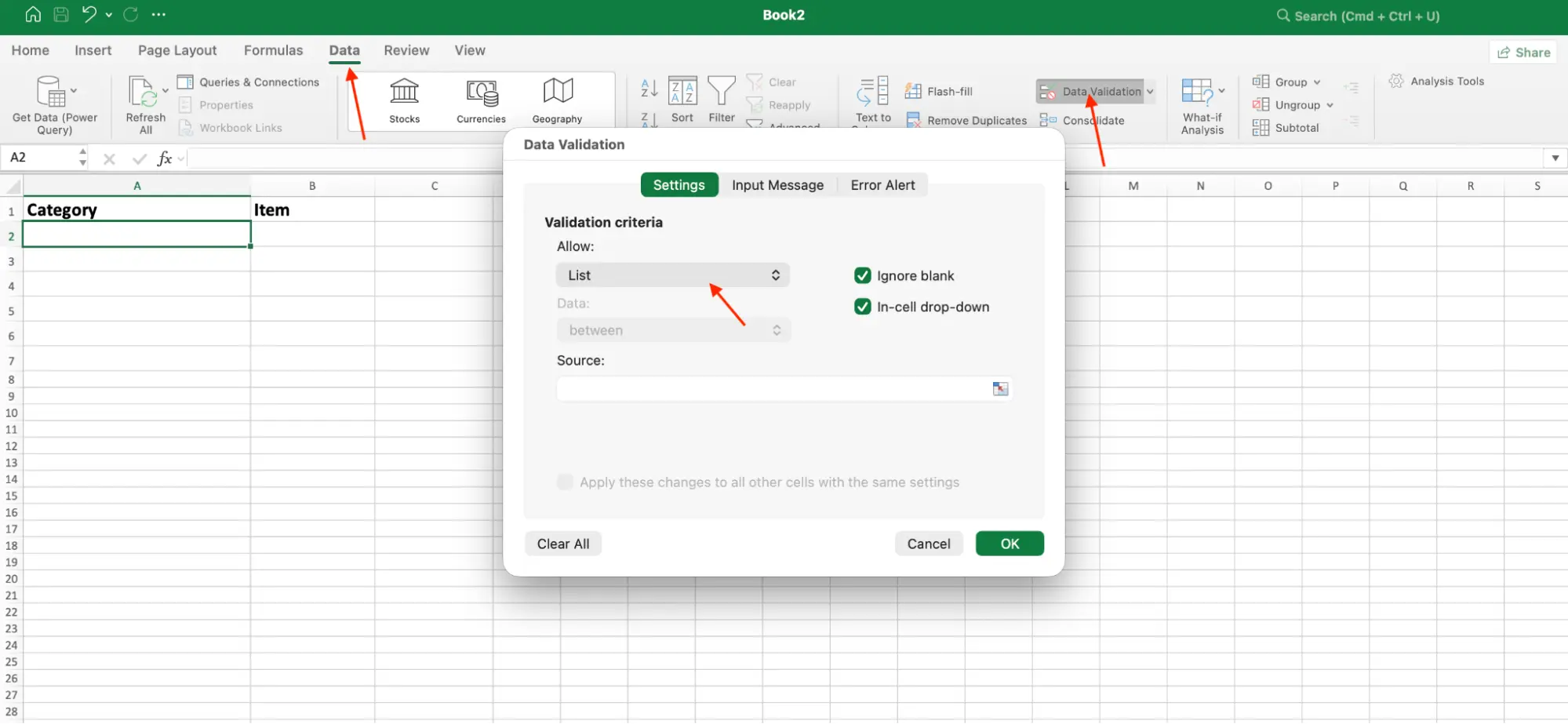
- Go to the Data tab in the ribbon.
- Click Data Validation.
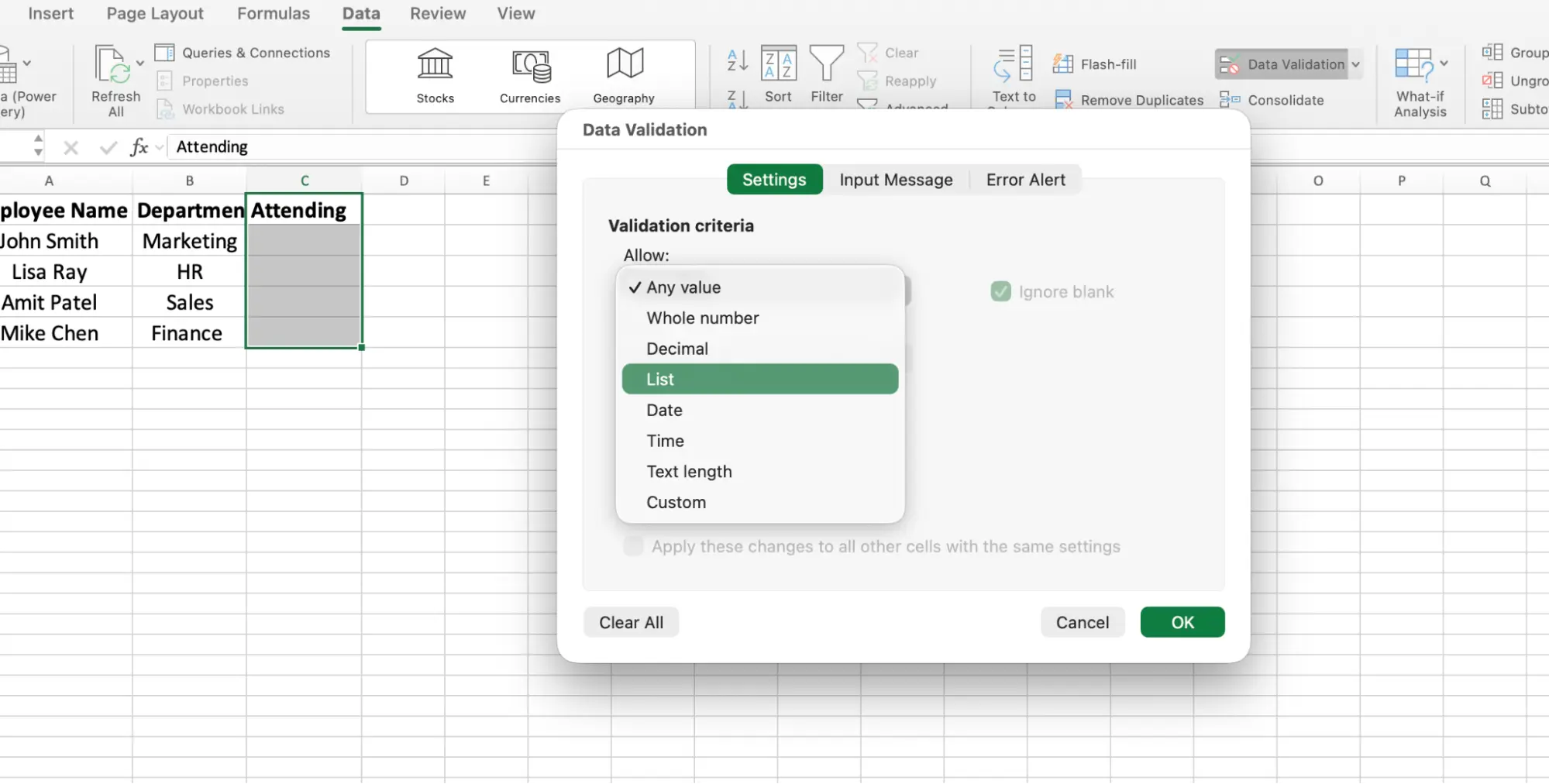
- In the "Allow" box, select List.
- In the "Source" box, type your items separated by commas. For example:
Yes,No,Maybe
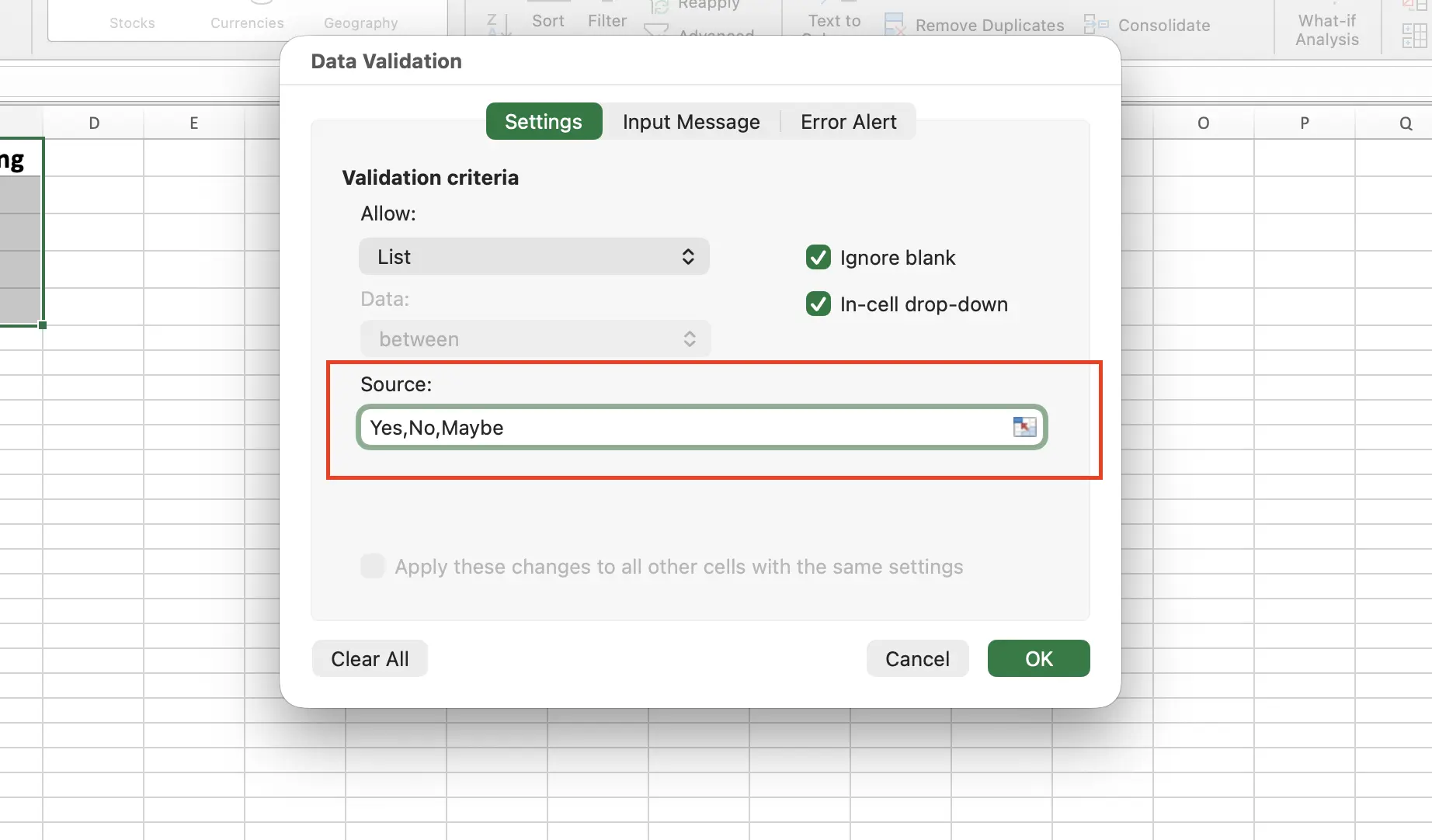
- Click OK.
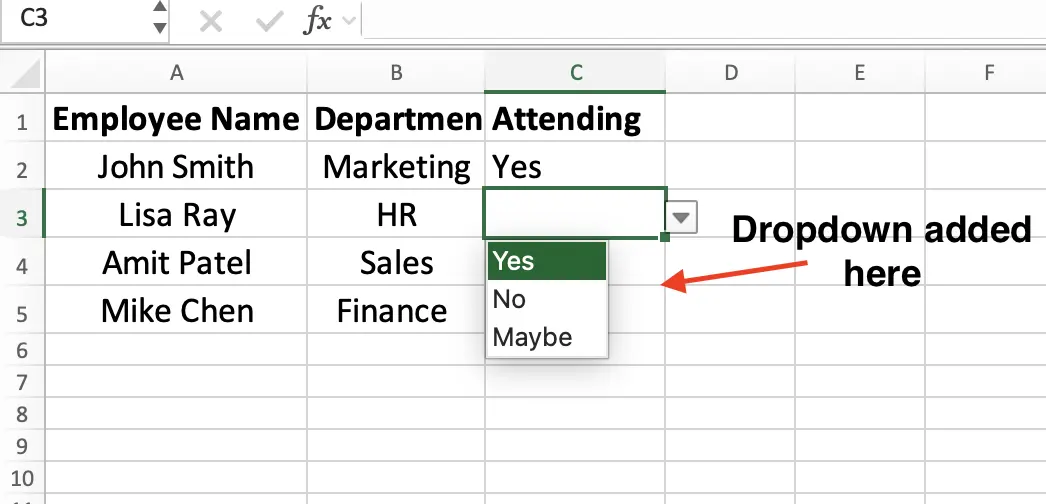
That's it. Click on the cell and you'll see a small arrow on the right side. Click the arrow, pick your option.
Tips:
- To apply this to multiple cells, just select the entire range before opening Data Validation. For example, select B2:B50 first, then follow the same steps. Every cell in that range will get the same dropdown options.
- The list is case-sensitive. If someone types "yes" instead of "Yes," Excel shows an error.
- To update the options later, you'll need to reopen Data Validation and manually edit the Source field. This is manageable for short lists but can become tedious if you're making frequent changes.
Best for: Quick, simple dropdowns with few options.
For longer lists or lists that change often, the next method is a better fit.
Method 2: Create a Drop-Down List from a Cell Range
The first method works well for short lists. But once your list grows to 10 or 15 options, typing everything into the Source box becomes difficult to manage. On top of that, every time you need to add or remove an option, you have to reopen Data Validation and edit the comma-separated list manually.
A more efficient approach is to store your list items in a column within your workbook and link the drop-down to that range instead. This makes your list easier to maintain and update over time.
Let's say you want a "Department" drop-down with these options:
Cell | Value |
|---|---|
A2 | Marketing |
A3 | Sales |
A4 | Engineering |
A5 | Finance |
A6 | HR |
A7 | Support |
Put these on a separate sheet (like Sheet2) to keep things organized. Then:
- Select the cell (or range) where you want the drop-down.
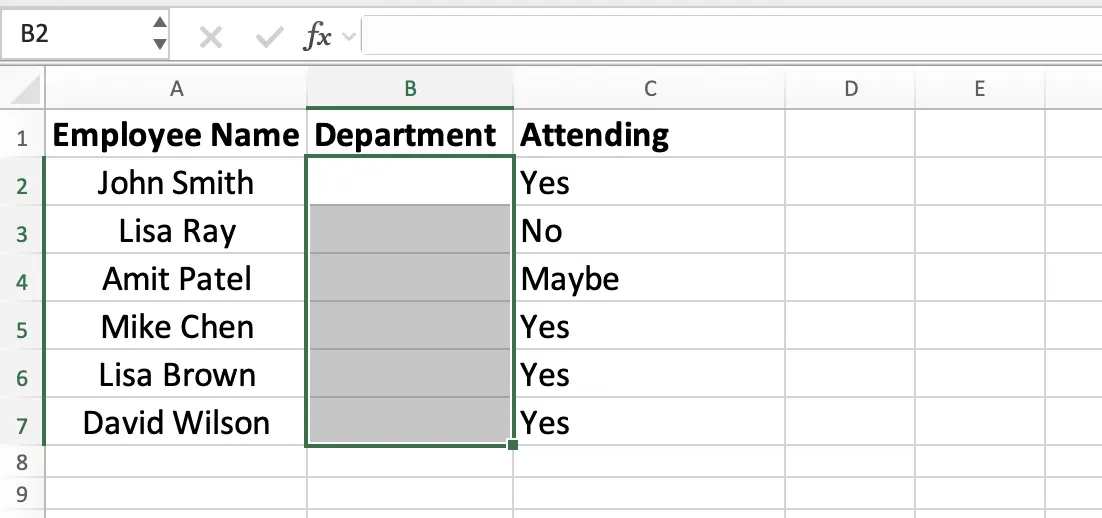
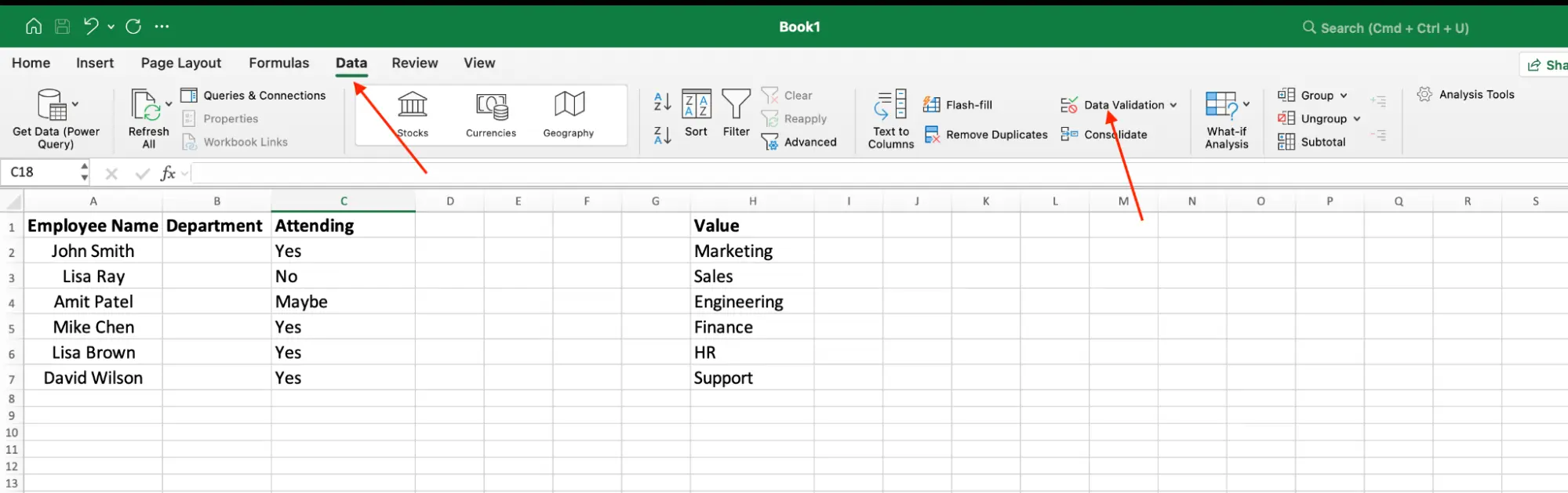
- Go to the Data tab and click Data Validation.
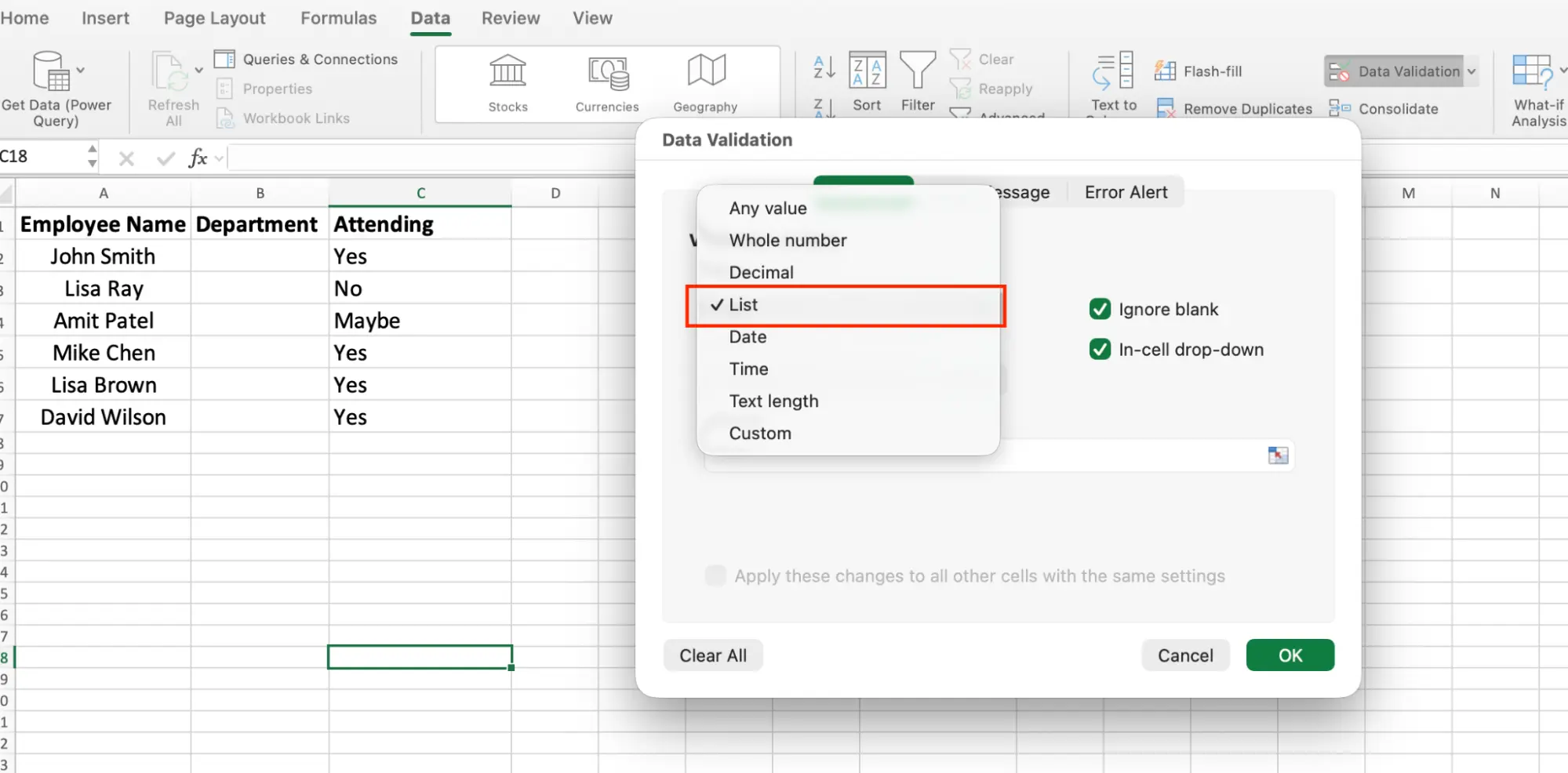
- In the "Allow" box, select List.
- Click inside the "Source" box, then go to Sheet2 and select the range A2:A7.
- The Source field will now show something like
=Sheet2!A$2:$A$7
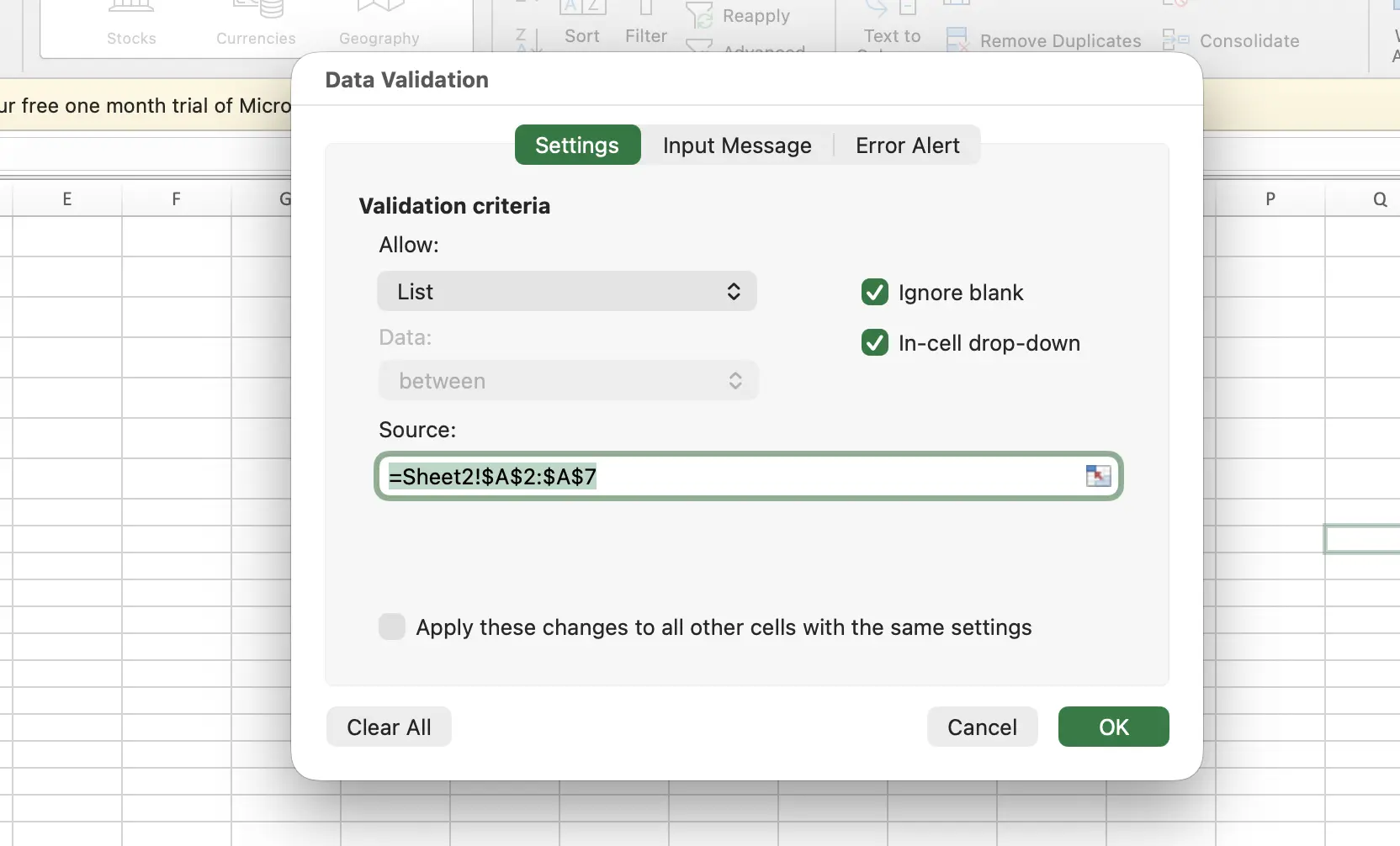
- Click OK.
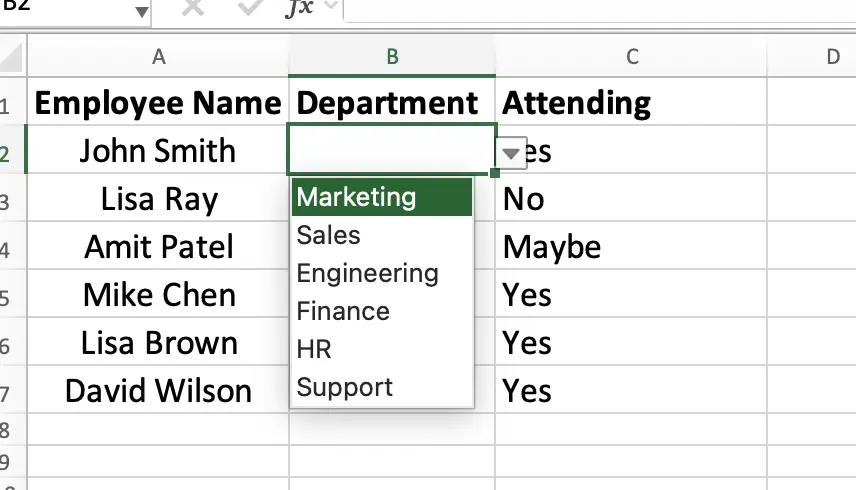
Now if you want to change an option, just edit the cell on Sheet2. The drop-down picks up the change right away. No need to touch Data Validation.
Here's a useful tip: if you don't want users to see or edit your source list, you can hide the sheet. Just right-click the Sheet2 tab and select Hide. The drop-down will continue to work as usual, but the source data stays out of view.
The main limitation of this method is that the range is fixed. If you add a 7th item below A7, the drop-down won't include it automatically because the Source still points to A2:A7. That's where the next method comes in.
Method 3: Create a Dynamic Drop-Down List That Updates Automatically
In Method 2, the drop-down points to a fixed range like A2:A7 on Sheet2. This works until you add a new item. For example, if someone adds "Operations" in cell A8, it won't appear in the drop-down because the source still stops at A7. You'd have to reopen Data Validation and update the range manually each time.
You can avoid that with a single formula, no Tables or Named Ranges needed, just one line in the Source box.
- Select the cells where you want the drop-down on your main sheet.
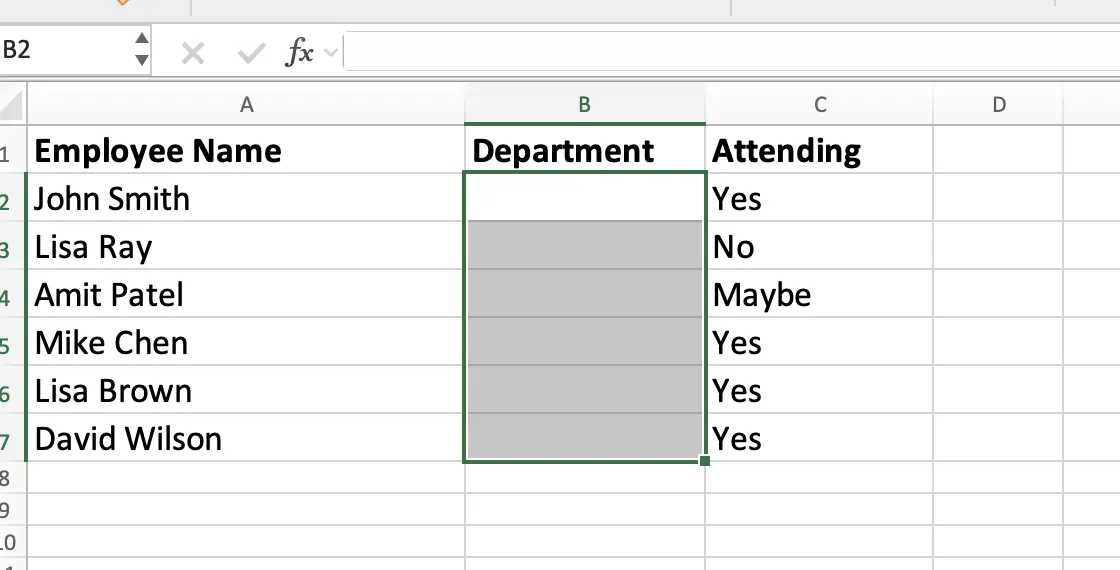
- Open Data Validation from the Data tab. Set Allow to List.
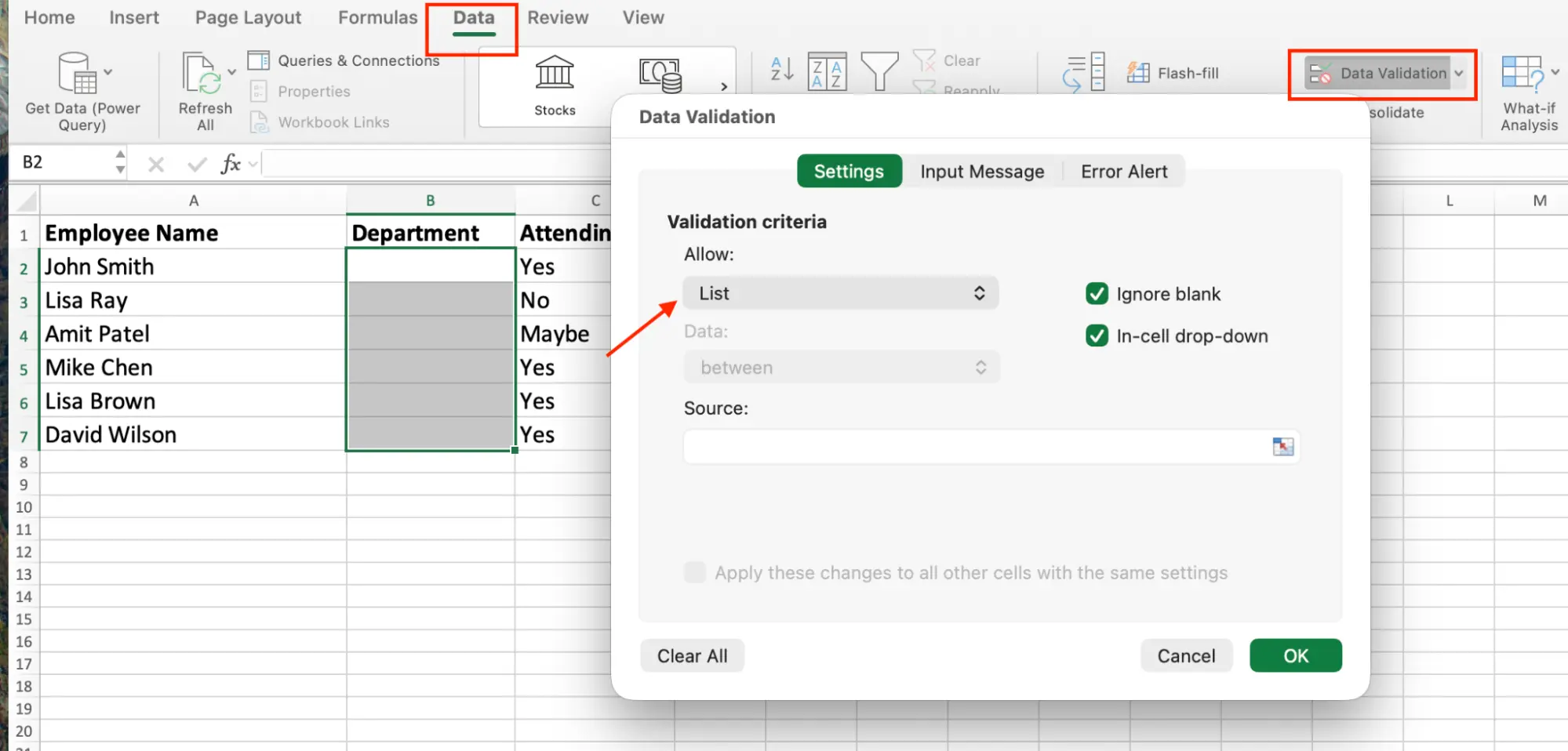
- In the Source box, enter this formula:
=OFFSET(Sheet2!$A$2,0,0,COUNTA(Sheet2!$A:$A)-1,1)
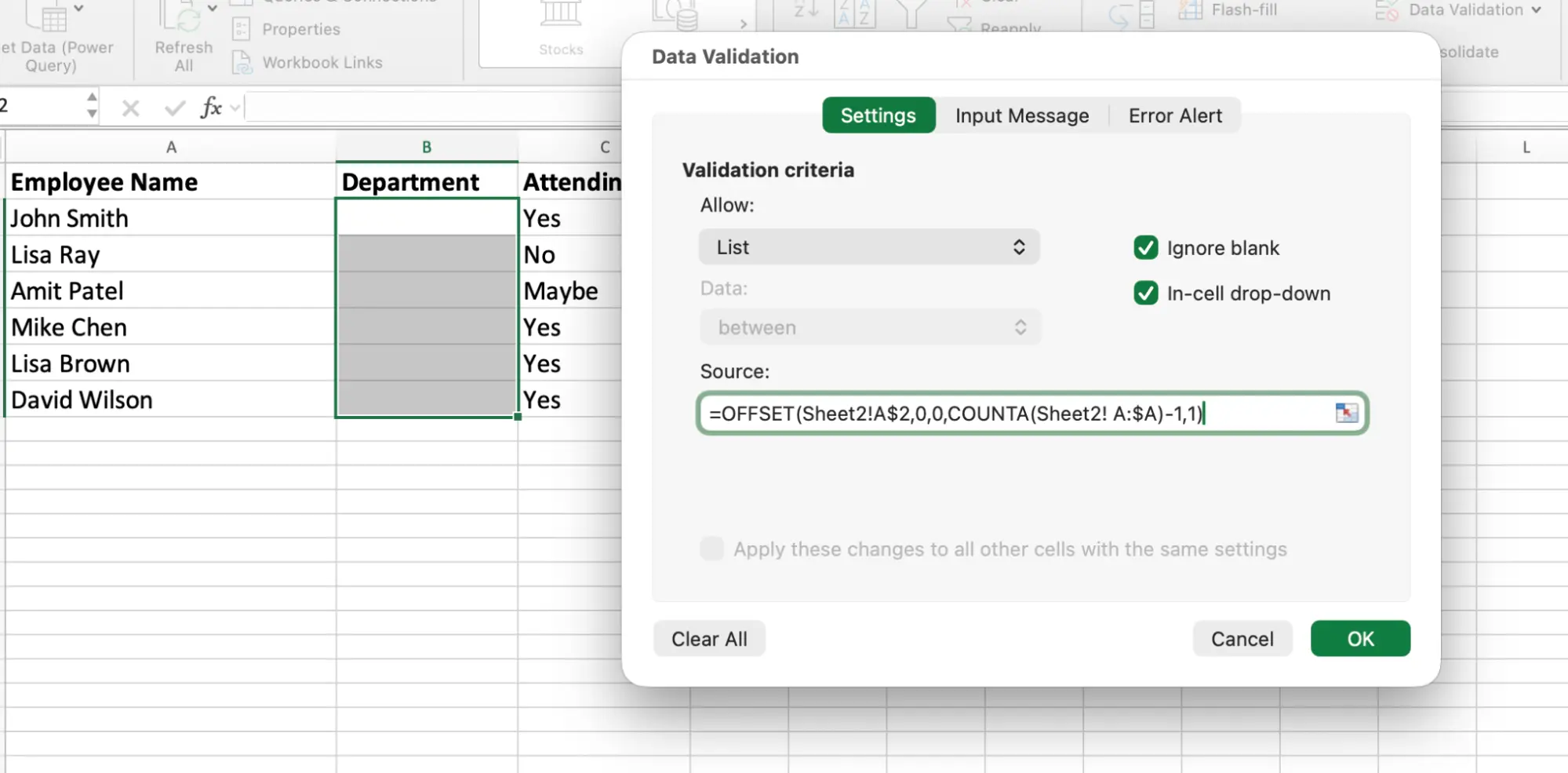
- Click OK.
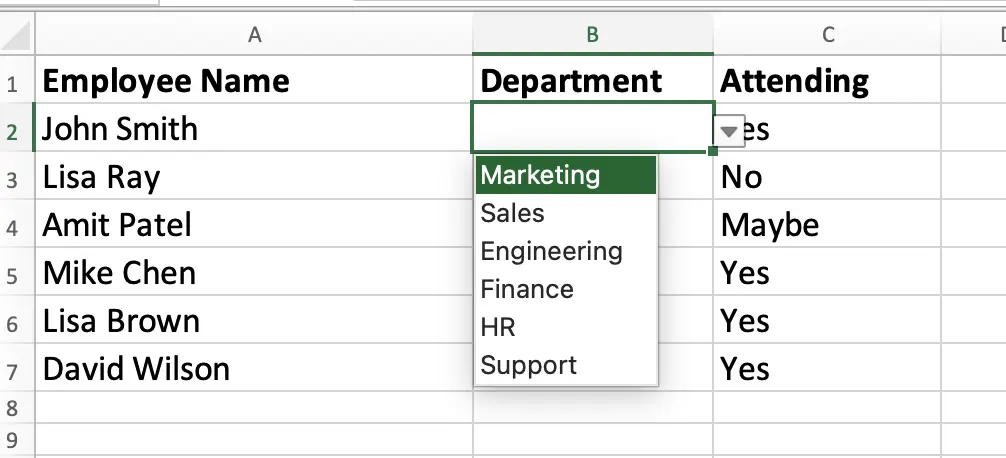
How it works:
COUNTAcounts how many non-empty cells are in column A on Sheet2 (including the header).- We subtract 1 to skip the header.
OFFSETthen builds a range starting from A2 that stretches down by that count.
So if you have 6 departments, it reads A2:A7. Add a 7th in A8 and it automatically becomes A2:A8.
Test it:
Add a new entry below your list on Sheet2. Then go back to your main sheet and open the drop-down, you'll see the new option instantly, without touching Data Validation.
Method 4: Just Prompt It with GPT for Work
You've seen three ways to add a drop-down list in Excel so far. They all work, but they all need you to click through menus, set up source ranges, write formulas, or create Named Ranges. That's fine for a single drop-down. But if you're setting up multiple columns or building an entire sheet with validation across many fields, that work adds up quickly.
What if you just typed what you wanted and it was done?
GPT for Excel by GPT for Work is a full AI agent that works directly inside your spreadsheet. There's no need to upload files or copy results back and forth. It operates within Excel, reads your data, and applies changes in place.
Need drop-downs in multiple columns with different options? Just tell it.
Example prompt: "Add a dropdown in column B with options: Marketing, Sales, Engineering, Finance, HR, Support. And add a drop-down in column C with options: Yes, No, Maybe."
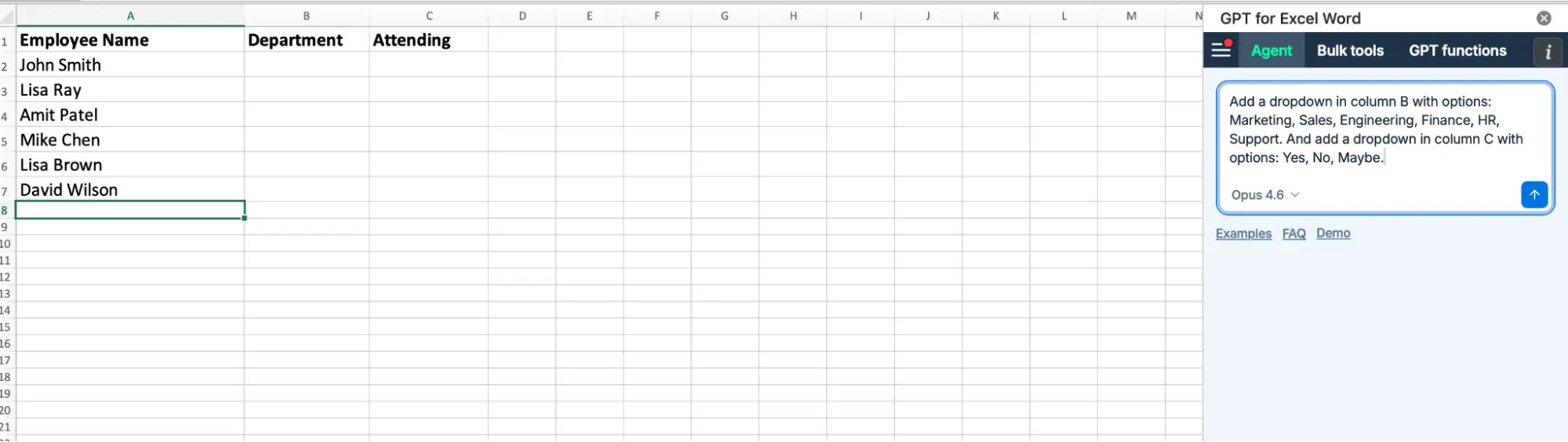
One prompt. Two dropdowns. No Data Validation dialog. No Source box. No formulas.
What took three separate methods to explain above, the agent handles in seconds.
And drop-downs are just the start. You can also:
- Apply conditional formatting (e.g., color-coded status columns)
- Clean and standardize large datasets
- Create formulas, pivot tables, or charts
All by describing what you need in plain English.
GPT for Work is not a formula helper or a sidebar that gives you suggestions. It's an agent. It reads your data, figures out the steps, picks the right AI model, and runs the task. You can watch it work in real time from the sidebar, pause it, or pick up where you left off.
Anything you'd normally do by navigating Excel menus, you can now do with a simple prompt.
Which Method Should You Use?
Best For | Setup Time | Auto-updates? | Need a Formula? | |
|---|---|---|---|---|
Method 1: Typed Items | Short lists like Yes/No/May | 20 seconds | No | No |
Method 2: Cell Range | Longer lists you edit often | 1 minute | No | No |
Method 3: OFFSET Formula | Lists that grow over time | 2 minutes | Yes | Yes |
Method 4: GPT for Excel | Multiple dropdowns at once, fast setup | 10 seconds | Depends on prompt | Yes (you can ask it in the prompt) |
- Use Method 1 for quick, simple fields like Yes/No.
- Use Method 3 when you have longer lists (10+ items) that need to update over time.
- Use Method 4 when you're building a full spreadsheet with multiple dropdowns, formatting, and validation, it's the fastest and most scalable option.
Bonus: How to Create Dependent Drop-Down Lists in Excel
Sometimes you need two drop-downs where the second one changes based on the first.
For example:
- If a user selects "Food" in column A, column B should show items like Pizza, Burger, Pasta.
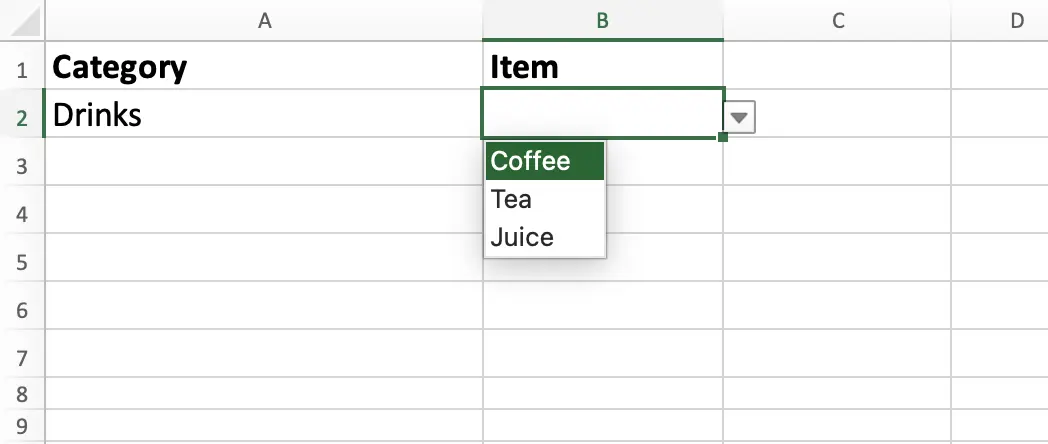
- If they select "Drinks," it should show Coffee, Tea, Juice instead.
This setup is called a dependent drop-down list.
Here's how to set it up.
Step 1: Set up your source data on Sheet2.
In one column, list your categories. In the next columns, list the items under each category:
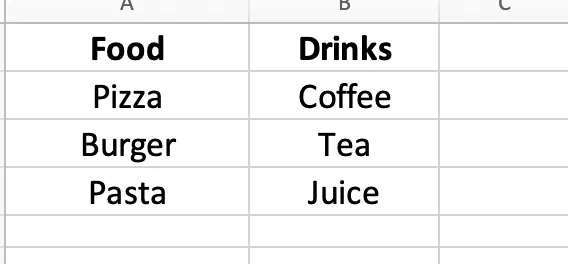
Step 2: Create Named Ranges for each category.
- Select cells A2:A4 on Sheet2 (Pizza, Burger, Pasta).
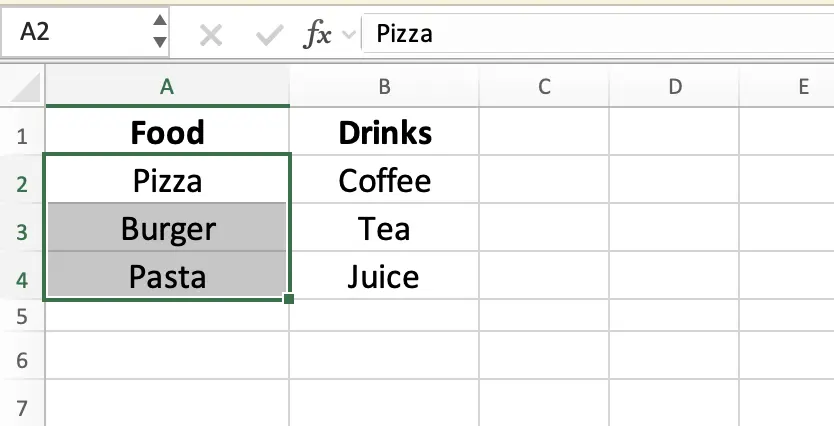
- Go to the Formulas tab and click Define Name.
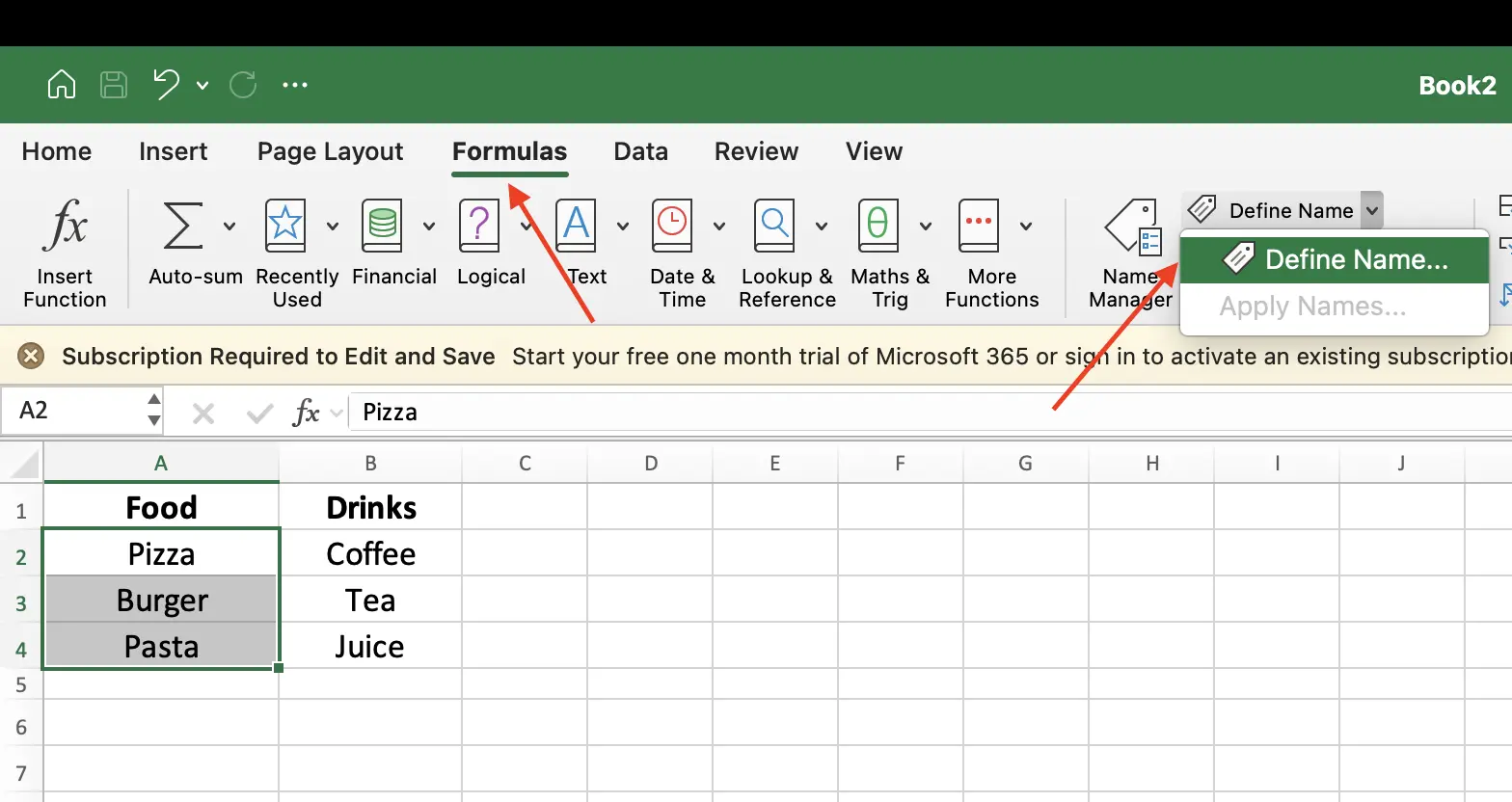
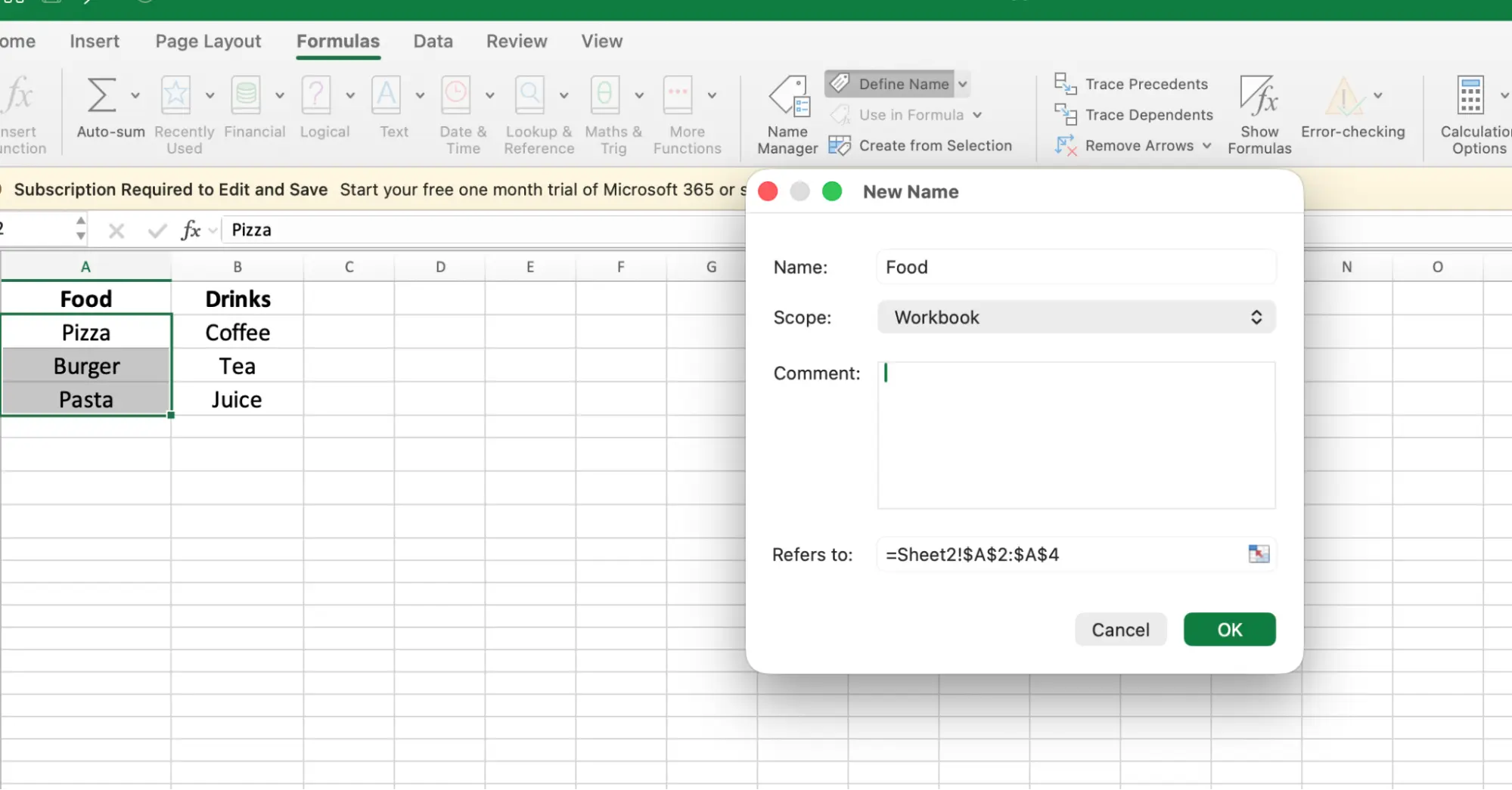
- In the Name field, type Food. Click OK.
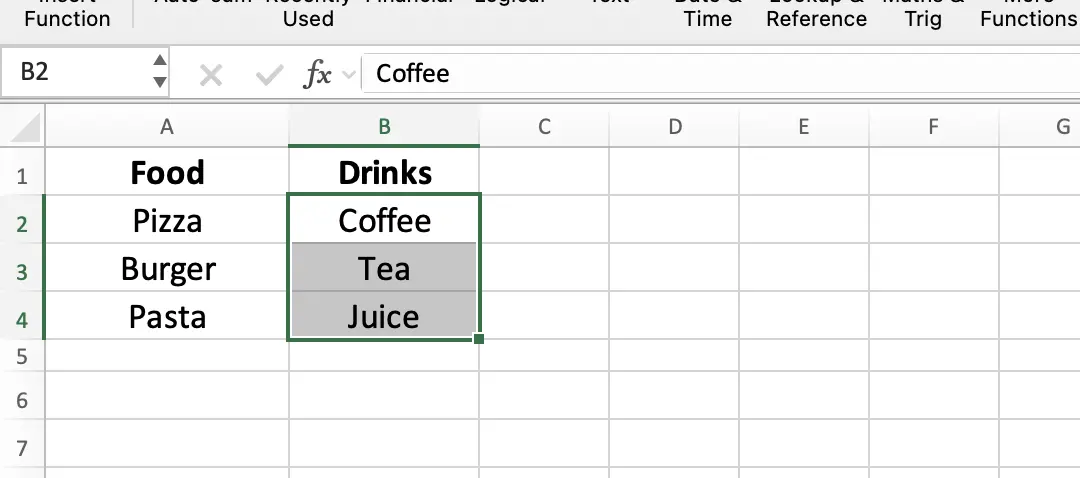
- Now select cells B2:B4 (Coffee, Tea, Juice).
- Click Define Name again. Name it Drinks. Click OK.
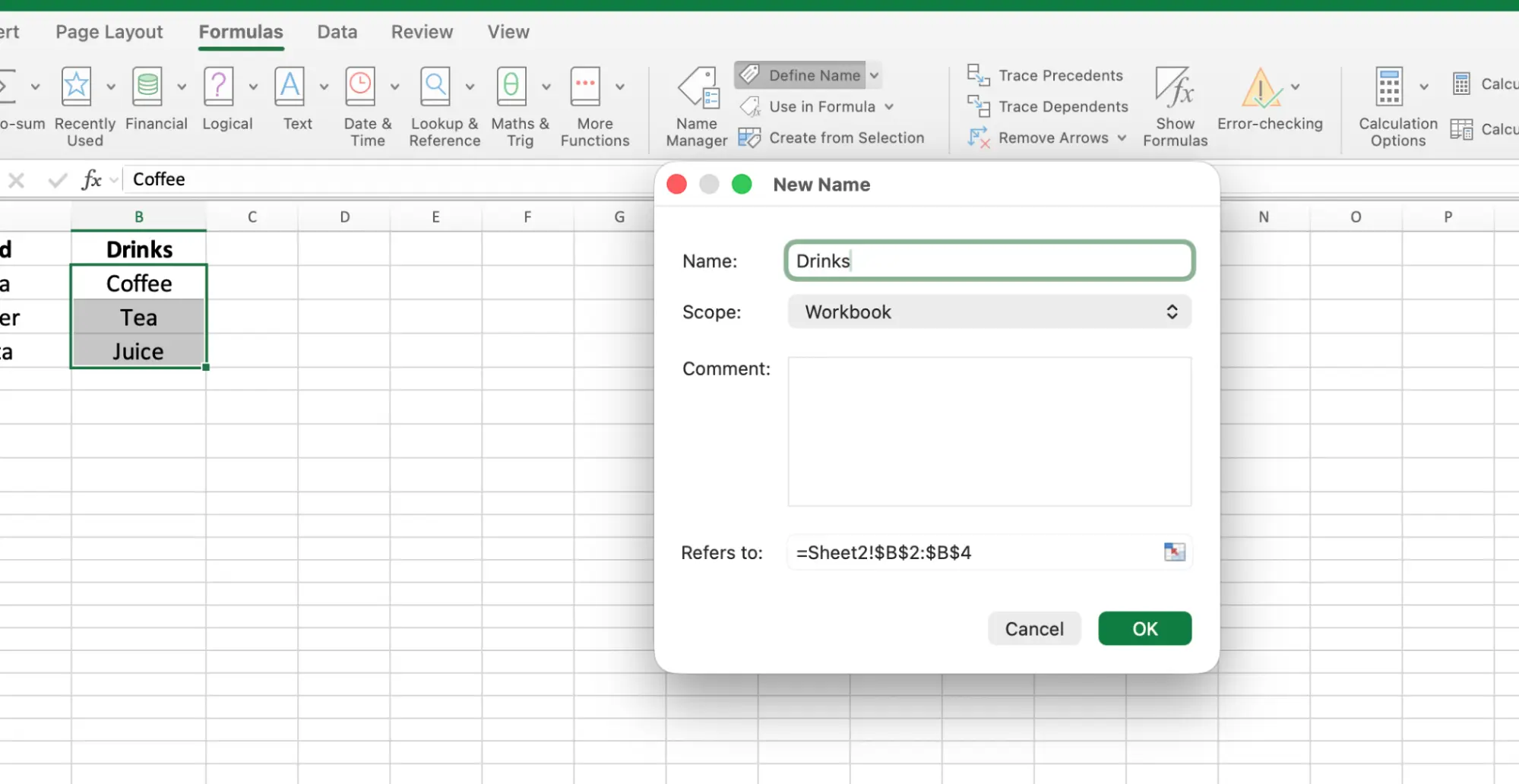
The name must match the category value exactly. "Food" in the drop-down must match the Named Range called "Food."
Step 3: Create the first drop-down.
- Go to Sheet1. Select cell A2.
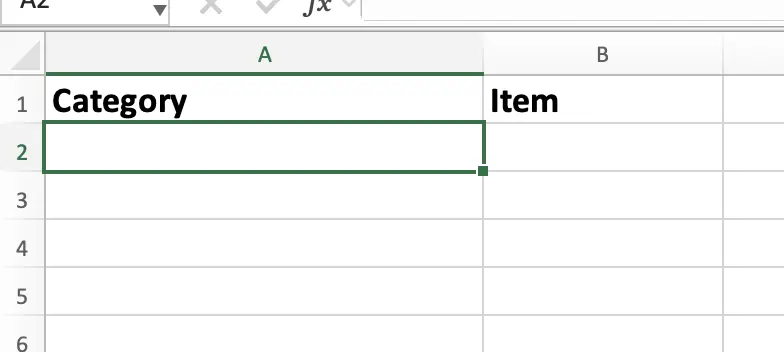
- Open Data Validation, set Allow to List.
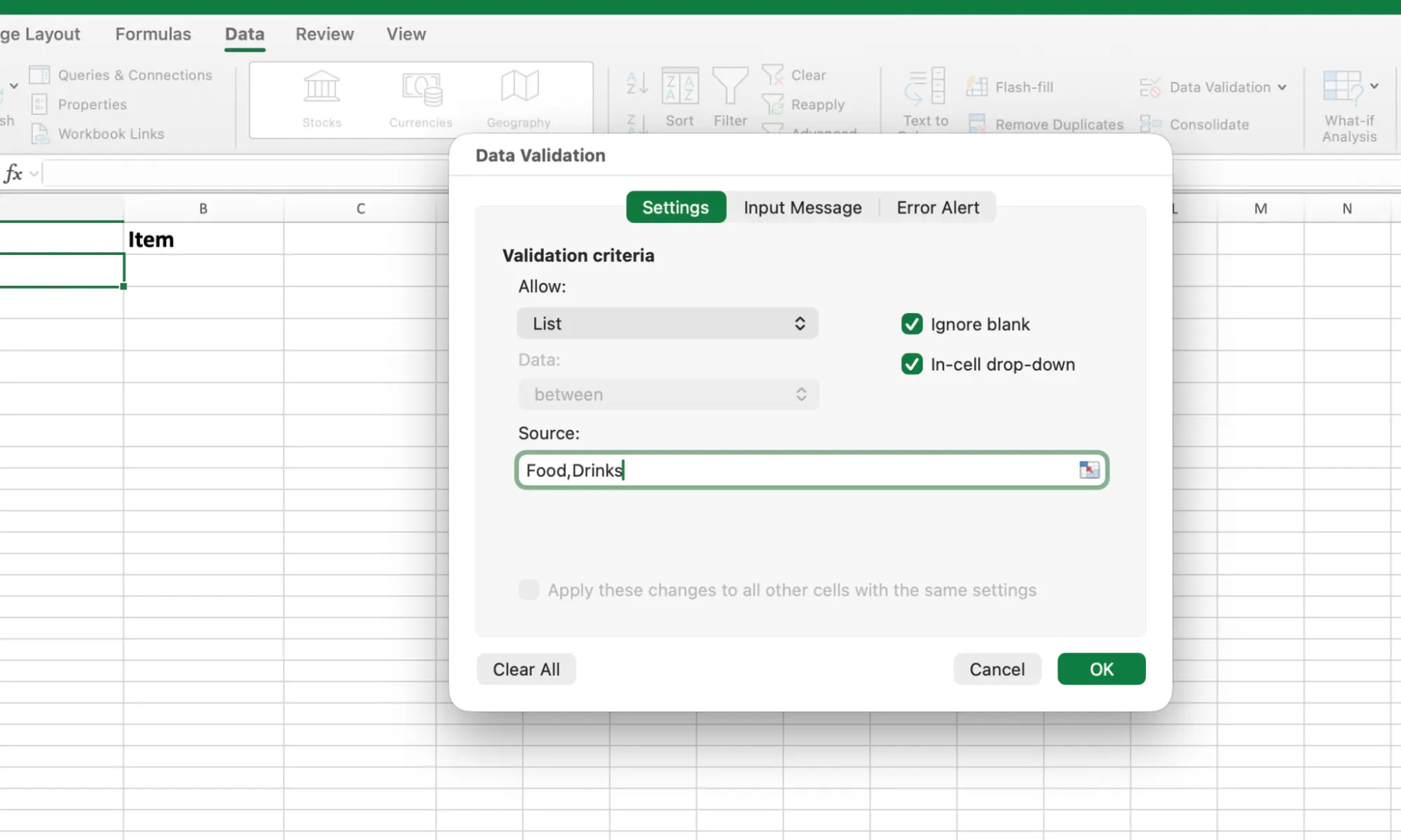
- In the Source box, type:
Food,Drinks
- Click OK.
Now A2 has a drop-down with two options: Food and Drinks.
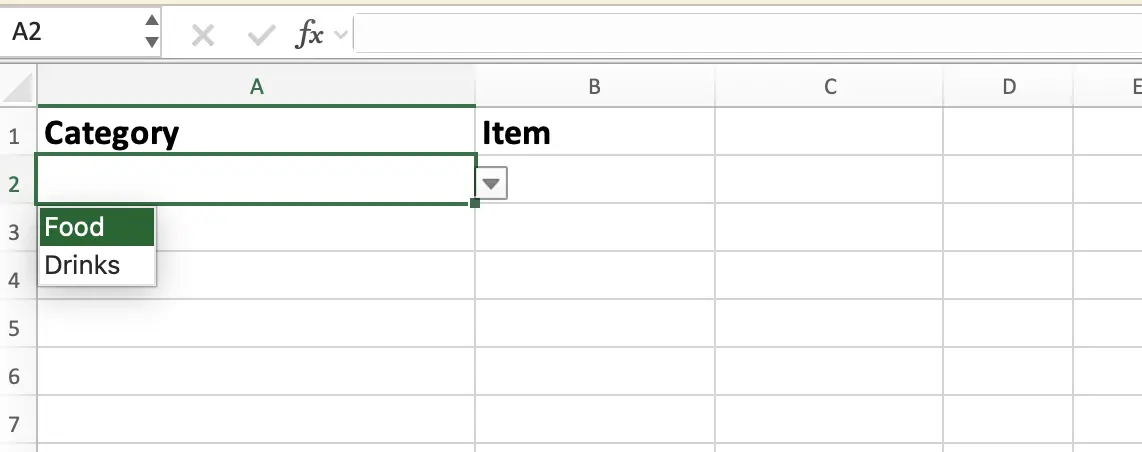
Step 4: Create the dependent drop-down.
- Select cell B2.
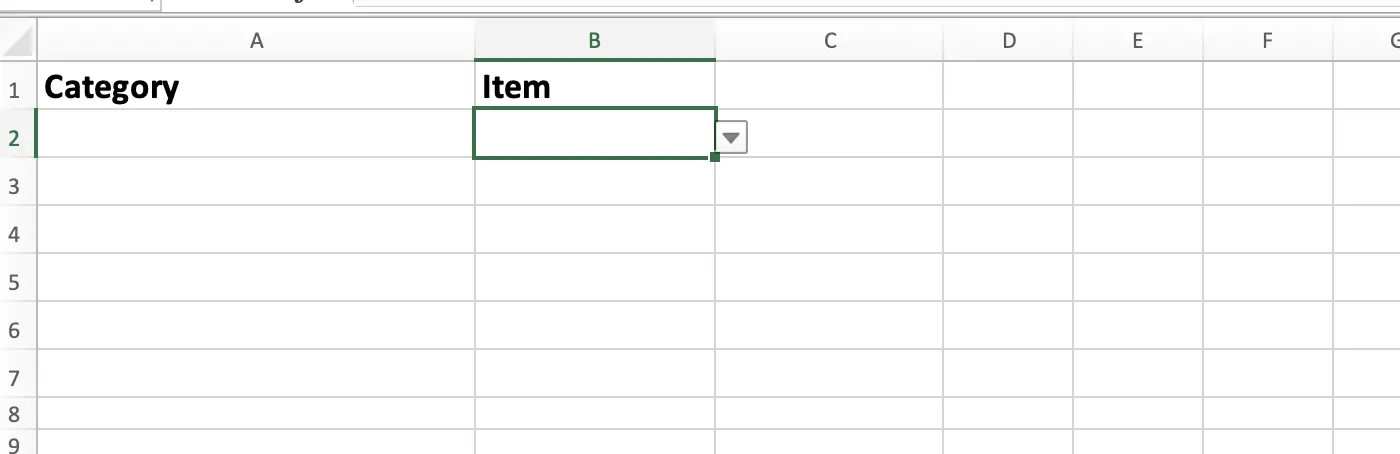
- Open Data Validation, set Allow to List.
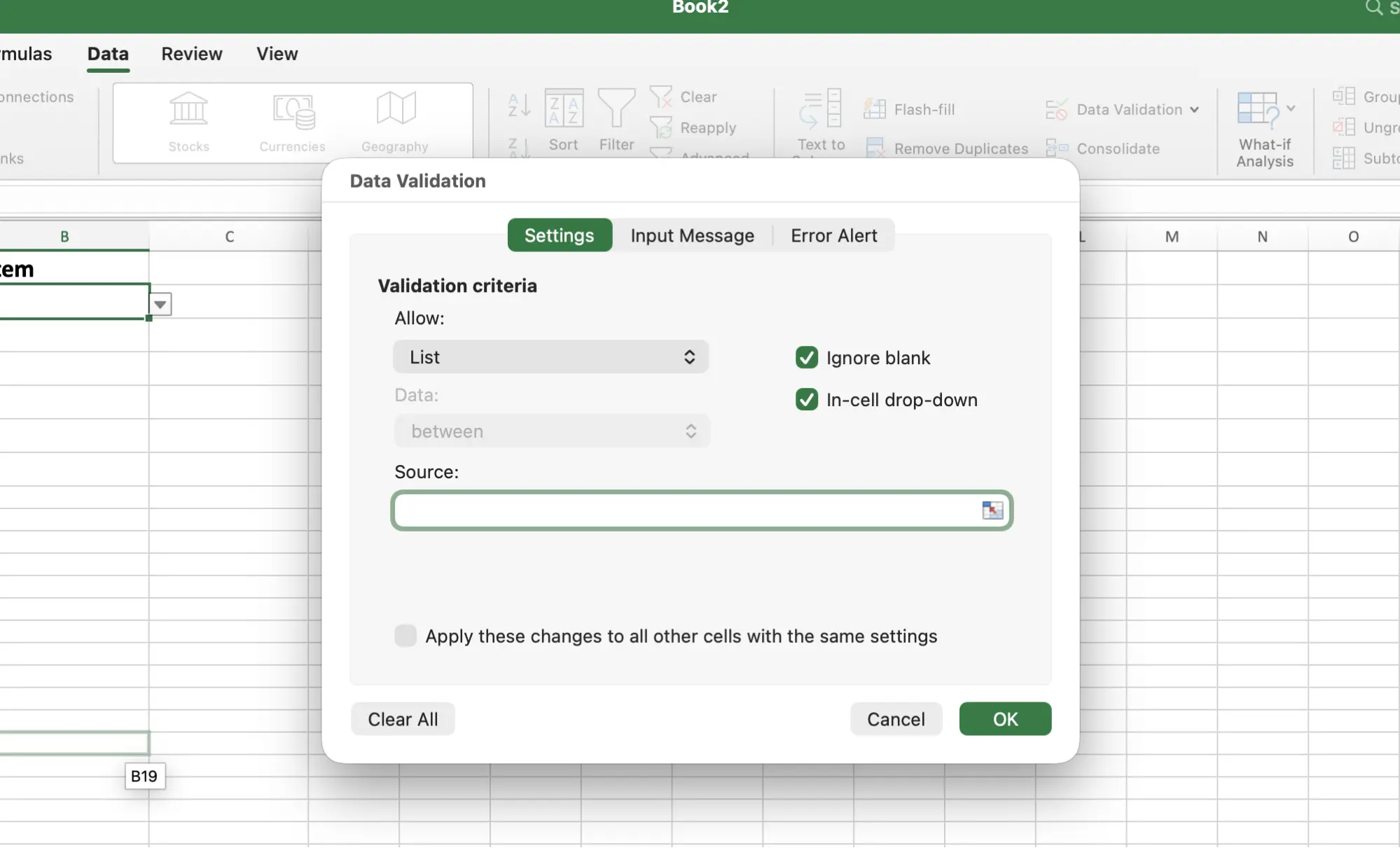
- In the Source box, type:
=INDIRECT(A2)
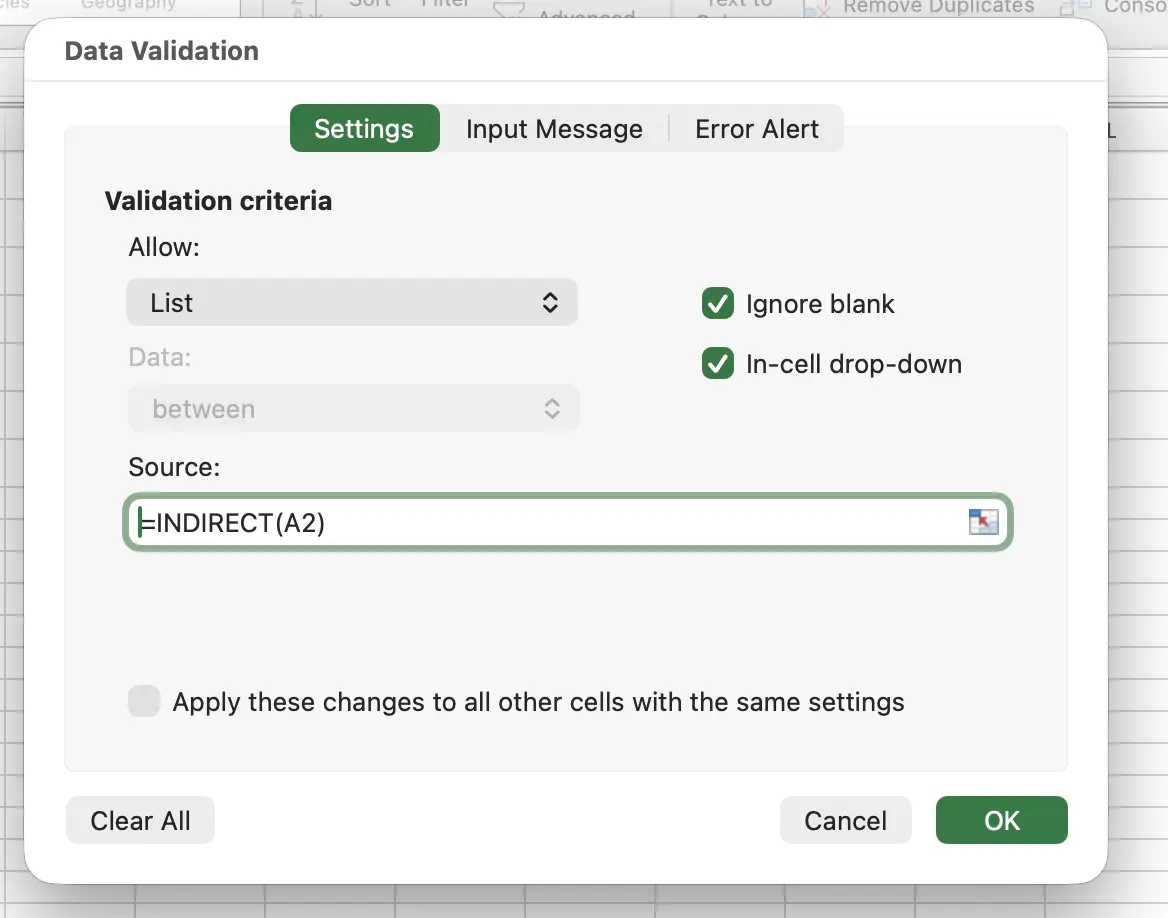
- Click OK.
The INDIRECT function reads the value in A2 and uses it as a Named Range reference. So if A2 says "Food," the drop-down pulls from the Named Range called Food (Pizza, Burger, Pasta). Switch A2 to "Drinks," and the drop-down changes to Coffee, Tea, Juice.
One thing to remember: Named Ranges can't have spaces.
If one of your categories is "Soft Drinks," the Named Range would need to be "Soft_Drinks" and the first drop-down value would also need to be "Soft_Drinks" for the match to work.
Managing Your Drop-Down Lists After Setup
Once your drop-downs are in place, you may need to update them occasionally. Here's how.
To change the options:
Select the cell with the drop-down. Go to the Data tab, click Data Validation. Edit the Source field with your new items or updated range. Click OK.
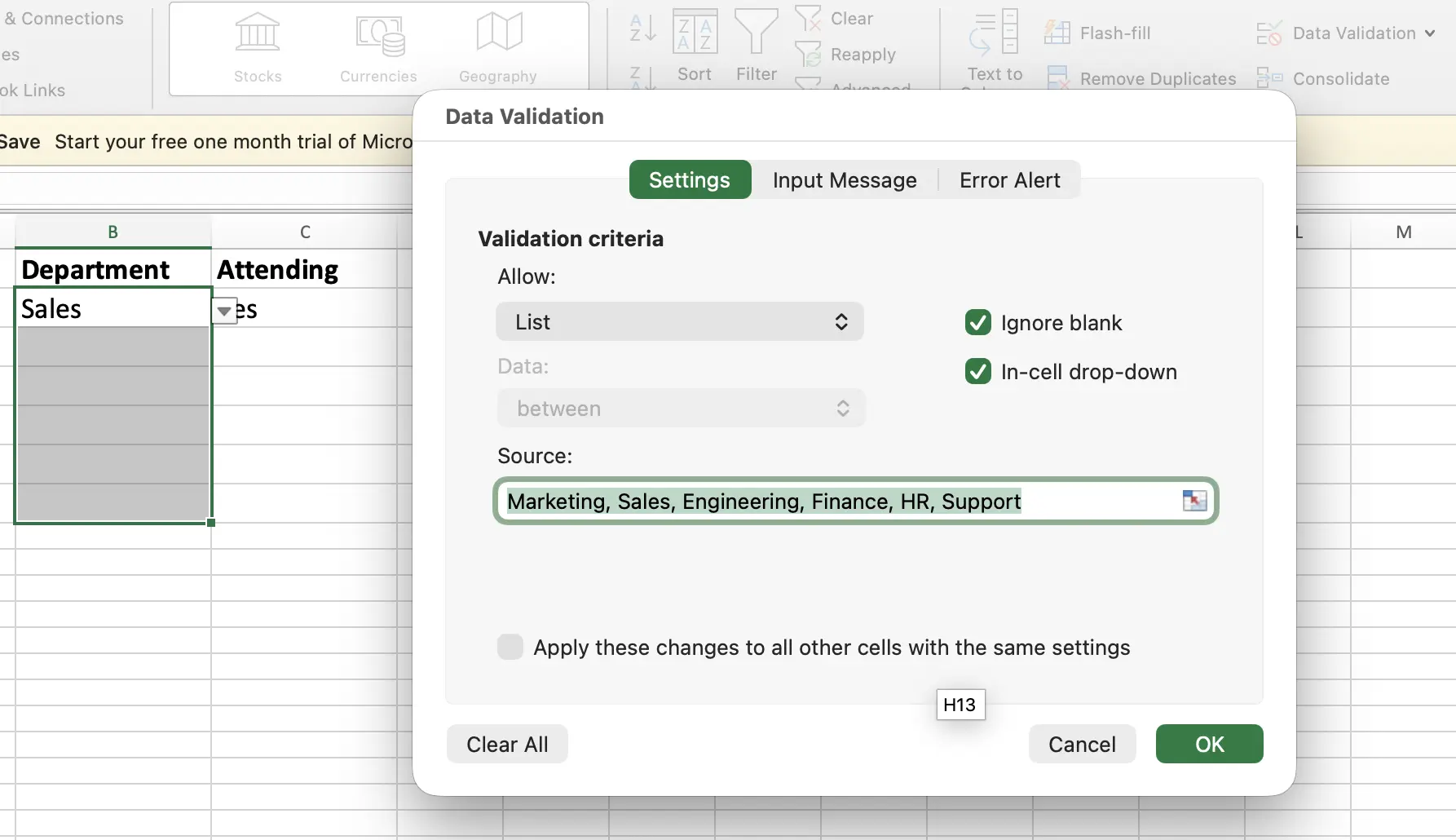
To remove a drop-down completely:
Select the cell (or range of cells). Open Data Validation and click the Clear All button at the bottom left. Click OK. The drop-down is gone but the existing data in the cell remains.
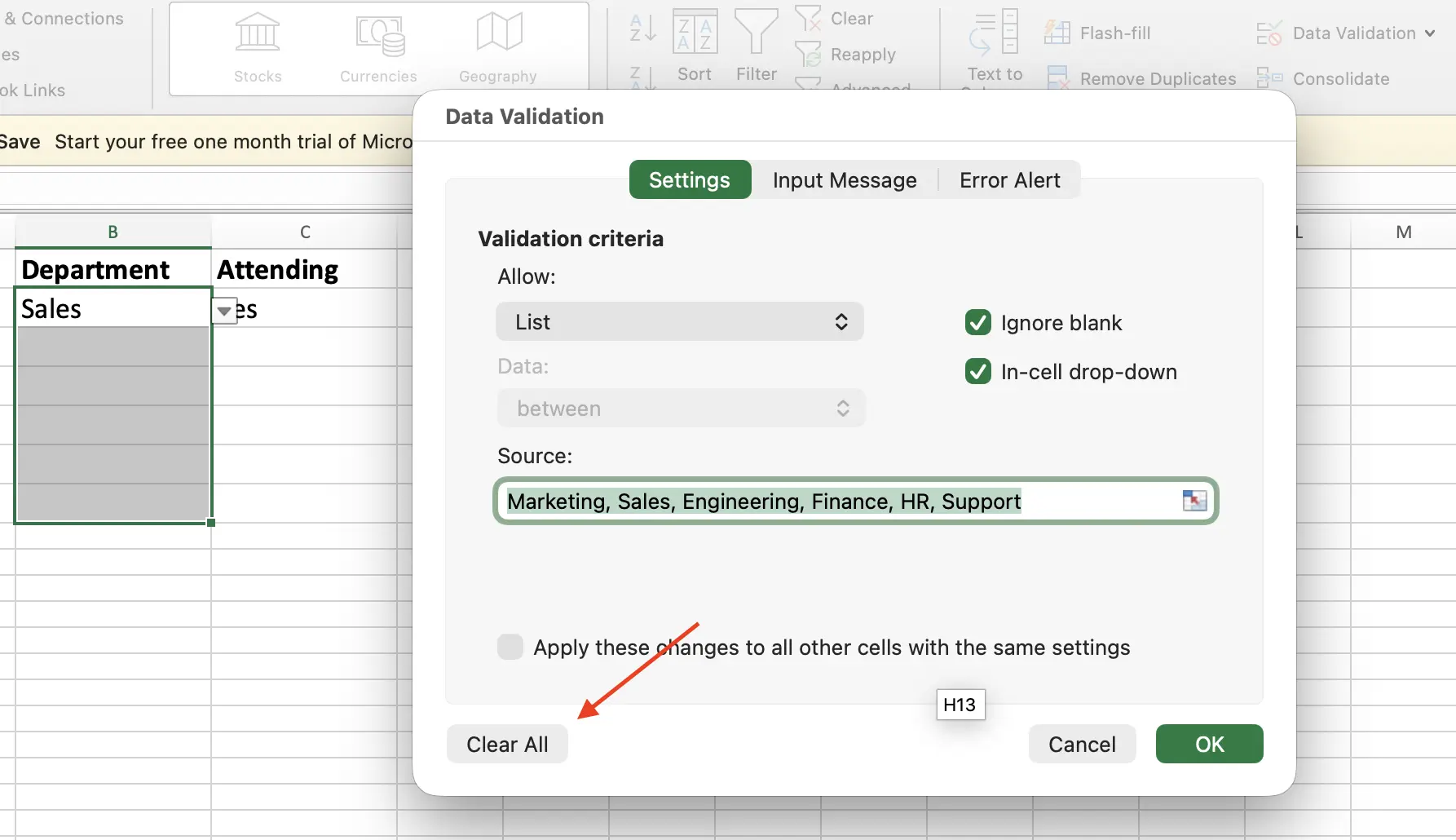
If you applied the same drop-down to a group of cells and want to remove them all at once, check the box that says "Apply these changes to all other cells with the same settings" before clicking Clear All.
Allow custom entries (optional):
If you want the drop-down to act as a suggestion rather than a strict rule, you can allow users to type their own values.
Go to Data Validation -> Error Alert and uncheck "Show error alert after invalid data is entered." This way, users can either select from the list or enter a custom value, both will be accepted.
Wrapping Up
You've now seen four different ways to create drop-down lists in Excel, from quickly typing a few options to using an AI agent that handles everything for you. Pick the one that fits your situation and move on.
If you want to try the prompt-based approach, GPT for Excel has a free trial. Install it, open the sidebar, and tell it what you need.
FAQs
Can I add a drop-down list to multiple cells at once?
Yes. Select the entire range first (like B2:B100), then open Data Validation and set up the list. Every cell in that range gets the same drop-down.
Why isn't my drop-down arrow showing?
There are two common reasons:
- The column may be too narrow, try widening it.
- The "In-cell dropdown" option might be unchecked. Go to Data Validation -> Settings and make sure it's enabled.
Can I use a drop-down list in Excel on Mac?
Yes. The steps are the same. Data tab, Data Validation, choose List, enter your source. The dialog looks slightly different on Mac but everything works the same way.
Does the OFFSET formula slow down large spreadsheets?
OFFSET is a volatile function, which means Excel recalculates it every time anything changes in the workbook. For a few dropdowns this won't matter at all. If you have hundreds of OFFSET-based validations across a massive file, you might notice a slight lag.
Can GPT for Excel create dependent drop-down lists too?
Yes. Just describe what you need in the prompt. For example: "Create a drop-down in column A with Food and Drinks. If Food is selected, column B should show Pizza, Burger, Pasta. If Drinks is selected, show Coffee, Tea, Juice." The agent sets up the named ranges and INDIRECT formulas on its own.