You just opened a CRM export with 5,000 rows. Your manager needs three numbers in the next hour: how many deals are over $10,000, how many came from California, and how many are still marked Pending. Filtering and scrolling through thousands of rows could easily eat up your entire afternoon.
The COUNTIF function in Excel gives you all three answers in under a minute. One formula, one condition, one count. That's the entire job.
But COUNTIF can do far more than basic counting. It works with text, numbers, dates, wildcards, blank cells, and dynamic criteria that update automatically as your data changes. And when your spreadsheets grow into six-figure row counts, there's an even faster approach that skips formulas altogether.
In this guide, you'll learn how to use COUNTIF step by step, with practical examples that sales, finance, and operations teams actually rely on every day.
COUNTIF Syntax — The Quick Answer
COUNTIF takes two arguments. That is it.
=COUNTIF(range, criteria)
Range is the group of cells you want to check. It can be a single column (A:A), a specific block (A2:A100), or a named range.
Criteria is the condition each cell has to meet to get counted. It can be a number, a piece of text, a logical operator, a date, or a wildcard pattern.
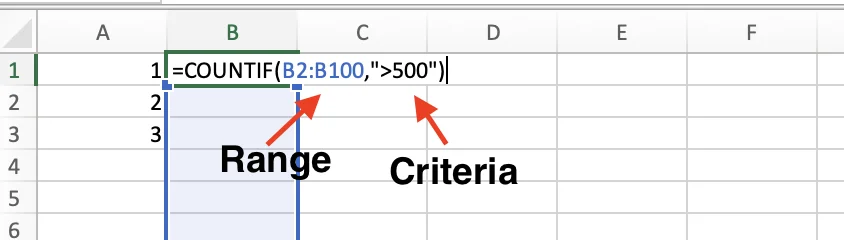
Here is the fastest example. To count how many cells in B2:B100 hold a value greater than 500, you write:
=COUNTIF(B2:B100, ">500")
The >500 sits inside quotation marks because Excel needs every logical operator wrapped in quotes. Leave out the quotes, and the formula will return an error.
How to Use COUNTIF in Excel — A Step-by-Step Walkthrough
Now that you know the syntax, let's build your first COUNTIF formula from scratch. In this example, we'll use a simple sales pipeline spreadsheet and count how many deals came from California.
Steps:
- Click an empty cell where you want the count to appear. For this example, click cell
G2. - Type
=COUNTIF(to start the formula. Excel will show a small tooltip with the syntax as you type. - Select the range you want to check. Click the column B header to select the entire Region column, or drag from
B2toB21for just the data rows. - Type a comma, then enter your criteria in quotation marks. In this case,
"California". - Close the parenthesis and hit Enter.
Your finished formula looks like this:
=COUNTIF(B2:B21, "California")
Excel returns 9. That is how many deals in the sheet came from California.
Reusing the formula for other regions: You can write one COUNTIF per region in any empty cells. Just change the criteria each time.
=COUNTIF(B2:B21, "California") → 9
=COUNTIF(B2:B21, "Texas") → 6
=COUNTIF(B2:B21, "New York") → 5
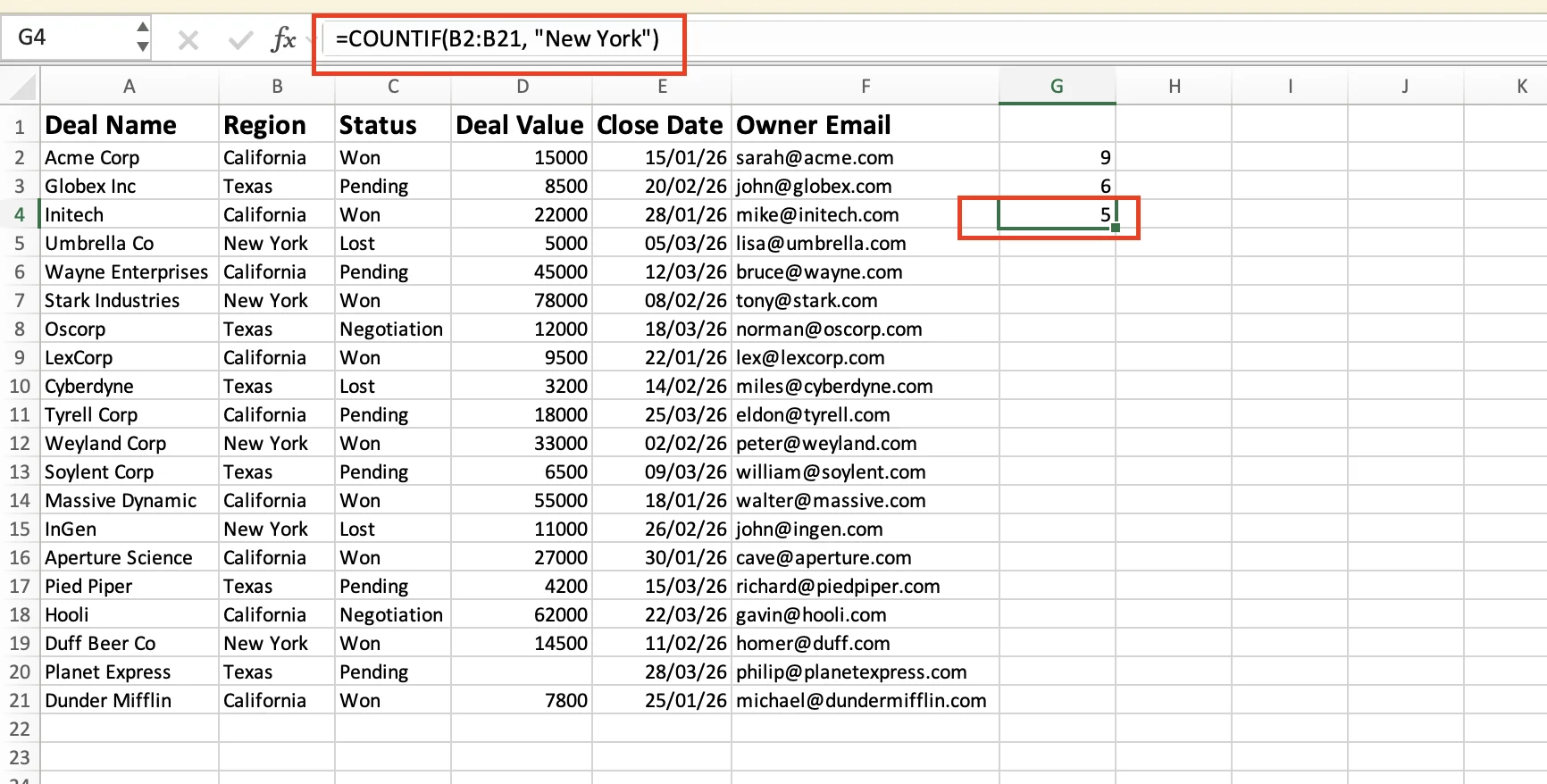
Drop these in cells G2, G3, and G4 (or anywhere else that's empty). Each formula counts a different region from column B.
One useful detail: COUNTIF is not case-sensitive. Excel treats "california", "California", and "CALIFORNIA" as the same value. That means you can still get accurate counts even when your dataset has inconsistent capitalization.
COUNTIF Examples for Every Common Use Case
COUNTIF does a lot more than match plain text. Here are the six most common ways sales, finance, and ops teams actually use it.
Count Cells That Contain Specific Text
This is the most common use case. You have a column of statuses, categories, or labels, and you want to know how many times a specific value shows up.
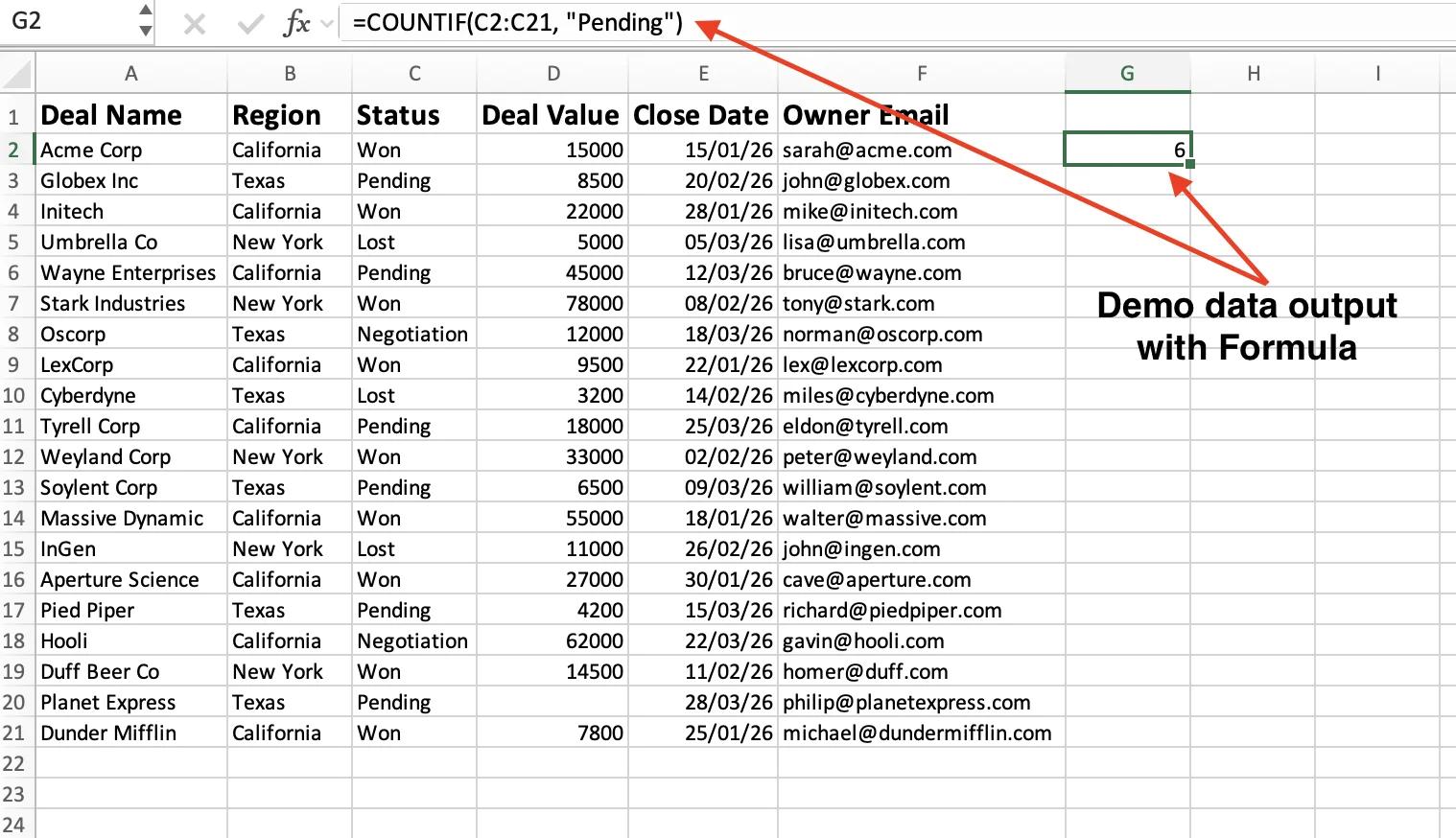
Say you have deal statuses in column C. To count how many are still marked Pending:
=COUNTIF(C2:C21, "Pending")
To count how many deals you already won:
=COUNTIF(C2:C21, "Won")
Swap the criteria to count any other status. Text criteria must sit inside quotation marks. And remember, COUNTIF ignores case, so "pending" and "PENDING" get counted too.
Count Cells Greater Than, Less Than, or Equal to a Number
Number comparisons are where COUNTIF gets genuinely useful for finance and sales teams. You can count deals above a target, below a threshold, or at an exact value.
To count how many deals are worth more than $10,000:
=COUNTIF(D2:D21, ">10000")
To count the small deals under $5,000:
=COUNTIF(D2:D21, "<5000")
To count deals that hit or exceeded a $15,000 target:
=COUNTIF(D2:D21, ">=15000")
To count deals with an exact value of $22,000:
=COUNTIF(D2:D21, "=22000")
To count deals that are not exactly $15,000:
=COUNTIF(D2:D21, "<>15000")
Every logical operator goes inside the quotes. Write ">10000", not >10000. Skip the quotes and Excel returns an error.
Count Cells with Wildcards (Partial Matches)
Sometimes you do not know the exact value you want to count, you only know part of it. That is where wildcards become useful.
COUNTIF supports two wildcard characters:
*matches any number of characters (zero or more)?matches exactly one character
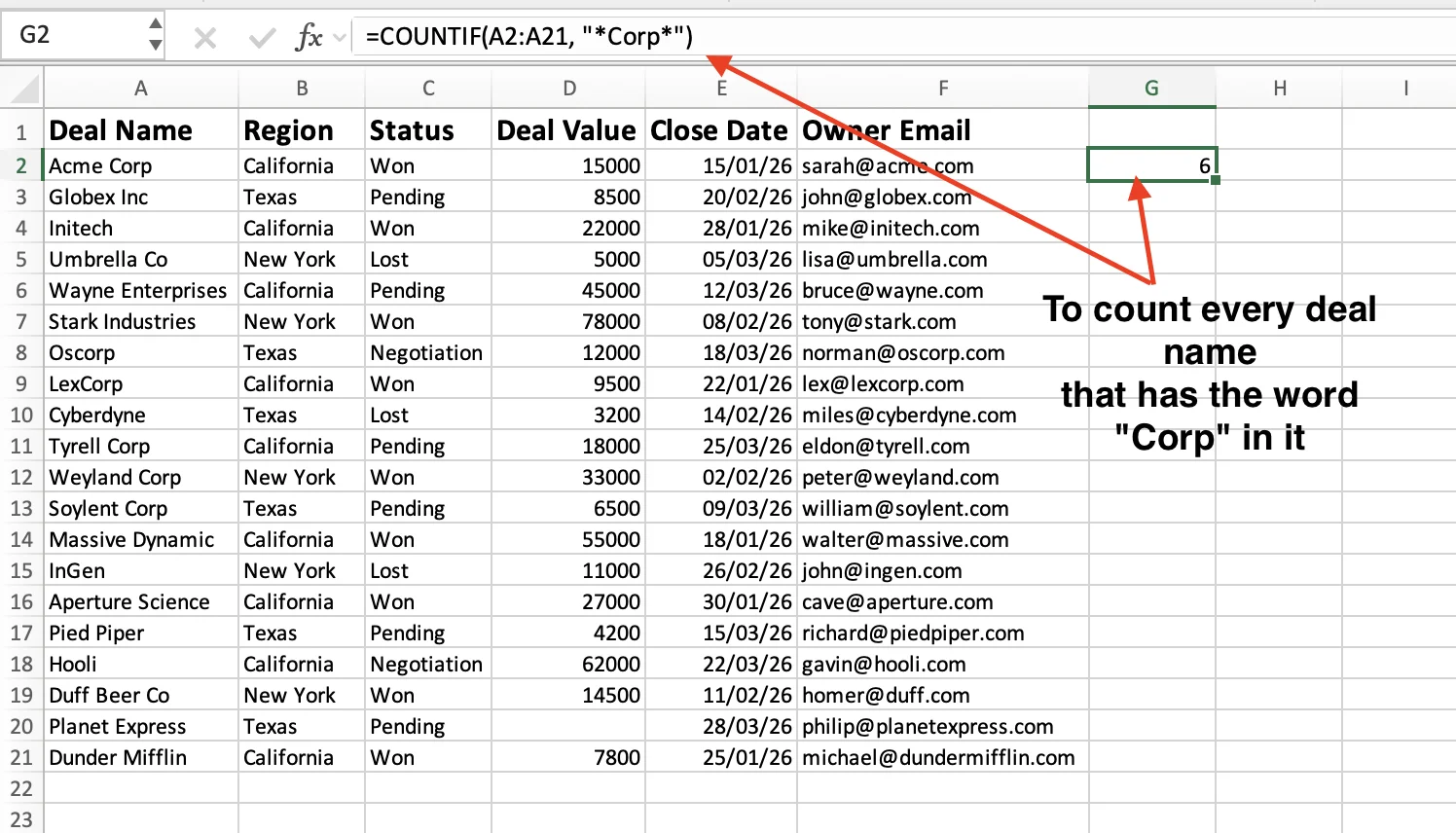
For example, if you want to count every deal name that contains the word "Corp" anywhere in the text, at the beginning, middle, or end, use:
=COUNTIF(A2:A21, "*Corp*")
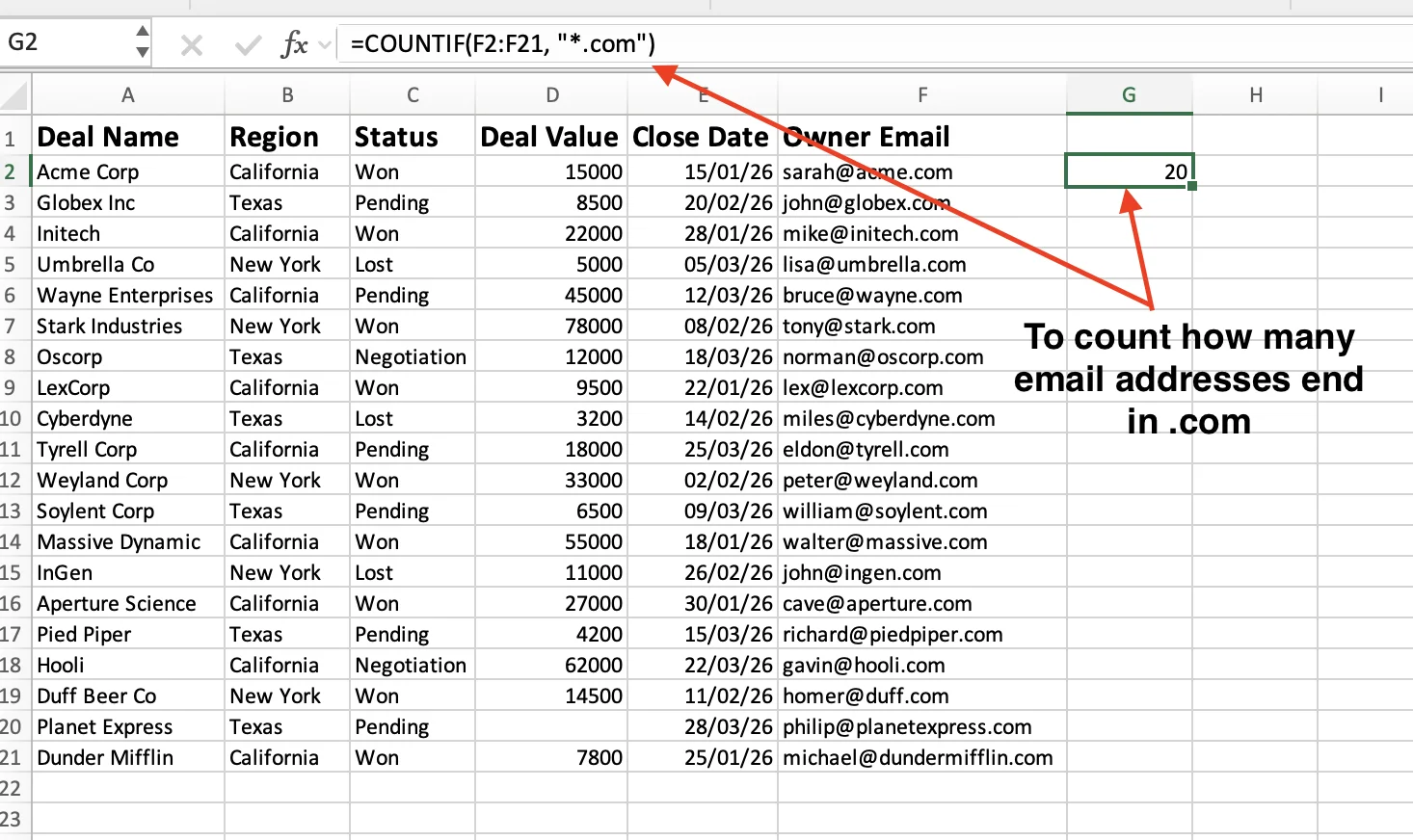
To count how many email addresses end in .com:
=COUNTIF(F2:F21, "*.com")
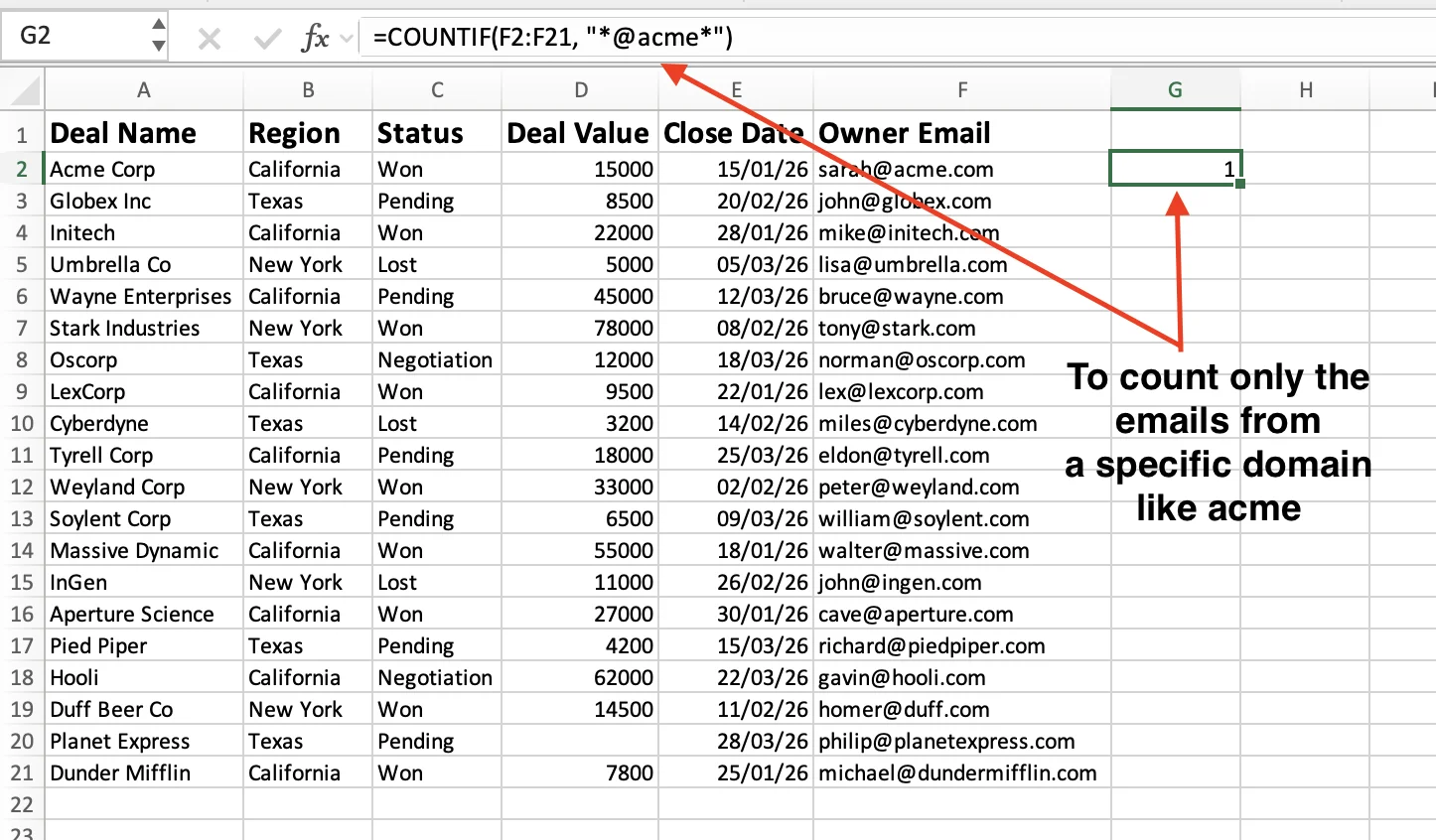
To count only the emails from a specific domain like acme:
=COUNTIF(F2:F21, "*@acme*")
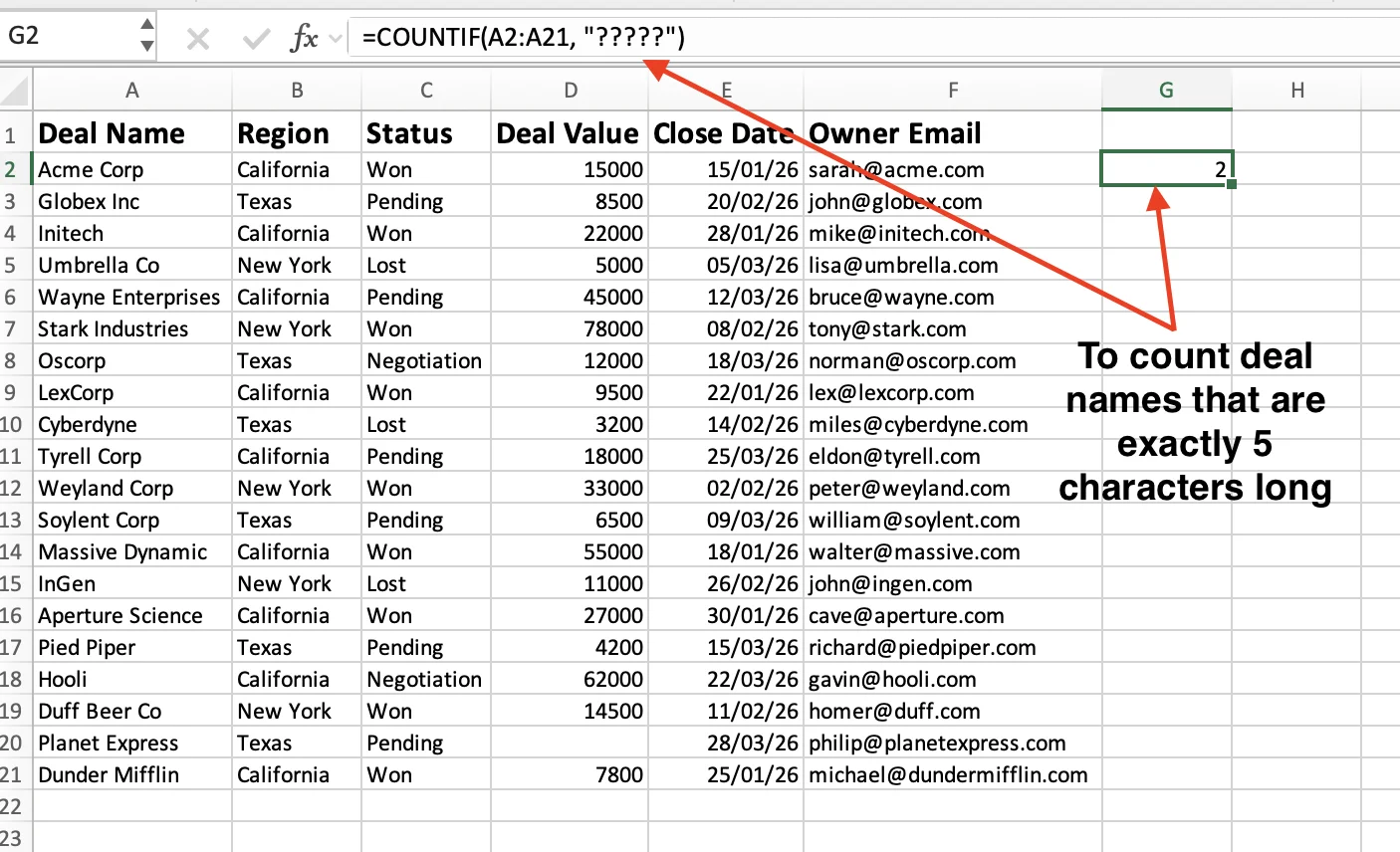
To count deal names that are exactly 5 characters long:
=COUNTIF(A2:A21, "?????")
If you need to search for an actual * or ? character in your data, put a tilde ~ in front of it, like "~*".
Count Cells Based on Dates
Dates behave like numbers inside COUNTIF. You just need to build the date with the DATE function and use the & operator to join it with your condition.
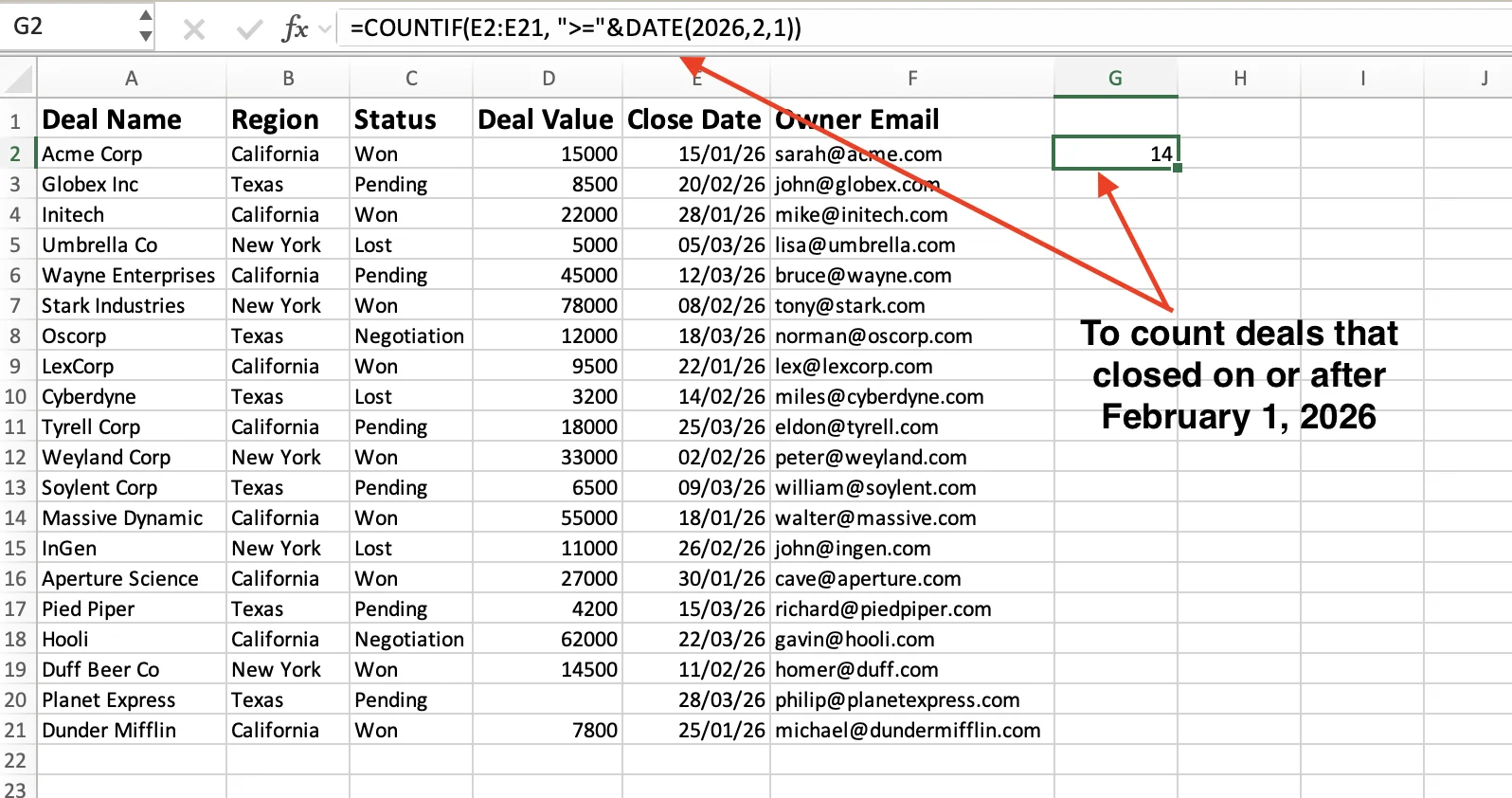
To count deals that closed on or after February 1, 2026:
=COUNTIF(E2:E21, ">="&DATE(2026,2,1))
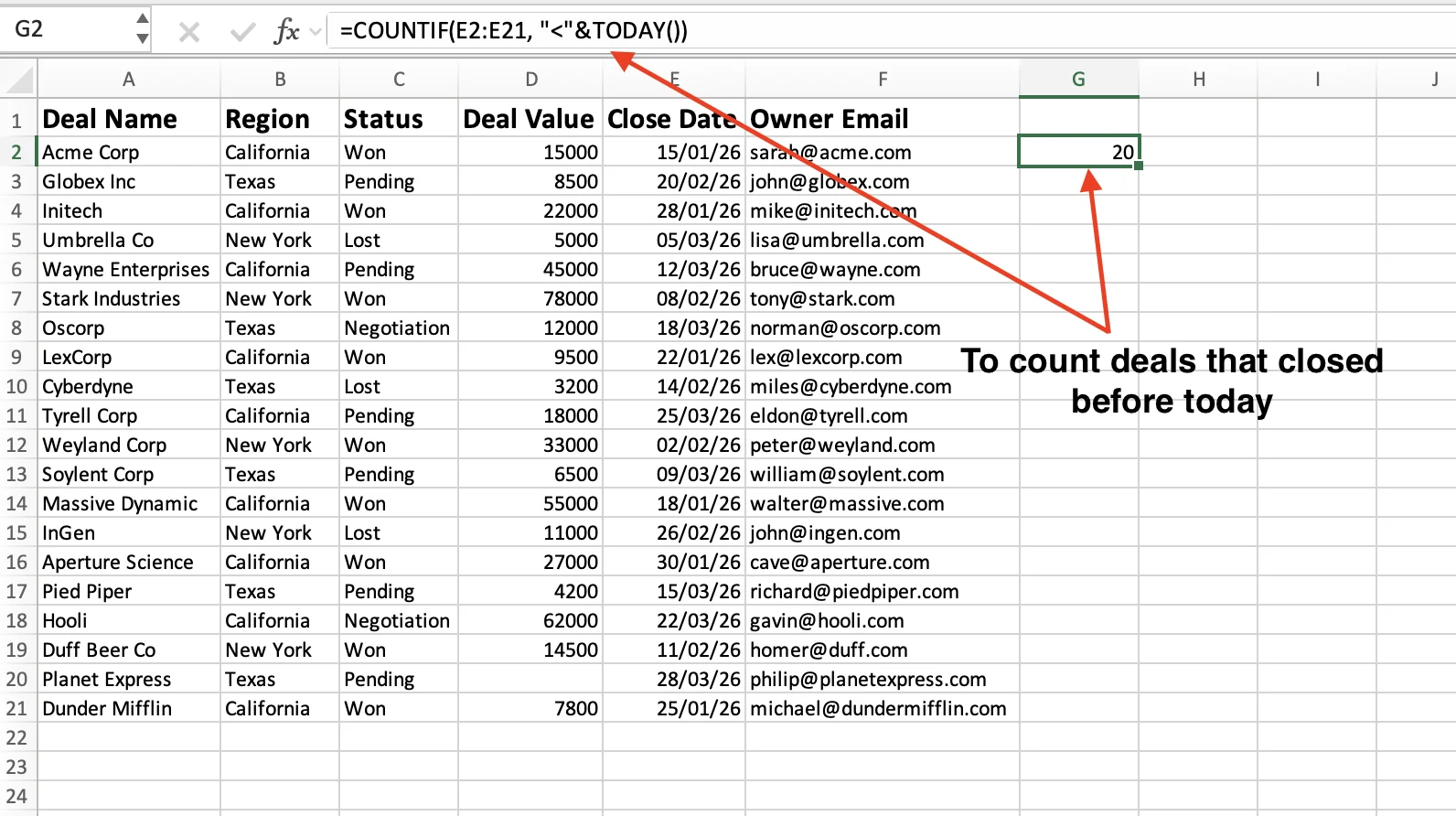
To count deals that closed before today:
=COUNTIF(E2:E21, "<"&TODAY())
To count deals that closed on a specific date:
=COUNTIF(E2:E21, "="&DATE(2026,1,15))
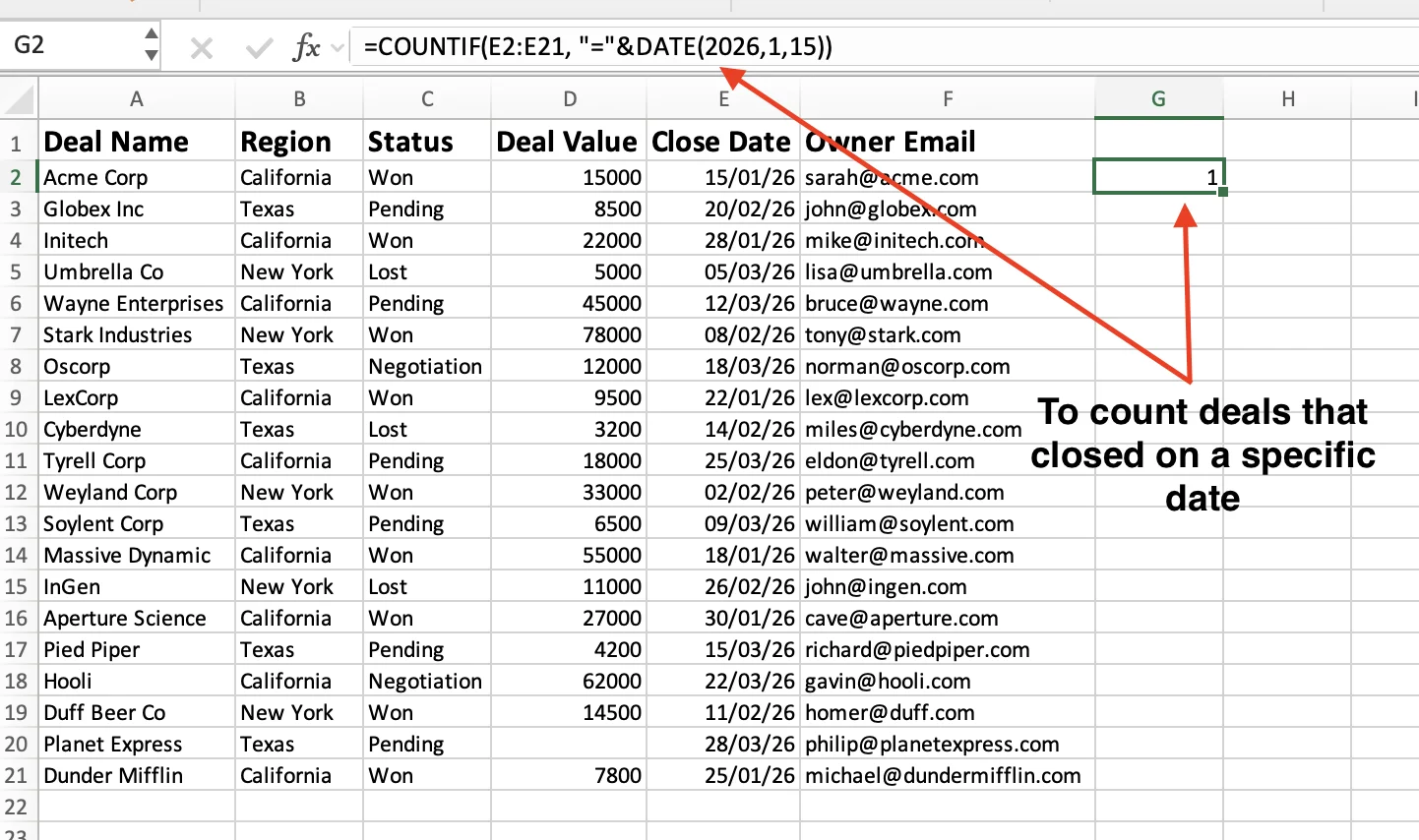
The DATE(year, month, day) function builds a proper date value Excel understands. The & connects it to the operator. Without the &, Excel reads the whole thing as a text string and returns 0.
You can also reference a date sitting in another cell. If I1 holds a date, then =COUNTIF(E2:E21, ">="&I1) works the same way.
Count Blank and Non-Blank Cells
Missing data is just as important as the data you have. COUNTIF helps you spot the gaps.
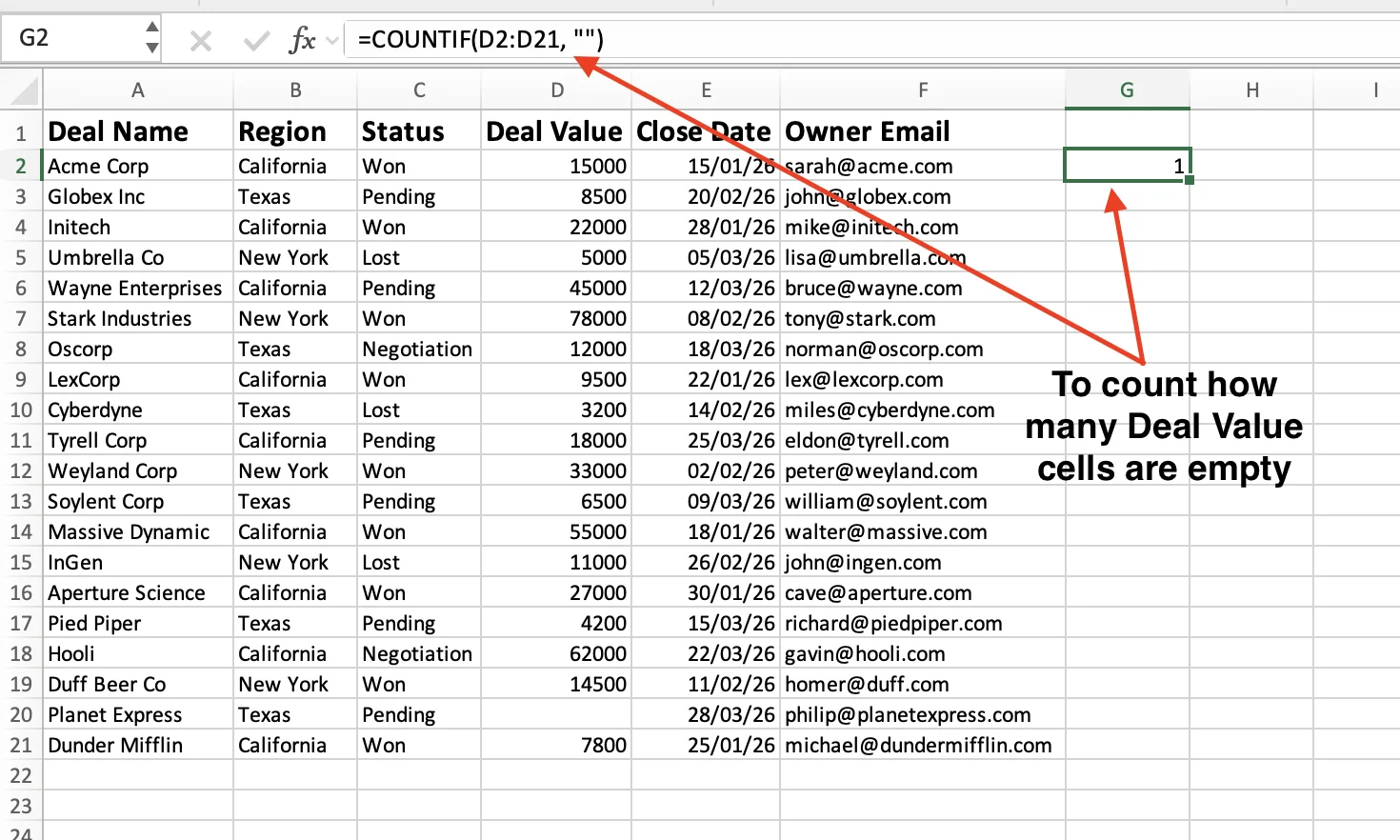
To count how many Deal Value cells are empty:
=COUNTIF(D2:D21, "")
To count how many Deal Value cells actually have a number in them:
=COUNTIF(D2:D21, "<>")
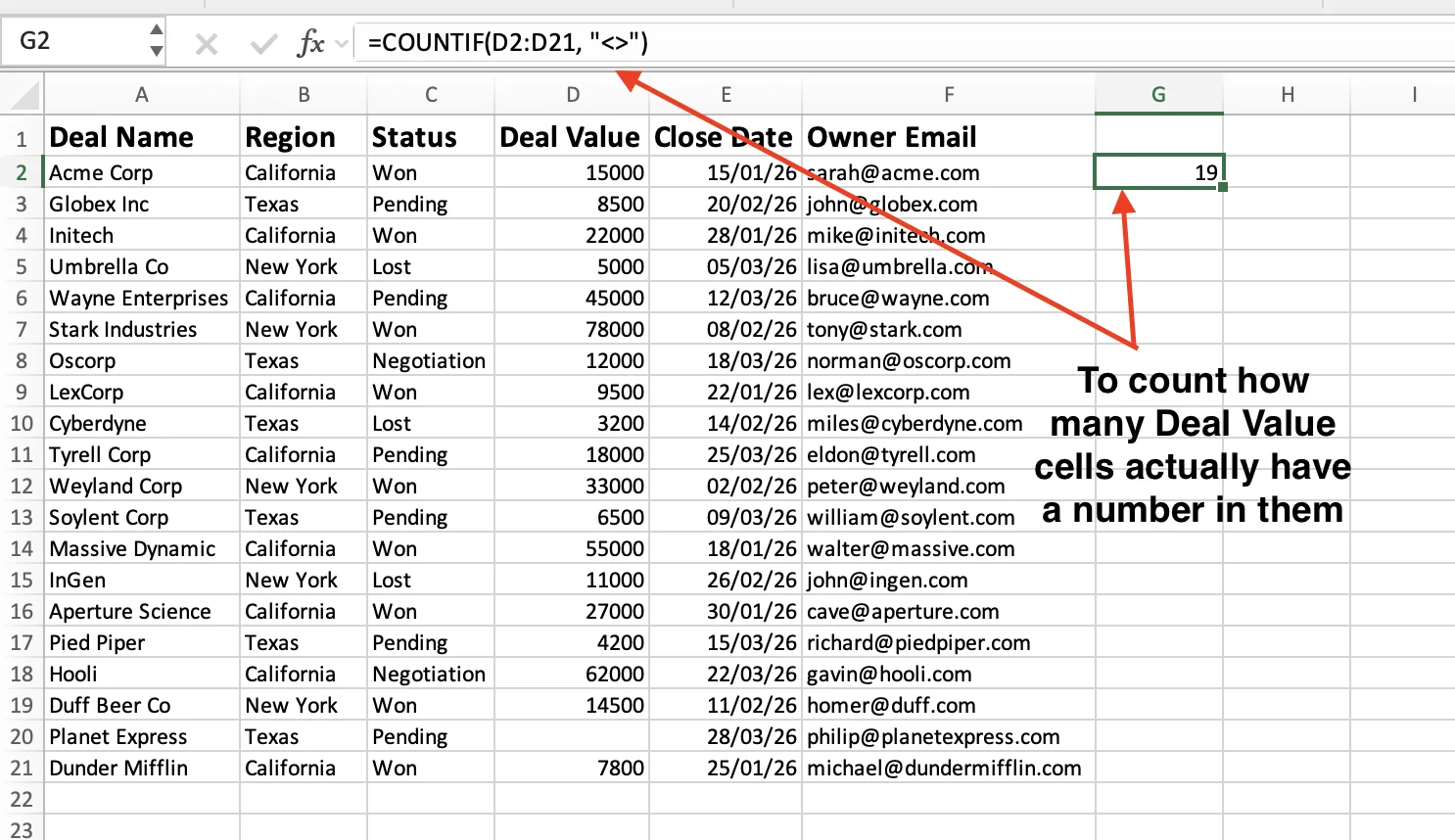
Two things to watch out for. A cell with a space or invisible character still counts as non-blank. Second, "" catches truly empty cells and cells containing an empty string from a formula result. If you only want truly empty cells, use COUNTBLANK instead.
Use a Cell Reference Instead of Hardcoding the Criteria
Hardcoding criteria inside quotation marks works well for quick, one-off counts. But if you want a report or dashboard that updates automatically, it's better to reference a cell instead. Create a small summary table in columns G and H. Enter the region names you want to count in column G, then place this formula in cell H2:
=COUNTIF($B$2:$B$21, G2)
Now drag the formula down from H2 to H4.
Here's what happens:
- The dollar signs (
$) lock the rangeB2:B21so it never changes - The criteria reference (
G2) adjusts automatically toG3,G4, and so on
Each row now counts a different region based on the value beside it in column G.
The biggest advantage is flexibility. Change a region name in column G, and the count in column H updates instantly. Instead of rebuilding formulas every time, you now have a reusable mini dashboard that adapts automatically to new inputs.
You can also combine a cell reference with an operator. If I2 holds a threshold number, this counts deals above that number:
=COUNTIF($D$2:$D$21, ">"&I2)
Change the number in I2 and the count updates.
COUNTIF with Multiple Conditions (OR and AND Logic)
Sometimes one condition is not enough. You need to count rows that match either of two values, or rows that match two conditions at the same time. COUNTIF handles OR logic with a small workaround, and COUNTIFS handles AND logic directly.
COUNTIF with OR Logic
COUNTIF only takes one criteria at a time. So to count cells that match one value OR another, you add multiple COUNTIFs together.
To count deals that are either Won or Pending:
=COUNTIF(C2:C21, "Won") + COUNTIF(C2:C21, "Pending")
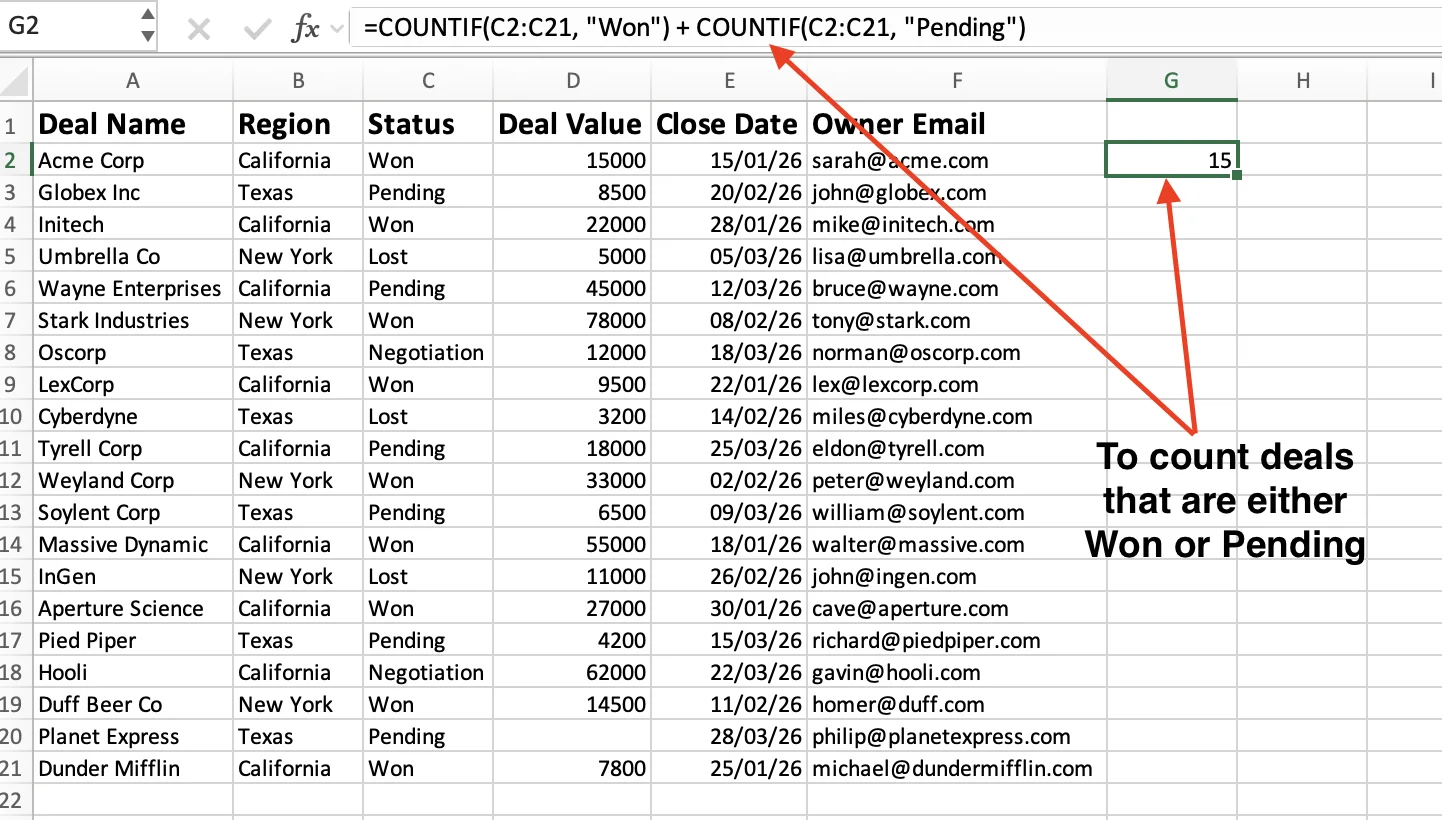
This adds the two counts and returns the total. It works for any number of values, but the formula gets long fast.
For longer lists, use SUM with an array instead. To count deals in any of three statuses:
=SUM(COUNTIF(C2:C21, {"Won","Pending","Negotiation"}))
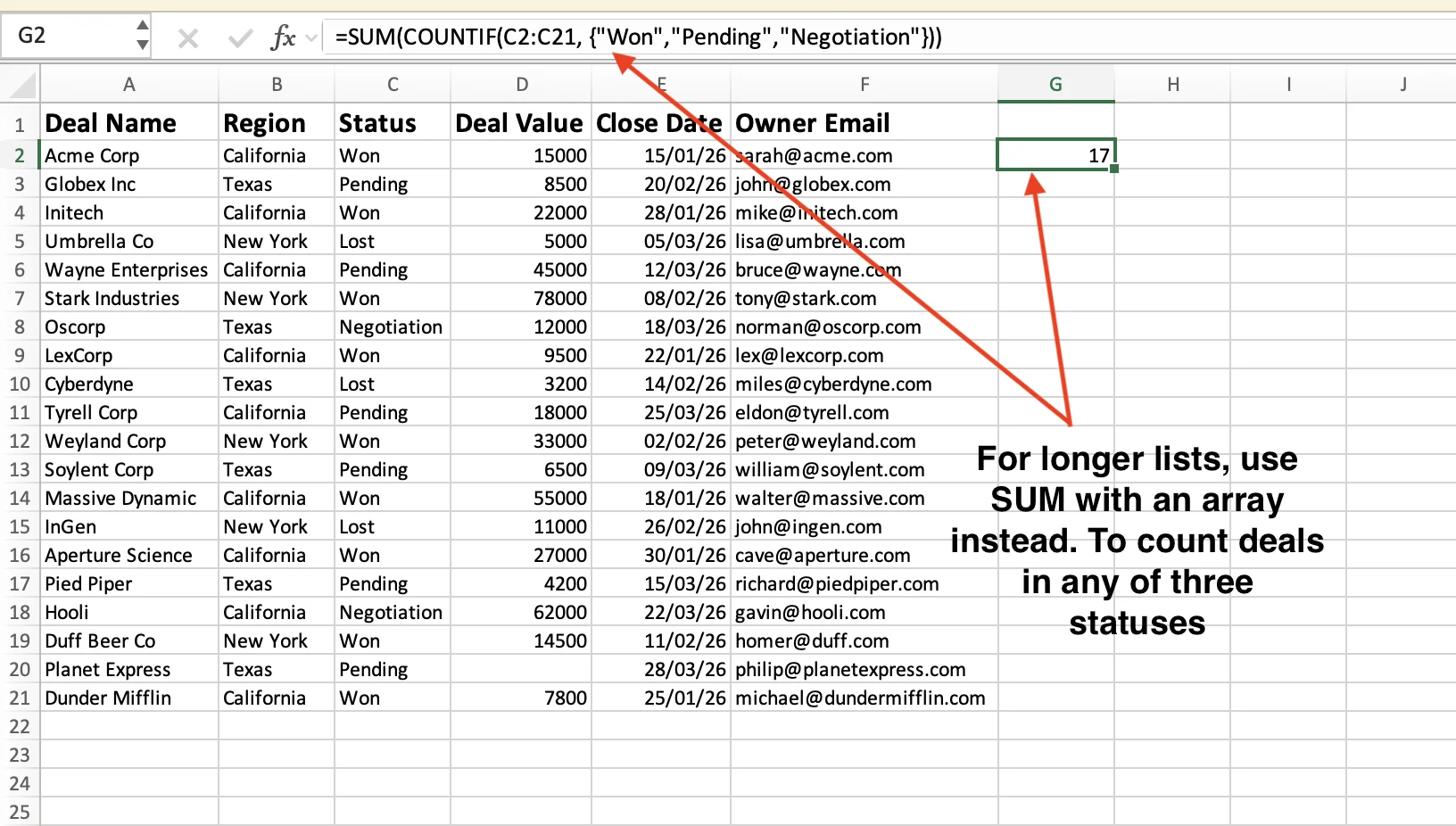
The curly braces hold all three values. SUM adds the counts together in one shot. This is the cleanest way to handle countif and OR logic when you have more than two values to check.
COUNTIFS for AND Logic
When you need both conditions to be true, use the COUNTIFS function in Excel. It is the multi-criteria version of COUNTIF and takes pairs of range and criteria arguments.
To count deals that are Won AND worth more than $10,000:
=COUNTIFS(C2:C21, "Won", D2:D21, ">10000")
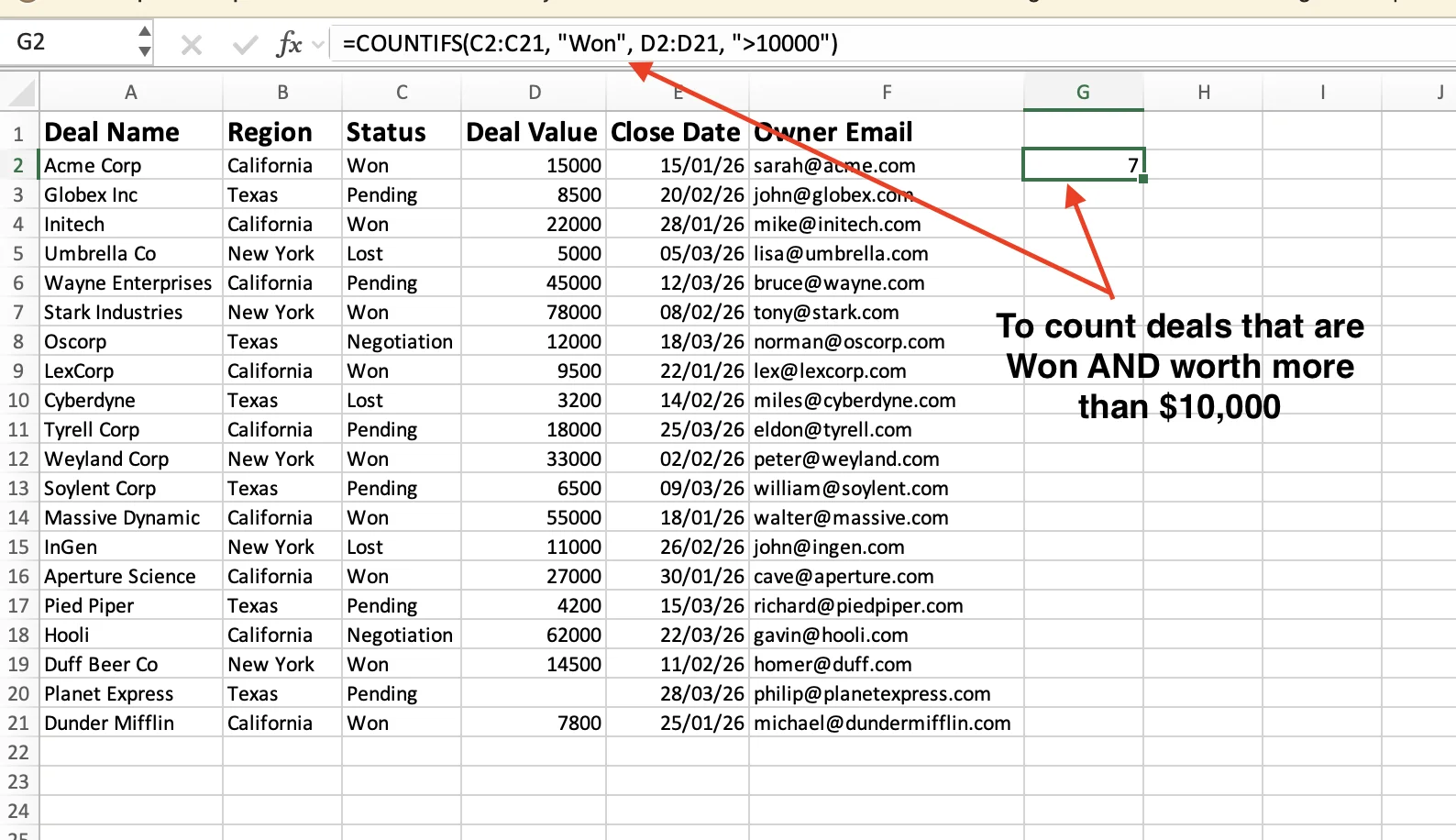
The first pair (C2:C21, "Won") checks the Status column. The second pair (D2:D21, ">10000") checks the Deal Value column. Only rows where both conditions are true get counted.
You can keep adding pairs for more conditions.
To count Won deals over $10,000 from California:
=COUNTIFS(C2:C21, "Won", D2:D21, ">10000", B2:B21, "California")
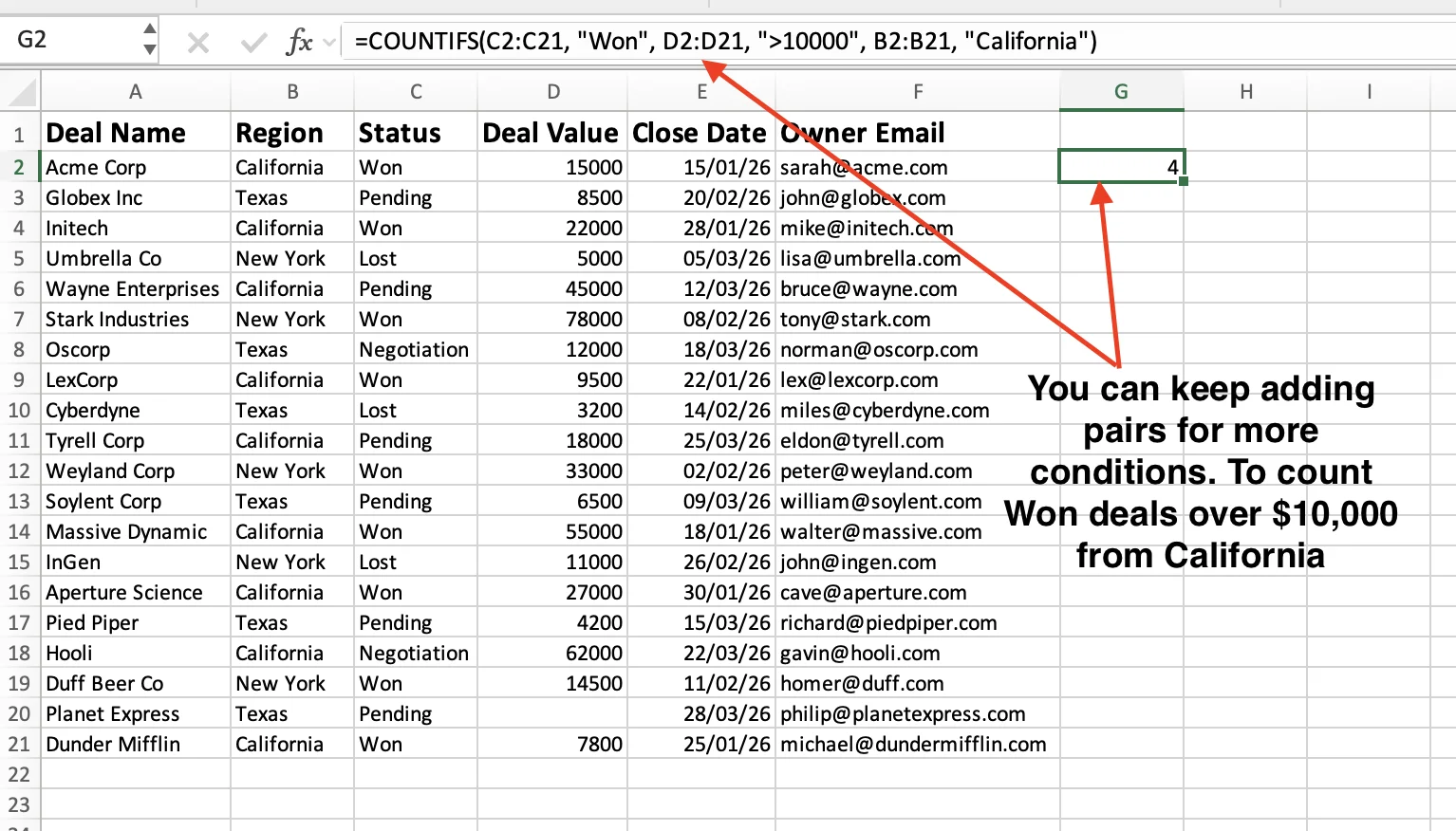
One important rule. Every range inside countifs excel must be the same size. Mix B2:B21 with D2:D100 and Excel returns a #VALUE! error.
The quick rule of thumb. Use COUNTIF when you have one condition. Use excel countifs when you have two or more conditions that all need to be true. For OR logic, stick with multiple COUNTIFs added together.
COUNTIF vs COUNTIFS vs COUNT vs COUNTA — Which One Should You Use?
Excel includes several counting functions that sound almost identical, but they solve very different problems. Choosing the wrong one is an easy way to end up with numbers that look correct while quietly giving you the wrong answer.
Function | What It Counts | Example Use |
|---|---|---|
COUNT | Numeric values only. Skips text, blanks, and errors. | How many cells in the Deal Value column hold a number |
COUNTA | Every non-empty cell. Counts text, numbers, dates, errors, anything. | How many rows in your sheet have data filled in |
COUNTBLANK | Empty cells only. The opposite of COUNTA. | How many Deal Value cells are missing data |
COUNTIF | Cells matching one condition. | How many deals are marked Won |
COUNTIFS | Cells matching multiple conditions at the same time. | How many Won deals are over $10,000 |
Here's the rule of thumb:
- Use
COUNTwhen you only care about numeric values - Use
COUNTAwhen you want to count every non-empty cell, regardless of content - Use
COUNTBLANKto identify missing or empty cells - Use COUNTIF when you need to apply one condition
- Use COUNTIFS when you need multiple conditions to be true at the same time
One common mistake is assuming COUNT and COUNTIF behave similarly because their names are almost identical. They do not. For example, COUNT ignores text entirely, so if your Deal Value column has the word "TBD" in some cells, those get skipped.
COUNTIF with the criteria "TBD" would count them.
The key is to choose the function based on what you actually need to measure, not the function name that sounds closest to your question.
What COUNTIF Cannot Do
COUNTIF is one of the most useful functions in Excel, but it has hard ceilings. Knowing where it stops saves you hours of debugging formulas that look right but return wrong numbers.
It cannot match similar values that are not identical. "Acme Corp", "ACME Corporation", and "acme corp." look like the same company to you. COUNTIF treats them as three different values.
It is not case-sensitive. "ABC-100" and "abc-100" get counted as the same product code. The workaround uses SUMPRODUCT with EXACT, and most people never remember the syntax.
It cannot count across multiple sheets in one formula. Data split across Sheet1 and Sheet2 means two separate COUNTIFs added together. Ten sheets means ten formulas.
It breaks on text longer than 255 characters. Long product descriptions, support tickets, or customer comments silently fail or return the wrong number.
It cannot count unique values. COUNTIF tells you how many times a value appears, not how many distinct values exist. You need SUMPRODUCT or UNIQUE for that.
It cannot reference closed workbooks. If your criteria points to data in another Excel file that is not open, COUNTIF returns a #VALUE! error.
These are not bugs. COUNTIF was built for simple, exact matches in clean data. The moment your data gets messy, large, or spread across sources, you need something that thinks more like a human.
Skip the Formula: Use an AI Agent like GPT for Work Instead
COUNTIF is great at counting exact matches in clean data. But it does not understand your data. It cannot tell that two slightly different company names refer to the same business.
It cannot count across ten sheets in one shot. It cannot group similar labels or handle typos in a Status column. For that, you would need nested IF statements, SUMPRODUCT tricks, or a full cleanup pass before you even write the formula.
GPT for Work is a full AI agent that works directly inside Excel and Google Sheets. You tell it what you want in plain language and it handles the rest.
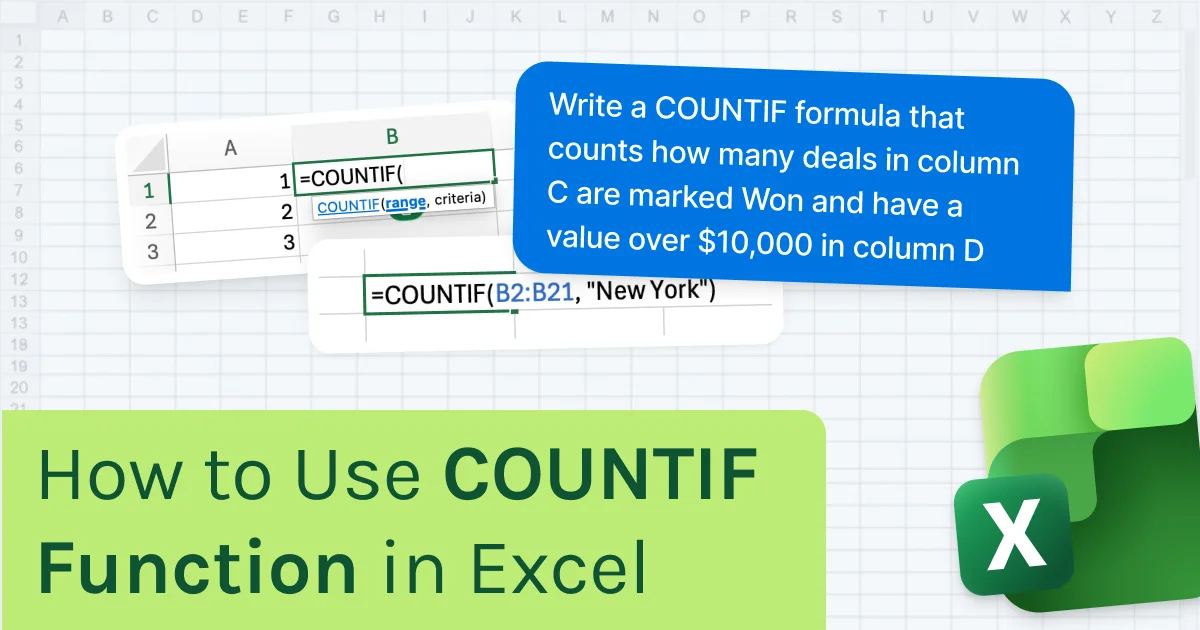
Even if you want to stick with COUNTIF, GPT for Excel can write the formula for you. Open the agent, type a prompt like:
"Write a COUNTIF formula that counts how many deals in column C are marked Won"
And it generates the full formula. Paste it anywhere in your sheet and run it. No syntax to remember, no quotation marks to debug.
Or skip formulas entirely. Tell the agent what you need and it does the counting directly in your sheet. No COUNTIF, no COUNTIFS, no wildcards. It groups similar values together on its own, handles case sensitivity when you ask for it, counts across multiple sheets in one prompt, and works on millions of rows without breaking.
GPT for Work also handles bulk translations, content generation, categorization, formula building, web research, and more. Anything you would normally do row by row, it does in one go.
Final Takeaways
COUNTIF is one of those Excel functions you learn once and use forever. One formula, one condition, one count. That is the whole job.
Switch to COUNTIFS the moment you need two or more conditions at once. For OR logic, add multiple COUNTIFs together or wrap them in SUM.
And when your data is too messy or too big for formulas to keep up, GPT for Work takes over. One prompt, no syntax, done.
Pick one real sheet from your work and try it today. That is the fastest way to make it stick.
FAQs
How do I count duplicates in a column with COUNTIF?
Use =COUNTIF(A:A, A2) to see how many times the value in A2 appears in column A. To flag only repeats and skip the first occurrence, use a growing range:
=COUNTIF($A$1:A2, A2)>1
Can COUNTIF count cells that contain specific text, not just the whole cell?
Yes, with wildcards. Wrap your search term in asterisks to catch the word anywhere in the cell:
=COUNTIF(A2:A100, "*invoice*")
Without the asterisks, COUNTIF only counts cells where "invoice" is the full value.
How do I count unique values with COUNTIF?
COUNTIF cannot do this directly. Use SUMPRODUCT with 1/COUNTIF instead:
=SUMPRODUCT(1/COUNTIF(A2:A100, A2:A100))
In Excel 365, the cleaner option is =COUNTA(UNIQUE(A2:A100)).
Why is COUNTIF returning 0 when I can see matching values in my sheet?
Usually hidden characters. Trailing spaces or non-breaking spaces from copy-paste break exact matches. Test with a wildcard:
=COUNTIF(A:A, "*California*")
If the wildcard version works but the exact match returns 0, apply TRIM to clean the column.