Product codes in column A. Descriptions in column B. Your export file needs both in a single column by lunch. If your spreadsheet has 10 rows, you could retype it. If it has 10,000, you need a better plan.
That is where knowing how to combine columns in Excel pays off. Whether you're merging addresses, building inventory labels, or creating email strings from separate fields, this task shows up in almost every data cleanup project.
The good news? It only takes one formula to get started. And if your data is messy or massive, there are smarter options that handle the heavy lifting.
Below, we break down five ways to do it. Each method works a bit differently, so you can choose the one that fits your dataset and move on with your day.
The Quick Answer: Use the Ampersand (&) Operator
The ampersand is the fastest way if you want to know how to combine two columns in Excel. No extra functions, no setup. Just a short formula.
Here's how it works:
- Click on the cell where you want the combined result. In this example, that is C2.
- Type the formula:
=A2 & " " & B2 - Press Enter.
- Click on cell C2 again, then drag the fill handle (the small square at the bottom-right corner) down to apply it to the rest of your rows.
The & operator joins whatever is on either side of it. The " " in the middle adds a space between the two values. Without it, you would get "SKU-101WirelessMouse" instead of "SKU-101 Wireless Mouse."
That " " is how you combine two columns in Excel with a space. It is just a space character wrapped in quotation marks, and Excel reads it as a separator between your values.
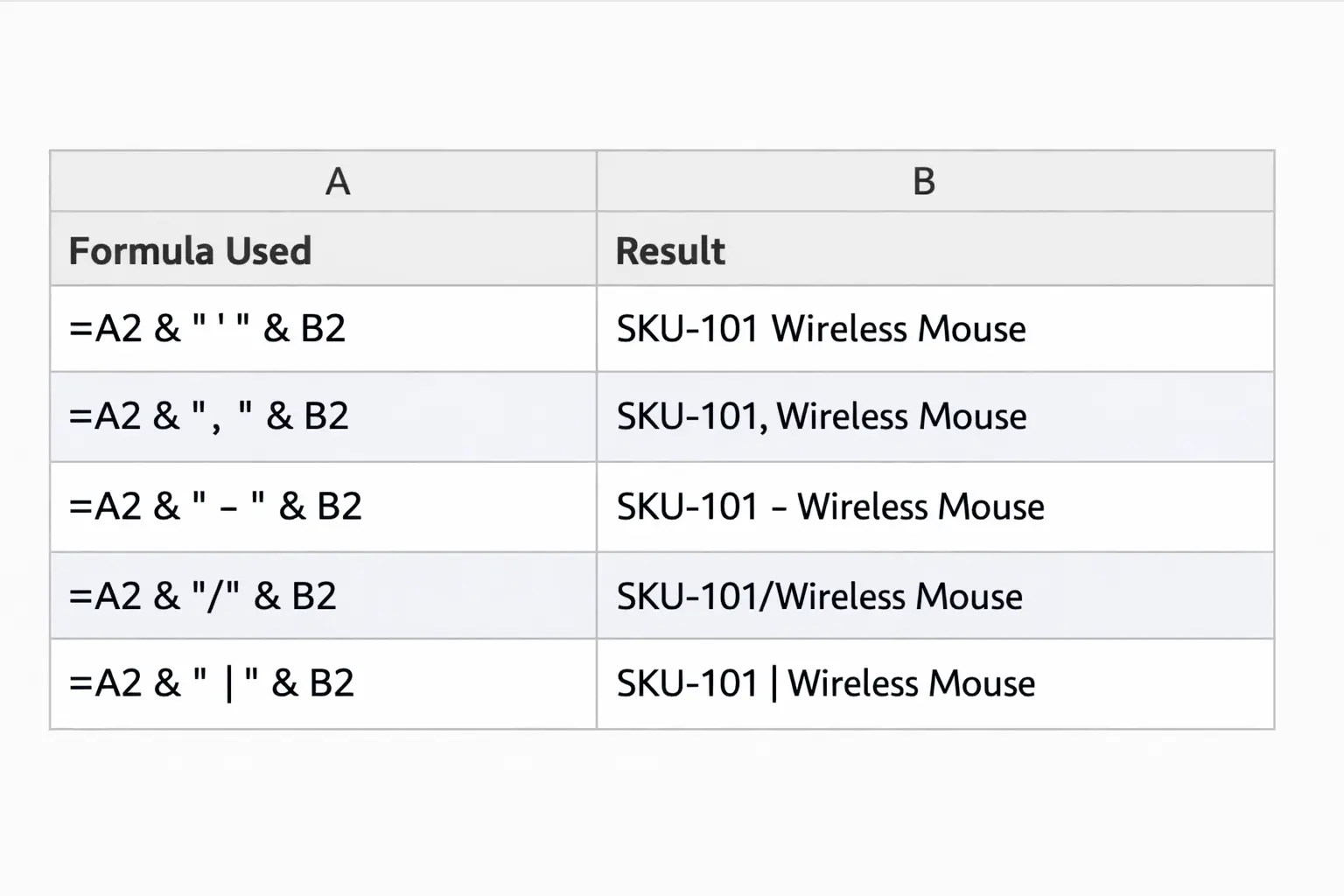
You can swap it for any character your output needs:
", "adds a comma and space (SKU-101, Wireless Mouse)" - "adds a hyphen (SKU-101 - Wireless Mouse)"/"adds a slash (SKU-101/Wireless Mouse)" | "adds a pipe (SKU-101 | Wireless Mouse)
If you just want the values stuck together with nothing in between, use =A2 & B2 and skip the separator entirely.
Combining Columns Using CONCATENATE and CONCAT
CONCATENATE was the original function for combining text in Excel. CONCAT replaced it starting with Excel 2016, but both still work today.
The syntax is nearly identical:
CONCATENATE (older versions):
=CONCATENATE(A2, " ", B2)
CONCAT (Excel 2016+):
=CONCAT(A2, " ", B2)
How to use:
- Click on the destination cell where you want the combined result.
- Type
=CONCATENATE(A2, " ", B2)and press Enter. - Copy the formula down to the remaining rows.
If you are wondering how this is different from the ampersand, the short answer is that it is not. For combining two cells in Excel, both give you the exact same result.
The difference shows up when your formulas get longer. Joining five or six cells with & symbols starts to look cluttered. CONCAT keeps it cleaner and easier to read.
CONCAT also accepts cell ranges. Instead of listing each cell one by one, you can write =CONCAT(A2:D2) to pull in a whole row at once. CONCATENATE cannot do this. You would need to spell out every cell like =CONCATENATE(A2, B2, C2, D2).
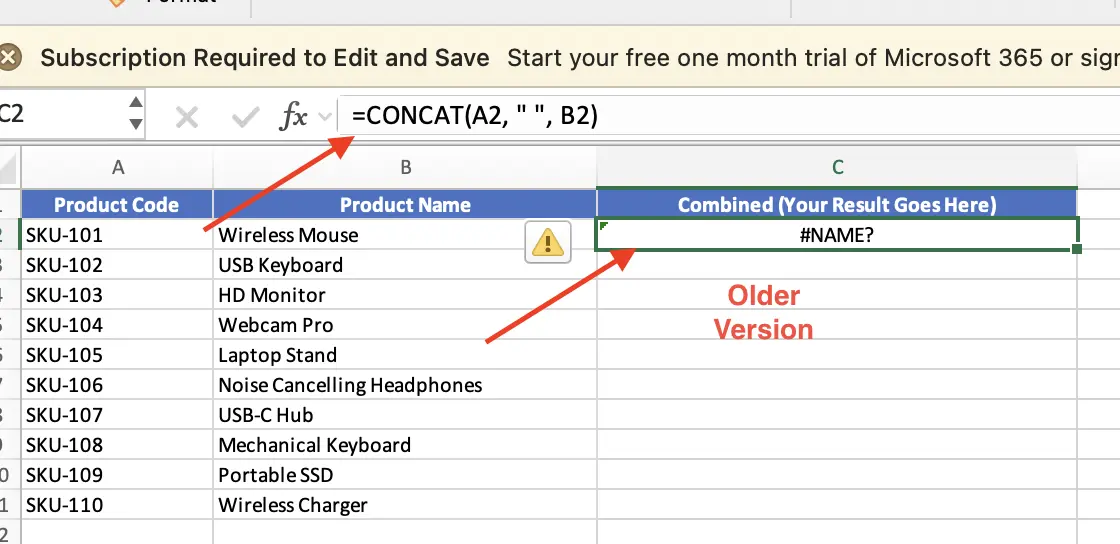
if you type CONCAT and get a #NAME? error, your Excel version is older than 2016. Switch to CONCATENATE and it will work.
Ampersand (&) | CONCAT() | CONCATENATE() | |
|---|---|---|---|
Excel version | All versions | 2016+ | All versions (legacy) |
Accepts ranges | No | Yes | No |
Readability | Best for short formulas | Better for complex joins | Better for complex joins |
Combining Columns Using TEXTJOIN
TEXTJOIN is the most flexible option for combining columns in Excel.
It does two things that the other formulas cannot handle on their own.
It lets you:
- Define a separator once
- Automatically skip blank cells
Here is the syntax:
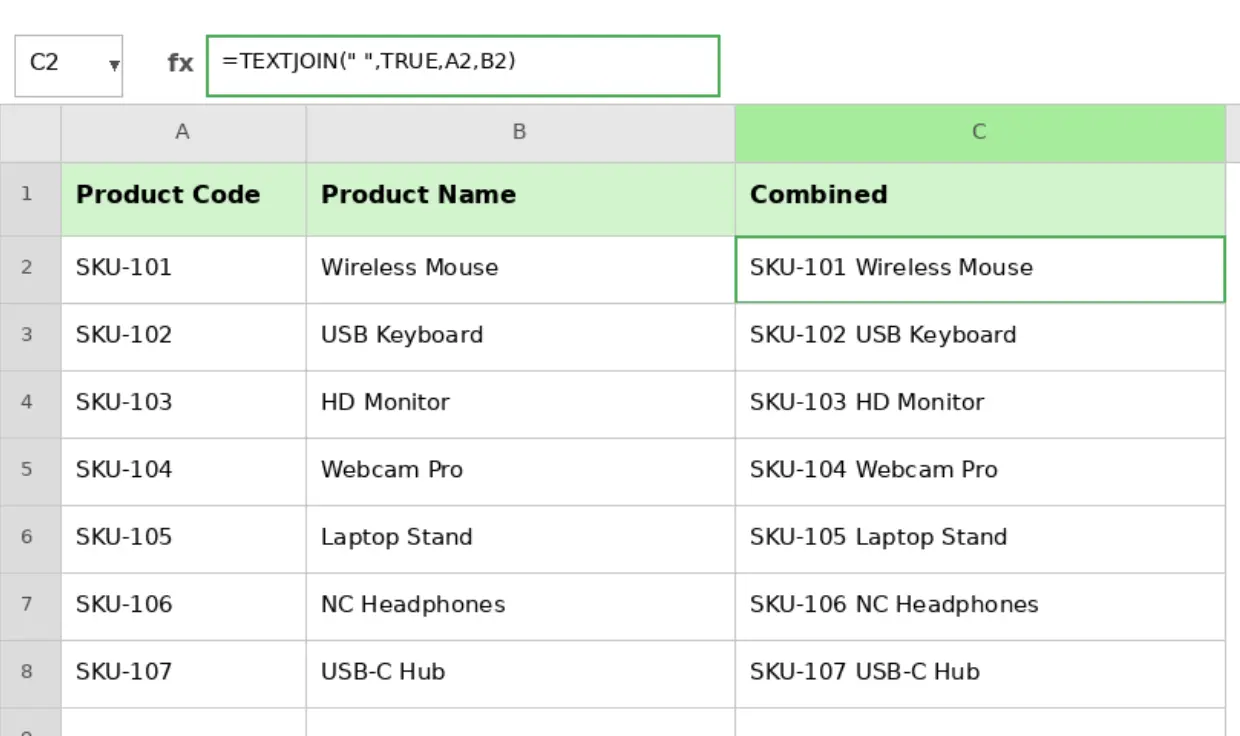
=TEXTJOIN(" ", TRUE, A2, B2)
Breaking that down:
- The first argument
" "is your delimiter. This gets placed between every value. - The second argument
TRUEtells Excel to ignore empty cells. Set it toFALSEif you want blanks included. - Everything after that tells Excel which cells or ranges to combine.
Here's how it works:
- Click on the destination cell.
- Type
=TEXTJOIN(", ", TRUE, A2:D2)and press Enter. - Drag the fill handle down to cover the rest of your rows.
EXTJOIN really shines when you're combining three or more columns that may contain gaps. For example, imagine street, city, state, and zip spread across four columns, with some rows missing a city. Using the ampersand or CONCAT would often leave you with awkward double commas or extra spaces. TEXTJOIN skips empty cells automatically, keeping the final output clean and properly formatted.
It also simplifies longer formulas. Instead of writing: =A2 & ", " & B2 & ", " & C2 & ", " & D2, you just pass the range A2:D2 and let TEXTJOIN handle the rest.
You can also set the delimiter to empty by using "" with no space.
Something like =TEXTJOIN("", TRUE, A2:D2) mashes all values together with nothing in between. That is useful when you need to build ID codes or reference keys from multiple columns.
TEXTJOIN is available in Excel 2019 and Microsoft 365. It does not exist in Excel 2016 or earlier.
Combining Columns Using Flash Fill
Flash Fill takes a different approach. Instead of using a formula, you show Excel an example and it figures out the pattern for you.
Here's how it works:
- In the first row of your destination column, manually type the combined result. For example, type "SKU-101 Wireless Mouse" in cell C2.
- Move to cell C3 and start typing the next entry. After a few characters, Excel will display a gray preview of the remaining rows.
- Press Enter to accept the suggestion. The entire column fills instantly.
If the preview doesn't appear automatically, you can trigger it manually:
- Go to the Data tab and click Flash Fill
- Or use the shortcut:
- Ctrl + E (Windows)
- Cmd + E (Mac)
Flash Fill works best for quick, one-time tasks on smaller datasets. You don't need to remember any syntax or worry about formulas just type one example and let Excel handle the rest.
There are a couple of limitations to keep in mind:
- Static results: Flash Fill creates values, not formulas. If the data in column A or B changes later, the combined column will not update automatically.
- Pattern accuracy: On larger or inconsistent datasets, Flash Fill can misinterpret patterns and produce errors.
Because of this, it's a good idea to scroll through the results and spot-check a few rows before moving on. If Flash Fill isn't working at all, it may be turned off. To enable it, go to:
File -> Options -> Advanced -> Editing Options, and make sure "Automatically Flash Fill" is checked.
Combining Columns Using Power Query
Power Query is the best option when you're working with large datasets or when your source data changes regularly. It handles thousands of rows efficiently and keeps your original columns completely untouched.
How to set it up:
- Click anywhere inside your dataset. Go to the Data tab and click From Table/Range.
- In the Create Table dialog, make sure "My table has headers" is checked, then click OK.
- The Power Query Editor will open. Hold Ctrl (or Cmd on Mac) and select the columns you want to combine.
- In the ribbon, go to Add Column -> Merge Columns.
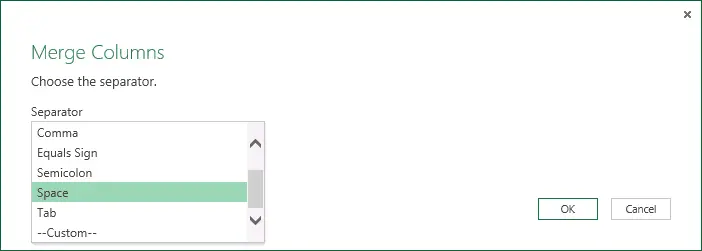
- In the dialog box, choose a separator (such as Space or Comma), enter a name for the new column, and click OK.
- Go to Home and click Close & Load. The merged data exports back to your worksheet as a new table.
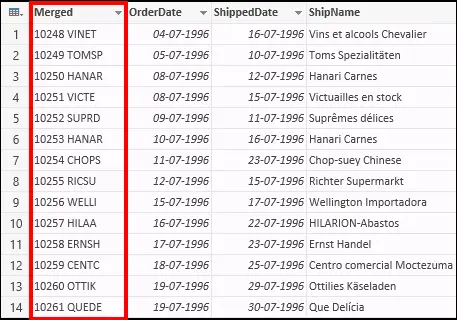
The biggest advantage of Power Query is that it updates automatically. If new rows are added to your source data or existing values change, you can simply right-click the table and select Refresh. The combined column updates instantly, no need to adjust or reapply formulas.
It also keeps your original data intact. Instead of overwriting anything, Power Query creates a new merged column alongside the existing ones, so there's no risk of losing information.
While it takes a few more clicks to set up compared to a simple formula, it quickly pays off, especially for datasets with hundreds of rows or files that are updated on a regular basis.
Choosing the Right Method
Here's a quick way to decide which method fits your situation.
Scenario | Best Method |
|---|---|
Quick formula for a few rows | Ampersand (&) |
Readable formula for complex merges | CONCAT() (Excel 2016+) |
Combining 3+ columns with blanks | TEXTJOIN() (Excel 2019+ only) |
One-time task, no formula needed | Flash Fill |
Large dataset with auto-refresh | Power Query |
The ampersand (&) works in every version of Excel and takes just seconds to set up, making it the safest starting point for most users.
If you're on an older version of Excel, CONCATENATE is the backward-compatible option. In practice, combining it with the ampersand gives you all the flexibility you need for most tasks.
Flash Fill requires no formulas at all, which makes it ideal for quick, one-off jobs. Power Query, on the other hand, takes a bit more setup but saves significant time when your data updates frequently.
These five methods cover most column-combining scenarios. However, they all assume your data is already clean and consistently formatted. When it's not, you often end up layering additional formulas just to fix spacing, capitalization, or other formatting issues.
Bonus Method: Skip the Formula Stack with GPT for Work AI Agent
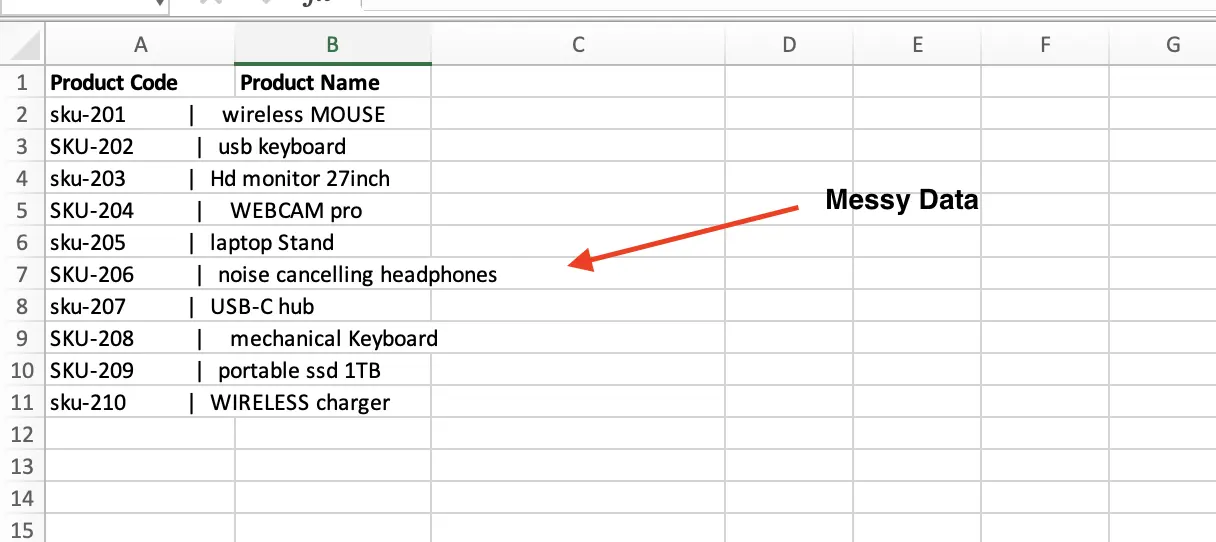
Real-world spreadsheets are rarely clean. One row might say "wireless MOUSE", another " Wireless mouse " with extra spaces. Product codes might mix uppercase and lowercase with no consistency. You need to combine columns, but also fix formatting at the same time.
You can stack functions like TRIM, PROPER, and SUBSTITUTE on top of an ampersand or CONCAT formula. It works, but it quickly becomes complex and hard to maintain.
GPT for Work takes a completely different approach. It is an AI agent that sits inside your Google Sheets or Excel sidebar. Instead of writing formulas, you describe what you want in plain English and it applies the changes across your entire sheet.
Example prompt:
"Combine column A and column B into column C as one string. Make product codes uppercase. Make product names title case. Remove extra spaces."
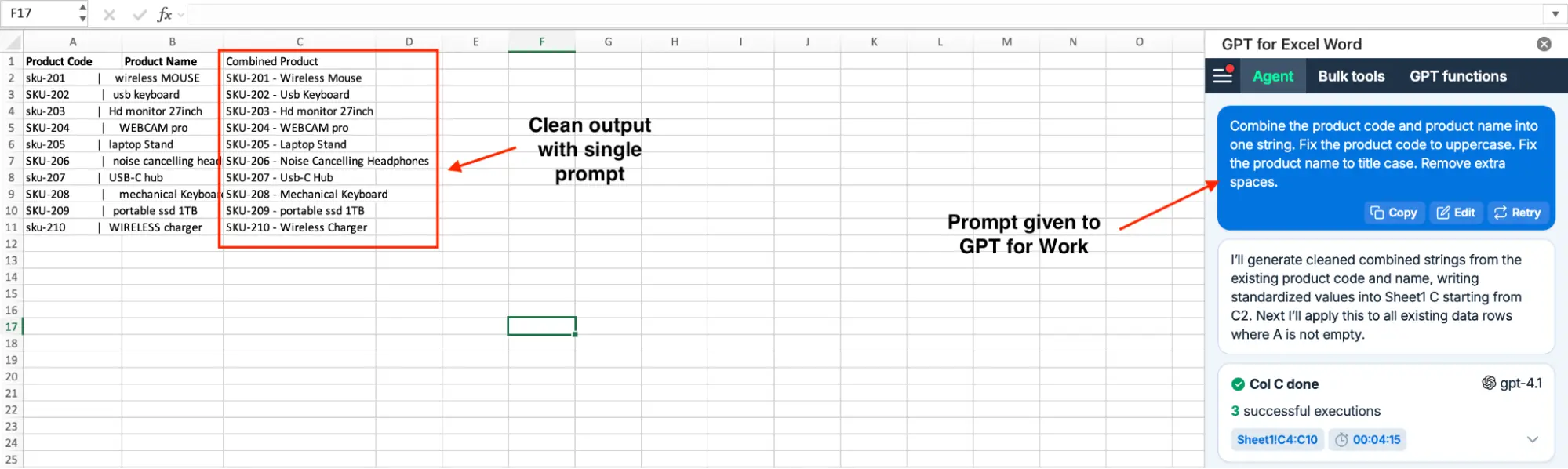
That's the entire workflow. No nested formulas, no separate cleanup step. The agent reads your data, understands formatting issues, and fixes everything as it combines. The results appear directly in your cells.
But this agent does a lot more than combine and clean text.
You are looking at column merging right now, but the same sidebar can handle completely different tasks. Ask it to enrich a list of 2,000 company names with their website and industry pulled from the web, rewrite 500 product titles to fit a 60-character SEO limit or tag 10,000 support tickets by urgency and department. Each task is just one prompt, same sidebar. Whatever the task is, you describe it and the agent executes it. It can even write Apps Script or VBA for you when something needs custom automation.
You can choose the AI model behind it. ChatGPT, Claude, and others. It scales to large workloads, running up to 1,000 rows per minute and handling datasets with up to 1 million rows in a single run.
To get started, install the add-on from the Google Workspace Marketplace or Microsoft Marketplace. Once it's open, type your request in the sidebar and let the agent handle the rest. New users get free credits to try it out, then choose a subscription plan from $25/month with included usage and optional extra-usage credits.
Conclusion
Five methods, one goal. Whether you go with a quick ampersand formula or set up Power Query for an auto-refreshing dataset, combining columns in Excel does not have to eat up your afternoon.
Start with the method that fits your data, test it on a few rows first, and scale from there. And if your data needs cleanup on top of merging, the GPT for Work AI agent handles both in a single prompt.
FAQs
How do I combine two columns in Excel without losing data?
Use a formula like =A2 & " " & B2 in a new column. This keeps your original columns untouched. Once you are happy with the results, copy the combined column and paste it as values (Ctrl + Shift + V) before deleting the source columns. This ensures your results remain even after the originals are removed.
Can I combine more than two columns at once?
Yes. TEXTJOIN makes this easy: =TEXTJOIN(" ", TRUE, A2:E2) combines everything from column A through E with a space between each value. It also skips blank cells automatically. If you are on an older version of Excel, you can chain ampersands like =A2 & " " & B2 & " " & C2 & " " & D2.
What is the difference between CONCAT and CONCATENATE?
CONCAT replaced CONCATENATE starting with Excel 2016. They work the same way for individual cells, but CONCAT can also accept ranges like =CONCAT(A2:D2). CONCATENATE requires every cell listed separately. If you are not sure which version your team uses, CONCATENATE is the safer pick since it runs everywhere.
Does this work in Google Sheets too?
Yes. The ampersand operator, CONCATENATE, and TEXTJOIN all work in Google Sheets the same way. Google Sheets also supports the CONCAT function and has a JOIN function for combining ranges with a delimiter.
How do I combine cells in Excel?
The quickest way to combine cells in Excel is with the ampersand: =A2 & " " & B2. This joins any two cells with a space between them. For more than two cells, use TEXTJOIN or chain ampersands together.