Remove unused seats
Remove seats you no longer need to reduce your next invoice. The removal is scheduled for the end of the current billing cycle. You keep your current seat count until then.
- Only the space owner or a space admin can manage seats.
- This feature is available on Business and Enterprise plans.
You can only remove unused seats. To remove more seats than are currently unused, remove users from the space first.
-
Open the GPT for Work dashboard and click Billing in the left sidebar.
-
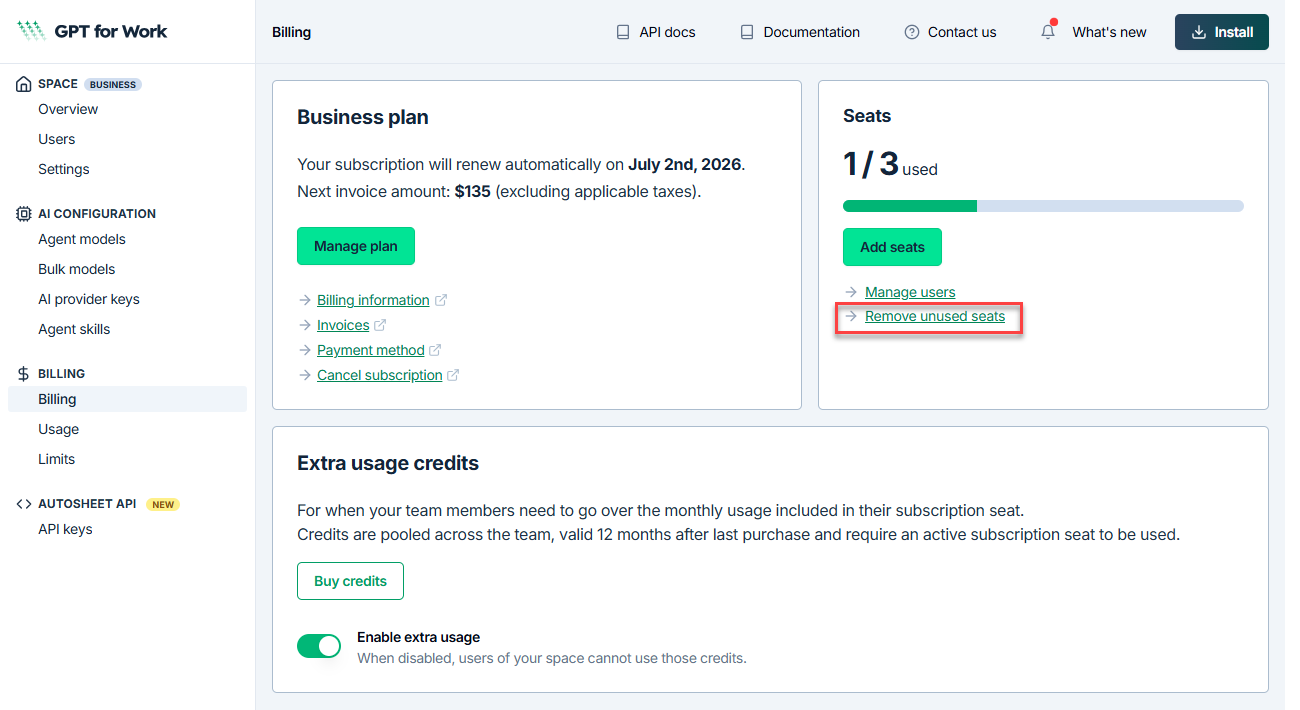
On the Billing page, click Remove unused seats.
-
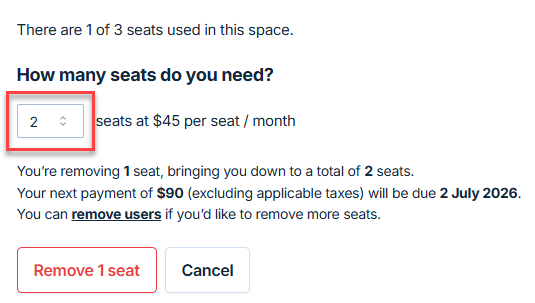
Select how many seats you need. The page shows your current seat usage and previews the impact on your next payment.
-
Click Remove seats.
Your seat removal is scheduled. The dashboard confirms the seat count after the change takes effect, the date it applies, and your updated billing amount for the next cycle.
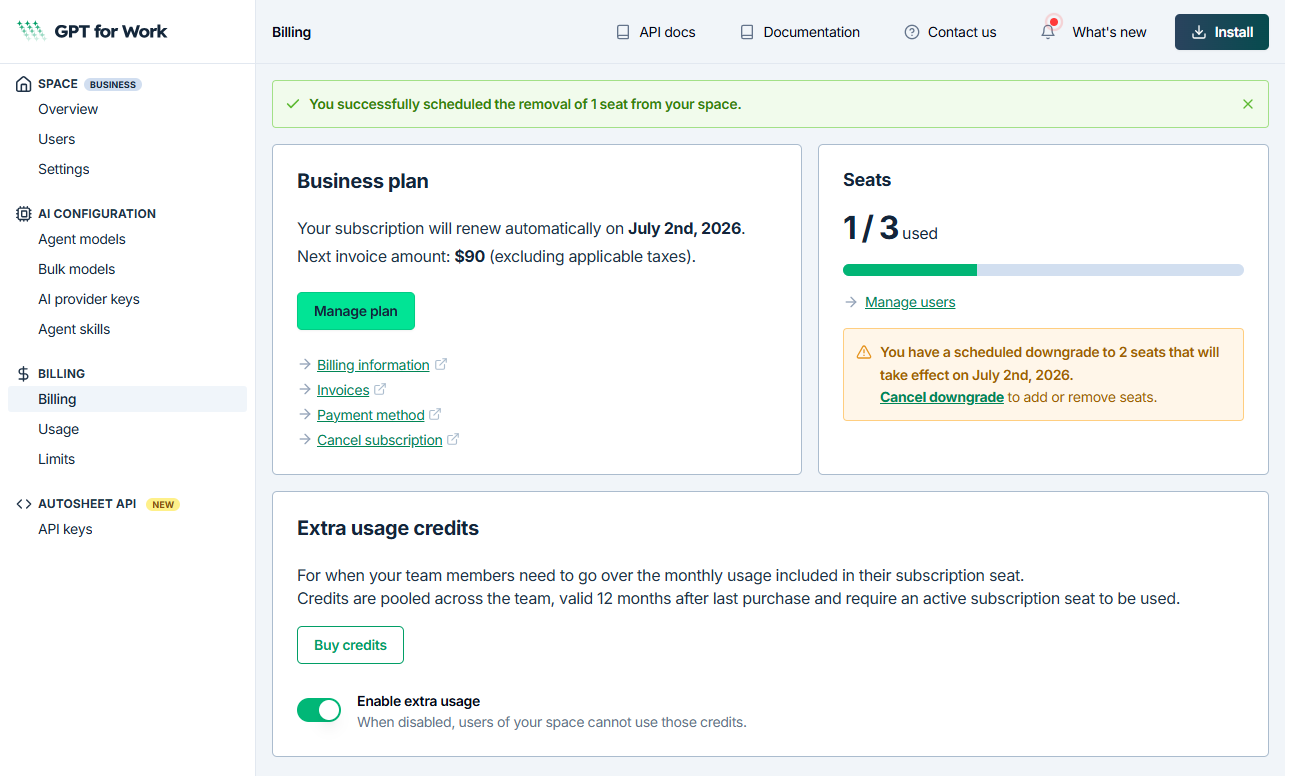
When a seat removal is scheduled, you cannot add or remove seats. To make further changes, click Cancel downgrade on the Billing page first.