Manage your plan
Upgrade, downgrade, or cancel your GPT for Work subscription from the GPT for Work dashboard. To discuss an Enterprise or custom plan, contact sales.
Upgrade to a paid plan
Upgrade to a paid plan to continue using the product once your free trial has ended.
-
Sign in to the GPT for Work dashboard with the account that you use for your space.
-
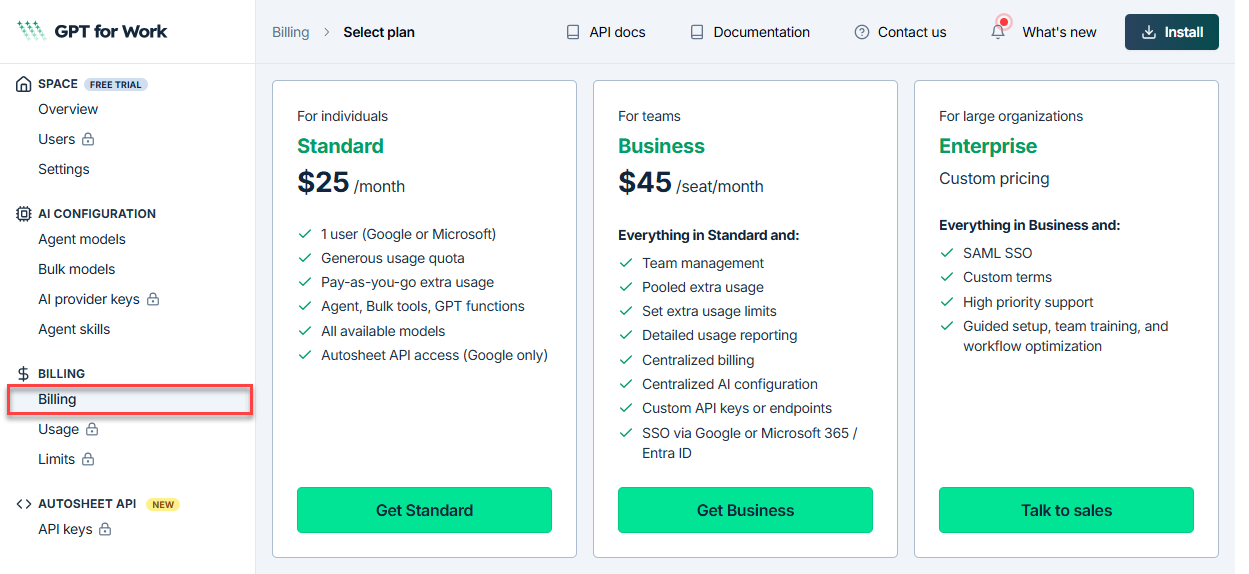
In the sidebar, select Billing.
-
Click Get Standard or Get Business.
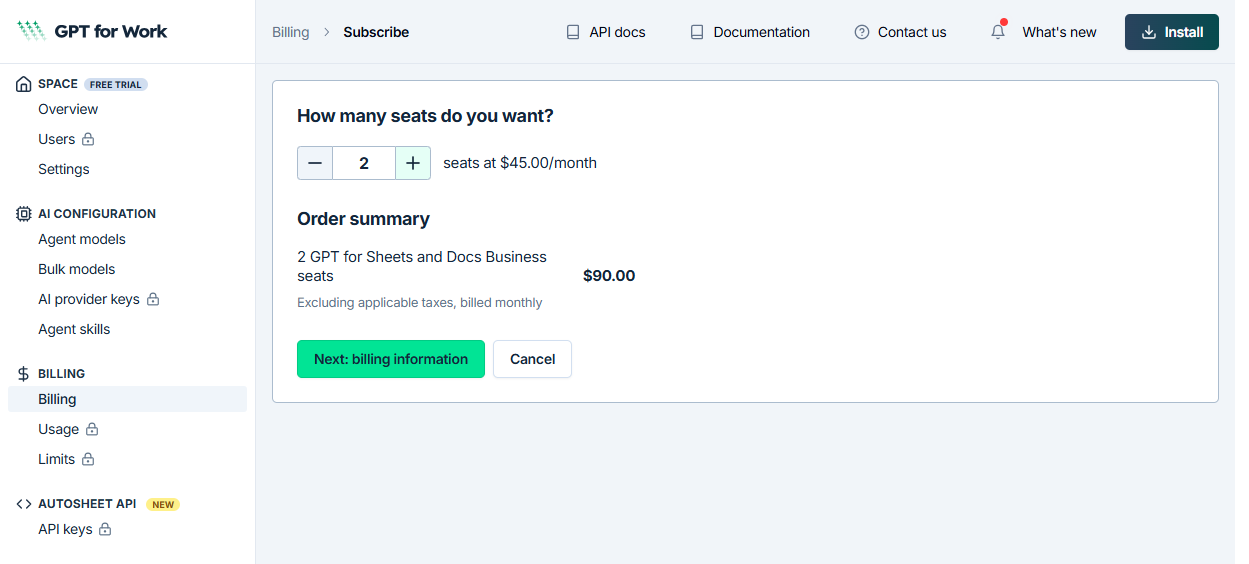
(For Business) Enter the number of seats you need, then click Next: billing information.
-
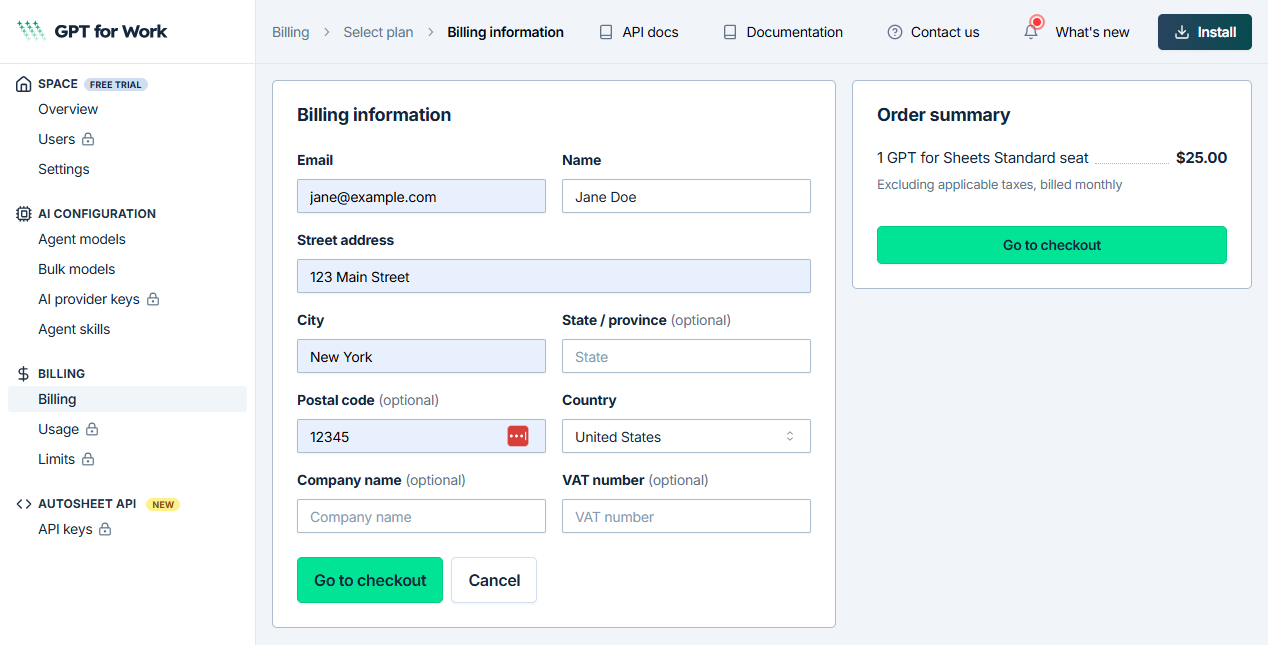
Enter your contact and billing details, review the order summary, and click Go to checkout.
-
Complete the payment on the Stripe checkout page.
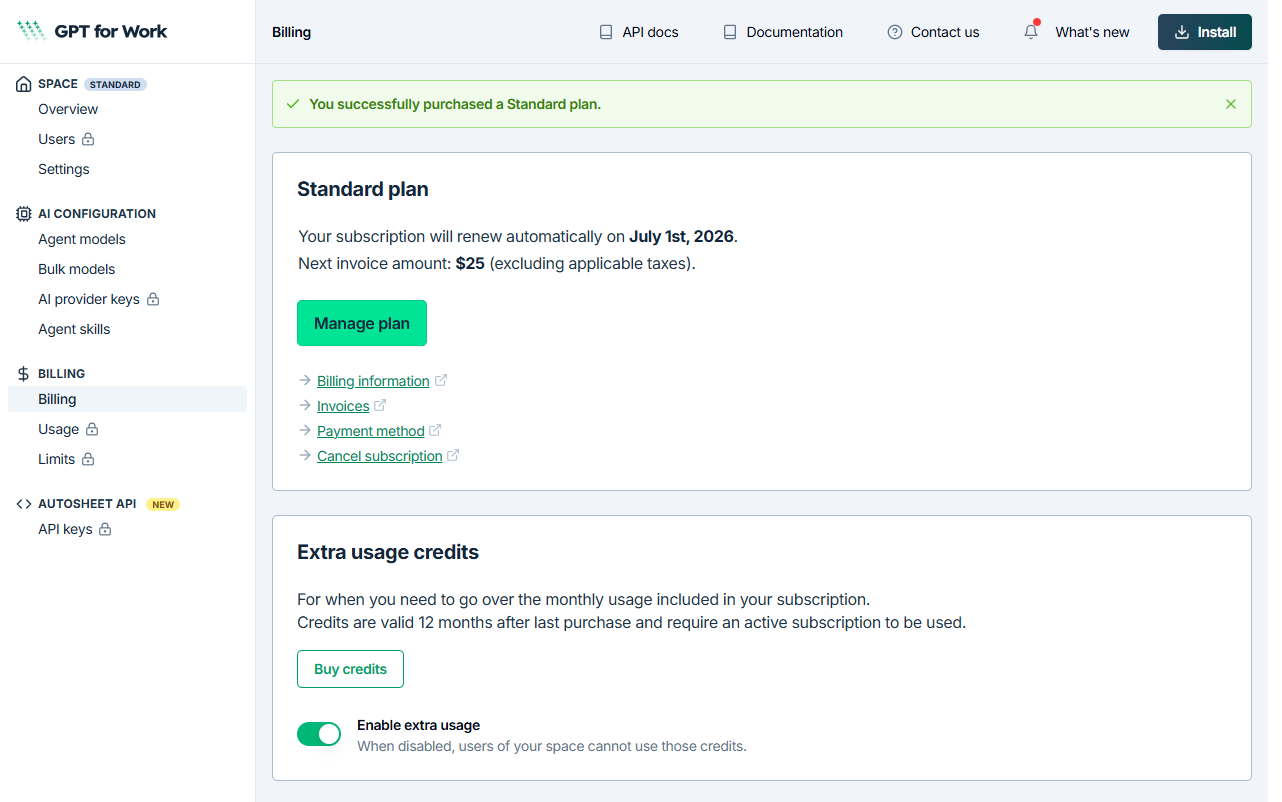
You return to the dashboard. A confirmation banner confirms your plan, along with your next renewal date and invoice amount.
Upgrade from Standard to Business
Upgrade from Standard to Business to unlock team management features, centralized billing, spending limits, and more. The upgrade takes effect immediately, and your billing is prorated for the remainder of the current cycle.
Your existing seat keeps its remaining included usage for the current billing cycle. The upgrade does not reset or increase it.
-
Sign in to the GPT for Work dashboard with the account that you use for your space.
-
In the sidebar, select Billing.
-
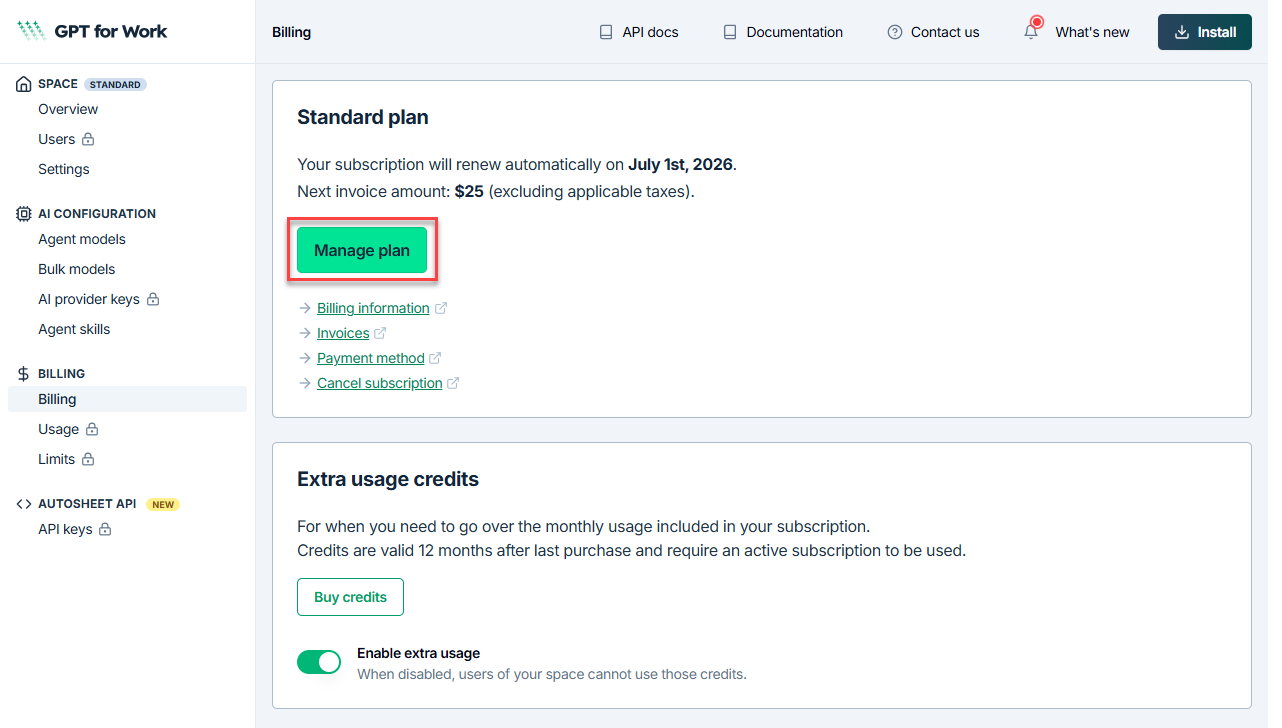
Click Manage plan.
-
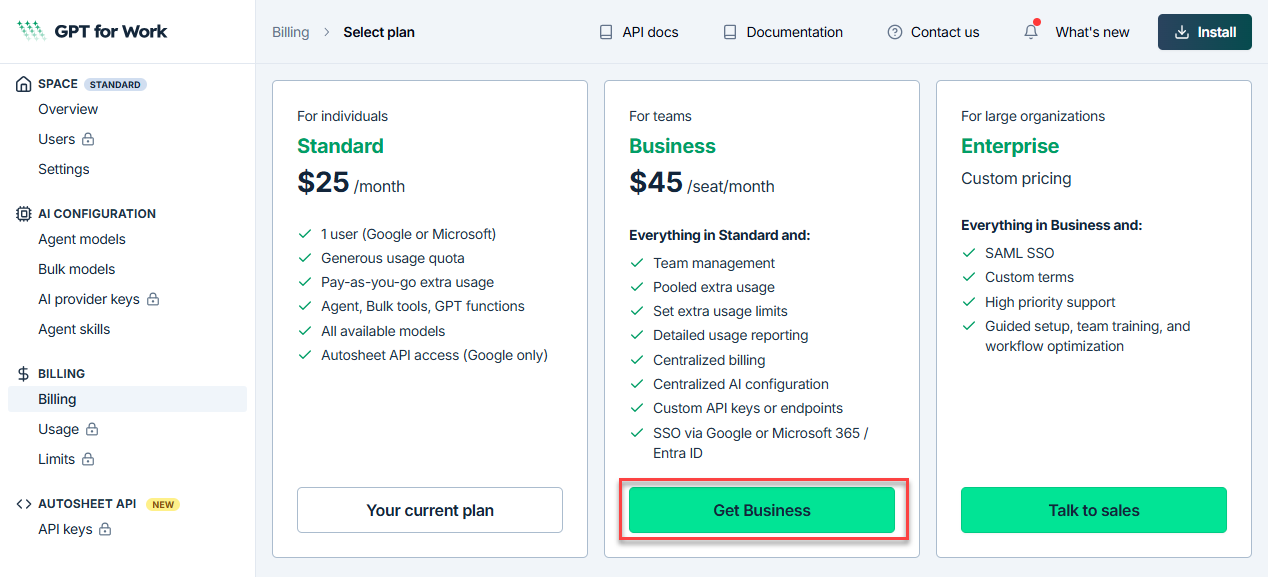
Click Get Business.
-
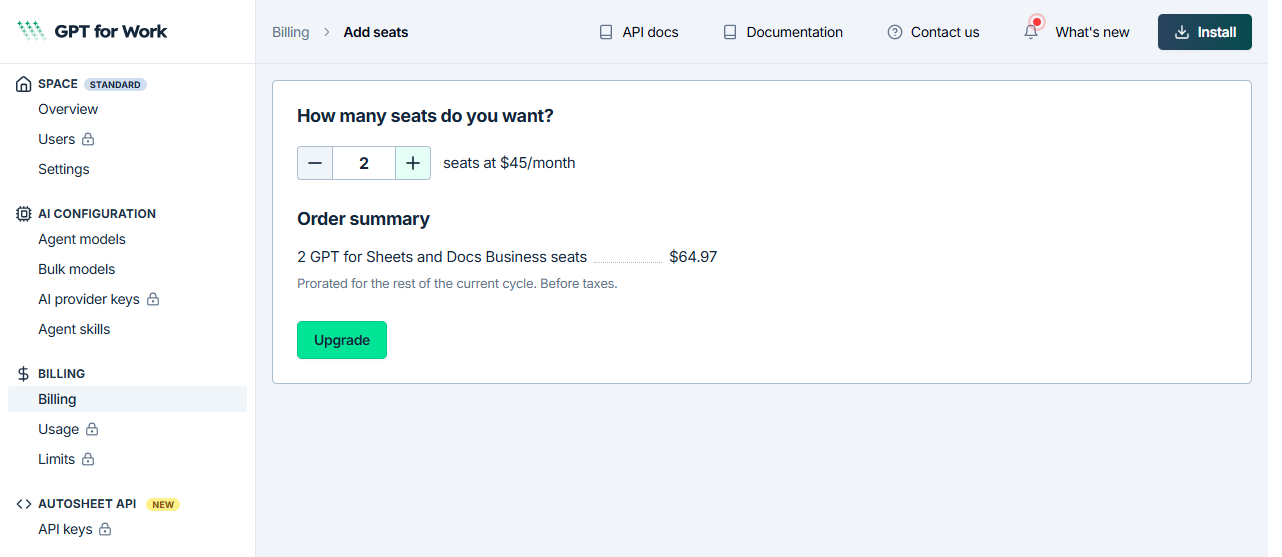
Enter the number of seats you need, and click Upgrade.
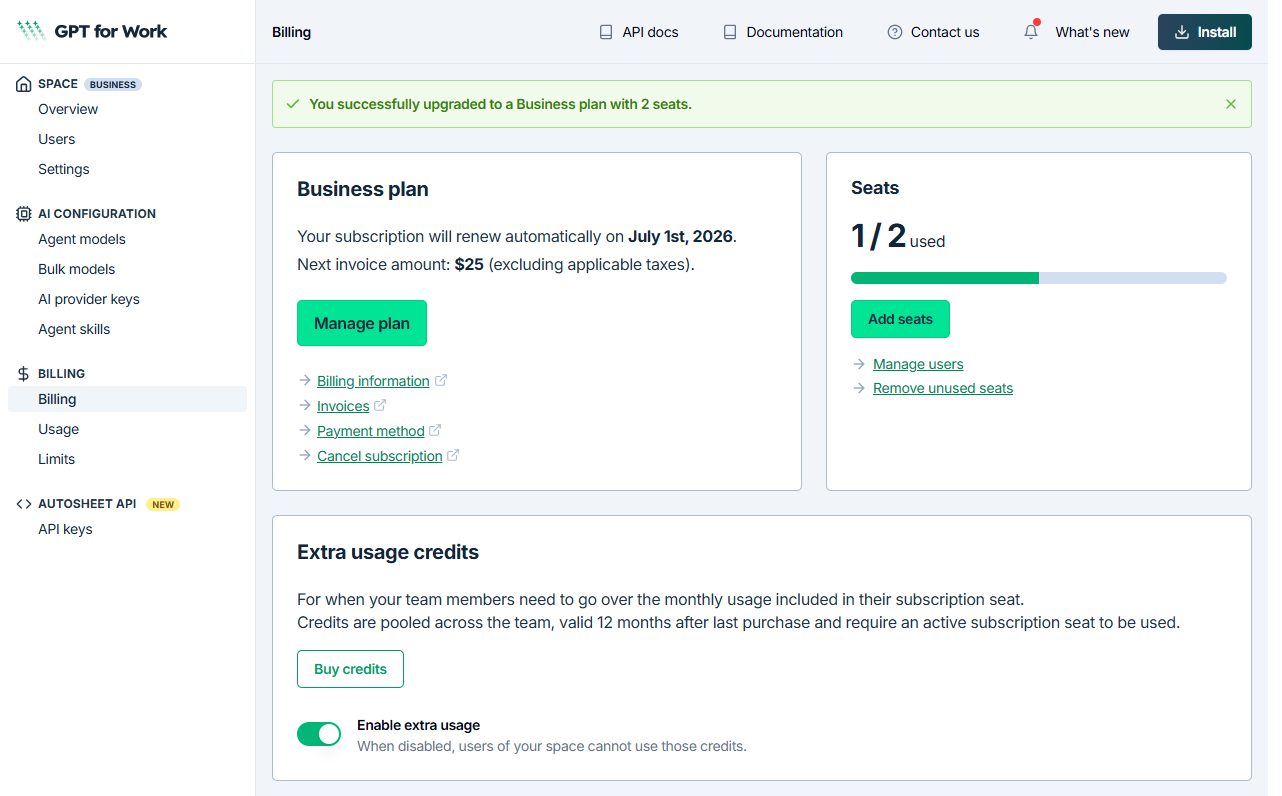
You return to the dashboard. A confirmation banner confirms your Business plan, along with your next renewal date and invoice amount.
Downgrade from Business to Standard
Downgrading from Business to Standard schedules the change for the end of your current billing cycle. You keep full access to Business features until then.
You need to be the only user in the space. Remove users if necessary.
-
Sign in to the GPT for Work dashboard with the account that you use for your space.
-
In the sidebar, select Billing.
-
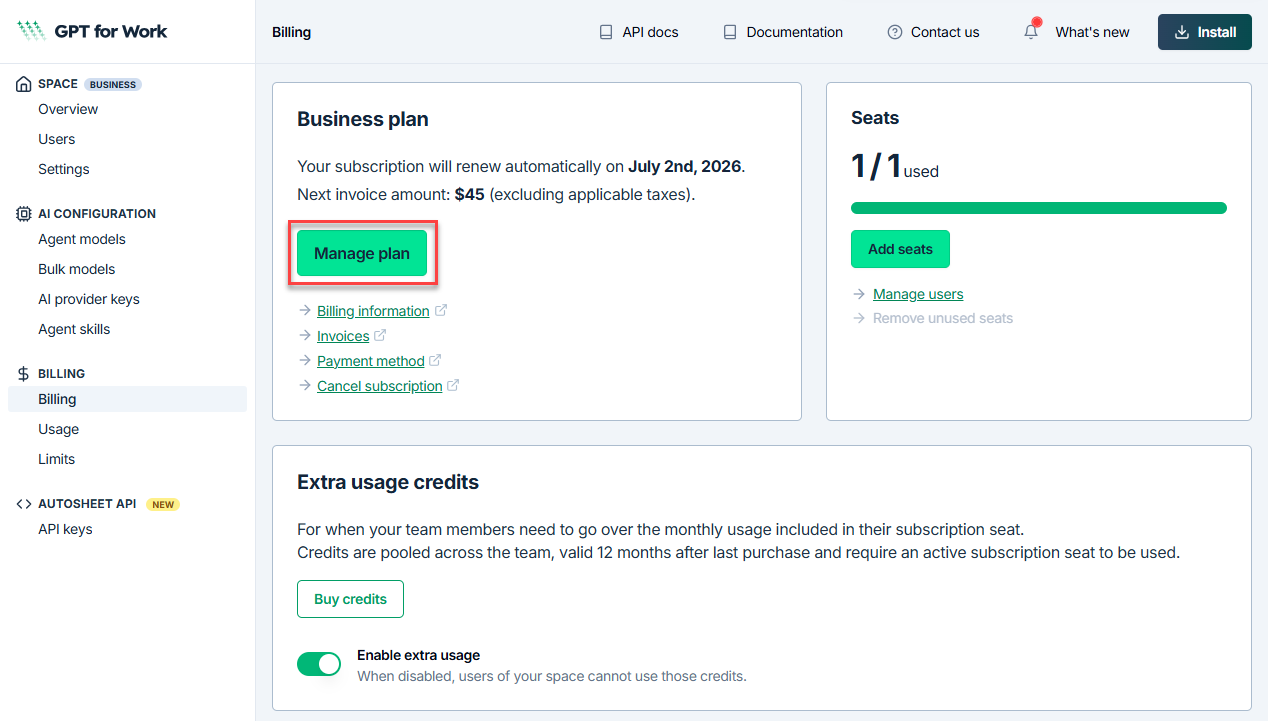
Click Manage plan.
-
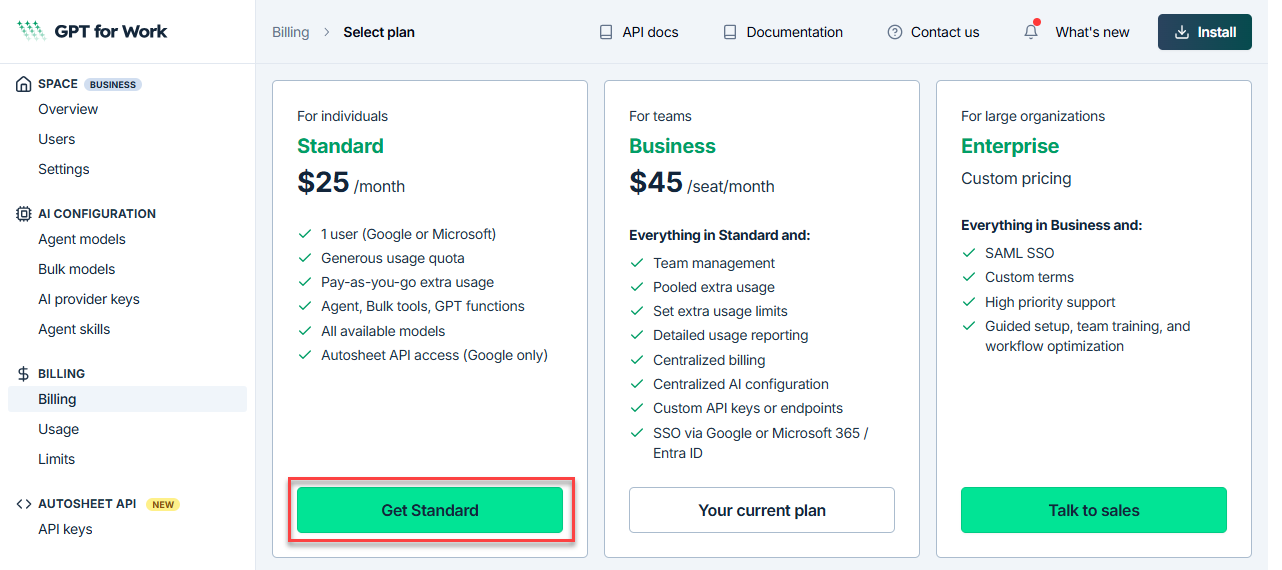
Click Get Standard.
-
Review the features that will no longer be available, and confirm the downgrade.
Your downgrade is scheduled. You keep access to Business features until the end of the current billing cycle, at which point your plan switches to Standard.
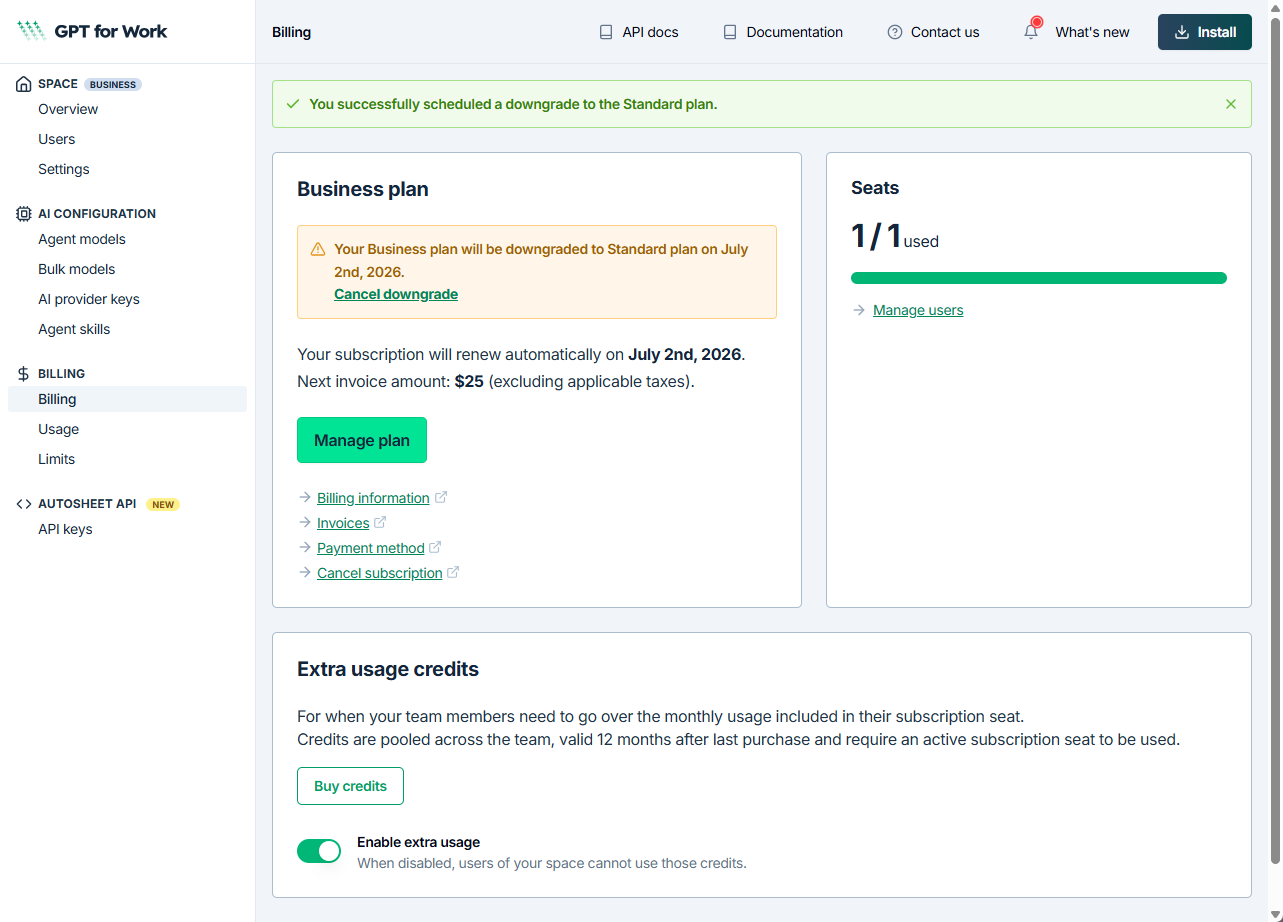
You can cancel the scheduled downgrade at any time before the billing cycle ends from the Billing page in the GPT for Work dashboard.
Cancel your subscription
Canceling your subscription schedules the cancellation for the end of your current billing cycle. You keep full access until then.
Your extra-usage credits are preserved, but you cannot use them while your subscription is inactive. They become usable again when you renew your subscription. Extra-usage credits still expire 12 months after your last purchase, even while your subscription is inactive.
-
Sign in to the GPT for Work dashboard with the account that you use for your space.
-
In the sidebar, select Billing.
-
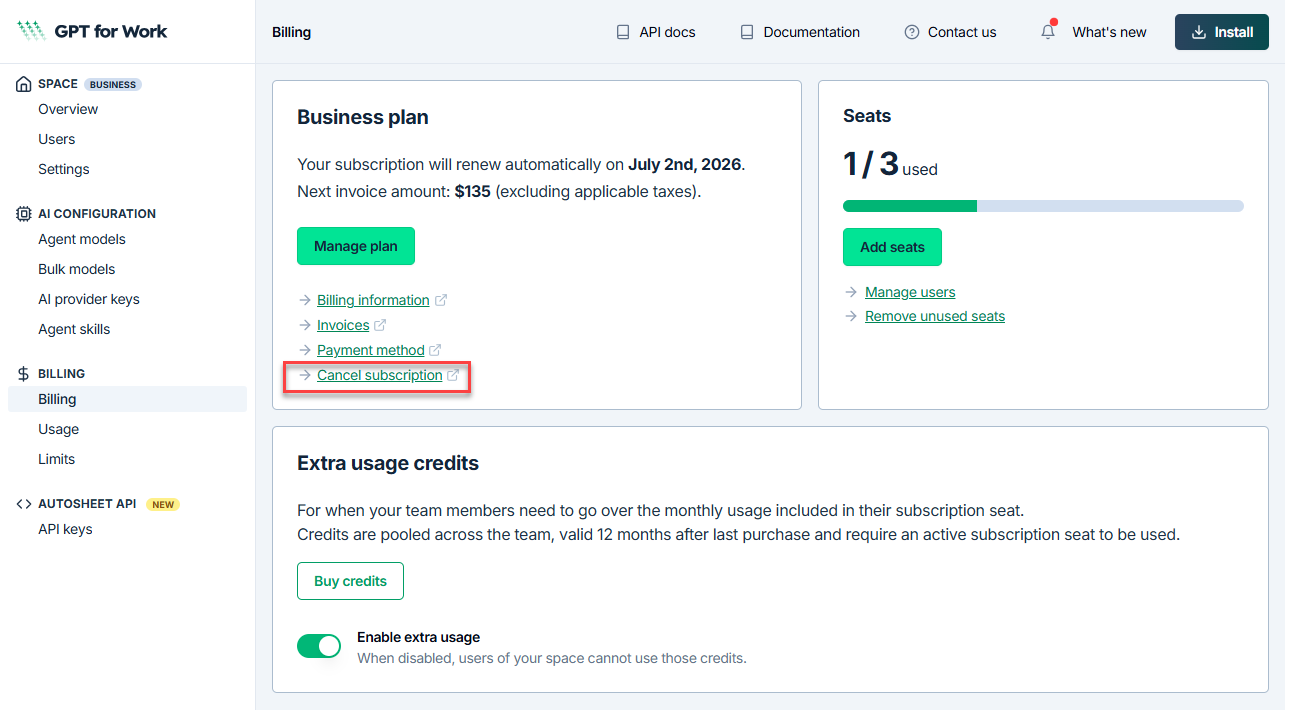
Click Cancel subscription.
-
In the Stripe Customer Portal, click Cancel subscription.
-
Review the cancellation details, and click Cancel subscription to confirm.
After confirming the cancellation, return to the dashboard manually. The dashboard reflects the scheduled cancellation.
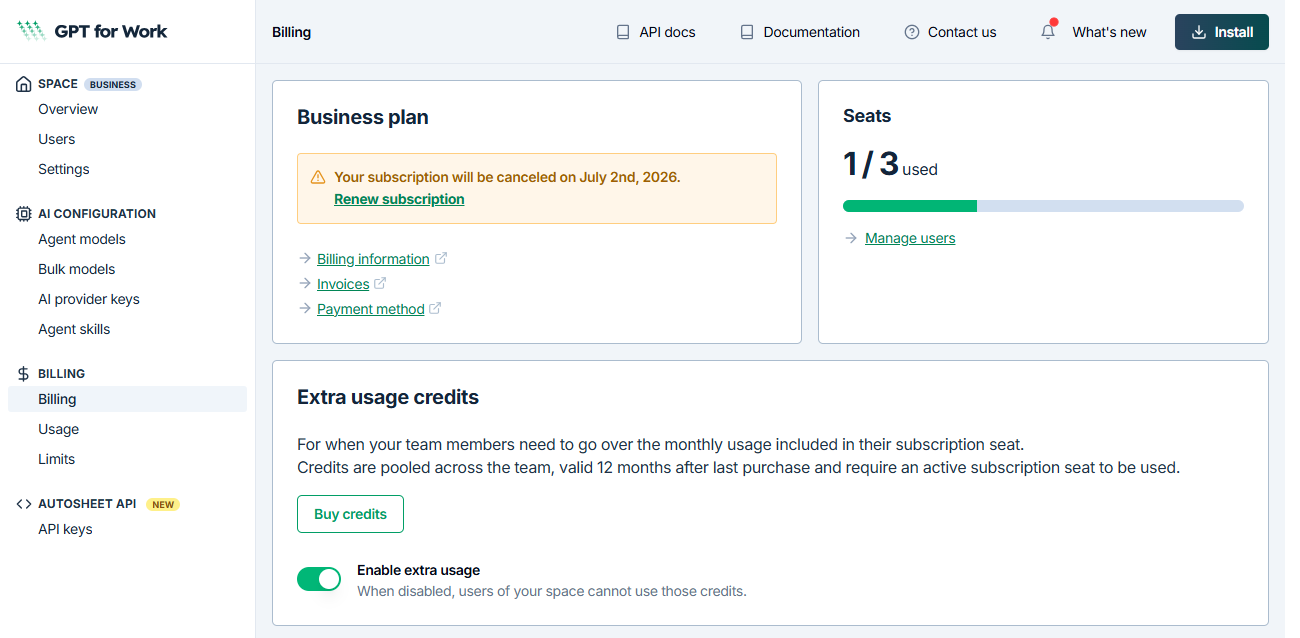
You can renew your subscription at any time before the billing cycle ends from the Billing page in the GPT for Work dashboard.
What's next
-
Manage your seats. Available on Business and Enterprise plans.
-
Set spending limits for extra usage. Available on Business and Enterprise plans.