Manage models
As a space owner or admin, you can control which AI models are available to the users of your space. This allows you to customize model access for your team and control costs.
These settings apply to GPT for Sheets, GPT for Excel, and GPT for Word. You cannot enable and disable models or otherwise control model access for GPT for Docs (apart from setting API keys).
Prerequisites
You are the owner or an admin of the space.
Set the default Agent model
You can set the default Agent model for all users in your space. You can only select enabled Agent models.
 Google
 Microsoft
-
Sign in to the GPT for Work dashboard with your Google account.
-
In the sidebar, select Agent models.
-
In the Default Agent model dropdown, select the default Agent model for your space.
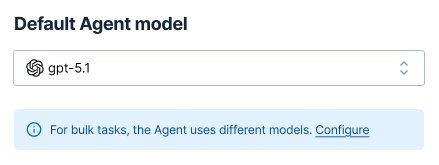
For information about recommended Agent models, see Recommended models.
infoTo select a provider-connected model for the Agent, you must first set an API key for your space.
-
Sign in to the GPT for Work dashboard with your Microsoft or Google account.
-
In the sidebar, select Agent models.
-
In the Default Agent model dropdown, select the default Agent model for your space.
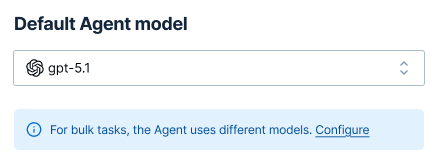
For information about recommended Agent models, see Recommended models.
infoTo select a provider-connected model for the Agent, you must first set an API key for your space.
To select an endpoint-connected model for the Agent, you must first set up an OpenAI-compatible API endpoint for your space.
The Agent now uses the selected model for new users in the space. Users can override this default from the model switcher.
Set the default bulk models
You can set two default models for bulk tasks:
-
The Default bulk model is used by the Agent for bulk tasks. For new users in your space, this model is also selected by default for bulk tools and GPT functions.
-
The Default bulk model for web search is used by the Agent for bulk tasks that require web search. This model is also used by the GPT_WEB function.
You can only select enabled bulk models.
- Google
- Microsoft
-
Sign in to the GPT for Work dashboard with your Google account.
-
In the sidebar, select Bulk models.
-
In the Default bulk model and Default bulk model for web search dropdowns, select the default bulk models for your space.
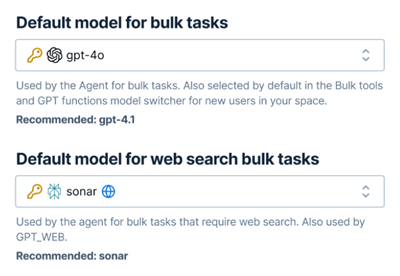
For information about recommended bulk models, see Recommended models.
For information about recommended web search models, see Search the web with bulk tools in Sheets.
-
Sign in to the GPT for Work dashboard with your Microsoft or Google account.
-
In the sidebar, select Bulk models.
-
In the Default bulk model and Default bulk model for web search dropdowns, select the default bulk models for your space.
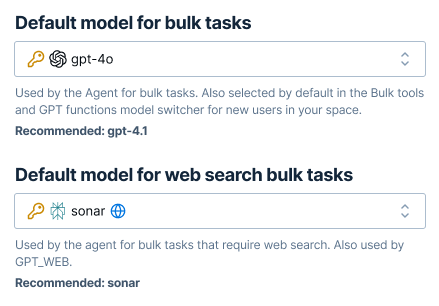
For information about recommended bulk models, see Recommended models.
For information about recommended web search models, see Search the web with bulk tools in Excel.
The Agent now uses the selected models for bulk tasks and web searches for all users in the space. Bulk tools and GPT functions use the selected bulk model for new users in the space; users can override this default from the model switcher.
Enable and disable models
You can enable and disable individual models for your space. This includes both Agent models and bulk models. Users can only select enabled models from the model switcher. Disabled models are hidden from the model switcher.
- Google
- Microsoft
-
Sign in to the GPT for Work dashboard with your Google account.
-
In the sidebar, select Agent models or Bulk models.
-
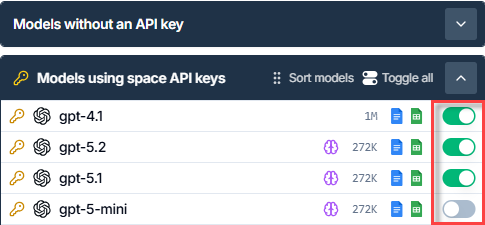
In the models list, use the toggle next to a model to enable or disable the model.
-
Sign in to the GPT for Work dashboard with your Microsoft or Google account.
-
In the sidebar, select Agent models or Bulk models.
-
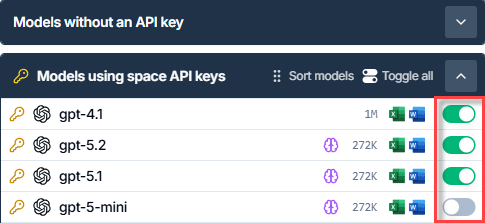
In the models list, use the toggle next to a model to enable or disable the model.
What's next
-
Set spending limits for your space and for individual users.