Get started with bulk AI tools in Excel
Bulk AI tools allow you to run prompts on specific spreadsheet columns at once without writing any formulas. You configure and run bulk tools from the add-in sidebar. You can also easily reuse past prompts and configurations with the History feature.
To get started with bulk AI tools, let's generate some text with the Custom prompt tool:
-
Download our bulk AI tools starter template, and open it in Excel as a new workbook.
-
On the ribbon, select Home > GPT for Excel Word.
 info
infoIf GPT for Excel Word is not visible on the ribbon, or if it's grayed out, select Home > Add-ins > My Add-ins > GPT for Excel Word. Learn more.
-
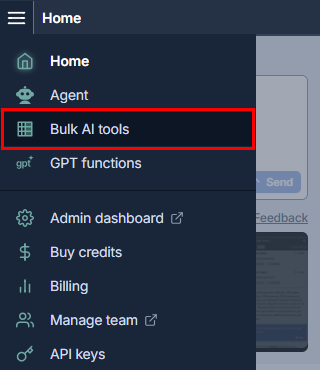
In the sidebar menu, select Bulk AI tools.
-
Select Custom prompt.
-
Define the following settings:
-
Header row: Select 5. The bulk tool will process all rows with content below this row.
-
Prompt to run for each row: Enter the following prompt for the AI:
Write a short SEO-optimized product description for a bike based on its specifications: {{Specifications}} -
Put results in column: Select C.
-
Leave all other settings to their default values.
-
-
Run the bulk tool:
-
Select All rows
-
Click Run all rows.
The bulk tool executes the prompt for every row with content, starting from row 6, and puts the responses generated by the AI in column C.
-
The following video shows the entire process.
What's next
-
Try out example use cases for different business applications and product capabilities.
-
Browse all our bulk AI tool resources.
-
Select the model that best fits your needs.
-
Configure the model settings to customize how the currently selected model behaves.