Configure bulk AI tool behavior in Excel
Configure model settings to customize how bulk AI tools behave in your workbook.
Add global instructions
Provide global instructions to specify preferences or requirements that you'd like the AI to consider when generating responses. The instructions apply to all bulk AI tools in the current workbook.
-
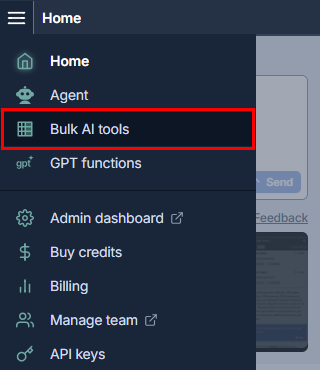
In the sidebar menu, select Bulk AI tools and open one of the tools.
-
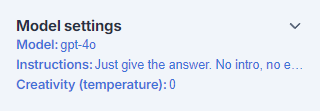
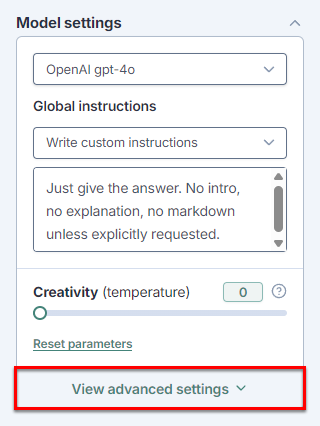
Expand Model settings.
-
Select the type of instructions you'd like to add and edit them if needed.
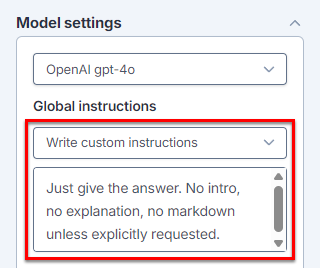
The AI takes the global instructions into account when generating responses for bulk AI tools in the current workbook.
Set the creativity level
Control how creative the AI is by setting the creativity level (also called temperature). Lower creativity generates responses that are straightforward and predictable, while higher creativity generates responses that are more random and varied.
For more information about temperature as used by OpenAI to set the creativity level, see our temperature guide.
-
In the sidebar menu, select Bulk AI tools and open one of the tools.
-
Expand Model settings.
-
Use the slider to set Creativity between 0 and 1.
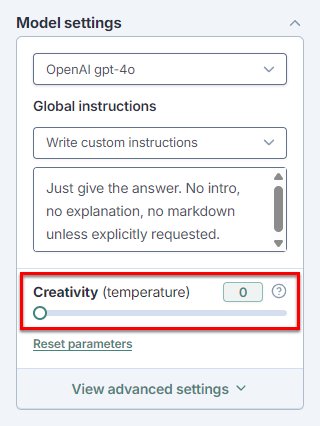
The AI uses the creativity level when generating responses for bulk AI tools in the current workbook.
Adjust advanced settings
Adjust the advanced settings to have greater control over generated output for bulk AI tools in the current workbook. For more information about the settings, see the OpenAI API documentation.
| Term | Definition |
|---|---|
Token | Tokens can be thought of as pieces of words. During processing, the language model breaks down both the input (prompt) and the output (completion) texts into smaller units called tokens. Tokens generally correspond to ~4 characters of common English text. So 100 tokens are approximately worth 75 words. See how text is split into tokens. |
Top P | Helps adjust creativity level – Lower values result in more focused output, while higher values allow for more creative responses. |
Frequency penalty (not available for all models) | Penalizes tokens based on their frequency in the text so far – Higher values discourage the model from repeating the same tokens too frequently, as the more they appear in the text, the more penalized they get. |
Presence penalty (not available for all models) | Penalizes new tokens based on whether they appear in the text so far – Higher values encourage the model to use new tokens that are not penalized. |
-
In the sidebar menu, select Bulk AI tools and open one of the tools.
-
Expand Model settings.
-
Expand View advanced settings.
-
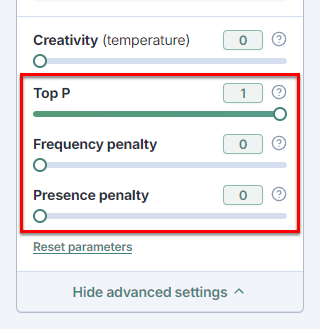
Use the corresponding sliders to set the values for:
-
Top P: Adjust creativity by setting the value between 0 and 1.
Set the creativity level to 1 when the value for Top P is lower than 1.
-
Frequency penalty: Set a penalty between 0 and 2 to apply to tokens each time they are repeated in the result.
-
Presence penalty: Set a one-time penalty between 0 and 2 for tokens that appear more than once in the result.
-
GPT for Excel uses the advanced settings to generate responses for bulk AI tools in the current workbook (when a model supporting the settings is selected).
What's next
-
Select the model that best fits your needs.