There are plenty of Excel AI tools that can generate formulas, analyze data, create charts, clean spreadsheets, and automate repetitive tasks. Many are free to try, but the limits differ a lot. Some give you 10 prompts a month. Others offer starting credits, while some limit features such as file uploads or Excel integration.
A free allowance that is enough to fix one formula may not be enough to clean hundreds of rows or analyze a full workbook. When choosing one, what matters is how much real work you can finish before you need to upgrade. We compared seven Excel AI tools you can try for free to see what each one is useful for, what you get without paying, and where the free access runs out. If you want the wider field, including Copilot and Claude for Excel, which have no free option, see our best Excel AI tools roundup.
Quick comparison of the 7 Excel AI tools
Tool | Best for | How you use it | Free access | Main limit |
|---|---|---|---|---|
GPT for Excel | Everyday spreadsheet work and bulk jobs | Excel add-in (also for Google Sheets) | Free starting credits (one-time) | Free credits are one-time |
ChatGPT for Excel | Formulas and spreadsheet analysis | Excel add-in | Included on ChatGPT Free | Usage depends on task size |
GPTExcel | Formulas, VBA, and SQL | Browser | 10 messages/30 days + 4 tool uses/12 hours | Browser workflow and small quota |
Better Analyst | Formula help and light analysis | Browser on Free | 10 messages + 25 AI Actions/month | Excel add-in is paid |
Shortcut AI | Finance-heavy spreadsheet work | Excel add-in | 20 credits every week | Complex tasks use credits quickly |
Ajelix | Formula and VBA help | Web app | 10 requests per month | Mostly browser-based |
TwistlyCells | Lightweight AI functions in cells | Excel add-in | Free to install, no card | Paid plan from $7/month |
How we compared them:
We looked at what each tool can do for free, whether it works directly inside Excel, the types of spreadsheet tasks it can handle, and what limits you hit before paying. We also compared whether the AI can make changes directly to your workbook or only generate results that you need to copy back into Excel.
How the free access differs
Free access takes a few different forms: monthly quotas, starting credits, limited free plans, or a free trial. We'll show what each tool's free access includes so you know what you can use before paying.
If your workbook contains company or customer data, test the tool on demo data first. Once you are happy with the result, use the same workflow on your real file. Also check the vendor's site for a security certification, such as ISO 27001 or SOC 2, and a clear promise that your data will not train AI models. GPT for Excel, OpenAI, and Shortcut publish one. Ask the others before you upload anything sensitive.
What can you do with Excel AI?
Excel AI tools range from simple formula generators to AI agents that can work across an entire workbook. Depending on the tool, you can use AI to:
- Generate, explain, and fix Excel formulas
- Analyze tables and summarize data
- Clean and categorize rows
- Create charts and visualizations
- Generate or debug VBA
- Make changes across worksheets
- Automate repetitive spreadsheet tasks
The biggest difference is how much of this work the AI can actually complete for you. Some tools only generate an answer that you copy into Excel, while others can read your workbook and make the changes directly.
The 7 Excel AI tools you can try for free
1. GPT for Excel
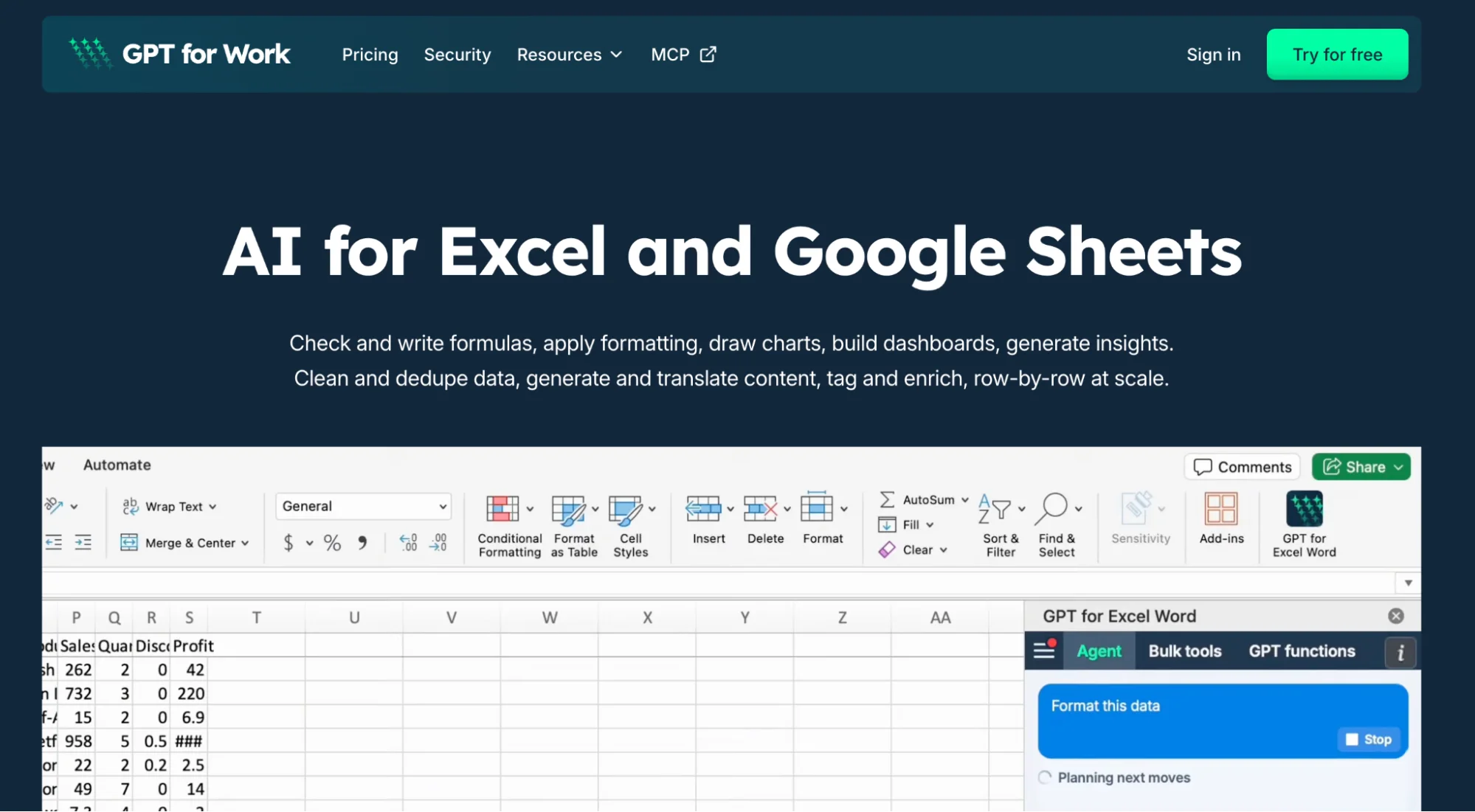
Best for: everyday spreadsheet work and bulk AI tasks directly inside Excel
GPT for Excel is a full AI agent inside Excel. You describe the task in the sidebar, and it reads your data, drafts a plan, and runs it directly in your workbook. It is part of GPT for Work, so the same agent, bulk tools, and GPT functions are also available for Google Sheets.
You can use it to clean messy data, classify rows, create or fix formulas, summarize large tables, build charts, and make changes across your sheet. Since the work happens inside Excel, you do not copy data into a separate chatbot and paste answers back.
Say column B holds 200 open-ended survey replies. You type:
"Score each reply in column B from 1 to 5 for satisfaction, and add a one-line reason in the next column."
The agent reads every reply and fills both columns at once. You give the instruction once instead of scoring each row by hand.
Free access:
- Free to install: add it from Microsoft Marketplace, no card and no API key required
- Starting credits included: use the full agent on real spreadsheet tasks straight away
- Fast on everyday tasks: in our March 2026 benchmark of 7 typical spreadsheet tasks, the agent averaged 16 seconds, against 50 seconds for Claude and 1 minute 57 seconds for Copilot
- Bulk from the first run: apply one prompt across thousands of rows in parallel, at up to 1,000 rows a minute and up to 1 million rows in a single run
- Cell functions too: when you prefer formulas to chat, functions such as GPT_TRANSLATE, GPT_EXTRACT, GPT_CLASSIFY, and GPT_TABLE run AI directly from a cell
- Model choice: pick OpenAI or Anthropic models, or connect your own API key or any OpenAI-compatible endpoint for more models, a lower service fee, and no logging of your inputs
- Security you can check: ISO 27001, GDPR, SSO, and your data never trains a model
Limits:
- One-time credits: the free balance is a starting amount, not a monthly allowance. After that, plans start at $25/month with usage included, and extra-usage credits are pooled across your team
- Cost varies with the job: simple reformatting costs cents per 1,000 rows, while translation or classification can run to several dollars per 1,000 rows, so estimate a large run before you start it
2. ChatGPT for Excel
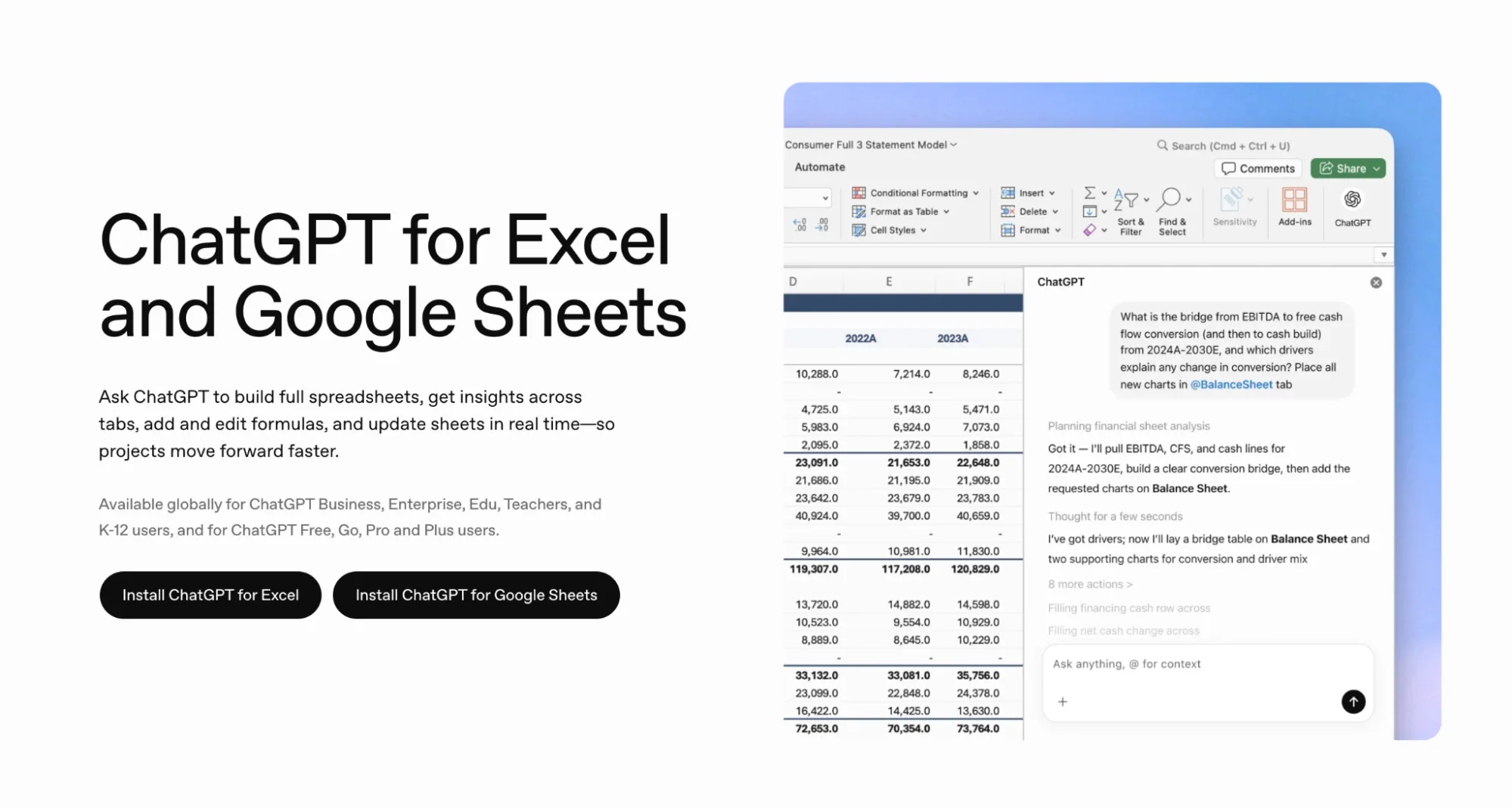
Best for: formulas, workbook questions, and quick spreadsheet analysis
ChatGPT for Excel puts ChatGPT inside an Excel sidebar. It can read your workbook, answer questions, create or fix formulas, explain calculations, and make changes across multiple sheets. It can also handle multi-step tasks across a workbook, so it goes beyond a simple formula helper.
You can use it to ask why a formula is returning an error, summarize a large table, create a chart from your data, or update parts of the workbook without opening a separate ChatGPT window.
Free access:
- On the free plan: available on ChatGPT Free, no upgrade needed
- Reads your data: answers questions about the numbers in your workbook
- Handles formulas: creates and fixes them, and works across multiple sheets
- No new login: uses the ChatGPT account you already have
Limits:
- Limited free usage: OpenAI describes Free access as limited, with usage depending on task size and complexity
- Some Excel features are off limits: OpenAI lists VBA, Power Query, pivot tables, and advanced charts as not yet supported, so for macros you still need GPTExcel or Ajelix
- Not for high-volume rows: it works through tasks conversationally, so it does not run one prompt across thousands of rows in parallel the way GPT for Excel does
3. GPTExcel
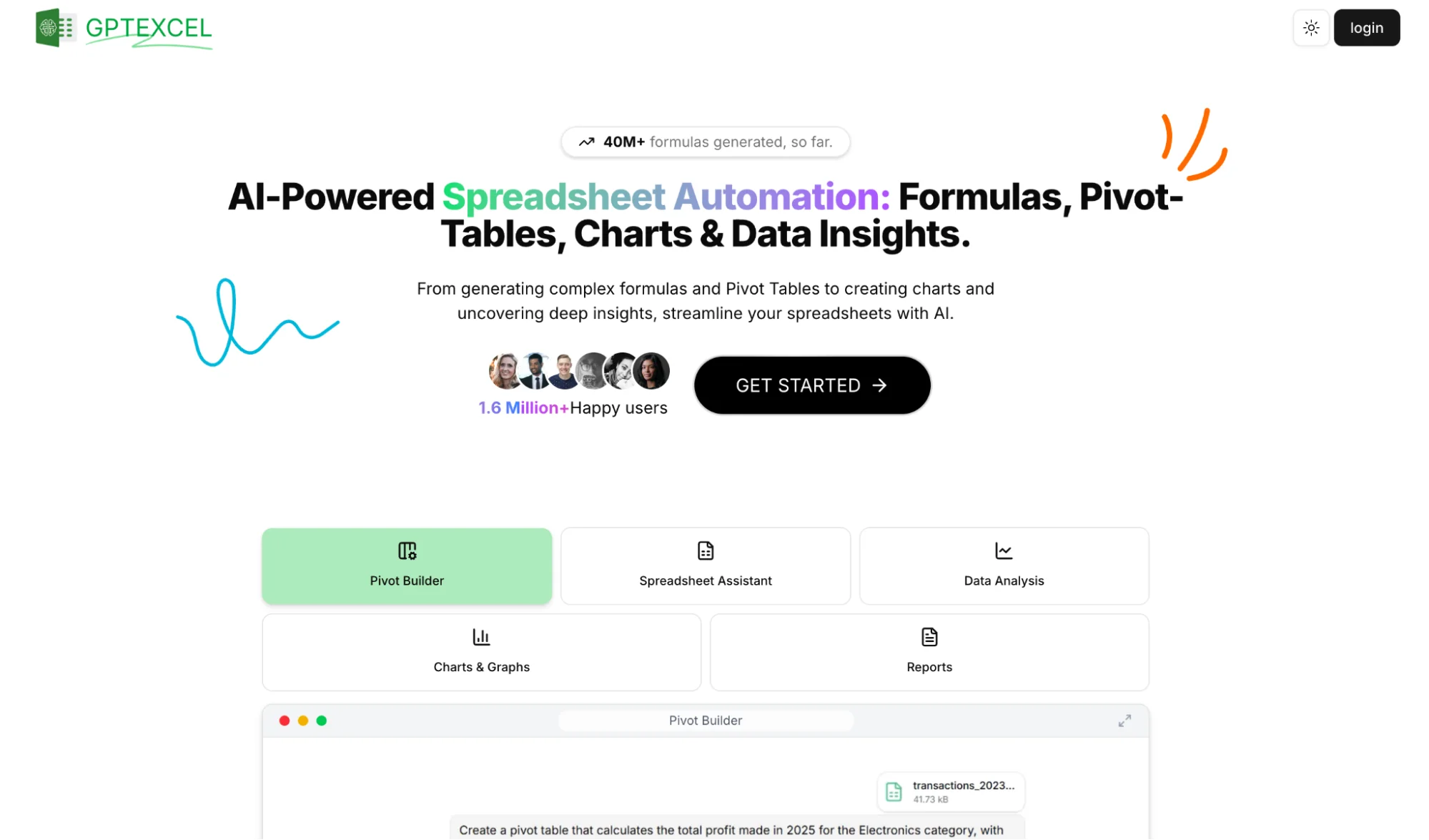
Best for: formulas, VBA, SQL, and other quick spreadsheet tasks
GPTExcel is a browser-based spreadsheet assistant. You describe what you need in plain language, and it generates the formula, VBA script, SQL query, regex, or pivot table setup for you to use in Excel.
You can also upload an Excel or CSV file to ask questions about the data or generate table templates, all from the website without installing an add-in. It works across several spreadsheet apps and accepts prompts in more than 50 languages.
Free access:
- 10 AI chat messages: refreshed every 30 days
- 4 tool runs: refreshed every 12 hours
- File uploads: up to 5MB per file and 5 files per chat
- Core tools included: formulas, VBA, SQL, regex, and pivot tables
Limits:
- Two separate allowances: chat messages and tool runs are counted separately, so you can run out of one before the other
- Works outside Excel: unlike an Excel add-in, you use GPTExcel in the browser and bring generated formulas, scripts, or other outputs back into your workbook
4. Better Analyst (formerly Formula Bot)
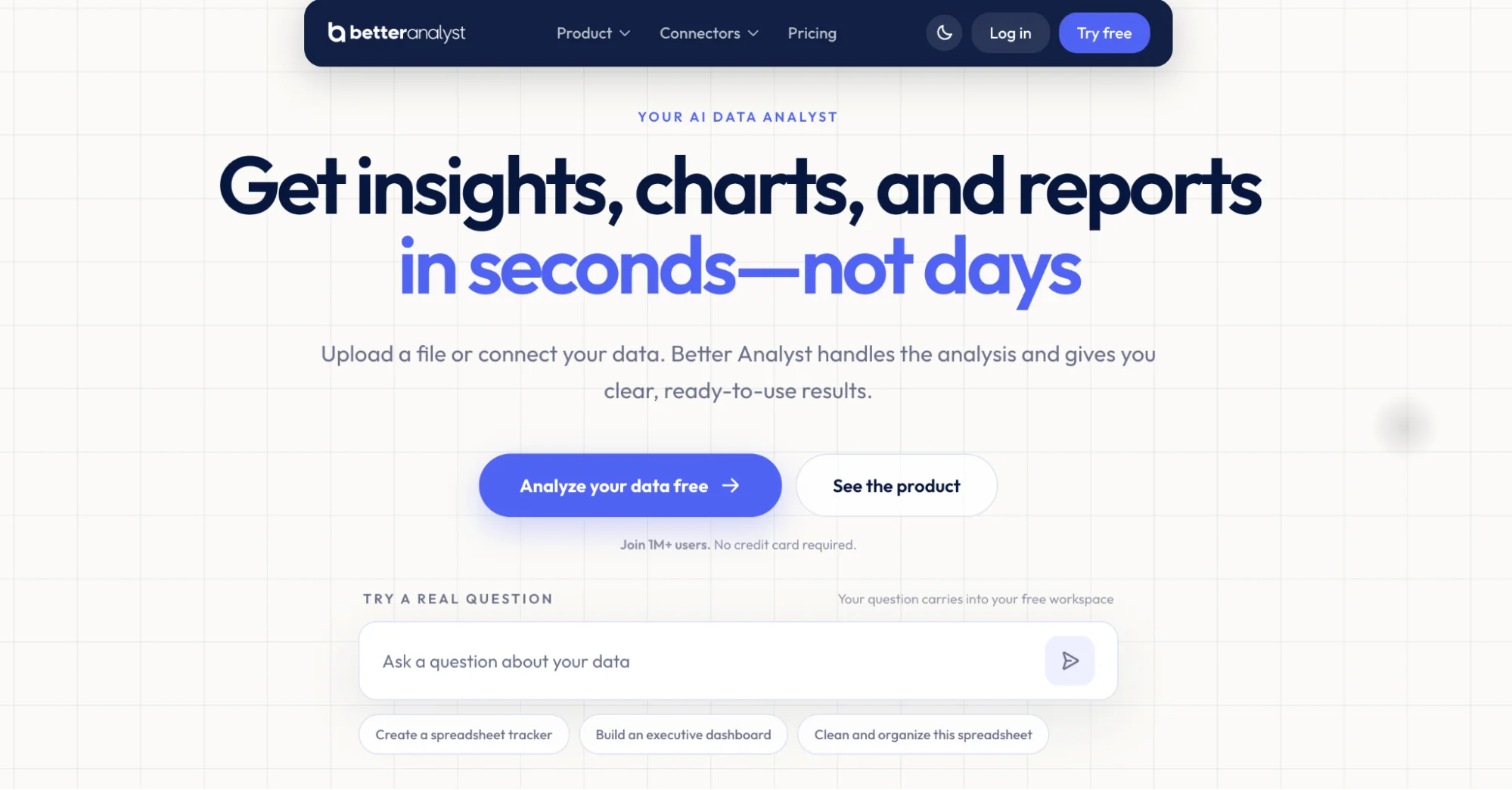
Best for: formula help and light data analysis in the browser
Better Analyst, the tool many still know as Formula Bot, works more like a data analyst than a formula lookup tool. You upload a spreadsheet, ask a question in plain English, and it can return formulas, charts, analysis, or cleaned-up data. It also shows the code behind its answers, so you can see how it reached the result.
The Excel add-in is reserved for paid plans, so free users work from the browser. You analyze the file on Better Analyst, then bring any formulas or other outputs you need back into Excel.
Free access:
- 10 monthly messages: use the AI chat for questions and analysis
- 25 AI Actions: use them for features such as formula generation and data enrichment
- File uploads: up to 5 files in total, 1 per chat, with a 5MB limit per file
- No card required: start using the free plan without payment details
Limits:
- Browser only on free: the Excel add-in requires a paid plan, so free users work outside the workbook
- Basic model only: the free plan runs on Better Analyst's basic AI model, and the premium models are reserved for paid plans
- One file per chat: you cannot analyze multiple uploaded files together in the same conversation
5. Shortcut AI
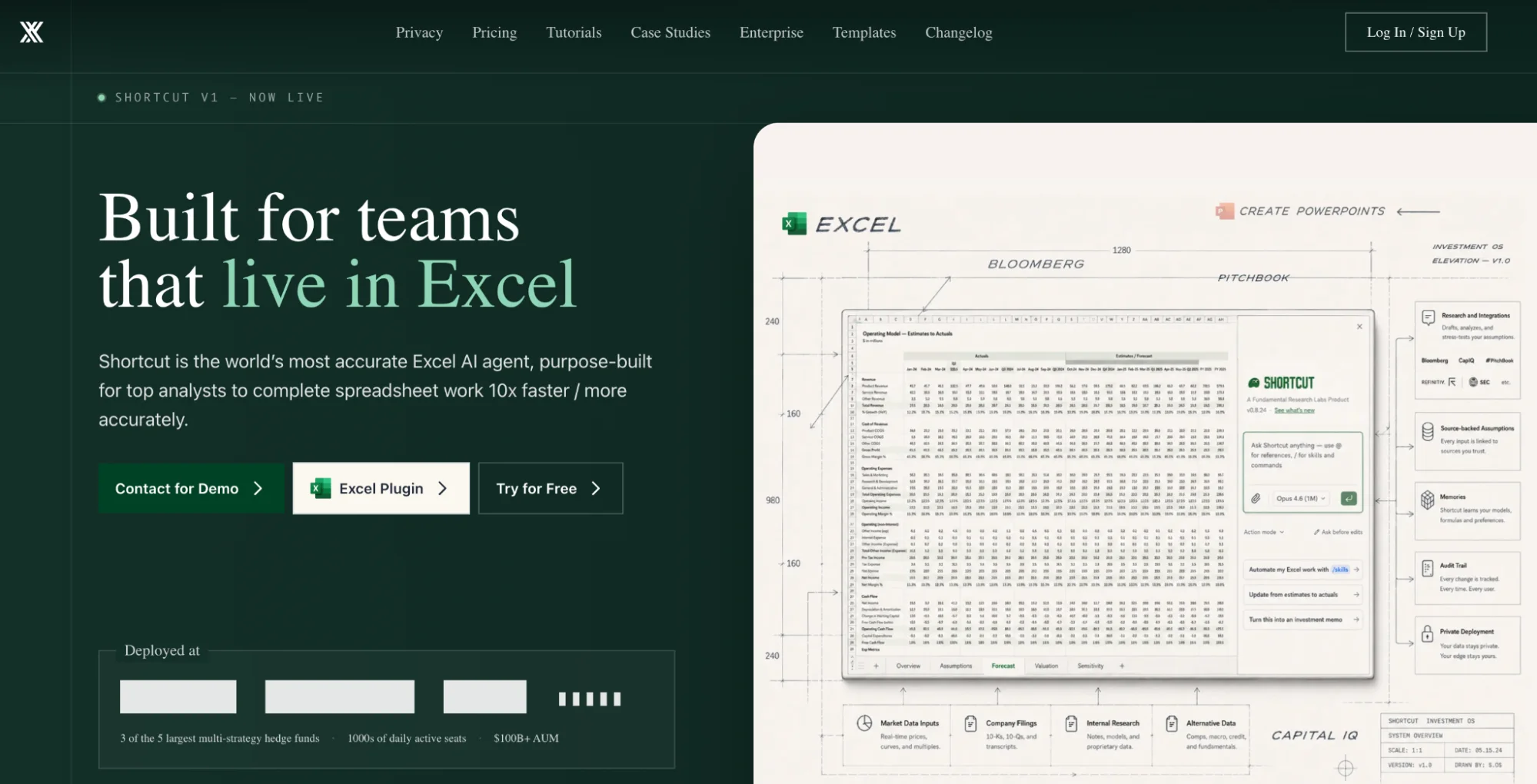
Best for: finance-heavy spreadsheet work inside Excel
Shortcut AI is an AI spreadsheet agent built for financial modeling and analysis. It works directly inside Excel, where you can build models, update formulas, edit existing workbooks, and make changes across larger files without moving the work into another app.
It keeps outputs formula-driven where possible, so calculations update when the underlying assumptions change instead of staying as fixed numbers. Shortcut also shows the cells it changes, which makes edits easier to review and undo.
Free access:
- 20 weekly credits: get 20 credits refreshed each week without paying
- Web and desktop access: work in the browser or Shortcut desktop app
- Excel add-in included: use the agent directly inside your workbook
- Google Sheets plugin included: the free plan also works with Sheets
Limits:
- Credits vary by task: messages typically cost 2 to 15 credits, so complex requests can use the weekly allowance quickly
- No bulk row-by-row processing: it builds and edits models in a conversation, so classifying or scoring thousands of rows is not what it is for
- Finance-first: it is optimized for financial models and analysis, so it may be more than you need for occasional formula help
6. Ajelix
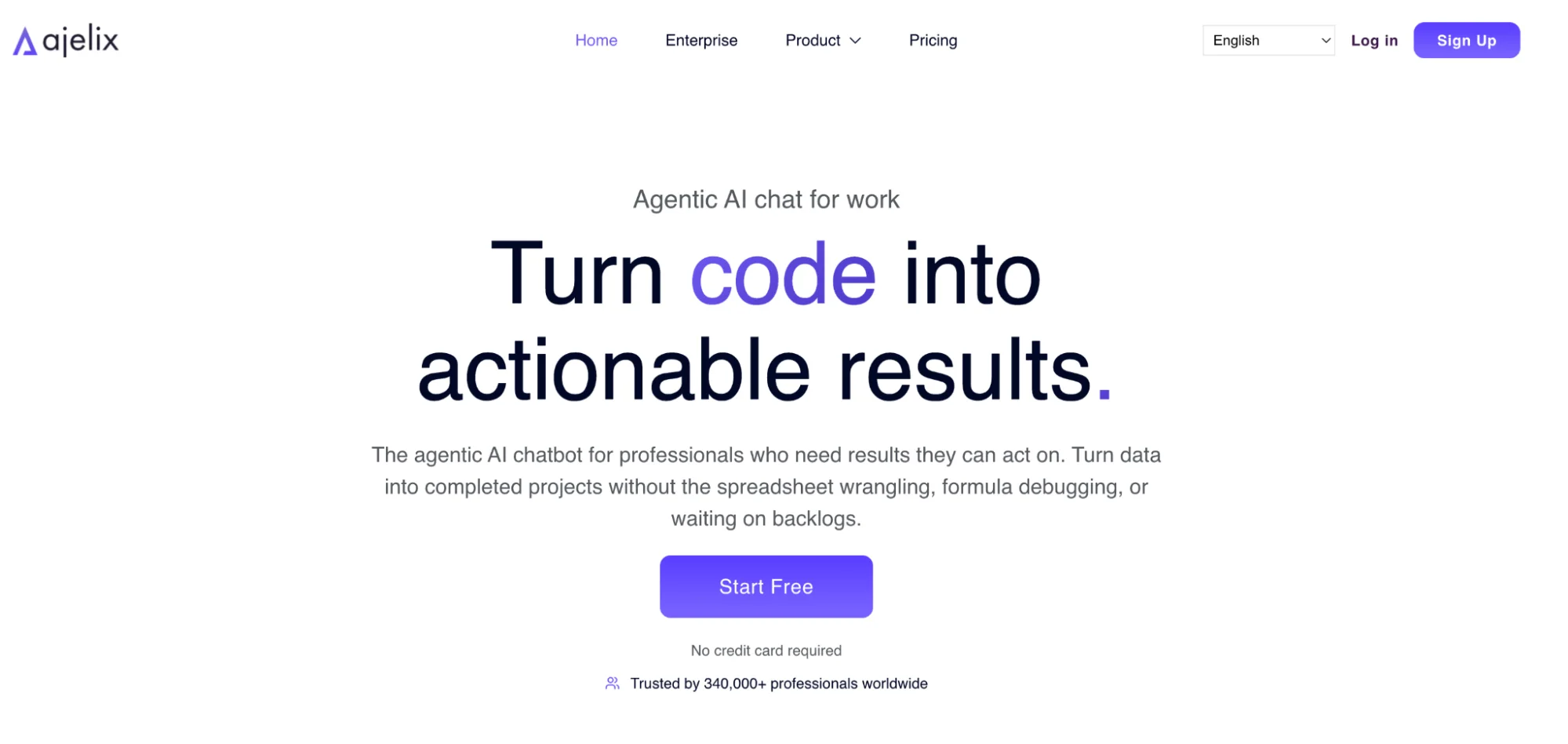
Best for: formula, VBA, and spreadsheet tasks in one browser-based toolkit
Ajelix combines several AI tools for spreadsheet work in one place. You can generate and explain formulas, write or debug VBA and Apps Script, create spreadsheet templates, analyze uploaded data, build charts, and translate spreadsheet content.
Most of this work happens through the Ajelix web app. Ajelix still advertises an Excel add-in on parts of its website, but we could not find a current Microsoft Marketplace listing or an Excel integration inside Ajelix's own Integrations panel. Its current in-app integration is for Google Workspace.
Free access:
- 10 monthly requests: use up to 10 requests each month without paying
- Multiple spreadsheet tools: use the allowance for formulas, scripts, analysis, templates, and other AI tools
- Excel file support: upload spreadsheet data and work with Excel-related tasks from the browser
- No card required: start using the free tier without entering payment details
Limits:
- Small shared allowance: the 10 monthly requests are shared across Ajelix's different tools
- Excel integration is unclear: Ajelix advertises an Excel add-in, but we could not find it in Microsoft Marketplace or in the platform's current Integrations panel
7. TwistlyCells
Best for: a lightweight, function-only add-in when you do not need an agent
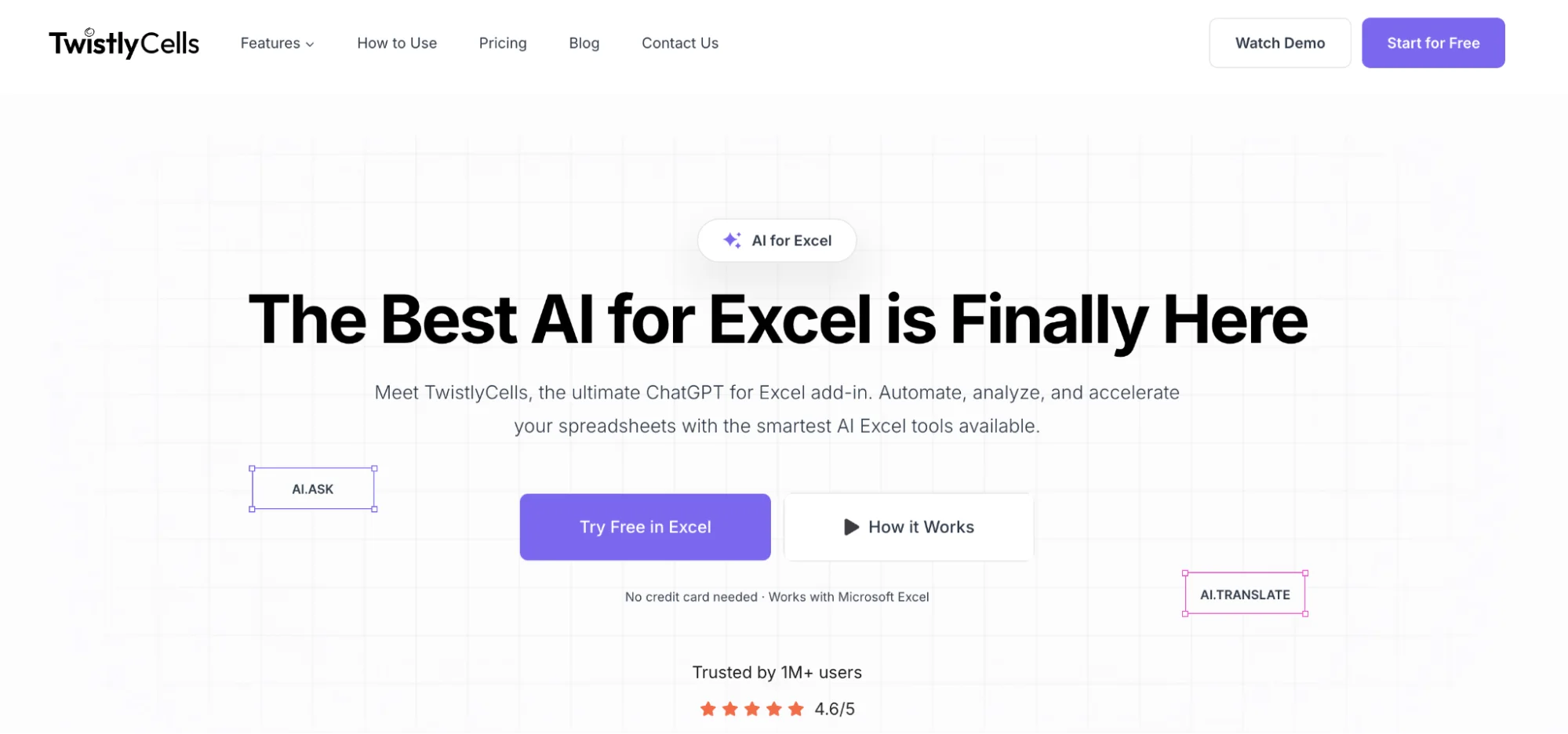
TwistlyCells, listed in Microsoft Marketplace as GPT for MS Excel, brings AI into Excel through eight purpose-built functions. Instead of chatting with an agent, you use functions such as AI.ASK to answer questions, AI.EXTRACT to pull information from text, and AI.FILL to complete missing data.
It supports both GPT and Claude models, and because the tools behave like Excel functions, you can add them to workbooks you already use without moving your data into a separate browser tool.
Free access:
- Free to install: add it from Microsoft Marketplace with no card, and test the eight AI functions before paying
- Real Excel functions: use AI.ASK, AI.EXTRACT, AI.FILL, and others directly in cells
- GPT and Claude models: use models from both OpenAI and Anthropic
- No API key on Starter: the entry plan covers the AI usage for you, while the Pro and Team plans run on your own OpenAI key
Limits:
- No lasting free plan: continued use requires a paid plan, and the cheapest one includes only $3 of AI credits a month
- Function-based workflow: it is built around individual AI functions rather than an agent that takes a multi-step workbook task and completes the whole workflow for you
Picking the right Excel AI tool to try
The best Excel AI tool depends on the work you want to automate. For one-off formulas, a lightweight browser tool is enough. If you want AI to analyze tables, clean data, build charts, or edit the workbook directly, look for a tool that works inside Excel.
So first decide: do you want the tool inside Excel, or are you fine working in a browser?
If you want AI working inside Excel, GPT for Excel, ChatGPT for Excel, Shortcut AI, and TwistlyCells are the strongest picks. GPT for Excel suits broad, bulk spreadsheet work, and the same GPT for Work agent also covers Google Sheets, while Shortcut AI fits finance-heavy modeling. ChatGPT for Excel handles formulas and workbook questions on an account you already have, and TwistlyCells is the lighter pick if all you want is a few AI functions in your cells.
If you are fine working in a browser, GPTExcel, Better Analyst, and Ajelix are simpler options. They work well for formulas, VBA, and quick analysis, but you spend more time moving results back into Excel.
Once you have narrowed it down by workflow, compare what each tool lets you try for free before choosing between similar options. Then test your pick on a copy of one of your own spreadsheets.
Try it on a task you already do
The easiest way to choose between these tools is to test one on work you already do in Excel. Use demo data or a copy of your workbook and try something practical, like fixing a formula, cleaning a column, or summarizing a table.
Use the same instructions you would normally give yourself or a teammate. Then check whether the result is correct, how much manual cleanup is still needed, and how much of the free allowance the task uses.
If the result needs heavy cleanup or uses most of the free allowance in one run, you'll know the tool may not be a good fit before using it on live work.
If you want to try an AI agent that works directly inside Excel, install GPT for Excel and use the free starting credits on a task you already do.
FAQs
Does Excel have AI built in?
Yes. Microsoft offers Copilot as its main AI feature in Excel for formulas, charts, summaries, and workbook edits. It is not a free standalone option, though. You need an eligible Microsoft 365 plan or Copilot license. Excel also includes Analyze Data and Flash Fill as separate built-in features. See how it compares in GPT for Excel vs. Copilot in Excel.
Can I use ChatGPT in Excel for free?
Yes. ChatGPT for Excel is available on the ChatGPT Free plan with usage limits. It runs inside an Excel sidebar and can help you create formulas, analyze data, explain calculations, and edit a workbook. Larger or more complex spreadsheet tasks can use more of your free allowance.
What is the best free Excel AI tool?
There is no single best free Excel AI tool because free access varies by product. For everyday spreadsheet work inside Excel, GPT for Excel is the strongest all-round option to try, since it can read your data, make changes directly in the workbook, and was the fastest agent in our benchmark. Our best Excel AI tools roundup ranks the paid options as well. For finance-heavy modeling, Shortcut AI is a better fit. If you mainly need formulas or VBA and are fine working in a browser, GPTExcel and Ajelix are lighter choices.
How do I add AI to Excel for free?
The easiest option is an Excel add-in that offers free access or a trial. In Excel, open Home → Add-ins and search for the tool you want to install. GPT for Excel, ChatGPT for Excel, Shortcut AI, and TwistlyCells are available as Excel add-ins, while other tools in this list may use their own plugin or browser-based workflow.
Can free AI analyze an Excel file?
Yes. Some tools with free access can read and analyze your workbook directly inside Excel, while others require you to upload the file in a browser. You can use them to summarize data, answer questions, create formulas, or build charts, but file size and usage limits vary by tool.