
Every Excel AI tool promises the same three things. Formulas, analysis, charts. Read the product pages side by side and you can barely tell them apart.
Give them real work and the gaps show up fast. One independent test ran four of these tools through five finance tasks. Microsoft's own Copilot froze mid-task and never finished the error check.
Reliability is only part of it. Some tools sit inside your workbook and edit it for you. Others just hand you a formula to copy and paste. Both call themselves AI for Excel, but they are not doing the same job.
Below are 7 tools grouped by what they actually do, and what each one gets right and wrong.
Compare the 7 Excel AI Tools
Short on time? Here's the whole list before the details.
Tool | Type | Best for | Starting price |
|---|---|---|---|
GPT for Work | Agent | Everyday work plus bulk jobs across thousands of rows | Free, then $25/mo |
Microsoft Copilot | Agent | Built-in AI with no setup | Standard access with eligible Microsoft 365 plans; $30/user/mo for the full experience |
Claude for Excel | Agent | Auditing models you already have | From $20/mo (Claude Pro) |
Shortcut | Agent | Building financial models | Free, then $125/mo |
Formula Bot | Standalone | Answers and charts from a dataset | Free, then $18/mo |
Ajelix | Standalone | Writing VBA and Apps Script | Free, then $39/user/mo |
GPTExcel | Standalone | Quick formulas on a small budget | Free, then $9/mo |
The 2 Types of Excel AI Tools (And Which One You Need)
Most lists throw ten tools at you in random order. That hides the thing you need to know first. These products do not do the same job.
1) AI agents as Excel plugins
These work inside your file. You install an Excel AI plugin, describe the task in the sidebar, and the agent reads your data, does the work, and writes results back into your cells.
Think of anything you normally do by hand. Writing formulas, cleaning columns, splitting or merging data, building pivot tables, formatting a report, making a chart. An agent takes most of that off your plate.
GPT for Work, Microsoft Copilot, Claude for Excel, and Shortcut all work this way, though how much they handle varies a lot.
2) Standalone AI tools
These sit outside your workbook. You describe what you need or upload a copy of your data, and the tool returns a formula, a script, a chart, or an answer. Then you bring the result back into Excel yourself.
None of them can edit your file. That is the single biggest difference between the two groups, and it decides which one suits you. Formula Bot, Ajelix, and GPTExcel fit here.
Agents cost more and save more time. Standalone tools cost less to start, but the work of applying results stays with you.
7 Excel AI Tools, Ranked by What They Actually Do
The four agents come first, since they do the most. The three standalone tools follow.
For each one you get what it does well, where it falls short, and who it suits.
1. GPT for Work
Best for: Anything you'd normally do by hand in a spreadsheet, at any size
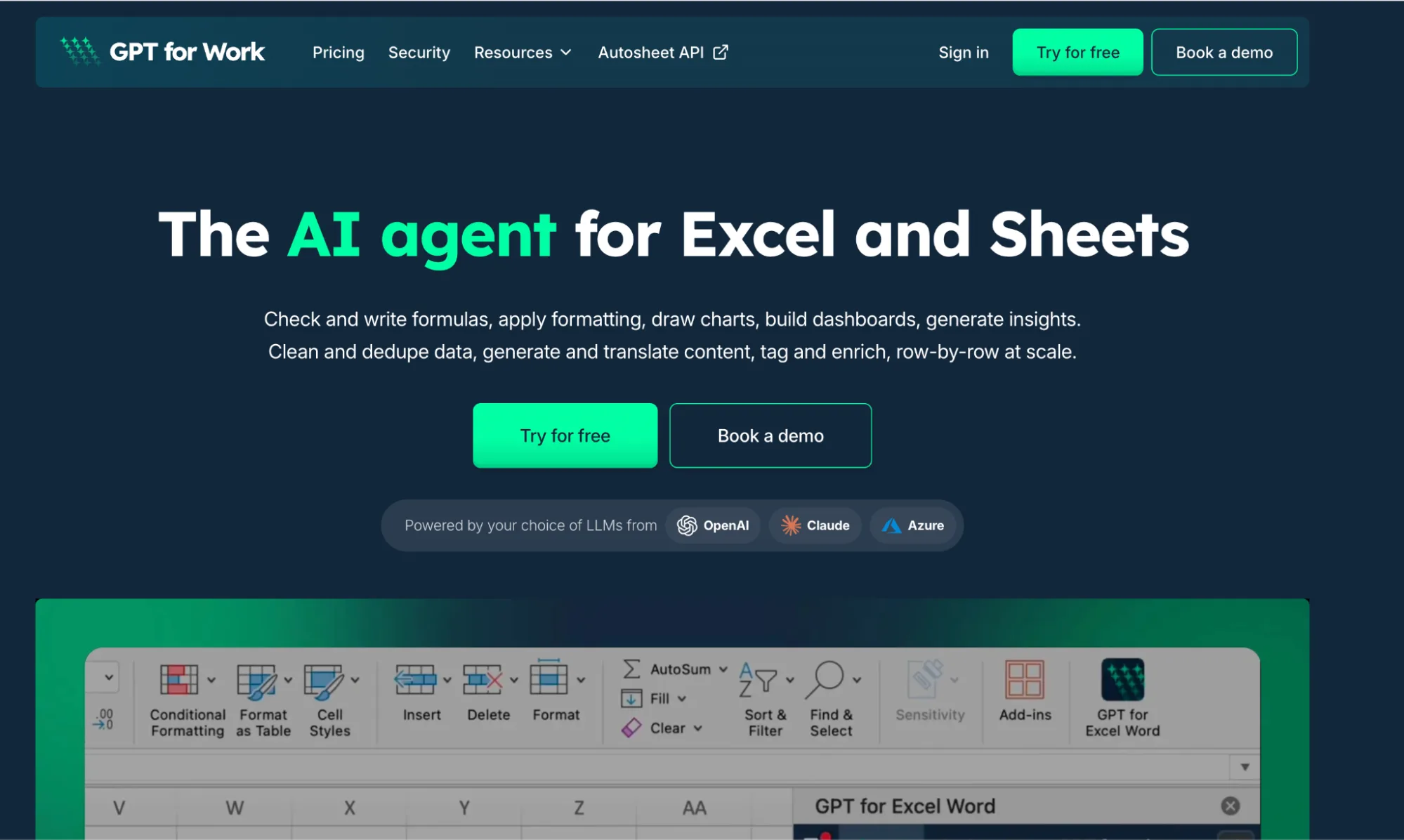
GPT for Work installs as an Excel AI plugin and opens a chat panel in your sheet. You type what you need in plain language. The agent reads your data, does the work, and writes results back into your cells.
Say you have 500 rows of customer feedback. You type:
"Add two columns. One for the complaint category (bug, shipping, pricing, support, or UX) and one for sentiment. Then build a summary chart of categories by plan."
Both columns fill down all 500 rows at once, and the chart lands beside your data. The same approach covers AI data cleaning: deduplicating rows, standardizing names and formats, and fixing messy text in place.
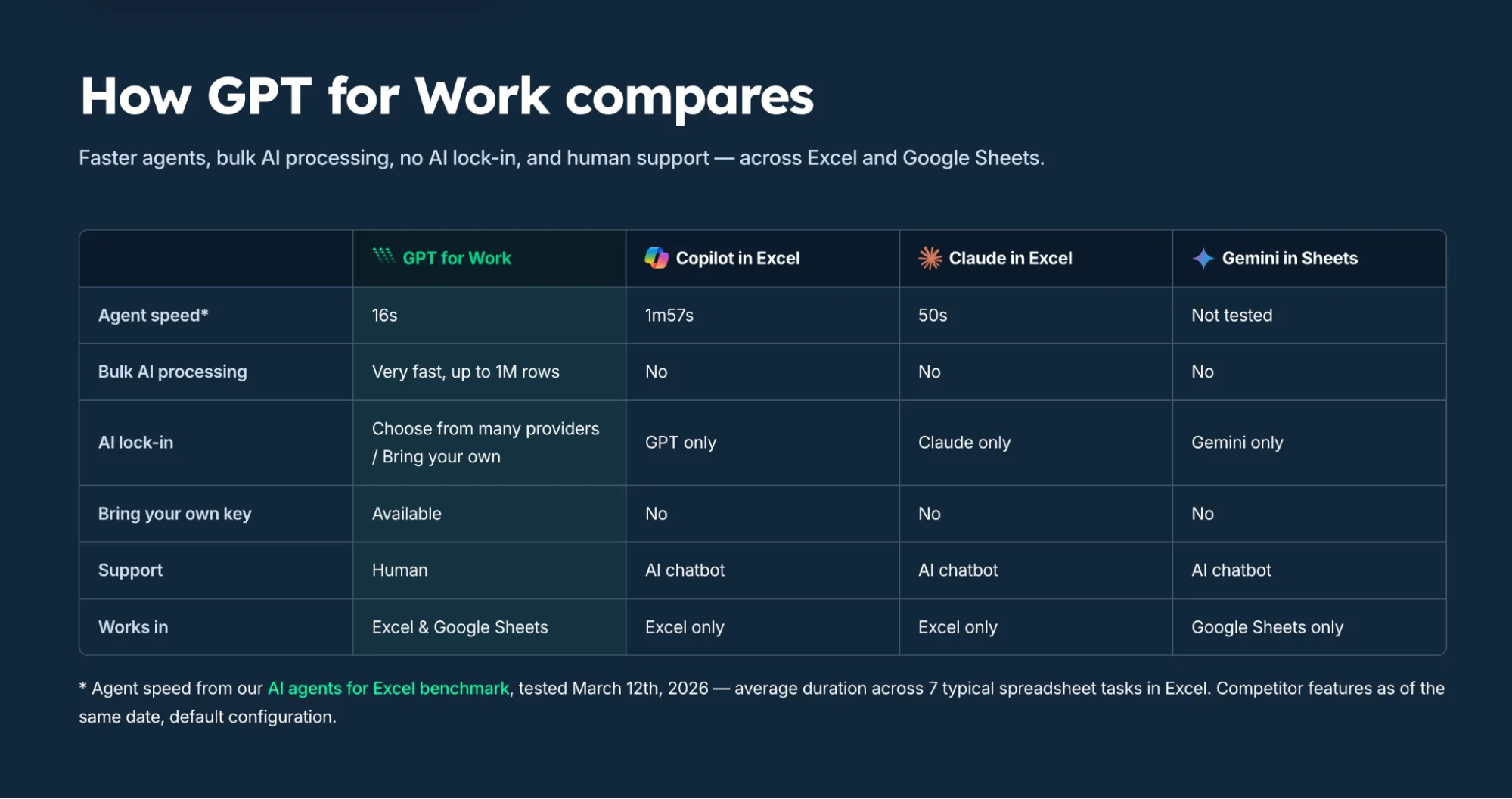
Our own benchmark, run in March 2026 across 7 typical spreadsheet tasks, timed GPT for Work at 16 seconds on average. Claude came in at 50 seconds and Copilot at 1 minute 57 seconds.
What it does well
-
Everyday spreadsheet work: It writes and fixes formulas, formats cells, cleans messy columns, builds pivot tables and charts, and pulls insights from your data. Most of what you do by hand, it handles.
-
Bulk processing at scale: It runs prompts down every row in parallel, up to 1,000 answers per minute and up to 1 million rows in a single Excel run. Copilot and Claude do not work row-by-row at that scale.
-
Model choice: It runs on OpenAI, Claude, or Azure, and you can plug in your own API key. No lock-in to one provider.
-
Works in both apps: Excel and Google Sheets. Every other agent here covers only one.
-
Security you can check: ISO 27001, GDPR, SSO, and zero data retention. Your data never trains a model.
Where it falls short
-
Not a dashboard tool: It works inside your spreadsheet, so if you need shared BI dashboards you still need Power BI or Looker Studio.
-
Extra usage takes tracking: Past the monthly quota, cost varies with the job. You can set extra-usage limits, but heavy bulk runs need an eye on the balance.
Pricing: Free to install with free starting credits. Then a monthly subscription from $25 with usage included; extra-usage credits are pooled across your team and valid 12 months.
2. Microsoft Copilot
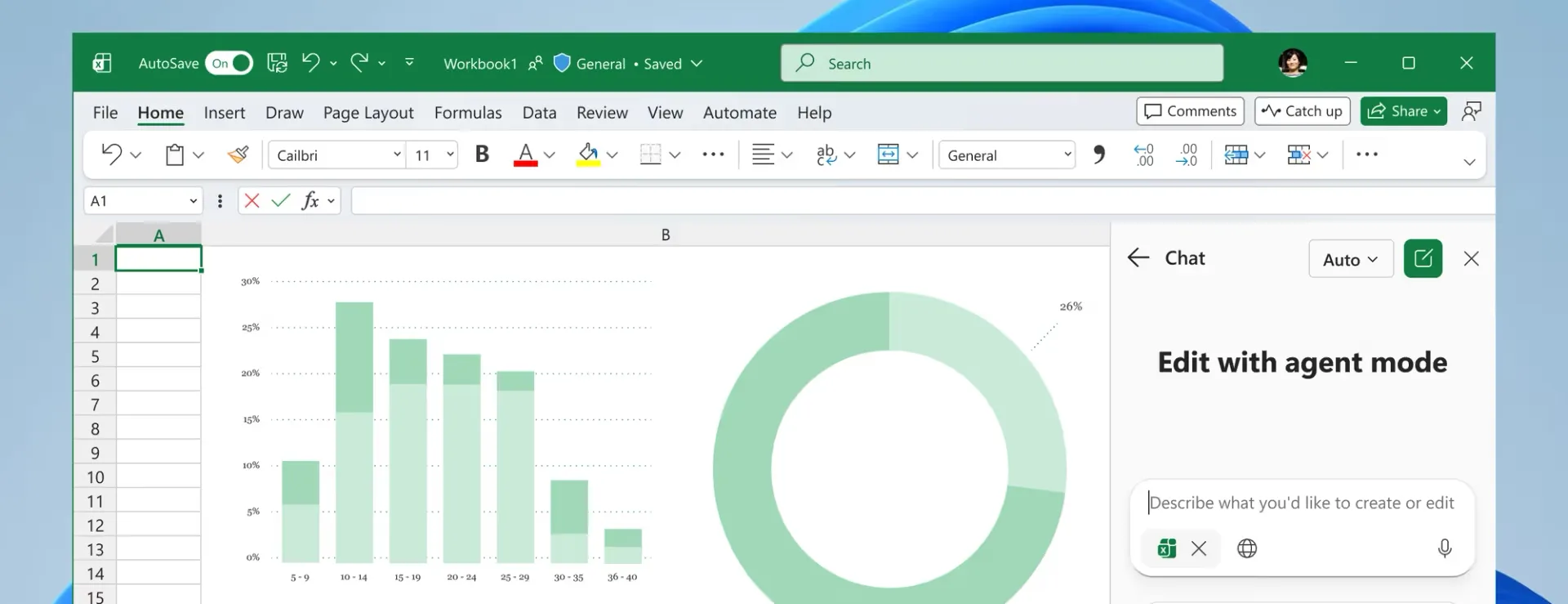
Best for: Microsoft 365 users who want AI in Excel without installing anything
Copilot is built into Excel. Agent Mode, labeled "Edit with Copilot," goes past chat and edits your workbook directly. It writes formulas, builds pivot tables, creates charts, and works through multi-step tasks in plain language. It only works in Excel, not Google Sheets.
Reliability is the weak spot. In an independent test across five finance tasks, it froze on the error check and returned a broken result on the final analysis.
Excel users on Reddit report the same. One called agent mode gimmicky in its current state.
What it does well
-
Zero setup: No add-in to install or approve. It is already in your ribbon.
-
Some model choice: Switch between OpenAI and Anthropic in the pane, but no custom endpoints or your own API key.
-
Debugging: Users rate it well for finding what broke in a long formula.
-
Web search: It pulls in outside data and cites the source.
Where it falls short
-
No bulk processing: It cannot apply a prompt down thousands of rows.
-
Slows down or stalls: Complex, multi-step tasks are where it struggles.
Pricing: Copilot Chat-eligible Microsoft 365 business and enterprise plans include standard access, subject to service capacity; the Microsoft 365 Copilot add-on at $30/user/month (or Microsoft 365 Premium for individuals) unlocks the full experience, including priority access and the model choice described above.
3. Claude for Excel

Best for: Auditing and understanding financial models you already have
Claude for Excel runs as a sidebar and is part of Claude for Microsoft 365, which also covers Word, PowerPoint, and Outlook. Ask about any cell and Claude explains what feeds it and where the number came from. Edits show as highlighted cells and nothing saves until you approve it.
It's strongest on audits. In the same independent test, it spotted every planted difference between two near-identical files, including a date column where formulas had been swapped for static values.
Excel users on Reddit rate it above Copilot. One said it beat their expectations on functionality. Another found the limits showed up fast once multiple files and long context were involved.
What it does well
-
Multi-tab reading: It follows how sheets connect, not just the one you're on.
-
Reviewable edits: Changes highlight in your sheet and wait for your approval.
-
Your conventions kept: It works within your existing formula structures and formatting.
-
Context across apps: Pull numbers from a Word brief into an Excel model without retyping.
Where it falls short
-
Usage limits bite: Each message processes the whole workbook, so allowances drain fast.
-
Claude models only: No provider choice, unlike GPT for Work.
Pricing: Included on all paid Claude plans.
4. Shortcut
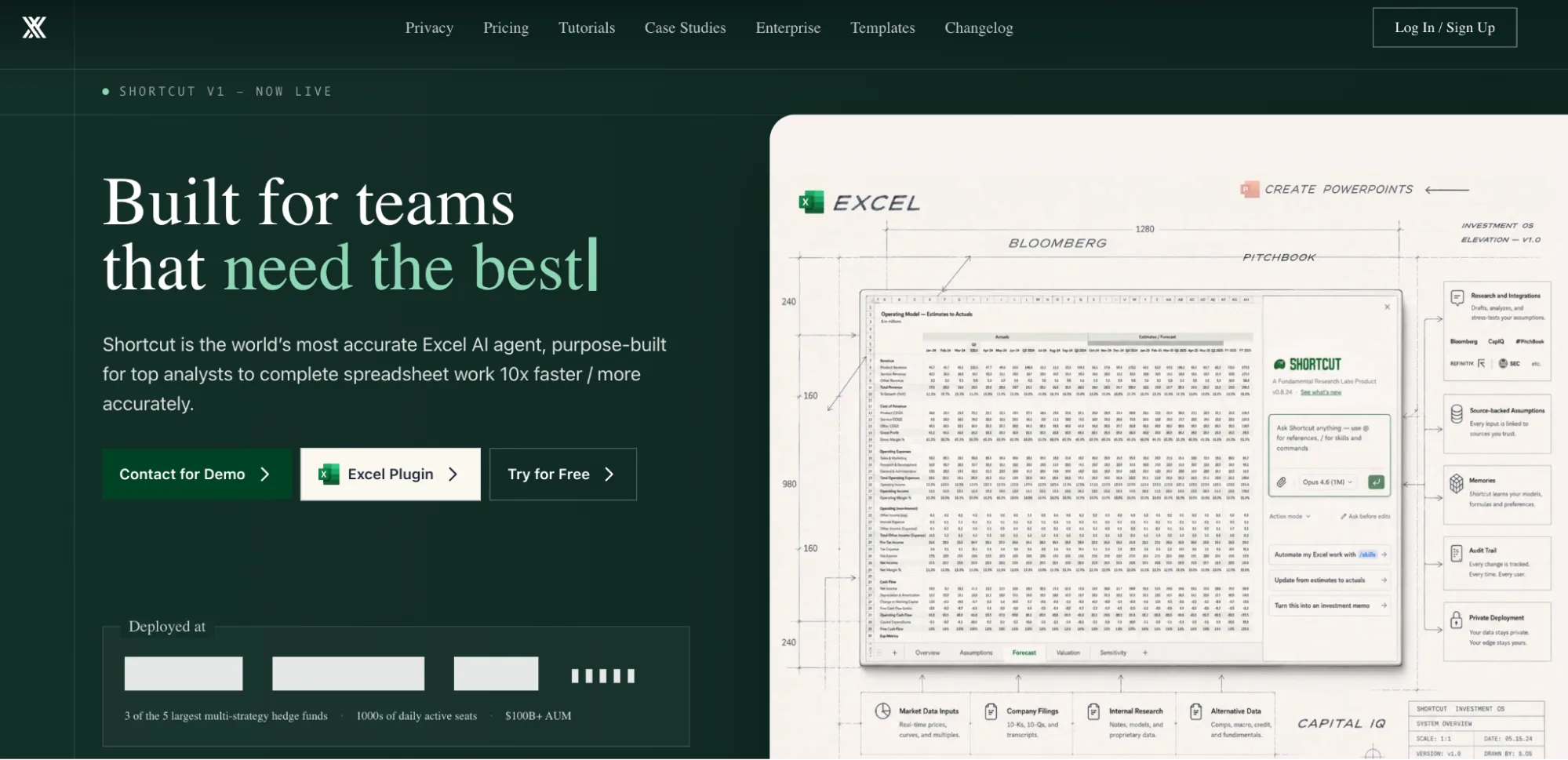
Best for: Finance teams building models in Excel, where a wrong number costs real money
Shortcut is an Excel agent with one job: building financial models. LBOs, DCFs, and three-statement models. It installs as an Excel plugin from Microsoft Marketplace, and also runs on web, desktop, and Google Sheets.
Accuracy is the selling point. Shortcut says its outputs are formula-driven rather than hard-coded, so your model still updates when inputs change. It also places edits without overwriting existing cells, and shows every changed cell so you can revert any step.
The customer list backs that up. Three of the five largest multi-strategy hedge funds use it, according to Shortcut, and the product has been covered by the Wall Street Journal and CNBC.
Shortcut's own benchmark, run in July 2026 across 20 finance tasks, scored it at 77.3% accuracy against 66.3% for Claude for Excel. Read that as a vendor claim, not a neutral test.
What it does well
-
Formula-driven output: Results stay dynamic instead of being pasted in as fixed numbers.
-
Full audit trail: See every changed cell, then undo or restore any step.
-
Never overwrites your data: Edits land beside your work, not on top of it.
-
Enterprise security: SOC 2 Type II, GDPR, CCPA, and zero data retention.
Where it falls short
-
The free tier goes fast: 20 weekly credits sounds fine until you learn a message costs 2 to 15 of them.
-
Expensive for teams: Pro runs $125 per month, or $100 on annual billing, and the Teams plan is the priciest here.
Pricing: Free tier with 20 weekly credits. Pro $125/month, or $100/month billed annually. Teams is a $400/month base fee plus $125 per seat, dropping to $320 plus $100 with annual billing. Enterprise custom.
5. Formula Bot
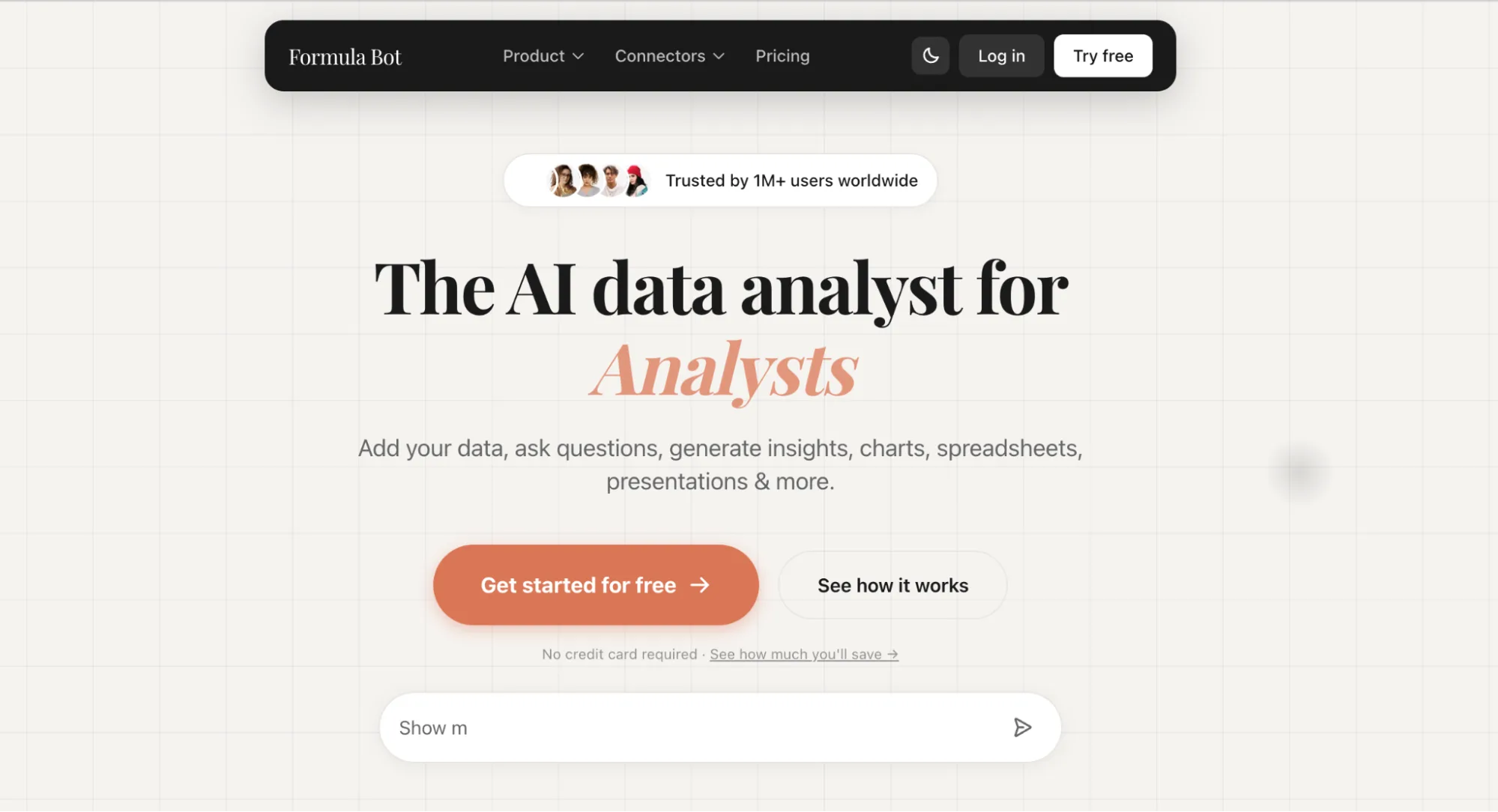
Best for: Getting answers out of a dataset when you don't know which formula to write
Formula Bot works like an analyst rather than a formula lookup. Upload a spreadsheet or connect a data source, ask a question in plain English, and it comes back with a chart, a summary, or the number you were after.
The analysis side is where paid plans earn their keep. Automated dashboards, scheduled reports that refresh on their own, and larger file limits.
It also shows the code behind every result, so you can check the logic instead of trusting the output.
The free tier is a demo, not a working plan. Ten messages and 25 AI actions a month.
Reviewers on G2 rate it well on accuracy. The recurring complaint is that vague prompts produce confidently wrong answers.
What it does well
-
Plain English analysis: Ask a question about your data, get a chart or answer back.
-
Automated reporting: Schedule a report once and it refreshes without you.
-
Shows its working: You can read the code behind a result instead of trusting it blind.
-
Stated data policy: Files are encrypted in transit and at rest, and never train models.
Where it falls short
-
Free tier is a taster: Ten messages a month runs out in one sitting.
-
Vague prompts, wrong answers: Ask loosely and it still answers confidently.
Pricing: Free plan available. Starter $18/month, Max $29/seat/month, Enterprise $149/seat/month. Around 30% off yearly.
6. Ajelix
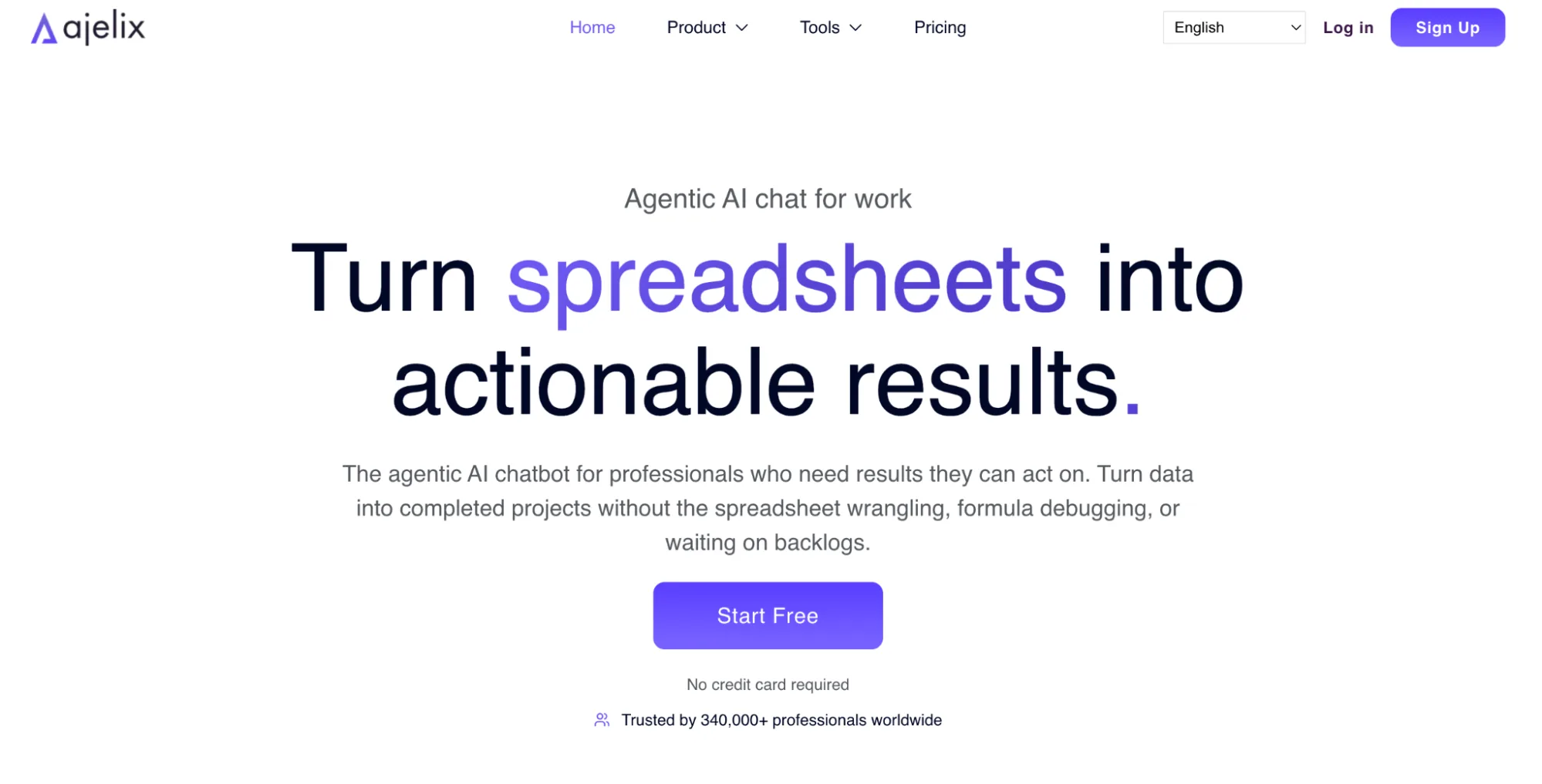
Best for: Writing VBA macros and Apps Script without knowing how to code
Ajelix is the only tool here built mainly around spreadsheet code. Describe the macro you want and Ajelix writes the script. If your existing code breaks, paste it in and Ajelix points to the problem, then offers a faster version.
That covers VBA for Excel and Apps Script for Google Sheets. Generate, explain, debug, and optimize are four separate tools, not one prompt box doing everything.
It also translates spreadsheets and text across languages, which is rare in this category.
The free tier gives 10 requests a month across every tool, including the add-ons. Enough to see whether the code it writes actually runs in your workbooks.
Paid plans buy something different: an agent workspace that builds spreadsheets, dashboards, and presentations. Useful, but it is a separate product bolted to the same login.
What it does well
-
Four VBA tools, not one: Generate, explain, debug, and optimize scripts as distinct jobs.
-
Excel and Sheets: A Google Sheets add-on is live. Ajelix still advertises an Excel add-in, but we could not find it in Microsoft Marketplace.
-
Free tier covers everything: Limited requests, but nothing sits behind a paywall.
-
Translation: Ajelix converts spreadsheets and text between languages.
Where it falls short
-
Steep jump from free: Ten requests, then $39 per seat monthly with nothing in between.
-
Two products in one: The code tools and the agent workspace feel unrelated.
Pricing: Free tier with 10 requests a month. Lite $39, Pro $99, Max $199 per user monthly. Around 17% off yearly.
7. GPTExcel
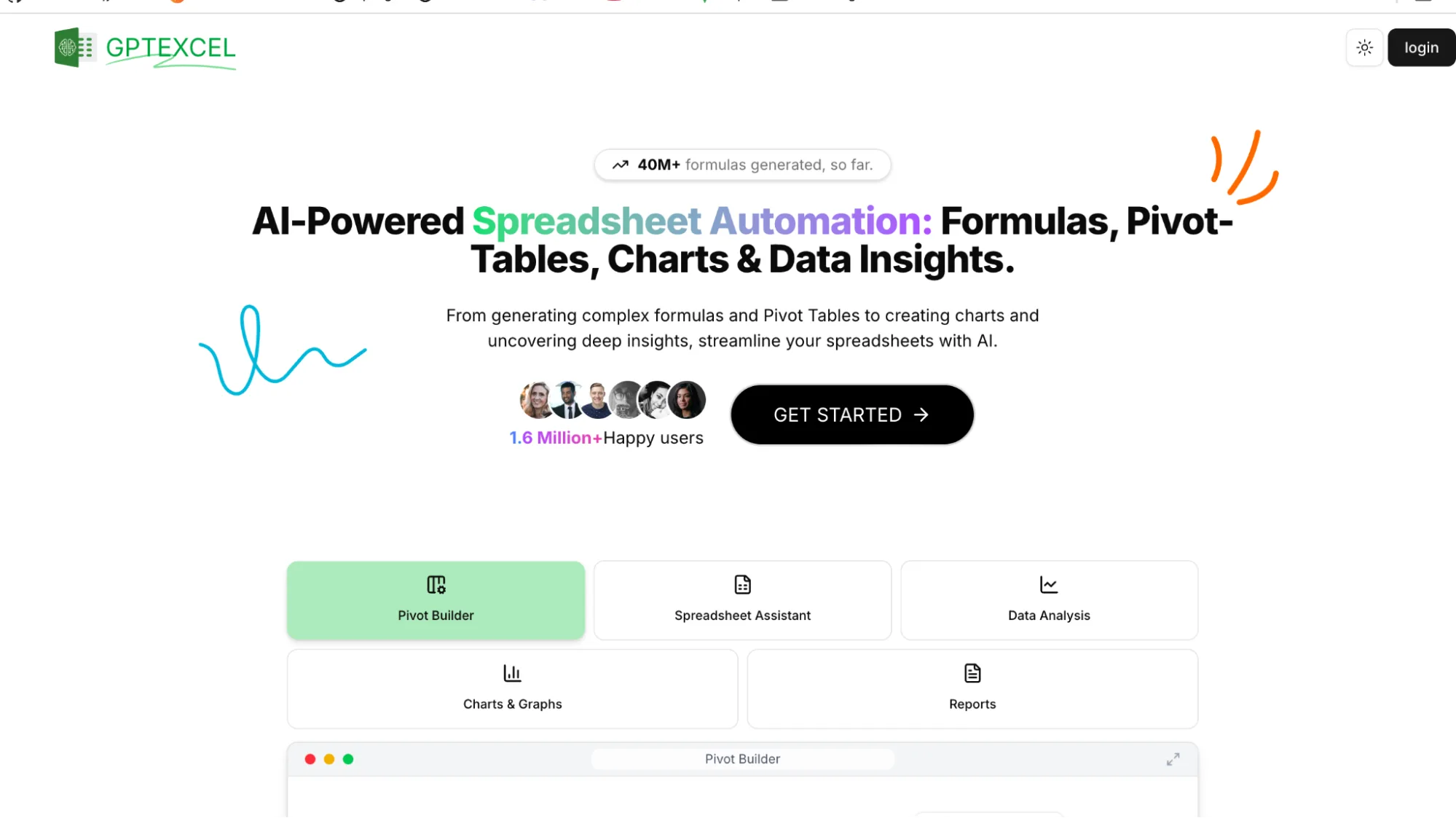
Best for: One-off formulas and quick conversions on a small budget
Sometimes you don't need a platform. You need one formula, right now, without signing up for anything monthly.
That's the gap GPTExcel fills. Pro costs $9 a month, or $6.30 billed yearly, which is the cheapest paid tier in this list by a wide margin.
The free plan includes every tool rather than a stripped-down sample. You just get less of it: four tool runs every 12 hours, 10 chat messages a month, and 5MB uploads.
Its most useful trick is image to table. Photograph a printed table or a receipt, upload it, and GPTExcel returns an editable spreadsheet. That saves real typing time on paper records.
It also covers more apps than most tools here. Excel, Google Sheets, LibreOffice Calc, and Airtable, with prompts accepted in over 50 languages.
What it does well
-
Cheapest paid tier here: $9 monthly, or $6.30 billed annually.
-
Four platforms: Excel, Google Sheets, LibreOffice Calc, and Airtable.
-
Free plan holds all tools: You test the real product, not a stripped version.
-
Image to table: Turn a photo of a printed table into an editable sheet.
Where it falls short
-
Thin free limits: Four runs every 12 hours means you hit the ceiling fast.
-
Check the complex ones: GPTExcel advises verifying unusual calculations before you rely on them.
Pricing: Free plan, no card needed. Pro $9/month, Pro Plus $18/month. Around 30% off yearly.
How to Choose the Right Tool
Start with one question. Do you want the tool to do the work, or just hand you the answer?
Agents like GPT for Work and Shortcut work inside your file. Standalone tools like GPTExcel write a formula and you paste it in.
Then pick by the job you actually have:
-
Everyday work or bulk work across thousands of rows: GPT for Work
-
Building financial models: Shortcut
One more thing worth checking, especially with sensitive data. Excel users on Reddit warn that free tools are often the ones that keep what you feed them. If that is a concern, test on fake numbers first, then run the working formula on the real file yourself.
Before you pay, check the tool's site for two things:
-
A named security certification, like ISO 27001 or SOC 2
-
A clear line that your data will not train AI models
GPT for Work lists both. Some tools here list neither.
Conclusion
No single tool wins everything here. The test results and user reports point the same way: speed and accuracy rarely arrive together, and the marketing pages all sound identical.
The good news is that choosing wrong costs you little. Every tool here has a free tier or trial, so you can test before you pay.
One last thing. Test any tool on your own messy file, not a clean demo dataset. That is where the real differences show up.
Start with the GPT for Work free trial and see what it does with your worst spreadsheet.
FAQs
Does Excel have built-in AI?
Yes. Microsoft Copilot sits in the Excel ribbon with no install needed. It writes formulas, builds pivot tables, and can edit your workbook in Agent Mode. Copilot Chat-eligible Microsoft 365 business and enterprise plans include standard access, subject to service capacity; the Microsoft 365 Copilot add-on (about $30 per user per month) or Microsoft 365 Premium unlocks the full experience, including priority access and model choice.
What is the best free AI for Excel?
Depends what you need. For quick formulas, GPTExcel gives you every tool on its free plan with four runs every 12 hours. For a proper agent, GPT for Work is free to install and comes with starting credits. Watch the free tiers that are really demos, like Formula Bot at 10 messages a month.
How do I add an AI plugin to Excel?
Open Excel, go to the Insert tab, and click Get Add-ins. Search the tool by name, then click Add. It appears in your ribbon and opens as a sidebar. Most tools here install this way, though some, like Shortcut, come from Microsoft Marketplace instead.
Can AI analyze data in Excel?
Yes, but only agents do it inside your file. They build pivot tables, spot outliers, summarize columns, and chart results in your workbook. Standalone tools analyse a copy you upload, then you carry the result back yourself.
Is it safe to use AI tools with company data?
Check your IT policy first, since many companies restrict this. Then check the tool itself for a named security certification and a clear statement that your data will not train AI models. If a free tool says nothing about either, assume nothing.