Search the web with bulk tools in Sheets
Search the web directly in GPT for Sheets using bulk tools with web search models. These models use fresh web search data, which allows you to generate up-to-date responses about companies, current events, facts, and more, directly in your spreadsheet. You can also fetch content from specific URLs to extract information from web pages.
Choose the right web search model
Choose a web search model that best fits your use case.
Web search
Get information that is not in the model's built-in knowledge:
-
Example: Finding the current CEO of a company.
-
How it works:
All web search models can go beyond their built-in knowledge by accessing information from search engines, like Google or Bing. This allows models, which have compressed historical knowledge, to explore topics in greater depth, with more current data or with a specific focus.
-
Recommended models:
-
Sonar for quick results (cheapest).
-
Sonar Pro or OpenAI Search models for high quality results.
-
Gemini models with Web search for Google search quality (most expensive).
-
Content fetching
Focus on specific URLs and extract content from them:
-
Example: Extracting the product name and price from the URL of a product page.
-
How it works: Some web search models can access the full content from specific URLs. The full content is added to the context of the models, so they can use it to answer questions about the content or extract information from it.
-
Recommended models:
Supported web search models
| Provider | Model | Without API key | With API key | URL fetch |
|---|---|---|---|---|
 Perplexity Perplexity | sonar | Yes | Yes | No |
| Perplexity | sonar-pro | Yes | Yes | No |
| Perplexity | sonar-reasoning-pro | No | Yes | No |
 Google Google | gemini-2.5-flash | Yes | Yes | Yes |
| Google | gemini-2.5-flash-lite | No | Yes | Yes |
| Google | gemini-2.5-pro | No | Yes | Yes |
| Google | gemini-3-flash-preview | No | Yes | Yes |
| Google | gemini-3.1-flash-lite-preview | No | Yes | Yes |
| Google | gemini-3.1-pro-preview | No | Yes | Yes |
 OpenAI OpenAI | gpt-4o-mini-search-preview | Yes | Yes | No |
| OpenAI | gpt-4o-search-preview | Yes | Yes | No |
| OpenAI | gpt-5-search-api | Yes | Yes | No |
 Parallel Parallel | speed | Yes | No | No |
For detailed pricing information, see Model prices.
Use web search models
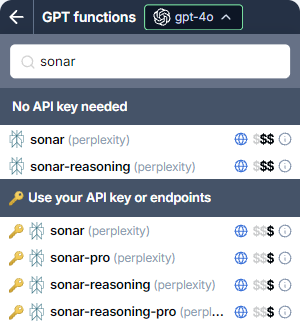
Use bulk tools to perform web searches with any model that has web search capabilities (🌐).
-
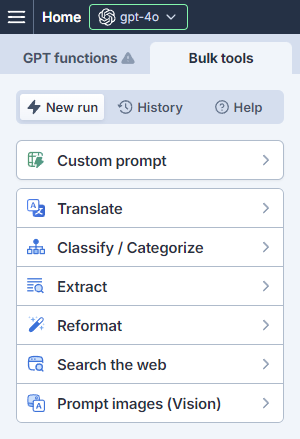
In the sidebar, select Bulk tools and select the bulk tool you want to use.
-
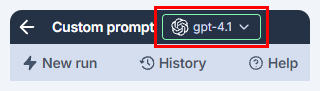
Open the model switcher.
-
Enable the web search filter and select a web search model (🌐).
-
(Optional) Configure the model-specific settings in the sidebar. For Gemini models, make sure web search is enabled.
-
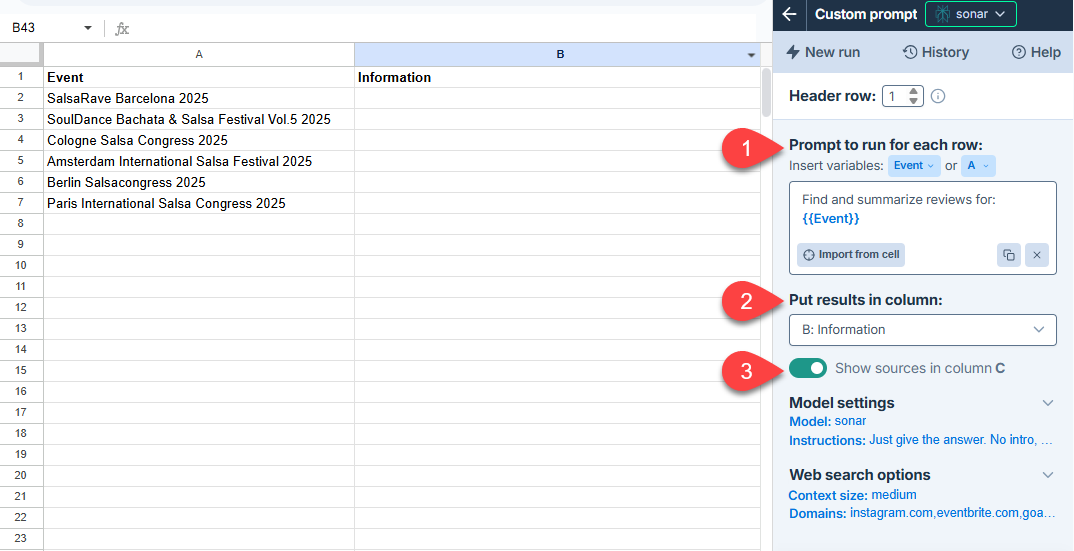
Set up your bulk tool run. For example, to set up a Custom prompt run:
Field Description Example 
Prompt to run for each row
Enter the prompt you want to run for each row.
Find and summarize reviews for: {'{{Event}}'}.
Put results in column
Select the column to put the results in. Cells in these columns won't be overwritten with the results if they contain text.
B: Information
Show sources
Enable this option to write source references in the column to the right of the results column.
Enabled
-
Click Run rows.
Your search results appear in the output column. If you enabled source references, they appear in the adjacent column.
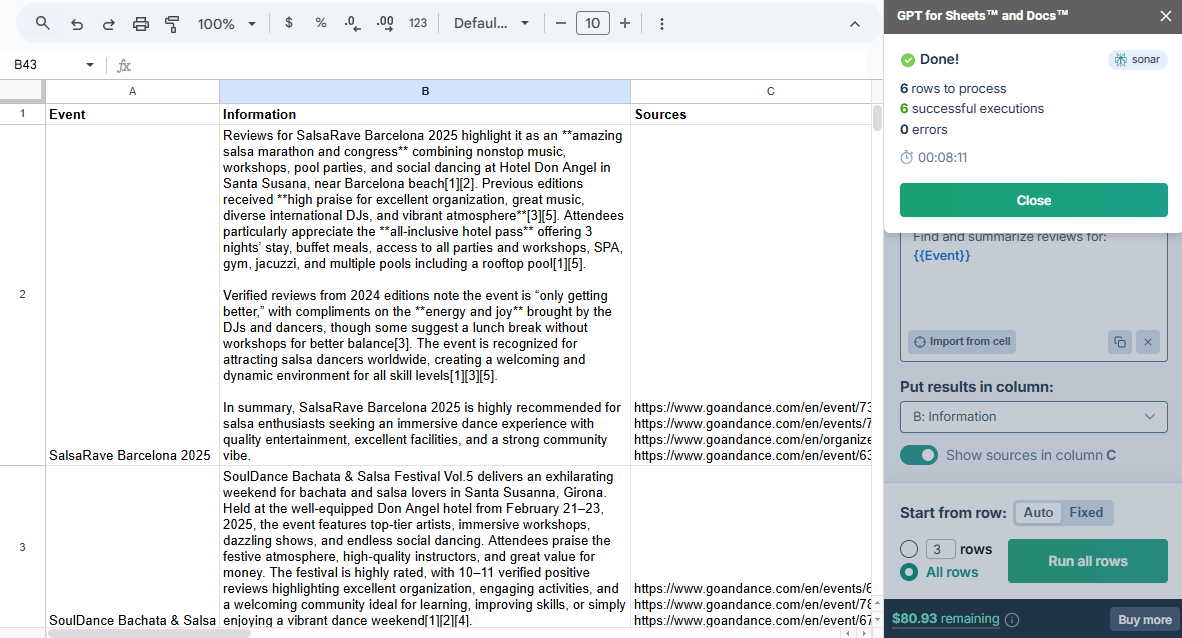
For instructions on how to use the tools, see Bulk tools.
Model-specific settings
Use the model-specific settings to configure the web search model for your use case.
- Google Gemini
- Perplexity Sonar
- OpenAI Search
| Setting | Description | Example |
|---|---|---|
Web search | Let Gemini decide when a Google search can improve the answer. This allows Gemini to provide more accurate answers and cite verifiable sources beyond its built-in knowledge. Enabling Web search incurs an additional search cost. | 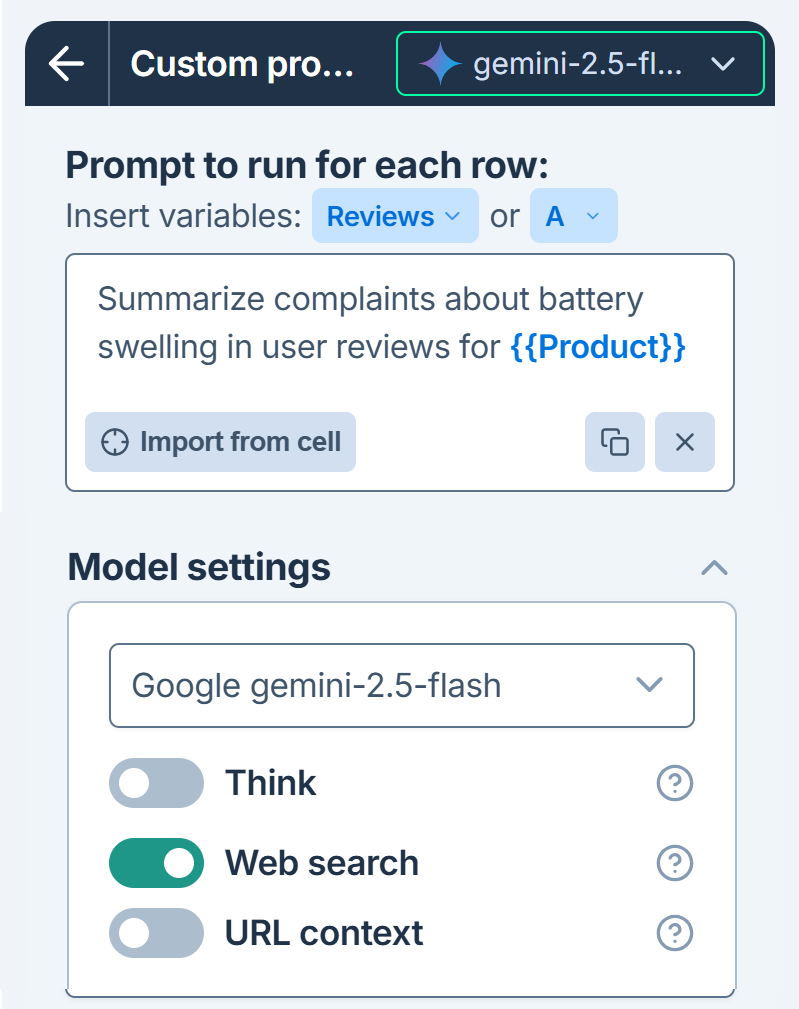 |
URL context | Provide up to 20 URLs (pages, images, PDFs) in your prompt to focus your search. No search cost is incurred, but the content retrieved from URLs counts as input tokens. | 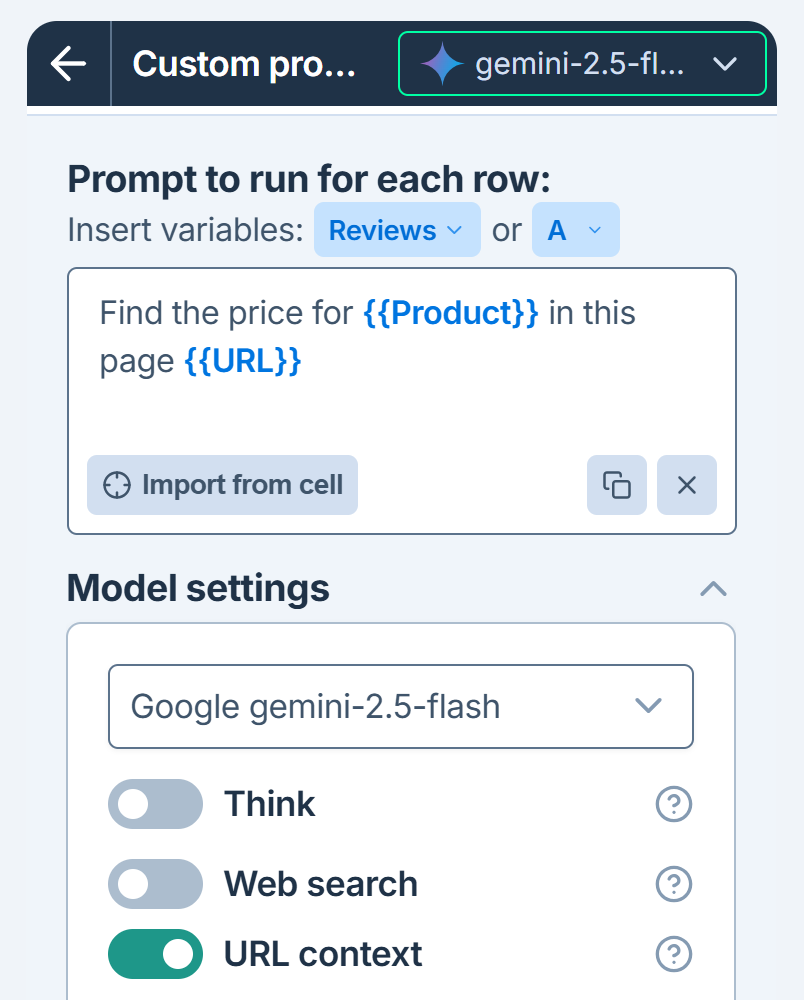 |
| Setting | Description | Example |
|---|---|---|
Context size | Choose how much content to retrieve from each source. Larger sizes produce richer and more detailed responses at a higher cost. | 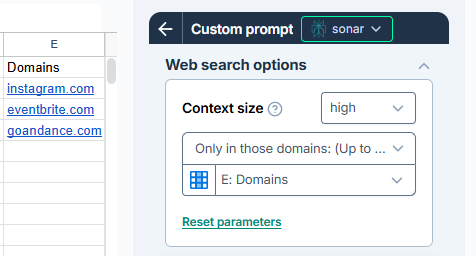 |
Domains Bulk tools only | Specify up to 20 domains to generate responses based only on search results from these domains. Use simple domain names (e.g., |
| Setting | Description | Example |
|---|---|---|
Context size | Choose how much content to retrieve from each source. Larger sizes produce richer and more detailed responses at a higher cost. | 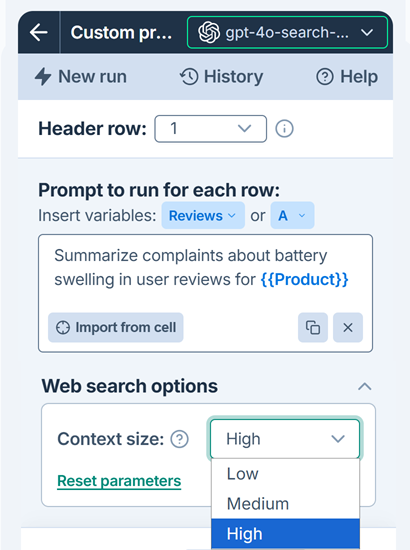 |
Location | To refine search results based on geography, specify an approximate user location using country, city, and/or region. | 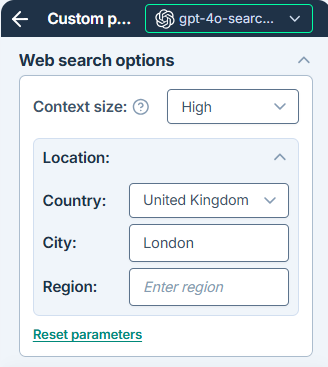 |