How credits are consumed
When you use GPT for Work, credits are consumed based on:
-
Token usage: How much input (text or image) is sent to the model and how much output is generated by the model.
-
Web search usage: How many searches the model performs when generating output.
Each model has its own price for token usage and web search usage.
Model prices
AI models have different prices per token. This means that the exact same request (same number of tokens) will incur a different cost depending on which model is used. Using an API key is cheaper than using a model without an API key.
Using an API key or endpoint significantly reduces your GPT for Work credit consumption, but you'll also pay your AI provider directly for usage. Be sure to factor in your provider's pricing (including any web search costs) when calculating your total cost.
Example: Using the Agent
Create a formula and fill it down
You want to compute employee seniority based on the date of hire and the current date. You have a spreadsheet with each employee's start date in column A.
You type the following prompt in the chat:
Calculate employee seniority.
The Agent reads your request, generates a formula, writes it in column B, fills it down, and then confirms that the request has been handled.
Here's how the above interaction consumes tokens:
 You send your request to the Agent.
 The Agent analyzes your request along with a spreadsheet sample and internal instructions.
 The Agent reasons about your request and decides to write a formula.
 The Agent calls an internal tool to write the formula in column B and fill it down. This tool doesn't use AI, so no tokens are consumed.
 The Agent generates a message to confirm that the request has been handled.
-
Total number of tokens consumed: ~23,500
-
Total cost for this use case: ~$0.05
-
Model used: gpt-5.1 without an API key
Translate a list of titles
You want to translate a list of 20 product titles into four languages. You have a spreadsheet with the product titles in column A and one column for each target language.
You type the following prompt in the chat:
Translate these product titles into each language.
Keep brand names intact.
Capitalize the first letter of the product type.
The Agent reads your request, uses the Custom prompt bulk tool to generate the four translations for each row, and then confirms that the request has been handled.
Here's how the above interaction consumes tokens:
You send your request to the Agent.
The Agent analyzes your request along with a spreadsheet sample and internal instructions.
The Agent reasons about your request and configures a bulk tool run for the translations and sends the configuration to the tool.
The bulk tool receives the request from the Agent, along with the text to be translated, and generates the translations.
The Agent generates a message to confirm that the request has been handled.
-
Total number of tokens consumed: ~43,000 (Agent: 17,500 tokens + bulk tool: 25,500 tokens)
-
Total cost for this use case: $0.83 (Agent: $0.07 + bulk tool: $0.76)
-
Models used: gpt-5.1 without an API key for the Agent and gpt-4.1 without an API key for the bulk tool
Example: Using a bulk tool
Click to expand...
You want to extract the number of gears from 20 bike descriptions. You have a spreadsheet with the descriptions in column A. You open the Extract bulk tool and configure it as follows:
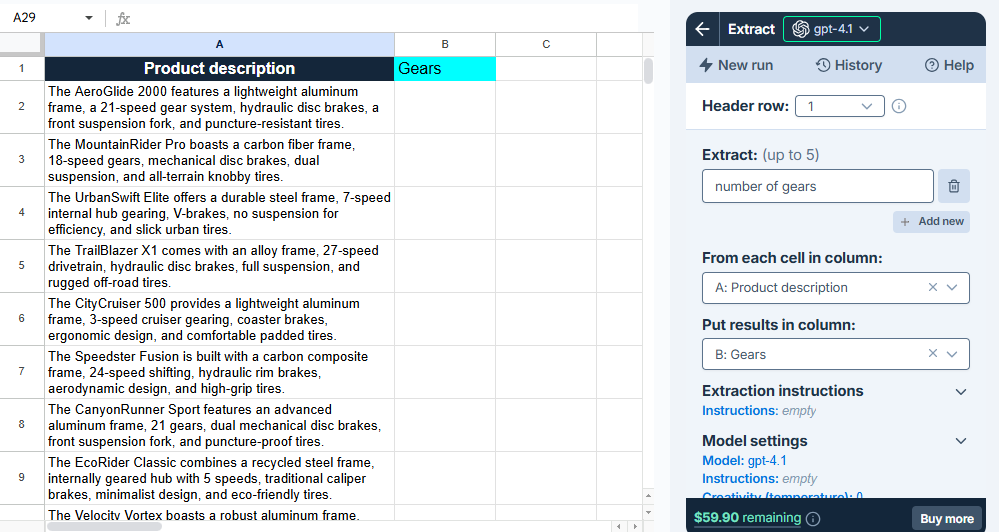
When you run the tool, the AI extracts the number of gears from the descriptions and writes them to column B.
Here's how the above interaction consumes tokens:
The bulk tool receives your request, including the configuration, the value of the first row for column A, and internal instructions (53 tokens).
For the first row, the bulk tool extracts the number of gears from the description and writes it in the corresponding cell in column B (1 token).
The previous steps are repeated for each remaining row in the spreadsheet (around 19 x 54 = 1,026 tokens).
-
Total number of tokens consumed: ~1,080
-
Total cost for this use case: ~$0.03
-
Model used: gpt-4.1 without an API key
In this example, the global instructions are empty.
Example: Using a GPT function
Click to expand...
You want to clean up a list of 100 company names. You have a spreadsheet with the company names in column A.
You type the following GPT formula in cell B2:
=GPT("Remove the legal entity suffix from the company name", A2)
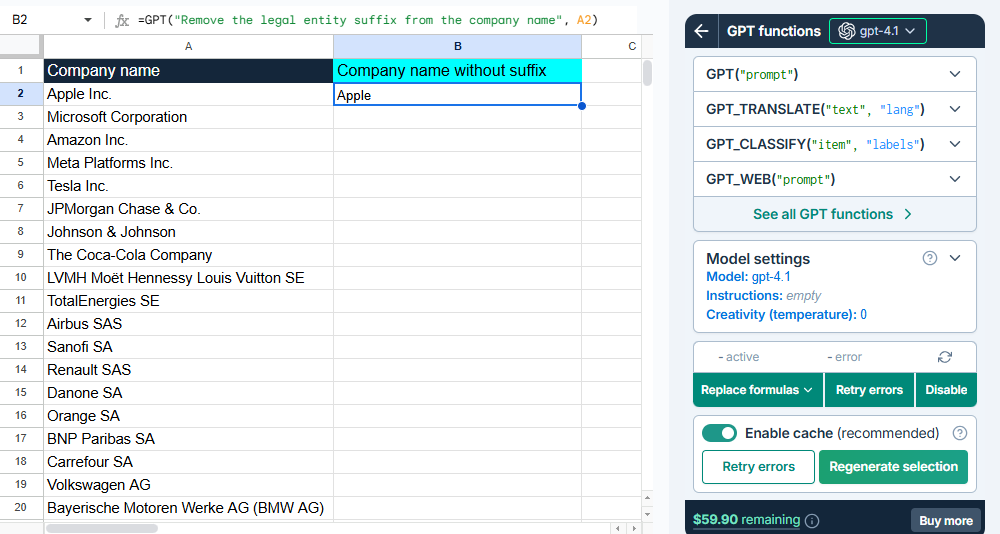
The formula sends your request to the AI, the AI generates a response, and the response is written to cell B2. You then fill down the formula to process the rest of the spreadsheet.
Here's how the above interaction consumes tokens:
The formula in cell B2 sends your request to the AI, with internal instructions (17 tokens).
The AI generates a response and writes it in cell B2 (1 token).
You fill down the formula to process the remaining company names (around 99 x 18 = 1,782 tokens).
-
Total number of tokens consumed: ~1,800
-
Total cost for this use case: ~$0.05
-
Model used: gpt-4.1 without an API key
In this example, the global instructions are empty.
Special capabilities that affect cost
Web search
Web search models add a per-search cost:
-
Without an API key, GPT for Work credits are consumed for both token usage and search usage. Search usage usually accounts for most of the cost, so credits run out much faster.
-
With an API key, the search usage cost is billed directly on the key by the AI provider. Only token usage consumes GPT for Work credits.
Search costs vary depending on the AI provider and the model's context size. For all search costs, see Model prices.
Instructions
Global instructions are extra context that you define per spreadsheet. Think of them as background information the AI should always know. The global instructions are added to the request for each row processed with bulk tools and with every GPT formula executed in the spreadsheet. For example, if you add global instructions that take up 100 tokens, and you run a bulk tool across 1,000 rows, that's 100,000 extra tokens.
Specific instructions or reference materials such as glossaries or lists of categories also add tokens to every AI request.
We cache request inputs at the provider level whenever possible to reduce costs. Cached tokens receive a 75% discount compared to regular token pricing.
Reasoning models
Reasoning models are trained to think before they answer, producing an internal chain of thought before responding to a prompt. They generate two types of output tokens:
-
Reasoning tokens make up the model's internal chain of thought. These tokens are typically not visible in the output from most providers.
-
Completion tokens make up the model's final visible response.
You are billed for both types of tokens.
To check whether a model is a reasoning model, hover over the model info icon in the model switcher. A tooltip opens with detailed information about the model. Check the Reasoning line.
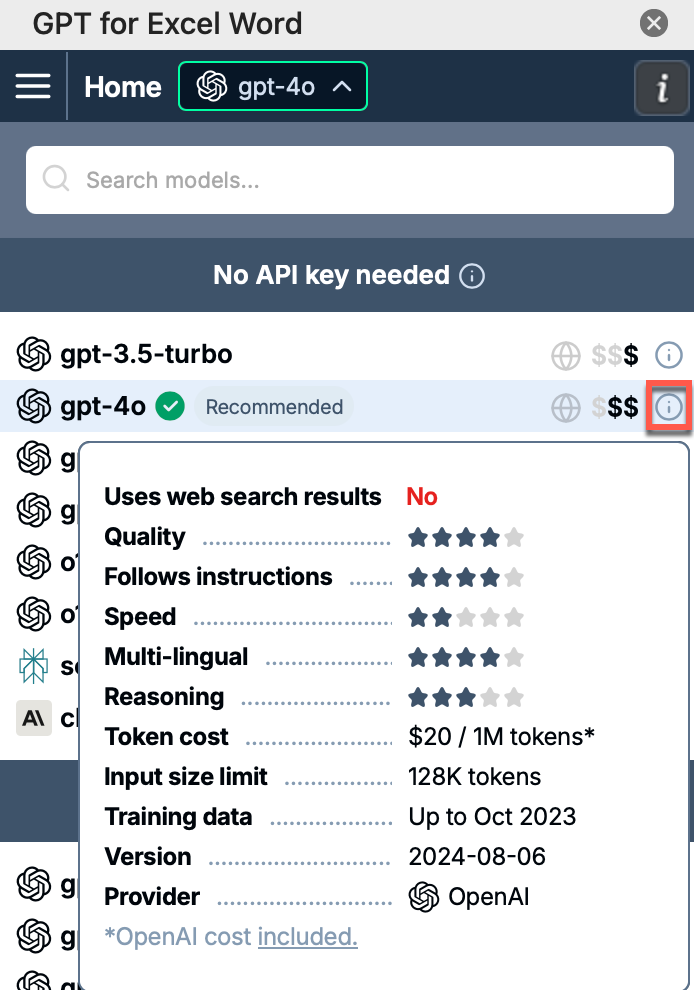
Image inputs (vision)
Vision models can process images as input. The following features support vision models:
-
Custom prompt bulk tool in GPT for Sheets and GPT for Excel
-
Prompt images (Vision) bulk tool in GPT for Sheets and GPT for Excel
-
GPT_VISION function in GPT for Sheets and GPT for Excel
Image inputs are measured and charged in tokens, just like text inputs. How images are converted to text tokens depends on the model. You can find more information about the conversion in the AI providers' documentations:
FAQ
How can I buy more credits?
You can buy credits at any time from the GPT for Work dashboard.
How many credits do I need?
To estimate your credit usage based on common use cases, try our estimation tools.
How are credits consumed?
Credits are consumed based on the number of tokens processed by AI models. For more information, see How credits are consumed.
What's a token?
A token is a unit of text, such as a word, subword, punctuation mark, or symbol. Models split all input and output text into tokens for processing. Model providers use tokens as the basic unit for measuring model usage. The total number of tokens in a prompt (input) and the model's response (output) determines your credit consumption. For more information, see Tokens and How credits are consumed.
Do credits expire?
Credits expire one year after your last purchase. Buy more credits at any time to reset the expiry to one year.
Example: You have $100 worth of credits. Your last purchase was 7 months ago, so these credits will expire in 5 months. You buy $29 worth of credits. You now have $129 worth of credits, which will expire in 12 months.
Do I need credits if I set an API key or endpoint?
Yes, you need credits even if you use an API key or endpoint. Models available through an API key have their own pricing. Models available through a dedicated endpoint do not consume credits, but require credits to be available.
Can I share credits with my team?
Yes, team members share the same credits.
Can I share credits between Google and Microsoft accounts?
-
Credits bought for Google Sheets can be used on Google Docs, and vice versa.
-
Credits bought for Microsoft Excel can be used on Microsoft Word, and vice versa.
To transfer credits between Google and Microsoft accounts, contact support.
Can I transfer my credits to another account?
To transfer your credits to another account, contact support.
Can I set an auto top-up?
No, but you can buy larger packs to have your credits last longer.
Can I pause usage?
You can pause usage for all users in your team at any time from the GPT for Work dashboard. Learn more.
Can I set credit usage limits?
Yes. You can set a monthly spending limit for your space and individual monthly limits per user from the Limits screen in the GPT for Work dashboard. Learn more.
Why is my balance negative?
Before each run, the add-on estimates the cost and blocks the run if your balance is too low. If the final cost exceeds the estimate, your balance can go negative by a small amount. This amount is deducted from your next credit pack purchase.
Can I get a refund?
We do not offer refunds. We encourage you to carefully consider how many credits you need before buying credits.
Do errors consume credits?
Yes. Input tokens are always billed. If a request times out, output tokens are billed as well. To avoid timeouts, use the Agent or the bulk tools.