Set spending limits
Set monthly spending limits to control how much can be spent in your space each month. You can set a limit for the entire space and individual limits per user.
Prerequisites
Only the space owner or a space admin can set spending limits for a space.
Set a space monthly limit
A space monthly limit restricts the total amount that can be spent across all users in your space per calendar month. When the limit is reached, all usage is blocked until you raise the limit or the limit resets at the end of the calendar month.
 Google
 Microsoft
-
Sign in to the GPT for Work dashboard with your Google account.
-
In the sidebar, click Limits.
-
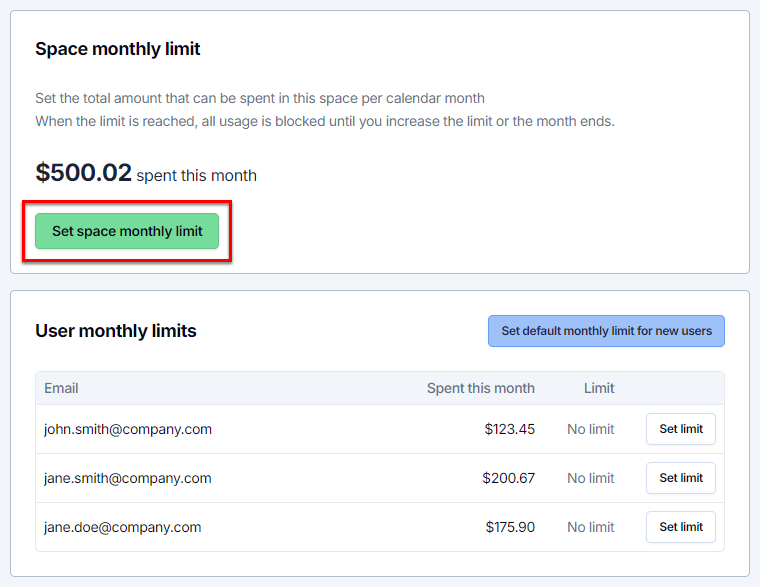
In the Space monthly limit section, click Set space monthly limit.
-
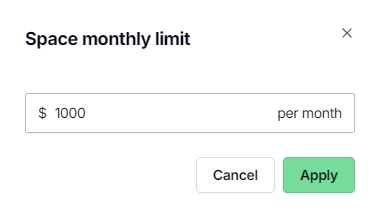
Enter the amount, and click Apply.
-
Sign in to the GPT for Work dashboard with your Microsoft account.
-
In the sidebar, click Limits.
-
In the Space monthly limit section, click Set space monthly limit.
-
Enter the amount, and click Apply.
The space monthly limit immediately applies to all users in the space.
-
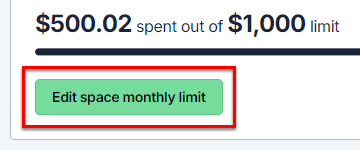
To edit the space monthly limit, click Edit space monthly limit, edit the amount, and click Apply.
-
To remove the space monthly limit, click Edit space monthly limit and click Remove.
Set user monthly limits
User monthly limits restrict the amount that an individual user can spend per calendar month. When a user reaches their limit, that user's usage is blocked until the limit is raised or the limit resets at the end of the calendar month. Other users in the space can continue using the add-ons normally.
Set a default limit for future users
You can set a default monthly limit that applies to all new users who join the space. You can adjust the monthly limit for individual users after they join.
- Google
- Microsoft
-
Sign in to the GPT for Work dashboard with your Google account.
-
In the sidebar, click Limits.
-
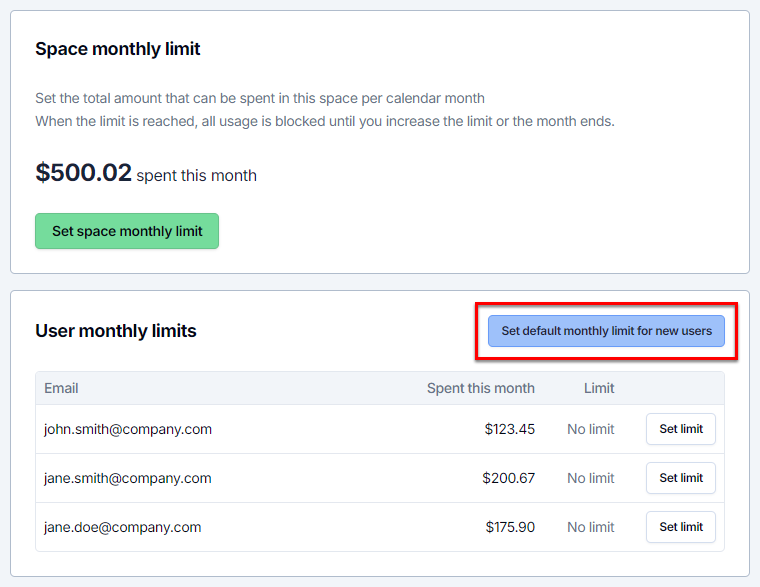
In the User monthly limits section, click Set default monthly limit for new users.
-
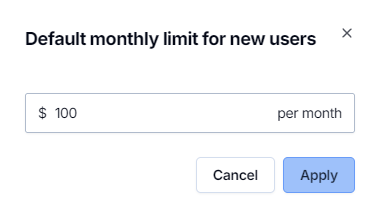
Enter the amount, and click Apply.
-
Sign in to the GPT for Work dashboard with your Microsoft account.
-
In the sidebar, click Limits.
-
In the User monthly limits section, click Set default monthly limit for new users.
-
Enter the amount, and click Apply.
The default monthly limit automatically applies to all users who join the space after this point.
-
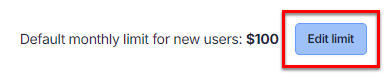
To edit the default monthly limit, click Edit limit, edit the amount, and click Apply.
-
To remove the default monthly limit, click Edit limit and click Remove.
Set limits for current users
You can set monthly limits for individual users in your space. You can also apply the same limit to all current users in the space in one go.
- Google
- Microsoft
-
Sign in to the GPT for Work dashboard with your Google account.
-
In the sidebar, click Limits.
-
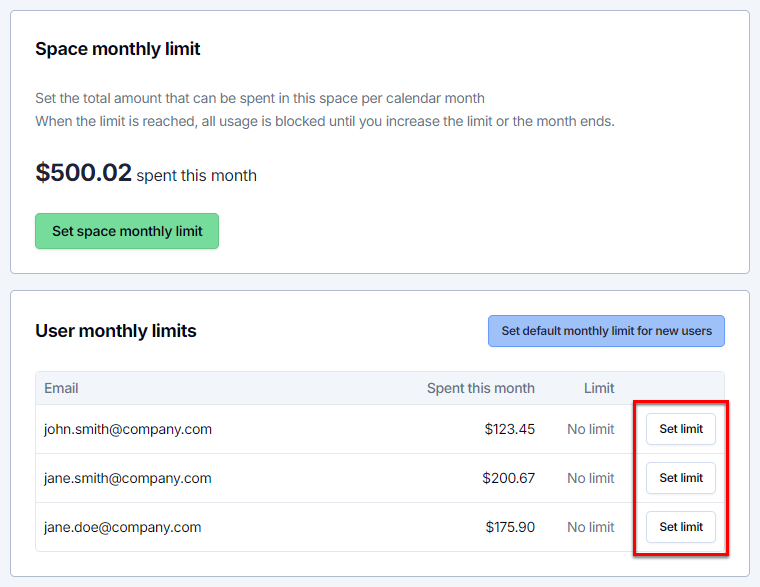
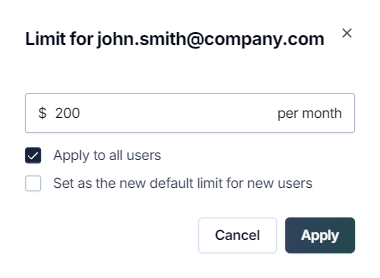
In the User monthly limits section, find the user and click Set limit.
-
Enter the amount.
-
(Optional) Select Apply to all users to apply the same limit to all current users in the space.
-
Click Apply.
-
Sign in to the GPT for Work dashboard with your Microsoft account.
-
In the sidebar, click Limits.
-
In the User monthly limits section, find the user and click Set limit.
-
Enter the amount.
-
(Optional) Select Apply to all users to apply the same limit to all current users in the space.
-
Click Apply.
The user monthly limit immediately applies.
-
To edit monthly limits:
-
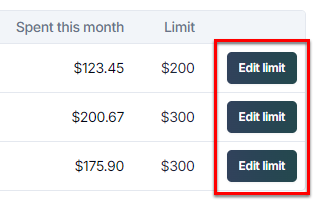
Single user: Click Edit limit for the user, edit the amount, and click Apply.
-
All users: Click Edit limit for any user, edit the amount, select Apply to all users, and click Apply.
-
-
To remove monthly limits:
-
Single user: Click Edit limit for the user and click Remove.
-
All users: Click Edit limit for any user, select Apply to all users, and click Remove.
-