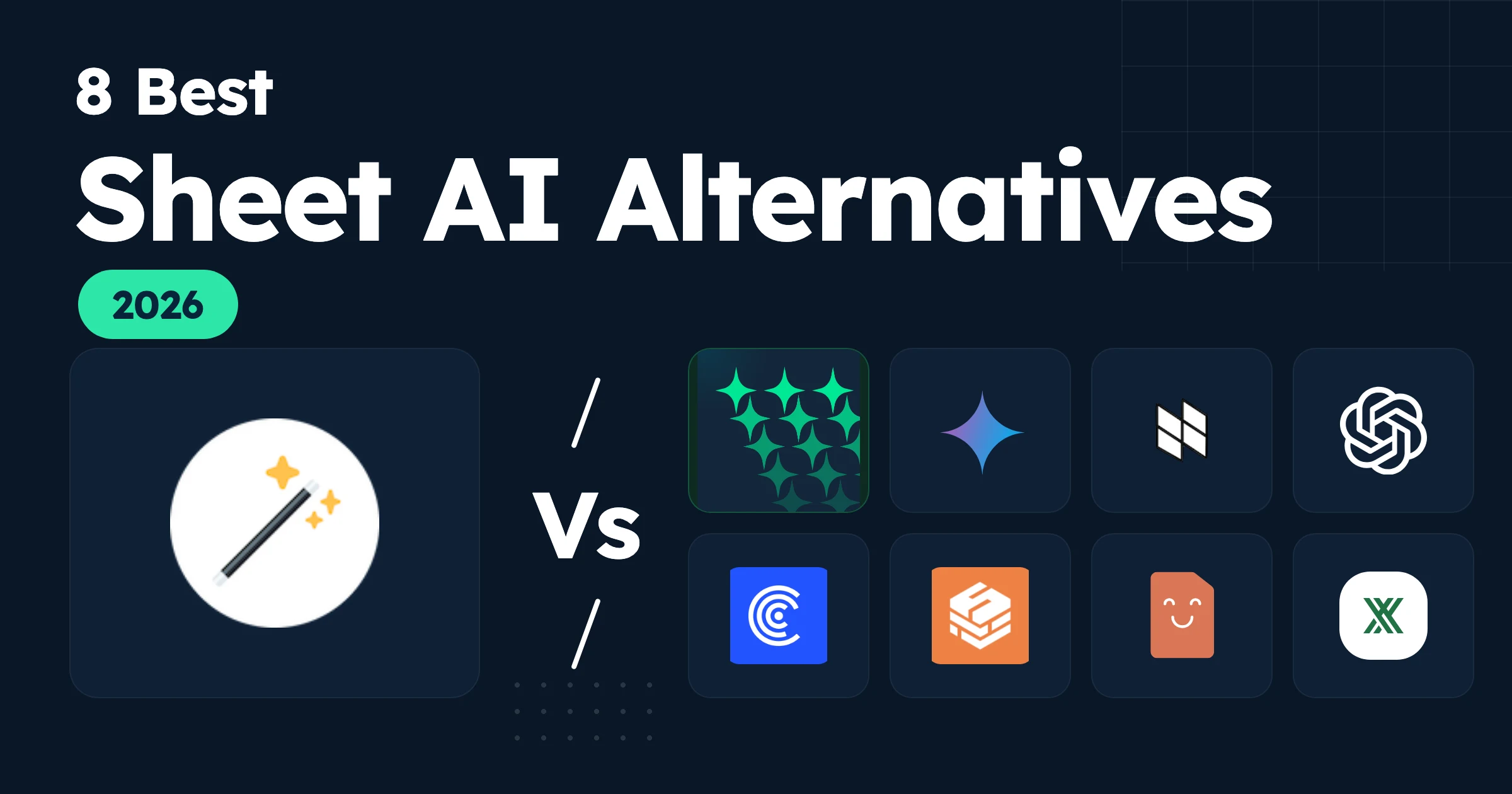
Sheet AI does everything one way: you put a prompt in a cell, drag a custom formula like =SHEETAI() down, and it fills the column.
The two questions are whether that one way works well and covers your full workflow. Google Sheets custom formulas suffer from notorious problems: unwanted auto-refresh, slowness, and unreliability. Other tasks, like cleaning a whole sheet or building a pivot table, are out of reach for a formula. And there is no Excel version at all.
Every tool below fixes at least one of these problems. Some fix all of them. This guide compares the 8 best Sheet AI alternatives on what they do, what they cost, and where each one fits, then closes with a three-question framework for picking the right one.
Quick Comparison of the 8 Sheet AI Alternatives
Short on time? Here is how the 8 tools compare before the details.
Tool | Best For | Platforms | Starting Price |
|---|---|---|---|
GPT for Sheets | Everyday spreadsheet work and bulk jobs | Sheets (+ Excel) | $25/month |
Gemini in Google Sheets | Light row-level tasks on Workspace plans | Sheets | Included with Workspace |
Numerous AI | Sheet AI's formula workflow with no setup | Sheets + Excel | $8/month (billed annually) |
ChatGPT for Excel and Google Sheets | Answers and edits on your ChatGPT account | Sheets + Excel | Included with ChatGPT |
Coefficient | Reports built on live business data | Sheets + Excel | $49/month |
Superjoin | Reports and AI help on connected data | Sheets (+ Excel) | $30/month |
Formula Bot | Charts and answers from a data file | Browser + add-ons | $18/month |
Shortcut AI | Financial models in Excel | Web + Excel | $125/month (Pro) |
Pricing and usage limits on this page are accurate as of early 2026. Spreadsheet-AI plans change often, so check each tool's site before you buy.
Why Look for a Sheet AI Alternative?
People look for a Sheet AI alternative for five main reasons:
- Credits burn twice because formulas auto-refresh: Sheet AI's own setup page warns that formulas run again when your sheet refreshes, and every rerun costs you again. There is no way to stop Google Sheets custom formulas from auto-refreshing, for example when a colleague opens your spreadsheet, or you filter or move cells around. You end up constantly replacing your formulas with values.
- Formulas are unreliable at scale: Google Sheets custom formulas are slow, they time out after 30 seconds, which is often not enough for an AI response, and they can freeze your spreadsheet if you launch too many at once.
- Formulas have a ceiling: a formula can fill a cell. It cannot inspect and clean your whole sheet, build a pivot table, or fix another broken formula for you. Any job with more than one step stays on your plate.
- Billing complaints in reviews: some users on the Google Workspace Marketplace report credits counting down wrong, including on unlimited plans, and errors that stop the add-on from loading.
- It stops at Google Sheets: there is no Excel version. If you also want to use AI in Excel, you need a second tool anyway.
One fair point for Sheet AI: it can generate images, video, and music inside a sheet through Replicate. If that is your main use case, keep it for that and pick an alternative for everything else.
8 Best Sheet AI Alternatives in Detail
1. GPT for Sheets
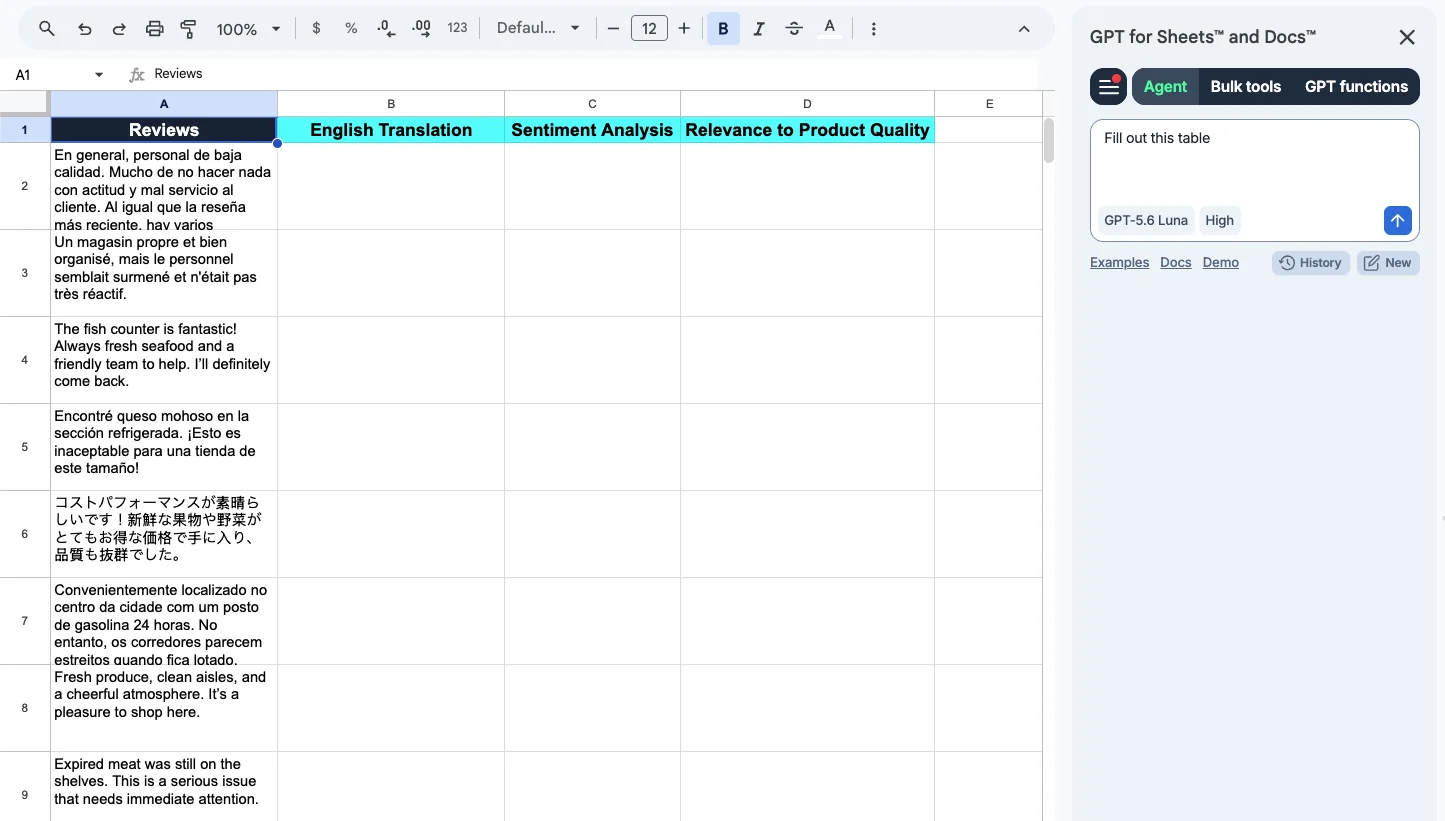
Sheet AI answers one prompt per cell. GPT for Sheets takes the whole task at once.
The in-cell formula is familiar ground here: GPT for Sheets was one of the first add-ons to put AI in a spreadsheet cell with =GPT(), and then ran into the same ceiling described above. Auto-refresh, timeouts, and multi-step jobs are not problems you can fix inside a cell, so the product grew bulk tools and an agent that take on the whole task instead.
It is a full AI agent that runs in a chat panel next to your sheet, as a Google Sheets add-on. You describe your goal in plain words, and it makes the changes directly in your file: new columns, fixed formulas, charts.
Say column A holds 100 company names, each typed a different way. To fix it with GPT for Sheets, you give one prompt:
"Standardize the company names in column A, add an Industry column, and flag rows missing a website. Apply to all 100 rows."
The agent cleans all 100 names and fills both new columns in about half a minute.
Where GPT for Sheets beats Sheet AI
- Built for volume: bulk jobs run from the sidebar, not as formulas, so there is nothing to auto-refresh, time out, or convert to values afterwards. One prompt runs across rows in parallel, up to 1,000 answers a minute and 200,000 rows in a run.
- More than formulas: cleaning, dedupe, pivot tables, charts, and translation run as single requests.
- Keep the formula habit:
=GPT()works like=SHEETAI(), so your existing formulas port over. A 30-day cache reuses past results when formulas reload, so auto-refresh does not charge you twice.
Where it falls short
- No media generation: Sheet AI creates images, video, and music in cells through Replicate. GPT for Sheets reads images with vision models but does not generate them.
- Not free with your own key: Sheet AI runs free once you connect your own OpenAI key. GPT for Sheets still bills usage either way.
- Costs more than the formula tools: at $25/month it is more expensive than Numerous or Formula Bot, and Gemini or ChatGPT may already come with a plan you pay for.
Best for: everyday spreadsheet work and bulk jobs that formulas cannot handle.
Pricing: free to install with starting credits, no card required. Plans start at $25/month, with extra-usage credits shared across your team.
GPT for Sheets is part of GPT for Work, which also covers Microsoft Office through GPT for Excel Word. The same agent, bulk tools, and GPT functions work in Excel, so you are not locked into one platform.
2. Gemini in Google Sheets
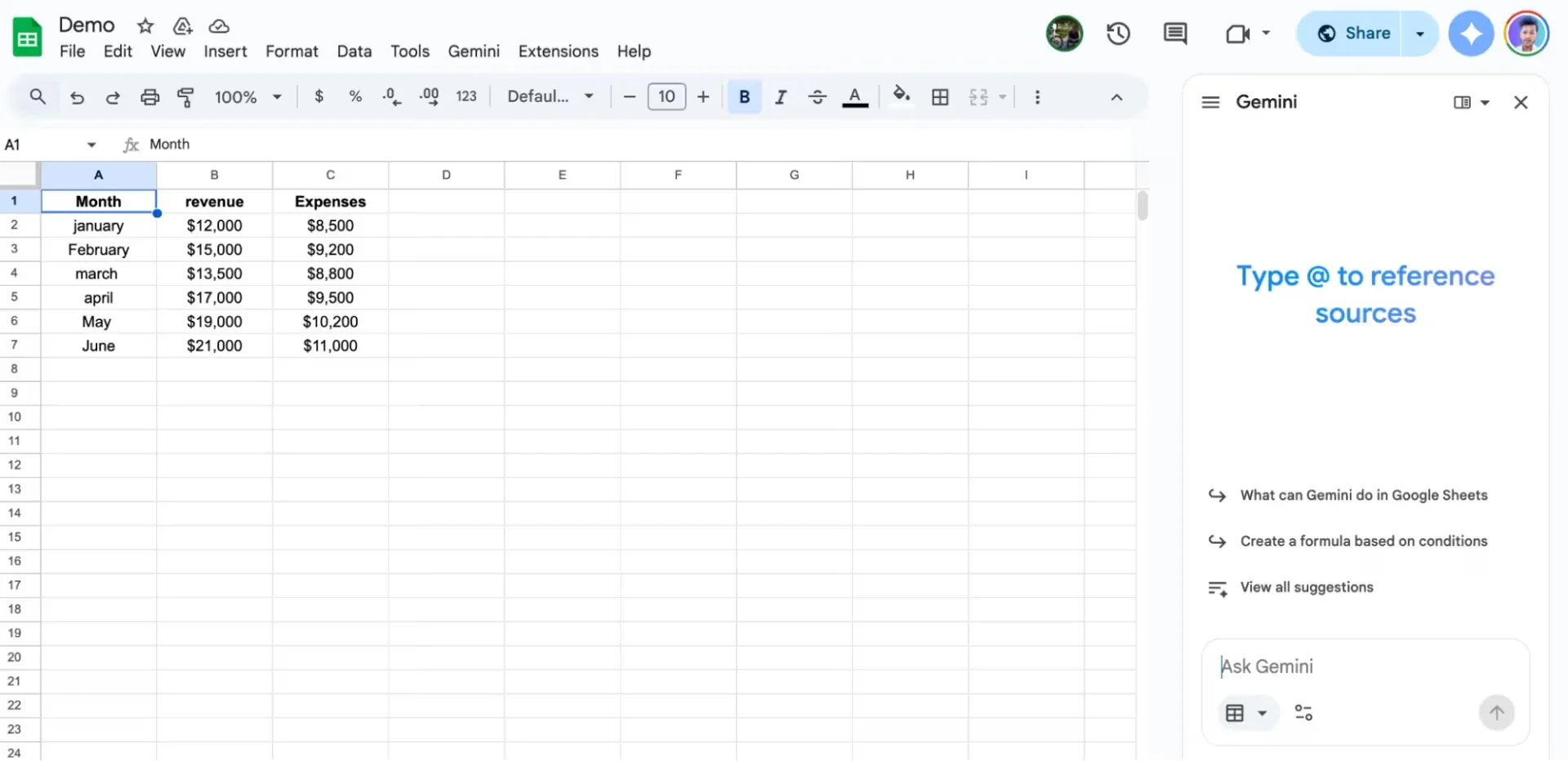
Before you install anything, check what Google already gave you. Gemini is built into Google Sheets on Workspace plans, and its =AI() function does the same job as =SHEETAI(): write a prompt in a cell, point it at your data, and drag it down.
Recent updates push it further. Generative fill completes a column from a short prompt, a Fix button repairs broken formulas, and the side panel builds charts and written summaries you can insert into your sheet. For bulk work in Sheets, GPT for Sheets vs. Gemini in Sheets puts numbers on the gap.
Where Gemini beats Sheet AI
- Nothing to install: it is already in Sheets. No add-on, no API key, no separate account.
- No extra bill: AI features now come with Workspace plans, so there are no credits to watch.
- Works on the whole sheet: formula fixing, tables from raw data, charts, and pivot tables, not only cell prompts.
Where it falls short
- Batch limits:
=AI()runs on 350 cells at a time. A 2,000-row column takes six runs. - Sheets only: there is no Excel version, so the platform gap that pushes people off Sheet AI is still there.
- Needs the right plan: the AI features come with eligible paid Workspace plans. On a free Google account you do not get them at all.
Best for: light, row-level AI work when your company already pays for Workspace.
Pricing: included with eligible Google Workspace plans.
3. Numerous AI
Numerous AI works almost exactly like Sheet AI, but without the setup problems.
The idea is the same: AI functions inside your spreadsheet cells. Its =NUM.AI() function takes a prompt plus a cell reference, returns an answer, and fills down a column the way =SHEETAI() does. A second function, =NUM.WRITE(), handles longer text like paragraphs and posts. The difference: you install it and start typing, with no API key and no OpenAI account.
Where Numerous beats Sheet AI
- Zero setup: the built-in AI works out of the box. Nothing to connect, nothing to configure.
- Caching saves credits: when your sheet refreshes, Sheet AI runs every formula again and charges you again. Numerous remembers past answers, so repeat runs cost nothing.
- Excel version included: the same functions work in both Excel and Google Sheets.
Where it falls short
- Still only formulas: there is no agent and no sidebar run, so every bulk job goes through a Google Sheets custom function, with the timeouts and slowdowns that brings. Multi-step work like cleaning a whole sheet or building a pivot table stays out of reach.
- No model choice: you use the model Numerous provides. Sheet AI lets you pick between providers.
- Plans cap by usage: the $8 plan covers 1 million characters of input and output a month, counting both the prompt and the answer. Heavy monthly use needs a bigger tier.
Best for: formula-style AI work with the least setup.
Pricing: $1 for a 7-day trial, then from $8/month billed annually ($19 month to month).
4. ChatGPT for Excel and Google Sheets
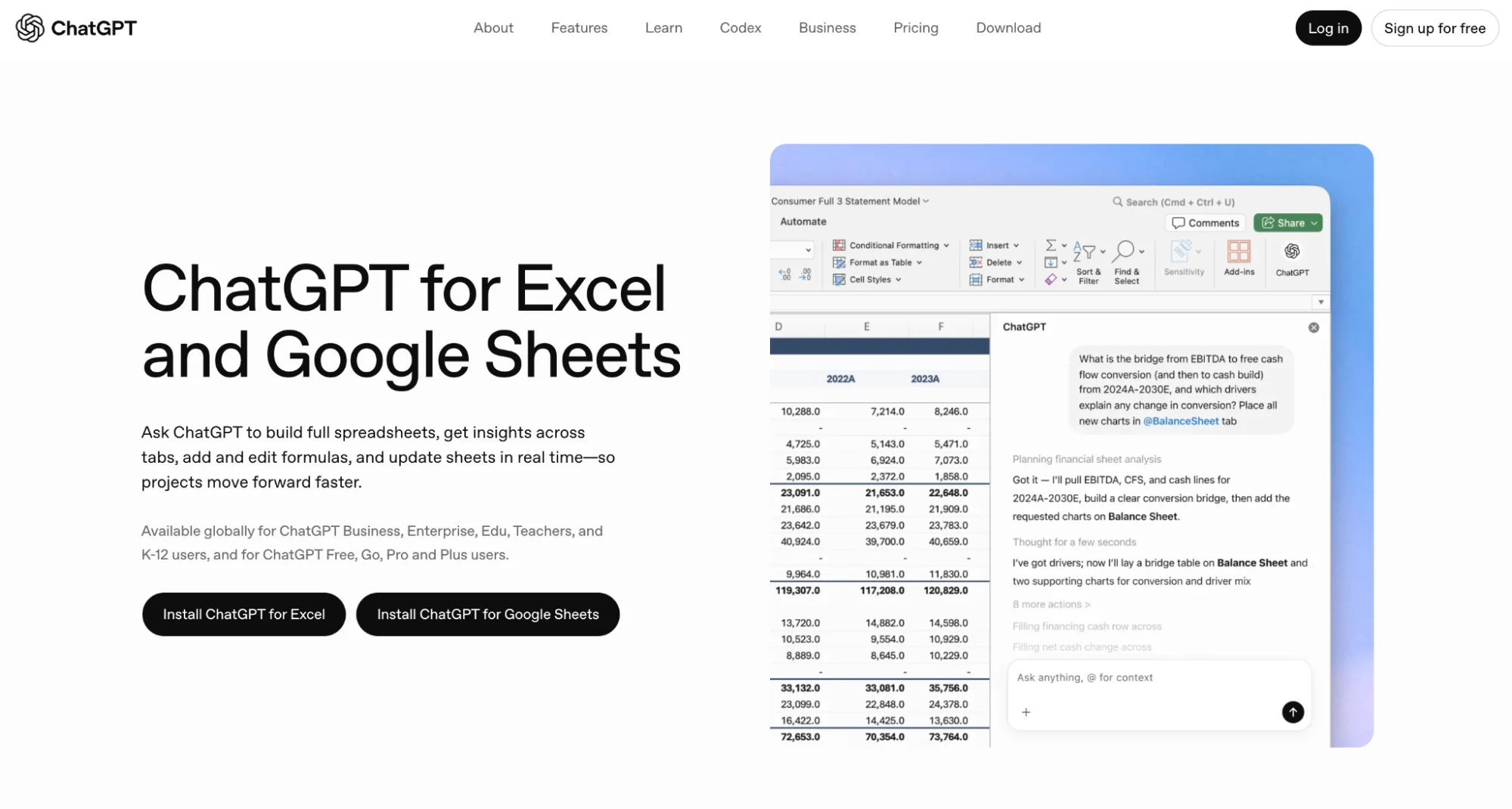
This is OpenAI's official add-on, and it turns ChatGPT into an assistant that sits next to your data.
You open the sidebar, sign in with your ChatGPT account, and ask in plain words. It can build a sheet with working formulas, explain why a formula throws an error, summarize data across tabs, and make edits after asking your permission first. Every answer shows which cells it came from, so you can check the numbers yourself.
Where ChatGPT beats Sheet AI
- Works on ChatGPT Free: if you have a ChatGPT account, you already have this. No new subscription, no API key.
- Understands the whole file: it reads across tabs and answers questions like "which products have unusually high ad costs," not only cell-level prompts.
- Safer edits: it asks before changing anything, keeps your formatting, and lets you revert.
Where it falls short
- No cell function: there is no formula to drag down a column, so Sheet AI's row-by-row workflow has no direct equivalent.
- Big files hit limits: OpenAI notes that very large workbooks may not fit in one pass, which can return partial results.
- Shares your ChatGPT limits: spreadsheet work counts against the same usage caps as your chats, so a heavy day in Sheets eats into them.
Best for: ChatGPT subscribers who want answers and edits without paying for another tool.
Pricing: free with any ChatGPT account, including the Free plan. It uses your ChatGPT usage limits, so paid plans get more room.
5. Coefficient
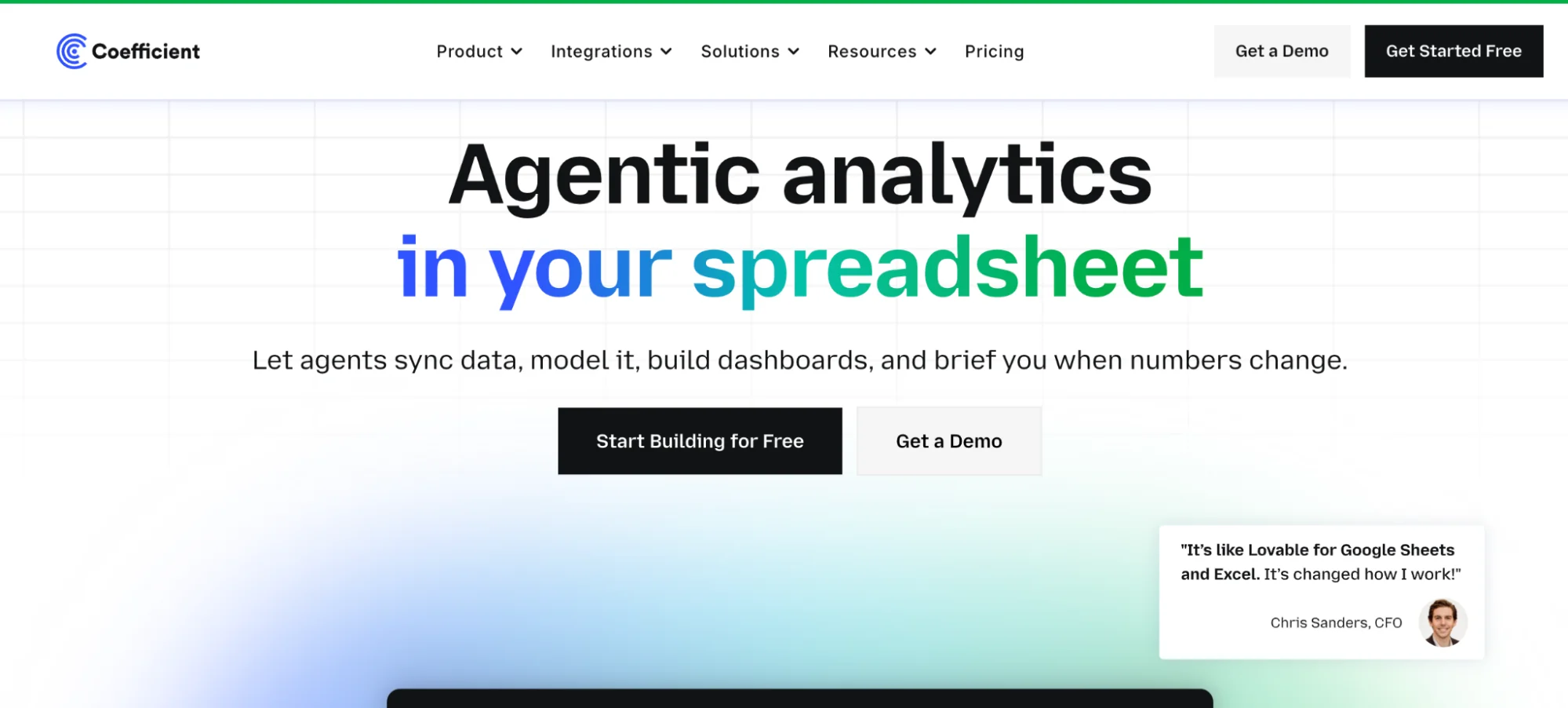
Sheet AI can only work with data that is already in your sheet. Coefficient solves the step before that: getting the data in and keeping it fresh.
It connects Google Sheets and Excel to over 150 systems, including Salesforce, HubSpot, QuickBooks, and Snowflake, and refreshes the imports on a schedule. On top of that sits an AI assistant that cleans data, builds pivot tables and charts, and asks a clarifying question when your request is unclear instead of guessing.
Where Coefficient beats Sheet AI
- Live data: your sheet pulls fresh data on its own. No more manual exports.
- Plain-language imports: ask in plain words and it pulls data from a database like Snowflake, or even from emails in your Gmail.
- Alerts included: when a number crosses a limit you set, it sends you a Slack or email alert.
Where it falls short
- Not a bulk prompt tool: it has GPT cell functions, but running one prompt across thousands of rows is not what it is built for.
- Plans cap your connections: the free and $49 plans connect three data sources, Pro six at $99 per user. A wider stack means Enterprise.
- Setup comes first: the value sits in the connected systems, so there is access to arrange and configuration to do before the AI earns its keep.
Best for: reports and dashboards that depend on data from other business tools.
Pricing: free plan; paid plans from $49/month.
6. Superjoin
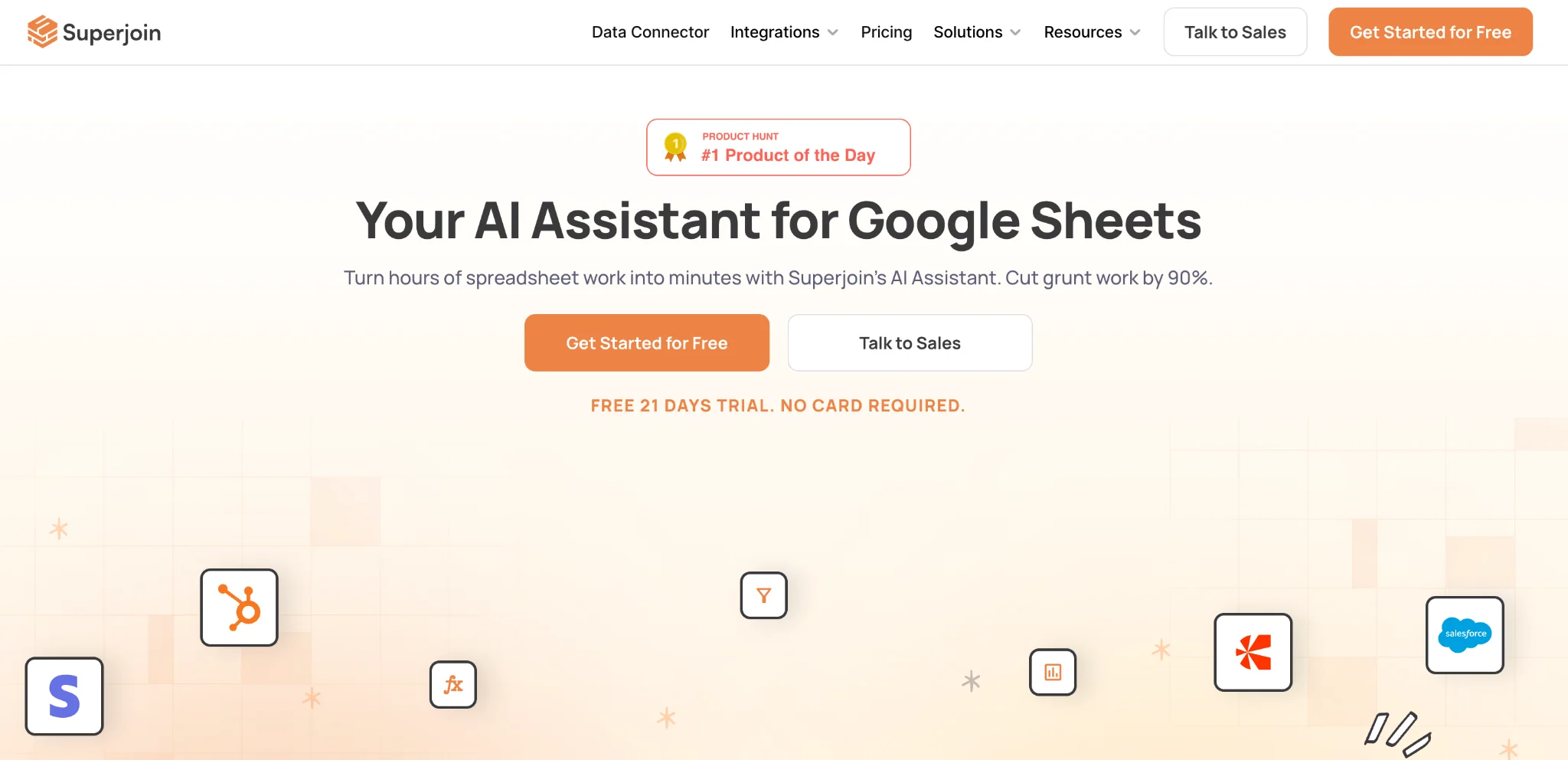
Superjoin is two tools in one: an AI assistant you ask in plain English, and a data connector that keeps your sheet synced with apps like HubSpot and Stripe.
You can ask it to clean data, write formulas, or build charts and reports, and set connected sources to refresh on a schedule.
Where Superjoin beats Sheet AI
- Ask instead of writing formulas: you describe the task in a chat and it works in your sheet directly. It also has its own GPT cell functions if you prefer the formula habit.
- Your data arrives by itself: connected sources refresh on a schedule, so reports update without CSV exports.
- Built-in web search: the assistant can search the web to fill in missing data, with allowances that grow by plan.
Where it falls short
- Bulk runs on custom functions:
=SUPERGPT()fills rows through the Sheets formula engine, so it inherits the limits of that engine. The $30 plan caps it at 50,000 calls; unlimited starts at $75/month. - Reporting comes first: it is built around marketing and business reports, so tasks outside that, like content generation down a column, fit better elsewhere.
- Mostly Google Sheets: an Excel agent for finance work exists, but the main product is the Sheets add-on.
Best for: marketing and business reports that pull from other tools.
Pricing: free plan; paid plans from $30 per editor/month, or $24 on annual billing. Every paid plan has a 21-day free trial.
7. Formula Bot
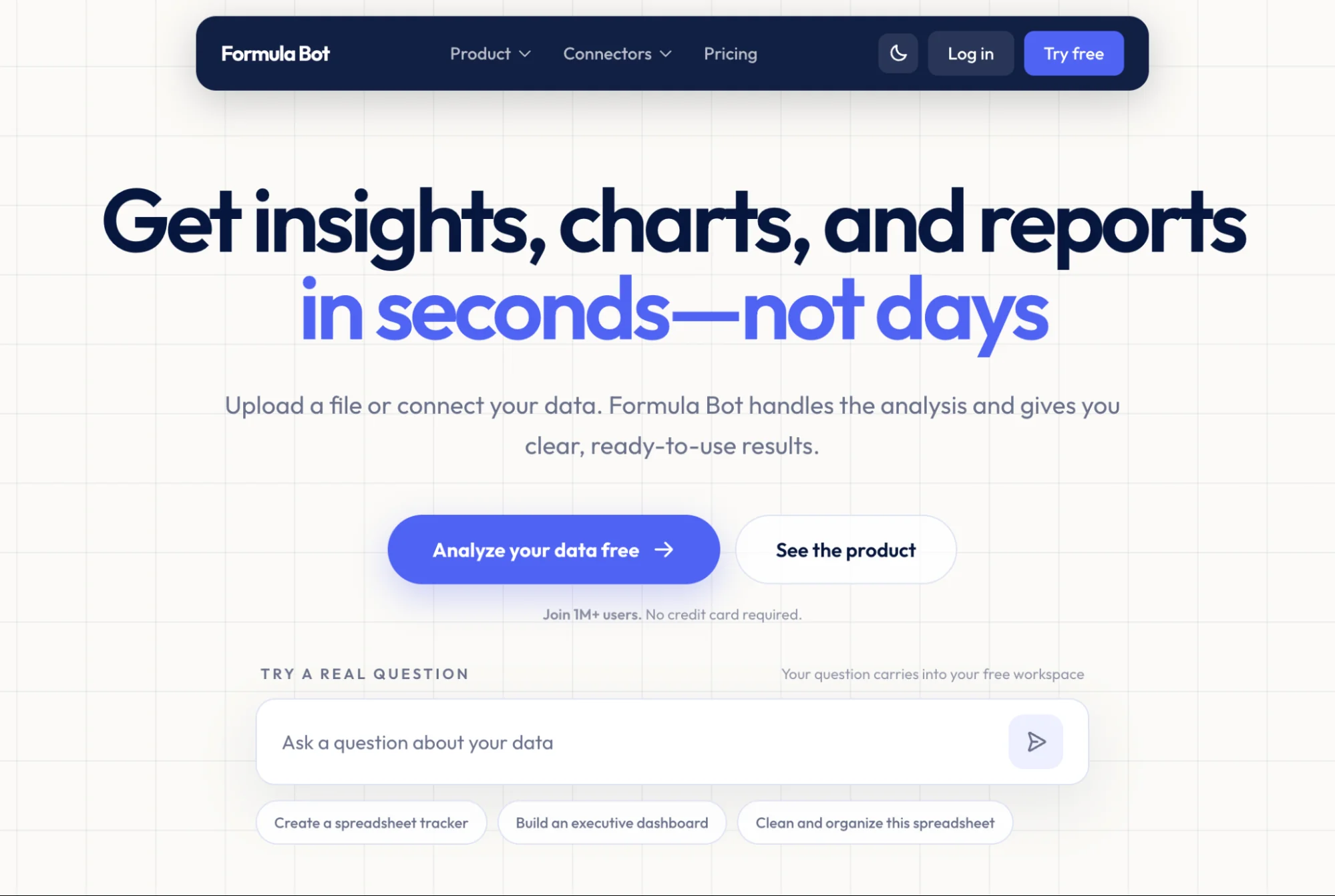
Formula Bot works the other way around. Instead of adding AI to your sheet, you bring your data to the AI.
You upload a file or connect a source, then ask questions in plain English: "how were daily sales last week," "give me the sentiment of these reviews." It answers with charts, tables, and cleaned data you can export back to Excel or Sheets. Paid plans also include Sheets and Excel add-ons for formula help inside your file.
Where Formula Bot beats Sheet AI
- Analysis without formulas: you get charts, summaries, and dashboards from a question. No formula ever gets written by you.
- Shows its work: every answer includes the Python or SQL it ran, so you can check the logic or reuse the code.
- Free plan, no card: you can try it without payment details or an API key.
Where it falls short
- Work happens outside your sheet: the main product is its own workspace. If you want AI living inside Google Sheets, the tools above fit better.
- Message caps: plans limit chat messages per month, and the $18 plan caps at 250.
- Add-ons are formula help: the in-sheet part generates and explains formulas rather than filling a column with AI answers the way
=SHEETAI()does.
Best for: turning a data file into charts and answers without learning formulas.
Pricing: free plan; Starter at $18/month includes the Sheets and Excel add-ons.
8. Shortcut AI
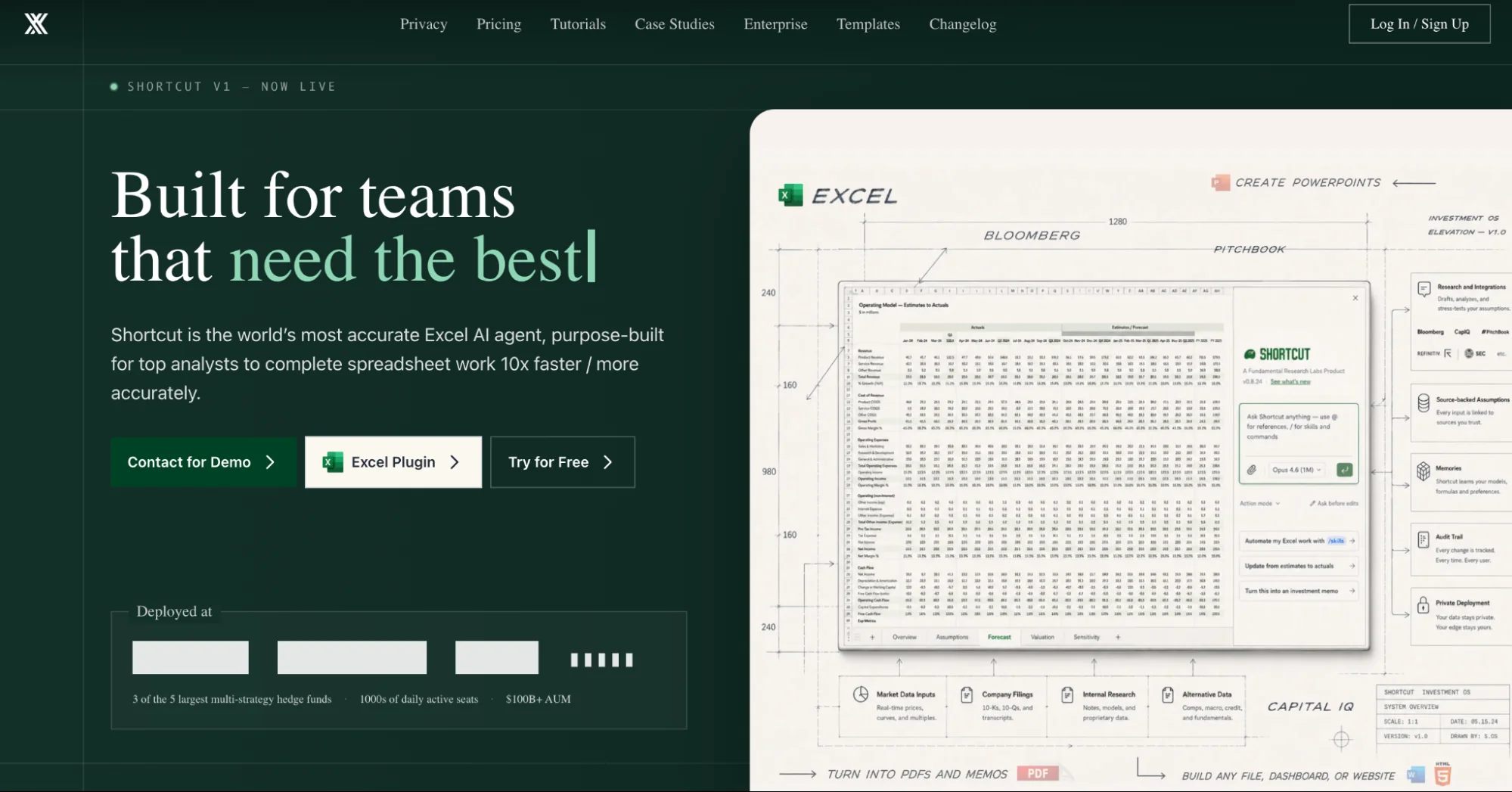
Sheet AI writes text into cells. Shortcut builds entire financial models.
It is an AI agent for spreadsheet work with a heavy finance focus: DCFs, three-statement models, forecasts with scenario analysis. You describe the model, attach a PDF like a 10-K if you have one, and the agent builds it with working formulas, not pasted values. It runs on the web and as an Excel plugin.
Where Shortcut beats Sheet AI
- Builds complete models: ask once and it creates a full model across several tabs, with real formulas that update when your numbers change. Sheet AI cannot do work at this size.
- You approve the plan first: Plan mode lays out the approach before the agent touches your workbook, and Ask mode answers questions without editing anything.
- Every change is auditable: a review view shows each edited cell, marks what is hard-coded, and lets you restore any step.
Where it falls short
- Built for Excel first: the free plan lists a Google Sheets plugin, but everything on the site, from the demos to the templates, is Excel. Sheets users get the least of it.
- Priced for finance teams: Pro costs $125/month, the most expensive tool on this list.
- Tuned for modeling: the strength is financial models. Everyday spreadsheet chores are not what it is built around.
Best for: analysts and finance-heavy work, when that work lives in Excel.
Pricing: free plan with 20 weekly credits; Pro at $125/month, or $100/month billed annually.
How to Choose the Right Sheet AI Alternative
Ask yourself three questions:
1. How much data do you work with? For a few rows at a time, almost any tool here works, and Gemini may already be included in your Workspace plan. Volume is where the field separates, and the dividing line is the machinery rather than the row count. Numerous and Superjoin do run prompts across many rows, but they do it through Google Sheets custom functions, so that work inherits the auto-refresh, timeouts, and slowdowns described above. GPT for Sheets runs bulk jobs from the sidebar instead, writing plain values with no formula involved, at up to 1,000 answers a minute and 200,000 rows in a run.
2. Where is your data right now? If it is already in your sheet, any tool on this list can work with it. If it sits in Salesforce, Stripe, or another business app, Coefficient and Superjoin can bring it in on a schedule.
3. What do you already pay for? ChatGPT users get the official add-on for free. Google Workspace users may already have Gemini. Try those first before spending money.
Last thing. If your sheets hold client or company data, check the tool's site for a security certification, like ISO 27001 or SOC 2, and a clear promise that your data will not train AI models. Most of this list clears that bar: Google, OpenAI, GPT for Work, Coefficient, Superjoin, and Shortcut all publish one. Numerous and Formula Bot do not, so ask them directly before you upload anything sensitive.
Conclusion
Don't pick a tool from this list by reading. Pick it by testing.
Take the last task you gave Sheet AI, whether that was tagging reviews, cleaning names, or filling a column. Run the same task in the tool you shortlisted, on a copy of the same sheet, and check three things. Did it finish the whole job, or stop partway? Is the output correct without manual cleanup? And how much of the free allowance did one run use?
Watch the credit check closely. If one run eats most of the free plan, the tool will get expensive fast, and runaway credit costs are one of the reasons people leave Sheet AI in the first place.
If you want to start with the widest coverage, install GPT for Work and run that test on the task you repeat most. The starting credits are enough to see how it handles your real data before you spend anything.
FAQs
What is Sheet AI?
Sheet AI is a Google Sheets add-on that runs AI through custom formulas. =SHEETAI() answers a prompt in a cell, =SHEETAI_RANGE() reads a whole range, =SHEETAI_FILL() fills gaps in a dataset, and =SHEETAI_IMAGE() generates images. You write one formula, drag it down, and each row gets an answer. It can also generate video and music through Replicate.
Is Sheet AI free?
Yes, with a condition. It is free to install and free to use, but only if you connect your own API key from OpenAI, Claude, Gemini, or Grok. You still pay that provider for the AI usage. Without a key, you need a hosted plan.
How much does Sheet AI cost?
Sheet AI is free with your own API key. Hosted plans cost $12/month for Starter, with about 500 AI runs, or $29/month for Pro with higher limits. One-time credit packs for bulk jobs start at $29.
What is the best Sheet AI alternative?
It depends on the job. GPT for Work is the strongest all-round pick because it works as a full agent in both Google Sheets and Excel and handles bulk work across thousands of rows. Gemini is the easiest start if your Workspace plan includes it, and Numerous AI is the closest match to Sheet AI's formula workflow.
Does Sheet AI work in Excel?
No. Sheet AI is a Google Sheets add-on only. If you work in both platforms, GPT for Work, ChatGPT, Numerous AI, Coefficient, Formula Bot, and Superjoin all reach Excel too, and Shortcut AI is built for Excel first.