
August 2026 takes the GPT for Sheets Agent beyond the sidebar: With Autosheet MCP, you can now connect a compatible AI application, such as Claude or ChatGPT, to Autosheet, the spreadsheet agent that powers GPT for Sheets, and run an agent in your spreadsheets from there. GPT for Excel and GPT for Word now speak 12 languages, the Agent model switcher got a cleanup, and the latest OpenAI and Anthropic models landed in the bulk tools. The Agent in GPT for Excel also got smarter about hidden columns, tricky sheet names, and interrupted runs, on top of numerous minor improvements and fixes.
Explore the key improvements and announcements below, and check out the release notes for the full details.
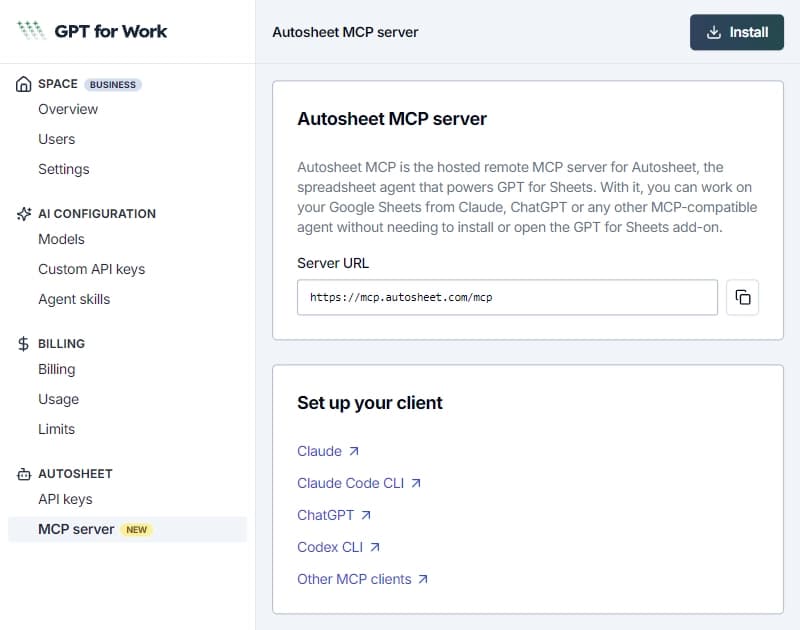
🔗 Run a spreadsheet agent from your AI app with Autosheet MCP 
You can now connect a compatible MCP client to Autosheet, the spreadsheet agent behind GPT for Sheets, and use the client to run an agent directly in your existing spreadsheets. Ask your assistant to clean up a sheet, enrich a list, or build a report, and Autosheet does the work in Google Sheets — no need to open the sidebar or even Google Sheets. To get started, sign in to the GPT for Work dashboard and, in the sidebar, select Autosheet > MCP server, or go straight to our MCP guide.
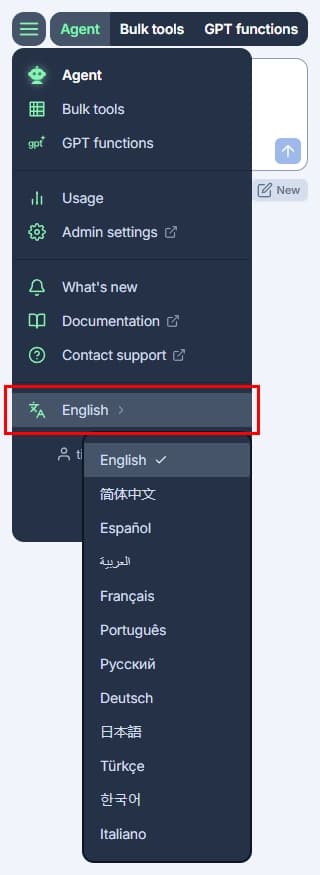
🌍 GPT for Excel and Word in 12 languages 

The GPT for Excel and GPT for Word interface is now available in 12 languages: Arabic, Chinese (Simplified), English, French, German, Italian, Japanese, Korean, Portuguese, Russian, Spanish, and Turkish. If your browser or Microsoft Office application is set to one of these languages, the add-in uses it automatically — and you can always pick a different one from the add-in menu.
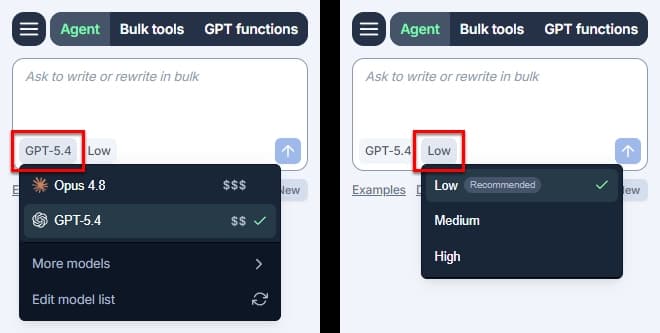
🎚️ A cleaner Agent model switcher
With more models available than ever, the Agent model switcher was getting crowded. It now lists only the selected model and our recommended models, and tucks everything else under More models. Manage models has been renamed Edit model list, and the reasoning effort has moved out of the model switcher into a switcher of its own, right next to it — so you can dial the effort up or down separately.
🤖 New models in the bulk tools
August brings more OpenAI and Anthropic models to the bulk tools.
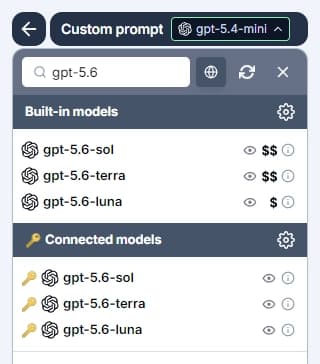
OpenAI GPT-5.6 Sol, Terra, and Luna
OpenAI GPT-5.6 is now available as a built-in and connected bulk model, in three flavors: GPT-5.6 Sol is OpenAI's frontier model for complex professional work that requires advanced reasoning and tool use. GPT-5.6 Terra balances capability and cost for everyday work, at a lower cost than Sol. GPT-5.6 Luna is the fastest and most affordable model in the family, optimized for cost-sensitive workloads.
Anthropic Claude Opus 5, Opus 4.8, and Fable 5
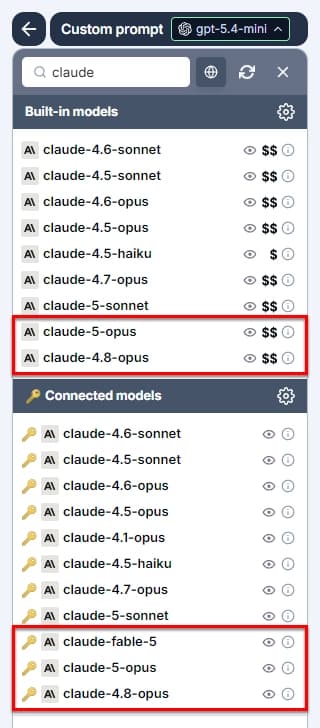
Anthropic Claude Opus 5 and Opus 4.8 are now available as built-in and connected bulk models. Opus 5 is Anthropic's state-of-the-art model for daily knowledge work, while Opus 4.8 builds on Opus 4.7 with improvements across benchmarks and is a more effective collaborator. Anthropic Claude Fable 5, Anthropic's most intelligent model to date, is available as a connected bulk model — bring your own Anthropic API key to use it.
🛠️ A sturdier Agent in Excel
Hidden columns and rows behave the way you'd expect
When the Agent processes rows in bulk, hidden columns now behave like visible ones: The Agent reads values from a hidden input or condition column and writes results to a hidden output column. Hidden, filtered-out, or collapsed rows are skipped, both on the active sheet and on any other sheet the run references — so you can hide helper columns without affecting their use in a run, and filter out rows you don't want processed.
Tricky sheet names, resolved
Sheet names that contain non-Latin characters, percent signs, commas, apostrophes, parentheses, or exclamation marks used to trip up Agent and bulk tool runs, which could fail, produce no output, or write to the wrong sheet. The Agent now resolves quoted sheet names reliably, and range variables that reference such a sheet, such as {{'SEO (h1, metas)'!A1}}, resolve correctly too. And if the Agent still gets a sheet name wrong, one bad cell no longer fails an entire multi-cell write: The Agent writes the remaining cells and reports only the one that failed. GPT for Sheets got a matching fix, so names with apostrophes, commas, exclamation marks, colons, spaces, or brackets now resolve consistently there as well.
Smarter restarts and more responsive workbooks
The Agent can now better decide whether and where to restart a failed or interrupted bulk tool run, and it explains the results of a run in more detail. The add-in also does much less background work while you edit your workbook, so large workbooks stay more responsive — with no change in how the add-in behaves.
⚡ Other improvements and fixes
- Before your Agent prompt reaches the AI, the add-on runs a few checks, such as reading your sheet's name, size, and selection. These checks are now retried when they hit a temporary error, such as a Google Apps Script timeout, instead of failing the send.
- The error message shown when the add-in can't load Microsoft's
Office.jslibrary now explains that a firewall, proxy, or VPN may be blockingappsforoffice.microsoft.com, and what to check next. - Fixed an issue where the Agent could silently read from the wrong sheet: When it read several individual cells from a sheet other than the active one, only the first cell came from the sheet you asked for, and the rest came from the active sheet.
- Fixed an issue where the Agent could freeze after reading a large amount of data from your workbook.
- Fixed an issue where the add-ons kept trying to use an Agent model that was no longer available, for example because a space administrator had disabled it. The add-ons now clear the selection and show an empty model switcher until you pick an available model, and retrying or editing an Agent message with an unavailable model now asks you to select a model instead of failing with a server error.
- Fixed an issue in the Agent conversation history where a range from an earlier run was shown without its sheet name, so selecting the range could take you to the wrong sheet. The sheet name now appears alongside the range.
- Fixed an issue where a GPT function that uses a model from a custom API endpoint or an Azure OpenAI endpoint could briefly fail with a decryption error right after you reopened Excel or reloaded the add-in.
- Fixed an issue in the model switcher for bulk tools and GPT functions where refreshing the model list several times could prevent a newly selected model from appearing in Model settings or leave the switcher open.
- Fixed an issue where signing out could leave the add-in showing a Can't connect to GPT for Work error for the rest of the session, even after you signed back in.
- Fixed an issue where a temporary failure while the add-in automatically updated its settings could show a full-screen error even though the add-in was otherwise working.
- Fixed an issue on the Usage page in the add-on sidebar where extra-usage amounts were always shown in US dollars, even when the space's subscription was billed in EUR.
- Fixed an issue where Autosheet MCP counted all unauthenticated requests worldwide against a single rate limit, so the server could intermittently refuse connections or return no tools. Rate limits now apply independently to each client IP.
- Fixed an issue where models that only the GPT for Sheets Agent supports appeared in the model switcher in GPT for Docs.

📖 To go further
Check out our resources to get the most out of GPT for Work:
- 📚 Step-by-step guides for Sheets, Excel, Word, and Docs
- 📖 Complete documentation — Find everything you need to know about GPT for Work!
- 📝 Our blog articles for e-commerce, SEO, and market research
- 📺 Our YouTube channel with video tutorials
- 📄 Release notes — Or read them directly in the add-ons!
- 🔧 Contact support — Need help? Reach out to our friendly team.