Use images in bulk AI tool prompts in Sheets
Use images in your prompts with GPT for Sheets and vision models. These models are multimodal and can process both text and images as input.
Don't have image URLs yet? Learn how to host images on Google Drive for AI processing.
Supported image formats: PNG, JPEG, WebP, non-animated GIF
Models that support vision
We recommend using gpt-5.2 to analyze images, but you can use any vision model supported by GPT for Sheets.
Click here for a list of all vision models supported by GPT for Sheets.
| Provider | Model | Without API key | With API key |
|---|---|---|---|
OpenAI | gpt-4.1 | ✅ | ✅ |
gpt-4.1-mini | ✅ | ✅ | |
gpt-4.1-nano | ✅ | ✅ | |
gpt-4o | ✅ | ✅ | |
gpt-5 | ✅ | ✅ | |
gpt-5-chat | ✅ | ✅ | |
gpt-5-mini | ✅ | ✅ | |
gpt-5-nano | ✅ | ✅ | |
gpt-5.1 | ✅ | ✅ | |
gpt-5.2 | ✅ | ✅ | |
o1 | ✅ | ✅ | |
o3 | ✅ | ✅ | |
o4-mini | ✅ | ✅ | |
Anthropic | claude-4-sonnet | ✅ | ✅ |
claude-4.5-haiku | ✅ | ✅ | |
claude-4.5-sonnet | ✅ | ✅ | |
Mistral | mistral-medium | ❌ | ✅ |
xAI | grok-4-1-fast | ❌ | ✅ |
grok-4-1-fast-non-reasoning | ❌ | ✅ |
Prompt images
Want to use both text and images in your prompt? Skip to Prompt images with additional text input.
Use the Prompt images (Vision) bulk AI tool to apply a prompt to images in your spreadsheet.
-
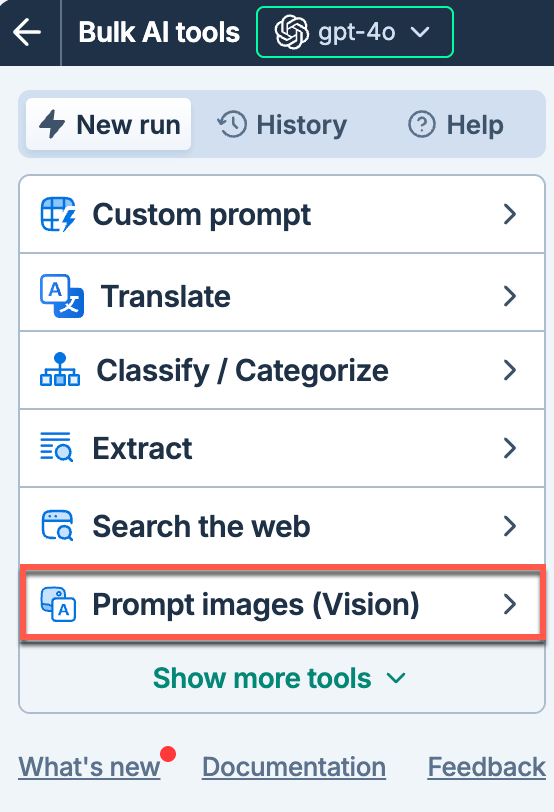
In the sidebar, select Bulk AI tools and click Prompt images (Vision).
-
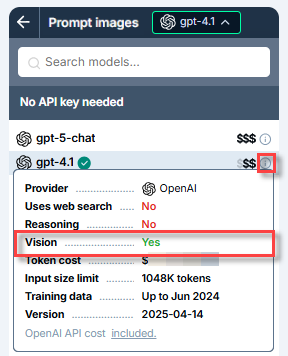
Expand the model switcher and select a vision model.
-
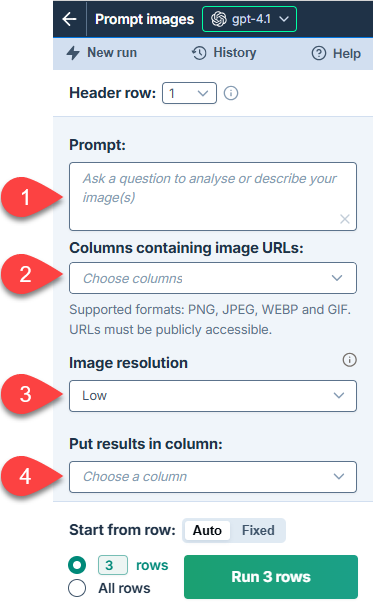
Set up your bulk tool run.
Field Description Example 
Prompt
Enter the prompt you want to apply to each image.
Write a short description of this product based on how it looks, how it's used, and its build quality.
Columns containing image URLs
Select up to five columns that contain image URLs. For each row, the tool processes all images present in the selected columns. URLs must be publicly accessible.
C: Front image, D: In-use image, E: Material detail image
Image resolution
Choose the level of detail for image processing:
-
High: Better image understanding, higher latency and cost
-
Low: Faster processing, lower cost
-
Auto: Let the model decide (default)
Low
Put results in column
Select the column to put the results in. Cells in this column won't be overwritten with the results if they contain text.
F: Description -
-
Click Run rows.
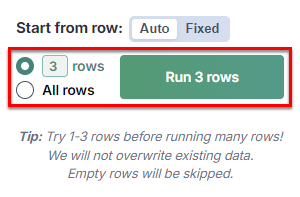
You have set up and run the Prompt images (Vision) bulk tool to apply a prompt to images in your spreadsheet.
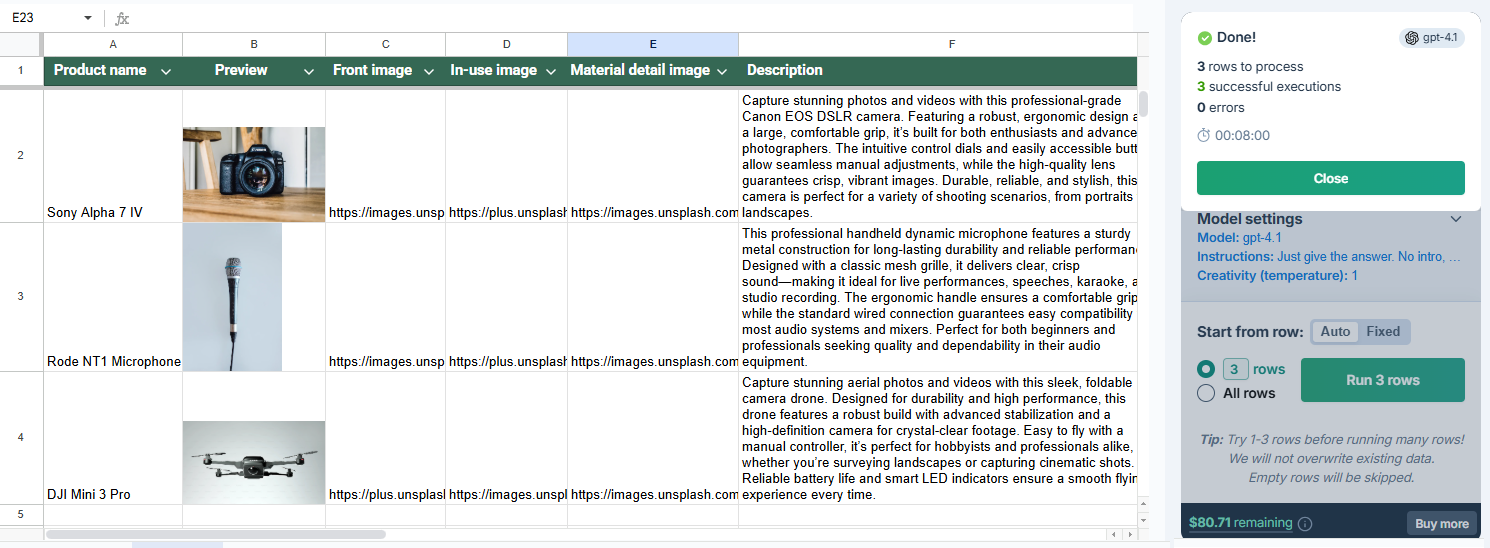
For instructions on how to improve the results, see the tool guide.
Prompt images with additional text input
Use the Custom prompt bulk AI tool to combine a prompt with text and images from your spreadsheet.
In the Custom prompt bulk AI tool, the image resolution is fixed to Low and cannot be changed.
-
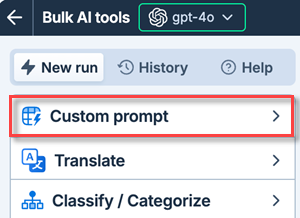
In the sidebar, select Bulk AI tools and click Custom prompt.
-
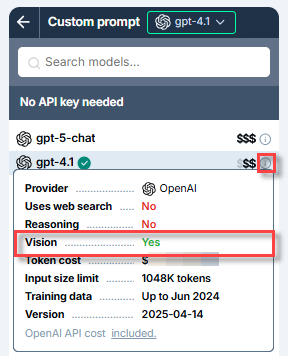
Expand the model switcher and select a vision model.
-
Write your prompt and include any variables to be replaced with values from your spreadsheet.
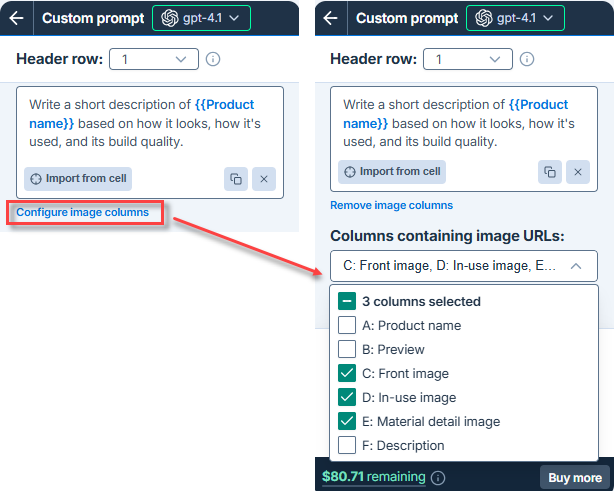
Write a short description of {{Product name}} based on how it looks, how it's used, and its build quality. -
Click Configure image columns to show the Columns containing image URLs dropdown, and select the columns that contain image URLs.
-
Click Run rows.
You have set up and run the Custom prompt bulk tool to include images and text from your spreadsheet.
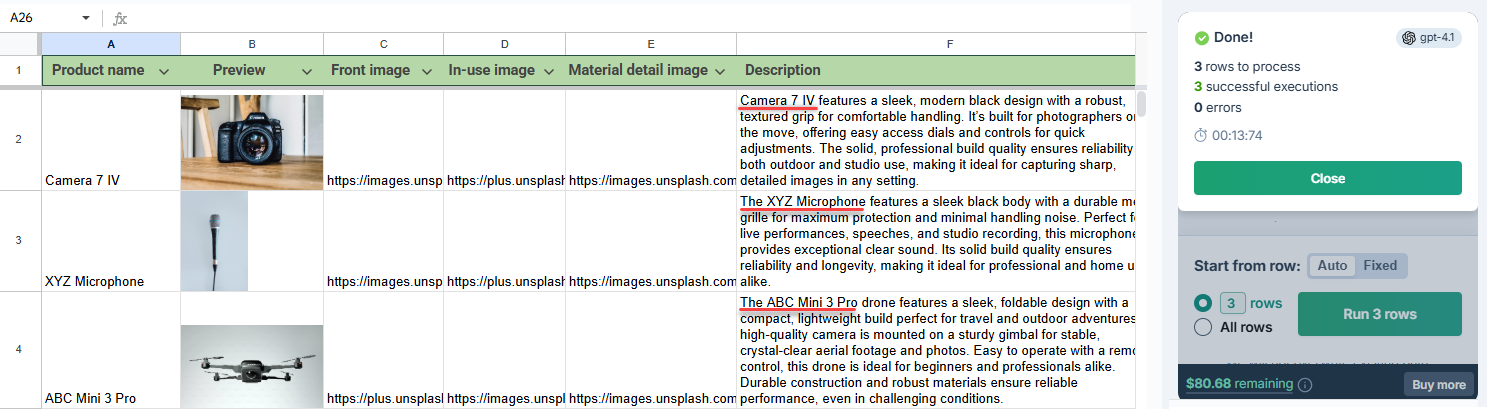
For instructions on how to improve the results, see the tool guide.
Host images on Google Drive for AI processing
To process an image in GPT for Sheets, you need the direct URL of the image and the URL must be publicly accessible.
To host an image on Google Drive so that GPT for Sheets can access and process it:
-
Upload the image to Google Drive.
-
Share the image publicly using the Anyone with the link option. For more information, see Google Drive Help.
tipTo prevent other users from commenting or editing the image, set the access role to Viewer.
-
Copy the link.
-
Get the image file ID from the link URL, and build the following new URL with the ID:
https://drive.google.com/uc?id=<image-file-id>For example:
You now have a direct image URL that you can access and process in GPT for Sheets.