Say you have 4,000 rows of customer feedback in a Google Sheet and they all need to be tagged by topic. By hand that is a full day. With the right Sheets AI tool it is one prompt. The wrong AI tool will just do a few rows.
AI for Google Sheets is a crowded category. Google built its own AI function into Sheets, and the Marketplace is full of tools that all look the same.
The catch is that they may look similar in the Marketplace, but they work in fundamentally different ways. Some write into your cells, some only answer questions about them, and a few keep the sheet synced to the system where your data lives.
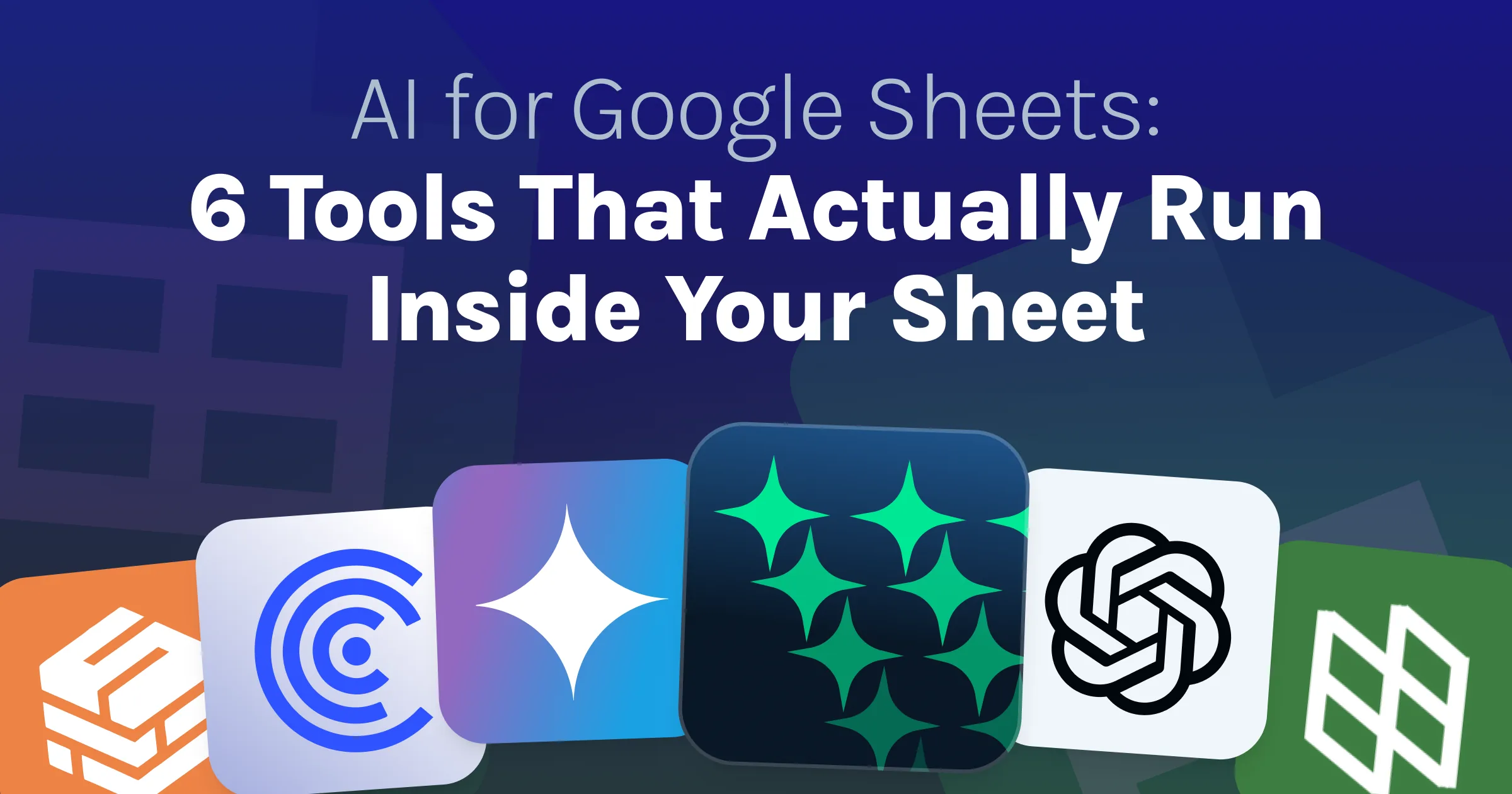
Here are six AI tools for Google Sheets worth considering, what each one does, where it falls short, and what it costs.
Quick Overview of Top AI Tools for Google Sheets
Short on time? Here is the full comparison before the details.
Tool | Best for | Bulk processing | Bring your own key | API available | Rating / installs |
|---|---|---|---|---|---|
GPT for Work | General spreadsheet work, high-volume bulk processing. | High-volume | Optional | Yes | 4.84 / 7M+ installs |
Gemini | Light tasks without installing an add-on | Limited | No | No | N/A |
ChatGPT | ChatGPT subscribers who want the assistant they already pay for inside their sheets | No | No | No | 4.52 / 382K+ installs |
Numerous AI | Formula-driven text generation across modest batches | Limited | No | No | 4.09 / 506K+ installs |
Coefficient | Live business-data sync, reporting, and dashboards | Limited | No | No | 4.78 / 640K+ installs |
Superjoin | AI-assisted sheet work plus scheduled app connectors | Limited | No | No | 4.79 / 95K+ installs |
Install counts and ratings are the public figures shown in Google Workspace Marketplace; Google rounds install counts, and built-in Gemini has no listing.
Why You Need AI for Google Sheets
Google Sheets has over 500 functions. Most people use ten. The rest sit there while you do the work by hand.
AI for Google Sheets closes that gap in two directions:
-
You describe the job instead of building it: Ask for a formula, a pivot table or a chart in plain words and get it back working. No hunting through documentation for the right syntax.
-
It handles work no formula can do: Reading open text and understanding what it means. Judging tone. Standardizing input that people typed inconsistently. Filling in facts that were never in your file.
The speed is the real change. A prompt runs down the whole column at once, so a job you would have worked through row by row for two days finishes while you make coffee.
6 Best AI Tools for Google Sheets
Each entry covers how the tool works, what it costs, where it falls short and who it suits.
1. GPT for Work
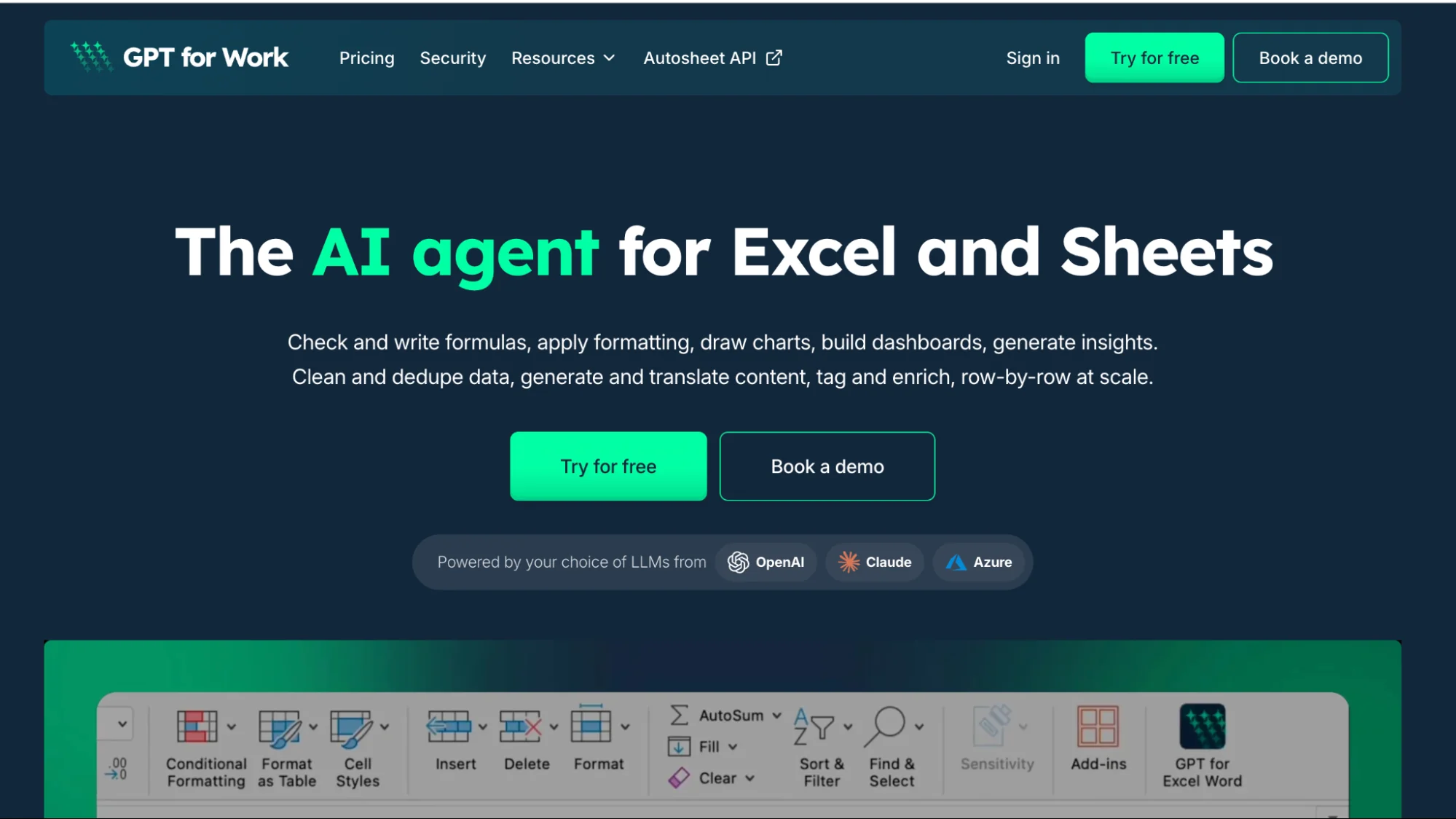
GPT for Work is the AI agent for spreadsheets. In Google Sheets it installs from the Google Workspace Marketplace as GPT for Sheets, where it has a 4.8-star rating from more than 4,000 reviews and over 7 million installations.
It opens as a chat panel beside your data. You type what you need in plain language, and the agent reads your sheet, does the work, and writes the results back into your cells.
Say you have a list of companies with only a name and a website, and you want to know who to pitch and how:
“Add columns for industry, employee count, and a one-line pitch angle. Fill them for every row.”
All three columns fill down the whole list, and your original data stays where it was.
Key features
-
High-volume processing: apply one prompt to every row in parallel—up to 1,000 answers a minute and hundreds of thousands of rows in a run.
-
Model choice and connection: use managed models, bring your own API key or connect a custom endpoint, with support for leading providers and compatible local models
-
Everyday sheet work: formulas, error fixing, formatting, AI data cleaning, dedupe, pivot tables, charts, translation
-
Cell functions:
=GPT()runs prompts from a cell and can be filled across thousands of cells -
Autosheet MCP: run the same spreadsheet agent from code, automations or an MCP-compatible AI agent; it uses GPT for Work credits
-
Security: ISO 27001, GDPR and SSO, with zero-data-retention options for supported setups
Disadvantages
-
Live business-app data needs a separate connector or import step
-
Not a dashboard tool: It works in your sheet, so BI reporting still needs Power BI or Looker Studio
Best for: General spreadsheet work, high-volume bulk processing.
Pricing: Free to install with starting credits. Subscription plans start at $25/month with included usage; extra-usage credits can be pooled across a team and remain valid for 12 months after the latest purchase. Using your own key or custom endpoint still carries a platform fee.
2. Gemini in Google Sheets
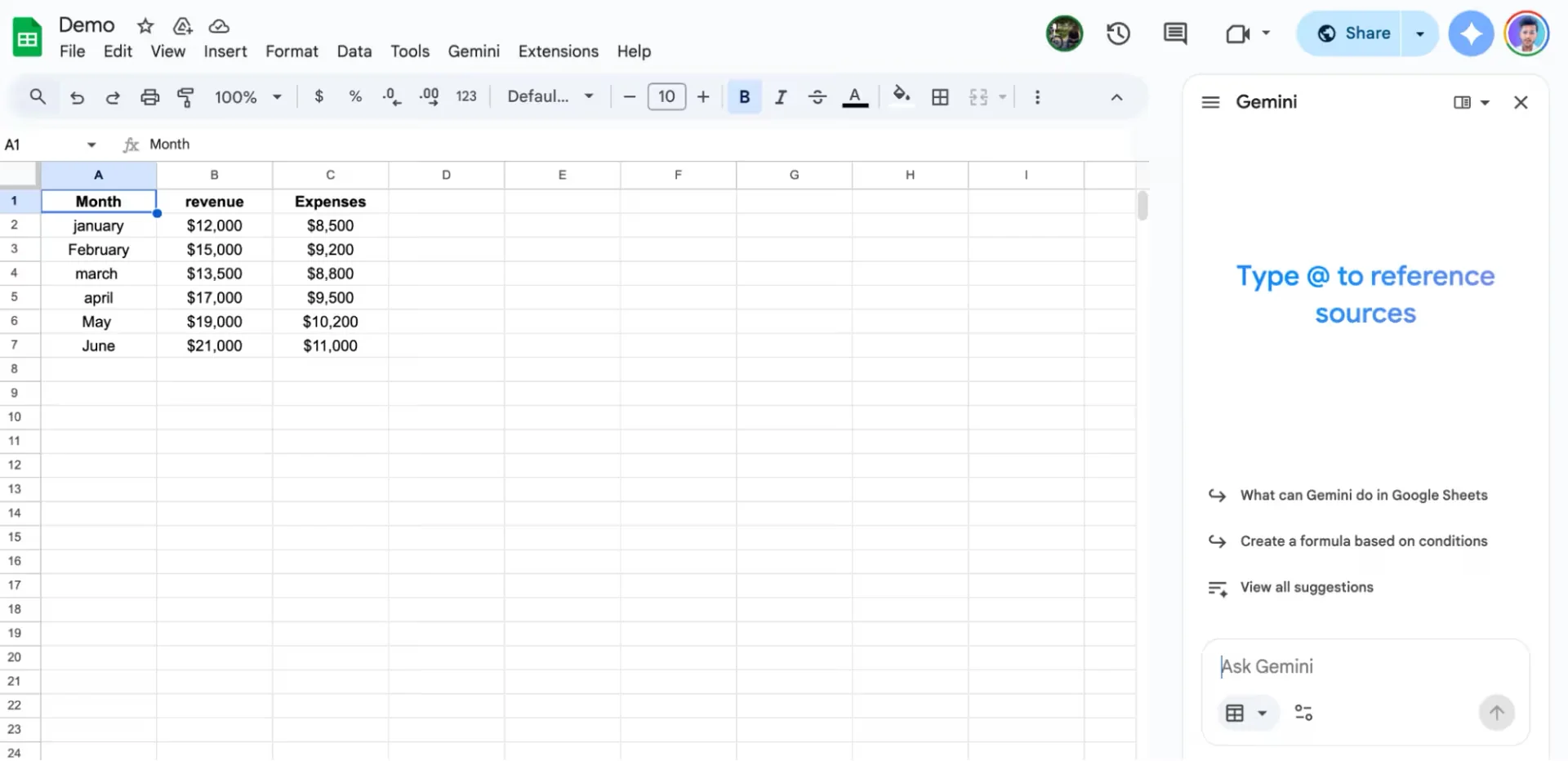
Before you install anything, check what you already have. Gemini is Google’s AI assistant, and it reaches Sheets two ways.
The side panel answers questions about your data and can make changes in the sheet. It can build tables, formulas, charts and pivot tables; format ranges; add dropdowns and filters; and carry out multi-step cleanup or analysis from a prompt.
The second is the AI formula in Google Sheets. Write =AI("your instruction", A2) in a cell and it runs that instruction against the range you point it at.
Key features
-
No install: already in Sheets if your plan includes it
-
Side panel: questions, formulas, tables, charts, pivot tables, formatting, dropdowns, filters and multi-step actions
-
Cell prompts:
=AI()generates, summarizes, categorizes and analyzes sentiment from a selected range -
Multi-cell generation:
=AI()can fill a selected range from one instruction. -
Generate and insert: you produce the result, then place it, rather than leaving a formula that recalculates on its own
Disadvantages
-
Slow in our tests: even simple requests often took more than 30 seconds, and some took over a minute
-
Capped AI-function runs: only the first 350 selected cells containing
=AI()are processed in one batch -
No automatic refresh:
=AI()results are generated and inserted, so changes to source data require another run -
No model choice: it doesn’t tell you which Gemini model is running, nor lets you change to another LLM or provider.
Best for: Light tasks without installing an add-on.
Pricing: Included on eligible Google Workspace and Google AI plans.
3. Numerous AI
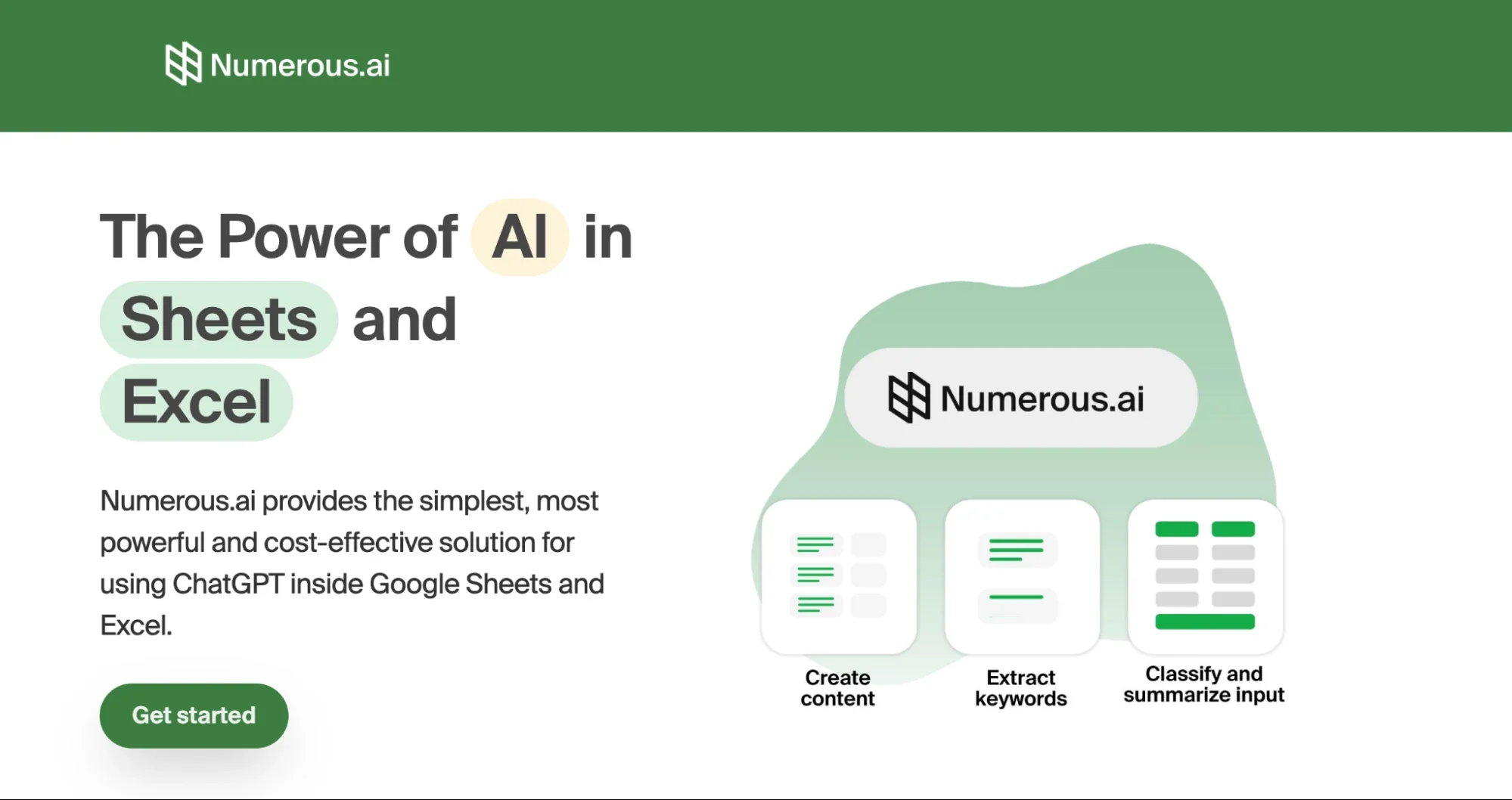
Numerous AI is a spreadsheet add-on for Google Sheets and Excel built for running text work across a column. Categorize, extract, clean, summarize or generate content across many rows instead of processing cells one at a time.
You work through AI functions written into cells. Numerous describes its core function as =NAI(), which you can use anywhere in the sheet without setting up an API key first.
Marketers are the core audience. The site leads with AdWords keywords, ad copy, Facebook campaign structures and SEO content, all from a single prompt.
Key features
-
Cell-based prompts: write the function once, apply it across the column
-
Caching: duplicate queries are avoided, which keeps costs down on repetitive columns
-
Both platforms: Google Sheets and Excel
Disadvantages
-
No model choice: the interface does not expose a model selector
-
Not a general spreadsheet agent: its AI functions are built mainly for formula-driven generation and transformations, not open-ended multi-step work across charts, pivots and sheet structure
-
No practical conversational workspace: the product is driven by functions and templates, so it is less approachable for users who want to work through a task in chat
Best for: Formula-driven text generation across modest batches.
Pricing: From $10 a month billed annually, with a seven-day trial for $1. Plans are sized by characters of input and output and include a set number of formula generations. Unused tokens remain available if you cancel.
4. Coefficient
Every tool so far works on data already sitting in your sheet. Coefficient is the one that brings the data in.
It connects Google Sheets to over 100 business systems across CRM, finance, marketing, project management and data warehouses. Refreshes run on a schedule, and select integrations write back to the source instead of only reading from it.
The AI layer sits on top. The AI Sheets Assistant builds charts, pivot tables and formulas, analyzes the sheet, and can run row-level transformations. Coefficient also provides GPTX cell functions for prompts, filling, mapping and list-style outputs.
Key features
-
100+ data sources: CRM, accounting, ERP, marketing tools and warehouses
-
Two-way sync: selected integrations push changes back to the source system
-
Chat-based AI Sheets Assistant and GPTX functions: ask for charts, pivot tables, formulas, analysis and row-level transformations, or run prompts from cells
-
Dashboards: drag-and-drop builder, 15+ chart types, scheduled refresh
-
Alerts: get told in Slack or email when a number moves
-
Reporting focus: scheduled imports, dashboards and alerts
Disadvantages
-
No dedicated high-throughput queue: the Assistant and GPTX functions can process rows, but Coefficient is not a specialized bulk engine for thousands of independent outputs
-
Starter covers one user only: A team of two jumps straight to $99 per person
Best for: Live business-data sync, reporting, and dashboards.
Pricing: Free plan. Starter $49 a month covers one user only, so a team of two moves to Pro at $99 per user. Enterprise on request. 30-day Pro trial
5. ChatGPT for Google Sheets
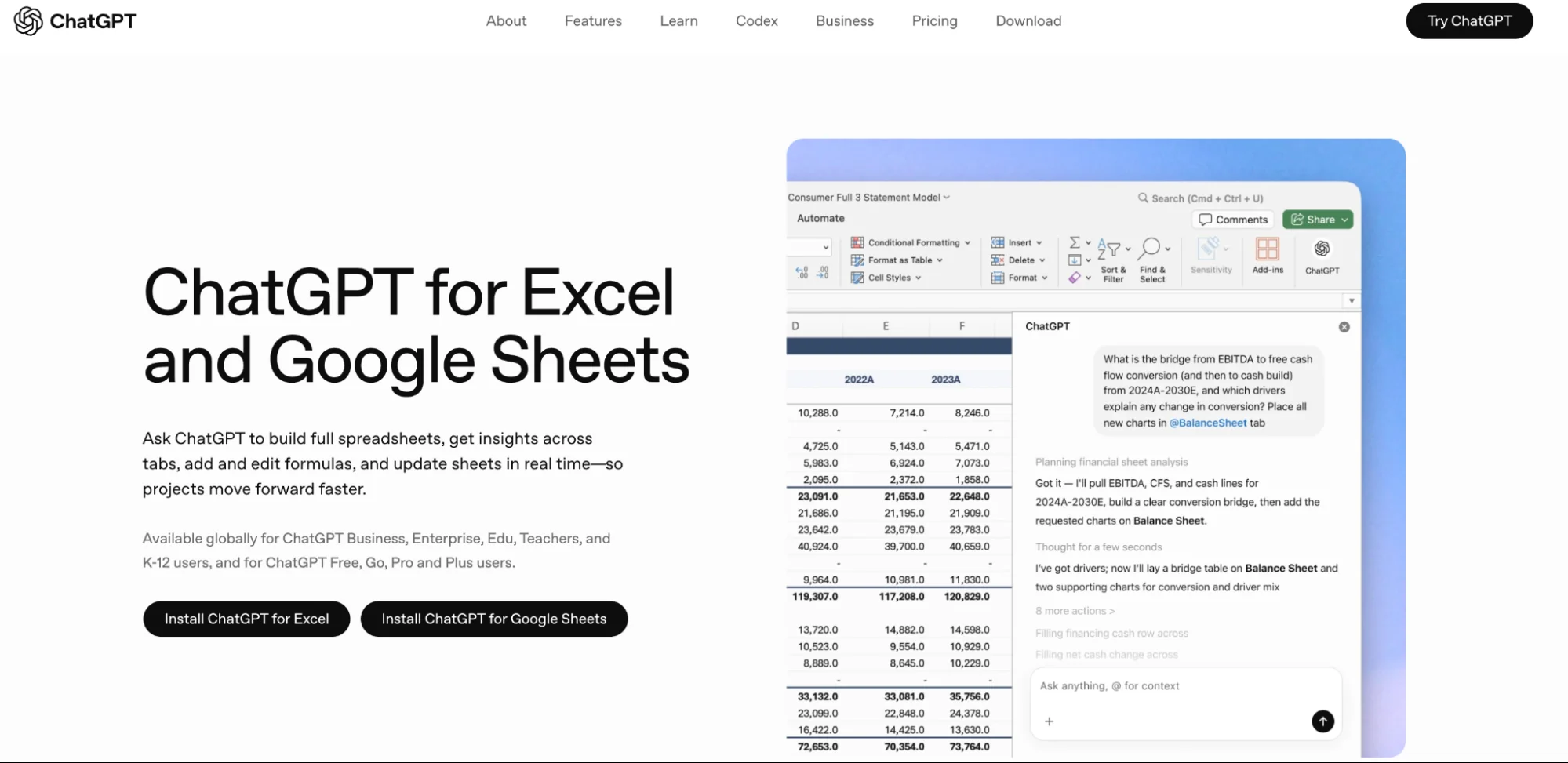
ChatGPT for Google Sheets is OpenAI’s own add-on. You install it, and ChatGPT works inside your spreadsheet with the same account you already use.
The official add-on runs in a spreadsheet sidebar. Ask for what you need in plain language; it reads across tabs, builds or edits formulas and updates the workbook as it works.
Key features
-
Works across tabs: it reads the whole file, not just the sheet you are on
-
Live edits: changes land in the sheet as it works, so you see each step
-
Your ChatGPT account: use the same login; usage follows your plan’s agentic limits or credits
-
Excel too: the same add-on family covers both platforms
Disadvantages
-
No dedicated bulk engine: large column jobs may require manual batching, run slowly, or fail instead of applying one instruction independently across thousands of rows. There is also no custom AI cell function, so every job runs through the sidebar.
-
Separate context and shared limits: spreadsheet chats do not use ChatGPT memory, and heavy sheet work consumes the same agentic limits or credits as your regular use
Best for: ChatGPT subscribers who want the assistant they already pay for inside their sheets
Pricing: Available on Free, Go, Plus, Pro, Business, Enterprise, Edu and K-12 plans. Free and Go include limited usage; other plans apply shared agentic limits or credits.
6. Superjoin
Superjoin’s agent mode accepts typed instructions to clean data, write formulas, analyze Sheets and build dashboards. A separate connector product handles live business data.
Its connector product pulls fresh data from more than 30 tools, including HubSpot, Salesforce and Stripe, and refreshes those imports on a schedule.
Key features
-
AI assistant and functions: cleaning, formulas, analysis and dashboards from typed instructions, plus in-cell functions.
-
Live data: connects your business tools and refreshes on a schedule
-
Workflow automation: schedule connector imports and refreshes, while agent actions and in-cell functions can manipulate ranges
Disadvantages
-
No dedicated high-throughput row queue: AI functions can be filled across ranges, but messages, connector refreshes and imports are priced independently
-
Connector workflows require more setup than a simple formula or sidebar add-on
Best for: AI-assisted sheet work plus scheduled app connectors.
Pricing: Superjoin AI costs $16 a month for 1,000 messages, with five free messages per day. The connector has a free plan; Basic costs $59 monthly or $49 with annual billing, and Pro costs $75 monthly or $60 annually. Enterprise pricing is available on request.
Why Pasting Rows Into ChatGPT or Claude Stops Working
ChatGPT and Claude are useful for reasoning about a small sample, an attached file or a one-off transformation. But a general chat is not a full spreadsheet engine: it has a finite context window, no native formula runtime or per-row job queue, no reliable retry state when individual rows fail and no direct way to write thousands of independent outputs back into the right cells. Furthermore, AI computer use functionality tends to be slow and brittle on a spreadsheet.
The problems start when the workflow becomes recurring. In one r/ChatGPTPro discussion, a small-business owner described building interconnected Google Sheets with ChatGPT and Gemini over two weeks. As the conversation grew, it slowed down and stopped retaining enough context to continue reliably.
Other users in the discussion reported inconsistent Drive-connector behavior. These are individual experiences, not controlled benchmarks, so they should be treated as examples rather than universal product limits.
Autosheet MCP closes that gap. Keep the business, client and project context in Claude, ChatGPT, OpenClaw, Hermes or another MCP-compatible agent, then let that agent call Autosheet with the Sheet ID and a prompt. Autosheet runs the work in Google Sheets and returns the result to the same conversation, so your context stays with the agent while the spreadsheet remains the source of truth.
Conclusion
Start with what you already have. If your Workspace plan includes Gemini, try the chat as well as =AI() on a representative column. You will quickly see the trade-off: Gemini can handle light work, but in our tests the chat was painfully slow and the AI function hit its batch limit quickly.
GPT for Work is listed in the Google Workspace Marketplace as GPT for Sheets. It can handle most everyday Google Sheets tasks very quickly and can also bulk process thousands of rows reliably. It is free to install and includes starting credits, so test it on a representative batch before deciding whether it fits your workflow. You can add the Autosheet MCP to use it via Claude or ChatGPT.
FAQs
Does Google Sheets have built-in AI?
Yes. Gemini sits in the side panel and the =AI() function runs prompts inside cells. Both require an eligible Google Workspace or Google AI plan; availability can also depend on language and administrator settings.
How do I use an AI formula in Google Sheets?
Type =AI("your instruction", A2), select the cells you want filled, then generate and insert the results. Add-ons like GPT for Work use their own functions, such as =GPT().
Is AI in Google Sheets free?
Google’s built-in Gemini features require an eligible paid Workspace or Google AI plan. GPT for Work includes free starting credits, Coefficient offers a free plan, and the official ChatGPT add-on offers limited usage on ChatGPT Free.
What is the best AI for Google Sheets?
It depends on the job. GPT for Work is the strongest all-round option for general spreadsheet work and high-volume row processing. Gemini is the easiest place to start for built-in analysis, Coefficient is better for live business-data sync and reporting, and Superjoin suits scheduled connector workflows.
Can ChatGPT connect to Google Sheets?
Yes. OpenAI’s official ChatGPT add-on works directly inside Google Sheets. ChatGPT can also access spreadsheets from a regular chat through connected apps, although what it can read or change depends on the connection and your plan. For users who want to keep working in an existing ChatGPT conversation, Autosheet MCP connects that conversation to the spreadsheet. ChatGPT keeps the business, client and project context, while Autosheet carries out the actual work in Google Sheets: inspecting and updating ranges, building or repairing formulas, cleaning and restructuring data, applying formatting, analyzing results and processing large datasets.