Connect to OpenAI-compatible API endpoints from Excel
This feature is only available if your space is on the Business or Enterprise plan or pay-as-you-go pricing.
GPT for Excel – Autosheet can connect to any AI service that provides an OpenAI-compatible API endpoint. You can connect to two main types of services: cloud-based platforms, which provide access to models over the internet with no software installation or setup required on your part, and local servers, which you run on a local machine, such as your own computer or another computer on a local network.
You can use the endpoint-connected models both as Agent models and bulk models, but the endpoint requirements are different:
-
Agent models: The endpoint must be compatible with the OpenAI Responses API and be publicly accessible over the internet through HTTPS. In addition, the model must support a context size of at least 32K tokens.
-
Bulk models: The endpoint must be compatible with the OpenAI Chat Completions API.
Here are some popular services that provide an OpenAI-compatible API endpoint:
-
Cloud-based platforms:
-
Local servers:
Depending on the model you use, the model settings defined in Autosheet (temperature (creativity), top-p, frequency penalty, and presence penalty) may not work as expected. If you get bad results, try tweaking the settings.
To use models from an OpenAI-compatible API endpoint:
Set up an API endpoint
- Agent models
- Bulk models
Prerequisites
You have an endpoint URL and, if needed, an API key for accessing the service.
The endpoint supports the following OpenAI-compatible API resource path:
/v1/responsesThe endpoint is publicly accessible over the internet through HTTPS.
The model supports a context size of at least 32K tokens.
-
Sign in to the Autosheet dashboard with your Microsoft or Google account.
-
In the sidebar, select Custom API endpoints.
-
Select the Agent models tab.
-
Click OpenAI-compatible endpoints (Responses API).
tipIf you already have OpenAI-compatible API endpoints set up, click Add an OpenAI-compatible API endpoint.
-
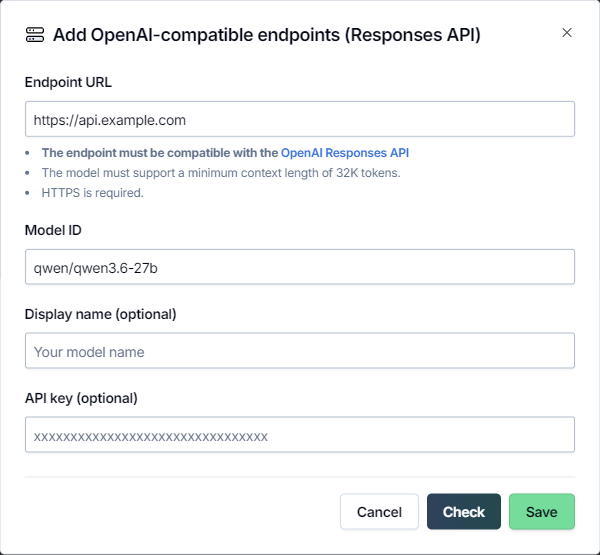
Define the endpoint settings:
-
Endpoint URL: Enter the URL of the service that provides the endpoint.
-
Model ID: Enter the ID of the model to use through the endpoint. The model ID is sent to the endpoint in the request payload.
-
Display name (optional): Enter a short name that identifies the model in the Agent model switcher.
-
API key (optional): If required, enter the API key for accessing the service.
-
-
Click Check to validate the settings and click Save.
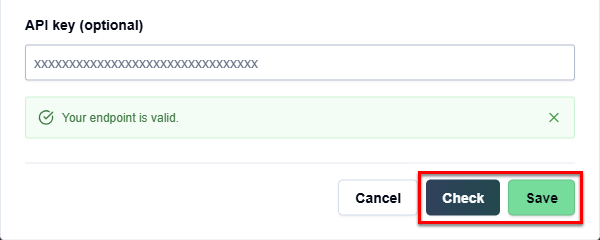
You have set up the OpenAI-compatible API endpoint. The model is now available in the Agent model switcher and on the models page of the Autosheet dashboard.
Prerequisites
You have an endpoint URL and, if needed, an API key for accessing the service.
The endpoint supports the following OpenAI-compatible API resource paths:
/v1/models/v1/chat/completions
-
Sign in to the Autosheet dashboard with your Microsoft or Google account.
-
In the sidebar, select Custom API endpoints.
-
Select the Bulk models tab.
-
Click OpenAI-compatible endpoints (Chat Completions API).
tipIf you already have OpenAI-compatible API endpoints set up, click Add an OpenAI-compatible API endpoint.
-
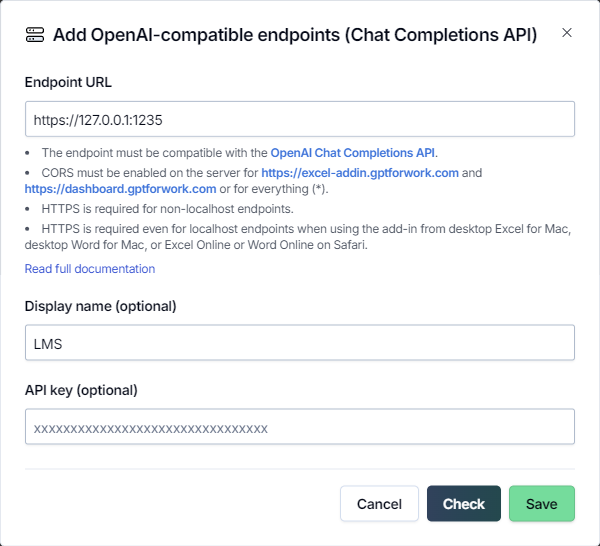
Define the endpoint settings:
-
Endpoint URL: Enter the URL of the service that provides the endpoint.
-
Display name (optional): Enter a short name that is prefixed to the model names in the model switcher. By default, the model names are prefixed with "custom/".
-
API key (optional): If required, enter the API key for accessing the service.
-
-
Click Check to validate the settings and click Save.
You have set up the OpenAI-compatible API endpoint. You can now use all models available through the endpoint in GPT for Excel – Autosheet.
Select a model from the API endpoint
- Agent models
- Bulk models
-
Open a Microsoft Excel workbook.
-
On the ribbon, select Home > GPT for Excel – Autosheet.
 info
infoIf GPT for Excel – Autosheet is not visible on the ribbon, or if it's grayed out, select Home > Add-ins > My Add-ins > GPT for Excel – Autosheet. Learn more.
-
In the sidebar, select Agent.
-
Open the model switcher and select a model. You can find the endpoint-connected models at the end of the list.
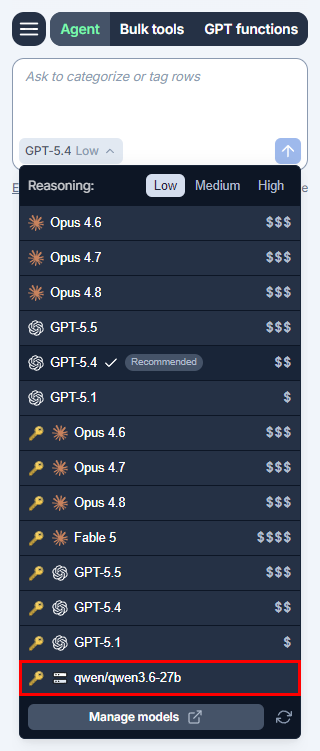
GPT for Excel – Autosheet now uses the selected model as the Agent model.
Some Agent tools, such as web search, are not available when the Agent uses an endpoint-connected model.
-
Open a Microsoft Excel workbook.
-
On the ribbon, select Home > GPT for Excel – Autosheet.
infoIf GPT for Excel – Autosheet is not visible on the ribbon, or if it's grayed out, select Home > Add-ins > My Add-ins > GPT for Excel – Autosheet. Learn more.
-
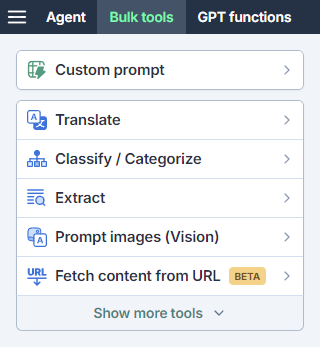
In the sidebar, select Bulk tools and select one of the tools.
-
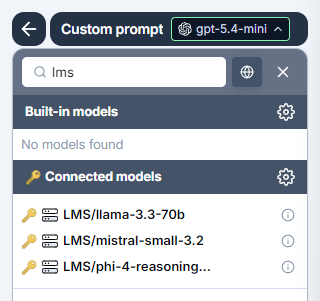
Open the model switcher and select a model. You can find the endpoint-connected models under Connected models, at the end of the list.
 info
infoThe available models depend on the models provided by the service.
Autosheet now uses the selected model to generate responses for bulk tools and GPT functions.