Get started with GPT for Excel
GPT for Excel is an AI agent for spreadsheet work in Microsoft Excel. It integrates directly into your spreadsheet and lets you automate spreadsheet tasks through plain-language instructions.
This guide gives you a quick walkthrough of the add-in from installation to trying out the Agent.
Install the add-in
To use GPT for Excel, install the add-in:
For detailed installation instructions, see Install GPT for Excel.
Open the add-in
-
Create a new blank workbook.
-
On the ribbon, select Home > GPT for Excel Word.
 info
infoIf GPT for Excel Word is not visible on the ribbon, or if it's grayed out, select Home > Add-ins > My Add-ins > GPT for Excel Word. Learn more.
The GPT for Excel sidebar opens.
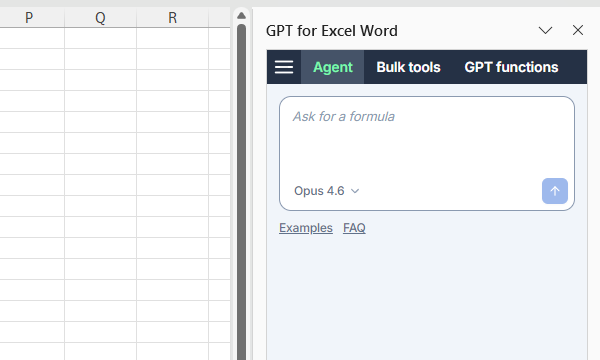
Use the Agent
The Agent is the chat interface for spreadsheet work in GPT for Excel. Describe what you need in plain language — from everyday spreadsheet tasks to row-by-row bulk processing across large datasets — and the Agent reads your data, determines the required steps, and executes them directly in your spreadsheet.
Let's have the Agent do some quick market research for us. We'll use one of the built-in examples for convenience.
-
In the sidebar, select Agent.
-
Click Examples and select Market research.
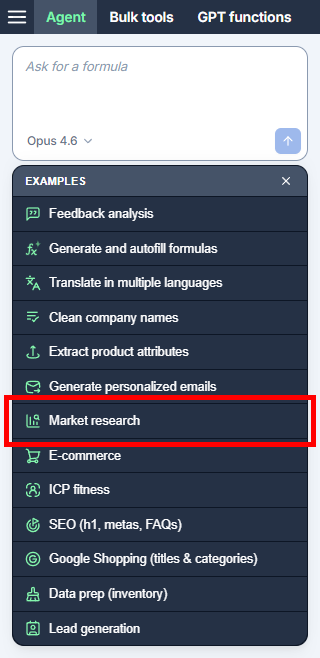
GPT for Excel:
-
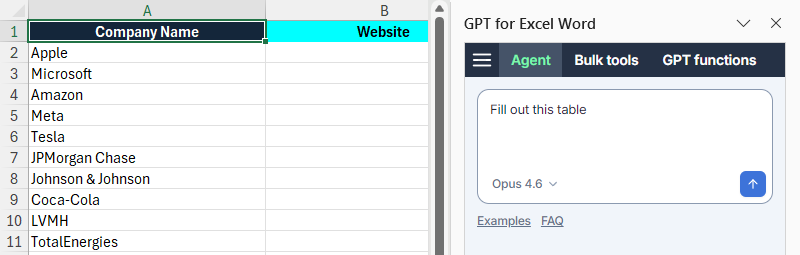
Creates a new sheet prepopulated with example data. The data is a list of company names and a series of empty columns for company information that we want the Agent to fill in.
-
Prefills the Agent chat field with a prompt that will accomplish the example task:
Fill out this table. This simple prompt is enough for the Agent to fetch the missing company information from the web and fill the empty columns.
-
-
Click the send button.
The Agent:
-
Analyzes the prompt and drafts a plan for accomplishing the requested task.
-
Executes the plan. In this example, the Agent fetches the missing company information from the web and fills the empty columns B-E with what it found, one by one. Note that for column F, which does not require web search, the Agent uses gpt-4.1 (no web search).
tipYou can follow the Agent's thinking and workflow live in the sidebar.
-
The following video shows the entire process.
What's next
-
Learn more about GPT for Excel.
-
Learn more about the Agent.
-
Learn about the other features available in GPT for Excel:
-
Try out different AI models.
-
Try out example Agent use cases for different business applications and product capabilities.