Remove account access from GPT for Excel
You can remove the GPT for Excel Word add-in's access to your Microsoft or Google account at any time. These instructions apply to personal accounts only. If you have a school or work account, contact your organization administrator about add-in access.
Removing account access from GPT for Excel removes access from the GPT for Excel Word add-in, which also removes access from GPT for Word.
 Microsoft
 Google
-
In your browser, log in to the Microsoft account you use in GPT for Excel.
-
Open the privacy dashboard for your Microsoft account.
-
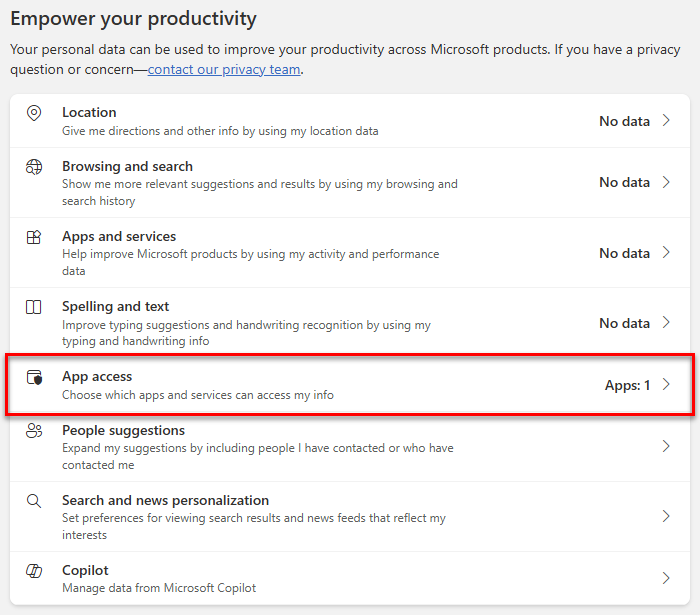
In the Empower your productivity section, select App access.
-
In the Manage your app access section, click Don't Allow for GPT for Excel Word.
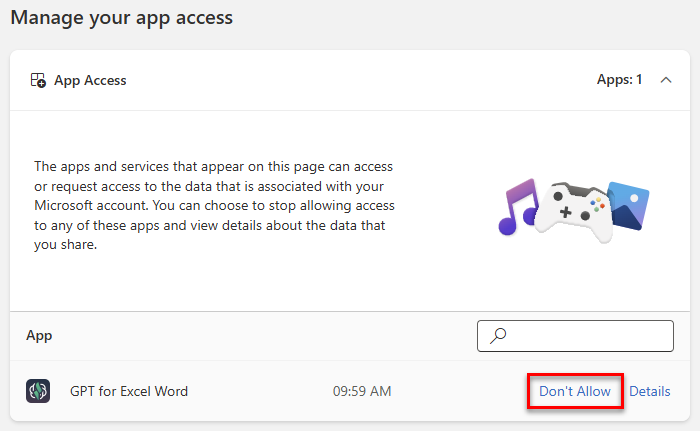
The GPT for Excel Word add-in no longer has access to your Microsoft account.
Removing account access does not uninstall the add-in from Microsoft Excel. The next time you open the add-in, Excel displays a welcome screen in the sidebar, after which you can sign in again and grant access again.
-
In your browser, log in to the Google account you use in GPT for Excel.
-
Open the third-party connections page for your Google account.
-
In the apps and services list, find and select GPT for Excel Word.
-
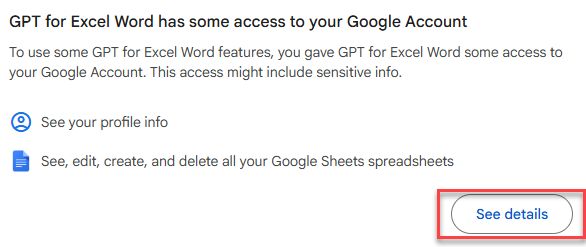
In the GPT for Excel Word has some access to your Google Account section, click See details.
-
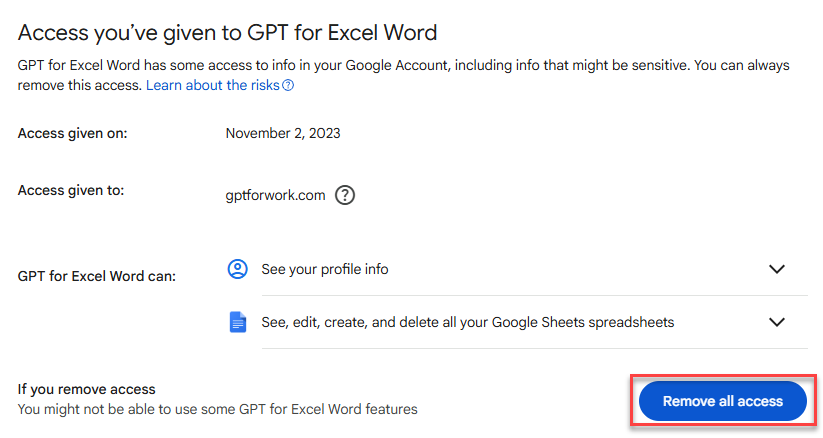
Click Remove all access.
-
Click Confirm.
The GPT for Excel Word add-in no longer has access to your Google account.
Removing account access does not uninstall the add-in from Microsoft Excel. The next time you open the add-in, Excel displays a welcome screen in the sidebar, after which you can sign in again and grant access again.