You are working through a checklist in Excel. Invoices to send, tasks to close, items to sign off. You finish one and want to cross it off. Not delete it, just mark it done so you can still see it.
So you look at the Home ribbon for a strikethrough button. Bold is there. Italic is there. Underline is there. Strikethrough is not.
That missing button is why so many people think Excel cannot do it. It can. The option is simply hidden.
The fastest way to apply it is with a shortcut. Select the cell and press Ctrl+5 on Windows, or Cmd+Shift+X on a Mac. A line appears through the text, and the value stays exactly where it is. That works for a single cell. But the shortcut does not help when you want to strike through only part of a cell, cross out the entire cell including the empty space, or pin a button so you never have to search for it again. In Excel for the web, it does not work at all.
This guide shows you how to strikethrough in Excel using every method that works. And when the task grows to hundreds of rows, you will also see how to hand it off to an AI agent instead of clicking through each one.
What Is Strikethrough in Excel?
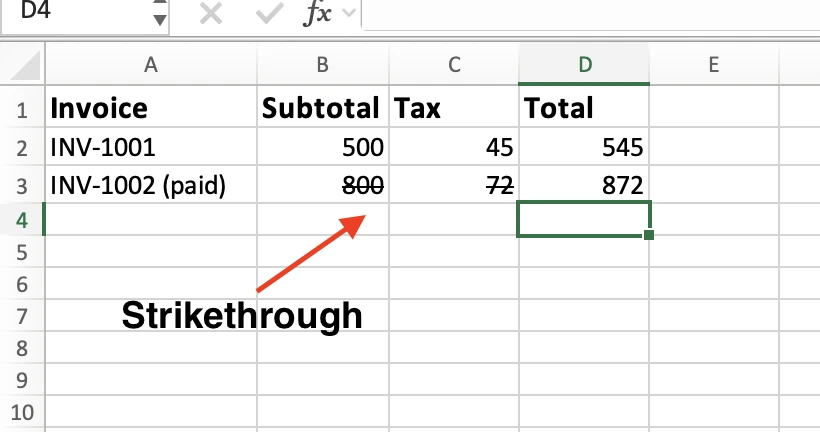
Strikethrough is a font effect that draws a line through your text. The content stays readable. It simply appears crossed out.
People use it to mark tasks as completed, show a price that no longer applies, or track edits without deleting the original value. The line signals "this is done" while keeping the information visible.
Here is the part that often catches people off guard. Strikethrough changes only the appearance of a cell. It does not change the data inside it.
If you strike through a number, Excel still treats it as a normal value. A crossed-out number in a SUM formula is still included in the calculation. The line affects what you see, not how Excel calculates.
That is what makes strikethrough useful for reviews and audits. You can mark figures as checked, approved, or rejected while keeping all calculations and totals accurate.
Strikethrough Keyboard Shortcut
The keyboard shortcut is the fastest way to apply strikethrough in Excel. If you use it regularly, it is the one method worth memorizing.
On Windows, press Ctrl + 5.
On Mac, press Cmd + Shift + X. Newer versions of Excel for Mac may also support Ctrl + 5 or Cmd + 5, so use whichever works on your setup.
Here is all it takes:
- Select the cell you want to cross off.
- Press the shortcut.
- The strikethrough line appears.
That is it. No menus. No dialog boxes.
The shortcut is also a toggle. Press it once to add the line. Press it again to remove it. The same keys work both ways.
It scales just as easily. Select a range of cells and press the shortcut to strike them all at once. You can also hold Ctrl and click non-adjacent cells, then press the shortcut to apply strikethrough to every selected cell. It is a simple way to mark off scattered items in a long list.
The shortcut works on numbers as well as text. And as mentioned earlier, a struck-through number is still included in formulas and calculations.
One more tip: if you use strikethrough often, you do not have to rely on the keyboard shortcut. You can add a dedicated button to the ribbon and access it with a single click. We will cover that next.
Strikethrough Using Format Cells
The keyboard shortcut is the fastest option, but the Format Cells menu gives you more control. Use it when you want to apply strikethrough alongside other formatting changes, such as font color, size, or style.
Here is how:
- Select the cell or cells.
- Right-click and choose Format Cells. Or press Ctrl+1 (Cmd+1 on Mac).
- Open the Font tab.
- Under Effects, check the Strikethrough box.
- Click OK.
The strikethrough line appears as soon as you confirm the change.
This method is also useful when you are working with partial text inside a cell. While the keyboard shortcut applies strikethrough to the entire cell, the Font settings can be used with selected text only, giving you more precise control.
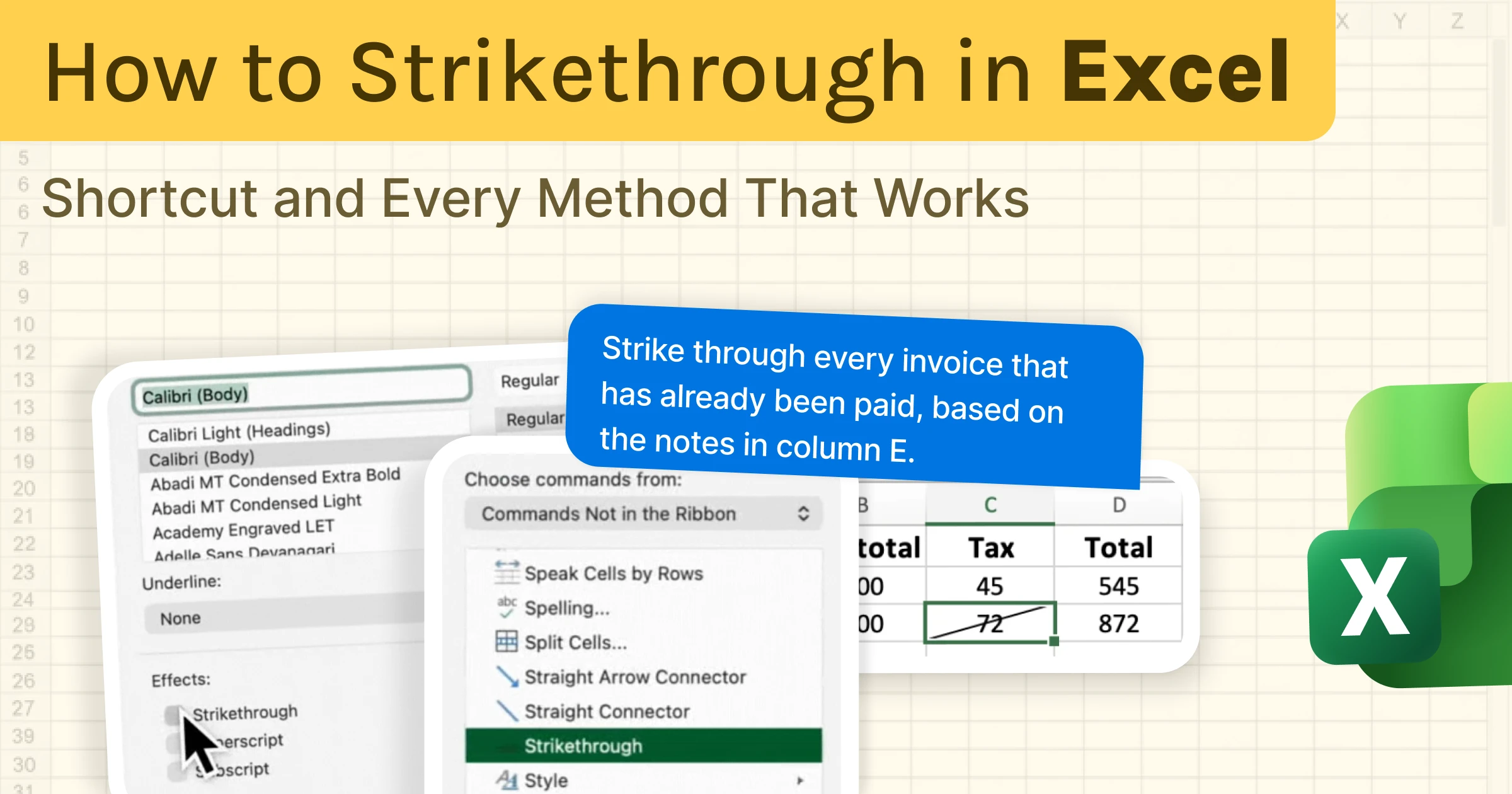
You will also notice that the Strikethrough option sits alongside Superscript and Subscript in the Font settings. That is where Excel stores the effect, which helps explain why it is not shown as a standard button on the ribbon.
Add a Strikethrough Button to the Ribbon
If you use strikethrough frequently, you do not have to rely on a keyboard shortcut or open the Format Cells menu every time. You can add a dedicated strikethrough button to the ribbon and access it with a single click.
Excel does not show this command by default, but you can add it yourself in a few steps:
- Go to File > Options > Customize Ribbon.
- In the right pane, choose the tab where you want the button to appear, such as Home. Click New Group and give it a clear name, such as Effects.
- In the left dropdown menu, change Popular Commands to Commands Not in the Ribbon.
- Scroll down and select Strikethrough.
- Select your new group, then click Add.
- Drag the group to your preferred position and click OK.
The Strikethrough button will now appear on the ribbon permanently. Select a cell and click the button whenever you want to apply or remove the effect.
On Mac, go to Excel > Preferences > Ribbon and Toolbar, then add the command using the same process.
Strikethrough Part of a Cell
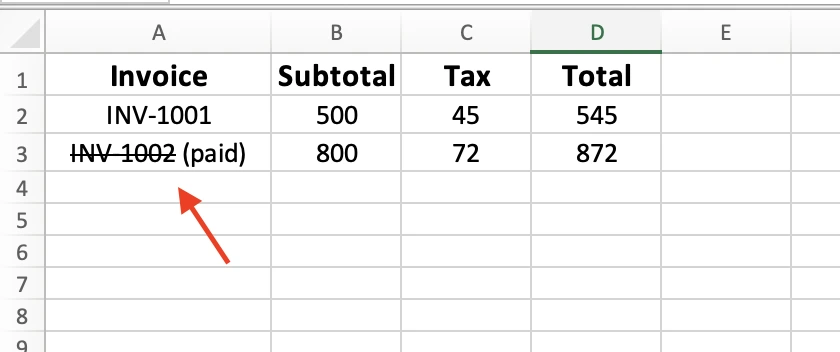
Sometimes you want to cross out only part of a cell instead of the entire entry.
For example, a cell might contain "Old price 50, new price 40." You want to strike through the old price while leaving the new one untouched.
The keyboard shortcut cannot do that. When you press Ctrl + 5 on a selected cell, Excel applies strikethrough to everything in the cell. To format only part of the text, you need to edit the cell directly.
Here is how:
- Double-click the cell to enter edit mode.
- Highlight only the characters you want to cross out.
- Press Ctrl + 1 to open Format Cells, then check Strikethrough. If you added a ribbon button earlier, you can use that instead.
- Click OK.
Only the selected text receives the strikethrough effect. Everything else in the cell remains unchanged.
You can do the same thing in the formula bar. Click inside the formula bar, select the characters you want to format, and apply strikethrough there. This is often easier when the cell is narrow or the text is difficult to edit directly in the worksheet.
Cross Out a Whole Cell
Strikethrough has one limitation: it only applies to the content inside a cell. If the cell is wide or contains only a few characters, the line ends where the text ends.
Sometimes that is not enough. You may want to cross out the entire cell, including any empty space, to show that it is void, blocked, cancelled, or not applicable.
Excel does not have a built-in option for this, but a diagonal border creates a similar effect.
Here is how:
- Select the cell.
- Press Ctrl + 1 to open Format Cells.
- Open the Border tab.
- Click one of the diagonal border buttons to draw a line from corner to corner.
- Click OK.
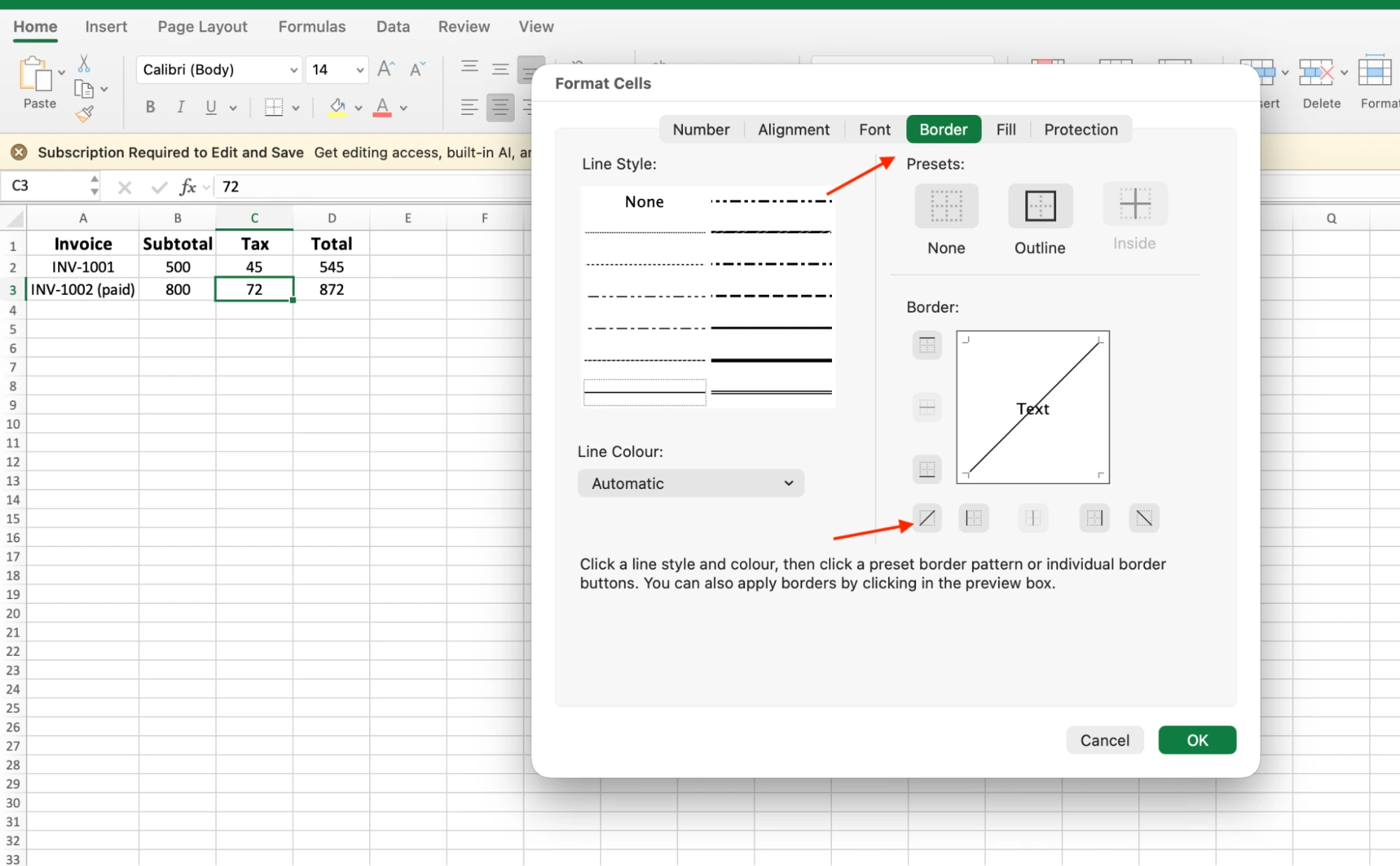
A diagonal line now spans the entire cell, regardless of how much text it contains.
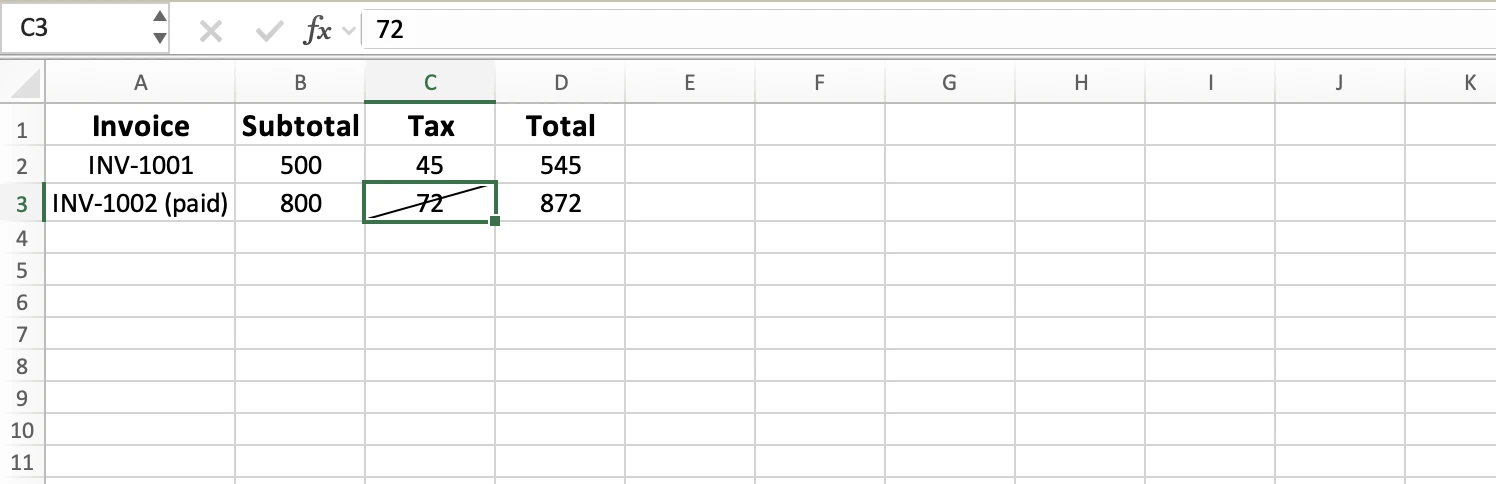
You can stack both effects if you want. Strike the text with Ctrl+5, then add a diagonal border on top. The text reads as done, and the cell reads as closed.
You can also combine both effects. Apply strikethrough to the text with Ctrl + 5, then add a diagonal border across the cell. The text appears crossed out, while the cell itself is clearly marked as closed or no longer in use.
Strikethrough in Excel for the Web
The browser version of Excel is more limited when it comes to text formatting. Depending on your version and account, you may find that strikethrough is unavailable or that the usual desktop methods do not work.
If the shortcut does nothing and you cannot find a strikethrough option in the formatting tools, the simplest solution is to open the workbook in the desktop app.
Here is how:
- Open the file in Excel for the web.
- Select Open in Desktop App from the Editing menu or toolbar.
- Apply strikethrough using Ctrl + 5 or the Format Cells dialog.
- Save the workbook.
Once saved, the formatting syncs back to the online version, so anyone viewing the file in a browser will still see the strikethrough effect.
It is not as convenient as having the feature built into the web app, but it remains the most reliable way to apply strikethrough when working with Excel in a browser.
Auto-Strike With Conditional Formatting
Everything so far has been manual. You select a cell, press a shortcut, and apply strikethrough yourself. That works for a few entries. But on a list you update throughout the day, crossing off rows one by one gets tedious.
Conditional formatting solves that problem. You create a rule once, and Excel applies strikethrough automatically when a condition is met.
Imagine an invoice tracker with a Status column. Whenever an invoice is marked Paid, you want the entire row crossed out automatically.
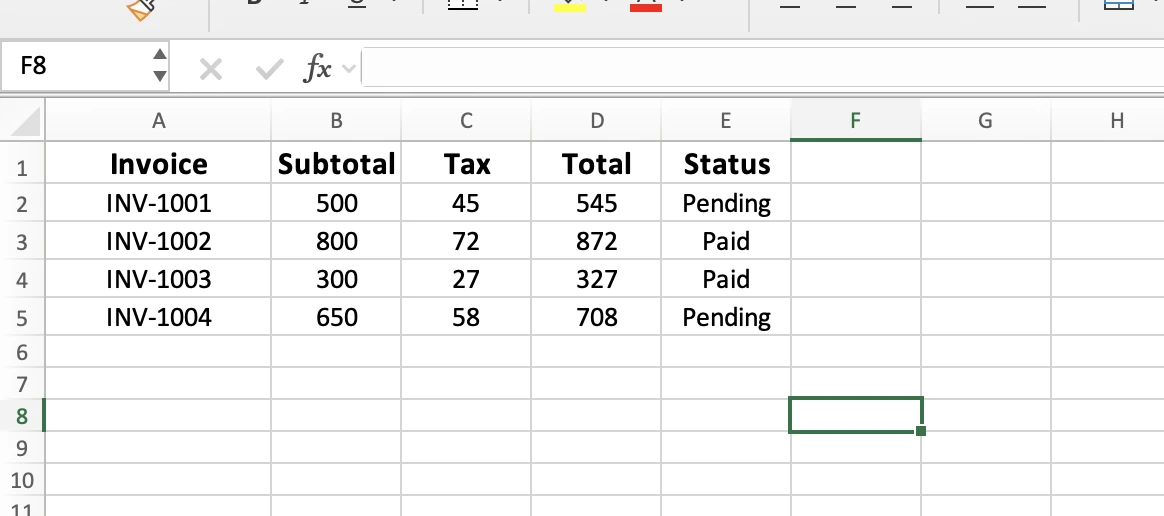
Here is how:
- Select the data rows across all relevant columns, starting with the first row of data. For example, select A2. Do not include the header row.
- Go to Home > Conditional Formatting > New Rule.
- Choose Use a formula to determine which cells to format.
- Enter the formula:
=$E2="Paid" - Click Format, open the Font tab, and check Strikethrough.
- Click OK twice to save the rule.
Now any row with Paid in column E is struck through automatically. Change a status from Pending to Paid, and the formatting updates immediately.
Two details matter here. First, the row number in the formula must match the first row in your selected range. Because the selection starts on row 2, the formula uses $E2. If your data starts on a different row, adjust the number accordingly. Second, only the column reference is locked. The formula uses $E2, not $E$2. This keeps the rule fixed on the Status column while allowing Excel to evaluate each row independently.
On Mac, the process is slightly different. After selecting New Rule, change the Style dropdown to Classic, then choose Use a formula to determine which cells to format. Enter the same formula and create a custom format with strikethrough enabled.
The result is powerful, but it still requires setup on every new sheet. You also need to update the formula whenever the status column changes position.
Remove Strikethrough
Removing strikethrough is just as easy as applying it.
The fastest method is the keyboard shortcut. Select the cells with strikethrough and press Ctrl + 5 again. The same shortcut that adds the line also removes it. On Mac, use Cmd + Shift + X.
If you prefer using menus, press Ctrl + 1 to open Format Cells, switch to the Font tab, and uncheck Strikethrough.
To remove strikethrough from multiple cells at once, select the entire range first and then use either method. Excel updates every selected cell in a single step.
There is also a more aggressive option. Go to Home > Clear > Clear Formats. This removes strikethrough, but it also strips away all other formatting, including font styles, colors, borders, and fills.
Use Clear Formats only when you want to reset the cell completely. If your goal is simply to remove the line, the shortcut or Format Cells is usually the better choice.
Skip the Manual Work: Use an AI Agent like GPT for Work Instead
The shortcut, ribbon button, and conditional formatting all have the same limitation: they only work when you can define a clear rule in advance. Conditional formatting can strike a row when the status equals "Paid" because it is looking for an exact match. Change the wording to "paid in full", "payment received", or "invoice settled", and the rule may no longer work. Real spreadsheets are rarely that clean. Notes often contain phrases like "cleared last week," "still chasing this one," or "sorted, no balance remaining." Traditional Excel rules can match text, but they cannot understand what the text means.
GPT for Work takes a different approach. It is an AI agent that works directly inside your spreadsheet sidebar. Instead of building formulas or formatting rules, you describe what you want in plain English, and the agent handles the work across the entire sheet.
Example prompt:
"Strike through every invoice that has already been paid, based on the notes in column E."
The agent reviews each row, determines which invoices are settled, and applies strikethrough automatically. The wording does not need to match a specific phrase. It understands the meaning behind the text.
Strikethrough is only one example. The same AI sidebar can clean inconsistent date formats, categorize thousands of support tickets by urgency, rewrite hundreds of product titles to fit SEO requirements, or translate an entire catalog into another language. It works inside both Excel and Google Sheets.
You can install GPT for Work in about 30 seconds and start for free. From there, subscription plans start at $25/month with included usage, and you can buy extra-usage credits when you need more.
Final Takeaways
Strikethrough is one of those Excel features you learn once and end up using constantly. In most cases, all it takes is selecting a cell and pressing Ctrl + 5. The line appears, and the job is done.
Use Format Cells when you need more control, or add a button to the ribbon if strikethrough is part of your daily workflow. Remember that the effect is purely visual, so your formulas and calculations continue to work exactly as before. If you are using Excel for the web, you may need to open the file in the desktop app to apply it.
Once your workflow grows beyond a handful of cells, manual formatting starts to break down. And when your data is too inconsistent for a simple rule, tools like GPT for Work can handle the task automatically using plain-English instructions instead of formulas.
The best way to remember any of these methods is to use them. Open a real spreadsheet, try one of the techniques above, and see which approach fits your workflow best.
FAQs
Does strikethrough change my data or affect formulas?
No. Strikethrough is a visual effect only. The value stays exactly as it was, so a struck number still counts in SUM, AVERAGE, and every other formula that references it. Strikethrough never touches the underlying value.
How do I strikethrough in Google Sheets?
Select the cell and press Alt+Shift+5 on Windows, or Cmd+Shift+X on Mac. You can also go to Format, then Text, then Strikethrough. GPT for Work runs in Google Sheets too, so the plain-language approach works there as well.
Why does Excel show strikethrough on cells I never formatted?
Two usual causes. One is a conditional formatting rule. Check Home, then Conditional Formatting, then Manage Rules. The other is Stale Value Formatting, a 2024 Excel feature that strikes formula cells which have not recalculated in Manual mode. Switch Calculation Options back to Automatic to stop it.
Is there a strikethrough button in Excel by default?
No. The Home ribbon includes bold, italic, and underline, but no strikethrough button out of the box. You can apply it with Ctrl+5, through Format Cells, or by adding your own button to the ribbon.