You open a large spreadsheet with hundreds of rows. You scroll down to find a total, then scroll back up and lose your place.
Imagine you're tracking sales in a Monthly Sales worksheet. Column A contains dates. Column B contains sales amounts. Each quarter ends with a subtotal row, and a yearly total sits at the bottom. The details are important, but you do not need to see every transaction all the time.
This is exactly what row grouping is for.
Grouping lets you hide detailed rows beneath a summary or total row and expand them again whenever you need them. The data stays in place, you simply reduce the clutter and focus on the information that matters.
The quickest way to group rows in Excel is to select the rows, open the Data tab, and click Group. You can also use a keyboard shortcut:
- Windows: Alt + Shift + Right Arrow
- Mac: Cmd + Shift + K
That works when you just need to group a few rows. But larger spreadsheets often require more advanced techniques.
In this guide, you'll learn how to group rows in Excel the full way: collapse a whole sheet in one click, group columns, and group rows by a value in a column. You will also see how to fix the grayed-out Group button, and how to skip the clicks with an AI agent.
What does grouping rows mean in Excel?
Grouping rows in Excel lets you hide a set of rows behind a single button, so you can show or hide them whenever you need to.
When you create a row group, Excel adds a small minus (-) button in the left margin next to the row numbers. Click the minus button, and the grouped rows collapse. The button changes to a plus (+) sign. Click the plus sign, and the rows expand again.
That is the entire concept: one button that lets you hide and reveal a block of rows.
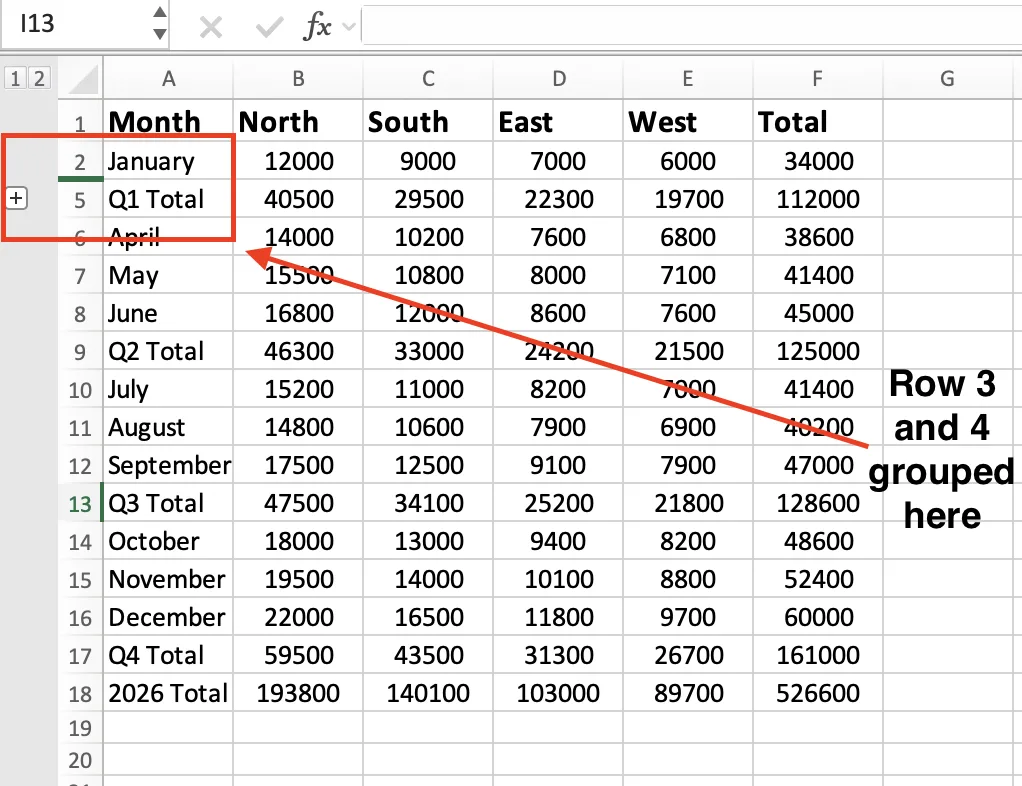
This is also how you create collapsible sections in Excel. There is no separate feature for collapsible rows, grouping is the tool that makes them possible.
Your data remains untouched. Grouping only hides rows from view. It does not delete data, and your formulas continue to work normally. For example, if you collapse a group, a subtotal or total row will still calculate the hidden rows correctly.
So why not just hide rows using Excel's standard Hide command?
The difference is visibility. Hidden rows leave almost no indication that anything is missing. The row numbers might jump from 5 to 9, but another person viewing the worksheet may not realize rows are hidden.
Groups are much clearer. The plus and minus buttons remain visible, making it obvious that additional data exists and can be expanded with a click.
Excel also supports nested groups, with up to eight levels of grouping. For example, in a sales report, individual months can be grouped within quarters, and quarters can be grouped within a yearly summary.
This lets you expand only the section you want to review while keeping the rest of the worksheet collapsed. These nested groups are sometimes called subgroups or subrows.
How to group rows in Excel (step by step)
Here is the basic way to group rows in Excel. We'll use the Monthly Sales worksheet from the example above.
Step 1: Select the Rows
Select the rows you want to group.
For example, click the row number for January and drag down to March. Select only the detail rows and leave the Q1 Total row outside the selection, since that row will remain visible when the group is collapsed.
Step 2: Open the Data Tab
Go to the Data tab on the Excel ribbon.
On the right side, look for the Outline section. This is where you'll find the Group button. If you've ever wondered where the Group feature is located in Excel, this is the place.
Step 3: Click Group
Click Group.
If Excel asks whether you want to group Rows or Columns, select Rows and click OK.
Step 4: Collapse or Expand the Group
Excel adds a bracket and a minus (-) button in the left margin next to the grouped rows.
- Click the minus button to collapse the rows.
- Click the plus (+) button to expand them again.
Result
You have successfully created your first row group in Excel.
On Mac, the process is the same: select the rows, open the Data tab, and click Group.
Keyboard shortcut to group rows
You saw the shortcut to group rows in Excel up top. Here it is again with the full picture.
First, select the rows you want to group. Then use the appropriate shortcut:
- Windows: Alt + Shift + Right Arrow
- Mac: Cmd + Shift + K
On Windows, Excel may ask whether you want to group Rows or Columns if you selected cells instead of entire rows. Choose Rows and press Enter.
If you selected complete rows, Excel creates the group immediately.
On Mac, the grouping happens right away without any prompt.
Action | Windows | Mac |
|---|---|---|
Group | Alt + Shift + Right Arrow | Cmd + Shift + K |
Ungroup | Alt + Shift + Left Arrow | Cmd + Shift + J |
Shortcut to Ungroup Rows
To remove a group, select the grouped rows and use:
- Windows: Alt + Shift + Left Arrow
Excel removes the grouping and returns the rows to their normal state.
Once these shortcuts become muscle memory, they are usually faster than navigating through the ribbon. Instead of opening the Data tab, finding the Outline section, and clicking Group, you simply select the rows and press the keys.
How to collapse and expand rows in Excel
Collapsing rows is the main reason people use grouping. Once groups are in place, you can hide or reveal details with a click.
- To collapse one group, click the minus (-) button in the left margin. The rows hide and the button turns into a plus.
- To open them again, click that plus (+) button. This handles one group at a time.
- To collapse the whole sheet at once, use the level buttons. Look at the top-left corner, above the row numbers, for the small numbered buttons: 1, 2, 3.
- Click 1 to collapse everything to the top level. On the sales sheet, you see only the year total. Click 2 for the quarter totals.
- Click the highest number to bring every detail row back.
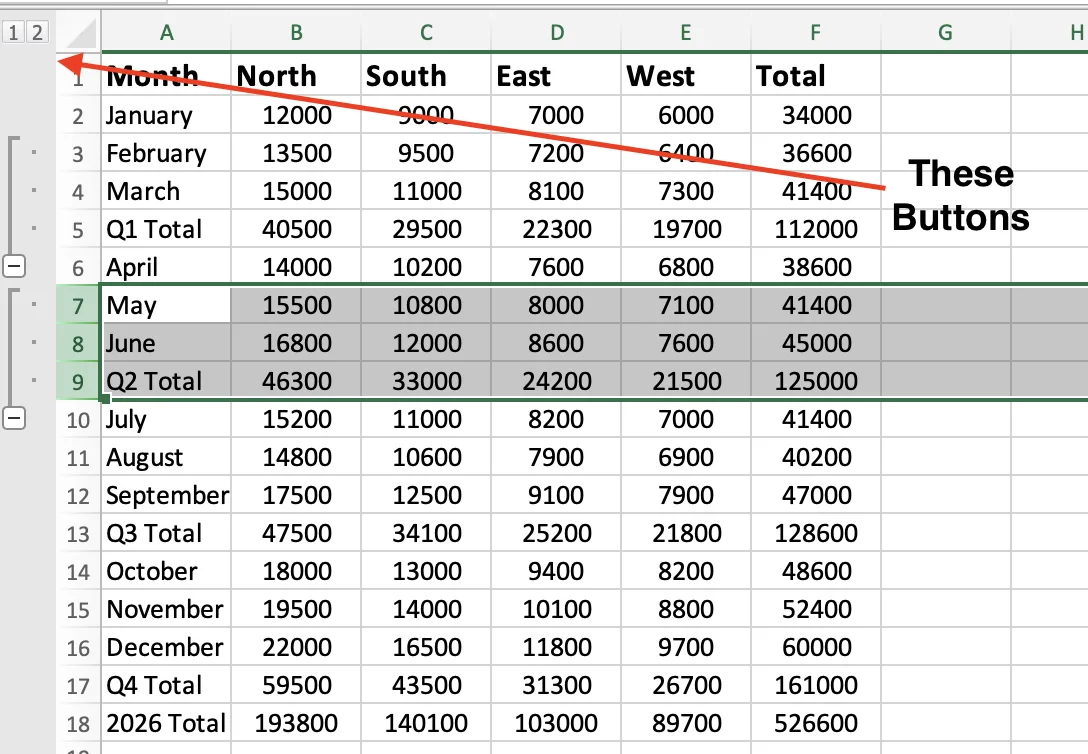
You do not have to click each plus or minus button individually.
The Data tab includes Hide Detail and Show Detail buttons that perform the same action for whichever group you have selected.
How to group and collapse columns in Excel
Grouping columns works exactly like grouping rows, you simply select columns instead.
Let's use the same Monthly Sales worksheet, which has separate columns for North, South, East, and West, followed by a Total column.
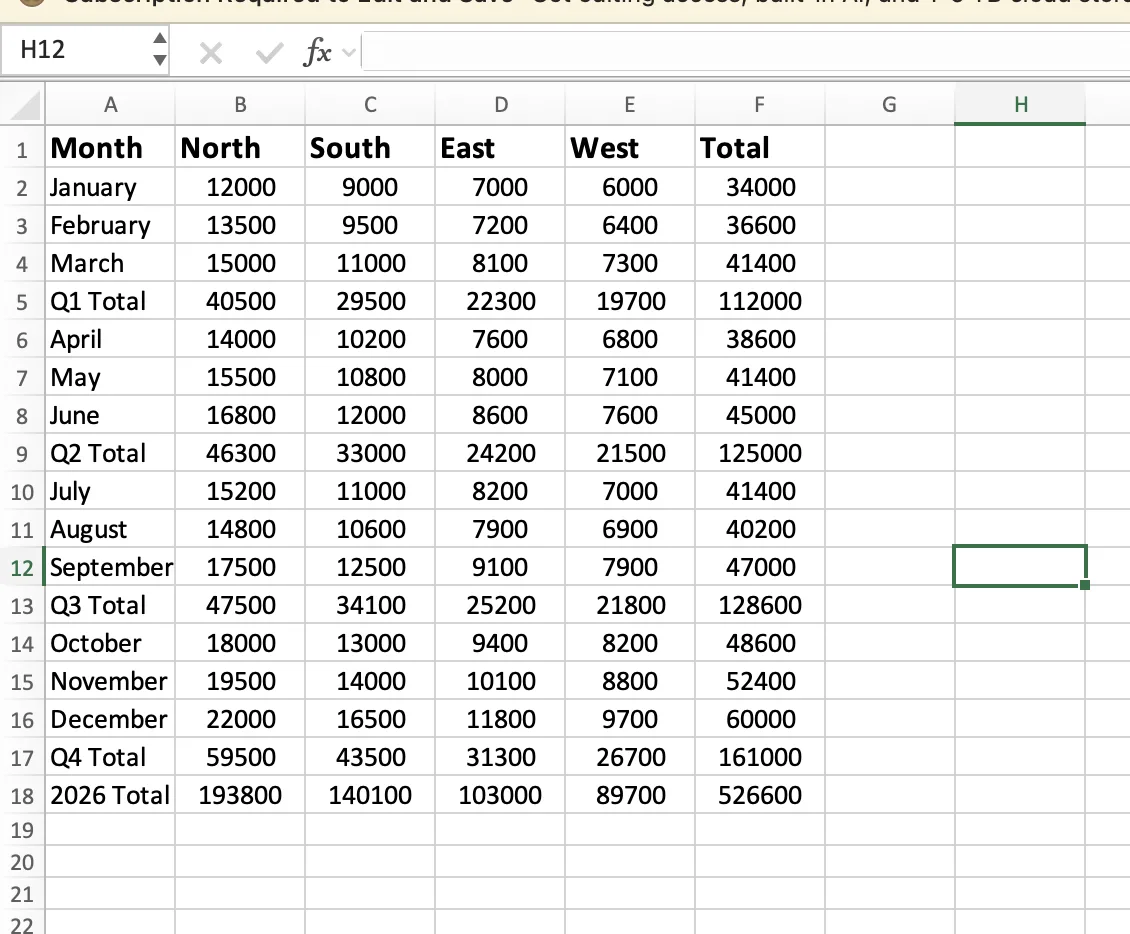
- Select the columns you want to group. Click the column letter for North and drag across to West. Pick the region columns only, and leave the Total column out.
- Open the Data tab and find Group in the Outline section, the same spot you used for rows.
- Click Group. If Excel asks whether you want rows or columns, pick Columns this time and click OK.
- Look at the top margin. A bracket and a minus button now appear above the columns, not beside the rows.
- Click the minus button to hide the columns. Click the plus button to bring them back.
That folds the four region columns away and leaves just the Total.
Keyboard Shortcut
The same shortcuts work for columns:
- Windows: Alt + Shift + Right Arrow
- Mac: Cmd + Shift + K
You can also use the outline level buttons in the upper-left corner of the worksheet to collapse or expand all grouped columns at once.
If you have ever opened a worksheet where columns were hidden behind a small plus sign, grouping is how it was created.
Important Notes
Excel groups whole rows or whole columns only, so you cannot group cells in Excel on their own as a loose block.
If you searched for "group cells in Excel," you may actually be looking for row grouping, column grouping, or cell merging, which are different features.
Also, if your goal is to make columns wider instead of hiding them, use AutoFit. Column width adjustments are unrelated to grouping.
How to group rows automatically with Auto Outline
There are two ways to group rows: by hand, which you just saw, or automatically. If your sheet already has total formulas, Excel can build every group in one click. This is Auto Outline.
It works on the Monthly Sales sheet because that sheet has real SUM totals for each quarter and the year. Here is how to run it.
- Click anywhere inside your data.
- Open the Data tab and find the Group button in the Outline section.
- Click the small arrow on the Group button, not the button itself.
- Click Auto Outline.
Excel reads your total rows and builds all the groups at once. Quarters, year, the whole structure, done in one step.
Auto Outline is the fast option, but it has two limits worth knowing.
First, Excel groups by its own logic. On a clean sheet like the sales example it works well, but on a messier layout it may group rows in a way you did not want.
Second, it needs formulas to work. Run Auto Outline on a plain list with no totals and Excel shows an error: "Cannot create an outline." We tried it on a flat Regional Sales list, hundreds of orders with no total rows, and got that exact message.
So Auto Outline is great when your sheet is already built around totals. But plenty of real sheets are not.
GPT for Work: the AI agent that groups rows for you
Manual grouping works well on a clean worksheet. But real-world data is often messier.
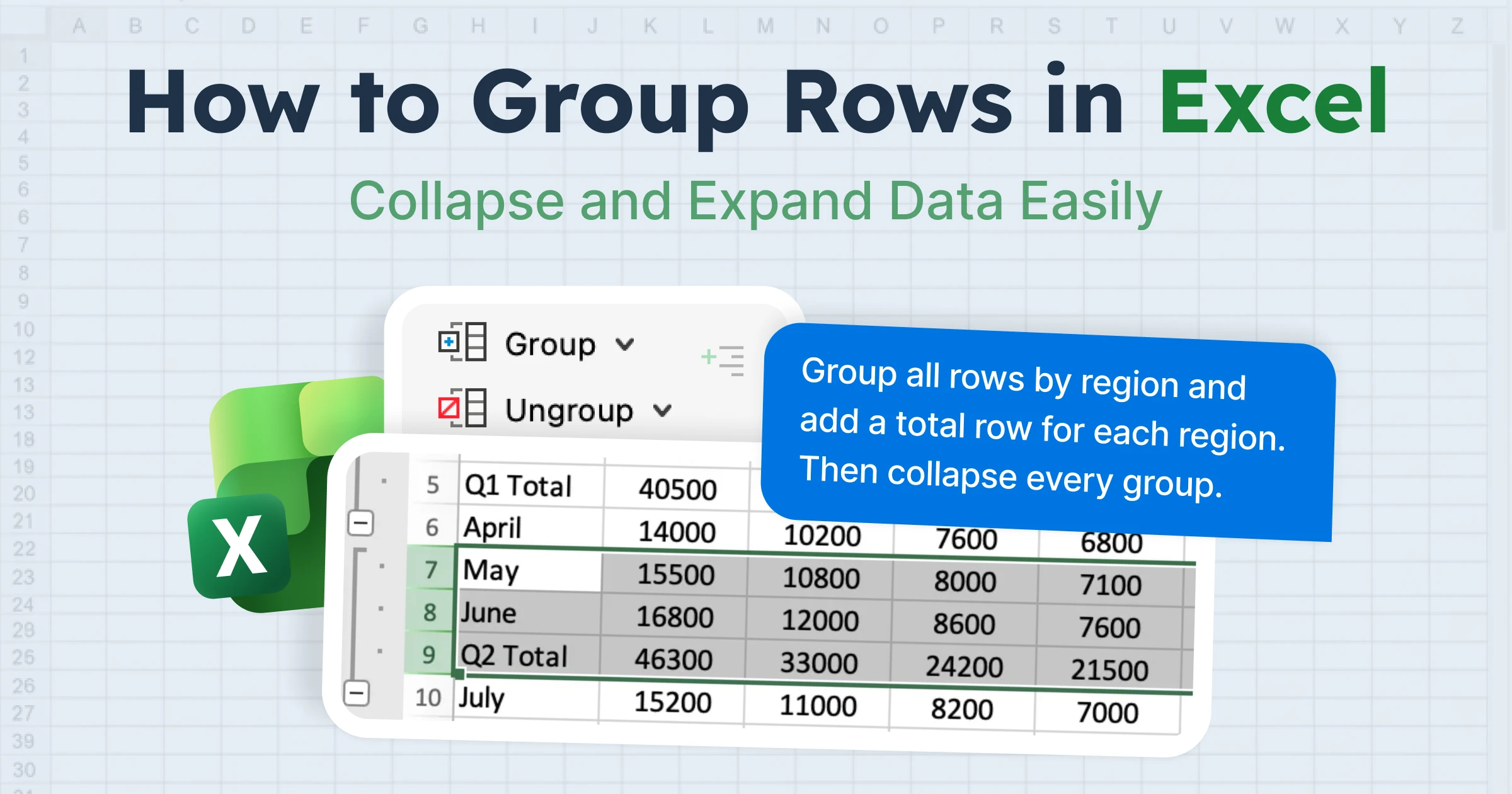
Take the Regional Sales list from the previous example. It contains hundreds of orders, no subtotal rows, and you want the data grouped by region. Excel's Auto Outline cannot handle that. Doing it manually means sorting the data, inserting total rows for each region, and grouping every section one by one.
GPT for Work can do the entire process from a single prompt.
GPT for Work is an AI agent that runs inside Excel and Google Sheets through a sidebar add-in. Instead of clicking through menus, you describe what you want in plain English.
The agent reads your worksheet, figures out the required steps, and makes the changes for you.
For example, you could type:
"Group all rows by region and add a total row for each region. Then collapse every group"
Press Enter, and the agent:
- Sorts the data by region
- Inserts a total row for each region
- Creates the row groups
- Collapses the groups into a clean outline
What would normally take several manual steps becomes a finished, organized worksheet in seconds.
Grouping is only one example. The same AI agent can write formulas, clean up data, translate thousands of rows, summarize reports, and pull information from the web directly into your spreadsheet.
Instead of learning which feature to click, you simply describe the result you want.
Try GPT for Work.
How to ungroup rows
When you no longer need a group, you can remove it. The rows stay, only the outline goes away.
- Select the rows in the group you want to remove.
- Open the Data tab and click Ungroup in the Outline section.
- If Excel asks, pick Rows and click OK. The bracket and buttons disappear.
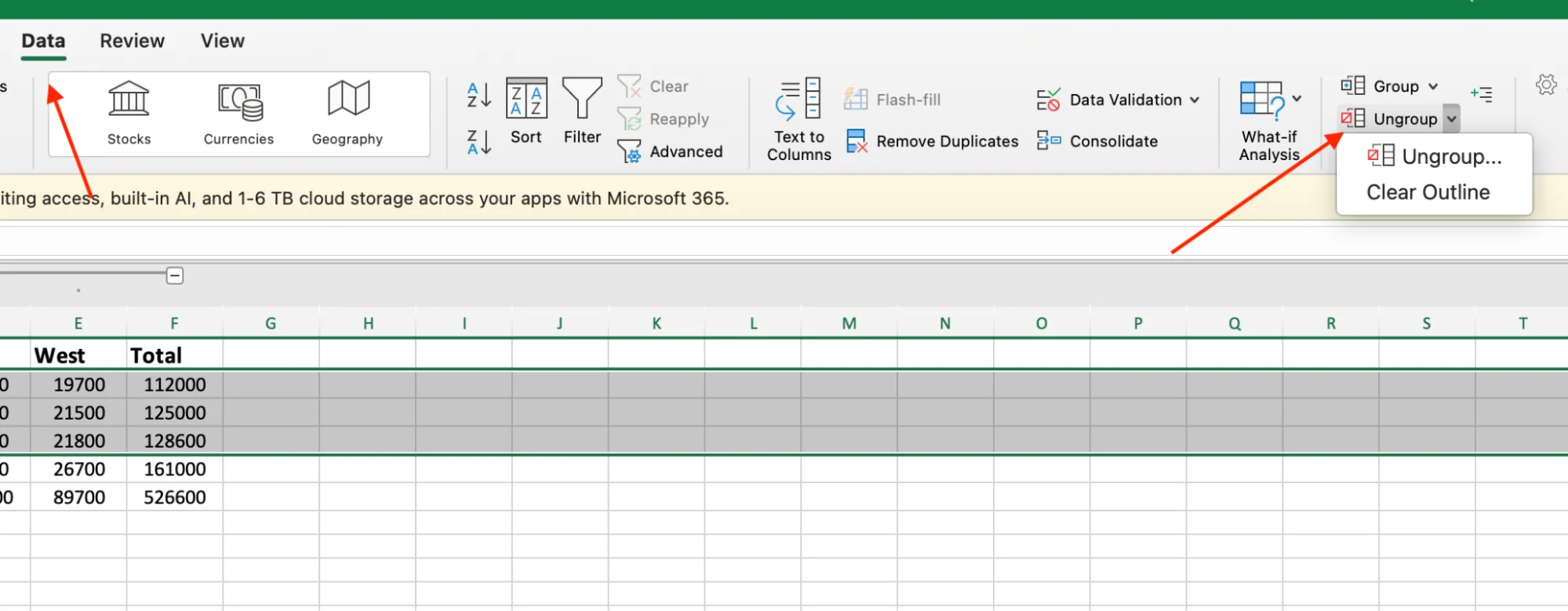
To ungroup rows in Excel faster, select the rows and press Alt + Shift + Left Arrow on Windows, or Cmd + Shift + J on Mac.
To clear every group at once, click the arrow on the Ungroup button and choose Clear Outline. This strips the whole outline in one go.
One warning from experience: open your groups before you ungroup them. If you ungroup while the rows are collapsed, they stay hidden, and you have to unhide them by hand afterward.
Tips From People Who Group Rows Daily
Once you start using groups regularly, a few small habits can save time and prevent frustration.
1. Put the Total Row in the Right Place
By default, Excel expects summary and total rows to sit below the detail rows.
If your totals appear above the details, open the Outline settings (the small arrow in the corner of the Outline section on the Data tab) and uncheck Summary rows below detail.
2. Select Cells Instead of Entire Rows
When creating many groups in a large worksheet, it can be faster to select the data cells rather than entire rows.
Highlight the cells, click Group, choose Rows once, and continue working through the sheet. This can be quicker than repeatedly selecting full rows.
3. Copy Only the Visible Rows
Be careful when copying collapsed groups. Excel still copies the hidden rows underneath unless you specifically select visible cells only.
To copy only what is visible:
- Windows: Press Alt + ;
- Mac: Press Cmd + Shift + Z
Then copy and paste as usual.
4. Sort Without Breaking Groups
Sorting does not automatically destroy your groups. Excel keeps each detail block connected to its summary row, so you can usually sort grouped data without scrambling the worksheet structure.
5. Use Groups Instead of Hidden Rows on Shared Sheets
Groups make worksheets easier for other people to understand.
The plus and minus buttons clearly show that additional data exists and can be expanded. Hidden rows, by contrast, often look like missing or deleted data.
Final takeaways
Grouping rows in Excel comes down to three moves: select your rows, click Group, and use the level buttons to open or close them. Get those down and a messy sheet turns tidy in seconds. If your sheet already has total rows, Auto Outline does the grouping for you.
A few rules worth keeping in mind:
- Leave the total row out when you select, otherwise it folds away with the detail rows.
- Use the 1, 2, 3 level buttons to collapse the whole sheet at once, instead of clicking each minus button.
- Open your groups before you ungroup them, or the rows stay hidden and you have to unhide them by hand.
Also keep in mind that the manual tools have a limit. They work well on a tidy sheet with total rows. On a messy one, thousands of rows, no totals, or rows you need grouped by a value in a column, Auto Outline cannot help and doing it by hand takes forever. And if you want to skip the manual work entirely, GPT for Work handles the sorting, the totals, the grouping, and the collapsing from one prompt.
FAQs
What is the shortcut to group rows in Excel?
Select your rows, then press Alt + Shift + Right Arrow on Windows, or Cmd + Shift + K on Mac. On Windows, Excel asks whether you want rows or columns if you selected cells instead of whole rows. Pick Rows.
Why is the Group button grayed out?
Your sheet is protected, the workbook is shared, or your cursor is inside an Excel Table. Unprotect the sheet, or convert the table to a normal range, then try again.
How do you group sheets in Excel?
Grouping sheets is not the same as grouping rows. It joins worksheet tabs so one edit applies to all of them. Hold Ctrl, click the sheet tabs you want at the bottom of the window, and any change you make hits every selected sheet at once.
Can you group rows in Google Sheets?
Yes. Select the rows, right-click, and choose "Group rows." It works much like Excel, with a button in the margin to collapse and expand. GPT for Work runs in Google Sheets too, if you want the agent to do it for you.
How many group levels does Excel allow?
Up to 8 nested levels. That is enough to stack something like year, quarter, month, and week in one sheet.