Sorting data alphabetically is one of the most-used features in Excel.
It's also one of the easiest ways to accidentally break a spreadsheet.
You click A-Z on a column of names, but the salaries in the next column stay put. Now row 1's name is paired with row 47's salary. The spreadsheet is wrong, and you might not notice for days or even weeks.
Learning how to alphabetize in Excel the right way comes down to matching the method to the job. A short list needs two clicks. A multi-column report needs the Sort dialog. Data that changes constantly may need a formula. And if you're managing hundreds of files, AI can do the work for you.
Below, you'll learn all four methods, plus an AI shortcut for bulk sorting. You'll also find a step-by-step solution for sorting by last name when first and last names are stored in the same column.
Along the way, we'll cover five common issues that quietly break Excel sorts in real-world spreadsheets and exactly how to fix each one.
Every method works in Excel 365, Excel 2021, and Excel for the web. Where a feature requires a newer version, we'll clearly flag it.
First up: the fastest two-click method.
The Two-Click A-Z Method (for a Single Column)
The fastest way to alphabetize a column in Excel is the A-Z button on the Data tab. It works for any column, takes about two seconds, and is ideal for short lists or one-off sorts.
Imagine a finance teammate sends you a list of 30 vendor names in random order. You need it alphabetized before forwarding it to the procurement lead in five minutes. This is the method to use.
Step 1: Click any cell inside the column you want to sort. Just one cell, don't drag or highlight the entire column.
Step 2: Go to the Data tab in the Excel ribbon.
Step 3: Select A → Z to sort in ascending order, or Z → A to sort in descending order.
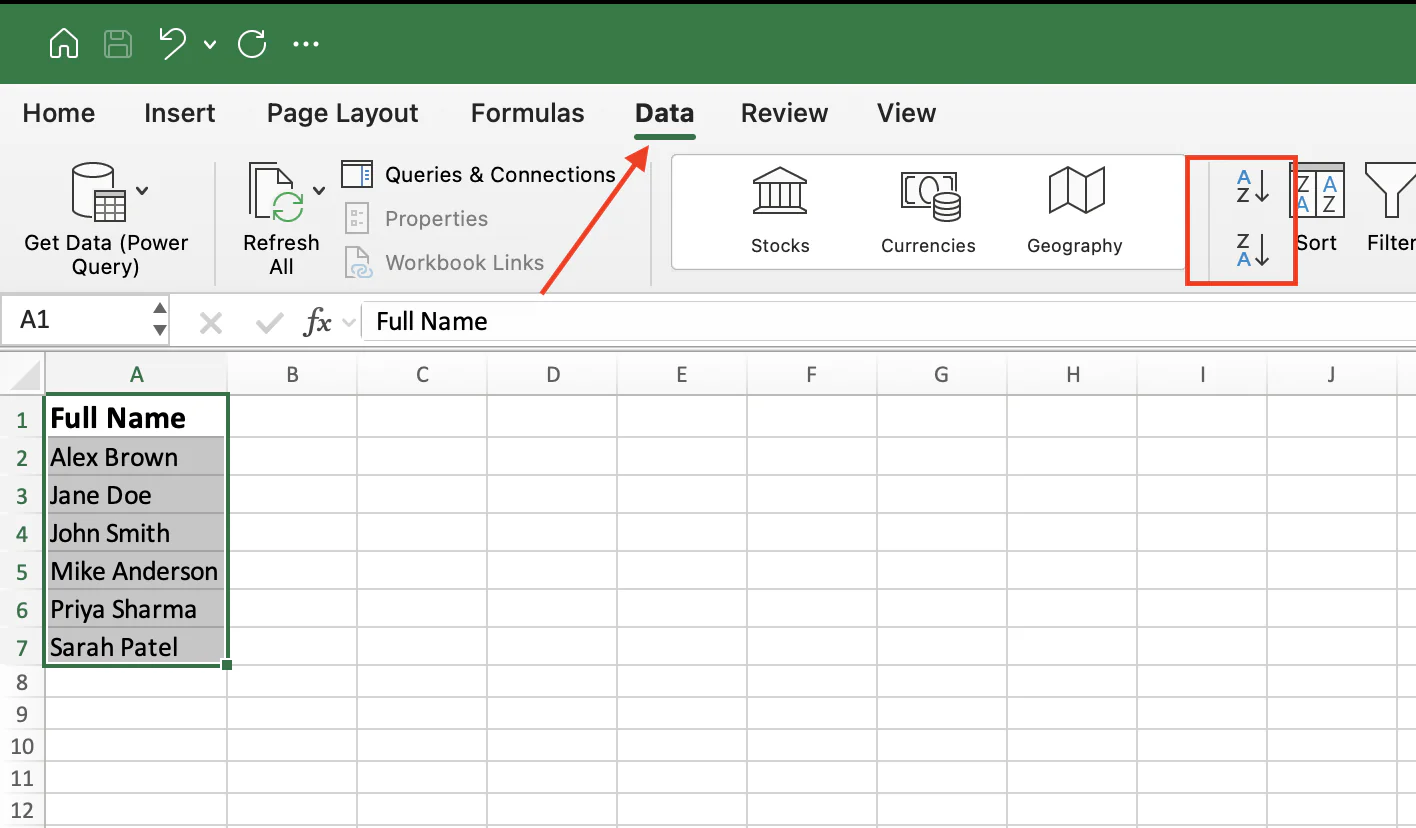
Done. Your list is now alphabetized in seconds.
The process works the same way in Excel 365, Excel 2021, and Excel for the web. The button placement is virtually identical across all three versions, so the workflow stays consistent.
This method is perfect when you're sorting a standalone column. But what happens when that column sits next to related data, such as salaries, departments, or employee IDs?
Most of the time, Excel sorts everything together automatically. But there is one common mistake that can scramble rows and mismatch data.
The next section shows how to avoid it.
How to Sort and Keep Your Rows Together
You sort a column alphabetically. The names move. The data next to them doesn't. Now every row is mismatched. The spreadsheet still looks normal, but the information is wrong.
This is one of the most common sorting mistakes in Excel and one of the easiest to avoid once you know the rule.
Spend five minutes browsing Excel and you'll see versions of the same question again and again: "How do I sort alphabetically and keep all the rows together?"

The answer is simple:
Click one cell, not an entire column.
When you click any single cell inside your dataset and then select A → Z, Excel automatically detects the surrounding data range and sorts alphabetically in Excel while keeping rows together. Names, salaries, departments, and IDs all stay aligned.
No pop-up. No extra steps. No broken rows.
The problem starts when you select an entire column first, either by clicking the column letter at the top or by highlighting the cells manually and then click A → Z.
Excel pauses and displays a warning dialog.
You'll see two options:
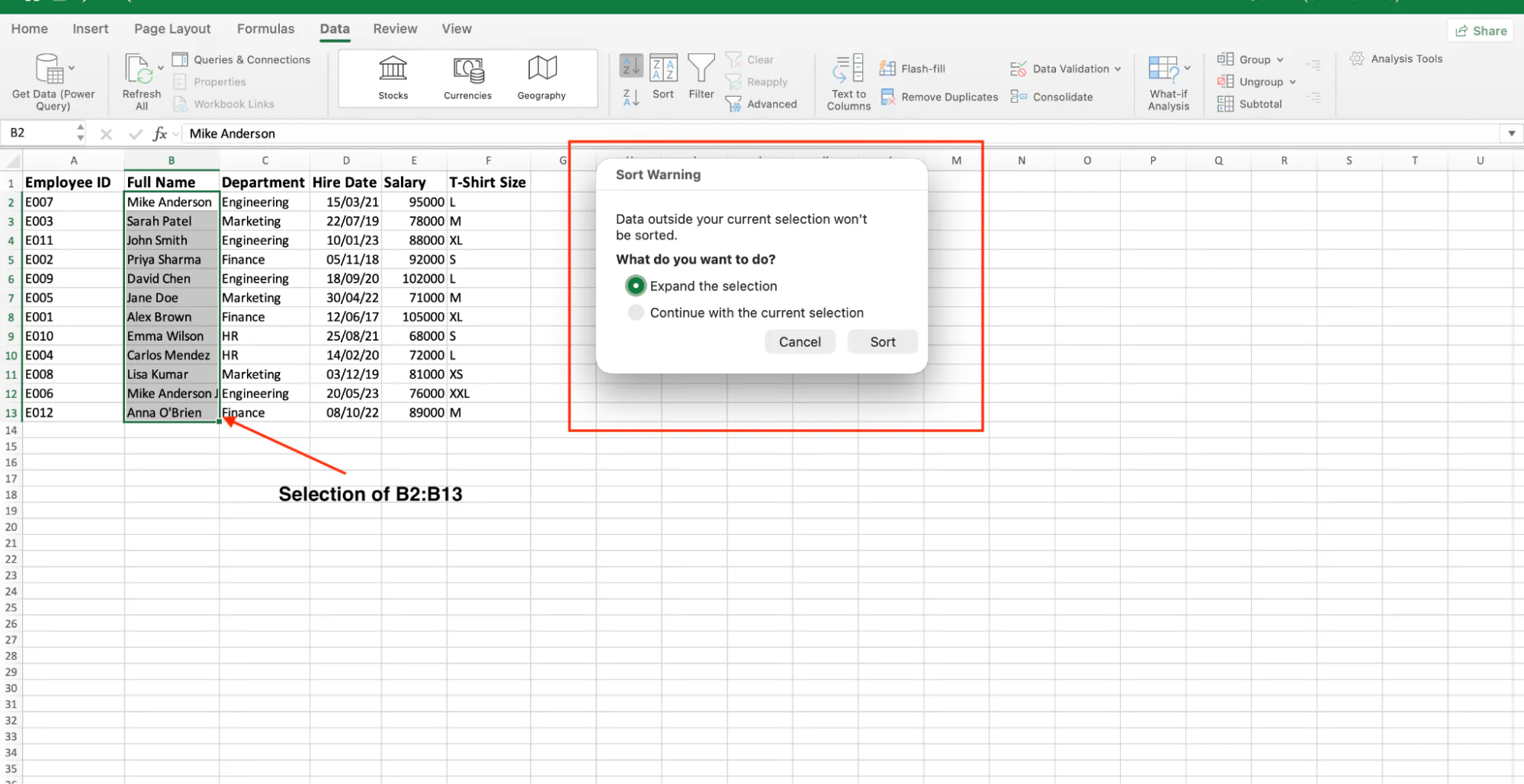
Expand the Selection
This sorts the entire table together and keeps every row intact.
Choose this option and click Sort.
Continue with the Current Selection
This sorts only the highlighted column.
The names move, but the adjacent data stays where it is. Salaries become attached to the wrong employees, departments no longer match the correct records, and your spreadsheet is now unreliable.
Unless you're intentionally sorting a single isolated column, avoid this option.
If you select the wrong choice, press Ctrl + Z immediately to undo the sort.
If you've already saved the file, check Version History in OneDrive or SharePoint to restore an earlier version.
Using the Custom Sort Dialog for Multi-Column Sorts
The A-Z button is great for sorting a single column. But what if you need to sort within a sort?
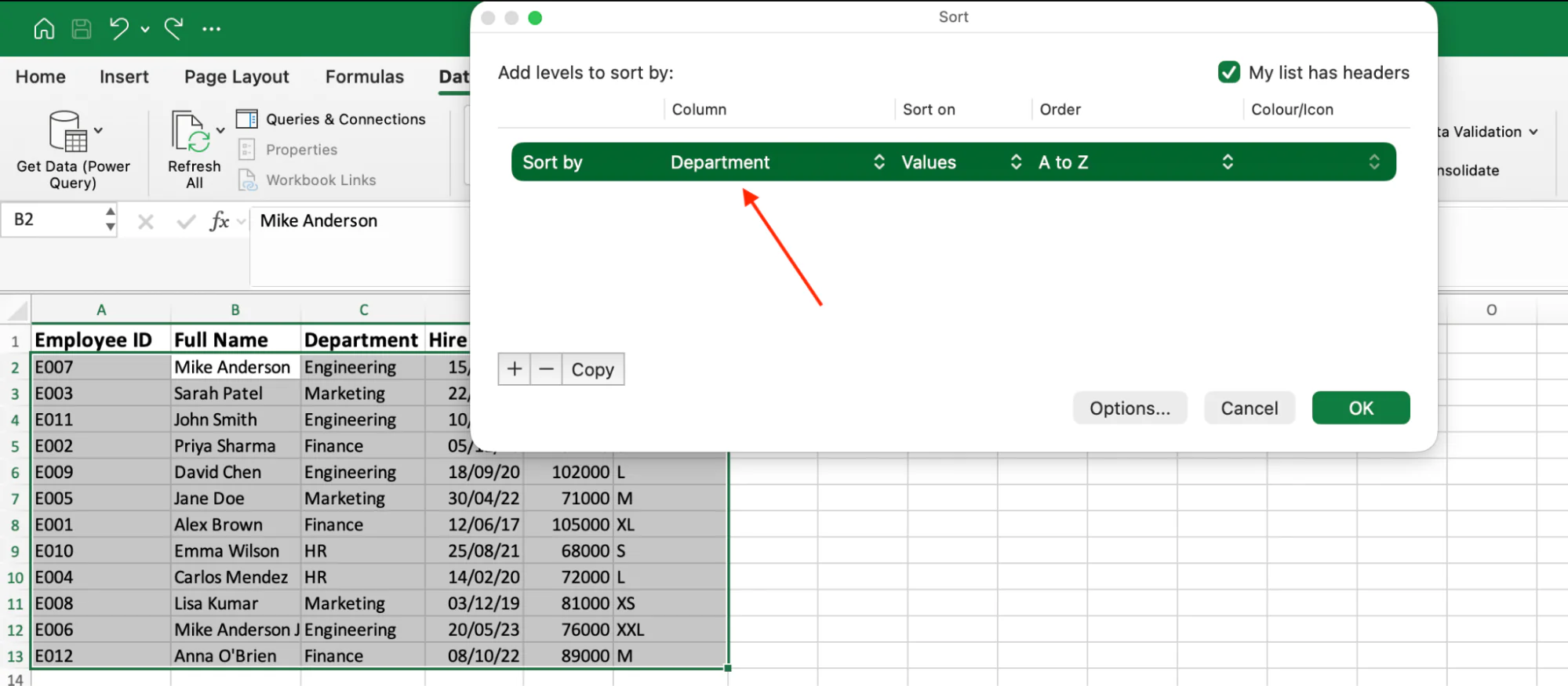
For example, you might want to group employees by Department, then sort each department alphabetically by Name, and finally sort employees with the same name by Hire Date.
That's a three-level sort. The standard A-Z button can't handle it, but the Custom Sort dialog can.
Step 1: Click any cell inside your data.
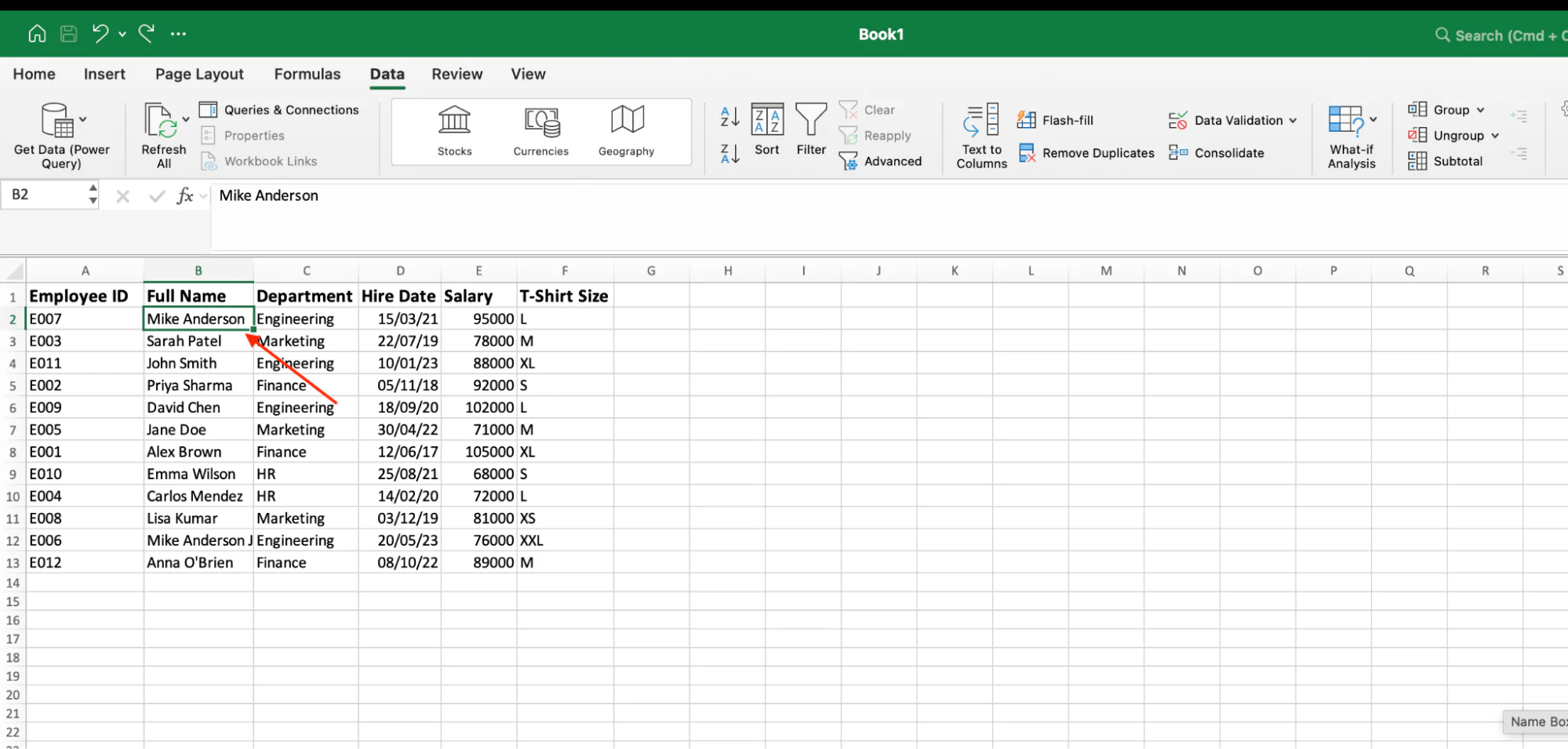
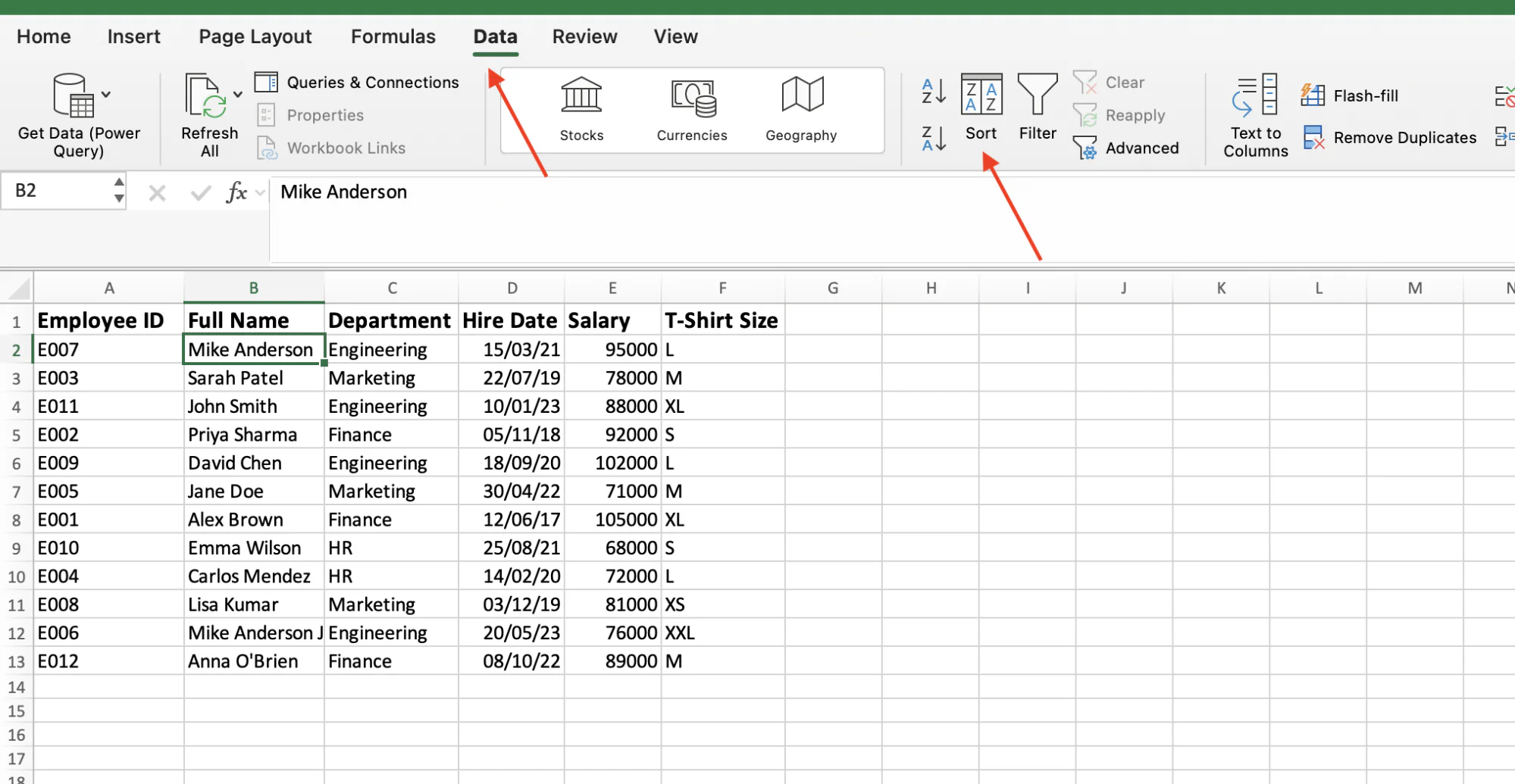
Step 2: Open the Data tab and click Sort (the icon with A-Z and a small arrow next to it).
Step 3: In the pop-up, set your first level. Pick Department under "Sort by" and choose A to Z under "Order."
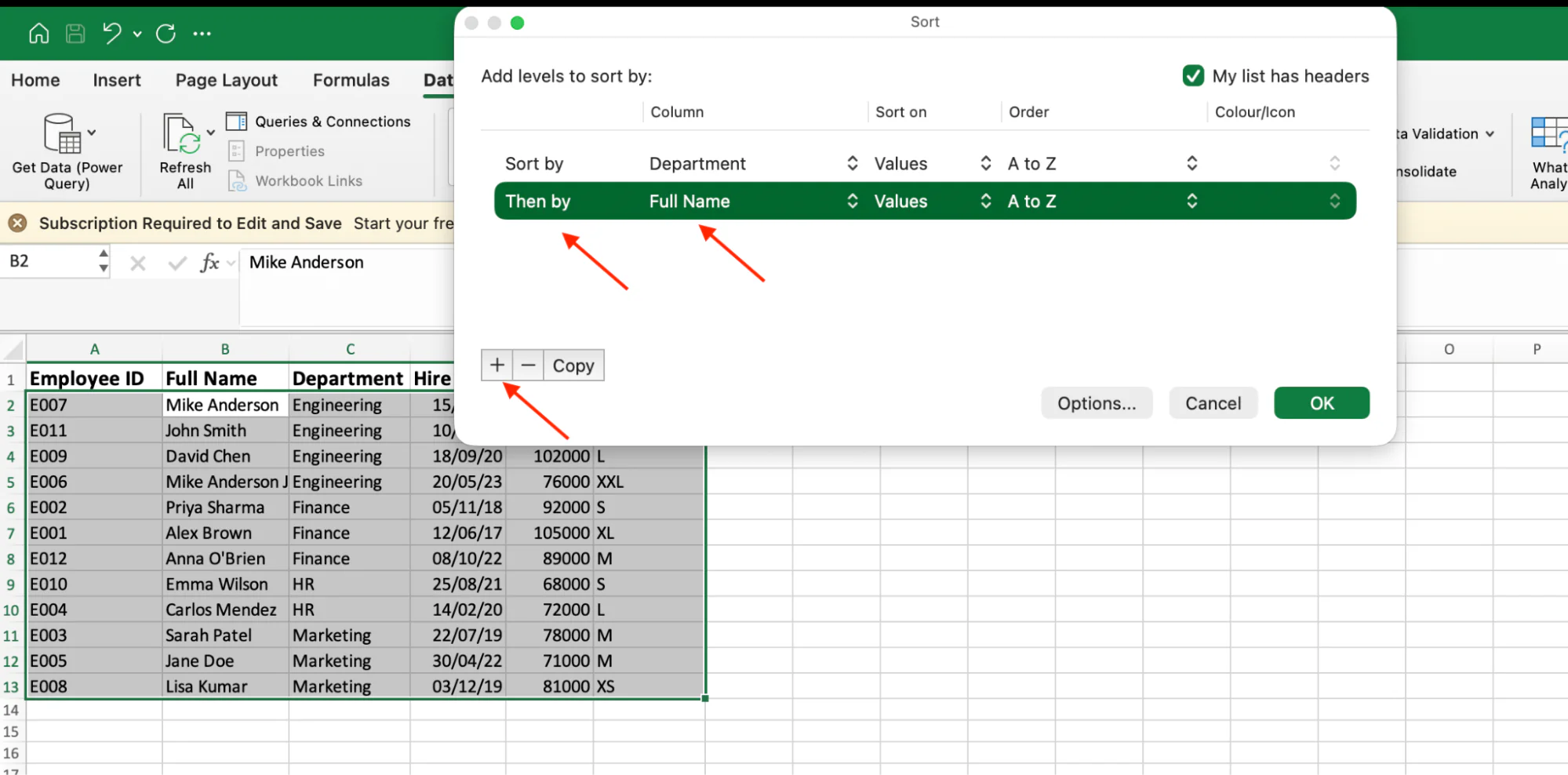
Step 4: Click +. Pick Full Name under "Then by" and choose A to Z.
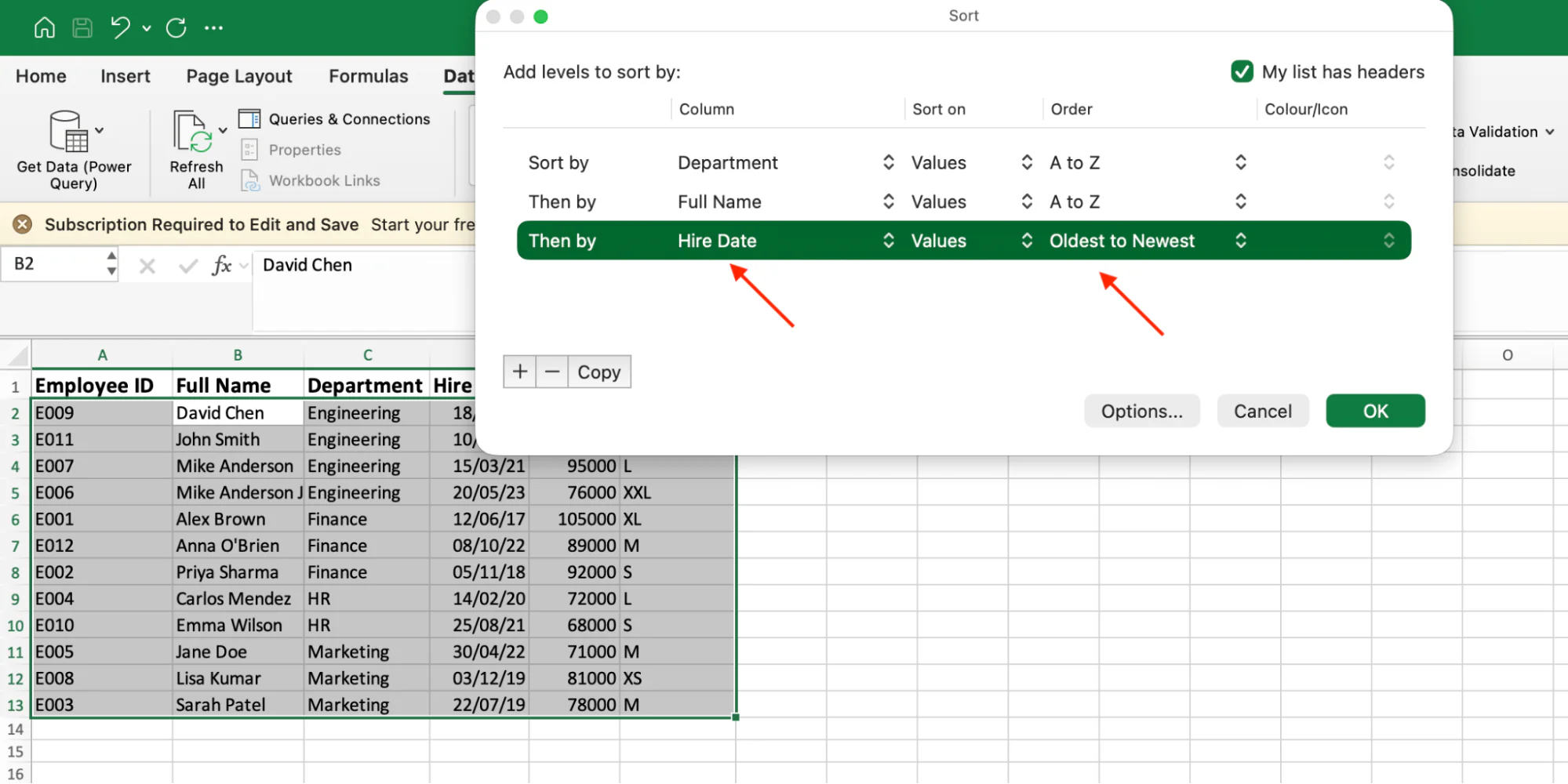
Step 5: Click Add Level again. Pick Hire Date and choose Oldest to Newest.
Step 6: Tick "My data has headers" at the top. Click OK.
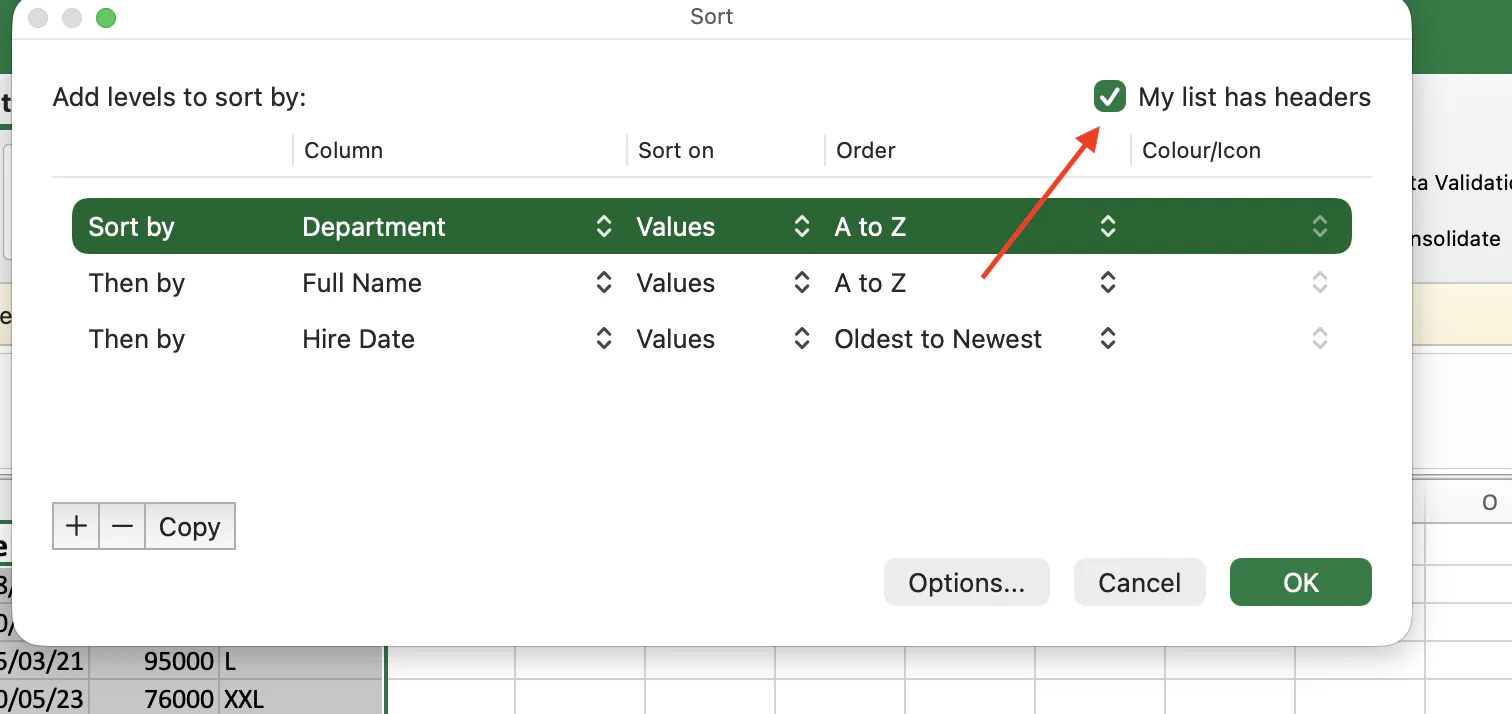
Excel now applies the sort hierarchy from top to bottom.
All employees are grouped by department first. Within each department, names are sorted alphabetically. If two employees share the same name, the person hired earlier appears first.
The Custom Sort dialog supports up to 64 sort levels in a single operation. In practice, most business reports use two or three levels, and anything more complex is often easier to analyze with a Pivot Table.
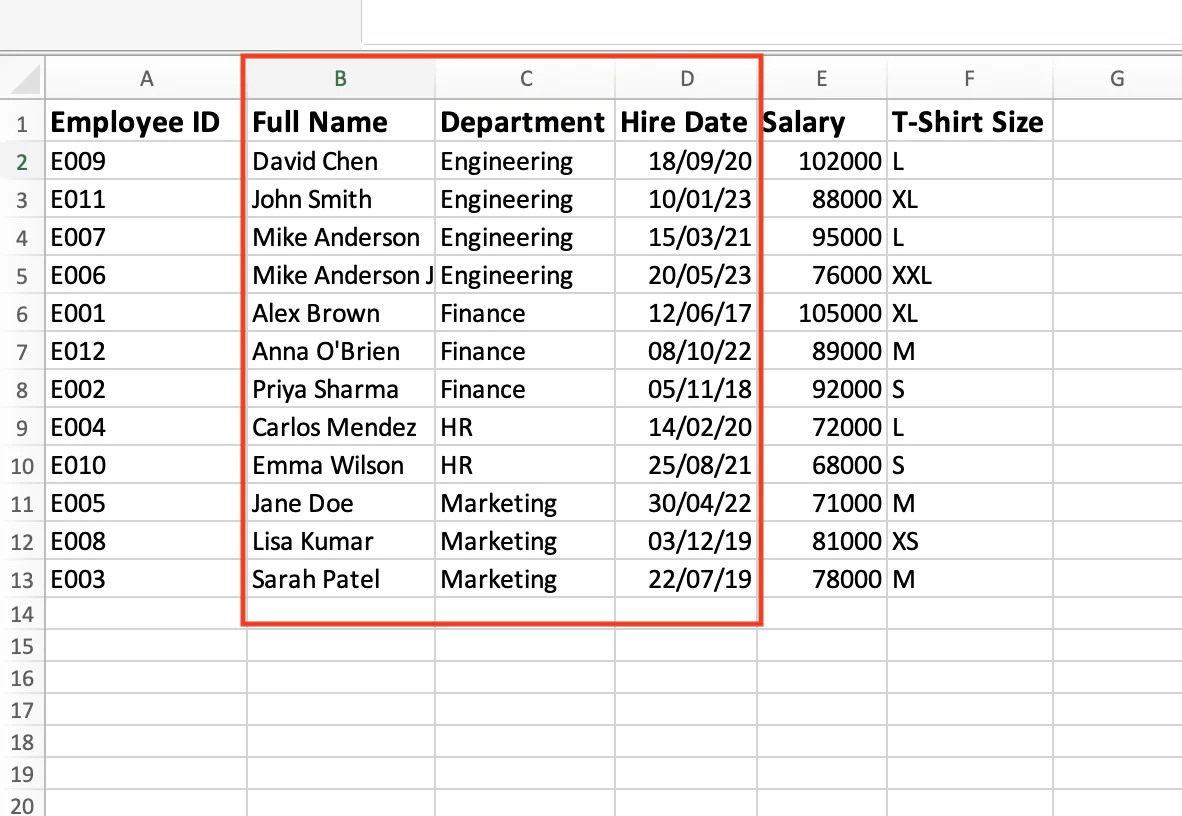
How to Sort by Last Name (When First and Last Names Share a Column)
Your column contains names like Mike Anderson, Sarah Patel, and John Smith in a single cell.
You hit A → Z, and Excel sorts by first name: John, Mike, Sarah.
That's fine for some lists. It's not helpful when you're building a directory, contact list, employee roster, or contract database where sorting by last name is the standard.
The problem is simple: Excel doesn't know which word in the cell is the last name.
To sort correctly, you need to split the names into separate columns first.
The fastest way is Text to Columns, which separates one column into multiple columns using a delimiter in this case, the space between first and last names.
Step 1: Highlight your Full Name column.
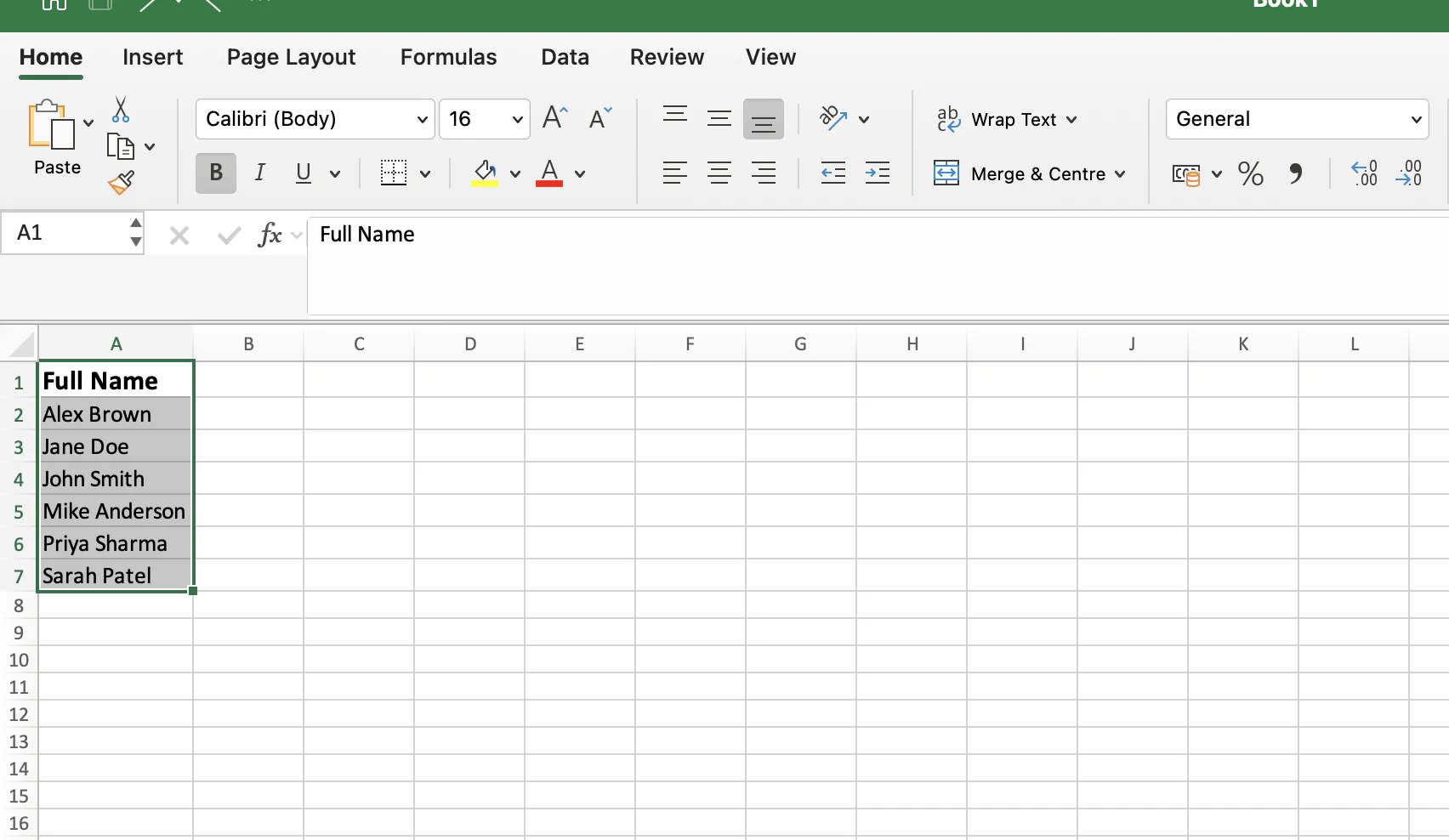
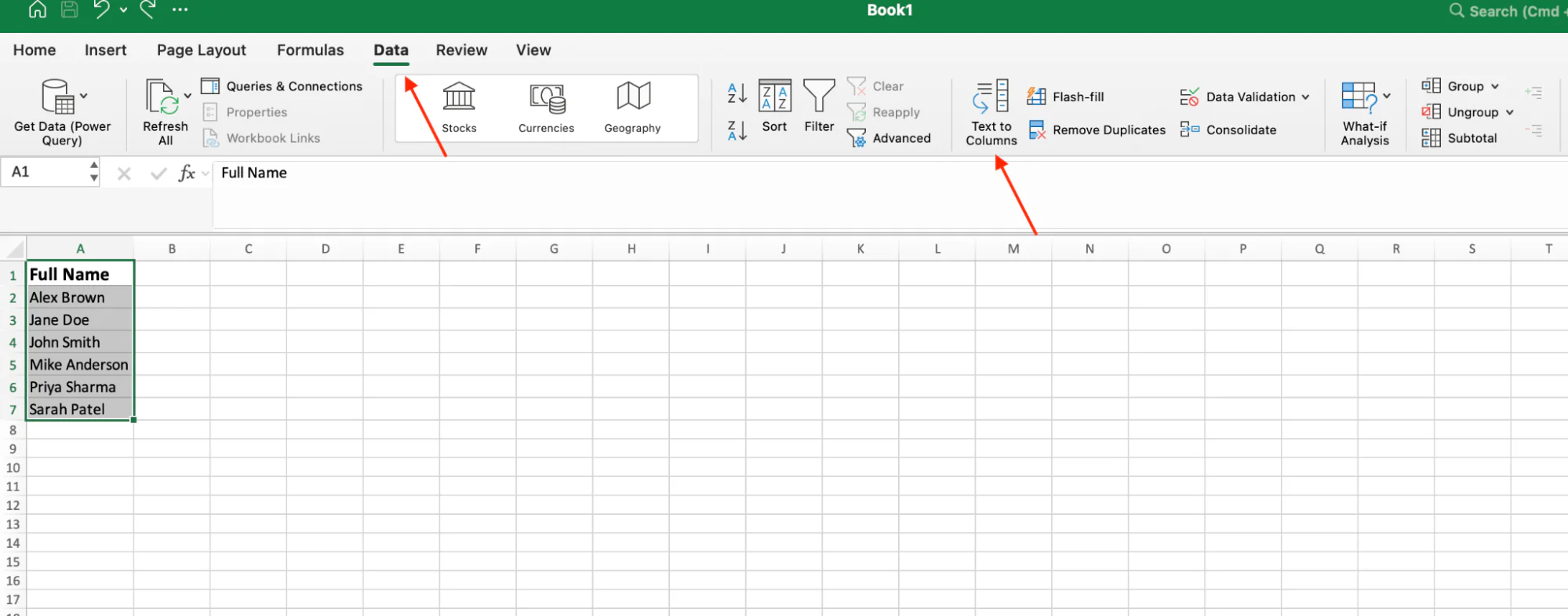
Step 2: Open the Data tab and click Text to Columns.
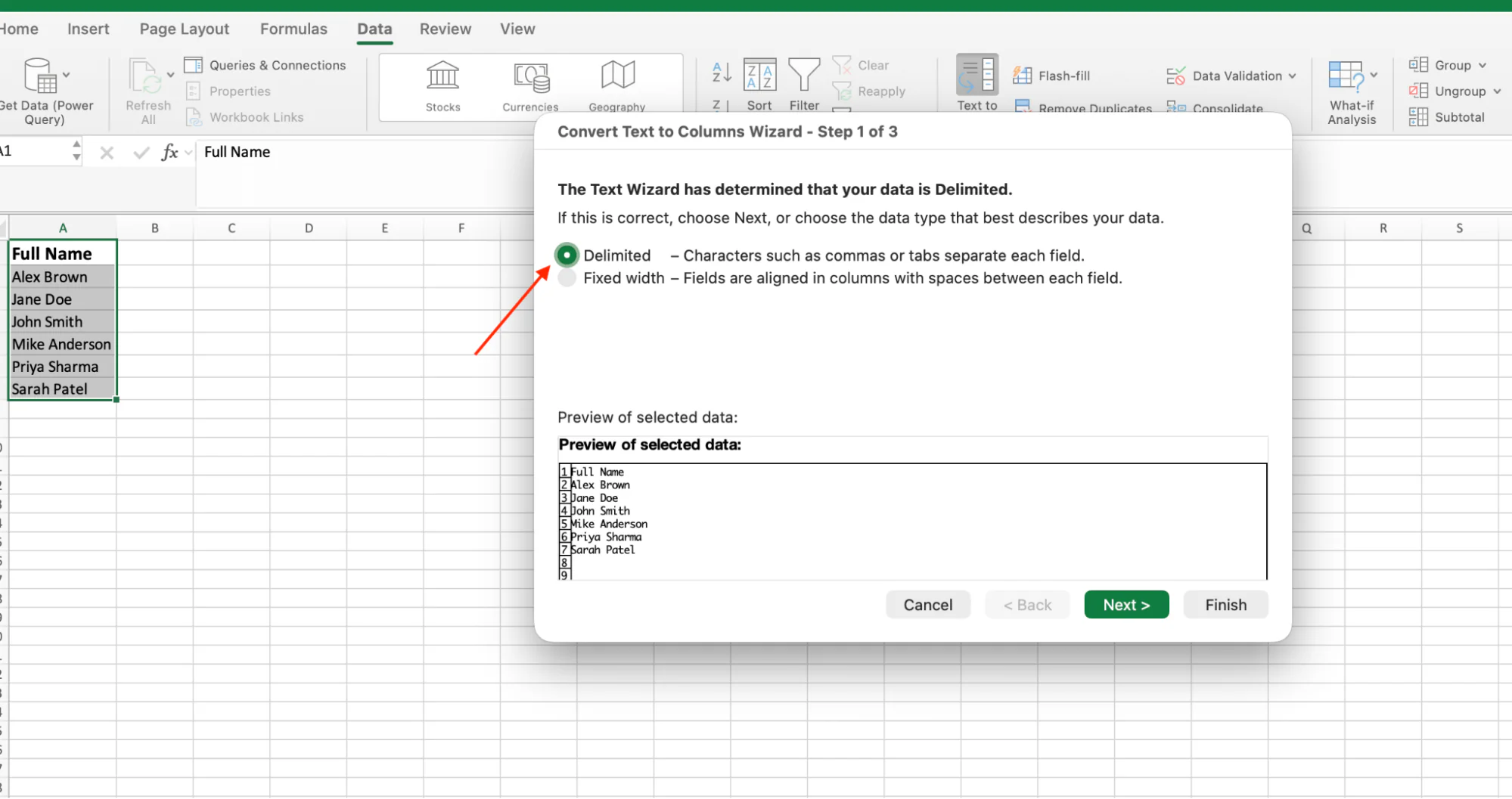
Step 3: In the pop-up, pick Delimited and click Next.
Step 4: Tick the Space checkbox under "Delimiters." Click Next, then Finish.
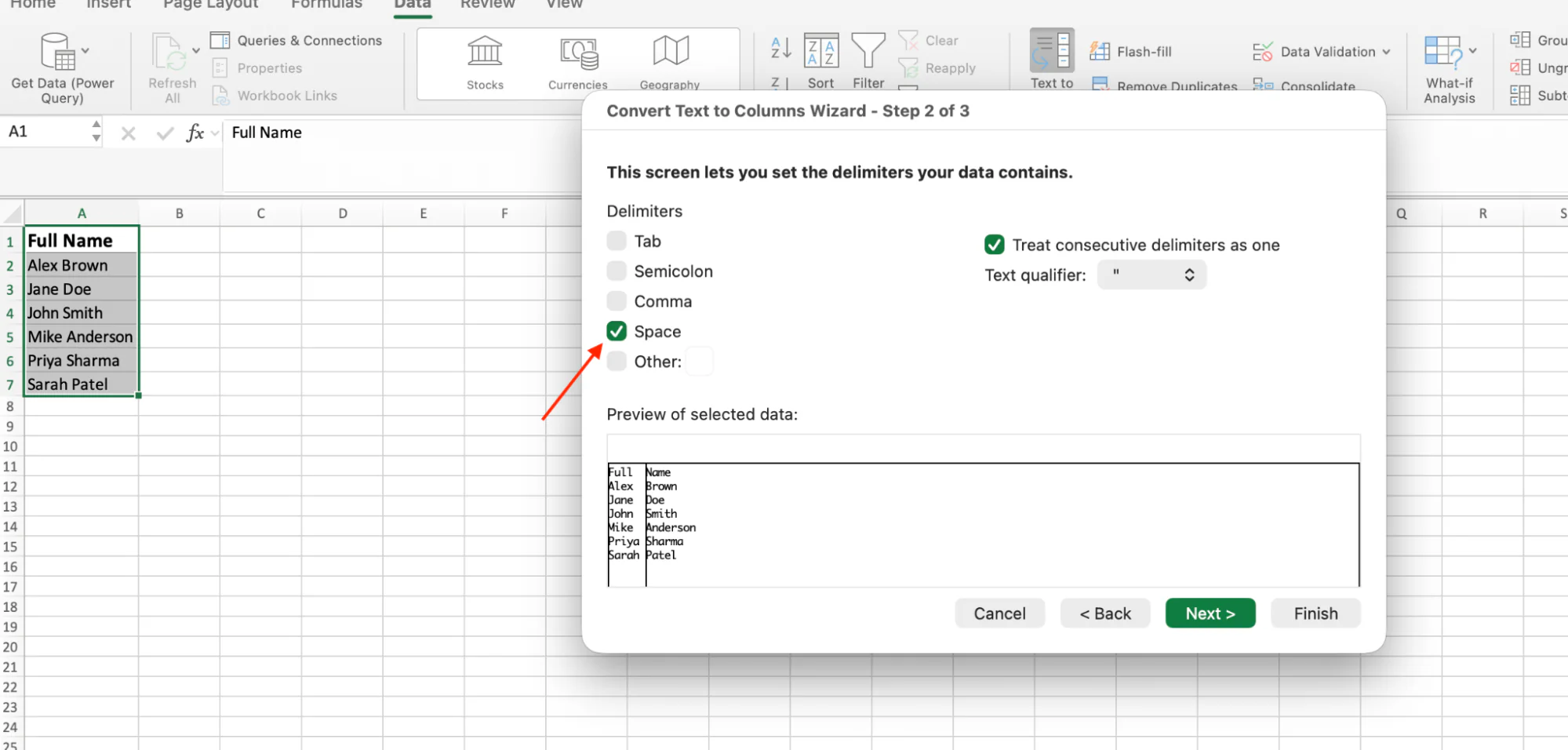
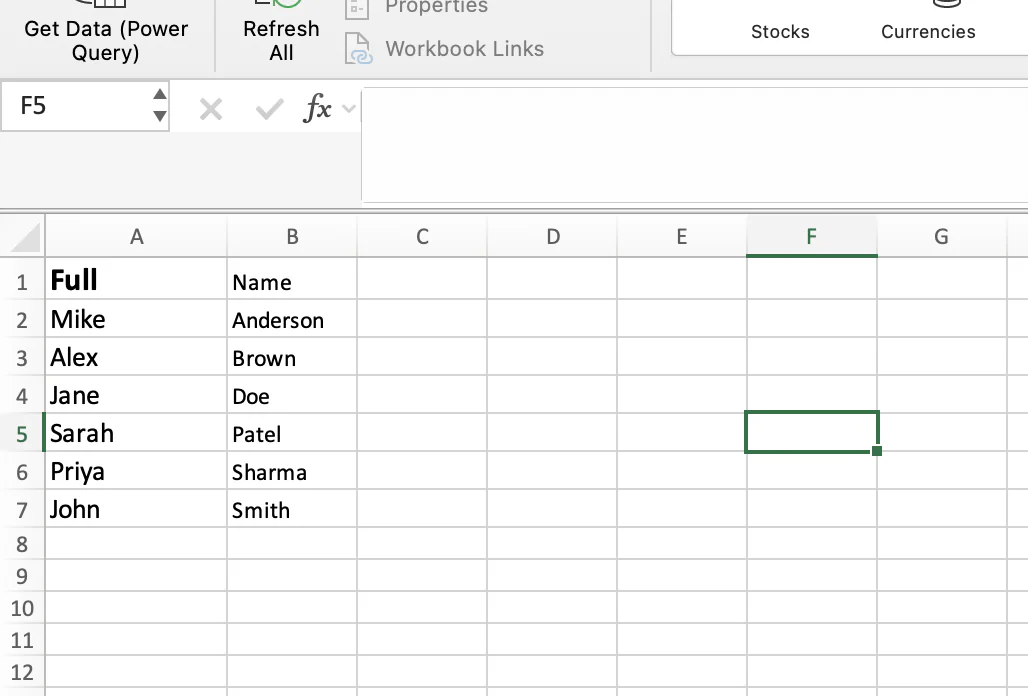
Your column now splits into First Name and Last Name. Click any cell in the Last Name column, hit A → Z on the Data tab, and the whole table sorts by last name alphabetically.
Common Issues to Watch For
Middle names create extra columns
Names such as Mary Jane Smith split into three columns: Mary | Jane | Smith.
In these cases, use the rightmost name column for sorting or clean up the data before sorting.
Suffixes become separate values
Names such as Mike Anderson Jr. split into Mike | Anderson | Jr.
Again, use the rightmost column for sorting or adjust the data manually if needed.
Apostrophes are usually handled correctly
Names such as Anna O'Brien remain intact because there is no space inside the last name.
Excel treats O'Brien as a single value, so alphabetical sorting works as expected.
Using the SORT Function for Automatic Alphabetical Sorting
Every method we've covered so far is a one-time action. You click A → Z, the list sorts, and you're done.
But what happens when someone adds a new name tomorrow?
You'll need to sort the data again.
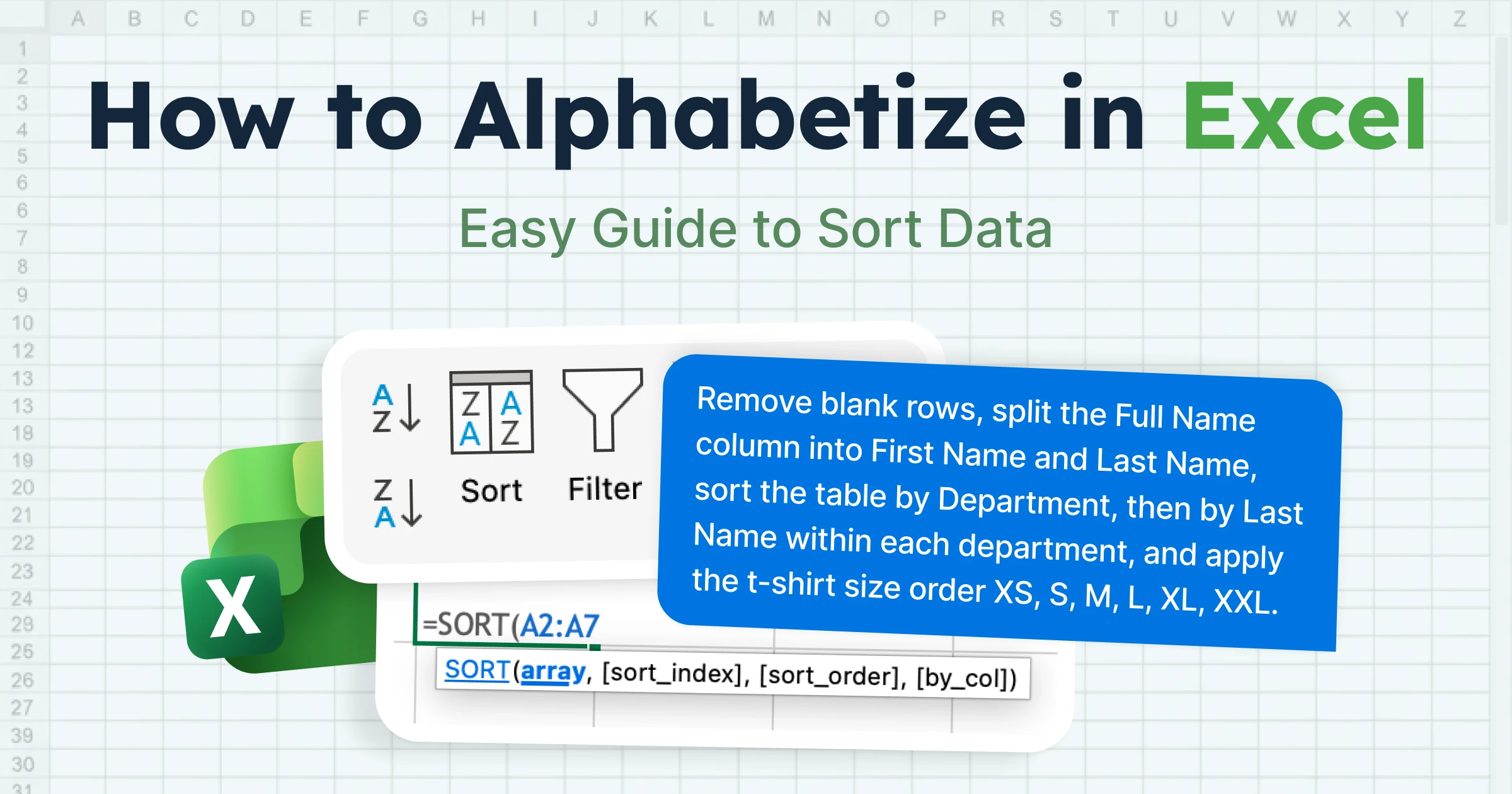
The SORT function gives you a live alphabetical view that updates automatically. Add, remove, or edit data in the original list, and the sorted version refreshes instantly, no buttons, no manual re-sorting.
Here's the syntax:
=SORT(array, [sort_index], [sort_order], [by_col])
For a basic alphabetical sort of one column, you only need the first part. Say your names sit in A2:A7. Click an empty cell (like B2) and type:
=SORT(A2:A7)
Hit Enter. The same names appear in column B, alphabetized.
That's the real value. Your raw list stays where it is. The sorted view updates the moment you add or change a row.
For multi-column data, add the column number you want to sort by:
=SORT(A2:F13, 2, 1)
This sorts the range A2:F13 by the second column (Full Name), in ascending order (1 = A to Z, -1 = Z to A).
One catch: the SORT function only works in Excel 365 and Excel 2021. Older versions (Excel 2019, 2016, 2013) don't have it. For those, you're stuck with the manual A-Z or Custom Sort methods.
Custom Sort Orders (When A-Z Isn't What You Want)
Sometimes alphabetical order gives you the wrong result in Excel.
Sort a column of t-shirt sizes (S, M, L, XL, XXL) alphabetically and Excel returns L, M, S, XL, XXL. Now Large sits before Small, and your size chart makes no sense. Same problem with priority levels (High / Medium / Low), days of the week (Monday → Sunday), or fiscal quarters (Q1 → Q4). Alphabetical isn't the natural order. You have to tell Excel what order to use.
Custom Lists let you define your own sort order. The setup looks different on Windows and Mac, so use the path that matches your machine.
On Windows: Go to File → Options → Advanced. Scroll down to the "General" section and click Edit Custom Lists.
On Mac: Open the Excel menu at the top of the screen, click Preferences, then click Custom Lists under "Formulas and Lists."
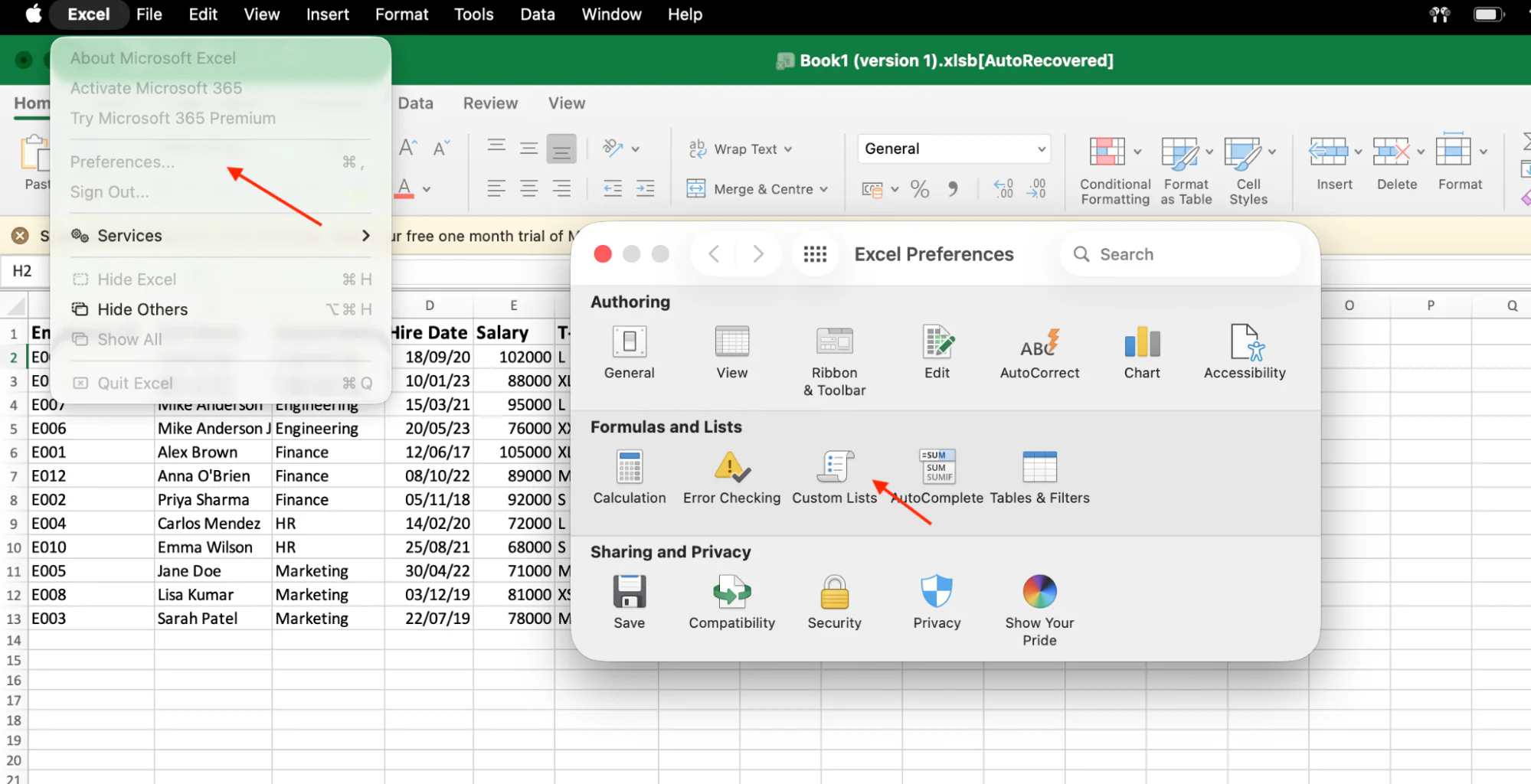
Either path lands you in the same pop-up.
Step 1: Type your list one item per line in the right-hand box: XS, S, M, L, XL, XXL. Hit Enter after each one.
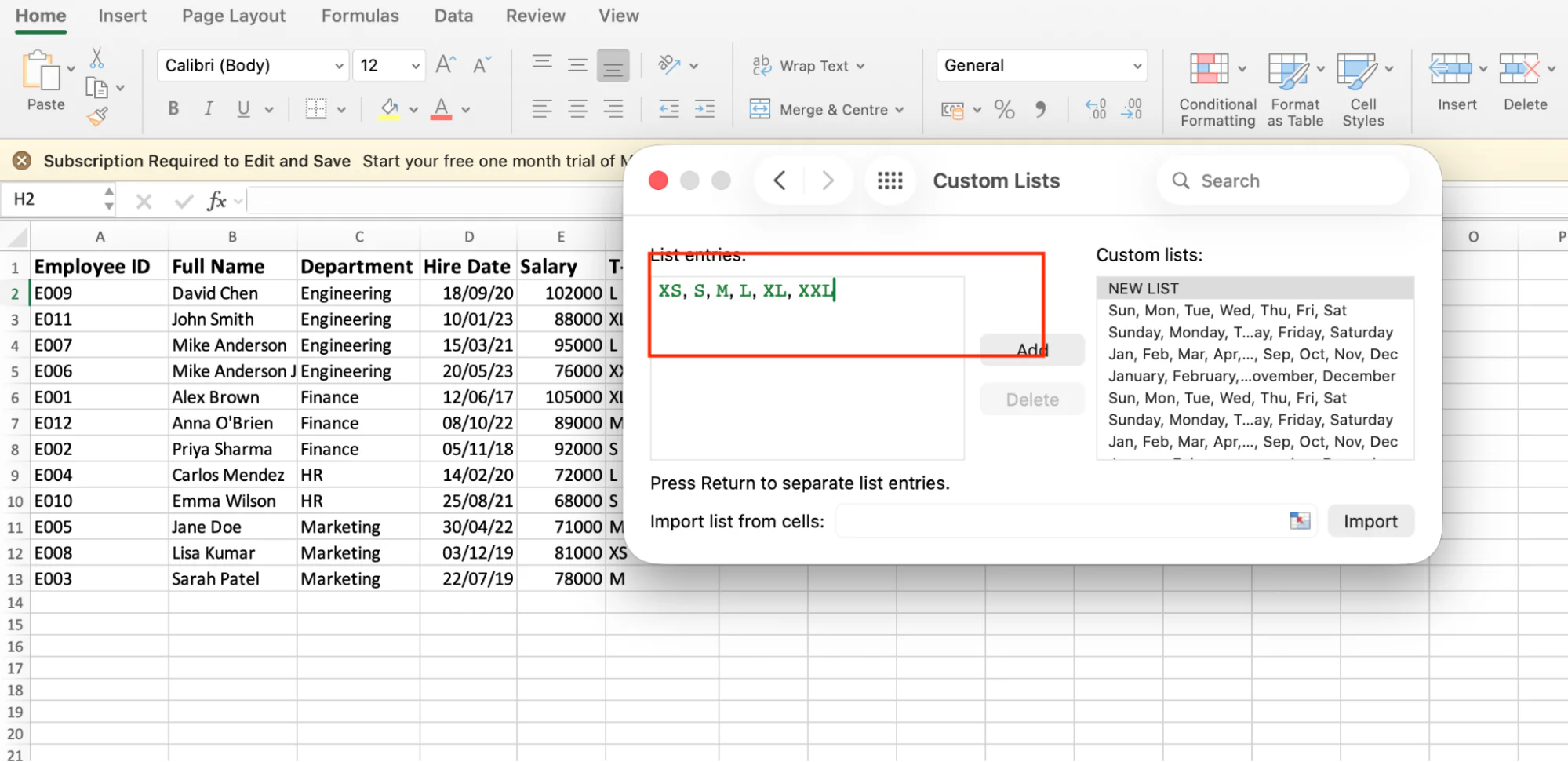
Step 2: Click Add. Your list appears in the left-hand panel.
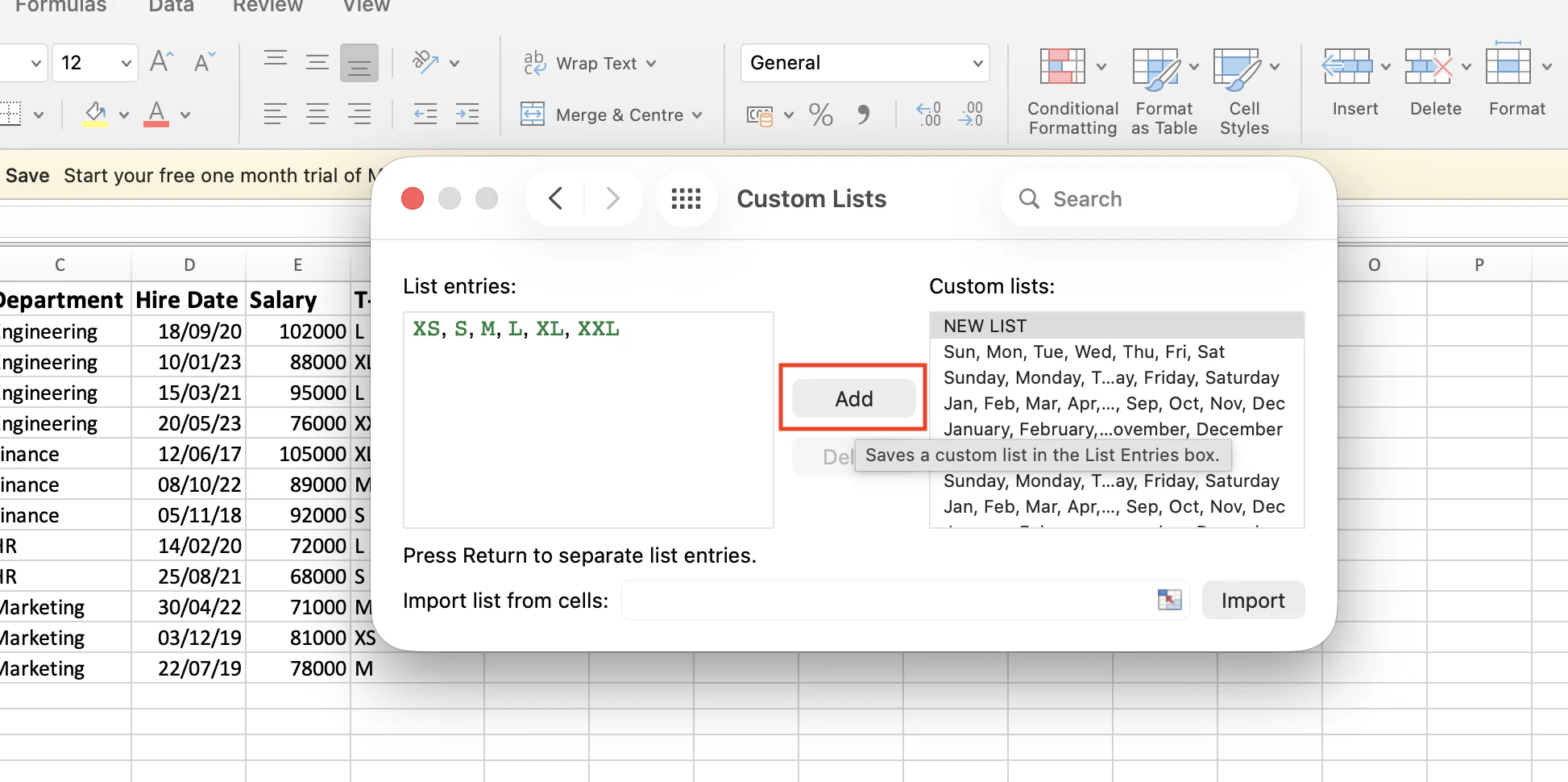
Step 3: Click OK (Windows) or close the window (Mac).
Step 4: Open the Data → Sort dialog. Pick your T-Shirt Size column. Under "Order," click the dropdown and choose Custom List. Pick the list you just added.
Excel now sorts the column in the order you set. XS first, XXL last.
Days of the week, fiscal quarters, and month names come built in, so you don't have to create those manually. Just pick them from the Custom List dropdown inside the Sort dialog.
Replace Every Step Above with GPT for Excel
Every method above works. They also take time.
A custom sort requires multiple clicks across different menus. The SORT function needs the correct syntax and a modern version of Excel. Sorting by last name requires splitting columns first. Custom sort orders need additional setup.
If you're sorting one spreadsheet a week, that's not a big deal.
If you're managing dozens of files across clients, departments, or teams, those extra steps add up quickly.
GPT for Excel by GPT for Work removes the manual work.
Instead of clicking through menus or building formulas, you open the sidebar and type a plain-English prompt. The AI agent reads your data, determines the required steps, and performs them directly inside your workbook.
GPT for Work isn't a formula generator or a chatbot that gives suggestions.
It's an AI agent.
It analyzes your spreadsheet, chooses the right AI model for the task, and executes the workflow for you. You can watch each step in real time, pause the process, or resume it later.
For example, you could simply type: "Clean up this sheet. Remove blank rows, split the Full Name column into First Name and Last Name, sort the table by Department, then by Last Name within each department, and apply the t-shirt size order XS, S, M, L, XL, XXL."
With one prompt, the agent handles multiple tasks automatically.
What would normally take 10–15 minutes of manual sorting, cleaning, and setup can be completed in under a minute.
And sorting is only the beginning.
The same agent can generate content across thousands of rows, translate entire spreadsheets, categorize data, research companies from the web, and create or fix Excel formulas.
For a single spreadsheet, the A-Z button is often enough.
For large-scale spreadsheet work, an AI agent can save a significant amount of time.
Five Things That Quietly Break an Alphabetical Sort
You followed the steps. The sort ran. Something still looks wrong.
In most cases, one of these five issues is the culprit.
Fix the problem first, then run the sort again.
1. Blank Rows Inside Your Data
A blank row can break Excel's understanding of the dataset.
When Excel encounters an empty row, it may treat everything below it as a separate range, leaving part of your data unsorted.
Fix: Delete any blank rows before sorting.
2. Merged Cells
Excel can't sort a range that contains merged cells.
Instead, you'll see an error message:
"This operation requires the merged cells to be identically sized."
Fix: Unmerge the cells first.
Select the merged range, go to the Home tab, and click Merge & Center to turn it off.
3. Numbers Stored as Text
A column contains values like 2, 10, 11, 100, but Excel sorts them as: 10, 100, 11, 2
This happens because Excel is treating the values as text rather than numbers.
A common warning sign is the small green triangle in the top-left corner of the cell.
Fix: Select the affected cells, click the warning icon, and choose Convert to Number.
4. Hidden Rows or Columns
Hidden rows and columns are still included in a sort.
The data moves, but because some rows are hidden, it can look like Excel sorted the sheet incorrectly.
Fix: Unhide all rows and columns before sorting.
Select the full data range, right-click, and choose Unhide.
5. Header Rows Mixed into the Data
If Excel doesn't recognize your header row, it may sort the headers along with the data.
Suddenly, column titles appear halfway down the table.
Fix: Check My data has headers in the Sort dialog before sorting.
It also helps to format headers differently from the rest of the data, such as using bold text or a distinct fill color.
Fix these in order before you sort. Most "Excel sort isn't working" problems trace back to one of them.
Quick Troubleshooting Rule
If an alphabetical sort doesn't behave the way you expect, check for:
- Blank rows
- Merged cells
- Numbers stored as text
- Hidden rows or columns
- Unrecognized headers
Most Excel sorting problems can be traced back to one of these five issues.
Wrap-Up
Alphabetizing in Excel is two clicks when your data is clean. When it isn't, knowing the right method saves you a debugging session.
Match the method to the job:
- A-Z button for single columns and short lists.
- Custom Sort dialog for grouping by one thing and sorting within it.
- SORT function for live, auto-updating views.
- Custom Lists when alphabetical isn't the order you actually need.
- GPT for Excel when you're sorting more than one sheet at a time.
If a sort isn't working as expected, the cause is usually one of five things: blank rows, merged cells, numbers stored as text, hidden rows, or an unrecognized header row.
Scroll back to "Five Things That Quietly Break an Alphabetical Sort" for step-by-step fixes.
For a single spreadsheet, the built-in Excel tools are usually enough.
But when you're sorting, cleaning, and organizing data across multiple files, GPT for Excel can turn a multi-step workflow into a single prompt.
Frequently Asked Questions
How do you put Excel in alphabetical order?
Click any cell inside your data, open the Data tab, and hit A → Z. Excel sorts the whole table together. For multi-column sorts, use the Sort dialog instead.
How do you alphabetize a column in Excel without changing the other columns?
You can't, and you shouldn't. Sorting one column while the rest stays put breaks your row data. To alphabetize a column in Excel properly, click any cell in that column and hit A → Z. Excel keeps the rows aligned.
Why is Excel not sorting alphabetically?
Usually one of five causes: blank rows, merged cells, numbers stored as text, hidden rows, or an unformatted header row. Fix these first.
Can you sort alphabetically in Excel for the web?
Yes. The A-Z button, Sort dialog, and SORT function all work. The one limit: you can't edit Custom Lists in the web version. Set those up in desktop Excel first.
What's the difference between Sort and Filter in Excel?
Excel sort and filter are different. Sort reorders your data. Filter hides rows that don't match your criteria. You sort to organize, filter to focus.