A teacher has just finished grading 50 final exam papers. The scores are sitting in column B. The average looks fine. But she wants to know something else: how many students scored close to the average, how many scored far above it, and how many fell behind.
A column of numbers can't show that. A bell curve graph can.
It turns raw scores into a clear visual shape that shows where most of your data falls and which values stand out. Teachers use it for grades. HR teams use it for performance reviews. Manufacturers use it for quality control.
In this guide, you'll learn how to build a bell curve in Excel using the NORM.DIST function and a scatter chart. At the end, you'll also see how an AI agent can do the same job from a single prompt.
What Is a Bell Curve Graph?
A bell curve graph is a chart that shows how data is distributed around the average. Plot the data, and you get a shape that resembles a bell, that's where the name comes from.

Most values cluster near the center, around the average. As you move left or right, the frequency decreases. Only a few values fall far from the center — these are your high and low outliers.
Two numbers determine the shape:
- The mean is the average of your data. It marks the peak of the curve.
- The standard deviation measures how spread out the data is. A small standard deviation creates a tall, narrow bell. A large one creates a shorter, wider bell.
That's the bell curve formula in action. Excel uses these two values in the NORM.DIST function to calculate every point on the curve.
You'll see this pattern in test scores, heights, daily sales, and product weights. When data is influenced by many small factors, it often follows a normal distribution. Most people simply call it a bell curve.
Quick note on bell curve histograms: a histogram displays the same data using bars instead of a smooth line. Both tell the same story. The curve simply makes the distribution easier to interpret at a glance.
What You Need Before You Start
Before you open Excel, make sure you have:
- A dataset of numerical values. At least 20–30 data points will work, but a larger dataset produces a smoother, more accurate curve. Test scores, sales figures, product weights, any set of numerical measurements can be used.
- Excel 2013 or later. Older versions use the
NORMDISTfunction instead ofNORM.DIST. Both work the same way; the syntax is just slightly different. - The mean and standard deviation of your data. You'll calculate these in the first two steps, so there's no need to prepare them in advance.
One thing worth knowing before you start: Excel offers two functions for calculating standard deviation. STDEV.P is used for a complete population (every data point you want to analyze). STDEV.S is used for a sample taken from a larger population.
In most practical cases, such as a class of students, a month's worth of sales, or a batch of products, STDEV.P is usually the better choice.
How to Create a Bell Curve Graph in Excel (Step-by-Step)
Here's the complete process for turning raw data into a finished bell curve chart. Throughout this guide, we'll use test scores from 50 students as our example.
Step 1: Sort Your Data
Start by entering or pasting your data into Excel. Place student names in column A and test scores in column B.
Sorting isn't required for the calculations, but it makes the dataset easier to review and helps keep everything organized as you build the chart.
To sort your data:
- Click anywhere inside your dataset.
- Go to Data > Sort.
- Select Score as the column to sort by.
- Choose Smallest to Largest as the sort order.
- Click OK.
If Excel asks whether to expand the selection, choose Expand the selection. This ensures that the names stay matched with their corresponding scores after the sort.
Your scores should now be arranged from lowest to highest, making them easier to review and work with in the next steps.

Step 2: Calculate the Mean
The mean is the average of all your scores. It's the peak of your bell curve.
Click an empty cell. We'll use D2.
Type:
=AVERAGE(B2:B51)
Press Enter. You'll get 74.46.

To keep things clean for the chart, round it down to a number. Either type 74 manually in another cell, or wrap the formula:
=ROUND(AVERAGE(B2:B51), 0)

Label the cell next to it (D1) as Mean so you remember what the number is.
Step 3: Calculate the Standard Deviation
The standard deviation measures how far your scores tend to spread from the mean. A smaller value means most scores are clustered close to the average. A larger value means the scores are more widely dispersed.
Click cell D3 and type the label Standard Deviation.
Then click D4 and type:
=STDEV.P(B2:B51)

Press Enter. You'll get 11.67. Round it to 12 for cleaner numbers:
=ROUND(STDEV.P(B2:B51), 0)

A quick reminder: use STDEV.P when your dataset includes the entire group you're analyzing, such as every student in a class. Use STDEV.S when your data is only a sample from a larger population, such as 50 students selected from a school of 500. Since we're working with all 50 students in our dataset, STDEV.P is the correct choice.
Step 4: Build the X-Axis Values
A bell curve needs a smooth range of x-values to plot along the horizontal axis. These values form the foundation of the curve and determine where Excel calculates each point.
To capture the full shape of the distribution, the range should extend three standard deviations below and above the mean. In a normal distribution, this covers about 99.7% of all possible values, which is enough to display the entire bell curve without leaving unnecessary empty space at either end.
Here's the math for our example:
- Standard deviation = 12
- 3 standard deviations = 3 × 12 = 36
- Lower end: 74 − 36 = 38
- Upper end: 74 + 36 = 110
So your x-values run from 38 to 110 in steps of 1. That gives you 73 rows total.
Set it up in column F:
- In F1, type the label X-Values
- In F2, type 38
- In F3, type 39
- Select both cells, then drag the small square at the bottom-right corner of the selection down until you hit 110

Excel will automatically fill in the remaining values.
Smaller increments produce a smoother curve. For example, you can use steps of 0.5 or 0.1 for greater precision. However, increments of 1 work well for most bell curve charts and keep the dataset easier to manage.
Step 5: Apply the NORM.DIST Function
Now it's time to calculate the height of the bell curve at each x-value. Excel does this using the NORM.DIST function, which returns the probability density for a normal distribution based on your mean and standard deviation.
In G1, type the label Probability Density.
Click cell G2 and type:
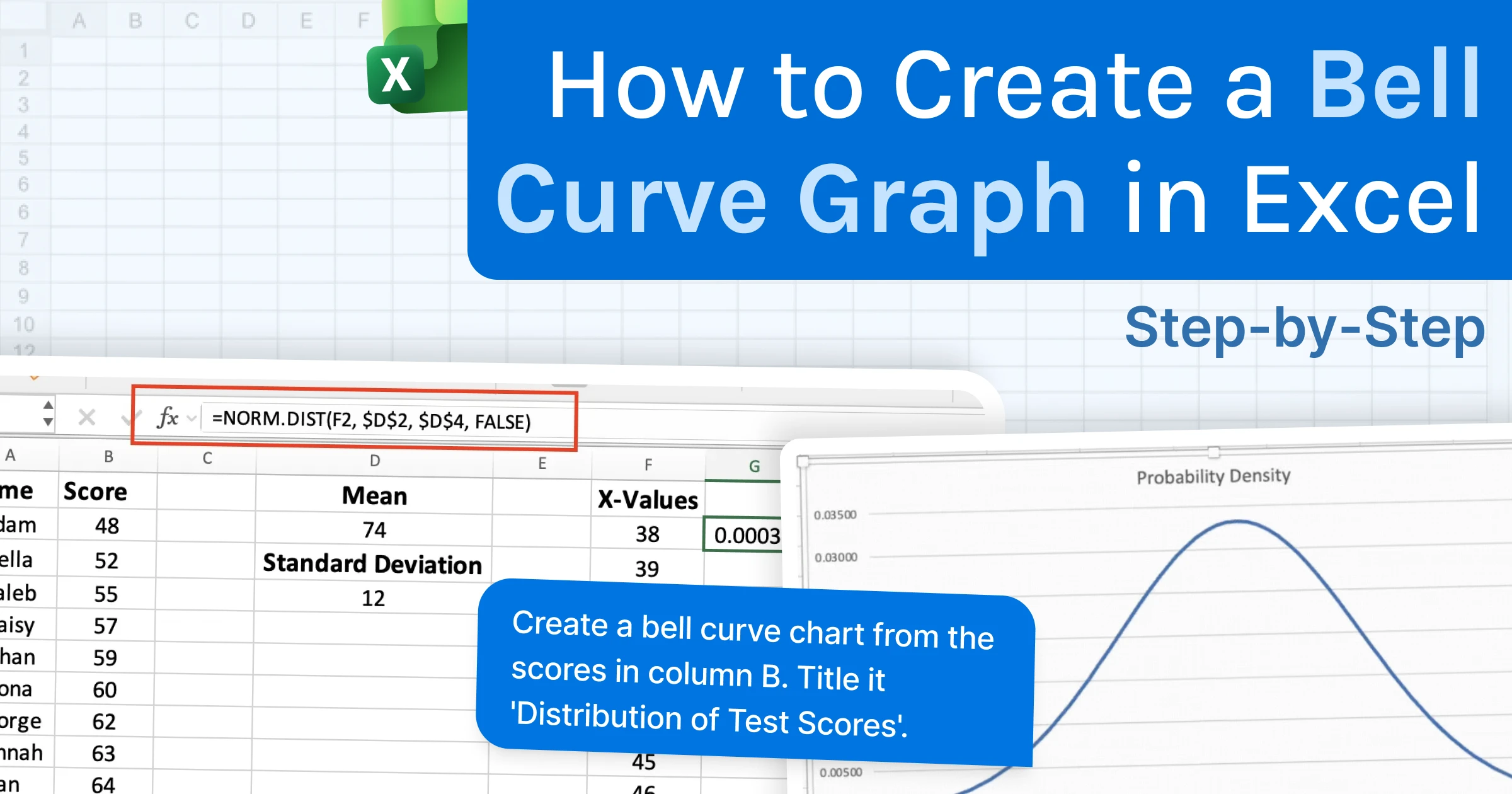
=NORM.DIST(F2, $D$2, $D$4, FALSE)
Press Enter.
Here's what each part means:
- F2 is the x-value (the score you're checking)
- $D$2 is the mean (74). The dollar signs lock the cell so it doesn't shift when you drag the formula down.
- $D$4 is the standard deviation (12). Same lock applies.
- FALSE tells Excel to return the height of the curve at that point. If you use TRUE here, you'll get a different shape called a cumulative curve, which looks like an S, not a bell.

You should see a small decimal value in G2 (approximately 0.00037). That's exactly what you want. As you move down the column, the values will increase, reach their highest point near the mean of 74, and then gradually decrease as the x-values approach 110.
Next, copy the formula down the entire column:
- Select cell G2.
- Hover over the fill handle (the small square in the bottom-right corner of the cell).
- Drag it down to G74.
Alternatively, double-click the fill handle and Excel will automatically fill the formula to the bottom of the dataset.
Once you're done, every x-value will have a corresponding probability density value, giving you all the points needed to plot the bell curve.
Step 6: Insert the Bell Curve Chart
You have everything you need now: x-values in column F and probability density values in column G. Time to plot the curve.
Select both columns:
- Click cell F1
- Hold Shift and click cell G74 (or wherever your last row of data sits)
Now insert the chart:
- Go to Insert > Charts
- Click Recommended Charts
- Pick the smooth line bell curve (usually the second option in the list)
- Click OK
Excel drops a clean bell curve right onto your sheet. No need to fiddle with chart types, Excel reads your data and suggests the right one.
A few quick clean-ups to make it look sharp:
- Rename the chart title. Double-click the title at the top of the chart and change it to Distribution of Test Scores.
- Add axis labels. Click the chart, then go to Chart Design > Add Chart Element > Axis Titles. Label the x-axis Score and the y-axis Probability Density.
- Remove gridlines for a cleaner look. Click any gridline inside the chart and press Delete.
- Change the line color if you want. Click the curve, then right-click and pick Format Data Series. Pick a brand color or a soft blue.
GPT for Excel — The AI Agent That Builds Bell Curves for You
The manual method works. But there's a faster way to get the same chart.
GPT for Excel is an AI agent that runs inside Microsoft Excel as a side panel.
Instead of entering formulas and navigating menus, you simply describe what you want. The agent reads your worksheet, performs the calculations, and builds the chart for you.
For example, you can type:
"Create a bell curve chart from the scores in column B. Title it 'Distribution of Test Scores'."
Press Enter, and the agent handles the rest. It calculates the mean and standard deviation, generates the x-values, applies the NORM.DIST function across the dataset, and inserts a smooth bell curve chart directly into your workbook.
The result is the same as the manual process, just completed in seconds.
You can also continue the conversation to refine the chart. For example:
- "Highlight scores above 90."
- "Change the line color to red."
- "Add a second curve for last semester's class."
The agent updates the chart automatically, without requiring you to edit formulas or chart settings manually.
And bell curves are only one example. The same AI agent can clean inconsistent product names across thousands of rows, translate customer reviews into multiple languages, categorize support tickets by topic, and generate meta descriptions for entire product catalogs.
In short, tasks that would normally require repetitive work across hundreds or thousands of cells can be completed with a single prompt.
How to Read Your Bell Curve (the 68-95-99.7 Rule)
Building the chart is half the work. Reading it is the other half.
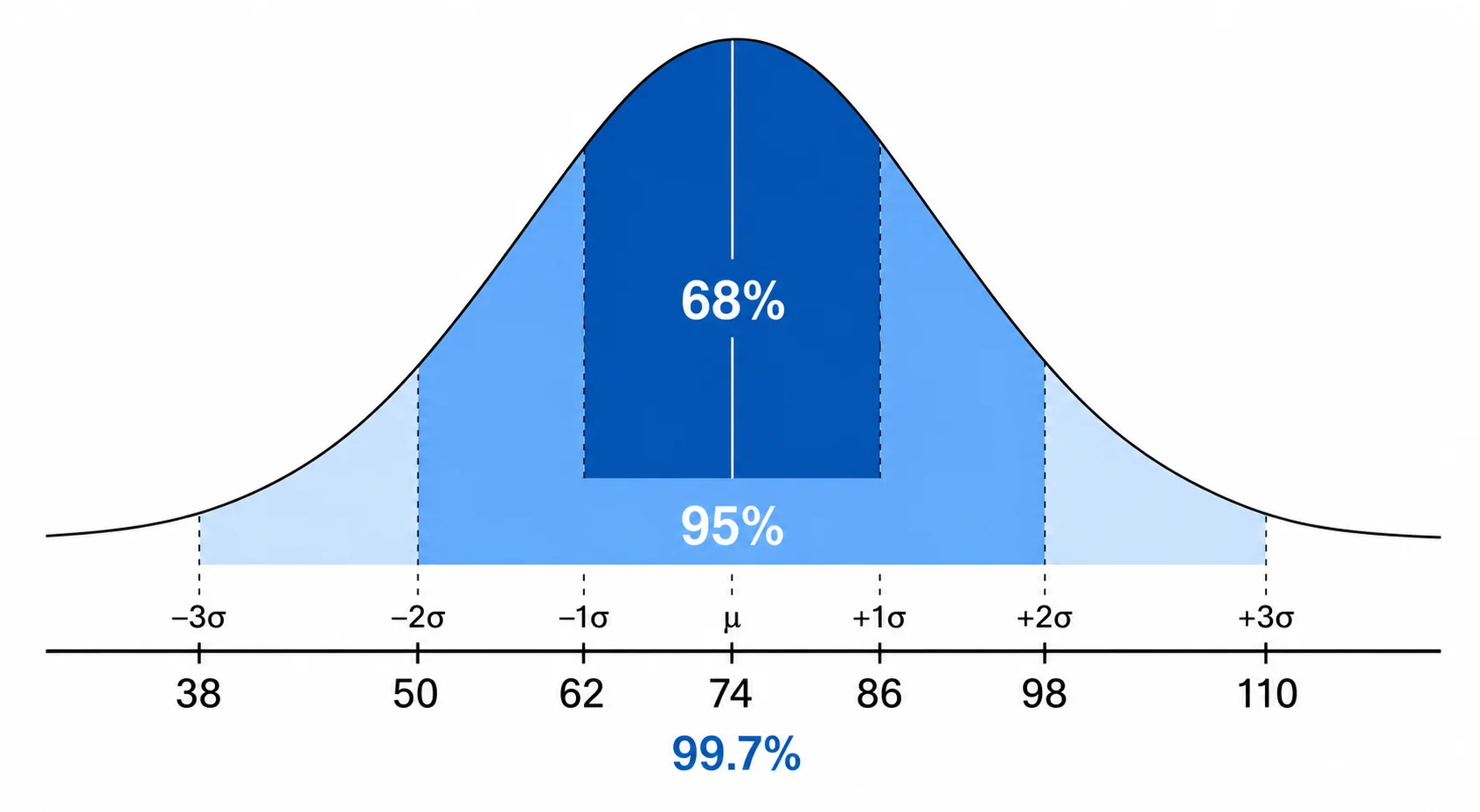
Every bell curve splits into the same three zones. The split looks like this:
- 68% of values sit within 1 standard deviation of the mean
- 95% of values sit within 2 standard deviations
- 99.7% of values sit within 3 standard deviations
This is called the 68-95-99.7 rule.
What This Looks Like in Our Class
Our mean is 74 and our standard deviation is 12:
- 68% of students scored between 62 and 86 (74 ± 12)
- 95% scored between 50 and 98 (74 ± 24)
- 99.7% scored between 38 and 110 (74 ± 36)
Reading a Single Score
- Scored 99? Past the 95% zone. Top 2.5% of the class.
- Scored 45? Past the 95% zone on the low end. Bottom 2.5%.
- Scored 78? Inside the 68% zone. Middle of the pack.
Real-World Use Cases for Bell Curves
Bell curves show up far beyond test scores. Anywhere data has an average and natural variation, you'll find one.
- Education: Teachers use bell curves to grade on a curve. If the class average is low, scores get scaled so the distribution fits the expected shape.
- HR and performance reviews: Many companies rate employees using a forced bell curve distribution, splitting people into top 10%, middle 70%, and bottom 20%. Whether it's fair is another debate, but the math is the same.
- Manufacturing: Quality control teams plot product weights, lengths, or thicknesses on a bell curve. Anything past 3 standard deviations gets pulled off the line.
- Finance: Daily stock returns roughly follow a normal distribution. Risk models use bell curves to estimate the chance of a market crash or a bad trading day.
- Health: Doctors compare patient measurements (blood pressure, cholesterol, BMI) against a bell curve to spot what counts as normal range and what needs attention.
- Standardized tests: SAT, GRE, IQ, all built around a bell curve. That's how percentile rankings work. Your score is mapped against millions of others.
Conclusion
A bell curve graph turns a column of numbers into a visual summary of your data.
It helps you see where most values cluster, how widely they spread, and which results stand out from the rest.
In Excel, creating a bell curve is a straightforward process. You'll sort your data, calculate the mean and standard deviation, generate a range of x-values, apply the NORM.DIST function, and plot the results on a scatter chart. Once the curve is in place, the 68-95-99.7 rule makes it easy to understand how individual values compare to the overall distribution.
If you create bell curves regularly or work with multiple datasets, GPT for Excel can automate the entire workflow. Instead of building the chart step by step, you can generate the same result with a single prompt and have it ready in seconds.
Frequently Asked Questions
How do I shade a specific area under my bell curve?
Add a helper column next to your probability density values with an IF function: =IF(AND(F2>=72, F2<=86), G2, -100). Plot this as an area chart on top of your bell curve using a combo chart, then set the y-axis minimum to 0. The shaded zone appears cleanly under the curve.
What's the difference between a bell curve and a normal distribution graph?
They're the same thing. Normal distribution graph is the technical name. Bell curve is the everyday name. Both use the same formula and the same two inputs: the mean and the standard deviation.
Can I create a bell curve graph from a histogram?
Yes. Build a histogram via Insert > Insert Statistic Chart > Histogram, then overlay a smooth NORM.DIST line using a combo chart. You'll see your real data as bars and the theoretical bell curve as a smooth line.
How do I add a bell curve in PowerPoint?
Build it in Excel first, then copy and paste the chart into PowerPoint. The chart stays linked to your Excel data, so any updates flow through automatically.
Why does my bell curve look skewed instead of symmetrical?
Two common reasons. Your data might not follow a normal distribution (income and house prices are usually skewed). Or your x-axis range is uneven on either side of the mean.