Select a model for GPT functions in Excel
GPT for Excel – Autosheet supports a range of models that you can use with the GPT functions. To help you find the model that offers the best balance of accuracy, speed, and cost for your use case, see our recommended models.
The available models depend on:
The API keys set for your current space. Autosheet gives you access to a default set of built-in models. To access additional models, set an API key for one or more AI providers.
The API endpoints set up for your current space. To access even more models, set up a connection to an Azure OpenAI API endpoint or any OpenAI-compatible API endpoint.
The model settings for your current space. Space owners and admins can control which models are available in Autosheet.
Recommended models
For information about recommended bulk models, see Recommended models.
Select a built-in model
-
Open a Microsoft Excel workbook.
-
On the ribbon, select Home > GPT for Excel – Autosheet.
 info
infoIf GPT for Excel – Autosheet is not visible on the ribbon, or if it's grayed out, select Home > Add-ins > My Add-ins > GPT for Excel – Autosheet. Learn more.
-
In the sidebar, select GPT functions.
-
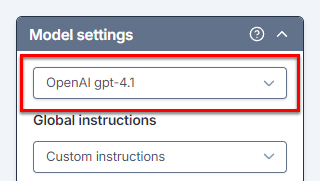
Expand Model settings and open the model switcher.
-
Under Built-in models, select a model.
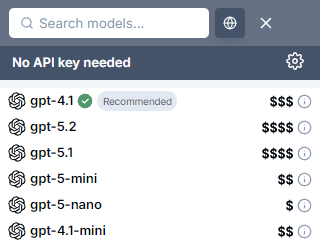
GPT for Excel – Autosheet now uses the selected model to generate responses for GPT functions.
-
When cache is enabled, existing GPT formulas will not automatically update to the new model when you re-execute them.
To re-execute an existing formula with the new model:
-
Press Enter to re-execute the formula.
-
The GPT_MATCH function uses
text-embedding-ada-002, not the model you select. -
The GPT_WEB function uses the web search model set for your space.
Select a connected model
Prerequisites
You have set an API key for the AI provider whose model you want to use.
If you want to use an Azure model or an OpenAI-compatible model from an API endpoint, you have set up the correct endpoint.
-
Open a Microsoft Excel workbook.
-
On the ribbon, select Home > GPT for Excel – Autosheet.
infoIf GPT for Excel – Autosheet is not visible on the ribbon, or if it's grayed out, select Home > Add-ins > My Add-ins > GPT for Excel – Autosheet. Learn more.
-
In the sidebar, select GPT functions.
-
Expand Model settings and open the model switcher.
-
Under Connected models, select a model.
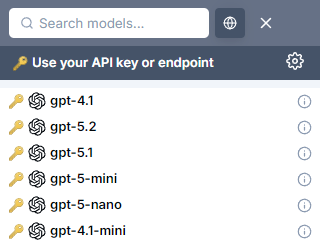
GPT for Excel – Autosheet now uses the selected model to generate responses for GPT functions.
-
When cache is enabled, existing GPT formulas will not automatically update to the new model when you re-execute them.
To re-execute an existing formula with the new model:
-
Press Enter to re-execute the formula.
-
The GPT_MATCH function uses
text-embedding-ada-002, not the model you select. -
The GPT_WEB function uses the web search model set for your space.
What's next
Learn more about models: