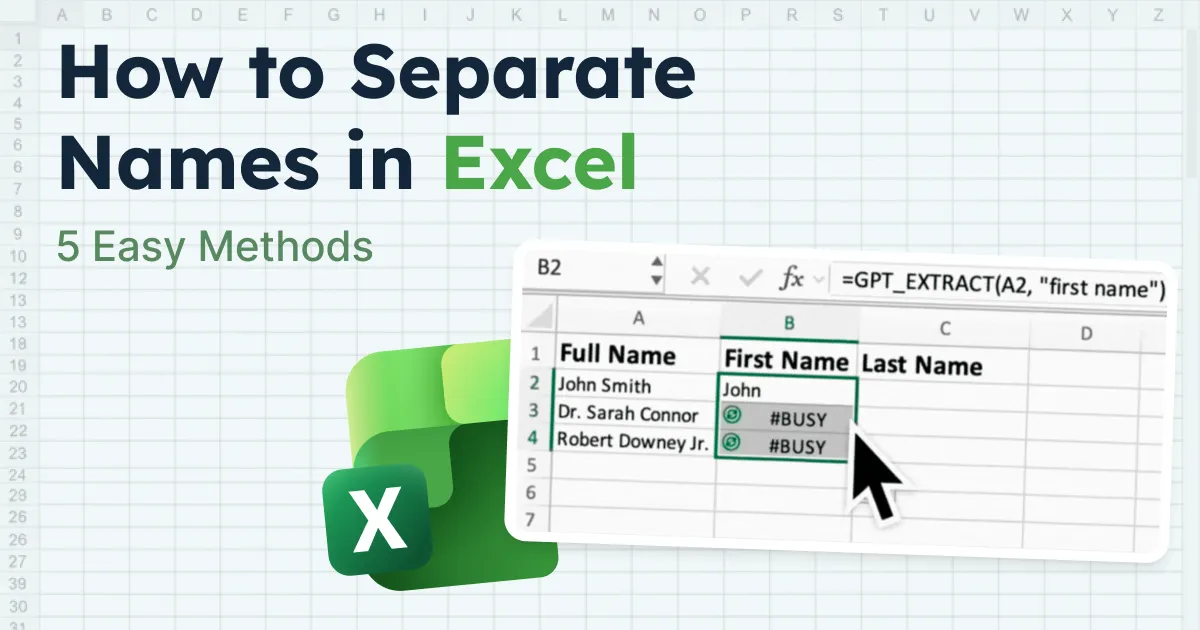
You have a spreadsheet with 5000 full names in one column.
Your boss wants first and last names split by the end of the day. Manually copying and pasting? Not realistic.
Knowing how to separate names in Excel saves hours of repetitive work. Whether you're cleaning a contact list, preparing a mail merge, or organizing CRM data, this task comes up often.
Excel offers several ways to do it, some take just a few clicks, others use formulas that update automatically.
This guide walks you through five methods to split first and last names in Excel, from the simplest no-formula option to a more advanced AI-powered approach.
Choose the one that fits your data and skill level.
Method 1: Text to Columns
Best for: quick, one-time splits with consistent formatting. Text to Columns is the fastest way to split names without writing a single formula.
It works best when your names follow a consistent format like "John Smith" or "Sarah Johnson" with a space between first and last name.
Here's how to use it:
- Select the column that contains your full names.
- Go to the Data tab and click Text to Columns.
- Choose Delimited and click Next.
- Check Space as the delimiter. You can see a preview of how the split looks at the bottom of the window.
- Pick your destination cells and click Finish.
That's it. Excel splits every name in the column into two separate columns right away.
If your names use commas instead of spaces (like "Smith, John"), just select Comma as the delimiter in step 4. The same logic applies to semicolons, tabs, or any other separator.
Pros:
- Very fast and easy to use
- No formulas required
- Works in all Excel versions
Cons:
- It overwrites data to the right -> Always insert a couple of blank columns next to your name column before running it. If you forget, hit Ctrl+Z immediately to undo.
- Results are static (if someone updates a name in the original column, the split columns stay the same.)
- Middle names (like "John Michael Smith") create extra columns.
Method 2: Flash Fill
Best for: fast pattern-based splitting.
Flash Fill is Excel's pattern recognition feature. You type a couple of examples, and Excel figures out the rest on its own. Excel introduced it in 2013 and works well when the name format is consistent.
Here's how it works:
- In the cell next to your first full name, type just the first name. For example, if A2 says "John Smith", type "John" in B2.
- Move to B3 and start typing the next first name.
- Excel shows a grey preview filling the rest of the column. Press Enter to accept.
- If Excel does not suggest anything, go to Data > Flash Fill or press Ctrl+E.
Repeat the same process in a new column for last names. Type "Smith" in C2, move to C3, and Flash Fill picks up the pattern again. It handles middle names better than Text to Columns too. If your data has "John Michael Smith" and you type "John" as the example, Flash Fill grabs only the first name without touching the middle name.
Pros:
- Handles middle names better than Text to Columns
- Very fast for clean datasets
Cons:
- Results are static. If someone changes "John Smith" to "Jonathan Smith" in the original column, the first name column still shows "John". You would need to run Flash Fill again to refresh.
- Can misinterpret inconsistent data. If some rows have two words and others have three or four, Flash Fill may guess wrong on a few rows. Always scroll through and double check the output.
Method 3: Using Formulas
Best for: dynamic, auto-updating results.
Formulas are the best option when you need results that update automatically. If someone edits a name in the original column, the split columns change right along with it. This makes formulas ideal for spreadsheets that get updated regularly.
To extract the first name, use this:
=LEFT(A2, SEARCH(" ", A2) - 1)
Here's what each part does: SEARCH(" ", A2) finds the position of the space in the name. LEFT then pulls everything before that space. So for "John Smith", SEARCH finds the space at position 5, and LEFT grabs the first 4 characters, giving you "John".
To extract the last name, use this:
=RIGHT(A2, LEN(A2) - SEARCH(" ", A2))
LEN counts the total characters in the cell. SEARCH finds the space. RIGHT then grabs everything after that space. For "John Smith", LEN returns 10, SEARCH returns 5, and RIGHT pulls the last 5 characters, giving you "Smith".
Type each formula in the first row, then drag the fill handle down to apply it to the rest of your list.
Handling middle names:
If your data includes names like "John Michael Smith", the first name formula above still works fine. For the last name, use this version instead:
=RIGHT(A2, LEN(A2) - SEARCH(" ", A2, SEARCH(" ", A2) + 1))
The nested SEARCH finds the second space instead of the first, so it pulls "Smith" instead of "Michael Smith".
Pros:
- Fully dynamic
- Works in all Excel versions
Cons:
- Formulas break if a cell has no space in it (like a single name "Madonna"). You get a #VALUE! error. Wrap your formula in IFERROR to handle that:
=IFERROR(LEFT(A2, SEARCH(" ", A2) - 1), A2). This returns the original value when there is no space to split on. - Hard to maintain and breaks if you add rows with name patterns the formula does not account for.
Method 4: TEXTSPLIT Function
Best for: clean, modern Excel (365 / 2024).
TEXTSPLIT is the cleanest way to split names in Excel using a single formula. No nesting, no combining multiple functions. One formula does the job. But it only works in Microsoft 365, Excel for the Web, and Excel 2024.
Here's how it works:
- Click on the cell where you want the first name to appear.
- Type
=TEXTSPLIT(A2, " ")and press Enter. - The first name and last name automatically spill into two separate cells.
No need to drag the formula across columns. TEXTSPLIT recognizes the space as a separator and spreads the result into adjacent cells on its own. For a name like "John Michael Smith", it spills into three cells: "John", "Michael", and "Smith".
If you only want the first name or only the last name, TEXTBEFORE and TEXTAFTER are good alternatives:
=TEXTBEFORE(A2, " ")returns everything before the first space.=TEXTAFTER(A2, " ")returns everything after the first space.
For names with extra spaces or messy formatting, wrap it with TRIM: =TEXTSPLIT(TRIM(A2), " "). This cleans up any double spaces before splitting.
Pros:
- Clean, simple, dynamic
- No complex formulas
Cons:
- Not available in Excel 2021, 2019, or any older perpetual license versions. A lot of people run into the #NAME? error because of this. If you or your team are on an older version, use the LEFT/RIGHT formulas from Method 3, or try the VBA workaround below.
- Same as Method 3, breaks if names contain patterns the formula does not account for.
TEXTSPLIT Not Working? Use This VBA Script Instead
If your Excel version does not support TEXTSPLIT, a simple VBA macro can do the same job. It works on any Excel version and takes about a minute to set up.
1. Open the VBA Editor:
- Windows: Press Alt + F11.
- Mac: Press Option + F11 (or Fn + Option + F11 on some MacBooks). You can also go to Tools > Macro > Visual Basic Editor from the menu bar.
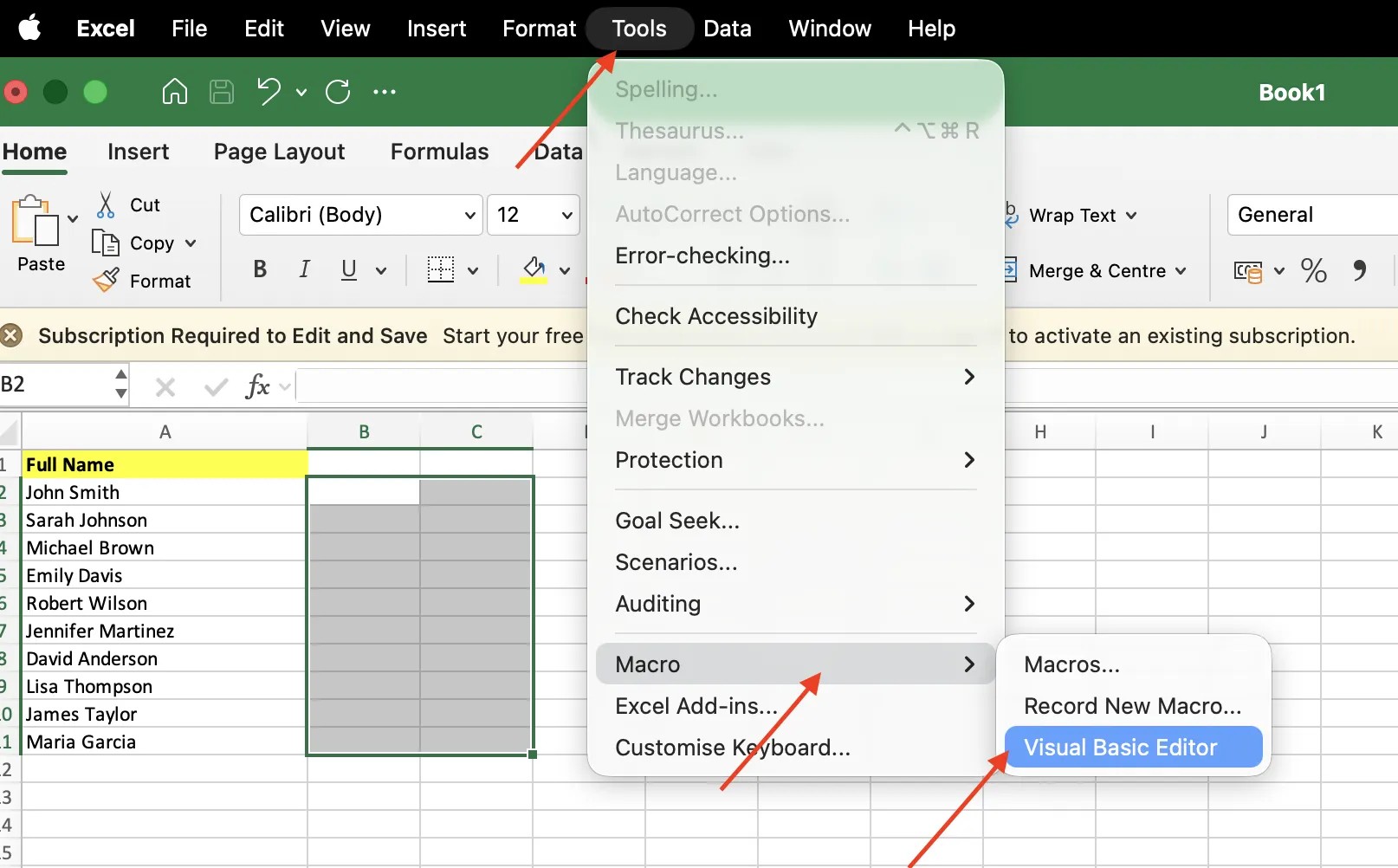
If you do not see the Developer tab on Mac, go to Excel > Preferences > Ribbon & Toolbar and check Developer to enable it.
Step 2: Insert a Module
In the VBA Editor, click Insert > Module. A blank code window opens up.


Step 3: Paste this code:
Sub SplitNames()
    Dim rng As Range
    Dim cell As Range
    Dim nameParts() As String

    Set rng = Selection

    For Each cell In rng
        If cell.Value <> "" Then
            nameParts = Split(cell.Value, " ")
            Dim i As Integer
            For i = 0 To UBound(nameParts)
                cell.Offset(0, i + 1).Value = nameParts(i)
            Next i
        End If
    Next cell
End Sub
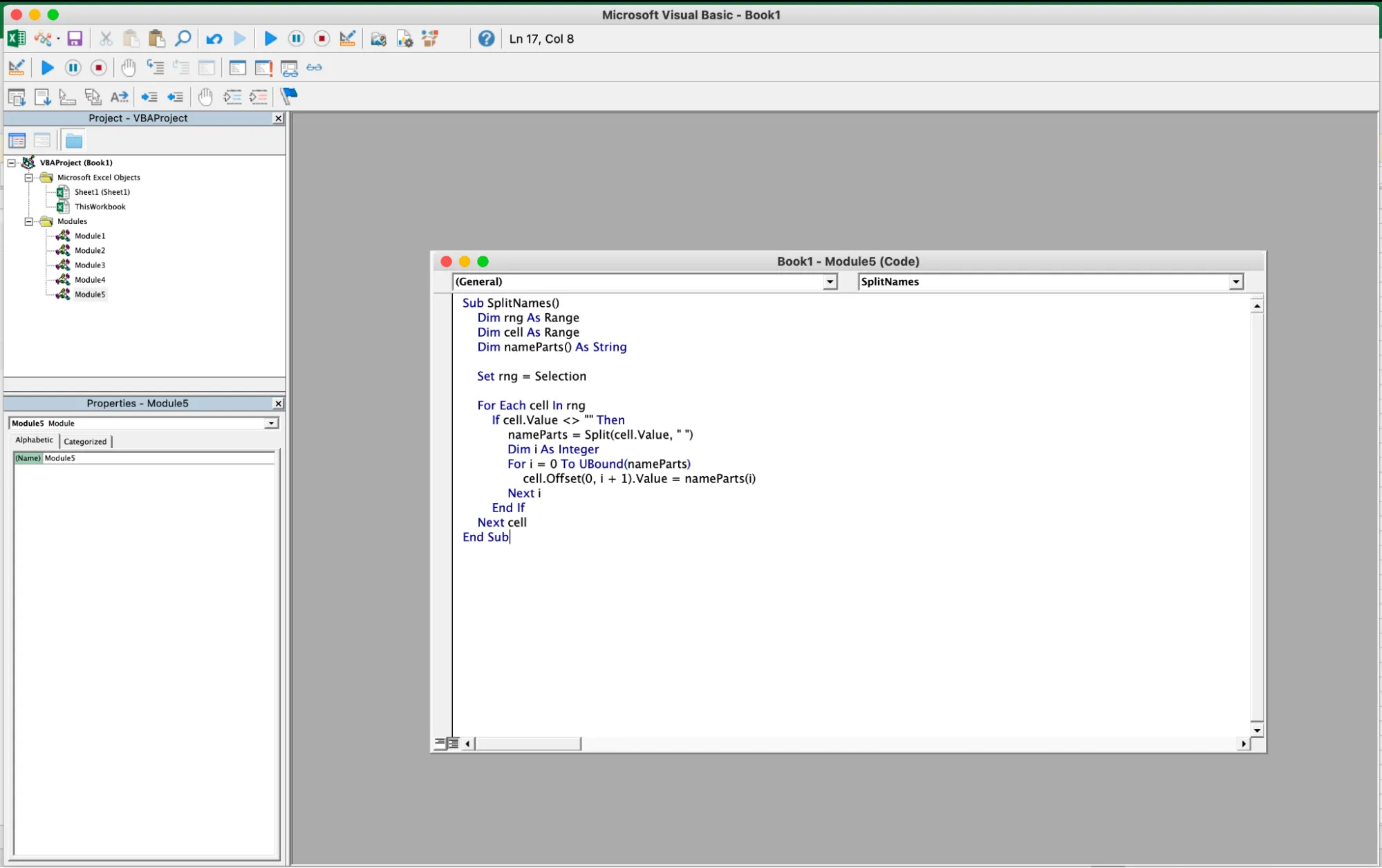
Step 4: Run the macro:
Close the VBA Editor. Select the cells with your full names.
- Windows: Press Alt + F8, choose SplitNames, click Run.
- Mac: Go to Tools > Macro > Macros, choose SplitNames, click Run.
The macro splits every selected name by spaces and places each part in the columns to the right. It splits every name part into its own column, and processes hundreds of rows in a second.
Method 5: Skip Formulas Entirely with GPT for Work AI Agent
Best for: messy, inconsistent real-world data. The methods above all work well when your names follow a clean, predictable pattern.
But they break with names like:
- "Dr. Sarah Connor"
- "Robert Downey Jr."
- "Smith, John"
GPT for Work handles these automatically.
It is a full AI agent that works directly inside Google Sheets and Excel. Tell it what you want in plain language and it handles the rest. It reads your data, understands the context, and processes every row automatically.
One prompt. Done.
Example prompt:
"Split the full names in column A into first name and last name. Ignore titles like Dr., Mr., Mrs. Keep suffixes like Jr. and III with the last name. If any names are in Last, First format, flip them."
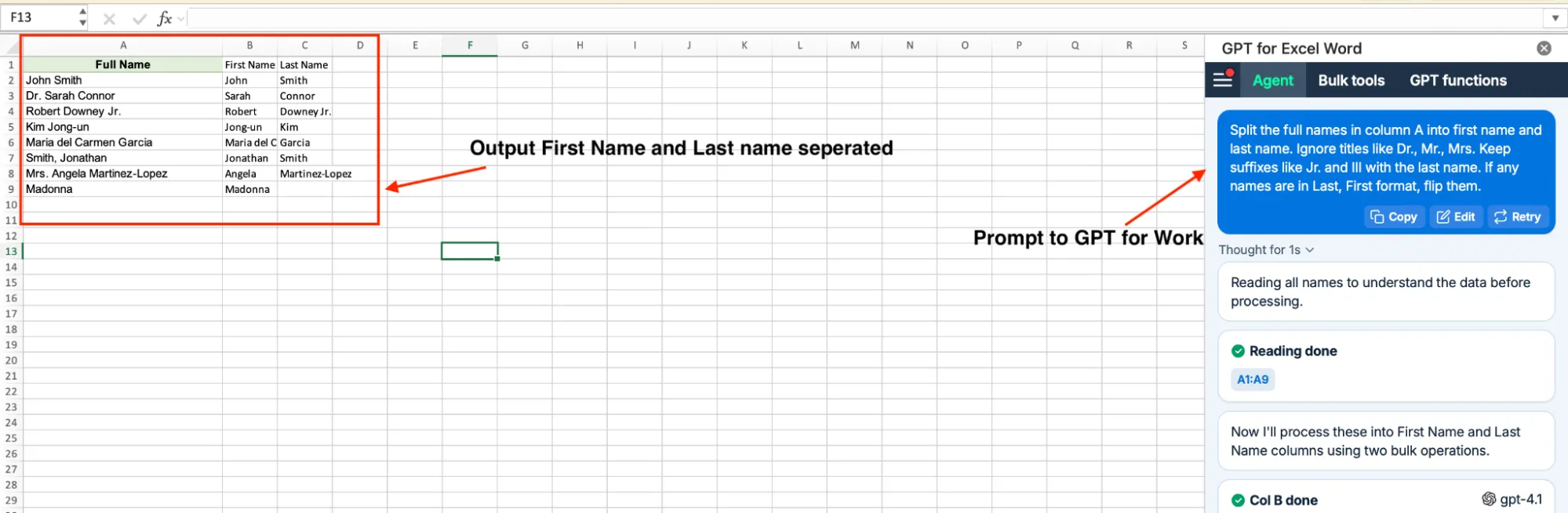
The agent figures out the structure of each name on its own. No formulas to write, no regex to learn. It writes the results directly into your cells.
Pros:
- Handles messy, inconsistent name formats
- No formulas or manual setup required
- Works across large datasets quickly
Cons:
- Requires installing an add-on
- For best results, provide clear instructions in your prompt
Alternative: Use GPT_EXTRACT Formulas
You can also split names using the GPT_EXTRACT function:
=GPT_EXTRACT(A2, "first name")for the first name.=GPT_EXTRACT(A2, "last name")for the last name.
Drag the formula down to apply it to your full list.
Pros:
- Reactive if names change
- Easy to drag onto new rows
Cons:
- Harder to use than the Agent
- Need to copy/paste results as values to make sure they are saved
But splitting names is just one thing you can ask it to do.
GPT for Work is not a single-purpose tool. It is a complete AI agent for your spreadsheet. Whatever the task is, you describe it in plain language and the agent executes it.
- Need to categorize 10,000 customer reviews by topic and sentiment? Just ask.
- Want to pull company info from the web for a list of 500 leads? Tell it.
- Need to generate product descriptions in three languages? One prompt.
It can also create formulas, build charts, set up pivot tables, apply formatting, and even write Apps Script or VBA macros when a task calls for custom automation.
You do not need to know the syntax for any of it. Just describe what you want and the agent takes care of the rest.
It processes up to 1,000 rows per minute, handles up to 1 million rows in one run, and lets you pick the AI model behind it: ChatGPT, Claude, and more.
Install GPT for Work from the Google Workspace Marketplace (GPT for Sheets) or Microsoft Marketplace (GPT for Excel). Open the sidebar, tell the agent what you need, and let it run. You can track progress in real time and stop anytime.
Which Method Should You Use?
Method | Best For | Dynamic? | Works On |
|---|---|---|---|
Text to Columns | Quick one-time split | No | All versions |
Flash Fill | Fast pattern-based split | No | 2013+ |
Formulas (LEFT/RIGHT) | Ongoing, updating data | Yes | All versions |
TEXTSPLIT | Clean single-formula split | Yes | 365 / 2024 only |
VBA Macro | Older Excel versions | No | All versions |
GPT for Work | Messy, inconsistent data | Yes | All versions (add-on) |
Quick guide:
- One-time cleanup -> Text to Columns or Flash Fill
- Auto-updating results -> Formulas or TEXTSPLIT
- Messy data -> GPT for Work
Conclusion
There's no single best method, it all depends on your data and how you plan to use it.
For quick, one-time cleanup, built-in tools like Text to Columns and Flash Fill are the fastest option. If your data changes regularly, formulas or TEXTSPLIT give you results that stay up to date automatically. And when you're dealing with messy, inconsistent name formats, an AI tool like GPT for Work can handle edge cases that standard methods struggle with.
Start with the simplest approach that fits your data. If it falls short, you have several reliable alternatives to switch to without starting from scratch.
FAQs
Can I separate names in Excel using a comma as the delimiter?
Yes. In Text to Columns, select Comma instead of Space in the delimiter step. With formulas, use =TEXTBEFORE(A2, ",") for the last name and =TEXTAFTER(A2, ", ") for the first name. This works well for "Last, First" formatted data.
Does Flash Fill work on older versions of Excel?
Flash Fill is available from Excel 2013 onwards. If you are on an older version, use Text to Columns or the LEFT/RIGHT formulas from Method 3.
What if some names have no last name or only one word?
Formula-based methods throw a #VALUE! error when there is no space to split on. Wrap your formula with IFERROR to handle this: =IFERROR(LEFT(A2, SEARCH(" ", A2) - 1), A2). This returns the original value when no space is found.
Can GPT for Work handle thousands of names at once?
Yes. For smaller lists, dragging the formula down works fine. For large datasets (5,000+ rows), use the Bulk Tools in the GPT for Work sidebar instead. It processes high volumes more reliably and avoids cell refresh issues.
Can I split names in Excel without installing anything?
Yes. Text to Columns, Flash Fill, and formulas (LEFT, RIGHT, SEARCH, LEN) are all built into Excel. TEXTSPLIT is also built in but only available on Microsoft 365 and Excel 2024. You only need an add-on like GPT for Work if your data has messy or inconsistent name formats that basic methods cannot handle.