You scroll down to row 200 and suddenly forget which column is "Quantity" and which one is "Unit Price." So you scroll back up, check the headers, scroll down again, lose your place and repeat the whole thing five more times.
If that sounds familiar, it's time to learn how to lock rows in Excel. It takes just a few clicks and saves you from all that back-and-forth scrolling.
Excel calls this feature Freeze Panes. It lets you pin your header row (or any row you choose) to the top of the screen so it stays visible no matter how far you scroll. You can also lock columns, freeze multiple rows, or lock both rows and columns at the same time.
Below, you'll learn how to freeze the top row, lock multiple rows, pin a column in Excel, and combine these options. We'll also cover common mistakes and a faster way to handle all of this using an AI tool built right into your spreadsheet.
Lock the Top Row in Excel
This is what most people need. You want to lock the top row in Excel so your headers stay visible while scrolling through hundreds of rows of data.
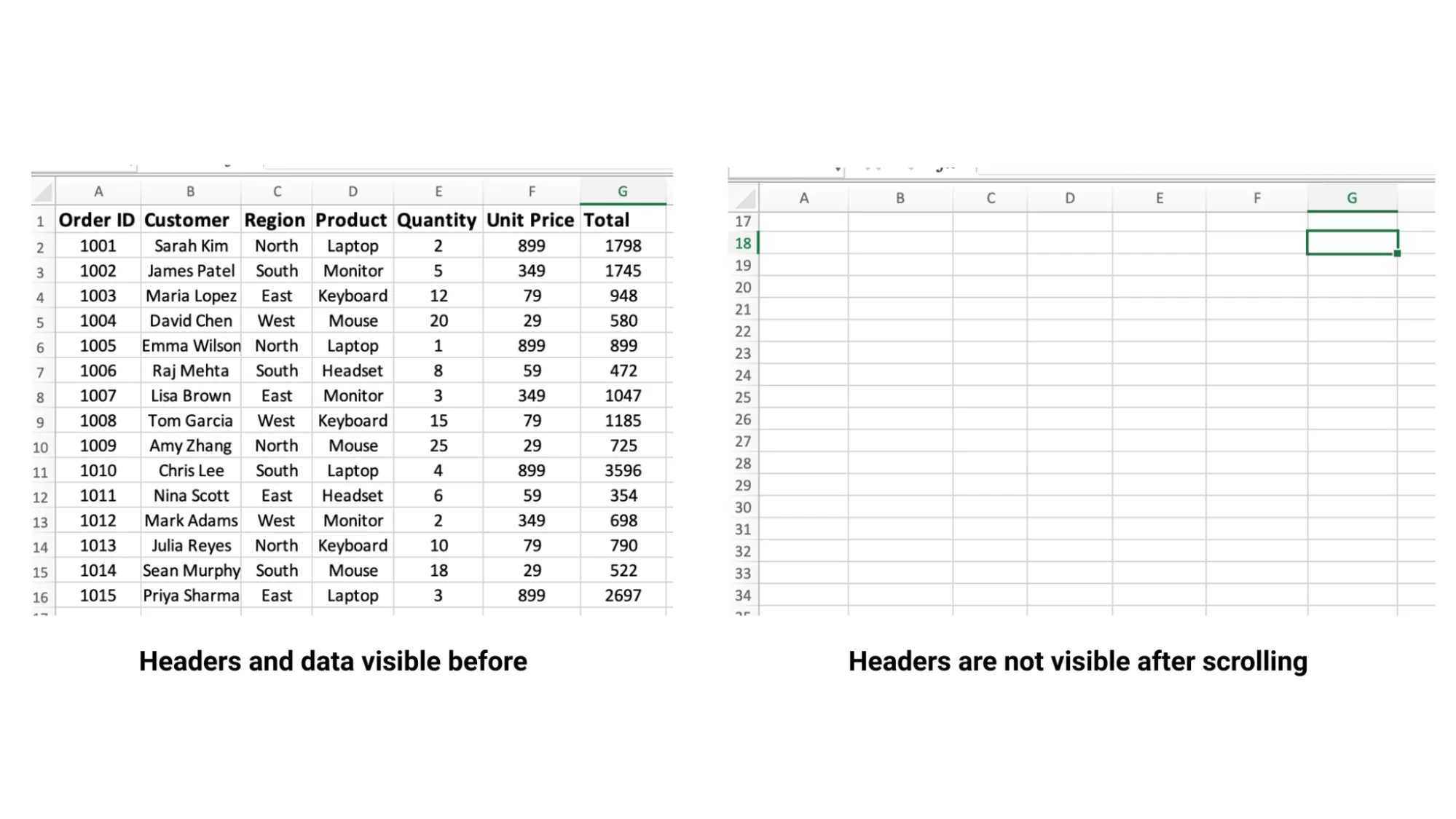
Take the sample dataset below. Row 1 contains your column headers: Order ID, Customer, Region, Product, Quantity, Unit Price, and Total. Once you scroll past row 15 or so, those headers disappear and now you're guessing what each column represents.
Freezing the top row fixes that in about three seconds.
- Open your spreadsheet.
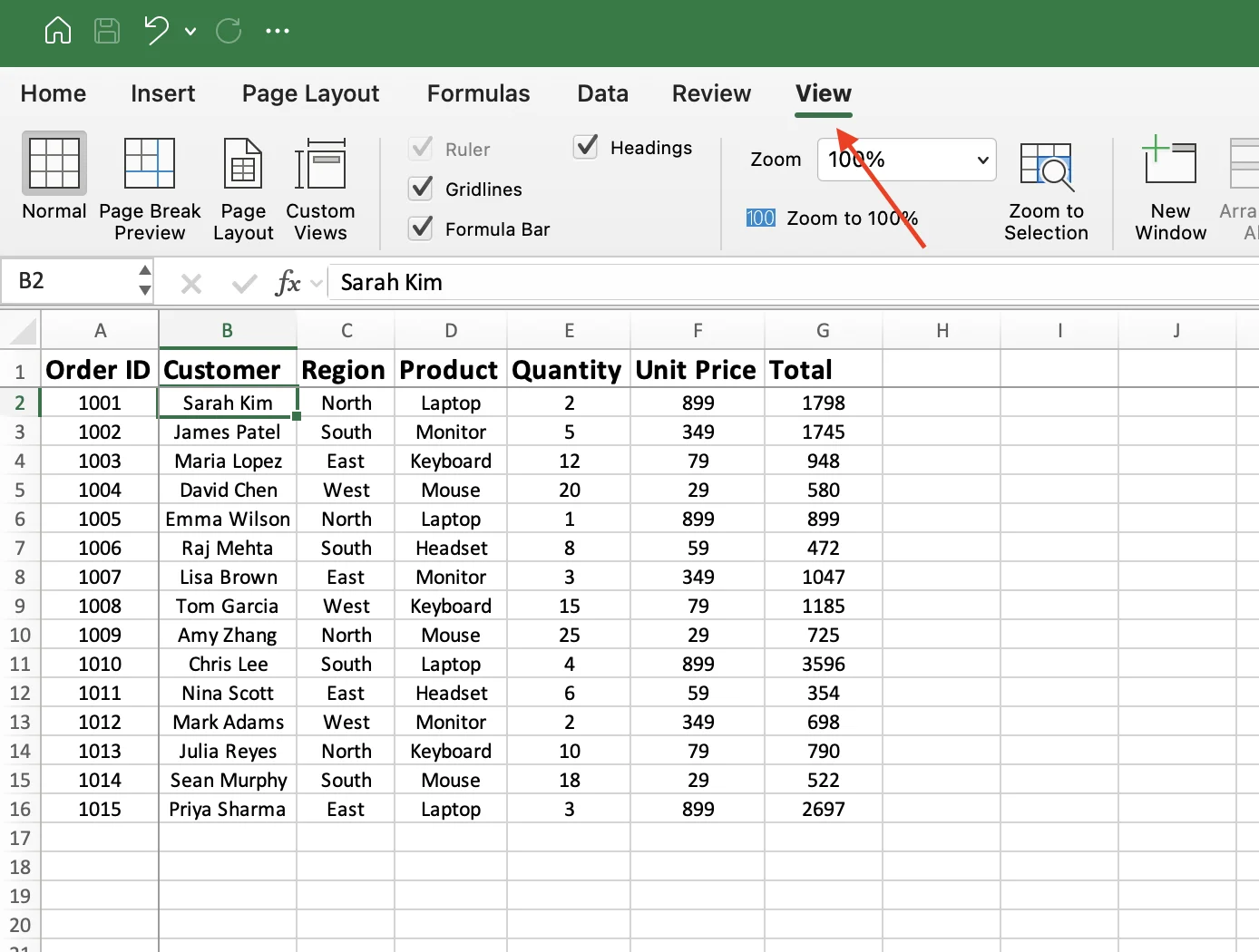
- Click the View tab on the ribbon.
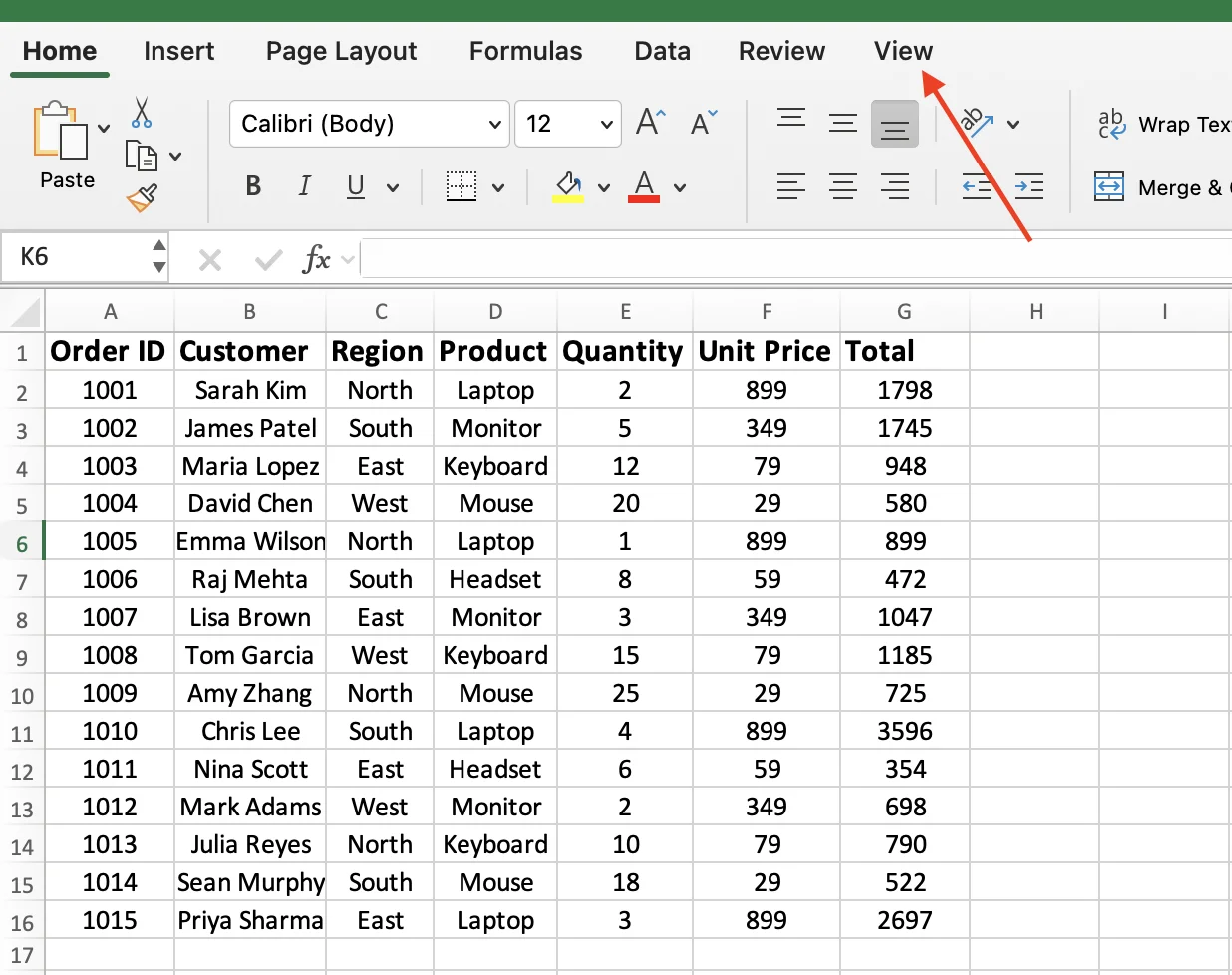
- You will see three options right there on the ribbon: Freeze Panes, Freeze Top Row, and Freeze First Column.
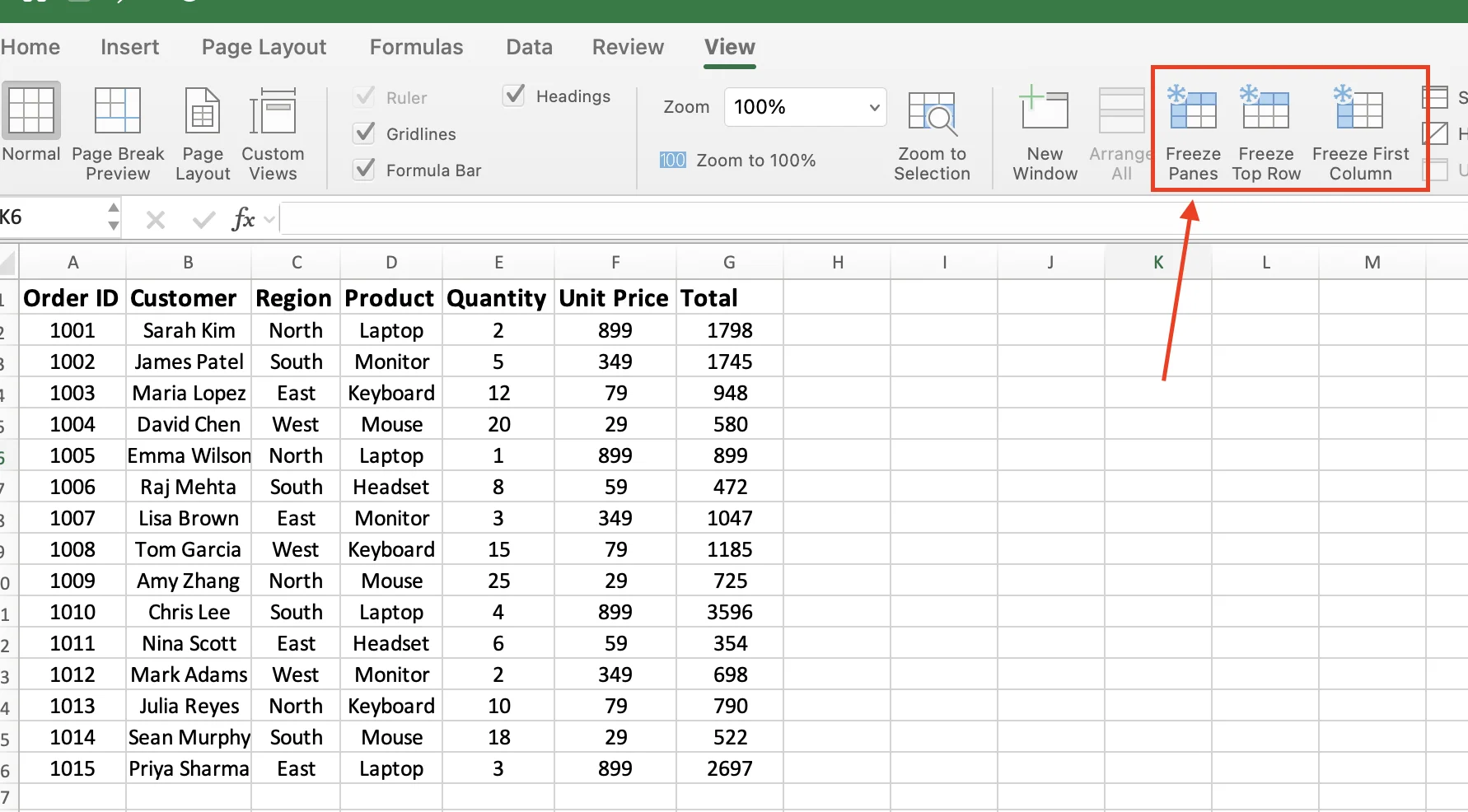
- Click Freeze Top Row.
A thin gray line shows up right below Row 1. That is your freeze line. Scroll down to row 100, row 500, whatever you want. Your header row stays pinned at the top the entire time.
Freeze Top Row always freezes Row 1, no matter which cell you have selected. You do not need to click on Row 1 first. Just hit the option and it is done.
Lock Multiple Rows in Excel
Sometimes freezing just the top row isn't enough. Maybe Row 1 contains a report title and Row 2 has your actual headers. Or your first few rows hold key information you need to keep visible while scrolling.
The trick is simple: click the row below the last row you want to freeze.
Want to freeze Rows 1 and 2? Click any cell in Row 3. Want to freeze the first five rows? Click any cell in Row 6.
Excel will freeze everything above the selected cell.
Using the same sample data, let's say you want to keep the header row (Row 1) and the first data row for Sarah Kim (Row 2) visible as you scroll.
Here's what to do:
- Click on cell A3 (or any cell in Row 3).
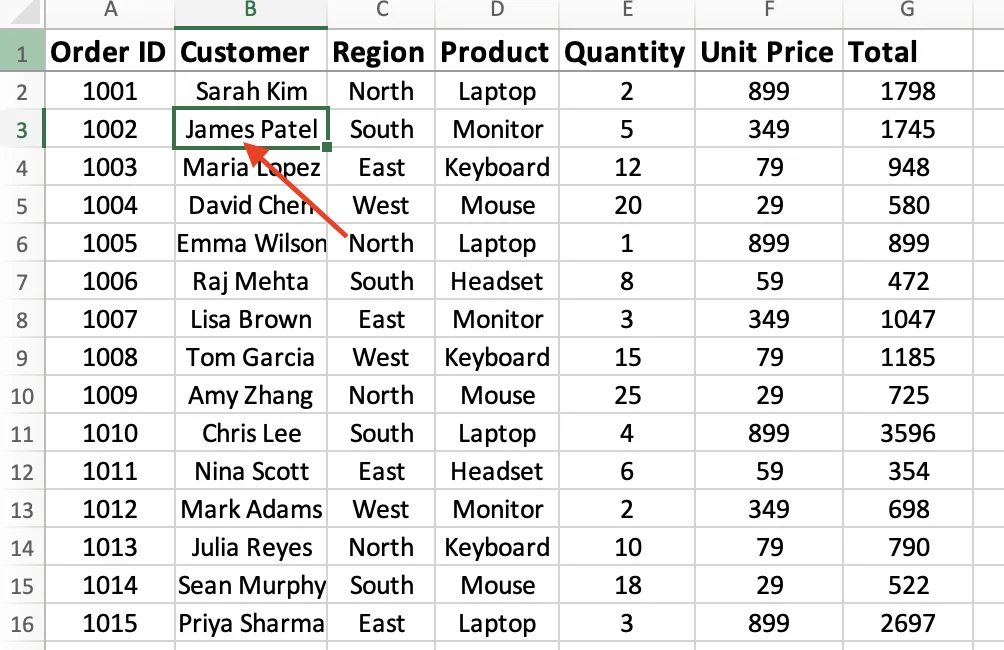
- Go to the View tab.
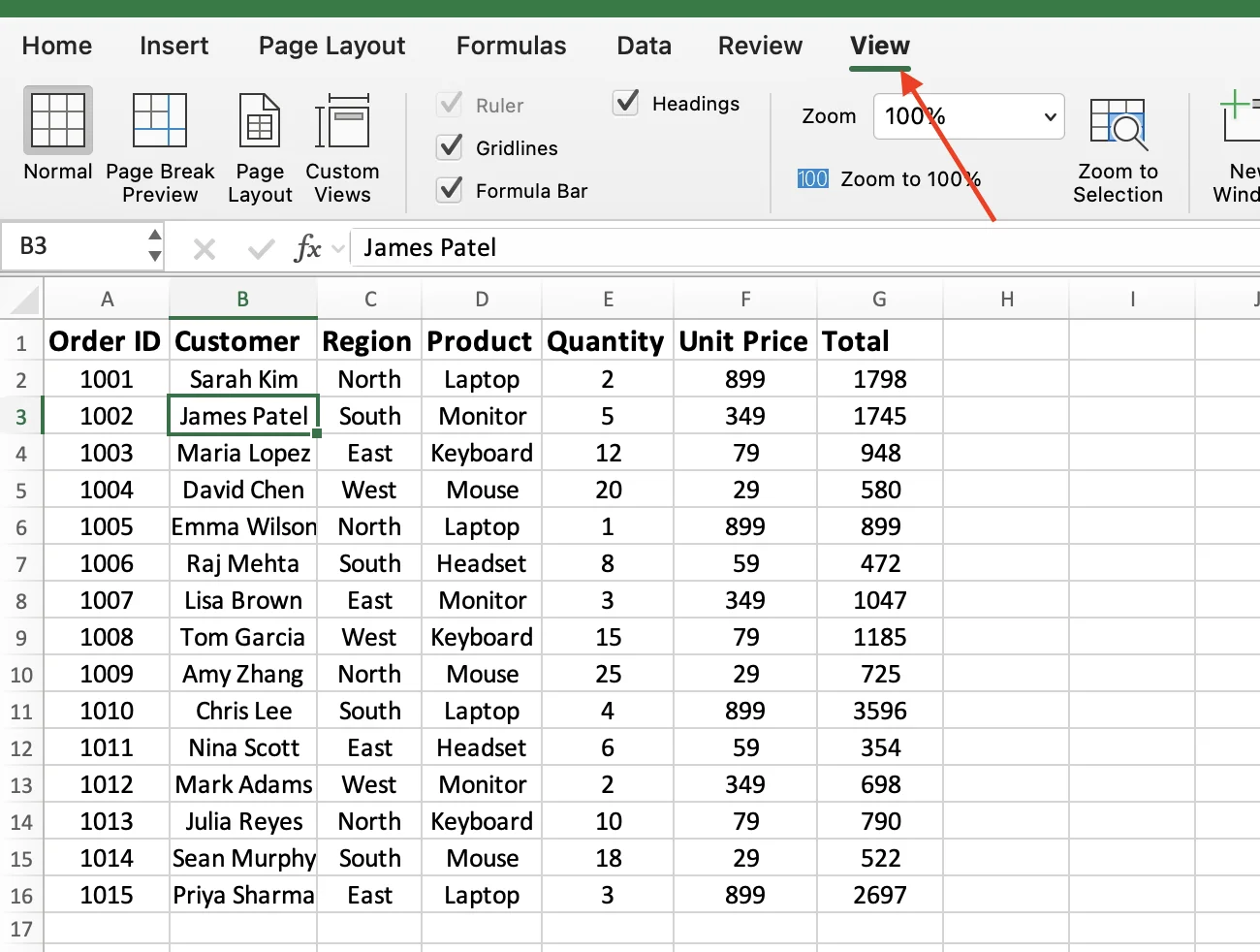
- Click Freeze Panes on the ribbon.
A gray line appears below Row 2. Both rows are now frozen. Scroll down, and they stay in place.
Important: If you already have a freeze applied, Excel won't let you stack another on top. The button in the ribbon will show Unfreeze Panes instead. Click that first to remove the existing freeze, then select your new cell and apply Freeze Panes again.
This method works for any number of rows. Want to freeze the top 10 rows? Click a cell in Row 11 and select Freeze Panes. There's no limit to how many rows you can lock.
Lock a Column in Excel
So far, we've focused on freezing rows for vertical scrolling. But if your spreadsheet has lots of columns, the same issue shows up horizontally. Scroll to the right, and you lose track of which row belongs to which customer or order.
Freeze First Column works just like Freeze Top Row, but sideways.
- Go to the View tab.
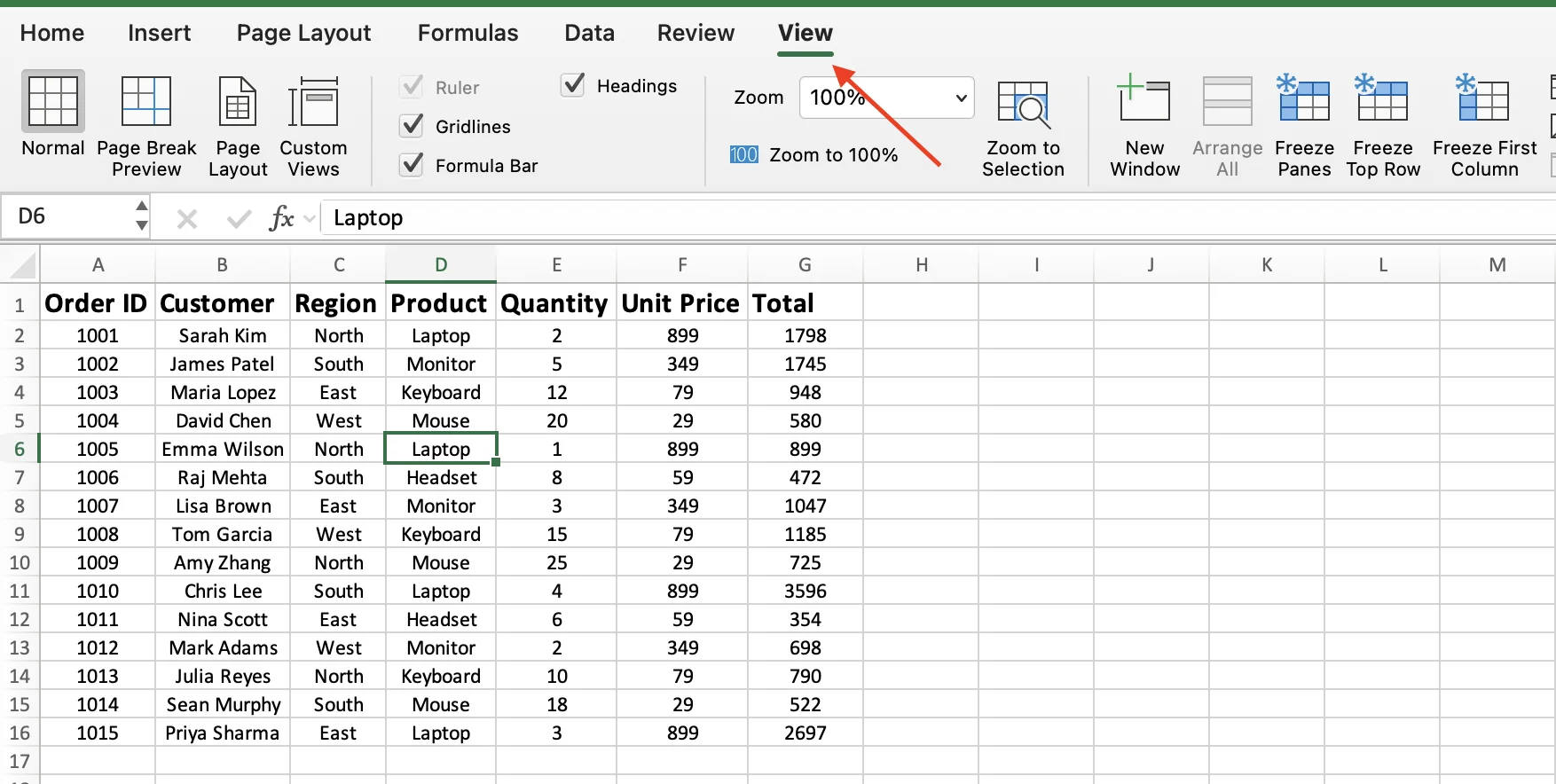
- Click Freeze First Column on the ribbon.
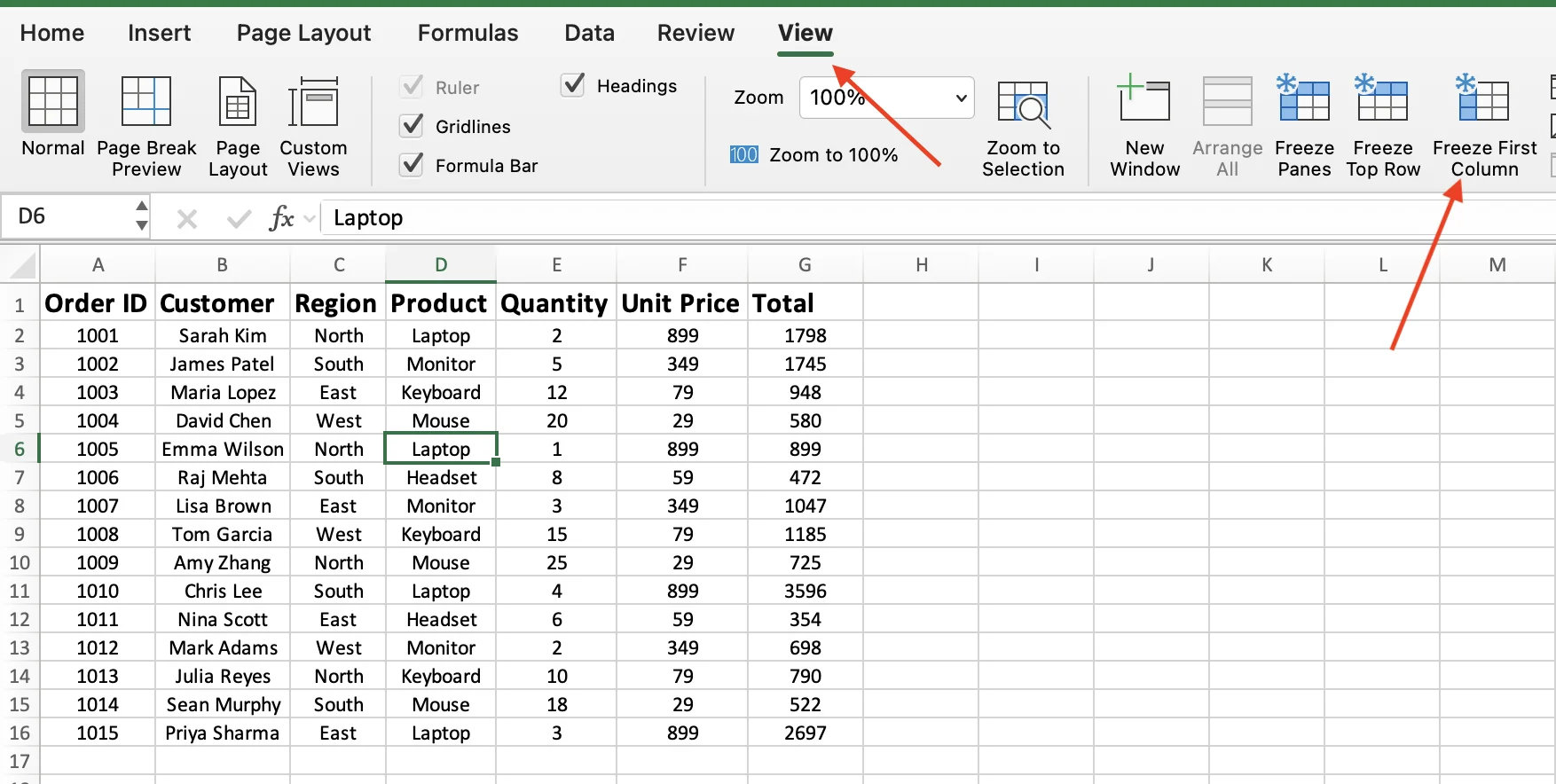
A thin gray line appears to the right of Column A. Scroll right as far as you want and Column A stays locked in place.
If you need to freeze more than one column, the same logic from the multiple rows section applies. Click on the column to the RIGHT of the last column you want to freeze.
For example, in our sample data, say you want to keep both Order ID (Column A) and Customer (Column B) visible while scrolling right.
Here is what you do:
- Click on any cell in Column C (like cell C1).
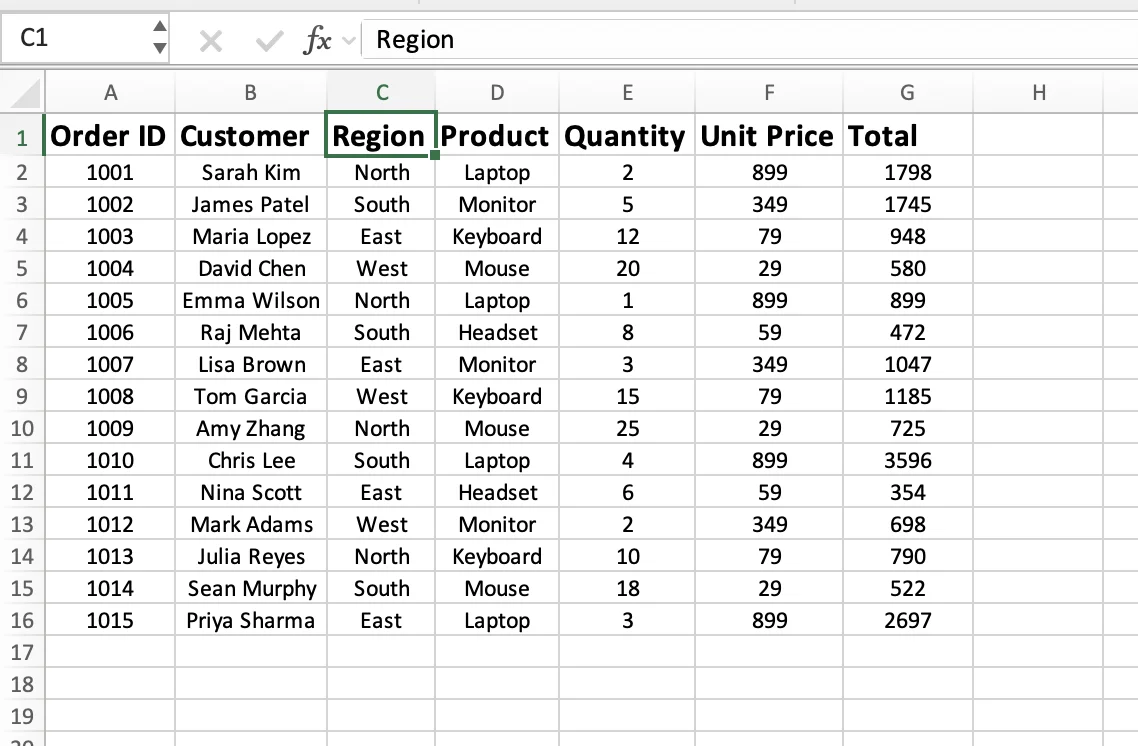
- Go to the View tab.
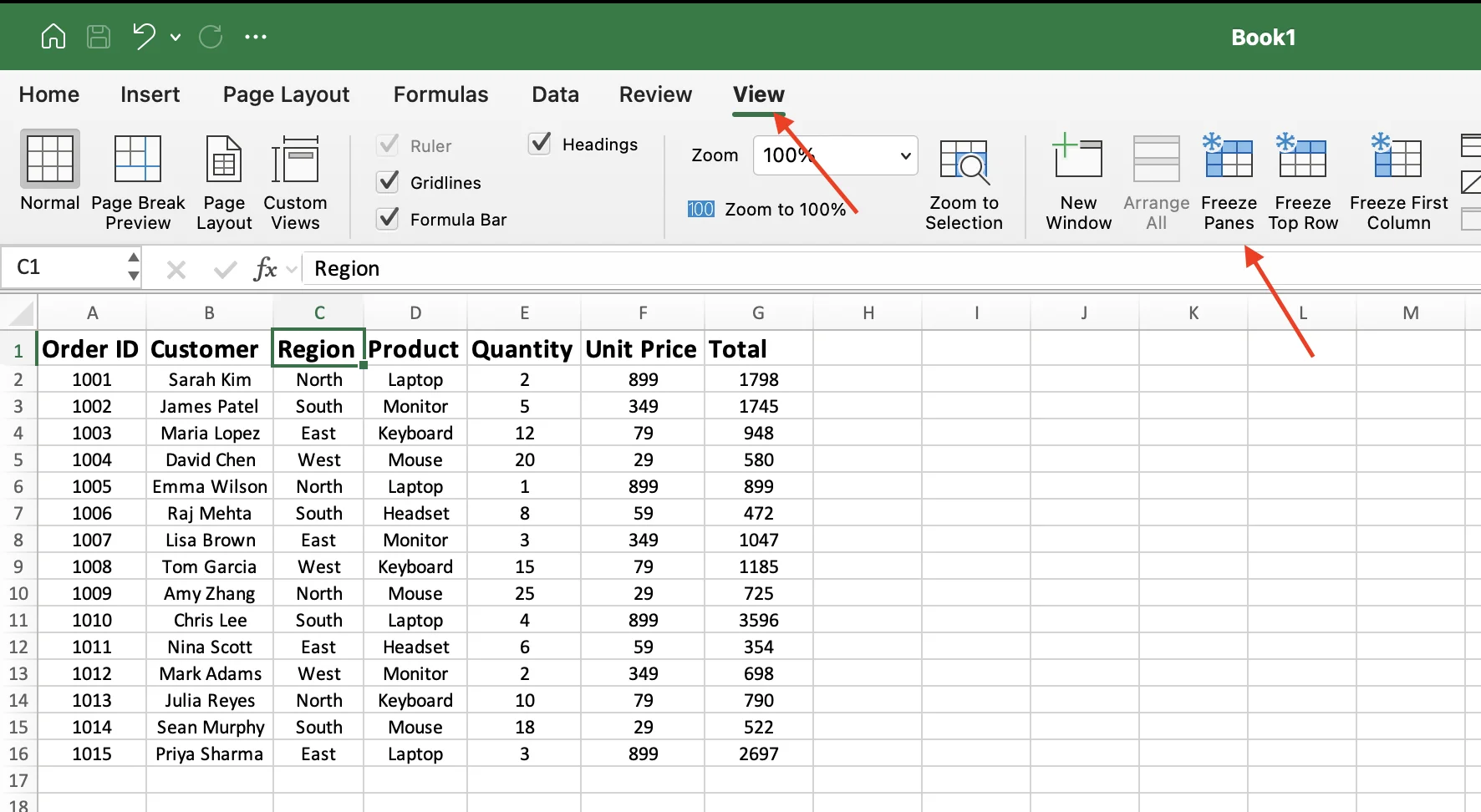
- Click Freeze Panes.
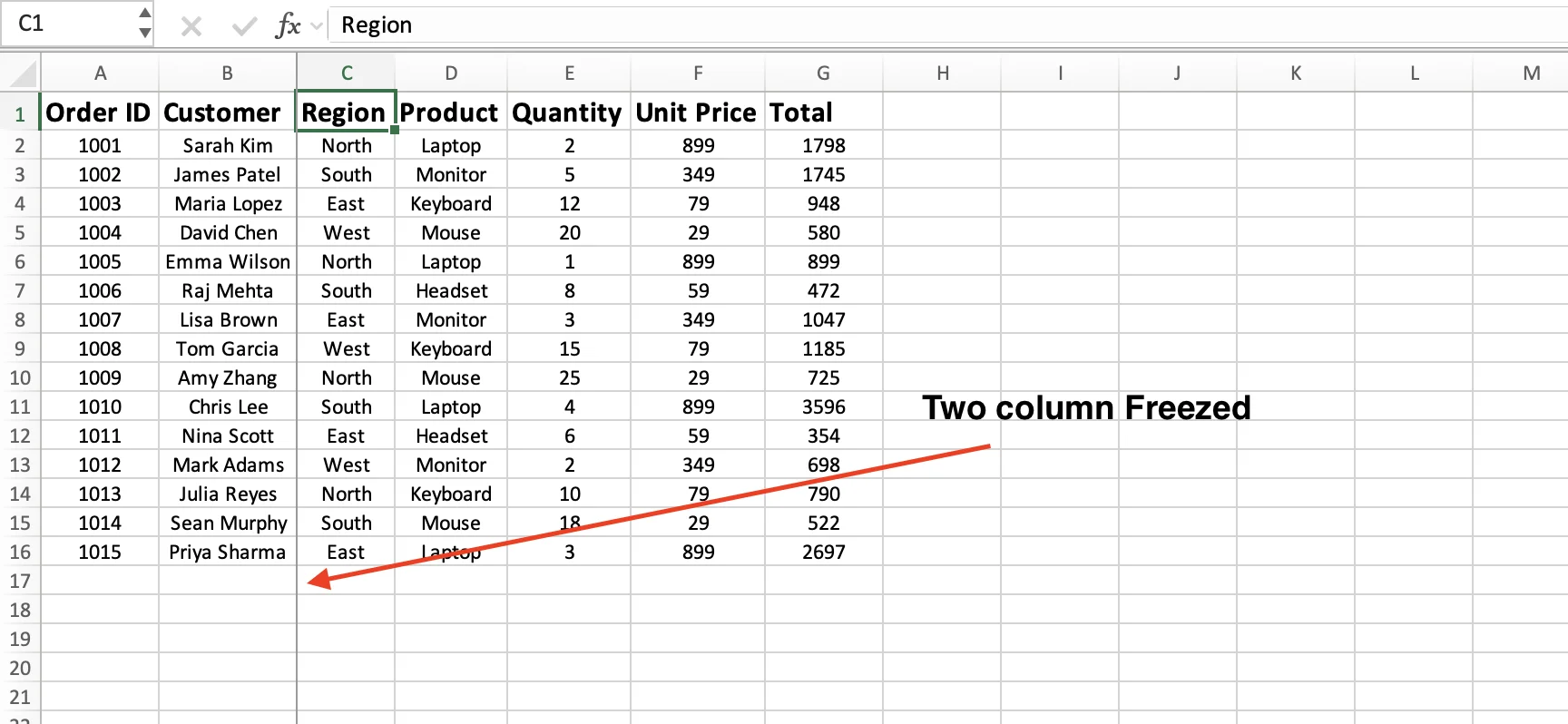
Now Columns A and B stay put while everything from Column C onward scrolls freely.
Lock Rows and Columns at the Same Time
This is where Freeze Panes becomes really powerful. You can lock your header row and your first column (or multiple of each) in one step.
The key is understanding how Excel decides what to freeze. It locks everything above the selected cell and everything to the left of it. So the cell you click determines the entire setup.
Here's how it works with our sample data:
Let's say you want to keep Row 1 (headers) and Column A (Order ID) visible at all times.
Here is what you do:
- Click cell B2, the cell just below your header row and to the right of Column A.
- Go to the View tab.
- Click Freeze Panes.
Two gray lines appear. One below Row 1 and one to the right of Column A. Now scroll in any direction. Your headers stay at the top, and your Order ID column stays on the left.
Want to freeze two rows and two columns instead? Click cell C3. This freezes Rows 1-2 (above C3) and Columns A-B (to the left of C3). The cell you select always marks the start of the unfrozen area.
Once you understand this, you can freeze any combination you need. Just remember: pick the cell at the top-left corner of the area you want to scroll freely.
Unfreeze Rows in Excel
Removing a freeze takes one click.
When any freeze is active, the Freeze Panes button on the ribbon changes to Unfreeze Panes. You might have noticed this earlier when we switched from freezing the top row to freezing multiple rows.
Here is how to remove it:
- Go to the View tab.
- Click Unfreeze Panes.
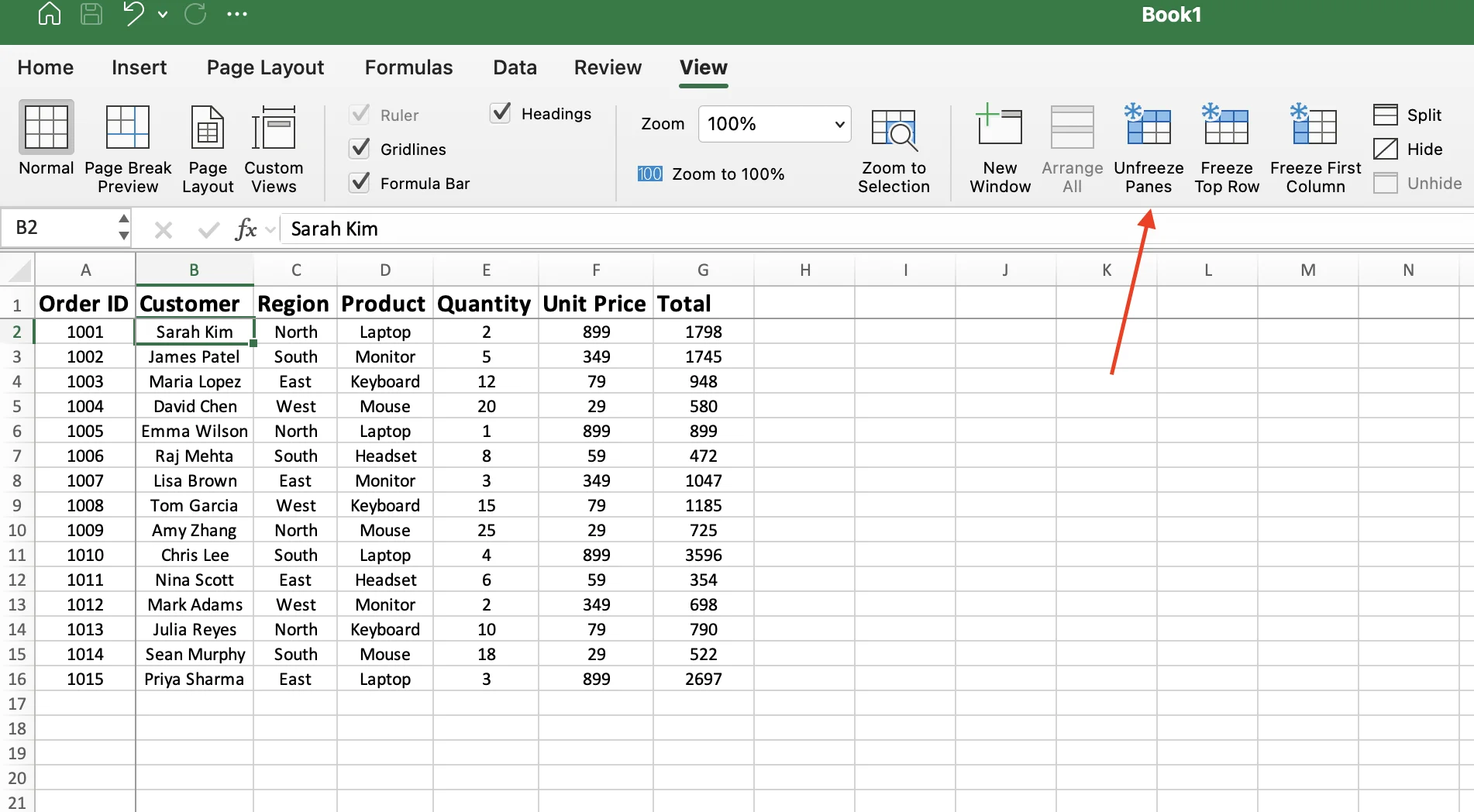
That is it. The gray lines disappear and your entire spreadsheet scrolls freely again.
One thing to keep in mind: Excel doesn't let you unfreeze selectively. You can't remove a row freeze while keeping a column frozen, clicking Unfreeze Panes clears everything at once. If you need a different setup, just select a new cell and apply Freeze Panes again.
This comes up often when switching between tasks. For example, you might freeze the top row while entering data, then unfreeze it and freeze three rows before a presentation. Same sheet, just a different view depending on what you need.
Freeze Panes vs Split Panes
You may have noticed the Split button right next to Freeze Panes in the View tab. They seem similar, but work very differently.
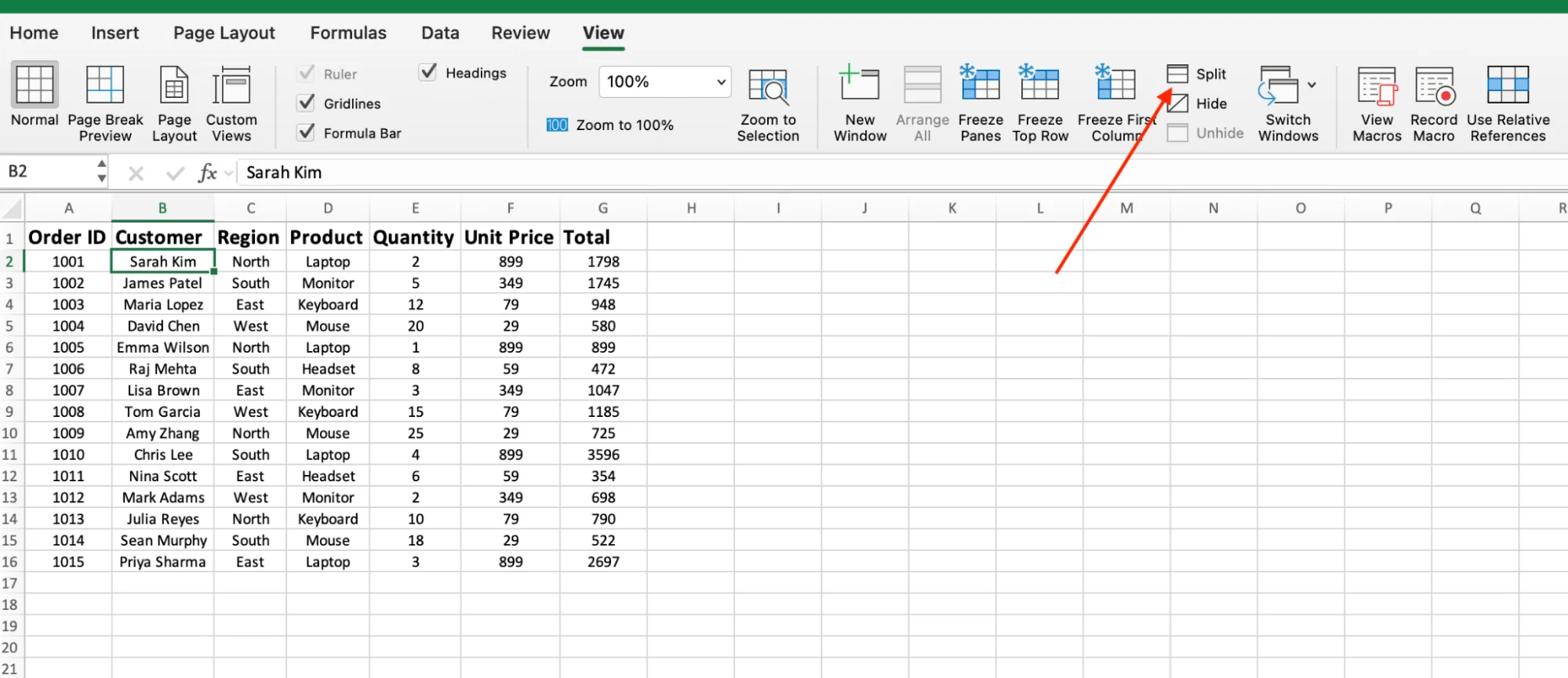
Freeze Panes locks specific rows or columns in place. As you scroll, the frozen area stays fixed. This is what you'll use most of the time, especially for keeping headers visible.
Split, on the other hand, divides your worksheet into two or four separate panels. Each panel scrolls independently. Nothing is locked, you're simply viewing different parts of the same sheet at once.
So when would you use Split? For example, if you want to compare Row 3 (Sarah Kim's order) with Row 16 (Priya Sharma's order), scrolling back and forth gets tedious. Split lets you view both rows side by side, each in its own panel.
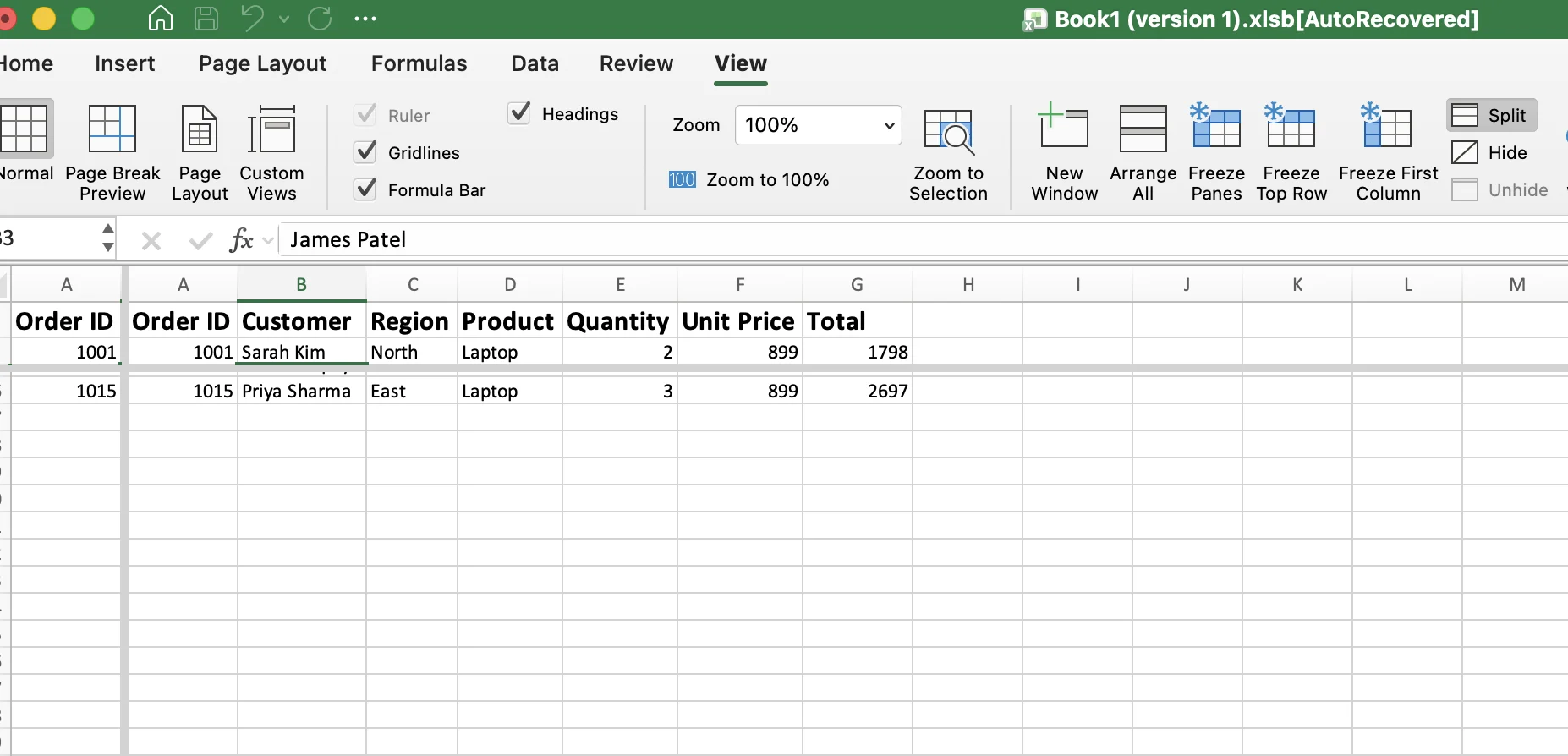
To use it, go to the View tab and click Split. Excel will divide your screen based on the cell you currently have selected. Click Split again to remove it.
For most use cases, Freeze Panes is what you'll want.
Split is a helpful feature to know, but you'll likely use it far less often.
GPT for Excel: The AI Agent for Your Spreadsheet
What if you could just talk to your spreadsheet?
Not ask it a question and get a suggestion. Actually tell it what to do and watch it happen.
That is what GPT for Excel by GPT for Work does. It is an AI agent that sits right inside Excel. You open the sidebar, type a plain English prompt, and the agent reads your data, figures out the steps, and executes everything directly in your file.
Example prompt: "Keep the header row and first column visible, then sort the Total column highest to lowest and add a SUM at the bottom"
Three tasks. One sentence. All done in seconds.
The agent can write formulas, detect and fix errors, format cells, build pivot tables, clean messy data, create charts, and run analysis, all directly inside your spreadsheet. No copying back and forth between Excel and a chatbot. Everything happens in your spreadsheet.
It also handles bulk work at scale. Translate 2,000 product descriptions. Categorize 5,000 support tickets. Generate SEO content row by row, up to 1,000 rows per minute. You can choose the AI model behind it: OpenAI, Anthropic, and more.
If it can be done in a spreadsheet, just ask.
Try it for free, it takes 30 seconds to install.
Common Problems When Locking Rows in Excel
Sometimes freezing rows doesn't work the way you expect. Here are the most common issues and how to fix them.
Freeze Top Row or Freeze Panes is grayed out
You're likely in Page Layout or Page Break Preview. Switch back to Normal view (View -> Normal), and the options will be available again. Also check if you're editing a cell, press Escape and try again.
The wrong rows got frozen
This usually means the wrong cell was selected before clicking Freeze Panes. Click Unfreeze Panes to reset, then select the correct cell and try again.
The freeze disappeared after reopening the file
Freeze settings are saved with the file, so they should still be there. Make sure you're on the correct worksheet, each tab has its own freeze settings. If you froze rows on Sheet1 but switched to Sheet2, you won't see them.
The freeze line is in the wrong place
This happens when you apply Freeze Panes from a cell in the middle of your data.
Excel freezes everything above and to the left of the selected cell. Unfreeze and apply it again using the correct starting point.
Conclusion
Locking rows in Excel comes down to one feature: Freeze Panes. Whether it's the top row, multiple rows, columns, or a combination, it all works the same way. Pick the right cell, click Freeze Panes, and you're set.
The most common mistake is selecting the wrong cell. Once that clicks, you can set up any freeze configuration in seconds. And if something goes wrong, Unfreeze Panes is just one click away.
If you'd rather skip the manual steps, GPT for Excel lets you describe what you need and handles it for you. Freezing rows, writing formulas, creating charts, cleaning data, running bulk tasks, and more.
FAQs
Can I freeze rows and columns at the same time in Excel?
Yes. Click the cell below the rows and to the right of the columns you want to freeze. Then go to View and select Freeze Panes. Everything above and to the left of that cell will stay locked while you scroll.
Is there a keyboard shortcut to freeze rows in Excel?
On Windows, press Alt + W, then F, then R to freeze the top row. On Mac, there's no direct shortcut, you'll need to use the View tab.
How many rows can I freeze in Excel?
There's no set limit. You can freeze 2, 10, or even 50 rows. Just click the row below the last one you want frozen and apply Freeze Panes. The only real limit is screen space, freeze too many rows, and you'll have less room to view your data.
Does freezing a row lock it from editing?
No. Freezing and locking are different. Freezing keeps a row visible while you scroll, it doesn't prevent editing. To restrict editing, you'll need to use sheet protection.
Can I freeze different rows on different sheets in the same workbook?
Yes. Each worksheet has its own freeze settings. You can freeze Row 1 on one sheet and the first five rows on another, they work independently.