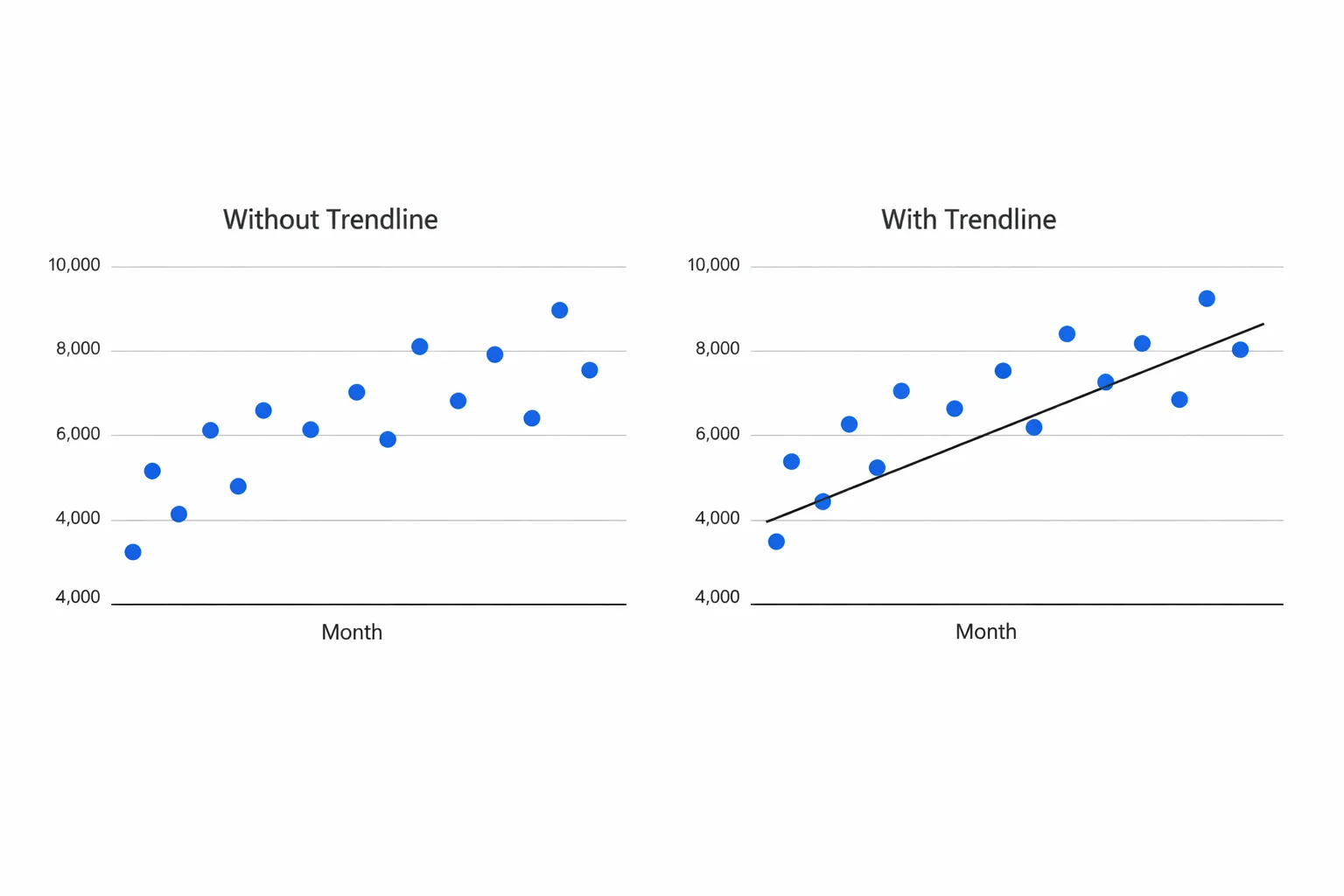
A chart full of scattered data points tells you something is happening, but it's not always clear what. Spotting the overall direction just by eye can be tricky.
That's where a trendline comes in. It adds a single line to your chart that reveals the bigger picture, whether your data is moving up, down, or staying flat.
If you have never done it before, this guide shows you exactly how to add a trendline in Google Sheets step by step. We'll start by setting up your data, then show you exactly how to insert a trendline in Google Sheets. After that, we'll cover how to choose the right type for your data.
You'll also learn how to display the trendline equation and R² value, so you can measure how well the line actually fits.
And if you'd rather skip the manual steps, we'll show you how to do it all with a single AI prompt.
Let's get into it.
What Is a Trendline in Google Sheets?
A trendline is a line added to your chart that highlights the overall direction of your data. Think of it as a quick summary: rather than analyzing every individual point, you look at the trendline and instantly see whether things are increasing, decreasing, or staying relatively stable.
You can add a Google Sheets trendline to scatter plots, line charts, bar charts, and column charts. You might also hear it called a "line of best fit." That term is most common with scatter plots, but the concept is the same: it's the line that best represents the pattern in your data.
One important note: a trendline shows correlation, not causation. For example, your ad spend and revenue might both trend upward, but the trendline alone doesn't prove that one is causing the other.
How to Add a Trendline in Google Sheets (Step-by-Step)
Step 1: Set Up Your Data
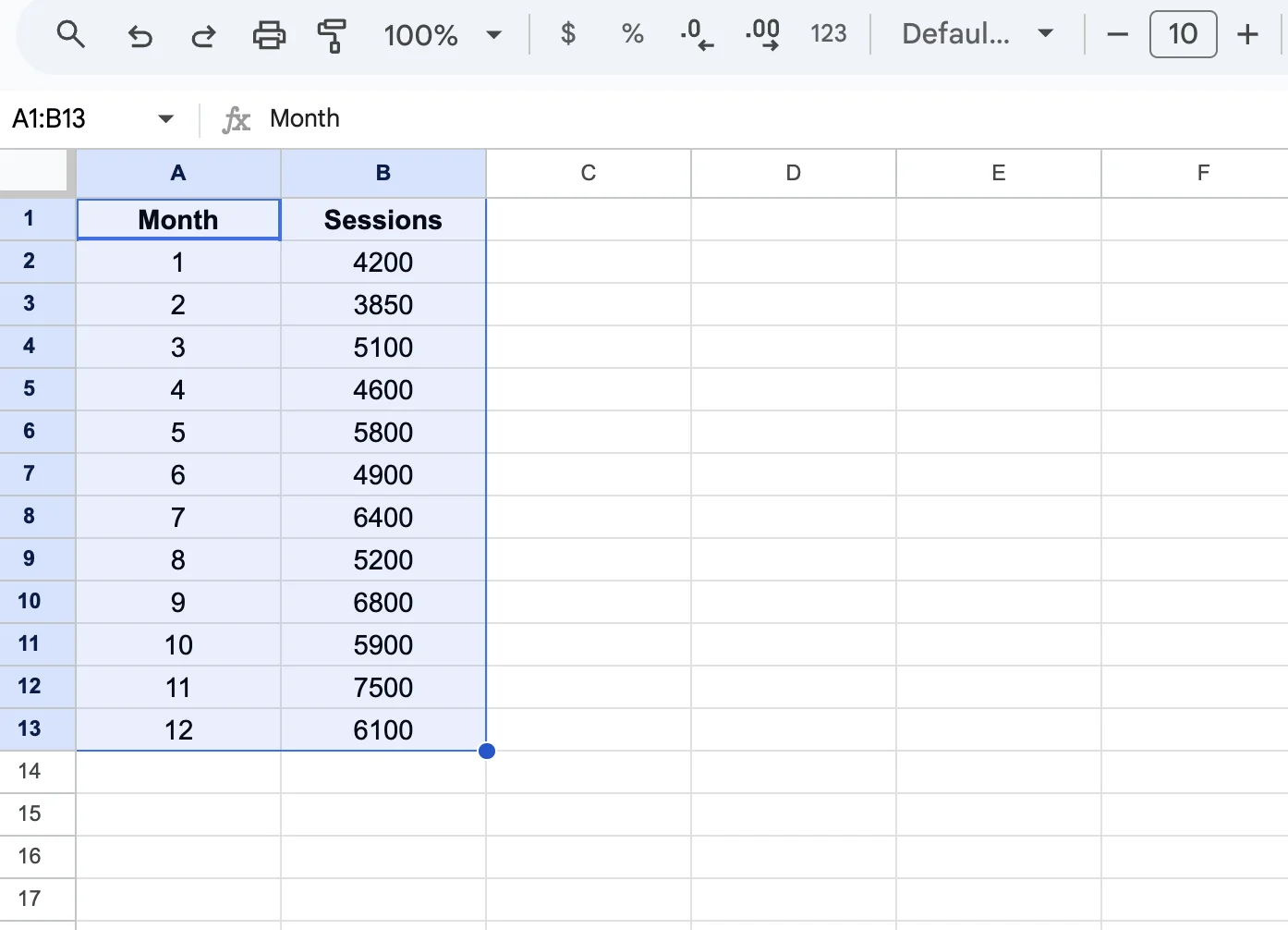
Before adding a trendline, make sure your data is organized correctly. You'll need two columns:
- Column A: your independent variable (e.g., month, ad spend, units sold)
- Column B: your dependent variable (e.g., sessions, revenue, scores)
Include clear headers in the first row to label each column.
Once your data is set up, select the entire range, including the headers. For example, if your data goes from A1 to B13, highlight that full block before moving to the next step.
Step 2: Insert a Chart
Go to Insert > Chart. Google Sheets will add a chart to your sheet and open the Chart editor panel on the right.
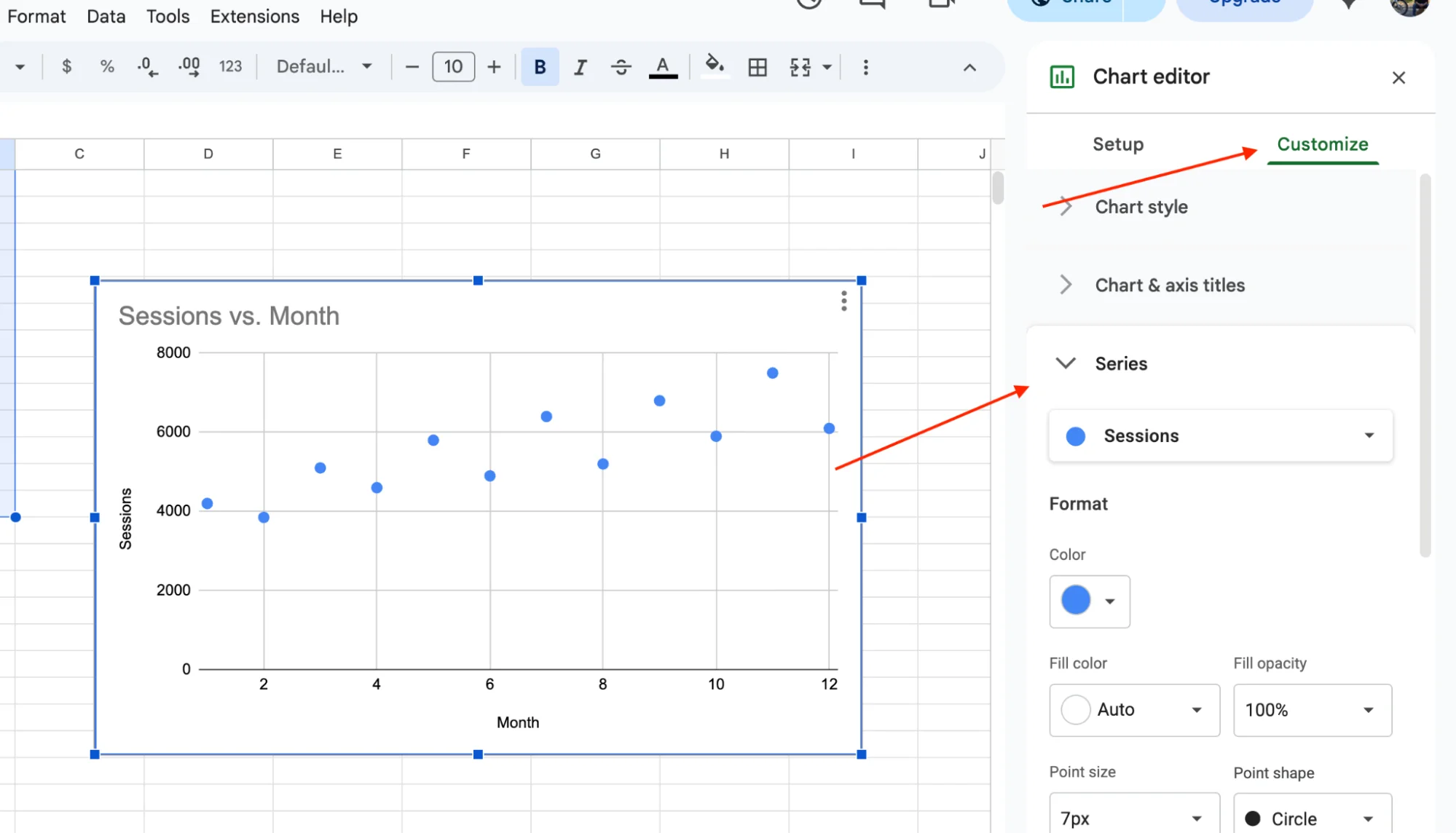
If the default chart type isn't suitable (for example, a pie chart), change it. In the Setup tab, open the Chart type dropdown and select either a Scatter chart or a Line chart. For most trendline analysis, a scatter chart works best.
Step 3: Open the Chart Editor
Double-click your chart. The chart editor panel opens on the right side of your screen. Click the Customize tab at the top (not Setup). Then click Series to expand that section.
Step 4: Add the Trendline
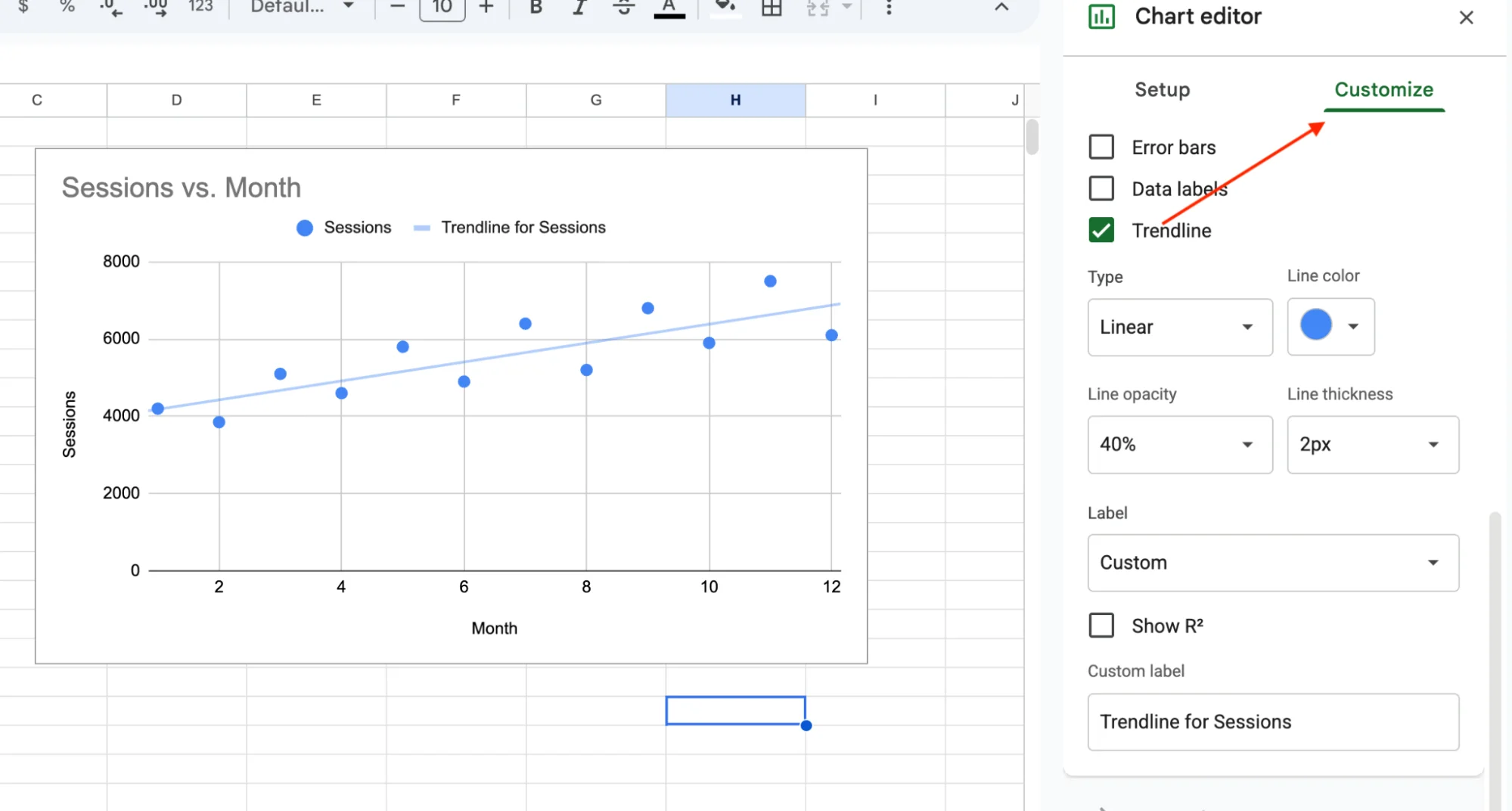
Scroll down inside the Series section. You will see a Trendline checkbox. Check it.
A linear trendline appears on your chart right away. That is the default type, and it works for most data that moves in a steady direction.
Step 5: Customize the Trendline
Once the trendline is on your chart, you can adjust it right there in the Series section:
- Type: Change from Linear to Exponential, Polynomial, Logarithmic, Power, or Moving Average using the dropdown.
- Color and thickness: Pick a color that stands out against your data points. Adjust line thickness and opacity.
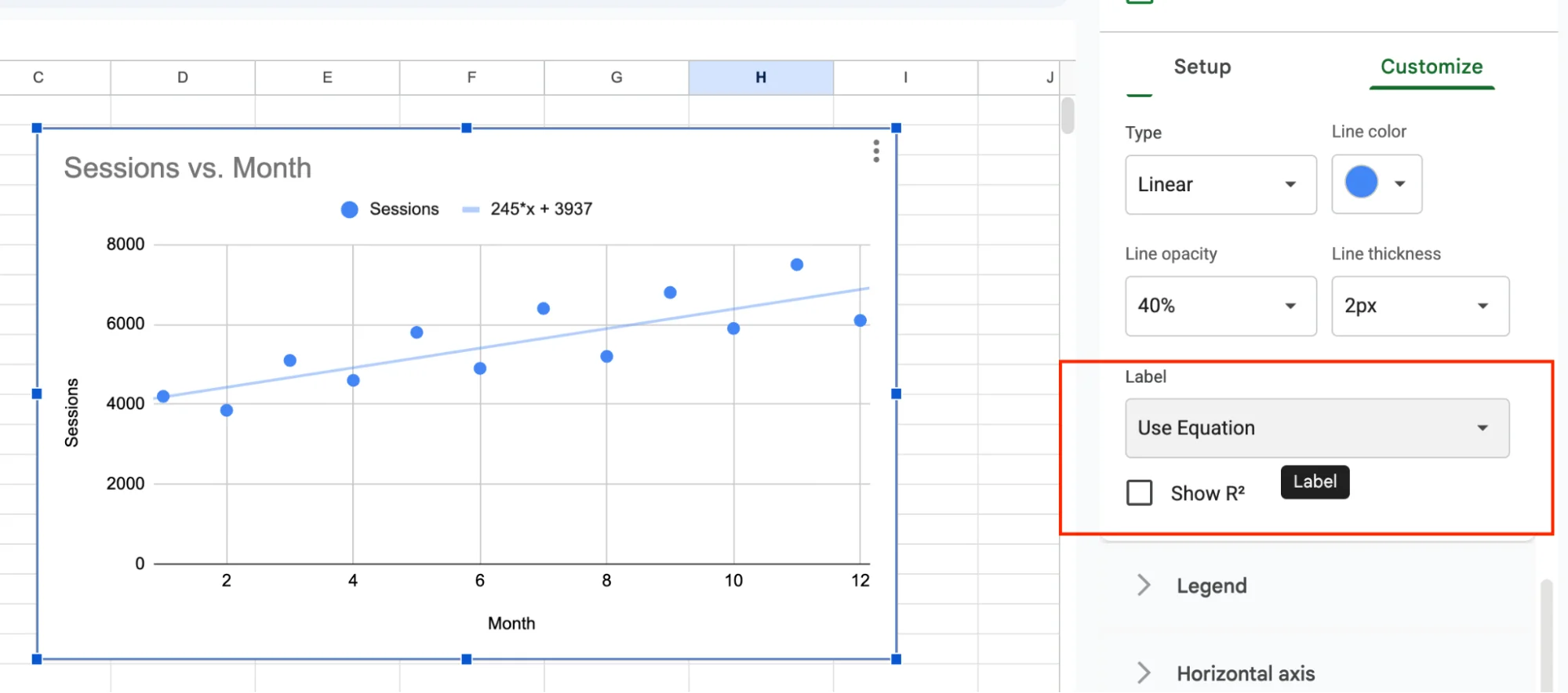
- Label: Open the Label dropdown and select Use Equation to display the trendline equation directly on the chart.
- R² value: Check the Show R² box to see how well the trendline fits your data.
If the Trendline option is greyed out, it means your current chart type doesn't support it. Switch to a compatible chart type, such as a scatter, line, bar, or column chart.
Types of Trendlines in Google Sheets (When to Use Each)
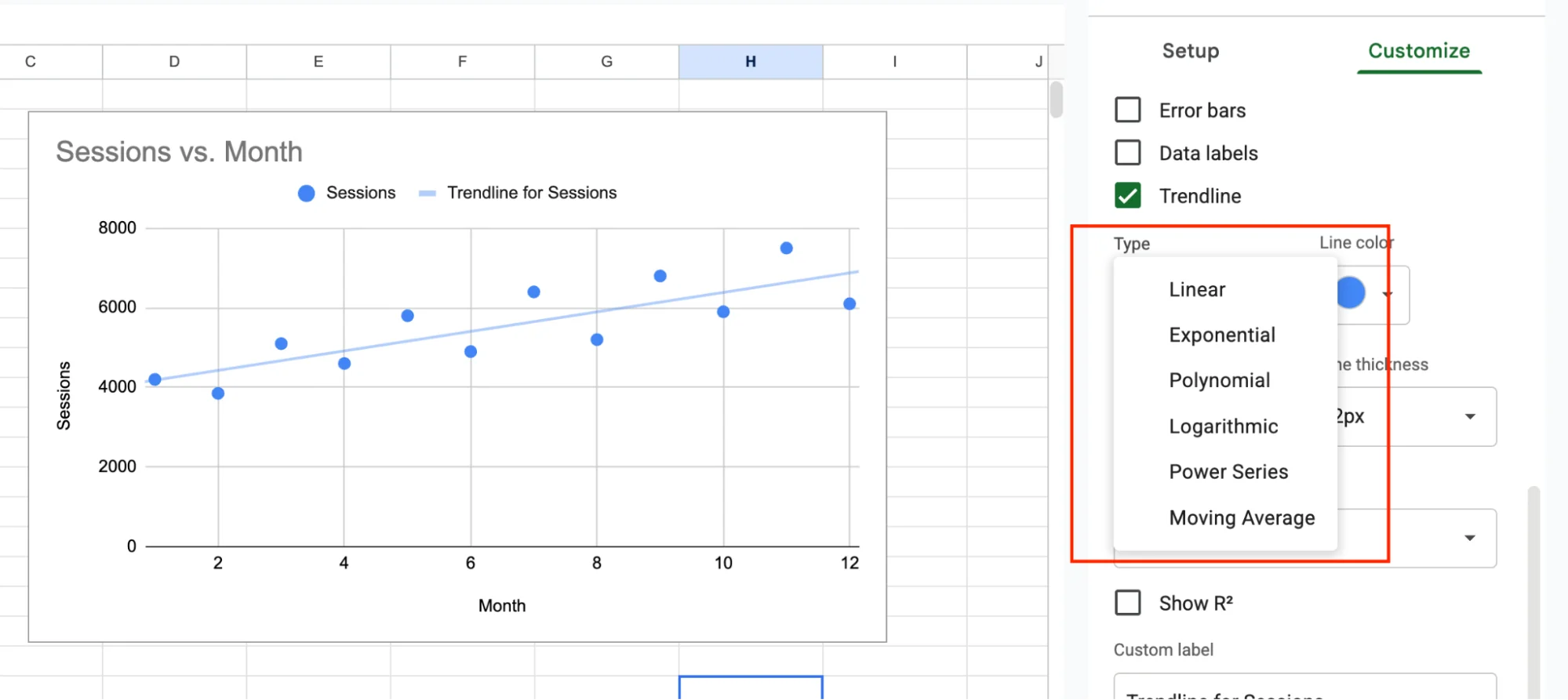
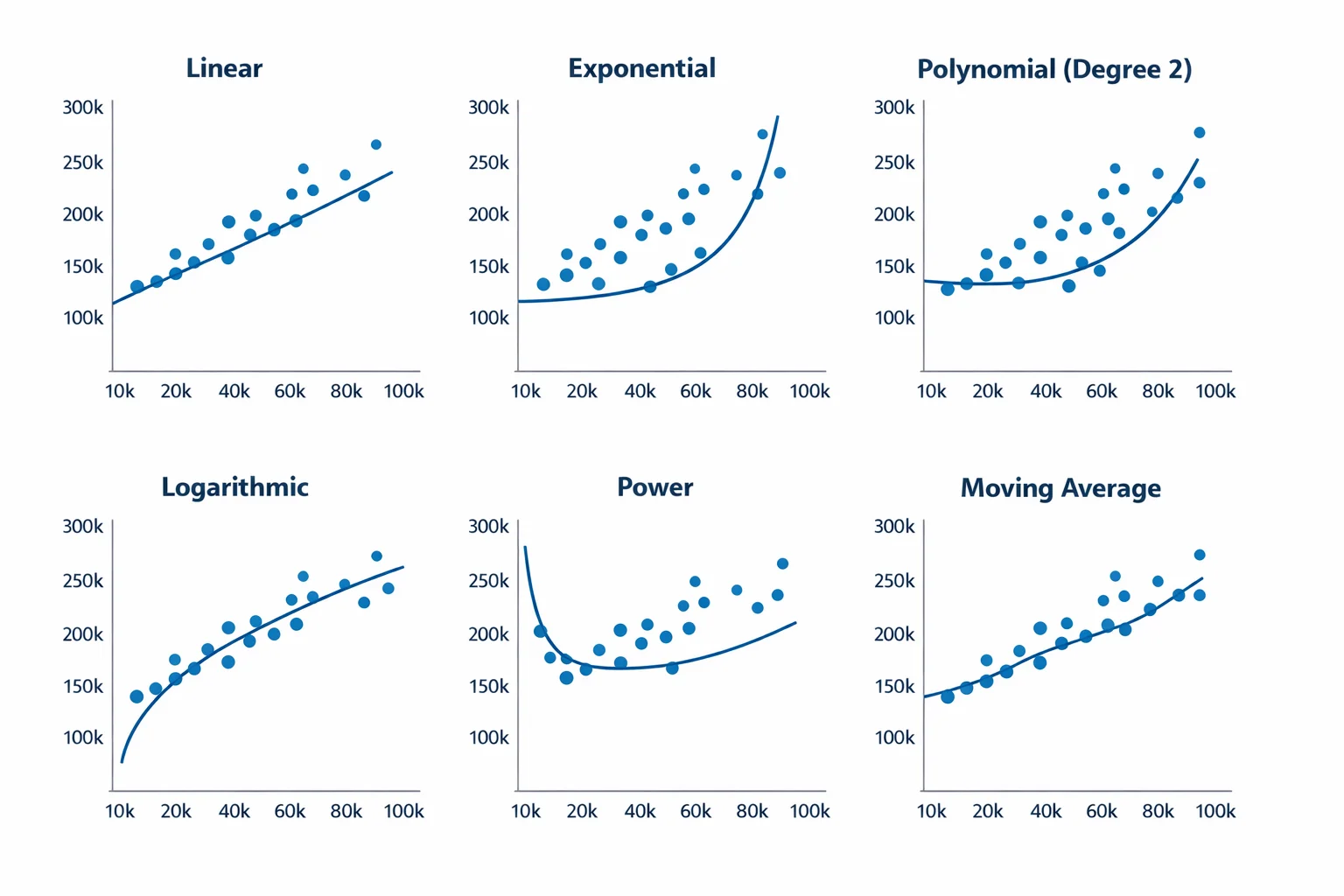
Google Sheets offers six different trendline types, and each is designed for a specific kind of data pattern. Choosing the wrong one can give you a line that looks convincing but doesn't actually reflect what's happening in your data. Here's how to pick the right one.
Linear
This is the default option. It draws a straight line through your data.
Use it when your data increases or decreases at a fairly steady rate, like monthly subscription revenue that grows consistently, or a gradual drop in support tickets after a process improvement.
Exponential
A curved line that bends upward or downward.
Use it when your data accelerates over time, like viral signups that double each week or growth driven by compound interest. If your data starts slowly and then rapidly increases, an exponential trendline is a good fit.
Polynomial
This trendline can curve multiple times, depending on the degree you choose. A degree of 2 creates a single curve, while a degree of 3 can produce an S-shaped line.
Use it when your data rises and falls over time. For example, seasonal sales that peak in summer and dip in winter. Start with degree 2, and only increase the degree if the fit clearly improves.
Logarithmic
This trendline rises quickly at first, then gradually levels off.
Use it when your data shows strong early growth that slows over time, like app downloads in the first year or a new market that quickly reaches saturation.
Power Series
Similar to exponential, but based on a different mathematical relationship where changes are proportional to the current value.
Use it mainly for scientific or technical data where variables follow a power-law relationship. Most business use cases won't require this type.
Moving Average
This one works differently from the others. Instead of fitting a formula, it calculates the average of a set number of data points and plots a smoothed line.
Use it when your data is noisy and you want to highlight the underlying trend without short-term fluctuations. Common examples include stock prices or daily website traffic.
How to Show the Trendline Equation and R² Value
You've already seen where to find the Trendline settings in Step 5. Here's how to make the most of them.
Double-click your chart to open the Chart editor. Then go to Customize > Series and scroll down to the Trendline options. From there, open the Label dropdown and select Use equation.
This will display the trendline equation directly on your chart (for example, y = 1.12x + 2580), so you can clearly see the relationship between your variables.
Right below that, check the Show R² box.
R² measures how well the trendline fits your data, on a scale from 0 to 1. The closer it is to 1, the better the fit.
For example, an R² of 0.95 means the trendline closely matches your data, while an R² of 0.40 indicates a weak fit, meaning the line doesn't explain much of the variation.
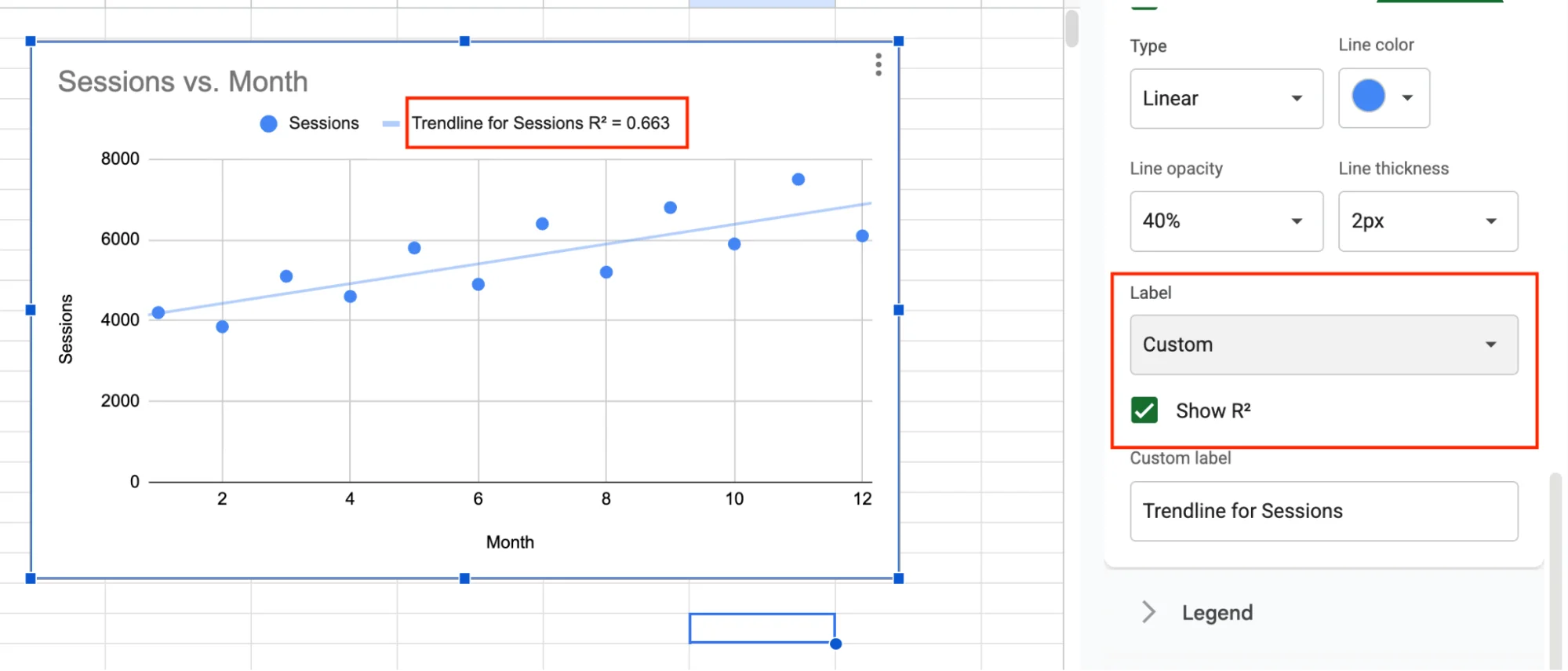
As a general rule, an R² above 0.7 indicates a reasonably good fit.
If it's lower, try a different trendline type, your data may follow a curve rather than a straight line.
GPT for Sheets - The AI Agent That Adds Trendlines for You
You just went through five steps to add a trendline manually and that's quite a bit of clicking. If your data needs cleaning first, that's even more time before you can get to the actual chart. There's a faster way.
GPT for Sheets by GPT for Work is an AI agent that works directly inside Google Sheets. No switching tabs or uploading files elsewhere. You simply open a sidebar, describe what you need, and the agent reads your spreadsheet, figures out the steps, and handles everything for you.
Need a scatter chart with a trendline? Just ask.
Example prompt: "Clean up the data in columns A and B, create a scatter chart, add a linear trendline, and show the R² value"
That single sentence replaces every step in this guide. The agent cleans your data, selects the right chart type, adds the trendline, and displays the equation automatically. You can even ask it which trendline type fits best, and it will compare R² values for you.
And it goes beyond charts. You can use it for formulas, data cleanup, translations, categorization, and generating content across thousands of rows all in the same way. Just describe the task, and the agent handles it.
No configuration screens. Just a conversation with your spreadsheet.
Real-World Use Cases for Trendlines
Trendlines aren't just for data analysts. Anyone working with numbers in a spreadsheet can get value from them.
- Sales forecasting. Plot monthly revenue on a scatter chart, add a linear trendline, and use the equation to project where revenue could land next quarter based on your current trajectory. It gives your finance team a concrete starting point.
- Marketing ROI. Put ad spend on the X-axis and conversions on the Y-axis. The trendline helps you see whether increasing spend is actually driving more results or if you've reached a point where extra budget delivers diminishing returns.
- Stock and crypto tracking. Daily prices can be volatile. A moving average trendline smooths out the noise, making it easier to spot the underlying direction without overreacting to short-term swings.
- Student performance. Teachers can plot test scores over time to track progress. A downward trendline can flag struggling students early, while there's still time to step in and help.
- Website traffic. Chart monthly visitor numbers with a trendline to quickly see whether growth is accelerating, plateauing, or declining much easier than scanning raw data and estimating trends manually.
Limitations of Trendlines You Should Know
Trendlines are useful, but they do have a few limitations.
-
No auto-update.
If you add new rows, you'll need to manually update the chart's data range. The trendline won't automatically include new data. -
Correlation, not causation.
Just because two variables trend together doesn't mean one is causing the other. For example, rising ad spend and revenue might be related, but the trendline alone can't confirm why. -
Weak fit on noisy data.
Always check the R² value. If it's below 0.5, the trendline isn't explaining much of the variation. In that case, try a different trendline type. -
Limited chart support.
Trendlines are only available for scatter, line, bar, and column charts. They don't work with pie charts or area charts. -
One trendline per series.
You can't apply multiple trendline types to the same data series. If you want to compare (for example, linear vs. polynomial), you'll need to duplicate the series first.
Conclusion
You now know how to add a trendline in Google Sheets from start to finish.
Start with clean data in two columns, insert a scatter or line chart, and enable the Trendline option in the chart editor. From there, choose the type that best fits your data: linear for steady growth, polynomial for seasonal ups and downs, and moving average for smoothing noisy data. Don't forget to display the equation and R² value so you can judge how well the trendline actually fits.
If your R² is low, don't rely on the default, try a different trendline type and compare the results.
You might also want to bookmark the trendline types section above as a quick reference when you're unsure which one to use.
Or skip the manual steps altogether. GPT for Sheets is an AI agent that can handle data cleanup, chart creation, and trendline analysis from a single prompt. Just describe what you need, and it takes care of the rest.
FAQs
Can I add a trendline to a pie chart in Google Sheets?
No. Trendlines are only available for scatter, line, bar, and column charts. If you need one, switch your chart type to one of these.
What is the best trendline type for my data?
It depends on your data pattern. Use linear for steady growth or decline, polynomial for data that rises and falls, and moving average for noisy data with frequent spikes. After adding a trendline, check the R² value, the closer it is to 1, the better the fit.
Can I add multiple trendlines to the same chart?
Not to the same data series. However, if your chart includes multiple series, you can add a separate trendline to each. To compare different trendline types on the same data, duplicate the series and apply a different trendline to each one.
Why is the trendline option greyed out?
Your current chart type likely doesn't support trendlines. Double-click the chart, go to the Setup tab, and switch to a scatter, line, bar, or column chart. The trendline option should then become available.
Can I add a trendline in Google Sheets using AI?
Yes. GPT for Sheets by GPT for Work lets you do it with a single prompt. For example: "Create a scatter chart and add a linear trendline with the R² value." The agent handles everything directly inside your spreadsheet, no manual steps required.