Sign in with Microsoft or Google
You can use GPT for Word with a Microsoft account or a Google account.
If you have multiple accounts, such as a personal account and a work account, you can check which account you're using and switch to another account to ensure you are using the correct account in GPT for Word.
 Microsoft
 Google
-
Open a Microsoft Word document.
-
On the ribbon, select Home > GPT for Excel Word.
 info
infoIf GPT for Excel Word is not visible on the ribbon, or if it's grayed out, select Home > Add-ins > My Add-ins > GPT for Excel Word. Learn more.
-
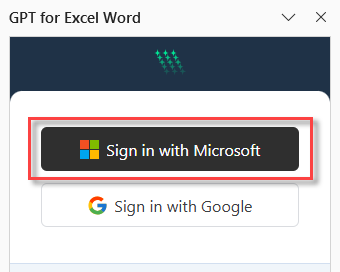
On the sign-in screen in the sidebar, select Sign in with Microsoft.
-
In the dialog that opens, select your Microsoft account and complete the sign-in process.
You are signed in to GPT for Word. The add-in keeps you signed in the next time you open it, until you sign out.
-
Open a Microsoft Word document.
-
On the ribbon, select Home > GPT for Excel Word.
infoIf GPT for Excel Word is not visible on the ribbon, or if it's grayed out, select Home > Add-ins > My Add-ins > GPT for Excel Word. Learn more.
-
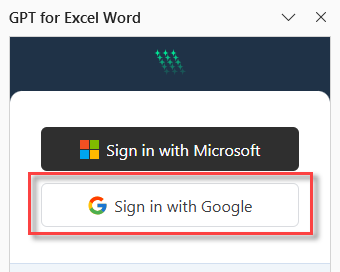
On the sign-in screen in the sidebar, select Sign in with Google.
-
In the dialog that opens, select your Google account and complete the sign-in process.
You are signed in to GPT for Word. The add-in keeps you signed in the next time you open it, until you sign out.
Signing in to GPT for Word also signs you in to GPT for Excel, since they use the same account session.